25. All Excel Keyboard Shortcuts (Windows and Mac)
25.2 Selection Shortcuts
Example first. Ravindra Bagale wants to know the total of the Amount column without writing a formula. He clicks G1 and presses Ctrl+Shift+Down arrow (Mac: Shift+Cmd+Down arrow). G1:G11 is selected and the status bar shows Sum = 2,870 and Count = 11.
Selection shortcuts — in 30 seconds
What: Selection shortcuts select a block of cells, a whole row or column, or the whole data region from the keyboard.
Why: Exact selections matter: a chart, a Table, a copy or a format applies only to what is selected. Keyboard selection never misses the last row the way dragging does.
Tiny example: G1 then Ctrl+Shift+Down arrow selects G1:G11. Status bar: Sum 2,870, Count 11, Average 287.
Selection shortcuts — 30 सेकंदात
काय: Selection shortcuts keyboard ने cells चा block, पूर्ण row किंवा column, किंवा पूर्ण data region select करतात.
का: अचूक selection महत्त्वाचं: chart, Table, copy किंवा format फक्त select केलेल्या भागालाच लागतो. Keyboard selection drag सारखी शेवटची row चुकवत नाही.
छोटं उदाहरण: G1 मग Ctrl+Shift+Down arrow ने G1:G11 select होतं. Status bar: Sum 2,870, Count 11, Average 287.
Selection shortcuts — 30 सेकंड में
क्या: Selection shortcuts keyboard से cells का block, पूरी row या column, या पूरा data region select करते हैं.
क्यों: सही selection ज़रूरी है: chart, Table, copy या format सिर्फ़ select किए हिस्से पर लगता है. Keyboard selection drag की तरह आख़िरी row नहीं छोड़ता.
छोटा उदाहरण: G1 फिर Ctrl+Shift+Down arrow से G1:G11 select होता है. Status bar: Sum 2,870, Count 11, Average 287.
First look at the data (before → after):
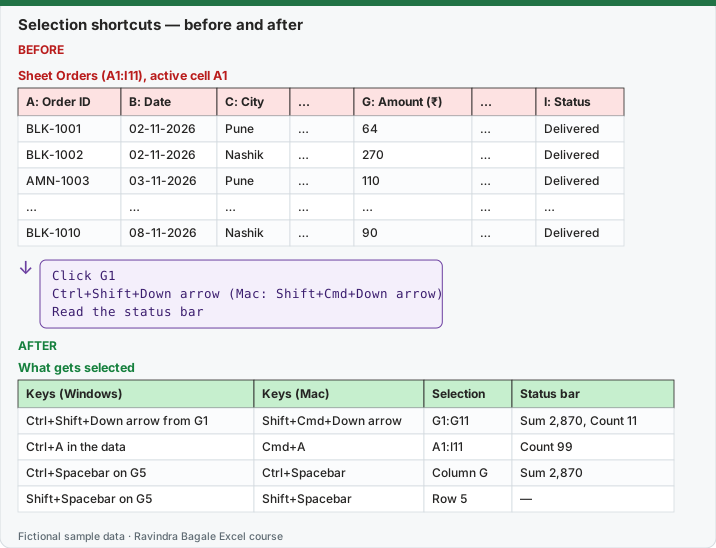
Expected result — What gets selected
| Keys (Windows) | Keys (Mac) | Selection | Status bar |
|---|---|---|---|
| Ctrl+Shift+Down arrow from G1 | Shift+Cmd+Down arrow | G1:G11 | Sum 2,870, Count 11 |
| Ctrl+A in the data | Cmd+A | A1:I11 | Count 99 |
| Ctrl+Spacebar on G5 | Ctrl+Spacebar | Column G | Sum 2,870 |
| Shift+Spacebar on G5 | Shift+Spacebar | Row 5 | — |
Before table and formula as text
Before — Sheet Orders (A1:I11), active cell A1
| A: Order ID | B: Date | C: City | … | G: Amount (₹) | … | I: Status |
|---|---|---|---|---|---|---|
| BLK-1001 | 02-11-2026 | Pune | … | 64 | … | Delivered |
| BLK-1002 | 02-11-2026 | Nashik | … | 270 | … | Delivered |
| AMN-1003 | 03-11-2026 | Pune | … | 110 | … | Delivered |
| … | … | … | … | … | … | … |
| BLK-1010 | 08-11-2026 | Nashik | … | 90 | … | Delivered |
Formula / click path
Click G1
Ctrl+Shift+Down arrow   (Mac: Shift+Cmd+Down arrow)
Read the status bar
Do it step by step:
- Click G1.
- Press Ctrl+Shift+Down arrow (Mac: Shift+Cmd+Down arrow) and read Sum in the status bar.
- Click any cell in the data and press Ctrl+A (Mac: Cmd+A): A1:I11 is selected.
- Press Ctrl+Spacebar to select a column and Shift+Spacebar to select a row (same keys on Mac).
स्टेप बाय स्टेप करून बघा:
- G1 वर click करा.
- Ctrl+Shift+Down arrow (Mac: Shift+Cmd+Down arrow) दाबा आणि status bar मधला Sum वाचा.
- Data मधल्या कोणत्याही cell वर click करून Ctrl+A (Mac: Cmd+A) दाबा: A1:I11 select होतं.
- Column select करायला Ctrl+Spacebar आणि row select करायला Shift+Spacebar दाबा (Mac वर पण याच keys).
स्टेप बाय स्टेप करके देखें:
- G1 पर click करें.
- Ctrl+Shift+Down arrow (Mac: Shift+Cmd+Down arrow) दबाएँ और status bar का Sum पढ़ें.
- Data की किसी भी cell पर click करके Ctrl+A (Mac: Cmd+A) दबाएँ: A1:I11 select होता है.
- Column select करने के लिए Ctrl+Spacebar और row select करने के लिए Shift+Spacebar दबाएँ (Mac पर भी यही keys).
Selection shortcuts: Windows and Mac side by side
| To do this | Windows | Mac |
|---|---|---|
| Extend the selection by one cell | Shift+Arrow key | Shift+Arrow key |
| Extend the selection to the last non-blank cell | Ctrl+Shift+Arrow key | Shift+Cmd+Arrow key |
| Select the current region, then the whole sheet | Ctrl+A | Cmd+A |
| Select the current region around the active cell | Ctrl+Shift+Asterisk (*) | Cmd+A |
| Select the entire column | Ctrl+Spacebar | Ctrl+Spacebar |
| Select the entire row | Shift+Spacebar | Shift+Spacebar |
| Extend the selection to the beginning of the sheet | Ctrl+Shift+Home | Ctrl+Shift+Home |
| Extend the selection to the last used cell | Ctrl+Shift+End | Ctrl+Shift+End |
| Turn extend mode on or off | F8 | F8 |
| Add another range to the selection | Shift+F8 | Shift+F8 |
| Select only visible cells | (menu: Home › Find & Select › Go To Special › Visible cells only) | Shift+Cmd+Asterisk (*) |
| Select the current and next sheet | Ctrl+Shift+Page down | (menu: Shift+click the sheet tabs) |
Visible cells only matters after filtering or hiding rows: copy only what you see. On Windows use Home › Find & Select › Go To Special › Visible cells only; Microsoft lists Shift+Cmd+Asterisk (*) for Mac.
Practice task (try it before you open the answer):
- Select the City column from C1 to the last order with one shortcut.
- Select the whole data region.
- Add F2:F11 to an existing selection of G2:G11.
Answer
Click C1, Ctrl+Shift+Down arrow (Mac: Shift+Cmd+Down arrow) gives C1:C11. Ctrl+A (Mac: Cmd+A) gives A1:I11. Select G2:G11, press Shift+F8, then select F2:F11 with Shift+Arrow keys (same on Mac).
Ravindra Bagale's Tip
Before you copy a filtered list, select visible cells only. Otherwise the hidden rows travel with your copy and the report double-counts.
Ravindra Bagale's Tip – मराठी
Filter केलेली list copy करण्याआधी फक्त visible cells select करा. नाहीतर लपलेल्या rows पण copy होतात आणि report दोनदा मोजतो.
Ravindra Bagale's Tip – हिंदी
Filter की हुई list copy करने से पहले सिर्फ़ visible cells select करें. वरना छुपी rows भी copy हो जाती हैं और report दो बार गिनती है.