26. Excel Tricks Every Analyst Should Know
26.8 Checking and Sharing Tricks
Example first. Before emailing a report, Ravindra Bagale turns formulas into values, flips a table sideways for a slide, looks for typed numbers and makes the input drop-down grow by itself. Four last tricks.
Trick 29. Freeze formulas as values before sending is shown in the box below; tricks 30–32 follow it.
Paste Values — in 30 seconds
What: Paste Values replaces formulas with their current results.
Why: A shared file with values cannot break when someone deletes a source sheet, and it does not reveal your formulas or links.
Tiny example: D2 =B2C2 and D3 =B3C3 become the plain numbers 64 and 270.
Paste Values — 30 सेकंदात
काय: Paste Values formulas च्या जागी त्यांचे सध्याचे results ठेवतो.
का: Values असलेली shared file कोणी source sheet delete केली तरी मोडत नाही, आणि तुमचे formulas किंवा links उघड करत नाही.
छोटं उदाहरण: D2 =B2C2 आणि D3 =B3C3 चे साधे आकडे 64 आणि 270 होतात.
Paste Values — 30 सेकंड में
क्या: Paste Values formulas की जगह उनके मौजूदा results रख देता है.
क्यों: Values वाली shared file किसी के source sheet delete करने पर भी नहीं टूटती, और आपके formulas या links नहीं दिखाती.
छोटा उदाहरण: D2 =B2C2 और D3 =B3C3 सादे आँकड़े 64 और 270 बन जाते हैं.
First look at the data (before → after):
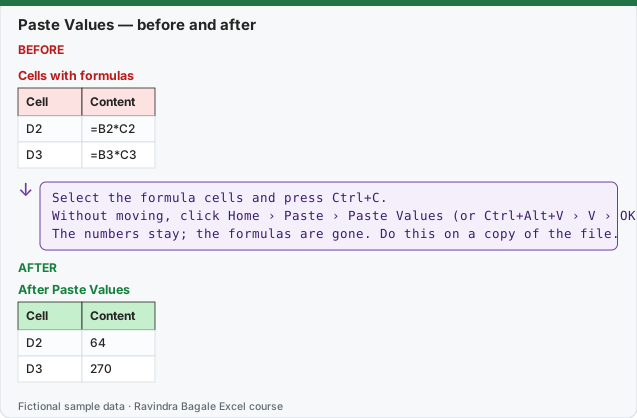
Expected result — After Paste Values
| Cell | Content |
|---|---|
| D2 | 64 |
| D3 | 270 |
Before table and formula as text
Before — Cells with formulas
| Cell | Content |
|---|---|
| D2 | =B2*C2 |
| D3 | =B3*C3 |
Formula / click path
Select the formula cells and press Ctrl+C.
Without moving, click Home › Paste › Paste Values (or Ctrl+Alt+V › V › OK).
The numbers stay; the formulas are gone. Do this on a copy of the file.
Do it step by step:
- Select the formula cells and press Ctrl+C.
- Without moving, click Home › Paste › Paste Values (or Ctrl+Alt+V › V › OK).
- The numbers stay; the formulas are gone. Do this on a copy of the file.
स्टेप बाय स्टेप करून बघा:
- Formula cells select करून Ctrl+C दाबा.
- जागा न बदलता Home › Paste › Paste Values (किंवा Ctrl+Alt+V › V › OK) करा.
- आकडे राहतात; formulas जातात. हे file च्या copy वर करा.
स्टेप बाय स्टेप करके देखें:
- Formula cells select करके Ctrl+C दबाएँ.
- जगह बदले बिना Home › Paste › Paste Values (या Ctrl+Alt+V › V › OK) करें.
- आँकड़े रहते हैं; formulas चले जाते हैं. यह file की copy पर करें.
Trick 30. Turn rows into columns with Transpose
Before:
| A | B |
|---|---|
| Pune | 544 |
| Nashik | 360 |
| Solapur | 1299 |
After:
| — | — | — |
|---|---|---|
| Pune | Nashik | Solapur |
| 544 | 360 | 1299 |
Steps:
- Select A1:B3 and press Ctrl+C.
- Click an empty cell, e.g. D1.
- Press Ctrl+Alt+V, tick Transpose, click OK.
- For a live link instead, use
=TRANSPOSE(A1:B3)in D1.
Trick 31. Find every typed number in a sheet
Before:
| Area | Content |
|---|---|
| D2:D9 | formulas |
| D6 | 450 typed over a formula |
After:
| Selected cells | Meaning |
|---|---|
| D6 (and input cells) | typed numbers: check each one |
Steps:
- Select the report area.
- Click Home › Find & Select › Go To Special.
- Choose Constants, tick only Numbers, click OK.
- Give the selected cells a fill colour so you can review them.
Trick 32. A drop-down that grows with its Table
Before:
| Source | Problem |
|---|---|
| Pune,Nashik,Nagpur | a new city needs editing the rule |
After:
| Source | Result |
|---|---|
| =CityList (=tblCities[City]) | new city in the Table appears in the drop-down |
Steps:
- Put the cities in a Table named
tblCities. - Define the name
CityListas=tblCities[City]in Formulas › Name Manager › New. - Select the input cells, Data › Data Validation › List, Source
=CityList. - Full lesson: 2.9 Named Lists for Drop-Downs.
Practice task (try it before you open the answer):
- Transpose three cities and their sales.
- Select every typed number in a report area.
- Make the City drop-down pick up a new city automatically.
Answer
Ctrl+Alt+V › Transpose: one row of cities (Pune, Nashik, Solapur) and one row of sales (544, 360, 1299). Go To Special › Constants › Numbers. Data Validation › List › Source =CityList where CityList = tblCities[City].
Ravindra Bagale's Tip
Keep two files: the working file with formulas and the sent file with values. Name them clearly, for example Nov_Report_WORKING.xlsx and Nov_Report_SENT.xlsx.
Ravindra Bagale's Tip – मराठी
दोन files ठेवा: formulas असलेली working file आणि values असलेली पाठवलेली file. नावं स्पष्ट द्या, उदा. Nov_Report_WORKING.xlsx आणि Nov_Report_SENT.xlsx.
Ravindra Bagale's Tip – हिंदी
दो files रखें: formulas वाली working file और values वाली भेजी गई file. नाम साफ़ रखें, जैसे Nov_Report_WORKING.xlsx और Nov_Report_SENT.xlsx.