26. Excel Tricks Every Analyst Should Know
26.4 Formula Tricks
Example first. A commission column breaks when copied, an IF gives a surprise, one Amount cell is secretly typed, and a table needs row and column totals. Four formula tricks.
Trick 13. Lock a rate cell with F4 is shown in the box below; tricks 14–16 follow it.
F4 to lock a cell — in 30 seconds
What: F4 adds $ signs to the reference under the cursor, so it stays fixed when the formula is copied.
Why: Copying =B2E1 down gives =B3E2, =B4E3… and E2, E3 are empty. =B2$E$1 always uses the rate.
Tiny example: Rate 5% in E1. =B2*$E$1 gives 3.2, 13.5, 5.5, 12.0 for the first four orders.
F4 to lock a cell — 30 सेकंदात
काय: F4 cursor खालच्या reference ला $ जोडतो, त्यामुळे formula copy केला तरी तो fixed राहतो.
का: =B2E1 खाली copy केला तर =B3E2, =B4E3… होतो आणि E2, E3 रिकाम्या असतात. =B2$E$1 नेहमी rate च वापरतो.
छोटं उदाहरण: E1 मध्ये rate 5%. =B2*$E$1 पहिल्या चार orders साठी 3.2, 13.5, 5.5, 12.0 देतो.
F4 to lock a cell — 30 सेकंड में
क्या: F4 cursor के नीचे वाले reference में $ जोड़ता है, ताकि formula copy होने पर भी वह fixed रहे.
क्यों: =B2E1 नीचे copy करने पर =B3E2, =B4E3… बनता है और E2, E3 खाली होते हैं. =B2$E$1 हमेशा rate ही इस्तेमाल करता है.
छोटा उदाहरण: E1 में rate 5%. =B2*$E$1 पहले चार orders के लिए 3.2, 13.5, 5.5, 12.0 देता है.
First look at the data (before → after):
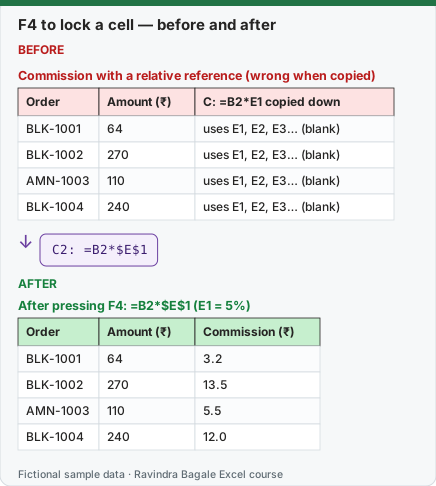
Expected result — After pressing F4: =B2*$E$1 (E1 = 5%)
| Order | Amount (₹) | Commission (₹) |
|---|---|---|
| BLK-1001 | 64 | 3.2 |
| BLK-1002 | 270 | 13.5 |
| AMN-1003 | 110 | 5.5 |
| BLK-1004 | 240 | 12.0 |
Before table and formula as text
Before — Commission with a relative reference (wrong when copied)
| Order | Amount (₹) | C: =B2*E1 copied down |
|---|---|---|
| BLK-1001 | 64 | uses E1, E2, E3… (blank) |
| BLK-1002 | 270 | uses E1, E2, E3… (blank) |
| AMN-1003 | 110 | uses E1, E2, E3… (blank) |
| BLK-1004 | 240 | uses E1, E2, E3… (blank) |
Formula / click path
C2: =B2*$E$1
Do it step by step:
- Put the rate
5%in E1. - In C2 type
=B2*E1, click inside E1 in the formula and press F4:=B2*$E$1. - Fill down. Every row now uses E1.
स्टेप बाय स्टेप करून बघा:
- E1 मध्ये rate
5%टाका. - C2 मध्ये
=B2*E1type करा, formula मधल्या E1 मध्ये click करून F4 दाबा:=B2*$E$1. - खाली fill करा. आता प्रत्येक row E1 च वापरते.
स्टेप बाय स्टेप करके देखें:
- E1 में rate
5%डालें. - C2 में
=B2*E1type करें, formula के E1 में click करके F4 दबाएँ:=B2*$E$1. - नीचे fill करें. अब हर row E1 ही इस्तेमाल करती है.
Trick 14. Watch a formula work, step by step
Before:
| B2 | C2 formula | Result |
|---|---|---|
| 270 | =IF(B2>200,B2*5%,0) | 13.5 |
After:
| Step | Shows |
|---|---|
| 1 | =IF(270>200,B2*5%,0) |
| 2 | =IF(TRUE,B2*5%,0) |
| 3 | =IF(TRUE,13.5,0) |
| 4 | 13.5 |
Steps:
- Select C2.
- Click Formulas › Formula Auditing › Evaluate Formula.
- Click Evaluate repeatedly; the underlined part is calculated each time.
- Use it whenever an IF or lookup gives a surprise.
Trick 15. Find a typed number hiding among formulas
Before:
| Order | Qty | Price | Amount |
|---|---|---|---|
| BLK-1001 | 2 | 32 | 64 |
| BLK-1002 | 3 | 90 | 270 |
| AMN-1003 | 1 | 110 | 110 |
| BLK-1004 | 2 | 120 | 240 |
After:
| Order | Amount cell shows |
|---|---|
| BLK-1001 | =B2*C2 |
| BLK-1002 | =B3*C3 |
| AMN-1003 | 110 ← typed, not a formula |
| BLK-1004 | =B5*C5 |
Steps:
- Press Ctrl+Grave accent (the key left of 1).
- Look down the column: one cell shows a number instead of a formula.
- Replace it with the formula and press Ctrl+Grave accent again to return.
Trick 16. Add row and column totals in one AutoSum
Before:
| City | Nov (₹) | Dec (₹) | Total |
|---|---|---|---|
| Pune | 544 | 412 | — |
| Nashik | 360 | 298 | — |
| Nagpur | 240 | 266 | — |
| Total | — | — | — |
After:
| City | Nov (₹) | Dec (₹) | Total (₹) |
|---|---|---|---|
| Pune | 544 | 412 | 956 |
| Nashik | 360 | 298 | 658 |
| Nagpur | 240 | 266 | 506 |
| Total | 1144 | 976 | 2120 |
Steps:
- Select B2:D5 (the numbers plus the empty total row and column).
- Press Alt+= (or Home › Editing › AutoSum).
- Excel fills every total, including the grand total in D5.
Practice task (try it before you open the answer):
- Evaluate =IF(B2>200,B2*5%,0) for B2 = 270.
- Find the typed number in an Amount column.
- Add row and column totals to a 3×2 block in one step.
Answer
Evaluate Formula ends at 13.5. Ctrl+Grave accent shows the typed 110 in D4. Select B2:D5 and Alt+= : totals 1144, 976 and grand total 2120.
Ravindra Bagale's Tip
Never type a number over a formula to "fix" a total. Fix the input or the formula; a typed number in a formula column stays wrong next month and no one notices.
Ravindra Bagale's Tip – मराठी
Total "सुधारायला" formula वर कधीच आकडा type करू नका. Input किंवा formula सुधारा; formula column मधला type केलेला आकडा पुढच्या महिन्यातही चुकीचाच राहतो आणि कोणाला कळत नाही.
Ravindra Bagale's Tip – हिंदी
Total "ठीक" करने के लिए formula पर कभी आँकड़ा type न करें. Input या formula ठीक करें; formula column में type किया आँकड़ा अगले महीने भी गलत रहता है और किसी को पता नहीं चलता.
Loading practice tasks...
- Net sales (Easy): C2 minus D2.
- Fee with $ (Easy): Fee on C3 using $F$2.
- Total sales (Easy): Total of C2:C6.
- Return rate (Easy): D4 ÷ C4.
- Payout (Medium): Payout for row 5: C5-D5-C5*$F$2.
- Rounded fee (Medium): Fee on C6 with $F$2, rounded to 0 decimals.
- Safe return rate (Medium): D3 ÷ C3, or 0 if error.
- Total returns (Medium): Total of D2:D6.
- Total payout (Hard): SUM of (C2:C6 - D2:D6 - C2:C6*$F$2).
- Overall return rate (Hard): Total of D2 to D6 divided by the total of C2 to C6.
- Sellers with 10% returns (Hard): How many sellers have returns of 10% or more?