26. Excel Tricks Every Analyst Should Know
26.5 Lookup and Logic Tricks
In short: A lookup shows #N/A for a new store code, an Order ID list has repeats, a manager wants one total that switches city, and an AOV column shows #DIV/0!.
Example first. A lookup shows #N/A for a new store code, an Order ID list has repeats, a manager wants one total that switches city, and an AOV column shows #DIV/0!. Four small formulas fix them.
Trick 17. A lookup that says "Not found" instead of #N/A is shown in the box below; tricks 18–20 follow it.
XLOOKUP with a message — in 30 seconds
What: The fourth argument of XLOOKUP, if_not_found, is what to show when the value is missing.
Why: A readable "Not found" tells the reader what happened; #N/A looks like a broken file and breaks totals.
Tiny example: XLOOKUP("BLK-NSK-01",…,"Not found") → Nashik. XLOOKUP("BLK-SLP-09",…,"Not found") → Not found.
XLOOKUP with a message — 30 सेकंदात
काय: XLOOKUP चा चौथा argument, if_not_found, म्हणजे value सापडली नाही तर काय दाखवायचं.
का: वाचता येणारं "Not found" वाचणाऱ्याला काय झालं ते सांगतं; #N/A file बिघडल्यासारखं दिसतं आणि totals मोडतं.
छोटं उदाहरण: XLOOKUP("BLK-NSK-01",…,"Not found") → Nashik. XLOOKUP("BLK-SLP-09",…,"Not found") → Not found.
XLOOKUP with a message — 30 सेकंड में
क्या: XLOOKUP का चौथा argument, if_not_found, यानी value न मिले तो क्या दिखाना है.
क्यों: पढ़ने लायक "Not found" पढ़ने वाले को बताता है क्या हुआ; #N/A ख़राब file जैसा दिखता है और totals तोड़ता है.
छोटा उदाहरण: XLOOKUP("BLK-NSK-01",…,"Not found") → Nashik. XLOOKUP("BLK-SLP-09",…,"Not found") → Not found.
First look at the data (before → after):
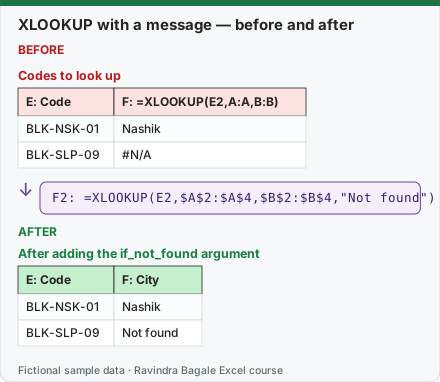
Expected result — After adding the if_not_found argument
| E: Code | F: City |
|---|---|
| BLK-NSK-01 | Nashik |
| BLK-SLP-09 | Not found |
Before table and formula as text
Before — Codes to look up
| E: Code | F: =XLOOKUP(E2,A:A,B:B) |
|---|---|
| BLK-NSK-01 | Nashik |
| BLK-SLP-09 | #N/A |
Formula / click path
F2: =XLOOKUP(E2,$A$2:$A$4,$B$2:$B$4,"Not found")
Do it step by step:
- Keep the store master in A2:B4 (codes and cities).
- In F2 type
=XLOOKUP(E2,$A$2:$A$4,$B$2:$B$4,"Not found"). - Fill down; unknown codes show a readable message.
स्टेप बाय स्टेप करून बघा:
- Store master A2:B4 मध्ये ठेवा (codes आणि cities).
- F2 मध्ये
=XLOOKUP(E2,$A$2:$A$4,$B$2:$B$4,"Not found")type करा. - खाली fill करा; अनोळखी codes वाचता येणारा message दाखवतात.
स्टेप बाय स्टेप करके देखें:
- Store master को A2:B4 में रखें (codes और cities).
- F2 में
=XLOOKUP(E2,$A$2:$A$4,$B$2:$B$4,"Not found")type करें. - नीचे fill करें; अनजान codes पढ़ने लायक message दिखाते हैं.
Trick 18. Flag duplicates with COUNTIF
Before:
| A: Order ID | B: Duplicate? |
|---|---|
| BLK-1001 | — |
| BLK-1002 | — |
| BLK-1001 | — |
| AMN-1003 | — |
| BLK-1002 | — |
| AMN-1005 | — |
After:
| A: Order ID | B: Duplicate? |
|---|---|
| BLK-1001 | TRUE |
| BLK-1002 | TRUE |
| BLK-1001 | TRUE |
| AMN-1003 | FALSE |
| BLK-1002 | TRUE |
| AMN-1005 | FALSE |
B2: =COUNTIF($A$2:$A$7,A2)>1
Steps:
- In B2 type
=COUNTIF($A$2:$A$7,A2)>1and fill down. - TRUE means the ID appears more than once.
- Filter column B to TRUE to review the duplicates before deleting anything.
Trick 19. One SUMIFS that changes when you change a cell
Before:
| F1 | F2 formula |
|---|---|
| Pune | =SUMIFS(G2:G11,C2:C11,F1) |
After:
| F1 | F2 result (₹) |
|---|---|
| Pune | 544 |
| Nashik | 360 |
| Solapur | 1299 |
F2: =SUMIFS(G2:G11,C2:C11,F1)
Steps:
- Type a city in F1 (better: a drop-down, see 2.9).
- In F2 type
=SUMIFS(G2:G11,C2:C11,F1). - Change F1; the total follows. No new formula needed.
Trick 20. Hide #DIV/0! with IFERROR
Before:
| City | Delivered sales (₹) | Delivered orders | =B2/C2 |
|---|---|---|---|
| Pune | 324 | 3 | 108.0 |
| Nashik | 360 | 2 | 180.0 |
| Nagpur | 0 | 0 | #DIV/0! |
After:
| City | Sales | Orders | AOV |
|---|---|---|---|
| Pune | 324 | 3 | 108.0 |
| Nashik | 360 | 2 | 180.0 |
| Nagpur | 0 | 0 | 0 |
D2: =IFERROR(B2/C2,0)
Steps:
- In D2 type
=IFERROR(B2/C2,0)and fill down. - Nagpur, whose only order was cancelled, now shows 0 instead of an error.
- Use IFERROR only where an error is expected; it also hides real mistakes.
Practice task (try it before you open the answer):
- Flag the duplicate Order IDs.
- Make F2 show the Nashik total by changing only F1.
- Show 0 instead of #DIV/0! for a city with no delivered orders.
Answer
COUNTIF(...)>1 is TRUE for BLK-1001, BLK-1002 (4 rows). F1 = Nashik gives ₹360. IFERROR(B2/C2,0) gives Pune 108.0, Nashik 180.0, Nagpur 0.
Ravindra Bagale's Tip
Put the input in a cell, not inside the formula. =SUMIFS(…,F1) can be reused for every city; =SUMIFS(…,"Pune") has to be rewritten each time.
Ravindra Bagale's Tip – मराठी
Input formula च्या आत नाही, cell मध्ये ठेवा. =SUMIFS(…,F1) प्रत्येक city साठी वापरता येतो; =SUMIFS(…,"Pune") प्रत्येक वेळी पुन्हा लिहावा लागतो.
Ravindra Bagale's Tip – हिंदी
Input formula के अंदर नहीं, cell में रखें. =SUMIFS(…,F1) हर city के लिए इस्तेमाल हो सकता है; =SUMIFS(…,"Pune") हर बार दोबारा लिखना पड़ता है.
Loading practice tasks...
- Name of C-104 (Easy): Find the name for I3.
- Customers in the city (Easy): How many rows have City = I2?
- Plan of C-104 (Easy): Find the plan for I3.
- Heavy user? (Easy): Show "Heavy" if E6 is over 50, else "Normal".
- Not found message (Medium): Find the name for "C-999", or "Not found".
- Is C-103 a duplicate? (Medium): Does C-103 appear more than once? (TRUE or FALSE)
- Zero usage flag (Medium): Is row 5 a Basic plan AND 0 GB? (TRUE or FALSE)
- Data in the city (Medium): Total GB where City = I2.
- Data in the city, no repeats (Hard): Total GB for the city in I2, but count the repeated C-103 row (row 7) only once.
- Plan label (Hard): For D3 show "Starter" for Basic, "Mid" for Plus, "Top" for Unlimited.
- Last row of C-103 (Hard): Data used for the LAST C-103.