26. Excel Tricks Every Analyst Should Know
26.3 Selecting and Navigating Tricks
Example first. A report has hidden rows, 5,000 lines, headers that scroll away and two cancelled orders to mark. Four tricks handle all of it without dragging.
Trick 9. Copy only the visible rows is shown in the box below; tricks 10–12 follow it.
Visible cells only — in 30 seconds
What: Go To Special › Visible cells only selects what you can see and skips hidden rows and columns.
Why: Copying a range with hidden rows pastes the hidden rows too. This trick copies only what is on screen.
Tiny example: 5 rows, rows 3 and 5 hidden. Normal copy pastes 5 rows; Visible cells only pastes 3: BLK-1001, AMN-1003, AMN-1005.
Visible cells only — 30 सेकंदात
काय: Go To Special › Visible cells only दिसणाऱ्या cells च select करतो आणि लपलेल्या rows आणि columns सोडतो.
का: लपलेल्या rows असलेली range copy केली तर लपलेल्या rows पण paste होतात. ही trick फक्त screen वर दिसणारंच copy करते.
छोटं उदाहरण: 5 rows, rows 3 आणि 5 लपलेल्या. साधा copy 5 rows paste करतो; Visible cells only 3 paste करतो: BLK-1001, AMN-1003, AMN-1005.
Visible cells only — 30 सेकंड में
क्या: Go To Special › Visible cells only सिर्फ़ दिखने वाली cells select करता है और छुपी rows और columns छोड़ देता है.
क्यों: छुपी rows वाली range copy करने पर छुपी rows भी paste हो जाती हैं. यह trick सिर्फ़ screen पर दिखने वाला ही copy करती है.
छोटा उदाहरण: 5 rows, rows 3 और 5 छुपी. आम copy 5 rows paste करता है; Visible cells only 3 paste करता है: BLK-1001, AMN-1003, AMN-1005.
First look at the data (before → after):
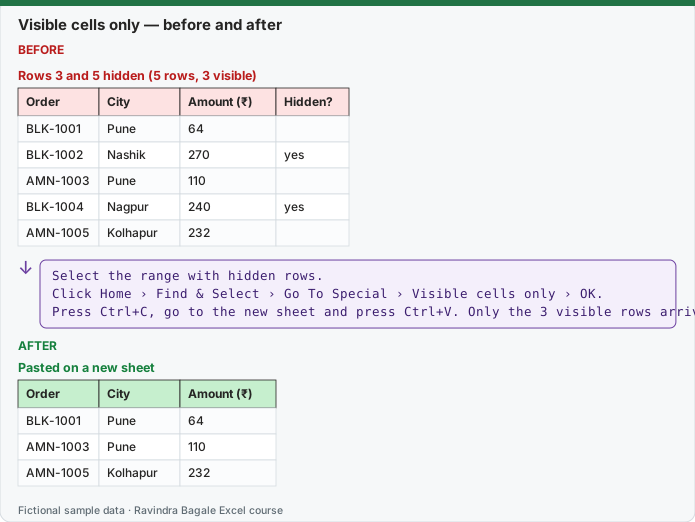
Expected result — Pasted on a new sheet
| Order | City | Amount (₹) |
|---|---|---|
| BLK-1001 | Pune | 64 |
| AMN-1003 | Pune | 110 |
| AMN-1005 | Kolhapur | 232 |
Before table and formula as text
Before — Rows 3 and 5 hidden (5 rows, 3 visible)
| Order | City | Amount (₹) | Hidden? |
|---|---|---|---|
| BLK-1001 | Pune | 64 | — |
| BLK-1002 | Nashik | 270 | yes |
| AMN-1003 | Pune | 110 | — |
| BLK-1004 | Nagpur | 240 | yes |
| AMN-1005 | Kolhapur | 232 | — |
Formula / click path
Select the range with hidden rows.
Click Home › Find & Select › Go To Special › Visible cells only › OK.
Press Ctrl+C, go to the new sheet and press Ctrl+V. Only the 3 visible rows arrive.
Do it step by step:
- Select the range with hidden rows.
- Click Home › Find & Select › Go To Special › Visible cells only › OK.
- Press Ctrl+C, go to the new sheet and press Ctrl+V. Only the 3 visible rows arrive.
- (Filtered rows are already skipped by Copy; hidden rows are not, which is why this step matters.)
स्टेप बाय स्टेप करून बघा:
- लपलेल्या rows असलेली range select करा.
- Home › Find & Select › Go To Special › Visible cells only › OK वर click करा.
- Ctrl+C दाबा, नव्या sheet वर जाऊन Ctrl+V दाबा. फक्त 3 दिसणाऱ्या rows येतात.
- (Filter केलेल्या rows Copy आधीच सोडतो; लपवलेल्या नाही, म्हणून ही step महत्त्वाची.)
स्टेप बाय स्टेप करके देखें:
- छुपी rows वाली range select करें.
- Home › Find & Select › Go To Special › Visible cells only › OK पर click करें.
- Ctrl+C दबाएँ, नई sheet पर जाकर Ctrl+V दबाएँ. सिर्फ़ 3 दिखने वाली rows आती हैं.
- (Filter की गई rows को Copy पहले से छोड़ता है; छुपाई गई को नहीं, इसलिए यह step ज़रूरी है.)
Trick 10. Select a huge range with the Name Box
Before:
| Name Box | Selection |
|---|---|
| A1 | A1 only |
After:
| Name Box | Selection |
|---|---|
| A2:A5001 | 5,000 cells |
| TotalSales | the named cell |
Steps:
- Click the Name Box (left of the formula bar).
- Type
A2:A5001and press Enter. The range is selected without dragging. - Type a defined name such as
TotalSalesto jump to that cell.
Trick 11. Freeze the header row and the first column together
Before:
| Visible at row 40 | — |
|---|---|
| Header row | scrolled away |
| Order ID column | scrolled away |
After:
| Visible at row 40 | — |
|---|---|
| Header row | stays on top |
| Order ID column | stays on the left |
Steps:
- Click B2 (the cell below the headers and right of the first column).
- Click View › Window › Freeze Panes › Freeze Panes.
- Scroll down and right: row 1 and column A stay in place.
- To undo: View › Freeze Panes › Unfreeze Panes.
Trick 12. Find all matching cells and select them at once
Before:
| Order | Status |
|---|---|
| AMN-1003 | Delivered |
| BLK-1004 | Cancelled |
| AMN-1005 | Delivered |
| BLK-1006 | Delivered |
| BLK-1007 | Delivered |
| AMN-1008 | Returned |
| BLK-1009 | Cancelled |
After:
| Found | Cell |
|---|---|
| BLK-1004 | I5 |
| BLK-1009 | I10 |
| Cells selected | 2 |
Steps:
- Press Ctrl+F, type
Cancelled, click Find All. - Click inside the results list and press Ctrl+A: every found cell is selected on the sheet.
- Close the box and apply a fill colour; only the found cells change.
Practice task (try it before you open the answer):
- Select A2:A5001 without dragging.
- Freeze row 1 and column A together.
- Select every "Cancelled" cell at once.
Answer
Name Box › A2:A5001 › Enter. Click B2 › View › Freeze Panes › Freeze Panes. Ctrl+F › Cancelled › Find All › Ctrl+A selects 2 cells (BLK-1004, BLK-1009).
Ravindra Bagale's Tip
Freeze Panes depends on the active cell: everything above and to the left of it freezes. Click B2 for "header row plus first column", A2 for the header row only.
Ravindra Bagale's Tip – मराठी
Freeze Panes active cell वर अवलंबून आहे: तिच्या वरचं आणि डावीकडचं सगळं freeze होतं. "Header row आणि पहिला column" साठी B2, फक्त header row साठी A2 वर click करा.
Ravindra Bagale's Tip – हिंदी
Freeze Panes active cell पर निर्भर है: उसके ऊपर और बाईं ओर का सब freeze होता है. "Header row और पहला column" के लिए B2, सिर्फ़ header row के लिए A2 पर click करें.
Loading practice tasks...
- Total deals won (Easy): Add up Deals won in D2:D11.
- Average avg deal value (Easy): Average of E2:E11, rounded to 2 decimals.
- Rows in North (Easy): How many rows have Region "North"?
- Largest deals won (Easy): The largest value in D2:D11.
- Deals won for North (Medium): Total of D2:D11 where B is "North".
- North in Bristol (Medium): Total of D2:D11 where B is "North" and C is "Bristol".
- Best in North (Medium): Largest E2:E11 value where B is "North".
- Value of row 2 (Medium): D2 times E2.
- Look up James Carter (Medium): The Deals won for "James Carter" (use a lookup on column A).
- Total value (Hard): Sum of D times E for all rows.
- Share of North (Hard): Share of D2:D11 that is "North", rounded to 3 decimals.
- Rank of row 2 (Hard): Rank of D2 among D2:D11 (largest = 1).
- Above average? (Hard): "Above" if E2 is above the average of E2:E11, else "Below".