26. Excel Tricks Every Analyst Should Know
26.7 Table, Sorting and PivotTable Tricks
Example first. A total should follow the filter, cities should sort in business order, a PivotTable should show shares, and daily dates should roll up into months. Four tricks.
Trick 25. A Total Row that follows your filter is shown in the box below; tricks 26–28 follow it.
Total Row with SUBTOTAL — in 30 seconds
What: The Table Total Row uses SUBTOTAL(109,…), which adds only visible rows.
Why: A normal SUM below a filtered list still adds hidden rows; the Total Row always matches what you see.
Tiny example: No filter: ₹2,870. City = Pune: ₹544. City = Solapur: ₹1,299.
Total Row with SUBTOTAL — 30 सेकंदात
काय: Table चा Total Row SUBTOTAL(109,…) वापरतो, जो फक्त दिसणाऱ्या rows ची बेरीज करतो.
का: Filter केलेल्या list खालचा साधा SUM लपलेल्या rows पण मोजतो; Total Row नेहमी दिसणाऱ्याशी जुळतो.
छोटं उदाहरण: Filter नाही: ₹2,870. City = Pune: ₹544. City = Solapur: ₹1,299.
Total Row with SUBTOTAL — 30 सेकंड में
क्या: Table का Total Row SUBTOTAL(109,…) इस्तेमाल करता है, जो सिर्फ़ दिखने वाली rows जोड़ता है.
क्यों: Filter की गई list के नीचे आम SUM छुपी rows भी जोड़ता है; Total Row हमेशा दिखने वाले से मेल खाता है.
छोटा उदाहरण: Filter नहीं: ₹2,870. City = Pune: ₹544. City = Solapur: ₹1,299.
First look at the data (before → after):
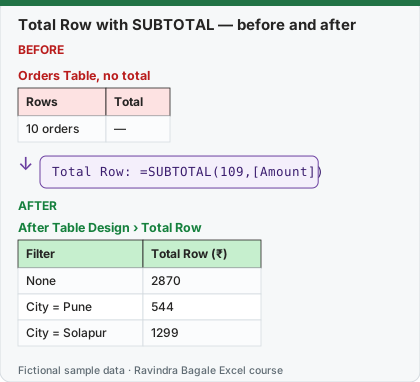
Expected result — After Table Design › Total Row
| Filter | Total Row (₹) |
|---|---|
| None | 2870 |
| City = Pune | 544 |
| City = Solapur | 1299 |
Before table and formula as text
Before — Orders Table, no total
| Rows | Total |
|---|---|
| 10 orders | — |
Formula / click path
Total Row: =SUBTOTAL(109,[Amount])
Do it step by step:
- Click inside the Table, tick Table Design › Table Style Options › Total Row.
- In the total cell under Amount choose Sum from the list. Excel writes
=SUBTOTAL(109,[Amount]). - Filter City: the total shows only the visible rows.
स्टेप बाय स्टेप करून बघा:
- Table मध्ये click करा, Table Design › Table Style Options › Total Row tick करा.
- Amount खालच्या total cell मध्ये list मधून Sum निवडा. Excel
=SUBTOTAL(109,[Amount])लिहितो. - City filter करा: total फक्त दिसणाऱ्या rows चा येतो.
स्टेप बाय स्टेप करके देखें:
- Table में click करें, Table Design › Table Style Options › Total Row tick करें.
- Amount के नीचे की total cell में list से Sum चुनें. Excel
=SUBTOTAL(109,[Amount])लिखता है. - City filter करें: total सिर्फ़ दिखने वाली rows का आता है.
Trick 26. Sort in your own order, not A to Z
Before:
| City |
|---|
| Kolhapur |
| Nagpur |
| Nashik |
| Pune |
| Sambhaji Nagar |
| Solapur |
After:
| City |
|---|
| Pune |
| Nashik |
| Nagpur |
| Kolhapur |
| Solapur |
| Sambhaji Nagar |
Steps:
- Click Data › Sort & Filter › Sort.
- Sort by City, Order: Custom List….
- Type
Pune, Nashik, Nagpur, Kolhapur, Solapur, Sambhaji Nagar, click Add, then OK twice. - The list is saved and can be reused in any file on this computer.
Trick 27. Show each city as a percent of the total in a PivotTable
Before:
| City | Sum of Amount (₹) |
|---|---|
| Pune | 544 |
| Nashik | 360 |
| Nagpur | 240 |
| Kolhapur | 232 |
| Solapur | 1299 |
| Sambhaji Nagar | 195 |
| Grand Total | 2870 |
After:
| City | % of total |
|---|---|
| Pune | 19.0% |
| Nashik | 12.5% |
| Nagpur | 8.4% |
| Kolhapur | 8.1% |
| Solapur | 45.3% |
| Sambhaji Nagar | 6.8% |
| Grand Total | 100.0% |
Steps:
- Right-click any value in the PivotTable.
- Choose Show Values As › % of Grand Total.
- Tip: add Amount a second time to show rupees and percent side by side.
Trick 28. Group daily dates into months in a PivotTable
Before:
| Date | Sum of Amount (₹) |
|---|---|
| 03-10-2026 | 128 |
| 05-10-2026 | 180 |
| 11-10-2026 | 195 |
| … | … |
After:
| Month | Sum of Amount (₹) |
|---|---|
| Oct | 1005 |
| Nov | 1310 |
| Grand Total | 2315 |
Steps:
- Right-click any date in the Rows area and choose Group….
- Select Months (and Years if the data covers more than one year), click OK.
- Daily rows collapse into months. (Data: the 12 orders from 24.1.)
Practice task (try it before you open the answer):
- Sort cities as Pune, Nashik, Nagpur, Kolhapur, Solapur, Sambhaji Nagar.
- Show Pune as a percent of total in a PivotTable.
- Group the 12 Power Pivot orders by month.
Answer
Data › Sort › Order: Custom List. Pune = 19.0% of ₹2,870. Grouped: Oct ₹1,005, Nov ₹1,310.
Ravindra Bagale's Tip
In a PivotTable, show rupees and percent together: drag Amount into Values twice and set the second one to % of Grand Total. A percent alone hides the size.
Ravindra Bagale's Tip – मराठी
PivotTable मध्ये रुपये आणि percent एकत्र दाखवा: Amount दोनदा Values मध्ये ओढा आणि दुसऱ्याला % of Grand Total करा. फक्त percent मुळे आकार लपतो.
Ravindra Bagale's Tip – हिंदी
PivotTable में रुपये और percent साथ दिखाएँ: Amount को दो बार Values में खींचें और दूसरे को % of Grand Total करें. सिर्फ़ percent से आकार छुप जाता है.
Loading practice tasks...
- Distinct groups (Easy): How many different values in B2:B11?
- List groups (Easy): Unique list of B2:B11.
- Filter names (Easy): Names in A2:A11 where B is "Google".
- Sum of filtered (Medium): Sum of D2:D11 where B is "Meta", using FILTER.
- Count filtered (Medium): Rows where D is above the average of D2:D11.
- Sorted values (Medium): D2:D11 sorted largest first.
- Top value via SORT (Medium): The largest E2:E11 value using SORT and INDEX.
- Second largest (Hard): Second largest D2:D11 using SORT and INDEX.
- Numbers 1 to 5 (Hard): A spill of numbers 1 to 5.
- Two-condition filter (Hard): Sum of D2:D11 where B is "Google" or "Meta".
- Names joined (Hard): Names where B is "Google", joined with ", ".