26. Excel Tricks Every Analyst Should Know
26.6 Formatting Tricks
Example first. Cancelled orders should stand out as whole rows, a title needs centring without merged cells, one header style must go to four places, and amounts should read in lakh. Four formatting tricks.
Trick 21. Highlight the whole row, not just one cell is shown in the box below; tricks 22–24 follow it.
Highlight whole rows — in 30 seconds
What: A conditional formatting rule with a formula like =$I2="Cancelled" colours every cell of a row when one column matches.
Why: The eye reads rows. A coloured row is noticed instantly; a coloured single cell in column I is easy to miss.
Tiny example: Rule =$I2="Cancelled" on A2:I11 colours 2 full rows: BLK-1004, BLK-1009.
Highlight whole rows — 30 सेकंदात
काय: =$I2="Cancelled" सारख्या formula चा conditional formatting rule एका column ची अट जुळली की row मधली प्रत्येक cell रंगवतो.
का: डोळा rows वाचतो. रंगवलेली row लगेच दिसते; column I मधली एकटी रंगवलेली cell सहज सुटते.
छोटं उदाहरण: A2:I11 वरचा =$I2="Cancelled" rule 2 पूर्ण rows रंगवतो: BLK-1004, BLK-1009.
Highlight whole rows — 30 सेकंड में
क्या: =$I2="Cancelled" जैसे formula वाला conditional formatting rule एक column की शर्त मिलने पर row की हर cell रंग देता है.
क्यों: आँख rows पढ़ती है. रंगी हुई row तुरंत दिखती है; column I की अकेली रंगी cell आसानी से छूट जाती है.
छोटा उदाहरण: A2:I11 पर =$I2="Cancelled" rule 2 पूरी rows रंगता है: BLK-1004, BLK-1009.
First look at the data (before → after):
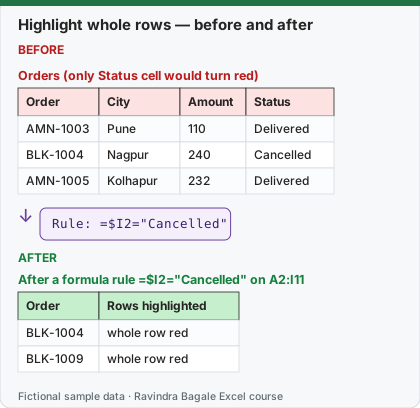
Expected result — After a formula rule =$I2="Cancelled" on A2:I11
| Order | Rows highlighted |
|---|---|
| BLK-1004 | whole row red |
| BLK-1009 | whole row red |
Before table and formula as text
Before — Orders (only Status cell would turn red)
| Order | City | Amount | Status |
|---|---|---|---|
| AMN-1003 | Pune | 110 | Delivered |
| BLK-1004 | Nagpur | 240 | Cancelled |
| AMN-1005 | Kolhapur | 232 | Delivered |
Formula / click path
Rule: =$I2="Cancelled"
Do it step by step:
- Select A2:I11 (A2 must be the active cell).
- Click Home › Conditional Formatting › New Rule › Use a formula to determine which cells to format.
- Type
=$I2="Cancelled", click Format, pick a fill, click OK twice. - The $ before I keeps every column looking at Status; no $ before 2 lets each row check itself.
स्टेप बाय स्टेप करून बघा:
- A2:I11 select करा (A2 active cell हवी).
- Home › Conditional Formatting › New Rule › Use a formula to determine which cells to format वर click करा.
=$I2="Cancelled"type करा, Format वर click करून fill निवडा, दोनदा OK करा.- I च्या आधीचा $ प्रत्येक column ला Status बघायला लावतो; 2 च्या आधी $ नसल्याने प्रत्येक row स्वतःला check करते.
स्टेप बाय स्टेप करके देखें:
- A2:I11 select करें (A2 active cell हो).
- Home › Conditional Formatting › New Rule › Use a formula to determine which cells to format पर click करें.
=$I2="Cancelled"type करें, Format पर click करके fill चुनें, दो बार OK करें.- I से पहले का $ हर column को Status देखने देता है; 2 से पहले $ न होने से हर row खुद को check करती है.
Trick 22. Centre a title without merging cells
Before:
| Problem | Effect |
|---|---|
| Merged cells | cannot sort, select columns or paste cleanly |
After:
| Result | Effect |
|---|---|
| Title looks centred over A:F | cells stay separate; sorting and selecting work |
Steps:
- Select A1:F1 (unmerge first if needed: Home › Merge & Center ▾ › Unmerge Cells).
- Press Ctrl+1, open the Alignment tab.
- Set Horizontal to Center Across Selection and click OK.
Trick 23. Paint a format onto many places with one double-click
Before:
| Range | Style |
|---|---|
| A1 | bold, blue fill |
| A8, A15, A22 | plain |
After:
| Range | Style |
|---|---|
| A1, A8, A15, A22 | bold, blue fill |
Steps:
- Select A1.
- Double-click Home › Clipboard › Format Painter (a single click paints only once).
- Click A8, A15 and A22 one by one.
- Press Esc to stop painting.
Trick 24. Show Indian lakh and crore separators
Before:
| Value | Shows |
|---|---|
| 1299000 | 1,299,000 |
| 25000000 | 25,000,000 |
| 8500 | 8,500 |
After:
| Value | Shows |
|---|---|
| 1299000 | ₹12,99,000 |
| 25000000 | ₹2,50,00,000 |
| 8500 | ₹8,500 |
Custom format: [>=10000000]₹##\,##\,##\,##0;[>=100000]₹##\,##\,##0;₹##,##0
Steps:
- Select the amounts and press Ctrl+1.
- Choose Number › Custom.
- Paste the format shown above into Type and click OK. (Explained in 1.6.)
Practice task (try it before you open the answer):
- Centre a title over A1:F1 without merging.
- Copy one header style to three other cells with one Format Painter action.
- Show 1299000 as ₹12,99,000.
Answer
Ctrl+1 › Alignment › Horizontal: Center Across Selection. Double-click Format Painter, click the three cells, Esc. Custom format from trick 24: 1299000 → ₹12,99,000; 25000000 → ₹2,50,00,000.
Ravindra Bagale's Tip
Avoid Merge & Center in data sheets. Merged cells break sorting, filtering and copy-paste; Center Across Selection looks the same and breaks nothing.
Ravindra Bagale's Tip – मराठी
Data sheets मध्ये Merge & Center टाळा. Merged cells मुळे sorting, filtering आणि copy-paste मोडतं; Center Across Selection तसंच दिसतं आणि काहीही मोडत नाही.
Ravindra Bagale's Tip – हिंदी
Data sheets में Merge & Center से बचें. Merged cells से sorting, filtering और copy-paste टूटते हैं; Center Across Selection वैसा ही दिखता है और कुछ नहीं तोड़ता.
Loading practice tasks...
- Total billable hours (Easy): Add up Billable hours in D2:D11.
- Average rate per hour (Easy): Average of E2:E11, rounded to 2 decimals.
- Rows in Cloud (Easy): How many rows have Practice "Cloud"?
- Largest billable hours (Easy): The largest value in D2:D11.
- Billable hours for Cloud (Medium): Total of D2:D11 where B is "Cloud".
- Cloud in Denver (Medium): Total of D2:D11 where B is "Cloud" and C is "Denver".
- Best in Cloud (Medium): Largest E2:E11 value where B is "Cloud".
- Value of row 2 (Medium): D2 times E2.
- Look up Lucas Rossi (Medium): The Billable hours for "Lucas Rossi" (use a lookup on column A).
- Total value (Hard): Sum of D times E for all rows.
- Share of Cloud (Hard): Share of D2:D11 that is "Cloud", rounded to 3 decimals.
- Rank of row 2 (Hard): Rank of D2 among D2:D11 (largest = 1).
- Above average? (Hard): "Above" if E2 is above the average of E2:E11, else "Below".