26. Excel Tricks Every Analyst Should Know
26.2 Data Cleaning Tricks
Example first. An export has extra spaces, amounts stored as text, repeated Order IDs and City and PIN in one cell. Four quick fixes make it usable.
Trick 5. Remove extra spaces with TRIM is shown in the box below; tricks 6–8 follow it.
TRIM for extra spaces — in 30 seconds
What: TRIM removes spaces at the start and end of text and turns double spaces inside into single spaces.
Why: "Pune " and "Pune" look the same but do not match in SUMIFS, XLOOKUP or a PivotTable. TRIM makes them equal.
Tiny example: LEN(" Pune ") is 7; LEN(TRIM(" Pune ")) is 4. "Nashik Road" becomes "Nashik Road".
TRIM for extra spaces — 30 सेकंदात
काय: TRIM text च्या सुरुवातीचे आणि शेवटचे spaces काढतो आणि आतले double spaces single करतो.
का: "Pune " आणि "Pune" सारखे दिसतात पण SUMIFS, XLOOKUP किंवा PivotTable मध्ये जुळत नाहीत. TRIM त्यांना सारखं करतो.
छोटं उदाहरण: LEN(" Pune ") 7 आहे; LEN(TRIM(" Pune ")) 4 आहे. "Nashik Road" चं "Nashik Road" होतं.
TRIM for extra spaces — 30 सेकंड में
क्या: TRIM text के शुरू और आख़िर के spaces हटाता है और अंदर के double spaces को single करता है.
क्यों: "Pune " और "Pune" एक जैसे दिखते हैं पर SUMIFS, XLOOKUP या PivotTable में मेल नहीं खाते. TRIM उन्हें बराबर करता है.
छोटा उदाहरण: LEN(" Pune ") 7 है; LEN(TRIM(" Pune ")) 4 है. "Nashik Road" का "Nashik Road" हो जाता है.
First look at the data (before → after):
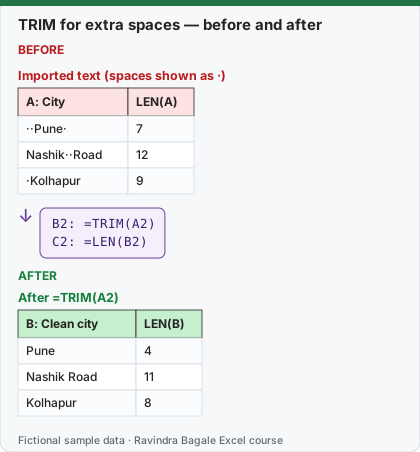
Expected result — After =TRIM(A2)
| B: Clean city | LEN(B) |
|---|---|
| Pune | 4 |
| Nashik Road | 11 |
| Kolhapur | 8 |
Before table and formula as text
Before — Imported text (spaces shown as ·)
| A: City | LEN(A) |
|---|---|
| ··Pune· | 7 |
| Nashik··Road | 12 |
| ·Kolhapur | 9 |
Formula / click path
B2: =TRIM(A2)
C2: =LEN(B2)
Do it step by step:
- In B2 type
=TRIM(A2)and fill down. - Check with
=LEN(B2): the number drops. - Copy column B and Paste Values over column A, then delete column B.
स्टेप बाय स्टेप करून बघा:
- B2 मध्ये
=TRIM(A2)type करा आणि खाली fill करा. =LEN(B2)ने check करा: आकडा कमी होतो.- Column B copy करून column A वर Paste Values करा, मग column B delete करा.
स्टेप बाय स्टेप करके देखें:
- B2 में
=TRIM(A2)type करें और नीचे fill करें. =LEN(B2)से check करें: आँकड़ा कम हो जाता है.- Column B copy करके column A पर Paste Values करें, फिर column B delete करें.
Trick 6. Turn numbers stored as text into numbers
Before:
| A: Amount (text) | Note |
|---|---|
| 450 | left-aligned, green triangle |
| 120 | left-aligned, green triangle |
| 95 | left-aligned, green triangle |
| =SUM(A2:A4) | 0 |
After:
| B: Amount | — |
|---|---|
| 450 | — |
| 120 | — |
| 95 | — |
| =SUM(B2:B4) | 665 |
B2: =VALUE(A2)
B5: =SUM(B2:B4)  → 665
Steps:
- In B2 type
=VALUE(A2)and fill down; or select A2:A4, click the green-triangle warning and choose Convert to Number. - Total with
=SUM(B2:B4). - Paste the values back over column A if you need them there.
Trick 7. Remove duplicate rows
Before:
| A: Order ID |
|---|
| BLK-1001 |
| BLK-1002 |
| BLK-1001 |
| AMN-1003 |
| BLK-1002 |
| AMN-1005 |
After:
| A: Order ID |
|---|
| BLK-1001 |
| BLK-1002 |
| AMN-1003 |
| AMN-1005 |
Steps:
- Click inside the list.
- Click Data › Data Tools › Remove Duplicates.
- Tick the column(s) that define a duplicate and click OK.
- Excel reports: 2 duplicate values removed; 4 unique values remain.
- Work on a copy: Remove Duplicates deletes rows.
Trick 8. Split one column into two with Text to Columns
Before:
| A: Location |
|---|
| Pune-411001 |
| Nashik-422001 |
| Nagpur-440001 |
After:
| A: City | B: PIN |
|---|---|
| Pune | 411001 |
| Nashik | 422001 |
| Nagpur | 440001 |
Steps:
- Select A1:A3 (make sure column B is empty).
- Click Data › Data Tools › Text to Columns › Delimited › Next.
- Tick Other and type
-, click Next. - Set column B to Text so the PIN keeps every digit, and click Finish.
Practice task (try it before you open the answer):
- Convert "450", "120", "95" (text) to numbers and total them.
- Remove duplicates from the 6 Order IDs.
- Split "Nashik-422001" into City and PIN.
Answer
VALUE gives 450, 120, 95; total 665 (the text version totals 0). Remove Duplicates keeps 4 IDs. Text to Columns with "-" gives Nashik and 422001 (set the PIN column to Text).
Ravindra Bagale's Tip
When a SUM is smaller than you expect, select the column and look at the status bar: if Count is bigger than Sum can explain, some numbers are text.
Ravindra Bagale's Tip – मराठी
SUM अपेक्षेपेक्षा लहान आला तर column select करून status bar बघा: Count जास्त असेल आणि Sum कमी, तर काही आकडे text आहेत.
Ravindra Bagale's Tip – हिंदी
SUM उम्मीद से छोटा आए तो column select करके status bar देखें: Count ज़्यादा हो और Sum कम, तो कुछ आँकड़े text हैं.
Loading practice tasks...
- Clean a name (Easy): Clean A2.
- Clean another name (Easy): Clean A4.
- Yes/No in one style (Easy): Clean D4 into proper case.
- Fee as a number (Easy): Change C2 into a number.
- Phone digits only (Medium): Clean E3.
- Paid as TRUE/FALSE (Medium): Is D4 a yes? (TRUE or FALSE)
- How many paid? (Medium): Count D2:D6 that are "yes" after cleaning.
- Total fees (Medium): Total of C2:C6 as numbers.
- Fees not yet paid (Hard): Total fee where Paid is "no" after cleaning.
- Reminder line (Hard): Make "Naina Kapoor (9-B): pay 21000" from row 3.
- Unpaid students (spill) (Hard): Cleaned names where Paid is "no".