23. Formulas Across Sheets and Workbooks
23.8 Consolidate: Combine Sheets with Different Layouts
Example first. Three city sheets list category sales, but each city lists the categories in a different order and Nagpur has an extra category. A 3D SUM would add the wrong rows. Data › Consolidate matches by label and adds Dairy with Dairy, Fruits with Fruits.
Data › Consolidate — in 30 seconds
What: Consolidate combines ranges from several sheets (or files) with a function such as Sum, matching rows by the labels in the left column and columns by the labels in the top row.
Why: When sheets do not have the same layout, 3D references give wrong totals. Consolidate matches by name, so order and extra rows do not matter.
Tiny example: Dairy is row 2 in Pune, row 3 in Nashik and row 3 in Nagpur. Consolidate still adds them: 52,000 + 33,000 + 41,000 = ₹1,26,000.
Data › Consolidate — 30 सेकंदात
काय: Consolidate अनेक sheets (किंवा files) मधले ranges Sum सारख्या function ने एकत्र करतो, rows डाव्या column मधल्या labels ने आणि columns वरच्या row मधल्या labels ने जुळवून.
का: Sheets चा layout सारखा नसेल तर 3D references चुकीचे totals देतात. Consolidate नावाने जुळवतो, म्हणून क्रम आणि जास्तीच्या rows ने फरक पडत नाही.
छोटं उदाहरण: Dairy Pune मध्ये row 2, Nashik मध्ये row 3 आणि Nagpur मध्ये row 3 आहे. तरीही Consolidate त्यांना जोडतो: 52,000 + 33,000 + 41,000 = ₹1,26,000.
Data › Consolidate — 30 सेकंड में
क्या: Consolidate कई sheets (या files) के ranges को Sum जैसे function से जोड़ता है, rows को बाएँ column के labels से और columns को ऊपर की row के labels से मिलाकर.
क्यों: Sheets का layout एक जैसा न हो तो 3D references गलत totals देते हैं. Consolidate नाम से मिलाता है, इसलिए क्रम और अतिरिक्त rows से फ़र्क नहीं पड़ता.
छोटा उदाहरण: Dairy Pune में row 2, Nashik में row 3 और Nagpur में row 3 पर है. फिर भी Consolidate उन्हें जोड़ता है: 52,000 + 33,000 + 41,000 = ₹1,26,000.
First look at the data (before → after):
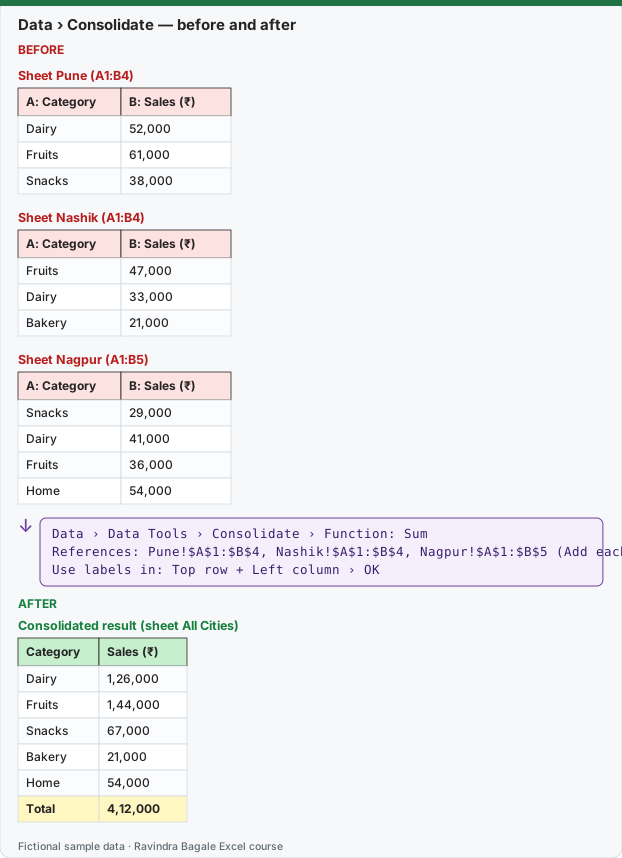
Expected result — Consolidated result (sheet All Cities)
| Category | Sales (₹) |
|---|---|
| Dairy | 1,26,000 |
| Fruits | 1,44,000 |
| Snacks | 67,000 |
| Bakery | 21,000 |
| Home | 54,000 |
| Total | 4,12,000 |
Before table and formula as text
Before — Sheet Pune (A1:B4)
| A: Category | B: Sales (₹) |
|---|---|
| Dairy | 52,000 |
| Fruits | 61,000 |
| Snacks | 38,000 |
Before — Sheet Nashik (A1:B4)
| A: Category | B: Sales (₹) |
|---|---|
| Fruits | 47,000 |
| Dairy | 33,000 |
| Bakery | 21,000 |
Before — Sheet Nagpur (A1:B5)
| A: Category | B: Sales (₹) |
|---|---|
| Snacks | 29,000 |
| Dairy | 41,000 |
| Fruits | 36,000 |
| Home | 54,000 |
Formula / click path
Data › Data Tools › Consolidate › Function: Sum
References: Pune!$A$1:$B$4, Nashik!$A$1:$B$4, Nagpur!$A$1:$B$5 (Add each)
Use labels in: Top row + Left column › OK
Do it step by step:
- Make a new sheet named
All Citiesand click A1. - Click Data › Data Tools › Consolidate.
- Choose Function: Sum.
- Click in Reference, go to the Pune sheet, select A1:B4 and click Add. Do the same for Nashik (A1:B4) and Nagpur (A1:B5).
- Tick Top row and Left column under Use labels in, then click OK.
- Check the total against the three sheet totals added together.
स्टेप बाय स्टेप करून बघा:
All Citiesनावाची नवीन sheet बनवा आणि A1 वर click करा.- Data › Data Tools › Consolidate वर click करा.
- Function: Sum निवडा.
- Reference मध्ये click करा, Pune sheet वर जाऊन A1:B4 select करा आणि Add करा. Nashik (A1:B4) आणि Nagpur (A1:B5) साठी असंच करा.
- Use labels in खाली Top row आणि Left column tick करा, मग OK करा.
- Total तिन्ही sheets च्या totals च्या बेरजेइतका आहे का ते check करा.
स्टेप बाय स्टेप करके देखें:
All Citiesनाम की नई sheet बनाएँ और A1 पर click करें.- Data › Data Tools › Consolidate पर click करें.
- Function: Sum चुनें.
- Reference में click करें, Pune sheet पर जाकर A1:B4 select करें और Add करें. Nashik (A1:B4) और Nagpur (A1:B5) के लिए ऐसा ही करें.
- Use labels in के नीचे Top row और Left column tick करें, फिर OK करें.
- Check करें कि total तीनों sheets के totals के जोड़ के बराबर है.
Options worth knowing
| Option | What it does |
|---|---|
| Function | Sum, Count, Average, Max, Min and more |
| Use labels in: Left column | Match rows by name (Dairy with Dairy). Without it, rows are matched by position |
| Use labels in: Top row | Match columns by header |
| Create links to source data | Builds an outline with formulas linked to each source, so the result updates when a source changes (works only when the sources are on other sheets) |
| References from other files | Open the files, then select ranges in them while the Consolidate box is open |
Consolidate vs the other ways
| Method | Best when |
|---|---|
| 3D SUM (23.4) | Every sheet has exactly the same layout |
| Consolidate | Layouts differ, a one-off or monthly combine |
| Power Query Append (Module 10) | The data is a list of records and arrives every month; refresh with one click |
| PivotTable on one Table | You can keep all rows in one Table with a City column (the best design) |
Practice task (try it before you open the answer):
- Build the three city sheets and consolidate them with Sum.
- Consolidate again into a new sheet with Function: Count.
- Add Bakery ₹15,000 to the Pune sheet (extend the reference to A1:B5) and consolidate once more.
Answer
Count: Dairy 3, Fruits 3, Snacks 2, Bakery 1, Home 1. After adding Pune Bakery ₹15,000 the Bakery total is ₹36,000 and the grand total ₹4,27,000.
Ravindra Bagale's Tip
Consolidate is a quick fix, not a system. If you consolidate the same sheets every month, spend one hour building Power Query once and get those hours back for the rest of the year.
Ravindra Bagale's Tip – मराठी
Consolidate हा झटपट उपाय आहे, system नाही. दर महिन्याला त्याच sheets consolidate करत असाल तर एकदा एक तास देऊन Power Query बनवा, आणि वर्षभराचे तास वाचवा.
Ravindra Bagale's Tip – हिंदी
Consolidate जल्दी का उपाय है, system नहीं. हर महीने वही sheets consolidate करते हैं तो एक बार एक घंटा देकर Power Query बनाएँ, और साल भर के घंटे बचाएँ.