23. Formulas Across Sheets and Workbooks
23.2 Referencing a Normal Range on Another Sheet
Example first. The ten Module 3 orders sit on the Orders sheet in A1:I11 as a normal range (not a Table). A City Summary sheet must show delivered and total sales per city with SUMIFS that read the Orders sheet.
SUMIFS on a range in another sheet — in 30 seconds
What: Any function can read a range on another sheet: SUMIFS(Orders!$G$2:$G$11, Orders!$C$2:$C$11, A2). Lock the ranges with $ so they do not move when you copy down.
Why: Keeping the report on its own sheet means the raw data can be replaced every month without touching the report formulas.
Tiny example: =SUMIFS(Orders!$G$2:$G$11,Orders!$C$2:$C$11,A2) with Pune in A2 gives ₹544.
SUMIFS on a range in another sheet — 30 सेकंदात
काय: कोणतंही function दुसऱ्या sheet वरचा range वाचू शकतं: SUMIFS(Orders!$G$2:$G$11, Orders!$C$2:$C$11, A2). खाली copy करताना ranges हलू नयेत म्हणून $ ने lock करा.
का: Report वेगळ्या sheet वर ठेवला की raw data दर महिन्याला बदलता येतो, report चे formulas न बदलता.
छोटं उदाहरण: A2 मध्ये Pune असताना =SUMIFS(Orders!$G$2:$G$11,Orders!$C$2:$C$11,A2) ₹544 देतो.
SUMIFS on a range in another sheet — 30 सेकंड में
क्या: कोई भी function दूसरी sheet का range पढ़ सकता है: SUMIFS(Orders!$G$2:$G$11, Orders!$C$2:$C$11, A2). नीचे copy करते समय ranges न हिलें इसलिए $ से lock करें.
क्यों: Report अलग sheet पर रखने से raw data हर महीने बदल सकते हैं, report के formulas छुए बिना.
छोटा उदाहरण: A2 में Pune होने पर =SUMIFS(Orders!$G$2:$G$11,Orders!$C$2:$C$11,A2) ₹544 देता है.
First look at the data (before → after):
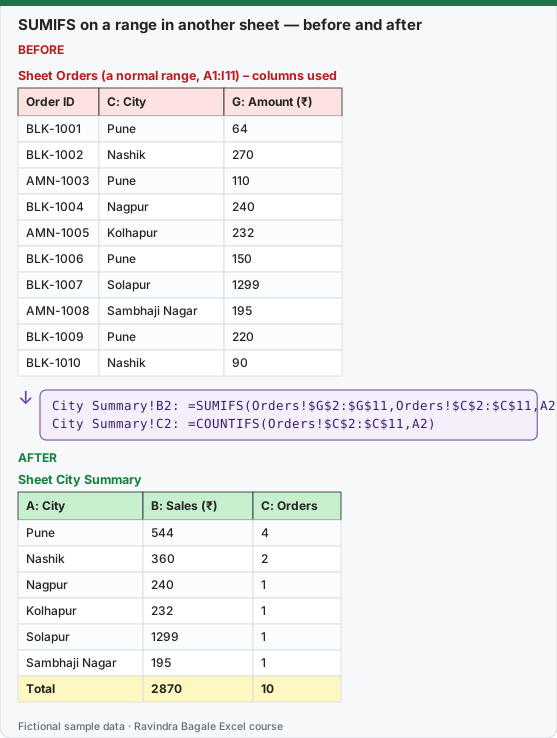
Expected result — Sheet City Summary
| A: City | B: Sales (₹) | C: Orders |
|---|---|---|
| Pune | 544 | 4 |
| Nashik | 360 | 2 |
| Nagpur | 240 | 1 |
| Kolhapur | 232 | 1 |
| Solapur | 1299 | 1 |
| Sambhaji Nagar | 195 | 1 |
| Total | 2870 | 10 |
Before table and formula as text
Before — Sheet Orders (a normal range, A1:I11) – columns used
| Order ID | C: City | G: Amount (₹) |
|---|---|---|
| BLK-1001 | Pune | 64 |
| BLK-1002 | Nashik | 270 |
| AMN-1003 | Pune | 110 |
| BLK-1004 | Nagpur | 240 |
| AMN-1005 | Kolhapur | 232 |
| BLK-1006 | Pune | 150 |
| BLK-1007 | Solapur | 1299 |
| AMN-1008 | Sambhaji Nagar | 195 |
| BLK-1009 | Pune | 220 |
| BLK-1010 | Nashik | 90 |
Formula / click path
City Summary!B2: =SUMIFS(Orders!$G$2:$G$11,Orders!$C$2:$C$11,A2)
City Summary!C2: =COUNTIFS(Orders!$C$2:$C$11,A2)
Do it step by step:
- On City Summary, type the six cities in A2:A7.
- Click B2, type
=SUMIFS(and click the Orders sheet tab. - Select G2:G11, press F4 to make it
$G$2:$G$11, and type a comma. - Select C2:C11, press F4, type a comma, click back on City Summary and click A2. Close the bracket and press Enter.
- Fill B2 down to B7.
- Check: the total of B2:B7 equals
=SUM(Orders!G2:G11).
स्टेप बाय स्टेप करून बघा:
- City Summary वर A2:A7 मध्ये सहा cities type करा.
- B2 वर click करा,
=SUMIFS(type करा आणि Orders sheet tab वर click करा. - G2:G11 select करा, F4 दाबून
$G$2:$G$11करा, आणि comma type करा. - C2:C11 select करा, F4 दाबा, comma type करा, परत City Summary वर येऊन A2 वर click करा. Bracket बंद करून Enter दाबा.
- B2 खाली B7 पर्यंत fill करा.
- Check: B2:B7 चा total
=SUM(Orders!G2:G11)इतकाच यायला हवा.
स्टेप बाय स्टेप करके देखें:
- City Summary पर A2:A7 में छह cities type करें.
- B2 पर click करें,
=SUMIFS(type करें और Orders sheet tab पर click करें. - G2:G11 select करें, F4 दबाकर
$G$2:$G$11बनाएँ, और comma type करें. - C2:C11 select करें, F4 दबाएँ, comma type करें, वापस City Summary पर आकर A2 पर click करें. Bracket बंद करके Enter दबाएँ.
- B2 को नीचे B7 तक fill करें.
- Check: B2:B7 का total
=SUM(Orders!G2:G11)के बराबर आना चाहिए.
The weak spot of a normal range. Add order BLK-1011 for Pune, ₹300, in row 12 of the Orders sheet. The formula still says $G$2:$G$11, so Pune stays at ₹544 instead of ₹844. Nothing turns red; the number is just wrong.
Three fixes, best first
- Turn the Orders data into a Table (next lesson). The reference grows with the data.
- Use whole columns:
=SUMIFS(Orders!$G:$G,Orders!$C:$C,A2). Simple and safe for SUMIFS, but slower in very large files, and a total typed under the data would be counted twice. - Insert new rows inside the range (above row 11), not below it. Excel then stretches
$G$2:$G$11to$G$2:$G$12. Easy to forget.
Practice task (try it before you open the answer):
- Build City Summary with the formulas above.
- Add BLK-1011 (Pune, ₹300) in row 12 of Orders and read Pune again.
- Change B2 to the whole-column version and read Pune again.
Answer
With $G$2:$G$11 Pune stays ₹544 (row 12 is outside the range). With Orders!$G:$G Pune becomes ₹844.
Ravindra Bagale's Tip
Whenever a total on a summary sheet looks too round or too small, press Ctrl + [ on it (or use Formulas › Trace Precedents) to jump to the cells it really reads.
Ravindra Bagale's Tip – मराठी
Summary sheet वरचा total जरा जास्तच गोल किंवा छोटा वाटला, तर त्यावर Ctrl + [ दाबा (किंवा Formulas › Trace Precedents वापरा) आणि तो नक्की कोणत्या cells वाचतो तिथे जा.
Ravindra Bagale's Tip – हिंदी
Summary sheet का कोई total ज़्यादा गोल या छोटा लगे, तो उस पर Ctrl + [ दबाएँ (या Formulas › Trace Precedents इस्तेमाल करें) और देखें वह असल में कौन सी cells पढ़ता है.
Loading practice tasks...
- Total units (Easy): Total of Orders!D2:D8.
- Total value (Easy): Total of Orders!E2:E8.
- Count orders (Easy): Count Orders!A2:A8.
- Biggest order (Easy): Biggest value in Orders!E2:E8.
- North units (Medium): Units for A2 (North).
- South value (Medium): Value for A3 (South).
- West order count (Medium): How many orders for A4 (West)?
- Insulin units (Medium): Units of "Insulin".
- North insulin value (Hard): Value for North AND Insulin.
- Big South orders (Hard): How many South orders have value over 50000?
- North share of value (Hard): North value ÷ total value.