23. Formulas Across Sheets and Workbooks
23.4 3D References: One Formula Across Many Sheets
Example first. Jan, Feb and Mar have exactly the same layout. On a Q1 sheet, =SUM(Jan:Mar!B2) adds B2 of all three sheets: Pune Q1 = ₹12,65,000. One formula, three sheets.
3D reference — in 30 seconds
What: A 3D reference covers the same cell (or range) on every sheet between two sheet tabs: Jan:Mar!B2 means B2 on Jan, on Feb, on Mar and on any sheet placed between them.
Why: Monthly sheets with the same layout are very common. A 3D SUM gives the quarter or the year without a long =Jan!B2+Feb!B2+Mar!B2 chain.
Tiny example: =SUM(Jan:Mar!B2) = 4,12,000 + 3,98,000 + 4,55,000 = ₹12,65,000.
3D reference — 30 सेकंदात
काय: 3D reference दोन sheet tabs च्या मधल्या प्रत्येक sheet वरची तीच cell (किंवा range) घेतो: Jan:Mar!B2 म्हणजे Jan, Feb, Mar आणि त्यांच्या मध्ये ठेवलेल्या प्रत्येक sheet वरची B2.
का: एकाच layout च्या monthly sheets खूप common आहेत. 3D SUM लांबलचक =Jan!B2+Feb!B2+Mar!B2 न लिहिता quarter किंवा वर्षाचा total देतो.
छोटं उदाहरण: =SUM(Jan:Mar!B2) = 4,12,000 + 3,98,000 + 4,55,000 = ₹12,65,000.
3D reference — 30 सेकंड में
क्या: 3D reference दो sheet tabs के बीच की हर sheet पर वही cell (या range) लेता है: Jan:Mar!B2 यानी Jan, Feb, Mar और उनके बीच रखी हर sheet की B2.
क्यों: एक ही layout वाली monthly sheets बहुत आम हैं. 3D SUM लंबा =Jan!B2+Feb!B2+Mar!B2 लिखे बिना quarter या साल का total देता है.
छोटा उदाहरण: =SUM(Jan:Mar!B2) = 4,12,000 + 3,98,000 + 4,55,000 = ₹12,65,000.
First look at the data (before → after):
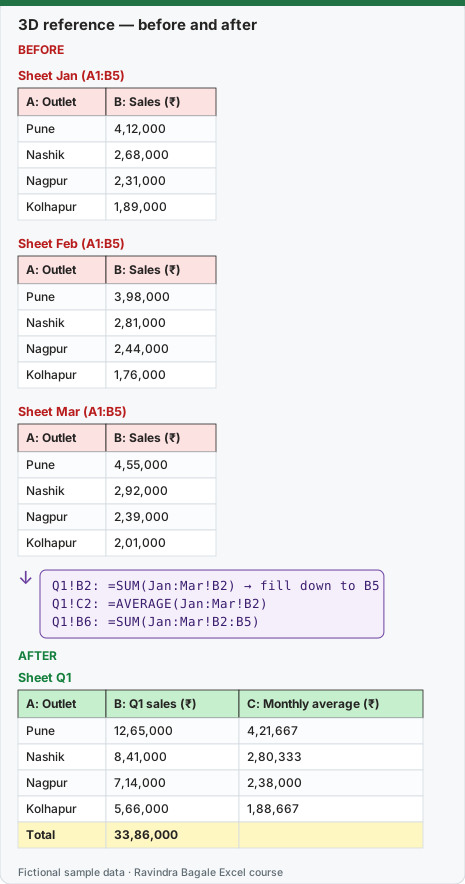
Expected result — Sheet Q1
| A: Outlet | B: Q1 sales (₹) | C: Monthly average (₹) |
|---|---|---|
| Pune | 12,65,000 | 4,21,667 |
| Nashik | 8,41,000 | 2,80,333 |
| Nagpur | 7,14,000 | 2,38,000 |
| Kolhapur | 5,66,000 | 1,88,667 |
| Total | 33,86,000 | — |
Before table and formula as text
Before — Sheet Jan (A1:B5)
| A: Outlet | B: Sales (₹) |
|---|---|
| Pune | 4,12,000 |
| Nashik | 2,68,000 |
| Nagpur | 2,31,000 |
| Kolhapur | 1,89,000 |
Before — Sheet Feb (A1:B5)
| A: Outlet | B: Sales (₹) |
|---|---|
| Pune | 3,98,000 |
| Nashik | 2,81,000 |
| Nagpur | 2,44,000 |
| Kolhapur | 1,76,000 |
Before — Sheet Mar (A1:B5)
| A: Outlet | B: Sales (₹) |
|---|---|
| Pune | 4,55,000 |
| Nashik | 2,92,000 |
| Nagpur | 2,39,000 |
| Kolhapur | 2,01,000 |
Formula / click path
Q1!B2: =SUM(Jan:Mar!B2)   → fill down to B5
Q1!C2: =AVERAGE(Jan:Mar!B2)
Q1!B6: =SUM(Jan:Mar!B2:B5)
Do it step by step:
- Make sure Jan, Feb and Mar have the outlets in the same cells (A2:A5) and sales in B2:B5.
- Put the three sheet tabs next to each other: Jan, Feb, Mar.
- On the Q1 sheet, click B2 and type
=SUM(. - Click the Jan tab, hold Shift and click the Mar tab, then click B2. Press Enter. Excel writes
=SUM(Jan:Mar!B2). - Fill down to B5.
- In B6 type
=SUM(Jan:Mar!B2:B5)for the grand total.
स्टेप बाय स्टेप करून बघा:
- Jan, Feb आणि Mar मध्ये outlets त्याच cells मध्ये (A2:A5) आणि sales B2:B5 मध्ये आहेत याची खात्री करा.
- तीन sheet tabs एकमेकांच्या शेजारी ठेवा: Jan, Feb, Mar.
- Q1 sheet वर B2 वर click करा आणि
=SUM(type करा. - Jan tab वर click करा, Shift दाबून Mar tab वर click करा, मग B2 वर click करा. Enter दाबा. Excel
=SUM(Jan:Mar!B2)लिहितो. - B5 पर्यंत खाली fill करा.
- Grand total साठी B6 मध्ये
=SUM(Jan:Mar!B2:B5)type करा.
स्टेप बाय स्टेप करके देखें:
- पक्का करें कि Jan, Feb और Mar में outlets उन्हीं cells (A2:A5) में और sales B2:B5 में हैं.
- तीनों sheet tabs एक-दूसरे के बगल में रखें: Jan, Feb, Mar.
- Q1 sheet पर B2 पर click करें और
=SUM(type करें. - Jan tab पर click करें, Shift दबाकर Mar tab पर click करें, फिर B2 पर click करें. Enter दबाएँ. Excel
=SUM(Jan:Mar!B2)लिखता है. - B5 तक नीचे fill करें.
- Grand total के लिए B6 में
=SUM(Jan:Mar!B2:B5)type करें.
What 3D references can and cannot do
| Works | Does not work |
|---|---|
| SUM, AVERAGE, COUNT, COUNTA, MAX, MIN, PRODUCT, STDEV and similar | SUMIF, SUMIFS, COUNTIF, COUNTIFS, XLOOKUP, VLOOKUP (they do not accept 3D ranges) |
| Any sheet moved between the first and last tab is included | A sheet moved outside the two tabs is dropped silently |
| Same cell on every sheet | Sheets with a different layout give wrong totals without any error |
The Start/End trick. Insert two empty sheets named Start and End and keep every month between them. Write =SUM(Start:End!B2). Adding April is now just "insert a sheet before End". Deleting Jan (the first sheet of Jan:Mar) changes the formula to Feb:Mar; with Start and End there is no surprise.
Practice task (try it before you open the answer):
- Build the Q1 sheet with 3D SUM and AVERAGE.
- Insert a copy of Mar named Apr between Feb and Mar and read Pune Q1 again.
- Drag Apr to the right of Mar and read it again.
Answer
With Apr (a copy of Mar) between Feb and Mar, Pune becomes ₹17,20,000. After moving Apr outside Jan:Mar it goes back to ₹12,65,000. Nothing warns you, which is why the Start/End sheets help.
Ravindra Bagale's Tip
Colour the tabs of sheets that are inside a 3D range the same colour. Anyone who drags a green tab outside the green group can see they just changed a total.
Ravindra Bagale's Tip – मराठी
3D range मधल्या sheets च्या tabs ना एकाच रंग द्या. हिरव्या group बाहेर हिरवा tab ओढणाऱ्याला लगेच कळतं की त्याने total बदलला.
Ravindra Bagale's Tip – हिंदी
3D range वाली sheets के tabs को एक ही रंग दें. हरे group के बाहर हरा tab खींचने वाले को तुरंत दिखता है कि उसने total बदल दिया.