23. Formulas Across Sheets and Workbooks
23.3 Referencing an Excel Table on Another Sheet
Example first. The same orders, but now as a Table named tblMini on the Orders sheet. On City Summary the formula is =SUMIFS(tblMini[Amount],tblMini[City],A2). There is no sheet name in it, and when BLK-1011 is added, Pune becomes ₹844 by itself.
Table reference across sheets — in 30 seconds
What: A Table name works from every sheet in the workbook. tblMini[Amount] means the Amount column of that Table, wherever the Table is and however long it grows.
Why: The formula reads like English, needs no $ signs and never misses a new row. Moving the Table to another sheet does not break it.
Tiny example: =SUMIFS(tblMini[Amount],tblMini[City],A2) gives ₹544 for Pune, and ₹844 after the new Pune order is added under the Table.
Table reference across sheets — 30 सेकंदात
काय: Table चं नाव workbook मधल्या प्रत्येक sheet वरून चालतं. tblMini[Amount] म्हणजे त्या Table चा Amount column, Table कुठेही असो आणि कितीही मोठी होवो.
का: Formula इंग्रजी वाक्यासारखा वाचता येतो, $ लागत नाहीत आणि नवीन row कधीच सुटत नाही. Table दुसऱ्या sheet वर हलवली तरी formula तुटत नाही.
छोटं उदाहरण: =SUMIFS(tblMini[Amount],tblMini[City],A2) Pune साठी ₹544 देतो, आणि Table खाली नवीन Pune order add केल्यावर ₹844.
Table reference across sheets — 30 सेकंड में
क्या: Table का नाम workbook की हर sheet से चलता है. tblMini[Amount] यानी उस Table का Amount column, Table कहीं भी हो और कितनी भी बड़ी हो.
क्यों: Formula अंग्रेज़ी वाक्य जैसा पढ़ा जाता है, $ नहीं चाहिए और नई row कभी नहीं छूटती. Table दूसरी sheet पर ले जाने से भी formula नहीं टूटता.
छोटा उदाहरण: =SUMIFS(tblMini[Amount],tblMini[City],A2) Pune के लिए ₹544 देता है, और Table के नीचे नई Pune order जोड़ने पर ₹844.
First look at the data (before → after):
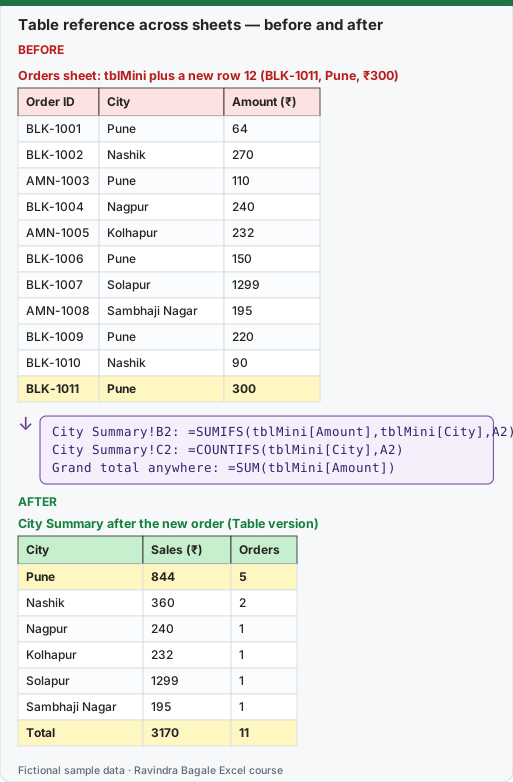
Expected result — City Summary after the new order (Table version)
| City | Sales (₹) | Orders |
|---|---|---|
| Pune | 844 | 5 |
| Nashik | 360 | 2 |
| Nagpur | 240 | 1 |
| Kolhapur | 232 | 1 |
| Solapur | 1299 | 1 |
| Sambhaji Nagar | 195 | 1 |
| Total | 3170 | 11 |
Before table and formula as text
Before — Orders sheet: tblMini plus a new row 12 (BLK-1011, Pune, ₹300)
| Order ID | City | Amount (₹) |
|---|---|---|
| BLK-1001 | Pune | 64 |
| BLK-1002 | Nashik | 270 |
| AMN-1003 | Pune | 110 |
| BLK-1004 | Nagpur | 240 |
| AMN-1005 | Kolhapur | 232 |
| BLK-1006 | Pune | 150 |
| BLK-1007 | Solapur | 1299 |
| AMN-1008 | Sambhaji Nagar | 195 |
| BLK-1009 | Pune | 220 |
| BLK-1010 | Nashik | 90 |
| BLK-1011 | Pune | 300 |
Formula / click path
City Summary!B2: =SUMIFS(tblMini[Amount],tblMini[City],A2)
City Summary!C2: =COUNTIFS(tblMini[City],A2)
Grand total anywhere: =SUM(tblMini[Amount])
Do it step by step:
- Click inside the orders on the Orders sheet and press Ctrl + T. Name the Table
tblMini. - On City Summary, click B2 and type
=SUMIFS(tblMini[. Pick Amount from the list and type],. - Type
tblMini[City],A2)and press Enter. Fill down to B7. - Go back to Orders and type the new order in the first row under the Table.
- Return to City Summary. Pune now includes the new order.
- Cut the whole Table and paste it on a new sheet. The City Summary formulas still work.
स्टेप बाय स्टेप करून बघा:
- Orders sheet वरच्या orders मध्ये click करून Ctrl + T दाबा. Table ला
tblMiniनाव द्या. - City Summary वर B2 वर click करा आणि
=SUMIFS(tblMini[type करा. List मधून Amount निवडा आणि],type करा. tblMini[City],A2)type करून Enter दाबा. B7 पर्यंत खाली fill करा.- परत Orders वर जा आणि Table खालच्या पहिल्या row मध्ये नवीन order type करा.
- City Summary वर परत या. Pune मध्ये आता नवीन order धरलेली आहे.
- पूर्ण Table cut करून नवीन sheet वर paste करा. City Summary चे formulas तरीही चालतात.
स्टेप बाय स्टेप करके देखें:
- Orders sheet की orders में click करके Ctrl + T दबाएँ. Table को
tblMiniनाम दें. - City Summary पर B2 पर click करें और
=SUMIFS(tblMini[type करें. List से Amount चुनें और],type करें. tblMini[City],A2)type करके Enter दबाएँ. B7 तक नीचे fill करें.- वापस Orders पर जाएँ और Table के नीचे वाली पहली row में नई order type करें.
- City Summary पर लौटें. Pune में अब नई order शामिल है.
- पूरी Table cut करके नई sheet पर paste करें. City Summary के formulas फिर भी चलते हैं.
Range vs Table across sheets
| Normal range | Excel Table | |
|---|---|---|
| Formula | =SUMIFS(Orders!$G$2:$G$11,Orders!$C$2:$C$11,A2) |
=SUMIFS(tblMini[Amount],tblMini[City],A2) |
| Needs the sheet name | Yes | No |
| Needs $ signs | Yes | No |
| New row under the data | Missed | Included |
| Data moved to another sheet | Still works if you cut and paste; breaks if you retype | Always works |
One limit to know. Structured references cannot point at a Table in another closed workbook in a way that keeps working; Excel turns them into plain cell references in the external link. For links between files, use Power Query (Module 10) or the methods in 23.6.
Practice task (try it before you open the answer):
- Convert the orders to
tblMiniand build City Summary with structured references. - Add two orders: BLK-1012 Nagpur ₹410 and AMN-1013 Kolhapur ₹150.
- Read Nagpur, Kolhapur and the grand total.
Answer
Nagpur ₹650, Kolhapur ₹382, grand total ₹3,430 (without the 23.3 example order).
Ravindra Bagale's Tip
If a formula on a report sheet needs a sheet name and $ signs, ask whether the data should be a Table. Nine times out of ten, it should.
Ravindra Bagale's Tip – मराठी
Report sheet वरच्या formula ला sheet चं नाव आणि $ लागत असतील, तर data Table असायला हवा का ते स्वतःला विचारा. दहापैकी नऊ वेळा उत्तर हो असतं.
Ravindra Bagale's Tip – हिंदी
Report sheet के formula को sheet का नाम और $ चाहिए, तो सोचें कि data Table होना चाहिए या नहीं. दस में से नौ बार जवाब हाँ होता है.