23. Formulas Across Sheets and Workbooks
23.6 Links to Another Workbook (External References)
Example first. Each city lead sends a file: Pune_Nov.xlsx, Nashik_Nov.xlsx and Nagpur_Nov.xlsx. Each file has a Summary sheet with delivered sales in B2 and orders in B3. Raja keeps a Region.xlsx file whose formulas read those cells directly. Region total: ₹9,11,000.
External workbook reference — in 30 seconds
What: A formula can read a cell in another file. While the file is open it looks like =[Pune_Nov.xlsx]Summary!$B$2. When the file is closed Excel adds the full path.
Why: Many teams keep one file per city or per month. External links build the regional view without copy-paste, and they update when the source files change.
Tiny example: =[Pune_Nov.xlsx]Summary!$B$2 + =[Nashik_Nov.xlsx]Summary!$B$2 + =[Nagpur_Nov.xlsx]Summary!$B$2 = ₹9,11,000.
External workbook reference — 30 सेकंदात
काय: Formula दुसऱ्या file मधली cell वाचू शकतो. File उघडी असताना तो =[Pune_Nov.xlsx]Summary!$B$2 सारखा दिसतो. File बंद झाली की Excel पूर्ण path जोडतो.
का: अनेक teams प्रत्येक city किंवा महिन्यासाठी एक file ठेवतात. External links copy-paste शिवाय regional view बनवतात, आणि source files बदलल्या की update होतात.
छोटं उदाहरण: =[Pune_Nov.xlsx]Summary!$B$2 + =[Nashik_Nov.xlsx]Summary!$B$2 + =[Nagpur_Nov.xlsx]Summary!$B$2 = ₹9,11,000.
External workbook reference — 30 सेकंड में
क्या: Formula दूसरी file की cell पढ़ सकता है. File खुली हो तो वह =[Pune_Nov.xlsx]Summary!$B$2 जैसा दिखता है. File बंद होने पर Excel पूरा path जोड़ देता है.
क्यों: कई teams हर city या हर महीने की एक file रखती हैं. External links copy-paste के बिना regional view बनाते हैं, और source files बदलने पर update होते हैं.
छोटा उदाहरण: =[Pune_Nov.xlsx]Summary!$B$2 + =[Nashik_Nov.xlsx]Summary!$B$2 + =[Nagpur_Nov.xlsx]Summary!$B$2 = ₹9,11,000.
First look at the data (before → after):
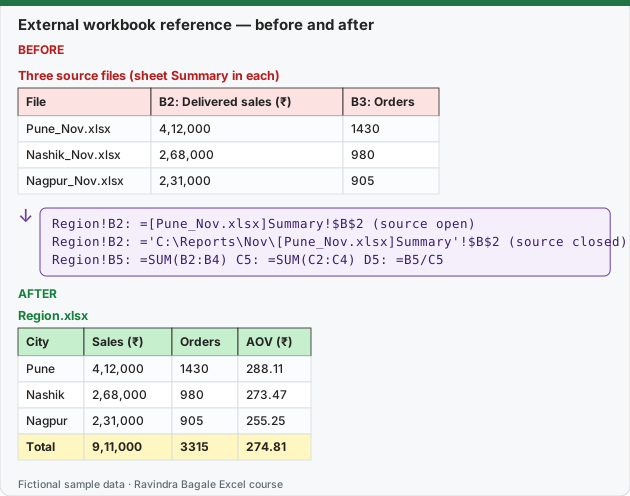
Expected result — Region.xlsx
| City | Sales (₹) | Orders | AOV (₹) |
|---|---|---|---|
| Pune | 4,12,000 | 1430 | 288.11 |
| Nashik | 2,68,000 | 980 | 273.47 |
| Nagpur | 2,31,000 | 905 | 255.25 |
| Total | 9,11,000 | 3315 | 274.81 |
Before table and formula as text
Before — Three source files (sheet Summary in each)
| File | B2: Delivered sales (₹) | B3: Orders |
|---|---|---|
| Pune_Nov.xlsx | 4,12,000 | 1430 |
| Nashik_Nov.xlsx | 2,68,000 | 980 |
| Nagpur_Nov.xlsx | 2,31,000 | 905 |
Formula / click path
Region!B2: =[Pune_Nov.xlsx]Summary!$B$2      (source open)
Region!B2: ='C:\Reports\Nov\[Pune_Nov.xlsx]Summary'!$B$2   (source closed)
Region!B5: =SUM(B2:B4)   C5: =SUM(C2:C4)   D5: =B5/C5
Do it step by step:
- Open Region.xlsx and Pune_Nov.xlsx together.
- In Region.xlsx click B2 and type
=. - Click View › Switch Windows › Pune_Nov.xlsx, click the Summary sheet and cell B2, then press Enter.
- Back in Region.xlsx, the cell shows
=[Pune_Nov.xlsx]Summary!$B$2. Repeat for Nashik and Nagpur. - Add the totals and AOV
=B5/C5. - Close Pune_Nov.xlsx and look at the formula again: it now shows the full folder path.
स्टेप बाय स्टेप करून बघा:
- Region.xlsx आणि Pune_Nov.xlsx दोन्ही एकत्र उघडा.
- Region.xlsx मध्ये B2 वर click करा आणि
=type करा. - View › Switch Windows › Pune_Nov.xlsx वर click करा, Summary sheet आणि cell B2 वर click करा, मग Enter दाबा.
- Region.xlsx मध्ये cell
=[Pune_Nov.xlsx]Summary!$B$2दाखवते. Nashik आणि Nagpur साठी repeat करा. - Totals आणि AOV
=B5/C5जोडा. - Pune_Nov.xlsx बंद करा आणि formula परत बघा: आता त्यात पूर्ण folder path दिसतो.
स्टेप बाय स्टेप करके देखें:
- Region.xlsx और Pune_Nov.xlsx दोनों साथ खोलें.
- Region.xlsx में B2 पर click करें और
=type करें. - View › Switch Windows › Pune_Nov.xlsx पर click करें, Summary sheet और cell B2 पर click करें, फिर Enter दबाएँ.
- Region.xlsx में cell
=[Pune_Nov.xlsx]Summary!$B$2दिखाती है. Nashik और Nagpur के लिए repeat करें. - Totals और AOV
=B5/C5जोड़ें. - Pune_Nov.xlsx बंद करें और formula फिर देखें: अब उसमें पूरा folder path दिखता है.
What happens when you open Region.xlsx next week. Excel shows a yellow bar: Security Warning: Automatic update of links has been disabled. Click Enable Content only if you trust the source files. The values shown before you click are the ones saved last time.
Good habits for external links
- Keep all linked files in one folder and do not rename them after linking.
- Link to one summary cell per file (like B2 and B3), not to hundreds of cells.
- Note the source files and the folder on the Region sheet, so the next person knows where the numbers come from.
- For more than a handful of files, or files that arrive every month, use Power Query › Get Data › From Folder (Module 10). It is easier to refresh and does not break when one file is missing.
Practice task (try it before you open the answer):
- Create the three small source files and Region.xlsx.
- Link Sales and Orders for all three cities.
- In Nashik_Nov.xlsx change B2 to 300000, save, and look at Region.xlsx.
Answer
Region total becomes ₹9,43,000 and the AOV 284.46. If Region.xlsx was open at the same time, it updates at once; if not, click Enable Content when you open it.
Ravindra Bagale's Tip
Before you email a file that links to other files, break the links or paste values. The person who receives it does not have your C:\Reports folder and will see only old numbers or errors.
Ravindra Bagale's Tip – मराठी
दुसऱ्या files ना link असलेली file email करण्याआधी links break करा किंवा values paste करा. घेणाऱ्याकडे तुमचा C:\Reports folder नसतो, त्याला जुने आकडे किंवा errors दिसतात.
Ravindra Bagale's Tip – हिंदी
दूसरी files से link वाली file email करने से पहले links break करें या values paste करें. पाने वाले के पास आपका C:\Reports folder नहीं होता, उसे पुराने आँकड़े या errors दिखते हैं.