23. Formulas Across Sheets and Workbooks
23.1 Referencing Another Sheet
Example first. The workbook has one sheet per month: Jan, Feb and Mar, each with the same four outlets in A2:B5. On a Summary sheet, Ravindra Bagale wants January Pune sales and the Pune change from January to February. The formulas reach into the other sheets.
Reference to another sheet — in 30 seconds
What: A formula can use a cell on another sheet. Write the sheet name, an exclamation mark, then the cell: Jan!B2.
Why: Real workbooks keep raw data on one sheet and the report on another. Cross-sheet references connect them without copying numbers by hand.
Tiny example: On Summary, =Jan!B2 shows ₹4,12,000. =Feb!B2/Jan!B2-1 shows the Pune change: -3.4%.
Reference to another sheet — 30 सेकंदात
काय: Formula दुसऱ्या sheet वरची cell वापरू शकतो. Sheet चं नाव, उद्गारचिन्ह, मग cell लिहा: Jan!B2.
का: खऱ्या workbooks मध्ये raw data एका sheet वर आणि report दुसऱ्या sheet वर असतो. Cross-sheet references त्यांना जोडतात, हाताने आकडे copy करावे लागत नाहीत.
छोटं उदाहरण: Summary वर =Jan!B2 ₹4,12,000 दाखवतो. =Feb!B2/Jan!B2-1 Pune मधला बदल दाखवतो: -3.4%.
Reference to another sheet — 30 सेकंड में
क्या: Formula दूसरी sheet की cell इस्तेमाल कर सकता है. Sheet का नाम, विस्मयादिबोधक चिह्न, फिर cell लिखें: Jan!B2.
क्यों: असली workbooks में raw data एक sheet पर और report दूसरी sheet पर होता है. Cross-sheet references उन्हें जोड़ते हैं, हाथ से आँकड़े copy नहीं करने पड़ते.
छोटा उदाहरण: Summary पर =Jan!B2 ₹4,12,000 दिखाता है. =Feb!B2/Jan!B2-1 Pune का बदलाव दिखाता है: -3.4%.
First look at the data (before → after):
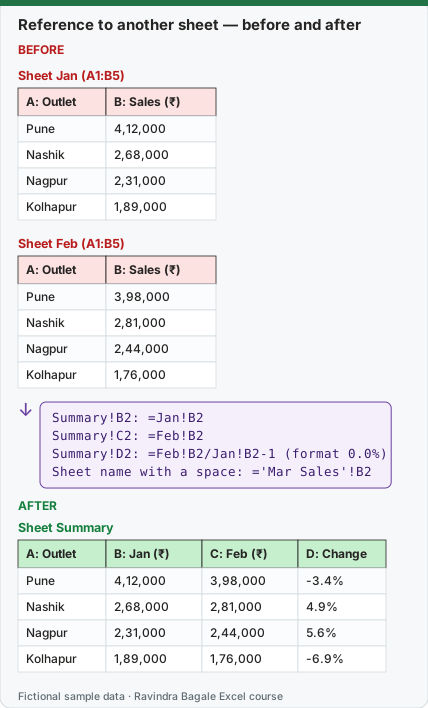
Expected result — Sheet Summary
| A: Outlet | B: Jan (₹) | C: Feb (₹) | D: Change |
|---|---|---|---|
| Pune | 4,12,000 | 3,98,000 | -3.4% |
| Nashik | 2,68,000 | 2,81,000 | 4.9% |
| Nagpur | 2,31,000 | 2,44,000 | 5.6% |
| Kolhapur | 1,89,000 | 1,76,000 | -6.9% |
Before table and formula as text
Before — Sheet Jan (A1:B5)
| A: Outlet | B: Sales (₹) |
|---|---|
| Pune | 4,12,000 |
| Nashik | 2,68,000 |
| Nagpur | 2,31,000 |
| Kolhapur | 1,89,000 |
Before — Sheet Feb (A1:B5)
| A: Outlet | B: Sales (₹) |
|---|---|
| Pune | 3,98,000 |
| Nashik | 2,81,000 |
| Nagpur | 2,44,000 |
| Kolhapur | 1,76,000 |
Formula / click path
Summary!B2: =Jan!B2
Summary!C2: =Feb!B2
Summary!D2: =Feb!B2/Jan!B2-1   (format 0.0%)
Sheet name with a space: ='Mar Sales'!B2
Do it step by step:
- On the Summary sheet, click B2 and type
=. - Click the Jan sheet tab, click B2, and press Enter. Excel writes
=Jan!B2. - In C2 do the same with the Feb sheet.
- In D2 type
=Feb!B2/Jan!B2-1and format it with Home › Number › Percent Style. - Select B2:D2 and fill down to row 5.
- Rename the Jan sheet to
Jan 2026and look at B2: Excel changes the formula to='Jan 2026'!B2by itself.
स्टेप बाय स्टेप करून बघा:
- Summary sheet वर B2 वर click करा आणि
=type करा. - Jan sheet tab वर click करा, B2 वर click करा, आणि Enter दाबा. Excel
=Jan!B2लिहितो. - C2 मध्ये Feb sheet सोबत असंच करा.
- D2 मध्ये
=Feb!B2/Jan!B2-1type करा आणि Home › Number › Percent Style ने format करा. - B2:D2 select करून row 5 पर्यंत खाली fill करा.
- Jan sheet चं नाव
Jan 2026करा आणि B2 बघा: Excel स्वतःहून formula='Jan 2026'!B2करतो.
स्टेप बाय स्टेप करके देखें:
- Summary sheet पर B2 पर click करें और
=type करें. - Jan sheet tab पर click करें, B2 पर click करें, और Enter दबाएँ. Excel
=Jan!B2लिखता है. - C2 में Feb sheet के साथ ऐसा ही करें.
- D2 में
=Feb!B2/Jan!B2-1type करें और Home › Number › Percent Style से format करें. - B2:D2 select करके row 5 तक नीचे fill करें.
- Jan sheet का नाम
Jan 2026करें और B2 देखें: Excel खुद formula को='Jan 2026'!B2कर देता है.
Rules for writing sheet references
| Sheet name | How to write it | Example |
|---|---|---|
| One word, no spaces | Name!Cell |
=Jan!B2 |
| Has a space or a hyphen | Single quotes around the name | ='Mar Sales'!B2 |
| Starts with a number | Single quotes | ='2026 Jan'!B2 |
| A range on another sheet | Name!Start:End |
=SUM(Jan!B2:B5) |
Clicking is safer than typing: Excel adds the quotes and the exclamation mark for you. When you rename a sheet, every reference to it is updated. When you delete a sheet, formulas that used it show #REF!.
Practice task (try it before you open the answer):
- Create the Jan, Feb and Mar sheets with the numbers in this module.
- On Summary, show Mar sales for all four outlets and the change from Feb to Mar.
Answer
Change Feb → Mar: Pune 14.3%, Nashik 3.9%, Nagpur -2.0%, Kolhapur 14.2%. Formula in D2: =Mar!B2/Feb!B2-1.
Ravindra Bagale's Tip
Build cross-sheet formulas by clicking, not typing. Typing a sheet name is how Jan!B2 becomes Jna!B2 and a #REF! appears in the Monday report.
Ravindra Bagale's Tip – मराठी
Cross-sheet formulas type न करता click करून बनवा. Sheet चं नाव type करताना Jan!B2 चं Jna!B2 होतं आणि सोमवारच्या report मध्ये #REF! येतो.
Ravindra Bagale's Tip – हिंदी
Cross-sheet formulas type करने के बजाय click करके बनाएँ. Sheet का नाम type करते समय Jan!B2 का Jna!B2 बनता है और सोमवार की report में #REF! आ जाता है.
Loading practice tasks...
- Madrid sales in Jan (Easy): Get Jan!C2.
- Seville covers in Mar (Easy): Get Mar!B5.
- Total Jan sales (Easy): Total of Jan!C2:C5.
- Total Feb covers (Easy): Total of Feb!B2:B5.
- Madrid in 3 months (Medium): Jan!C2 + Feb!C2 + Mar!C2.
- Change Jan to Feb (Medium): Feb!C3 minus Jan!C3.
- Average Mar sales (Medium): Average of Mar!C2:C5.
- Jan target met? (Medium): Is the total of C2 to C5 on the Jan sheet at least B2? (TRUE or FALSE)
- Quarter sales (Hard): Total sales of Jan, Feb and Mar.
- Mar bonus (Hard): Mar total sales × B3.
- Sales per cover in Feb (Hard): Total Feb sales ÷ total Feb covers, rounded to 2 decimals.