31.5 Forecast Sheet: Data › Forecast › Forecast Sheet
Example first. Shraddha Bagale has to send a forecast chart to the operations team in ten minutes. She selects the two columns (dates and orders), chooses Data › Forecast › Forecast Sheet, picks a line chart, sets the end date to 4 October 2026 and selects Create. Excel adds a new sheet with a table of history plus forecast, the lower and upper confidence bounds, and a chart. Every number in that table is a FORECAST.ETS or FORECAST.ETS.CONFINT formula, so it updates with the data. This lesson walks through the dialog, every option and the output.
Forecast Sheet — in 30 seconds
What: Forecast Sheet is a one-dialog tool that builds a forecast worksheet from a date column and a value column: a table with the forecast and confidence bounds (FORECAST.ETS and FORECAST.ETS.CONFINT formulas) and a line or column chart.
Why: It is the fastest way to a forecast chart, with options for start date, confidence level, seasonality, missing points and duplicates, and the result stays live because it is made of formulas.
Tiny example: Select A1:B57, Data › Forecast › Forecast Sheet, Forecast End 4 Oct 2026, Create. The new sheet adds Forecast, Lower Confidence Bound and Upper Confidence Bound columns for 28 Sep to 4 Oct.
Forecast Sheet — 30 सेकंदात
काय: Forecast Sheet हे एका dialog चं tool आहे जे date column आणि value column वरून forecast worksheet बनवतं: forecast आणि confidence bounds असलेली table (FORECAST.ETS आणि FORECAST.ETS.CONFINT formulas) आणि line किंवा column chart.
का: Forecast chart पर्यंत पोहोचण्याचा हा सर्वात जलद मार्ग आहे, start date, confidence level, seasonality, missing points आणि duplicates साठी options सह, आणि result formulas चा असल्याने live राहतो.
छोटं उदाहरण: A1:B57 निवडा, Data › Forecast › Forecast Sheet, Forecast End 4 Oct 2026, Create. नवीन sheet 28 Sep ते 4 Oct साठी Forecast, Lower Confidence Bound आणि Upper Confidence Bound columns जोडते.
Forecast Sheet — 30 सेकंड में
क्या: Forecast Sheet एक dialog वाला tool है जो date column और value column से forecast worksheet बनाता है: forecast और confidence bounds वाली table (FORECAST.ETS और FORECAST.ETS.CONFINT formulas) और line या column chart.
क्यों: Forecast chart तक पहुँचने का यह सबसे तेज़ तरीक़ा है, start date, confidence level, seasonality, missing points और duplicates के options के साथ, और result formulas का होने से live रहता है.
छोटा उदाहरण: A1:B57 चुनें, Data › Forecast › Forecast Sheet, Forecast End 4 Oct 2026, Create. नई sheet 28 Sep से 4 Oct के लिए Forecast, Lower Confidence Bound और Upper Confidence Bound columns जोड़ती है.
First look at the data (before → after):
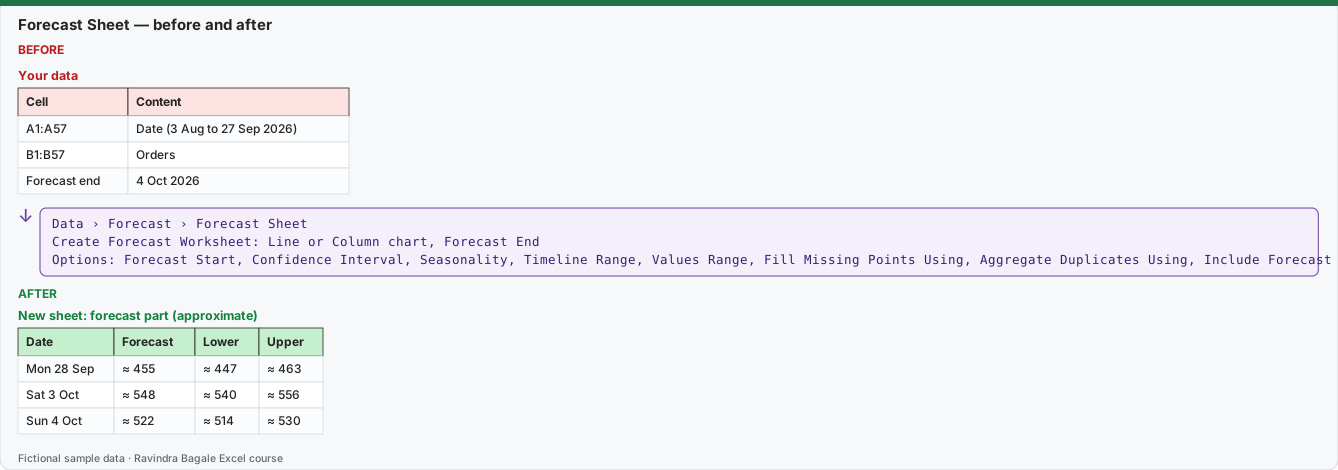
Expected result — New sheet: forecast part (approximate)
| Date | Forecast | Lower | Upper |
|---|---|---|---|
| Mon 28 Sep | ≈ 455 | ≈ 447 | ≈ 463 |
| Sat 3 Oct | ≈ 548 | ≈ 540 | ≈ 556 |
| Sun 4 Oct | ≈ 522 | ≈ 514 | ≈ 530 |
Before table and formula as text
Before — Your data
| Cell | Content |
|---|---|
| A1:A57 | Date (3 Aug to 27 Sep 2026) |
| B1:B57 | Orders |
| Forecast end | 4 Oct 2026 |
Formula / click path
Data › Forecast › Forecast Sheet
Create Forecast Worksheet: Line or Column chart, Forecast End
Options: Forecast Start, Confidence Interval, Seasonality, Timeline Range, Values Range, Fill Missing Points Using, Aggregate Duplicates Using, Include Forecast Statistics
Do it step by step:
- Select one cell in the data (Excel selects both columns) or select A1:B57.
- Choose Data › Forecast › Forecast Sheet.
- In Create Forecast Worksheet pick the line chart (or column chart) and set Forecast End to 4 October 2026.
- Open Options. Set Seasonality to Set Manually: 7, keep Confidence Interval at 95%, and tick Include Forecast Statistics.
- Select Create. A new sheet appears in front of the data sheet with the table and the chart.
- Click a forecast cell and read its formula: it is FORECAST.ETS with the same ranges, so you can audit it.
स्टेप बाय स्टेप करून बघा:
- Data मधली एक cell निवडा (Excel दोन्ही columns निवडतो) किंवा A1:B57 निवडा.
- Data › Forecast › Forecast Sheet निवडा.
- Create Forecast Worksheet मध्ये line chart (किंवा column chart) निवडा आणि Forecast End 4 October 2026 करा.
- Options उघडा. Seasonality ला Set Manually: 7 करा, Confidence Interval 95% ठेवा, आणि Include Forecast Statistics tick करा.
- Create निवडा. Data sheet च्या पुढे table आणि chart असलेली नवीन sheet येते.
- Forecast cell वर click करून formula वाचा: तो त्याच ranges चा FORECAST.ETS आहे, म्हणून तुम्ही तो audit करू शकता.
स्टेप बाय स्टेप करके देखें:
- Data की एक cell चुनें (Excel दोनों columns चुन लेता है) या A1:B57 चुनें.
- Data › Forecast › Forecast Sheet चुनें.
- Create Forecast Worksheet में line chart (या column chart) चुनें और Forecast End 4 October 2026 करें.
- Options खोलें. Seasonality को Set Manually: 7 करें, Confidence Interval 95% रखें, और Include Forecast Statistics tick करें.
- Create चुनें. Data sheet के आगे table और chart वाली नई sheet आती है.
- Forecast cell पर click करके formula पढ़ें: यह उन्हीं ranges का FORECAST.ETS है, इसलिए आप उसे audit कर सकते हैं.
Version note
Forecast Sheet is a Windows-only command: Microsoft's page "Create a forecast in Excel for Windows" lists Excel for Microsoft 365, Excel 2024 and Excel 2021 (the command first appeared in Excel 2016). Excel for Mac has the FORECAST.ETS functions but no Forecast Sheet button, as Microsoft's support staff confirm; Mac users build the same columns with the formulas from lessons 31.3 and 31.4 and insert a line chart. Excel for the web has neither the button nor the ETS functions.
Every option (from Microsoft's documentation)
| Option | What it does | Our setting |
|---|---|---|
| Forecast End | Last date to forecast | 4 Oct 2026 |
| Forecast Start | First forecast date. A date **before** the end of the history uses only the earlier data ("hindcasting"), so you can compare the forecast with what really happened. Microsoft recommends this for seasonal data. | Default (day after the last date) |
| Confidence Interval | Show or hide the lower/upper bounds; 95% by default | 95% |
| Seasonality | Detect Automatically, or Set Manually with the pattern length. Microsoft warns against a manual value with fewer than 2 cycles of history; when no significant seasonality is found, the forecast reverts to a linear trend. | Set Manually: 7 |
| Timeline Range / Values Range | The two input ranges; they must match in size | A2:A57 / B2:B57 |
| Fill Missing Points Using | Interpolation (weighted average of neighbours, if fewer than 30% are missing) or Zeros | Interpolation |
| Aggregate Duplicates Using | Average by default; Median, Count, Sum and others available | Average |
| Include Forecast Statistics | Adds a table made with FORECAST.ETS.STAT: Alpha, Beta, Gamma, MASE, SMAPE, MAE, RMSE (lesson 31.4) | Ticked |
What the new sheet contains
| Column | Content |
|---|---|
| Timeline | Your dates, then the forecast dates |
| Values | Your history (blank for future dates) |
| Forecast | FORECAST.ETS formulas for the future dates |
| Lower Confidence Bound / Upper Confidence Bound | Forecast minus / plus FORECAST.ETS.CONFINT (only when Confidence Interval is ticked) |
| Statistics table | Only with Include Forecast Statistics |
The forecast cells hold formulas of this shape (the exact arguments depend on your options):
=FORECAST.ETS(A58,$B$2:$B$57,$A$2:$A$57,7,1)
=C58-FORECAST.ETS.CONFINT(A58,$B$2:$B$57,$A$2:$A$57,0.95,7,1)
Because they are formulas, adding new days to the source columns (inside the referenced ranges) updates the forecast. If you add rows below the referenced ranges, edit the ranges or create the forecast sheet again. Keeping the source data in an Excel Table helps.
Hindcast: test the tool honestly. Run Forecast Sheet again with Forecast Start = 21 September 2026. Excel then forecasts 21 to 27 September using only the data before 21 September, and you can compare those forecasts with the real orders of that week. Lesson 31.7 does this comparison with MAE and MAPE.
Forecast Sheet or your own formulas? Forecast Sheet is perfect for a quick chart and a first look. For a report that refreshes every week, build the same columns with your own FORECAST.ETS formulas next to the data (lessons 31.3 and 31.4). They are the same formulas, but you control the ranges.
Approximate: Excel's FORECAST.ETS fits its smoothing parameters with its own method, which Microsoft does not publish. These ETS numbers were computed with two other implementations of the same AAA exponential smoothing (LibreOffice Calc 25.2 and Python statsmodels, seasonality 7). They agree with each other within about 2 orders; expect Excel's results to be close to them, not identical.
Microsoft sources (checked 7 October 2026): Create a forecast in Excel for Windows.
Practice task (try it before you open the answer):
- You want the forecast to start on 21 September 2026 while the data runs to 27 September. What does Excel do?
- Your history has only 10 days of data. Should you set seasonality to 7 manually?
- Where do the Lower and Upper Confidence Bound numbers come from?
Answer
- It uses only the data before 21 September to forecast from 21 September onward (hindcasting), so you can compare the forecast for 21 to 27 September with the actual orders.
- No. 10 days is fewer than 2 weekly cycles, and Microsoft advises against a manual seasonality with less than 2 cycles of history. Collect at least two to three weeks first.
- From FORECAST.ETS.CONFINT: the bounds are the forecast minus and plus the confidence half-width.
Ravindra Bagale's Tip
After Forecast Sheet creates its table, click one forecast cell and read the formula aloud. If you can explain it, you can defend the chart; if not, go back to lesson 31.3.
Ravindra Bagale's Tip – मराठी
Forecast Sheet ने table बनवल्यावर एका forecast cell वर click करून formula मोठ्याने वाचा. समजावता आला तर chart चा बचाव करता येईल; नाही तर lesson 31.3 वर परत जा.
Ravindra Bagale's Tip – हिंदी
Forecast Sheet के table बनाने के बाद एक forecast cell पर click करके formula ज़ोर से पढ़ें. समझा सकें तो chart का बचाव कर सकते हैं; नहीं तो lesson 31.3 पर वापस जाएँ.