31.4 FORECAST.ETS.CONFINT, FORECAST.ETS.SEASONALITY and FORECAST.ETS.STAT
Example first. Salman's operations head asks two follow-up questions: "How sure are you about the 548 orders on Saturday?" and "Which pattern did Excel use?" FORECAST.ETS.CONFINT answers the first with a "±" range around the forecast. FORECAST.ETS.SEASONALITY answers the second with the pattern length. FORECAST.ETS.STAT reports the smoothing parameters and error measures behind the forecast. Together they turn a single number into a forecast you can defend.
ETS confidence and diagnostics — in 30 seconds
What: FORECAST.ETS.CONFINT returns the half-width of a confidence interval around a FORECAST.ETS value (95% by default). FORECAST.ETS.SEASONALITY returns the pattern length Excel detects. FORECAST.ETS.STAT returns one of 8 statistics about the fit.
Why: Planning needs a range, not a point: riders for the upper bound, stock for the expected value. The diagnostics show whether Excel saw the pattern you expect.
Tiny example: =FORECAST.ETS.CONFINT(A58,$B$2:$B$57,$A$2:$A$57,0.95,7) gives about ±8 orders, so Monday is about 455 ± 8, roughly 447 to 463 (approximate).
ETS confidence and diagnostics — 30 सेकंदात
काय: FORECAST.ETS.CONFINT FORECAST.ETS value भोवतीच्या confidence interval ची half-width देतो (default 95%). FORECAST.ETS.SEASONALITY Excel ने शोधलेली pattern ची लांबी देतो. FORECAST.ETS.STAT fit बद्दलच्या 8 पैकी एक statistic देतो.
का: Planning ला एक आकडा नाही, range लागते: riders upper bound साठी, stock अपेक्षित value साठी. Diagnostics दाखवतात की तुम्हाला अपेक्षित pattern Excel ला दिसला का.
छोटं उदाहरण: =FORECAST.ETS.CONFINT(A58,$B$2:$B$57,$A$2:$A$57,0.95,7) साधारण ±8 orders देतो, म्हणजे Monday साधारण 455 ± 8, अंदाजे 447 ते 463 (approximate).
ETS confidence and diagnostics — 30 सेकंड में
क्या: FORECAST.ETS.CONFINT FORECAST.ETS value के आसपास confidence interval की half-width देता है (default 95%). FORECAST.ETS.SEASONALITY Excel की ढूँढी pattern लंबाई देता है. FORECAST.ETS.STAT fit के बारे में 8 में से एक statistic देता है.
क्यों: Planning को एक आँकड़ा नहीं, range चाहिए: riders upper bound के लिए, stock अपेक्षित value के लिए. Diagnostics दिखाते हैं कि आपकी उम्मीद वाला pattern Excel को दिखा या नहीं.
छोटा उदाहरण: =FORECAST.ETS.CONFINT(A58,$B$2:$B$57,$A$2:$A$57,0.95,7) लगभग ±8 orders देता है, यानी Monday लगभग 455 ± 8, क़रीब 447 से 463 (approximate).
First look at the data (before → after):
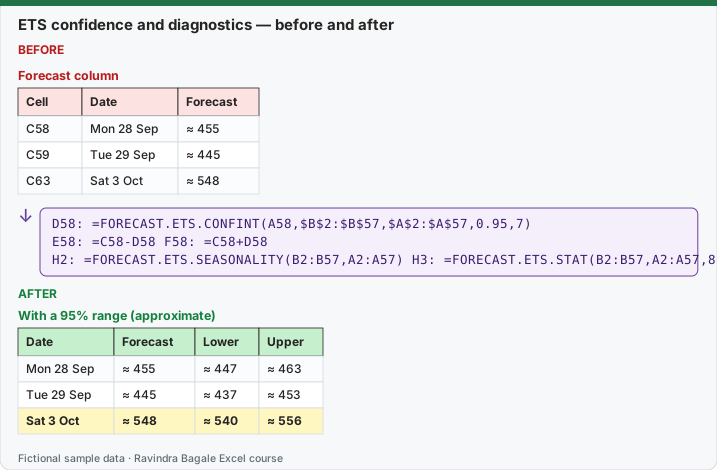
Expected result — With a 95% range (approximate)
| Date | Forecast | Lower | Upper |
|---|---|---|---|
| Mon 28 Sep | ≈ 455 | ≈ 447 | ≈ 463 |
| Tue 29 Sep | ≈ 445 | ≈ 437 | ≈ 453 |
| Sat 3 Oct | ≈ 548 | ≈ 540 | ≈ 556 |
Before table and formula as text
Before — Forecast column
| Cell | Date | Forecast |
|---|---|---|
| C58 | Mon 28 Sep | ≈ 455 |
| C59 | Tue 29 Sep | ≈ 445 |
| C63 | Sat 3 Oct | ≈ 548 |
Formula / click path
D58: =FORECAST.ETS.CONFINT(A58,$B$2:$B$57,$A$2:$A$57,0.95,7)
E58: =C58-D58   F58: =C58+D58
H2: =FORECAST.ETS.SEASONALITY(B2:B57,A2:A57)   H3: =FORECAST.ETS.STAT(B2:B57,A2:A57,8)
Do it step by step:
- In D58 type
=FORECAST.ETS.CONFINT(A58,$B$2:$B$57,$A$2:$A$57,0.95,7)and fill down to D64. Use the same seasonality (7) as in the forecast column. - In E58 type
=C58-D58(lower bound) and in F58=C58+D58(upper bound). Fill both down. - In H2 type
=FORECAST.ETS.SEASONALITY(B2:B57,A2:A57)to see the pattern length Excel detects automatically. - If H2 is not 7, keep 7 in your formulas, because you know the pattern is weekly.
- In H3 type
=FORECAST.ETS.STAT(B2:B57,A2:A57,8). Result 1: Excel found a step of one day. - Plan riders for the upper bound on busy days, and order stock for the forecast itself.
स्टेप बाय स्टेप करून बघा:
- D58 मध्ये
=FORECAST.ETS.CONFINT(A58,$B$2:$B$57,$A$2:$A$57,0.95,7)type करून D64 पर्यंत fill करा. Forecast column मधलीच seasonality (7) वापरा. - E58 मध्ये
=C58-D58(lower bound) आणि F58 मध्ये=C58+D58(upper bound) type करा. दोन्ही खाली fill करा. - Excel आपोआप कोणती pattern लांबी शोधतो ते बघायला H2 मध्ये
=FORECAST.ETS.SEASONALITY(B2:B57,A2:A57)type करा. - H2 मध्ये 7 नसेल तर तुमच्या formulas मध्ये 7 च ठेवा, कारण pattern weekly आहे हे तुम्हाला माहीत आहे.
- H3 मध्ये
=FORECAST.ETS.STAT(B2:B57,A2:A57,8)type करा. Result 1: Excel ला एका दिवसाचा step सापडला. - Busy दिवसांसाठी riders upper bound नुसार plan करा, आणि stock forecast नुसार मागवा.
स्टेप बाय स्टेप करके देखें:
- D58 में
=FORECAST.ETS.CONFINT(A58,$B$2:$B$57,$A$2:$A$57,0.95,7)type करके D64 तक fill करें. Forecast column वाली ही seasonality (7) इस्तेमाल करें. - E58 में
=C58-D58(lower bound) और F58 में=C58+D58(upper bound) type करें. दोनों नीचे fill करें. - Excel अपने आप कौन सी pattern लंबाई ढूँढता है, यह देखने के लिए H2 में
=FORECAST.ETS.SEASONALITY(B2:B57,A2:A57)type करें. - H2 में 7 न हो तो अपने formulas में 7 ही रखें, क्योंकि आपको पता है कि pattern weekly है.
- H3 में
=FORECAST.ETS.STAT(B2:B57,A2:A57,8)type करें. Result 1: Excel को एक दिन का step मिला. - Busy दिनों के लिए riders upper bound के हिसाब से plan करें, और stock forecast के हिसाब से मँगाएँ.
Version note
FORECAST.ETS, FORECAST.ETS.CONFINT, FORECAST.ETS.SEASONALITY and FORECAST.ETS.STAT are in Excel for Microsoft 365 (Windows and Mac), Excel 2024, 2021, 2019 and 2016. Microsoft states they are not available in Excel for the web, iOS or Android. FORECAST.LINEAR, FORECAST and TREND work everywhere. LibreOffice has similar functions (FORECAST.ETS.ADD and others) and opens Excel files that use them, but its results differ slightly from Excel's.
FORECAST.ETS.CONFINT
FORECAST.ETS.CONFINT(target_date, values, timeline, [confidence_level], [seasonality], [data_completion], [aggregation])
- confidence_level is a number between 0 and 1; the default is 95%. A 95% interval means 95% of future points are expected to fall within this distance of the forecast (Microsoft's wording). A 90% interval is narrower, 99% wider.
- The result is the half-width (the "±" part), not the bound itself. Lower = forecast − CONFINT, upper = forecast + CONFINT.
- Use the same seasonality, data_completion and aggregation as in your FORECAST.ETS formula, or the interval belongs to a different model.
On this data the 95% half-width is about ±7 to 9 orders per day (LibreOffice gives values in this range; it uses a simulation, so its numbers move slightly between recalculations). Excel's value will be similar but not identical. The interval is narrow because the weekly pattern is very regular in this practice data; real data usually gives wider ranges.
FORECAST.ETS.SEASONALITY
FORECAST.ETS.SEASONALITY(values, timeline, [data_completion], [aggregation]) returns the pattern length that FORECAST.ETS uses when seasonality is automatic. Microsoft states the detected value is identical to the one FORECAST.ETS uses with the same inputs.
What to expect here: the true pattern is weekly, so the value you want is 7. Automatic detection does not always return the shortest cycle. LibreOffice's detector, for example, returned 21 (three weeks) on these 56 days and 14 on the first 49 days, both multiples of 7. Check what your Excel returns. If it is not 7, type 7 as the seasonality argument in every ETS formula. If it returns 0, Excel found no pattern and the forecast is a trend line.
FORECAST.ETS.STAT
FORECAST.ETS.STAT(values, timeline, statistic_type, [seasonality], [data_completion], [aggregation])
| statistic_type | Statistic | Meaning |
|---|---|---|
| 1 | Alpha | Level smoothing (0 to 1): higher = the level follows recent days more closely |
| 2 | Beta | Trend smoothing (0 to 1): higher = the trend reacts faster |
| 3 | Gamma | Seasonal smoothing (0 to 1): higher = the weekly pattern adapts faster |
| 4 | MASE | Mean absolute scaled error: below 1 means better than the "same as last season" forecast on the history |
| 5 | SMAPE | Symmetric mean absolute percentage error, as a fraction |
| 6 | MAE | Mean absolute error on the history, in orders |
| 7 | RMSE | Root mean squared error on the history, in orders |
| 8 | Step size | The time step Excel detected in the timeline (here 1 day) |
Use type 8 as a quick check that Excel read your timeline as intended (1 = one day; for monthly data on the 1st of each month Excel reports the step in its own units). Types 4 to 7 measure the error on the history. For a fair accuracy test, hold back the last week and measure it yourself (lesson 31.7). The exact alpha, beta and gamma depend on Excel's fitting method, so they are not printed here; they are always between 0 and 1.
Approximate: Excel's FORECAST.ETS fits its smoothing parameters with its own method, which Microsoft does not publish. These ETS numbers were computed with two other implementations of the same AAA exponential smoothing (LibreOffice Calc 25.2 and Python statsmodels, seasonality 7). They agree with each other within about 2 orders; expect Excel's results to be close to them, not identical.
Microsoft sources (checked 7 October 2026): FORECAST.ETS.CONFINT function; FORECAST.ETS.SEASONALITY function; FORECAST.ETS.STAT function.
Practice task (try it before you open the answer):
- Write the formula for a 90% half-width for Saturday 3 October (A63).
- If C63 is 548 and D63 is 8, what range do you plan for?
- FORECAST.ETS.SEASONALITY returns 14 on your data. What do you do?
Answer
=FORECAST.ETS.CONFINT(A63,$B$2:$B$57,$A$2:$A$57,0.9,7). It is smaller than the 95% half-width.- 540 to 556 orders (548 ± 8). Staff for about 556 and stock for about 548.
- 14 is a multiple of 7, so Excel picked a two-week cycle. You know the pattern is weekly, so put 7 as the seasonality argument in FORECAST.ETS and FORECAST.ETS.CONFINT.
Ravindra Bagale's Tip
Show every forecast as three columns: lower, forecast, upper. A manager who sees "455 (447 to 463)" asks better questions than one who sees "455".
Ravindra Bagale's Tip – मराठी
प्रत्येक forecast तीन columns मध्ये दाखवा: lower, forecast, upper. "455 (447 ते 463)" बघणारा manager फक्त "455" बघणाऱ्यापेक्षा चांगले प्रश्न विचारतो.
Ravindra Bagale's Tip – हिंदी
हर forecast तीन columns में दिखाएँ: lower, forecast, upper. "455 (447 से 463)" देखने वाला manager सिर्फ़ "455" देखने वाले से बेहतर सवाल पूछता है.