31.3 FORECAST.ETS: Seasonal Forecasts with Exponential Smoothing
Example first. Salman needs next week's daily orders to plan riders. A straight line gave almost the same number for every day. =FORECAST.ETS(A58,$B$2:$B$57,$A$2:$A$57,7) follows both the growth and the weekly shape: about 455 on Monday 28 September, about 445 on Tuesday and about 548 on Saturday 3 October. This lesson explains what exponential smoothing does in plain words, every argument of FORECAST.ETS, its errors, and why the numbers on this page are marked approximate.
FORECAST.ETS — in 30 seconds
What: FORECAST.ETS predicts a future value with the AAA version of exponential triple smoothing: it keeps a smoothed level, a smoothed trend and a smoothed seasonal pattern, giving more weight to recent data. The timeline must have a constant step.
Why: Most business series have a pattern that repeats (weekends, month-end, festivals). ETS forecasts that pattern automatically, which a straight line cannot do.
Tiny example: Dates in A2:A57, orders in B2:B57, next date in A58. =FORECAST.ETS(A58,$B$2:$B$57,$A$2:$A$57,7) forecasts Monday 28 September: about 455 orders (approximate).
FORECAST.ETS — 30 सेकंदात
काय: FORECAST.ETS exponential triple smoothing च्या AAA version ने भविष्यातली value predict करतो: तो smoothed level, smoothed trend आणि smoothed seasonal pattern ठेवतो, आणि अलीकडच्या data ला जास्त महत्त्व देतो. Timeline ला constant step हवा.
का: बहुतेक business series मध्ये पुन्हा येणारा pattern असतो (weekends, month-end, सण). ETS तो pattern आपोआप forecast करतो, जे सरळ रेषा करू शकत नाही.
छोटं उदाहरण: A2:A57 मध्ये तारखा, B2:B57 मध्ये orders, A58 मध्ये पुढची तारीख. =FORECAST.ETS(A58,$B$2:$B$57,$A$2:$A$57,7) Monday 28 September चा forecast देतो: साधारण 455 orders (approximate).
FORECAST.ETS — 30 सेकंड में
क्या: FORECAST.ETS exponential triple smoothing के AAA version से भविष्य की value predict करता है: यह smoothed level, smoothed trend और smoothed seasonal pattern रखता है, और हाल के data को ज़्यादा महत्व देता है. Timeline में constant step चाहिए.
क्यों: ज़्यादातर business series में दोहराने वाला pattern होता है (weekends, month-end, त्योहार). ETS उस pattern को अपने आप forecast करता है, जो सीधी रेखा नहीं कर सकती.
छोटा उदाहरण: A2:A57 में तारीख़ें, B2:B57 में orders, A58 में अगली तारीख़. =FORECAST.ETS(A58,$B$2:$B$57,$A$2:$A$57,7) Monday 28 September का forecast देता है: लगभग 455 orders (approximate).
First look at the data (before → after):
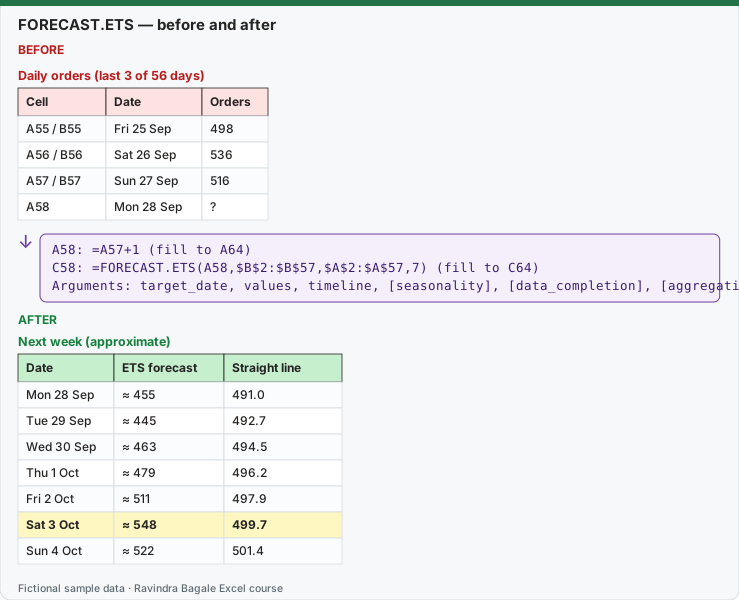
Expected result — Next week (approximate)
| Date | ETS forecast | Straight line |
|---|---|---|
| Mon 28 Sep | ≈ 455 | 491.0 |
| Tue 29 Sep | ≈ 445 | 492.7 |
| Wed 30 Sep | ≈ 463 | 494.5 |
| Thu 1 Oct | ≈ 479 | 496.2 |
| Fri 2 Oct | ≈ 511 | 497.9 |
| Sat 3 Oct | ≈ 548 | 499.7 |
| Sun 4 Oct | ≈ 522 | 501.4 |
Before table and formula as text
Before — Daily orders (last 3 of 56 days)
| Cell | Date | Orders |
|---|---|---|
| A55 / B55 | Fri 25 Sep | 498 |
| A56 / B56 | Sat 26 Sep | 536 |
| A57 / B57 | Sun 27 Sep | 516 |
| A58 | Mon 28 Sep | ? |
Formula / click path
A58: =A57+1   (fill to A64)
C58: =FORECAST.ETS(A58,$B$2:$B$57,$A$2:$A$57,7)   (fill to C64)
Arguments: target_date, values, timeline, [seasonality], [data_completion], [aggregation]
Do it step by step:
- Make sure A2:A57 holds real dates one day apart and B2:B57 the orders (lesson 31.1).
- In A58 type
=A57+1and fill down to A64 for the next 7 dates. - In C58 type
=FORECAST.ETS(A58,$B$2:$B$57,$A$2:$A$57,7)and fill down to C64. The 7 tells Excel the pattern repeats every 7 days. - Compare Saturday (C63) with Tuesday (C59): the weekly shape is kept.
- Try
=FORECAST.ETS(A58,$B$2:$B$57,$A$2:$A$57)without the 7: Excel detects the seasonality itself. Check what it found with lesson 31.4. - Round for planning:
=ROUND(C58,0). Never show forecasts with decimals to an operations team.
स्टेप बाय स्टेप करून बघा:
- A2:A57 मध्ये एक दिवसाच्या अंतराने खऱ्या तारखा आणि B2:B57 मध्ये orders आहेत ना ते बघा (lesson 31.1).
- पुढच्या 7 तारखांसाठी A58 मध्ये
=A57+1type करून A64 पर्यंत fill करा. - C58 मध्ये
=FORECAST.ETS(A58,$B$2:$B$57,$A$2:$A$57,7)type करून C64 पर्यंत fill करा. 7 म्हणजे pattern दर 7 दिवसांनी repeat होतो हे Excel ला सांगणं. - Saturday (C63) ची Tuesday (C59) शी तुलना करा: weekly आकार टिकून राहतो.
- 7 शिवाय
=FORECAST.ETS(A58,$B$2:$B$57,$A$2:$A$57)करून बघा: Excel स्वतः seasonality शोधतो. त्याला काय सापडलं ते lesson 31.4 ने तपासा. - Planning साठी round करा:
=ROUND(C58,0). Operations team ला decimals असलेले forecasts कधी दाखवू नका.
स्टेप बाय स्टेप करके देखें:
- देखें कि A2:A57 में एक दिन के अंतर पर असली तारीख़ें और B2:B57 में orders हैं (lesson 31.1).
- अगली 7 तारीख़ों के लिए A58 में
=A57+1type करके A64 तक fill करें. - C58 में
=FORECAST.ETS(A58,$B$2:$B$57,$A$2:$A$57,7)type करके C64 तक fill करें. 7 से Excel को पता चलता है कि pattern हर 7 दिन में दोहराता है. - Saturday (C63) की Tuesday (C59) से तुलना करें: weekly आकार बना रहता है.
- 7 के बिना
=FORECAST.ETS(A58,$B$2:$B$57,$A$2:$A$57)आज़माएँ: Excel ख़ुद seasonality ढूँढता है. उसे क्या मिला, lesson 31.4 से जाँचें. - Planning के लिए round करें:
=ROUND(C58,0). Operations team को decimals वाले forecasts कभी न दिखाएँ.
Version note
FORECAST.ETS, FORECAST.ETS.CONFINT, FORECAST.ETS.SEASONALITY and FORECAST.ETS.STAT are in Excel for Microsoft 365 (Windows and Mac), Excel 2024, 2021, 2019 and 2016. Microsoft states they are not available in Excel for the web, iOS or Android. FORECAST.LINEAR, FORECAST and TREND work everywhere. LibreOffice has similar functions (FORECAST.ETS.ADD and others) and opens Excel files that use them, but its results differ slightly from Excel's.
What exponential smoothing does, in plain words. Imagine three running estimates, updated every day: the level (how many orders a normal day has right now), the trend (how much the level grows per day) and the seasonal offset for each weekday (Saturday +55, Tuesday −40 and so on). Each new day nudges all three a little towards what actually happened; recent days count more than old ones. The forecast for a future day = level + trend × days ahead + that weekday's offset. "AAA" means the error, trend and seasonality are all additive (added in orders, not multiplied as percentages). Excel chooses how strongly to nudge (the smoothing parameters alpha, beta and gamma) by fitting the history.
Next week, three ways
| Cell | Date | LibreOffice ETS | Python statsmodels | Expect in Excel about | Straight line |
|---|---|---|---|---|---|
| A58 | Mon 28 Sep | 456.1 | 454.6 | 455 | 491.0 |
| A59 | Tue 29 Sep | 444.2 | 445.3 | 445 | 492.7 |
| A60 | Wed 30 Sep | 461.8 | 463.3 | 463 | 494.5 |
| A61 | Thu 1 Oct | 479.6 | 479.1 | 479 | 496.2 |
| A62 | Fri 2 Oct | 511.1 | 511.0 | 511 | 497.9 |
| A63 | Sat 3 Oct | 547.5 | 547.8 | 548 | 499.7 |
| A64 | Sun 4 Oct | 522.2 | 522.3 | 522 | 501.4 |
Approximate: Excel's FORECAST.ETS fits its smoothing parameters with its own method, which Microsoft does not publish. These ETS numbers were computed with two other implementations of the same AAA exponential smoothing (LibreOffice Calc 25.2 and Python statsmodels, seasonality 7). They agree with each other within about 2 orders; expect Excel's results to be close to them, not identical.
Both ETS columns keep the weekly shape (Saturday highest, Tuesday lowest) and the growth. The straight line stays between 491.0 and 501.4 for every day.
Every argument
| Argument | Required? | What to put | Default |
|---|---|---|---|
| target_date | Yes | The date (or number) to forecast. It must be after the last timeline date, otherwise #NUM! | — |
| values | Yes | The history: B2:B57 | — |
| timeline | Yes | Dates or numbers with a constant step: A2:A57. It does not need to be sorted. | — |
| seasonality | No | 1 = detect automatically; 0 = no seasonality (a linear-style forecast); a whole number = the pattern length (7 for days in a week, 12 for months in a year). Maximum 8,760. | 1 (automatic) |
| data_completion | No | 1 = fill missing points with the average of their neighbours; 0 = treat them as zeros. Up to 30% may be missing. | 1 |
| aggregation | No | How to combine several values with the same date: 0 or omitted = AVERAGE; other codes give SUM, COUNT, COUNTA, MIN, MAX or MEDIAN | 0 (AVERAGE) |
Errors you will meet
| Error | Cause (from Microsoft's documentation) | Fix |
|---|---|---|
| #NUM! | target_date is before the end of the timeline, or no constant step can be found, or seasonality is invalid (negative or above 8,760) | Forecast only after the last date; make the timeline one row per day/month |
| #VALUE! | The timeline contains duplicate dates | Aggregate to one row per date first (lesson 31.1) |
| #N/A | values and timeline have different sizes | Use the same rows for both, for example B2:B57 and A2:A57 |
| #NAME? | Excel for the web, iPad, iPhone or Android, or an Excel older than 2016 | Open the file in Excel for Windows or Mac |
Seasonality: automatic or 7? With seasonality 1 (automatic), Excel picks the pattern length itself. When you know the pattern (7 days in a week), typing 7 makes the forecast predictable and easy to explain. For example, LibreOffice's automatic detection chose a 21-day pattern on this data, and its automatic forecast for Monday 28 September was 451.9 instead of 456.1. Lesson 31.4 shows how to check what Excel detected.
How far ahead? ETS projects the level, trend and pattern forward; it cannot know about a festival, a new competitor or a price change. Use it for a few seasonal cycles ahead (here, one or two weeks), and refresh it as new days arrive.
Microsoft sources (checked 7 October 2026): FORECAST.ETS function; Forecasting functions (reference).
Practice task (try it before you open the answer):
- Write the formula for Saturday 3 October in C63.
- What happens if you write
=FORECAST.ETS(A50,$B$2:$B$57,$A$2:$A$57,7)(a date inside the history)? - The data has two rows for 15 August (a correction was added). Which error appears and what is the fix?
Answer
=FORECAST.ETS(A63,$B$2:$B$57,$A$2:$A$57,7): about 548 orders (approximate).-
NUM!, because the target date is before the end of the timeline. FORECAST.ETS only forecasts forward.
-
VALUE!, because the timeline contains a duplicate date. Combine the two rows into one (SUMIFS by date) before forecasting.
Ravindra Bagale's Tip
When you know the season length, type it (7 for daily data with a weekly pattern, 12 for monthly data). Automatic detection is clever, but a number you chose is a number you can explain in the meeting.
Ravindra Bagale's Tip – मराठी
Season ची लांबी माहीत असेल तर ती type करा (weekly pattern असलेल्या daily data साठी 7, monthly data साठी 12). Automatic detection हुशार आहे, पण तुम्ही निवडलेला आकडा meeting मध्ये समजावता येतो.
Ravindra Bagale's Tip – हिंदी
Season की लंबाई पता हो तो उसे type करें (weekly pattern वाले daily data के लिए 7, monthly data के लिए 12). Automatic detection चतुर है, पर आपका चुना आँकड़ा meeting में समझाया जा सकता है.