31.1 Forecasting Basics: Trend, Seasonality and a Clean Time Series
Example first. Salman runs a Pune dark store and must plan riders for next week. He has daily orders for the last 8 weeks (3 August to 27 September 2026). Two patterns jump out when he draws a line chart: orders grow slowly week after week (from 2,832 in the first week to 3,352 in the last), and every Saturday is the busiest day. That is a trend plus a weekly seasonality. Before any forecasting function can use these patterns, the data must be a clean time series: one row per day, no gaps, no duplicates. This lesson builds that table and reads the patterns.
Clean time series — in 30 seconds
What: A time series is one value per equal time step (day, week, month) in date order. Forecasting splits it into a level, a trend (steady growth or decline), seasonality (a repeating pattern such as weekends) and noise.
Why: Excel's forecasting functions need a constant step between dates. A clean daily table and a quick look at trend and seasonality decide which method will work.
Tiny example: A raw order log has one row per order. =COUNTIFS(Orders[Date],A2) next to a list of every date turns it into one row per day, including days with zero orders.
Clean time series — 30 सेकंदात
काय: Time series म्हणजे समान वेळेच्या टप्प्याला (दिवस, आठवडा, महिना) एक value, तारखेच्या क्रमाने. Forecasting त्याला level, trend (स्थिर वाढ किंवा घट), seasonality (weekends सारखा पुन्हा येणारा pattern) आणि noise मध्ये विभागतं.
का: Excel च्या forecasting functions ना तारखांमध्ये constant step लागतो. स्वच्छ daily table आणि trend व seasonality वर एक नजर, यावरून कोणती पद्धत चालेल ते ठरतं.
छोटं उदाहरण: Raw order log मध्ये प्रत्येक order ची एक row असते. प्रत्येक तारखेच्या list शेजारी =COUNTIFS(Orders[Date],A2) ते दिवसाला एक row मध्ये बदलतो, शून्य orders चे दिवसही.
Clean time series — 30 सेकंड में
क्या: Time series यानी बराबर समय के क़दम (दिन, हफ़्ता, महीना) पर एक value, तारीख़ के क्रम में. Forecasting उसे level, trend (लगातार बढ़त या गिरावट), seasonality (weekends जैसा दोहराने वाला pattern) और noise में बाँटता है.
क्यों: Excel के forecasting functions को तारीख़ों के बीच constant step चाहिए. साफ़ daily table और trend व seasonality पर एक नज़र से तय होता है कि कौन सा तरीक़ा चलेगा.
छोटा उदाहरण: Raw order log में हर order की एक row होती है. हर तारीख़ की list के बगल में =COUNTIFS(Orders[Date],A2) उसे हर दिन की एक row में बदलता है, शून्य orders वाले दिन भी.
First look at the data (before → after):
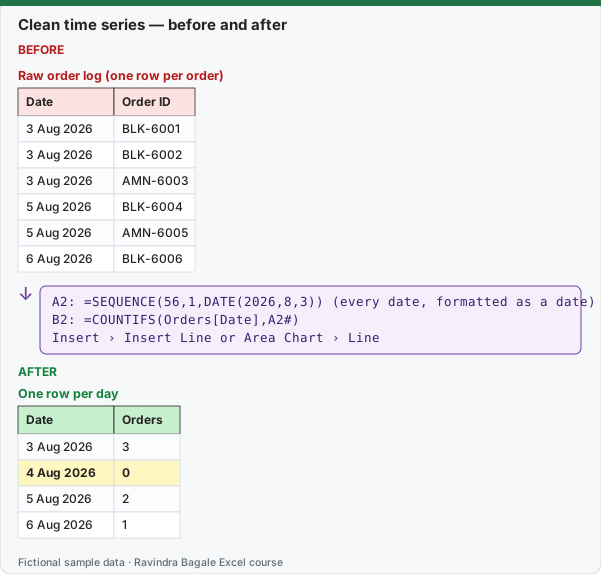
Expected result — One row per day
| Date | Orders |
|---|---|
| 3 Aug 2026 | 3 |
| 4 Aug 2026 | 0 |
| 5 Aug 2026 | 2 |
| 6 Aug 2026 | 1 |
Before table and formula as text
Before — Raw order log (one row per order)
| Date | Order ID |
|---|---|
| 3 Aug 2026 | BLK-6001 |
| 3 Aug 2026 | BLK-6002 |
| 3 Aug 2026 | AMN-6003 |
| 5 Aug 2026 | BLK-6004 |
| 5 Aug 2026 | AMN-6005 |
| 6 Aug 2026 | BLK-6006 |
Formula / click path
A2: =SEQUENCE(56,1,DATE(2026,8,3))   (every date, formatted as a date)
B2: =COUNTIFS(Orders[Date],A2#)
Insert › Insert Line or Area Chart › Line
Do it step by step:
- Keep the raw orders in an Excel Table named Orders with a Date column (dates only, no times).
- In a new sheet, in A2 type
=SEQUENCE(56,1,DATE(2026,8,3))and format A2:A57 as dates. Every day appears once, even days with no orders. - In B2 type
=COUNTIFS(Orders[Date],A2#). One count per day spills down. - For an amount instead of a count use
=SUMIFS(Orders[Amount],Orders[Date],A2#). - Select the dates and counts and choose Insert › Insert Line or Area Chart › Line. Look for the trend and the repeating weekly shape.
- Check the pattern with numbers: average orders per weekday (table below). A big difference between weekdays means weekly seasonality.
स्टेप बाय स्टेप करून बघा:
- Raw orders Orders नावाच्या Excel Table मध्ये Date column सह ठेवा (फक्त तारखा, वेळ नाही).
- नवीन sheet मध्ये A2 मध्ये
=SEQUENCE(56,1,DATE(2026,8,3))type करून A2:A57 date म्हणून format करा. प्रत्येक दिवस एकदा येतो, orders नसलेले दिवसही. - B2 मध्ये
=COUNTIFS(Orders[Date],A2#)type करा. दिवसाला एक count spill होतो. - Count ऐवजी amount साठी
=SUMIFS(Orders[Amount],Orders[Date],A2#)वापरा. - तारखा आणि counts निवडून Insert › Insert Line or Area Chart › Line निवडा. Trend आणि पुन्हा येणारा weekly आकार शोधा.
- Pattern आकड्यांनी तपासा: प्रत्येक weekday चे average orders (खालची table). Weekdays मध्ये मोठा फरक म्हणजे weekly seasonality.
स्टेप बाय स्टेप करके देखें:
- Raw orders को Orders नाम की Excel Table में Date column के साथ रखें (सिर्फ़ तारीख़ें, समय नहीं).
- नई sheet में A2 में
=SEQUENCE(56,1,DATE(2026,8,3))type करके A2:A57 को date format करें. हर दिन एक बार आता है, बिना orders वाले दिन भी. - B2 में
=COUNTIFS(Orders[Date],A2#)type करें. हर दिन का एक count spill होता है. - Count की जगह amount के लिए
=SUMIFS(Orders[Amount],Orders[Date],A2#)इस्तेमाल करें. - तारीख़ें और counts चुनकर Insert › Insert Line or Area Chart › Line चुनें. Trend और दोहराने वाला weekly आकार देखें.
- Pattern को आँकड़ों से जाँचें: हर weekday के average orders (नीचे की table). Weekdays में बड़ा फ़र्क़ यानी weekly seasonality.
The data used in this module: daily orders, Pune dark store, 3 August to 27 September 2026 (fictional)
| Week starting | Mon | Tue | Wed | Thu | Fri | Sat | Sun | Week total |
|---|---|---|---|---|---|---|---|---|
| Mon 3 Aug | 373 | 356 | 385 | 392 | 430 | 456 | 440 | 2832 |
| Mon 10 Aug | 376 | 378 | 386 | 410 | 436 | 475 | 442 | 2903 |
| Mon 17 Aug | 393 | 380 | 403 | 410 | 450 | 488 | 457 | 2981 |
| Mon 24 Aug | 400 | 398 | 406 | 428 | 452 | 500 | 470 | 3054 |
| Mon 31 Aug | 416 | 400 | 418 | 442 | 464 | 506 | 484 | 3130 |
| Mon 7 Sep | 416 | 416 | 436 | 446 | 482 | 513 | 488 | 3197 |
| Mon 14 Sep | 434 | 420 | 444 | 452 | 495 | 528 | 501 | 3274 |
| Mon 21 Sep | 448 | 434 | 448 | 472 | 498 | 536 | 516 | 3352 |
In the workbook the data sits in two columns: A2:A57 dates and B2:B57 orders. The table above only shows it week by week so the pattern is easy to see.
Reading the two patterns
| Pattern | How to see it | In this data |
|---|---|---|
| Trend | Weekly totals, or =SLOPE(B2:B57,ROW(B2:B57)-1) for growth per day |
Weekly totals rise from 2,832 to 3,352; about 1.74 more orders per day, every day |
| Weekly seasonality | Average per weekday with =AVERAGEIFS(B2:B57,C2:C57,1) where C has =WEEKDAY(A2,2) (1 = Monday) |
Saturday 500.3 vs Tuesday 397.8: a swing of about 103 orders |
| Noise | What is left after trend and seasonality | A few orders up or down each day |
| Weekday | Mon | Tue | Wed | Thu | Fri | Sat | Sun | All days |
|---|---|---|---|---|---|---|---|---|
| Average orders | 407.0 | 397.8 | 415.8 | 431.5 | 463.4 | 500.3 | 474.8 | 441.5 |
Rules for a forecast-ready time series (from Microsoft's forecasting documentation)
- Constant step. Every row is one day (or one week, or the 1st of each month). FORECAST.ETS returns #NUM! when it cannot find a constant step.
- No duplicate dates. If the raw data has several rows per date, aggregate first with SUMIFS or COUNTIFS. FORECAST.ETS can average duplicates itself, but Microsoft recommends summarising before forecasting for more accurate results.
- Few gaps. Up to 30% missing points are allowed; Excel fills them with the average of the neighbouring points (or zeros, if you choose). A day with no orders is not a gap, it is a 0, so put the 0 in.
- Enough history. For a seasonal forecast you need at least two full cycles (two weeks for a weekly pattern, two years for a yearly pattern). This data has 8 weekly cycles.
- Dates as real dates. Text that looks like a date breaks the timeline. Check with
=ISNUMBER(A2).
Choosing a method
| Data looks like | Method | Lesson |
|---|---|---|
| Steady growth, no repeating pattern (monthly totals) | FORECAST.LINEAR / TREND | 31.2 |
| Trend plus a repeating pattern (daily orders) | FORECAST.ETS or Forecast Sheet | 31.3 to 31.5 |
| You want to see and explain the pattern | Trend + weekday offsets with formulas | 31.6 |
| Any method | Test it on held-back data with MAE and MAPE | 31.7 |
Exact values on this page were computed with Excel's documented formulas and re-checked in LibreOffice Calc 25.2 with the same formulas.
Microsoft sources (checked 7 October 2026): Create a forecast in Excel for Windows; FORECAST.ETS function.
Practice task (try it before you open the answer):
- Which weekday has the lowest average orders, and by how much is it below the overall average?
- Your raw data has two rows for 5 August (a morning and an evening export). What do you do before forecasting?
- How many weeks of daily data do you need at minimum for a weekly seasonal forecast?
Answer
- Tuesday, 397.8 orders: about 43.7 below the overall average of 441.5.
- Add them into one row per day with
=SUMIFS(…)or=COUNTIFS(…)against a list of unique dates, so the timeline has no duplicates. - At least two full weeks (two cycles); more is better. With 8 weeks the weekly pattern is clear.
Ravindra Bagale's Tip
Draw the line chart before you touch a forecasting function. Ten seconds of looking tells you whether you need a straight line or a seasonal model, and shows data errors like a missing week.
Ravindra Bagale's Tip – मराठी
Forecasting function ला हात लावण्याआधी line chart काढा. दहा सेकंद पाहिलं तरी कळतं सरळ रेषा हवी की seasonal model, आणि missing आठवड्यासारख्या data चुका दिसतात.
Ravindra Bagale's Tip – हिंदी
Forecasting function छूने से पहले line chart बनाएँ. दस सेकंड देखने से पता चलता है कि सीधी रेखा चाहिए या seasonal model, और missing हफ़्ते जैसी data ग़लतियाँ दिखती हैं.
Loading practice tasks...
- Weeks with data (Easy): How many numbers are in B2:B13?
- Missing weeks (Easy): How many cells in B2:B13 are empty?
- Fill week 3 (Easy): Average of B3 and B5.
- Median weekly orders (Medium): Median of B2:B13.
- Spike size (Medium): B7 ÷ median of B2:B13, rounded to 2 decimals.
- Spike flag (Medium): Is B7 above 1.5 × the median? (TRUE or FALSE)
- Trend per week (Medium): Slope of B8:B13 on A8:A13, rounded to 2 decimals.
- Growth first to last (Hard): B13 ÷ B2 − 1, rounded to 3 decimals.
- Average without spike (Hard): Average of B2:B13 for values below 1000, rounded to 1 decimal.
- Average weekly change (Hard): (B13 − B2) ÷ 11, rounded to 2 decimals.