28.7 Verify AI Output: A Checklist and Recomputing with Formulas
Example first. Shraddha asks Copilot for a Pune summary and pastes the reply into her email: "Pune sales are ₹544, average delivery 11 minutes, 3 orders." Her manager replies: "Net sales for Pune were ₹324. Where is 544 from?" Both numbers are real. ₹544 includes a cancelled order; ₹324 is Delivered only. And "3 orders" is simply wrong: Pune has 4 orders, 3 of them Delivered. This lesson is the habit that would have caught all three in two minutes.
Verifying AI output — in 30 seconds
What: Verifying means recomputing every number an AI gives you with your own formula, checking which rows and definitions it used, and reading the formulas it wrote.
Why: AI replies are fluent and confident even when the scope or a count is wrong. Microsoft itself says Copilot can make mistakes and asks you to review and verify everything before you rely on it.
Tiny example: Claim "Pune has 3 orders". Check =COUNTIFS(tblOrders[City],"Pune") returns 4, so the claim is wrong.
Verifying AI output — 30 सेकंदात
काय: Verify करणं म्हणजे AI ने दिलेला प्रत्येक आकडा स्वतःच्या formula ने पुन्हा काढणं, त्याने कोणत्या rows आणि definitions वापरल्या ते बघणं, आणि त्याने लिहिलेले formulas वाचणं.
का: Scope किंवा count चुकलेला असतानाही AI ची उत्तरं सफाईदार आणि आत्मविश्वासपूर्ण असतात. Microsoft स्वतः म्हणतं Copilot चुका करू शकतो, आणि वापरण्याआधी सगळं review आणि verify करायला सांगतं.
छोटं उदाहरण: Claim "Pune has 3 orders". तपासणी =COUNTIFS(tblOrders[City],"Pune") 4 देते, म्हणजे claim चुकीचा.
Verifying AI output — 30 सेकंड में
क्या: Verify करना यानी AI के दिए हर आँकड़े को अपने formula से दोबारा निकालना, उसने कौन सी rows और definitions इस्तेमाल कीं यह देखना, और उसके लिखे formulas पढ़ना.
क्यों: Scope या count ग़लत होने पर भी AI के जवाब साफ़ और भरोसेमंद लगते हैं. Microsoft खुद कहता है कि Copilot ग़लती कर सकता है, और इस्तेमाल से पहले सब कुछ review और verify करने को कहता है.
छोटा उदाहरण: Claim "Pune has 3 orders". जाँच =COUNTIFS(tblOrders[City],"Pune") 4 देती है, यानी claim ग़लत है.
First look at the data (before → after):
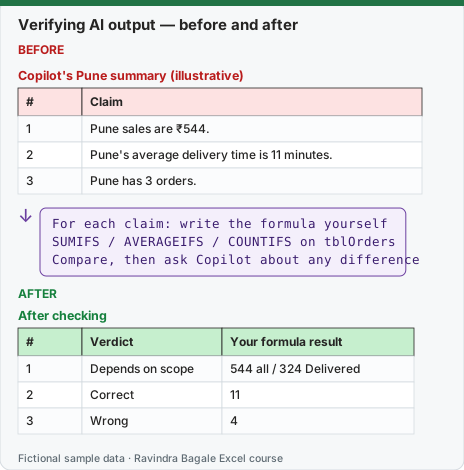
Expected result — After checking
| # | Verdict | Your formula result |
|---|---|---|
| 1 | Depends on scope | 544 all / 324 Delivered |
| 2 | Correct | 11 |
| 3 | Wrong | 4 |
Before table and formula as text
Before — Copilot's Pune summary (illustrative)
| # | Claim |
|---|---|
| 1 | Pune sales are ₹544. |
| 2 | Pune's average delivery time is 11 minutes. |
| 3 | Pune has 3 orders. |
Formula / click path
For each claim: write the formula yourself
SUMIFS / AVERAGEIFS / COUNTIFS on tblOrders
Compare, then ask Copilot about any difference
Do it step by step:
- Copy Copilot's reply into a checking area (or a Checks sheet), one claim per row.
- Next to each claim write your own formula, for example
=COUNTIFS(tblOrders[City],"Pune"). - Compare. Mark each claim Correct, Wrong or Depends on scope.
- For every difference, ask Copilot: Which rows did you include? Which formula did you use?
- Fix the definition in the prompt (for example Delivered only) and ask again.
- Only numbers marked Correct go into the email or the report.
स्टेप बाय स्टेप करून बघा:
- Copilot चं उत्तर एका checking area मध्ये (किंवा Checks sheet वर) copy करा, एका row मध्ये एक claim.
- प्रत्येक claim शेजारी स्वतःचा formula लिहा, उदा.
=COUNTIFS(tblOrders[City],"Pune"). - तुलना करा. प्रत्येक claim ला Correct, Wrong किंवा Depends on scope असं mark करा.
- प्रत्येक फरकासाठी Copilot ला विचारा: Which rows did you include? Which formula did you use?
- Prompt मधली definition दुरुस्त करा (उदा. फक्त Delivered) आणि पुन्हा विचारा.
- फक्त Correct mark केलेले आकडेच email किंवा report मध्ये जातात.
स्टेप बाय स्टेप करके देखें:
- Copilot का जवाब एक checking area में (या Checks sheet पर) copy करें, एक row में एक claim.
- हर claim के बगल में अपना formula लिखें, जैसे
=COUNTIFS(tblOrders[City],"Pune"). - तुलना करें. हर claim को Correct, Wrong या Depends on scope mark करें.
- हर फ़र्क के लिए Copilot से पूछें: Which rows did you include? Which formula did you use?
- Prompt में definition ठीक करें (जैसे सिर्फ़ Delivered) और फिर पूछें.
- सिर्फ़ Correct mark किए आँकड़े ही email या report में जाते हैं.
Claim by claim
| Copilot claim (illustrative) | Verdict | How we know |
|---|---|---|
| Pune sales are ₹544. | Depends on the question | All statuses: =SUMIFS(tblOrders[Amount],tblOrders[City],"Pune") = 544. Delivered only: add ,tblOrders[Status],"Delivered" = 324. |
| Pune's average delivery time is 11 minutes. | Correct | =AVERAGEIFS(tblOrders[Mins],tblOrders[City],"Pune") = 11 (9, 14, 8, 13). |
| Pune has 3 orders. | Wrong | =COUNTIFS(tblOrders[City],"Pune") = 4. Three are Delivered; the fourth (BLK-1009) was Cancelled. |
The 10-point AI output checklist
| # | Check | Quick way |
|---|---|---|
| 1 | Row count: did it use all the rows? | =ROWS(tblOrders) = 10; ask "How many rows did you use?" |
| 2 | Scope: which filter did it apply? | Ask "Which statuses did you include?" |
| 3 | Totals tie out | Parts must add to =SUM(tblOrders[Amount]) = 2870 |
| 4 | Recompute each key number | SUMIFS, COUNTIFS, AVERAGEIFS, MAXIFS on the Table |
| 5 | Read the formulas it wrote | Ctrl+` to show formulas; Formulas › Evaluate Formula |
| 6 | Same formula in every row | Click the first, a middle and the last row |
| 7 | Blanks and text numbers | A blank or text "450" changes COUNT and SUM silently |
| 8 | Units and rounding | ₹ vs lakh; 12.8 vs 13; % of orders vs % of Amount |
| 9 | Spot-check three rows by hand | Pick the largest, the smallest and one at random |
| 10 | Web facts have a source you opened | Click the citation; do not trust a number without one |
Three ways AI numbers go wrong (and what to ask)
- Wrong scope. It answered a slightly different question: all orders instead of Delivered, all platforms instead of Blinkit. Ask: "Which rows did you include?"
- Wrong count. It skipped a row, counted the header, or counted a blank. Ask: "List the Order IDs you counted."
- Invented detail. A sentence such as "Pune grew 12% over last month" when there is no last month in the data. Ask: "Which cells does this come from?" If the answer is none, delete the sentence.
Recompute with formulas: the full Pune check block
K2: =SUMIFS(tblOrders[Amount],tblOrders[City],"Pune")                              → 544
K3: =SUMIFS(tblOrders[Amount],tblOrders[City],"Pune",tblOrders[Status],"Delivered") → 324
K4: =COUNTIFS(tblOrders[City],"Pune")                                              → 4
K5: =AVERAGEIFS(tblOrders[Mins],tblOrders[City],"Pune")                            → 11
K6: =MAXIFS(tblOrders[Amount],tblOrders[City],"Pune")                              → 220
Microsoft's own warning, in plain words. Copilot uses AI and can make mistakes, misread information or give inaccurate results; Microsoft advises not to use it for decisions in sensitive areas such as finance, legal or medical topics, and to review, edit and verify anything it creates. A monthly sales number is exactly the kind of figure someone will make a decision on, so it gets checked.
Microsoft sources (checked 7 October 2026): Frequently asked questions about Copilot in Excel.
Practice task (try it before you open the answer):
- Copilot says: "Nashik has 2 orders worth ₹360, average 14.5 minutes."
- Check all three parts with formulas.
- Say which parts are correct.
Answer
=COUNTIFS(tblOrders[City],"Nashik")= 2.=SUMIFS(tblOrders[Amount],tblOrders[City],"Nashik")= 360.=AVERAGEIFS(tblOrders[Mins],tblOrders[City],"Nashik")= 14.5 (12 and 17). All three parts are correct.
Ravindra Bagale's Tip
Never paste an AI number into an email without its formula next to it in your file. If you cannot point to the formula, you cannot defend the number.
Ravindra Bagale's Tip – मराठी
AI चा आकडा त्याचा formula file मध्ये शेजारी असल्याशिवाय email मध्ये कधीच paste करू नका. Formula दाखवता येत नसेल, तर आकड्याचं समर्थन करता येत नाही.
Ravindra Bagale's Tip – हिंदी
AI का आँकड़ा उसके formula को file में बगल में रखे बिना कभी email में paste न करें. अगर formula नहीं दिखा सकते, तो आँकड़े का बचाव नहीं कर सकते.