28.4 Edit with Copilot (Formerly Agent Mode) and Plan Mode
Example first. Zoya gives Copilot one long instruction: "In tblOrders add a column Late that is TRUE when Mins is more than 15. Then add a sheet called Late Summary with the number of late orders by City and a column chart." With Allow editing on, Copilot writes a plan, adds the column, builds the summary and the chart, checks its own result and reports back. Zoya then spends two minutes checking the three late orders herself.
Edit with Copilot — in 30 seconds
What: With Allow editing on, Copilot breaks a request into steps, changes the workbook directly (columns, formulas, sheets, charts, formatting), reviews the result and reports what it did. Plan mode shows the plan first and waits for you.
Why: Multi-step jobs that take you 20 clicks become one instruction. Because every change is a normal Excel object, you can inspect it, undo it or restore an earlier version.
Tiny example: Copilot adds a Late column with a formula like =[@Mins]>15. Three orders become TRUE: AMN-1005, BLK-1007 and BLK-1010.
Edit with Copilot — 30 सेकंदात
काय: Allow editing चालू असताना Copilot request steps मध्ये तोडतो, workbook थेट बदलतो (columns, formulas, sheets, charts, formatting), result तपासतो आणि काय केलं ते सांगतो. Plan mode आधी plan दाखवतो आणि तुमची वाट बघतो.
का: 20 clicks ची कामं एका instruction मध्ये होतात. प्रत्येक बदल नेहमीचा Excel object असल्याने तो तपासता, undo करता किंवा जुनी version परत आणता येते.
छोटं उदाहरण: Copilot =[@Mins]>15 सारख्या formula ने Late column जोडतो. तीन orders TRUE होतात: AMN-1005, BLK-1007 आणि BLK-1010.
Edit with Copilot — 30 सेकंड में
क्या: Allow editing चालू होने पर Copilot request को steps में तोड़ता है, workbook सीधे बदलता है (columns, formulas, sheets, charts, formatting), result जाँचता है और बताता है कि क्या किया. Plan mode पहले plan दिखाता है और आपका इंतज़ार करता है.
क्यों: 20 clicks के काम एक instruction में हो जाते हैं. हर बदलाव आम Excel object होता है, इसलिए उसे जाँचा, undo किया या पुराना version वापस लाया जा सकता है.
छोटा उदाहरण: Copilot =[@Mins]>15 जैसे formula से Late column जोड़ता है. तीन orders TRUE होते हैं: AMN-1005, BLK-1007 और BLK-1010.
First look at the data (before → after):
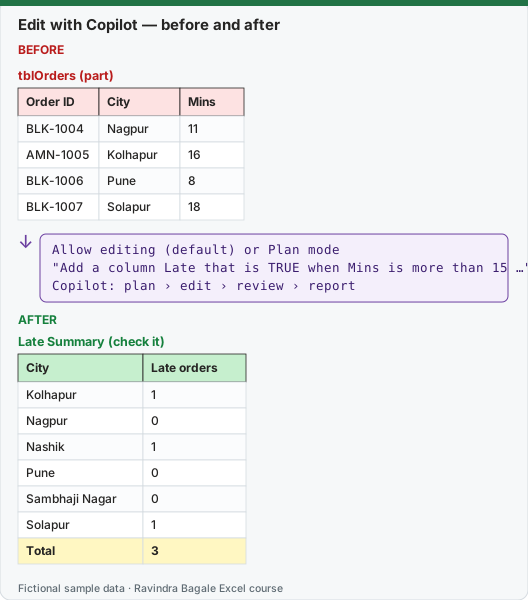
Expected result — Late Summary (check it)
| City | Late orders |
|---|---|
| Kolhapur | 1 |
| Nagpur | 0 |
| Nashik | 1 |
| Pune | 0 |
| Sambhaji Nagar | 0 |
| Solapur | 1 |
| Total | 3 |
Before table and formula as text
Before — tblOrders (part)
| Order ID | City | Mins |
|---|---|---|
| BLK-1004 | Nagpur | 11 |
| AMN-1005 | Kolhapur | 16 |
| BLK-1006 | Pune | 8 |
| BLK-1007 | Solapur | 18 |
Formula / click path
Allow editing (default) or Plan mode
"Add a column Late that is TRUE when Mins is more than 15 …"
Copilot: plan › edit › review › report
Do it step by step:
- Save a copy of the workbook first (File › Save a Copy), or be ready to use File › Info › Version History.
- Check Formulas › Calculation Options is Automatic: Microsoft says editing with Copilot needs it.
- Open the Copilot pane. For a big job, choose Plan in the menu above the prompt box; for a small one keep Allow editing.
- Type the full instruction (see the prompt below) and press Enter. In Plan mode, read the plan and confirm it.
- Watch the changes appear. Select the Stop button in the lower-right of the prompt box if Copilot goes the wrong way.
- Check the result:
=COUNTIFS(tblOrders[Mins],">15")must equal the Total on Late Summary (3).
स्टेप बाय स्टेप करून बघा:
- आधी workbook ची copy save करा (File › Save a Copy), किंवा File › Info › Version History वापरायची तयारी ठेवा.
- Formulas › Calculation Options Automatic आहे ना ते बघा: Microsoft म्हणतं editing with Copilot ला ते लागतं.
- Copilot pane उघडा. मोठ्या कामासाठी prompt box च्या वरच्या menu मधून Plan निवडा; छोट्या कामासाठी Allow editing ठेवा.
- पूर्ण instruction type करा (खालचा prompt बघा) आणि Enter दाबा. Plan mode मध्ये plan वाचून confirm करा.
- बदल होताना बघा. Copilot चुकीच्या दिशेने गेला तर prompt box च्या खालच्या उजवीकडचं Stop button निवडा.
- Result तपासा:
=COUNTIFS(tblOrders[Mins],">15")Late Summary वरच्या Total (3) एवढा हवा.
स्टेप बाय स्टेप करके देखें:
- पहले workbook की copy save करें (File › Save a Copy), या File › Info › Version History इस्तेमाल करने को तैयार रहें.
- देखें कि Formulas › Calculation Options Automatic है: Microsoft कहता है editing with Copilot के लिए यह ज़रूरी है.
- Copilot pane खोलें. बड़े काम के लिए prompt box के ऊपर के menu से Plan चुनें; छोटे काम के लिए Allow editing रखें.
- पूरा instruction type करें (नीचे का prompt देखें) और Enter दबाएँ. Plan mode में plan पढ़कर confirm करें.
- बदलाव होते देखें. Copilot ग़लत दिशा में जाए तो prompt box के नीचे दाईं ओर का Stop button चुनें.
- Result जाँचें:
=COUNTIFS(tblOrders[Mins],">15")Late Summary के Total (3) के बराबर होना चाहिए.
Version note
Microsoft first released this as Agent Mode (generally available on Excel desktop and Excel on the web) and now calls it simply editing with Copilot: it is the default Allow editing setting. It needs one of the Copilot licences listed in 28.1 and Calculation Options set to Automatic. Edit mode is available on Windows, Mac and the web; on iPad and iPhone it is still rolling out. Support for workbooks saved on your own computer (not only OneDrive) was announced by Microsoft in 2026, so the exact storage rules may differ in your version.
The prompt Zoya used
In tblOrders, add a column called Late that is TRUE when Mins is more than 15, otherwise FALSE.
Then add a new sheet called Late Summary with a table of City and the number of Late orders,
including cities with zero, sorted A to Z, and a column chart of that table.
Do not change any existing column.
A reply can look like this
Copilot: Plan: 1) add the Late column to tblOrders, 2) create the Late Summary sheet, 3) count Late orders per City with COUNTIFS, 4) insert a clustered column chart. Done. 3 of 10 orders are late: Kolhapur 1, Nashik 1, Solapur 1. Other cities have 0.
Illustrative: this Copilot reply was written for this lesson to show what a reply can look like. Your wording, layout and even numbers may differ, which is exactly why the checking steps matter.
What you check after an edit (two minutes, every time)
| Check | How | Expected on our data |
|---|---|---|
| The new column formula is the same in every row | Click two or three cells in Late; or press Ctrl+to show formulas |=[@Mins]>15` in every row |
|
| The count is right | =COUNTIFS(tblOrders[Mins],">15") |
3 |
| The right rows are flagged | Filter Late = TRUE | AMN-1005, BLK-1007, BLK-1010 |
| The summary adds up | =SUM( of the Late Summary counts ) |
3 |
| Nothing else changed | Compare with your saved copy or open Version History | Original 9 columns unchanged |
Edit, Plan or Chat: which one when?
| Situation | Best mode | Why |
|---|---|---|
| Your own draft file, small change | Allow editing | Fastest; you can undo |
| A big multi-step job (new sheets, many formulas) | Plan | You approve the approach before anything changes |
| Shared file others are editing | Chat only, or Allow editing on a copy | Microsoft warns that saved Copilot changes are visible to everyone with access, including co-authors |
| You only want an answer or a formula idea | Chat only | Nothing in the workbook changes |
Undo and versions. Microsoft's advice for sensitive or shared files: Copilot makes direct changes, so you can undo them or view prior versions at any time. Undo (Ctrl+Z) works for recent changes; for anything bigger, File › Info › Version History lets you open and restore an earlier version of a file saved in OneDrive or SharePoint.
Two things that stop editing from working. Calculation Options set to Manual (Microsoft: editing is only supported when Calculation Options are Automatic), and a file checked out in SharePoint or saved as Strict Open XML (Microsoft's "Unsupported file state" message).
Microsoft sources (checked 7 October 2026): Get started with Copilot in Excel; Frequently asked questions about Copilot in Excel; Copilot in Excel tips.
Practice task (try it before you open the answer):
- Write one edit prompt that adds a column Fee = 5% of Amount, rounded to 2 decimals, to tblOrders.
- Write the formula you expect Copilot to put in the column.
- Give the Fee for BLK-1007 and the total Fee for all 10 orders.
Answer
- "In tblOrders add a column called Fee equal to 5% of Amount, rounded to 2 decimals. Do not change other columns."
=ROUND([@Amount]*5%,2)- BLK-1007: ₹64.95. Total Fee: ₹143.5 (5% of ₹2,870).
Ravindra Bagale's Tip
Always end an edit prompt with "Do not change any existing column." Copilot follows what you write; say what must stay untouched.
Ravindra Bagale's Tip – मराठी
प्रत्येक edit prompt च्या शेवटी "Do not change any existing column." लिहा. Copilot तुम्ही लिहिता ते पाळतो; काय तसंच राहायला हवं तेही सांगा.
Ravindra Bagale's Tip – हिंदी
हर edit prompt के आख़िर में "Do not change any existing column." लिखें. Copilot आपके लिखे को मानता है; क्या जैसा है वैसा रहना चाहिए यह भी बताएँ.