28.3 Ask Copilot About Your Data (Chat Only Mode)
Example first. Ruhi wants three quick facts before a 10 o'clock call: the top city, the cancelled share, and the average delivery time. She does not want Copilot to touch the shared file, so she switches the pane to Chat only and asks three questions. Copilot answers in the pane and nothing in the workbook changes. Then, before the call, she checks each number with one formula.
Chat only mode — in 30 seconds
What: In Chat only mode Copilot reads the workbook and answers in the pane (text, small tables, suggested formulas) without editing anything.
Why: It is the safe way to explore a shared or important file: you get insights and formula ideas, and you decide what, if anything, goes into the sheet.
Tiny example: Question: "Which city in tblOrders has the highest total Amount?" Check: =MAX(SUMIFS(tblOrders[Amount],tblOrders[City],UNIQUE(tblOrders[City]))) returns 1299 (Solapur).
Chat only mode — 30 सेकंदात
काय: Chat only mode मध्ये Copilot workbook वाचतो आणि काहीही edit न करता pane मध्ये उत्तर देतो (text, छोटे tables, सुचवलेले formulas).
का: Shared किंवा महत्त्वाची file explore करायचा हा सुरक्षित मार्ग: insights आणि formula च्या कल्पना मिळतात, आणि sheet मध्ये काय जायचं ते तुम्ही ठरवता.
छोटं उदाहरण: प्रश्न: "Which city in tblOrders has the highest total Amount?" तपासणी: =MAX(SUMIFS(tblOrders[Amount],tblOrders[City],UNIQUE(tblOrders[City]))) 1299 देतो (Solapur).
Chat only mode — 30 सेकंड में
क्या: Chat only mode में Copilot workbook पढ़ता है और कुछ भी edit किए बिना pane में जवाब देता है (text, छोटी tables, सुझाए formulas).
क्यों: Shared या ज़रूरी file explore करने का यह सुरक्षित तरीका है: insights और formula के idea मिलते हैं, और sheet में क्या जाएगा यह आप तय करते हैं.
छोटा उदाहरण: सवाल: "Which city in tblOrders has the highest total Amount?" जाँच: =MAX(SUMIFS(tblOrders[Amount],tblOrders[City],UNIQUE(tblOrders[City]))) 1299 देता है (Solapur).
First look at the data (before → after):
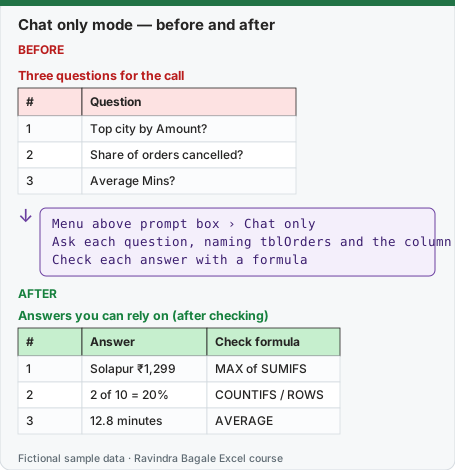
Expected result — Answers you can rely on (after checking)
| # | Answer | Check formula |
|---|---|---|
| 1 | Solapur ₹1,299 | MAX of SUMIFS |
| 2 | 2 of 10 = 20% | COUNTIFS / ROWS |
| 3 | 12.8 minutes | AVERAGE |
Before table and formula as text
Before — Three questions for the call
| # | Question |
|---|---|
| 1 | Top city by Amount? |
| 2 | Share of orders cancelled? |
| 3 | Average Mins? |
Formula / click path
Menu above prompt box › Chat only
Ask each question, naming tblOrders and the column
Check each answer with a formula
Do it step by step:
- Open the Copilot pane with the Copilot icon in the lower-right corner.
- Open the menu above the prompt box and choose Chat only.
- Ask
Which city in tblOrders has the highest total Amount? Show the amount.and read the reply. - Ask
What share of orders in tblOrders have Status Cancelled?and thenWhat is the average of Mins? - For each answer, ask a follow-up:
Which formula did you use?Copy the formula into an empty cell to see it work. - Check all three numbers with your own formulas (table below) before you use them anywhere.
स्टेप बाय स्टेप करून बघा:
- खालच्या उजव्या कोपऱ्यातल्या Copilot icon ने Copilot pane उघडा.
- Prompt box च्या वरचा menu उघडा आणि Chat only निवडा.
Which city in tblOrders has the highest total Amount? Show the amount.विचारा आणि उत्तर वाचा.What share of orders in tblOrders have Status Cancelled?आणि मगWhat is the average of Mins?विचारा- प्रत्येक उत्तरानंतर follow-up विचारा:
Which formula did you use?तो formula रिकाम्या cell मध्ये copy करून चालताना बघा. - तिन्ही आकडे कुठे वापरण्याआधी स्वतःच्या formulas ने तपासा (खालचा table).
स्टेप बाय स्टेप करके देखें:
- नीचे दाएँ कोने के Copilot icon से Copilot pane खोलें.
- Prompt box के ऊपर का menu खोलें और Chat only चुनें.
Which city in tblOrders has the highest total Amount? Show the amount.पूछें और जवाब पढ़ें.What share of orders in tblOrders have Status Cancelled?और फिरWhat is the average of Mins?पूछें- हर जवाब के बाद follow-up पूछें:
Which formula did you use?उस formula को खाली cell में copy करके चलता देखें. - तीनों आँकड़े कहीं भी इस्तेमाल करने से पहले अपने formulas से जाँचें (नीचे की table).
What a reply can look like
You: Which city in tblOrders has the highest total Amount? Show the amount.
Copilot: Solapur has the highest total Amount, ₹1,299, from one order (BLK-1007, Home category). Pune is second with ₹544 across four orders.
Illustrative: this Copilot reply was written for this lesson to show what a reply can look like. Your wording, layout and even numbers may differ, which is exactly why the checking steps matter.
Check every number with one formula
| Question | Check formula | Result |
|---|---|---|
| Top city | =MAX(SUMIFS(tblOrders[Amount],tblOrders[City],UNIQUE(tblOrders[City]))) |
1299 (Solapur) |
| Pune total (second place) | =SUMIFS(tblOrders[Amount],tblOrders[City],"Pune") |
544 |
| Cancelled share | =COUNTIFS(tblOrders[Status],"Cancelled")/ROWS(tblOrders) |
2/10 = 20% |
| Cancelled amount | =SUMIFS(tblOrders[Amount],tblOrders[Status],"Cancelled") |
460 |
| Average delivery minutes | =AVERAGE(tblOrders[Mins]) |
12.8 |
All results are from the 10 fictional orders of Module 3 (total ₹2,870).
Notice the hidden question in "share of orders cancelled". Share of orders is 2 out of 10 = 20%. Share of money is ₹460 out of ₹2,870 = 16.0%. Both are correct answers to slightly different questions. If Copilot gives you one, ask for the other, or say exactly which one you want in the prompt.
Good questions for Chat only mode
| Goal | Prompt that works well |
|---|---|
| Get a quick picture | Summarise tblOrders in five bullet points: totals, top city, cancelled share, average Mins. |
| Find outliers | Which orders in tblOrders look unusual by Amount or Mins? Explain why. |
| Learn a formula | Write a formula that returns the Delivered Amount for the city typed in K2. Explain each part. |
| Understand a formula | Explain the formula in cell H2 step by step in simple English. |
| Plan a report | Suggest three charts for a one-page city report from tblOrders and say why. |
Chat only is also a teacher. "Explain the formula in H2" is one of the most useful prompts in this whole chapter. Paste a long nested IF from an old file, ask for a plain-English explanation, and then check the explanation against Evaluate Formula (Formulas › Formula Auditing › Evaluate Formula).
Microsoft sources (checked 7 October 2026): Get started with Copilot in Excel; Copilot in Excel tips.
Practice task (try it before you open the answer):
- In Chat only mode ask for the total Amount of Delivered orders by City.
- Write the check formula for Pune.
- Say which cities do not appear and why.
Answer
- Expected (fictional data): Kolhapur ₹232, Nashik ₹360, Pune ₹324, Solapur ₹1,299; total ₹2,215.
=SUMIFS(tblOrders[Amount],tblOrders[City],"Pune",tblOrders[Status],"Delivered")returns 324 (Pune's cancelled BLK-1009 for ₹220 is left out).- Nagpur (its only order was Cancelled) and Sambhaji Nagar (its only order was Returned) have no Delivered orders, so they show 0 or do not appear.
Ravindra Bagale's Tip
Ask "Which formula did you use?" after every number Copilot gives you. A formula can be checked in ten seconds; a sentence cannot.
Ravindra Bagale's Tip – मराठी
Copilot ने दिलेल्या प्रत्येक आकड्यानंतर "Which formula did you use?" विचारा. Formula दहा सेकंदात तपासता येतो; वाक्य नाही.
Ravindra Bagale's Tip – हिंदी
Copilot के दिए हर आँकड़े के बाद "Which formula did you use?" पूछें. Formula दस सेकंड में जाँचा जा सकता है; वाक्य नहीं.