28.5 The COPILOT Function: Retired in September 2026, and What to Use Now
Example first. Salman opens last year's feedback workbook. Column C used =COPILOT("Classify",B2,"as Delivery, Quality, Price or Other") and still shows the old categories. He corrects one note, the cell recalculates, and it now shows #NAME?. Microsoft retired the COPILOT worksheet function on 14 September 2026. This lesson explains what the function did, what happens to old files, and the two replacements: the Copilot pane, and a plain formula when the rule is clear.
COPILOT function (retired) — in 30 seconds
What: COPILOT was a preview worksheet function that sent a prompt plus cell values to an AI model and returned the answer in the cell. Microsoft retired it on 14 September 2026.
Why: Old workbooks still contain it. Cached results stay, but any recalculation now gives #NAME?. You need to know how to replace it: with the Copilot pane, or with a normal formula that always gives the same answer.
Tiny example: Old: =COPILOT("Classify",B2,"as Delivery, Quality, Price or Other"). New rule-based formula: =IFS(REGEXTEST(B2,"delay",1),"Delivery",TRUE,"Other") (extended in the steps).
COPILOT function (retired) — 30 सेकंदात
काय: COPILOT हे preview worksheet function होतं जे prompt आणि cell values AI model कडे पाठवून उत्तर cell मध्ये आणायचं. Microsoft ने ते 14 September 2026 ला retire केलं.
का: जुन्या workbooks मध्ये ते अजून आहे. Cached results राहतात, पण recalculation झालं की #NAME? येतो. ते कसं बदलायचं ते माहीत हवं: Copilot pane ने, किंवा नेहमी तेच उत्तर देणाऱ्या साध्या formula ने.
छोटं उदाहरण: जुना: =COPILOT("Classify",B2,"as Delivery, Quality, Price or Other"). नवीन rule-based formula: =IFS(REGEXTEST(B2,"delay",1),"Delivery",TRUE,"Other") (steps मध्ये पूर्ण केलेला).
COPILOT function (retired) — 30 सेकंड में
क्या: COPILOT एक preview worksheet function था जो prompt और cell values AI model को भेजकर जवाब cell में लाता था. Microsoft ने इसे 14 September 2026 को retire कर दिया.
क्यों: पुराने workbooks में यह अभी भी है. Cached results रहते हैं, पर recalculation होते ही #NAME? आता है. इसे बदलना आना चाहिए: Copilot pane से, या हमेशा वही जवाब देने वाले सादे formula से.
छोटा उदाहरण: पुराना: =COPILOT("Classify",B2,"as Delivery, Quality, Price or Other"). नया rule-based formula: =IFS(REGEXTEST(B2,"delay",1),"Delivery",TRUE,"Other") (steps में पूरा किया गया).
First look at the data (before → after):
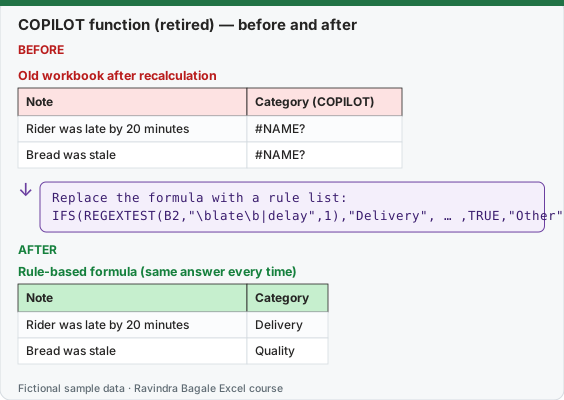
Expected result — Rule-based formula (same answer every time)
| Note | Category |
|---|---|
| Rider was late by 20 minutes | Delivery |
| Bread was stale | Quality |
Before table and formula as text
Before — Old workbook after recalculation
| Note | Category (COPILOT) |
|---|---|
| Rider was late by 20 minutes | #NAME? |
| Bread was stale | #NAME? |
Formula / click path
Replace the formula with a rule list:
IFS(REGEXTEST(B2,"\blate\b|delay",1),"Delivery", … ,TRUE,"Other")
Do it step by step:
- Find old COPILOT formulas: press
Ctrl+F, type=COPILOT(, set Look in: Formulas and select Find All. - Before anything recalculates, copy the column and use Home › Paste › Paste Values if you only need the old results.
- Write the categories and their keywords in a small table so the rule is visible to everyone.
- In C2 type the IFS formula from the table below (Delivery first, Other last) and fill it down.
- Read every row. Fix the rule when a note lands in the wrong category, then fill down again.
- For notes that no simple rule can handle, ask the Copilot pane instead (prompt below) and check its new column.
स्टेप बाय स्टेप करून बघा:
- जुने COPILOT formulas शोधा:
Ctrl+Fदाबा,=COPILOT(type करा, Look in: Formulas ठेवा आणि Find All निवडा. - काहीही recalculate होण्याआधी, फक्त जुने results हवे असतील तर column copy करून Home › Paste › Paste Values करा.
- Categories आणि त्यांचे keywords एका छोट्या table मध्ये लिहा म्हणजे rule सगळ्यांना दिसेल.
- C2 मध्ये खालच्या table मधला IFS formula type करा (Delivery पहिला, Other शेवटचा) आणि खाली fill करा.
- प्रत्येक row वाचा. Note चुकीच्या category मध्ये गेली तर rule दुरुस्त करा आणि पुन्हा fill करा.
- ज्या notes साठी साधा rule चालत नाही, त्यासाठी Copilot pane ला विचारा (खालचा prompt) आणि त्याचा नवीन column तपासा.
स्टेप बाय स्टेप करके देखें:
- पुराने COPILOT formulas ढूँढें:
Ctrl+Fदबाएँ,=COPILOT(type करें, Look in: Formulas रखें और Find All चुनें. - कुछ भी recalculate होने से पहले, अगर सिर्फ़ पुराने results चाहिए तो column copy करके Home › Paste › Paste Values करें.
- Categories और उनके keywords एक छोटी table में लिखें ताकि rule सबको दिखे.
- C2 में नीचे की table वाला IFS formula type करें (Delivery पहला, Other आख़िरी) और नीचे fill करें.
- हर row पढ़ें. Note ग़लत category में जाए तो rule ठीक करें और फिर से fill करें.
- जिन notes के लिए सादा rule नहीं चलता, उनके लिए Copilot pane से पूछें (नीचे का prompt) और उसका नया column जाँचें.
Version note
The COPILOT function was only ever a preview (Frontier and Microsoft 365 Insider programmes). Microsoft retired it on 14 September 2026. Already-calculated results stay in old workbooks as cached values; when such a cell recalculates it returns #NAME?. You cannot create new COPILOT formulas. The Copilot pane (28.1 to 28.4) is Microsoft's supported replacement.
What the function was (for reading old files)
Syntax: =COPILOT(prompt_part1, [context1], [prompt_part2], [context2], ...). The prompt parts were text; the context arguments were cells or ranges whose values were sent with the prompt. Microsoft's example: =COPILOT("Classify", B1:B10, "into one of the following categories ", A1:A4). Microsoft's own limits while it existed: about 100 COPILOT calculations every 10 minutes, no calculation in workbooks labelled Confidential or Highly Confidential, internet required, and it was not meant for exact numeric calculations.
Microsoft's replacement table (from the retirement notice)
| Instead of the COPILOT function | Ask Copilot in Excel |
|---|---|
| =COPILOT("Summarize this feedback", A2:A20) | Summarize the feedback in A2:A20 |
| =COPILOT("Classify sentiment", B2:B100) | Classify each of the sentiment entries in B2:B100 and add the result in a new column |
Better still: a formula, when the rule is clear
An AI answer can change from one run to the next; a formula cannot. When you can write the rule down, write it as a formula. Here are 8 fictional feedback notes and an ordered rule list using REGEXTEST (lesson 9.12). 1 as the third argument means "ignore upper and lower case".
C2: =IFS(REGEXTEST(B2,"\blate\b|delay",1),"Delivery",REGEXTEST(B2,"damaged|stale|warm|melted",1),"Quality",REGEXTEST(B2,"price|expensive|costly",1),"Price",TRUE,"Other")
| B: Note | First rule list (late|delay) |
Fixed rule list (\blate\b|delay) |
|---|---|---|
| Milk came warm and the packet was damaged | Quality | Quality |
| Rider was late by 20 minutes | Delivery | Delivery |
| Price of chips is higher than the shop | Price | Price |
| Delivery delayed, but fruits were fresh | Delivery | Delivery |
| Bread was stale | Quality | Quality |
| Too expensive for a small mixer jar | Price | Price |
| Wrong item sent, returned it | Other | Other |
| Chocolate bar melted | Delivery | Quality |
Look at the last row. With the first rule list, "Chocolate bar melted" becomes Delivery, because "Chocolate" contains the letters late. The fix is the word boundary \b (so only the whole word late matches) and adding melted to the Quality words. This is exactly the kind of mistake you only catch by reading every row, whether a formula or an AI did the classifying.
Category counts with the fixed rules: Delivery 2, Quality 3, Price 2, Other 1 (total 8). Check: =COUNTIF(C2:C9,"Quality") returns 3.
When to use the Copilot pane instead. Free text that no keyword rule can handle ("the rider was polite but the bag smelled of onions"), summaries, and translation. Prompt: "Classify each note in B2:B9 as Delivery, Quality, Price or Other and add the result in a new column called AI Category. Do not change column B." Then compare the AI column with your rule column: =SUM(--(C2:C9=D2:D9)) counts the rows where they agree, and you read the rows where they do not.
Microsoft sources (checked 7 October 2026): COPILOT function (retired); Get started with Copilot in Excel.
Practice task (try it before you open the answer):
- Classify the new note "Delivered late, and the price was high" with the fixed rule list.
- Say why it is not classified as Price.
- Change the formula so Price is checked first and say the new result.
Answer
- Delivery: the rules are checked in order and "late" (a whole word) matches the first rule.
- IFS stops at the first TRUE condition, so the Price rule is never reached.
- Move the Price pair to the front:
=IFS(REGEXTEST(B2,"price|expensive|costly",1),"Price",REGEXTEST(B2,"\blate\b|delay",1),"Delivery",…). The note now becomes Price. Decide the order with your team and write it down.
Ravindra Bagale's Tip
If you can explain the rule to a new joiner in one sentence, write it as a formula. Keep AI for the messy text that no rule can catch, and check its answers row by row.
Ravindra Bagale's Tip – मराठी
Rule नव्या सहकाऱ्याला एका वाक्यात समजावता येत असेल, तर तो formula म्हणून लिहा. कोणताही rule पकडू न शकणाऱ्या messy text साठी AI ठेवा, आणि त्याची उत्तरं row by row तपासा.
Ravindra Bagale's Tip – हिंदी
अगर rule नए साथी को एक वाक्य में समझा सकते हैं, तो उसे formula के रूप में लिखें. जिस messy text को कोई rule नहीं पकड़ सकता, उसके लिए AI रखें, और उसके जवाब row by row जाँचें.