Sleep Tracker in Excel: Calculate Hours Slept (Even Past Midnight) and Weekly Averages
Salman in Nagpur feels tired by Wednesday every week and blames work. When he wrote down his bed and wake-up times for two weeks, the answer was in the numbers: late nights on Thursday and Friday, short sleep on Monday. Excel turns those times into hours, even when he goes to bed after midnight, and shows exactly where the sleep goes missing.
What you'll learn on this page
- Times in Excel are parts of a day
- Hours slept with MOD for nights past midnight
- Weekday or weekend with WEEKDAY
- Weekday and weekend averages with AVERAGEIF
- Nights below goal and sleep debt
- A line chart of hours slept
Download the template: sleep-tracker-template.xlsx: example data with real formulas. Yellow cells are inputs you can type over; green cells hold formulas; blue rows are headers and totals. Replace the example data with your own and everything recalculates.
Made-up data: every name, amount, shop and date on this page is made up for practice. Cities are used only to make the examples feel real.
1. The example
Two weeks of made-up times (1 to 14 October 2026), goal 7.5 hours:
| Night | Bed | Wake | Hours |
|---|---|---|---|
| Thu 1 Oct | 23:30 | 06:30 | 7.00 |
| Mon 5 Oct | 01:00 | 07:00 | 6.00 |
| Wed 7 Oct | 23:00 | 08:30 | 9.50 |
| Mon 12 Oct | 01:15 | 07:00 | 5.75 |
Average 7.30 hours; weekdays 7.52, weekends 6.75. He missed the goal on 9 of 14 nights, a sleep debt of 8 hours in two weeks: a whole night lost.
Short intro to times. Excel stores 06:30 as 0.2708 (a part of one day). 06:30 − 23:30 is negative because the morning is on the next day; MOD(…,1) wraps it into 0.2917, and × 24 turns that into 7 hours.
Figure 1. Bed and wake-up times → MOD(wake − bed, 1) × 24 → hours per night; AVERAGEIF splits weekdays (7.52) and weekends (6.75); SUMPRODUCT adds the 8-hour sleep debt.
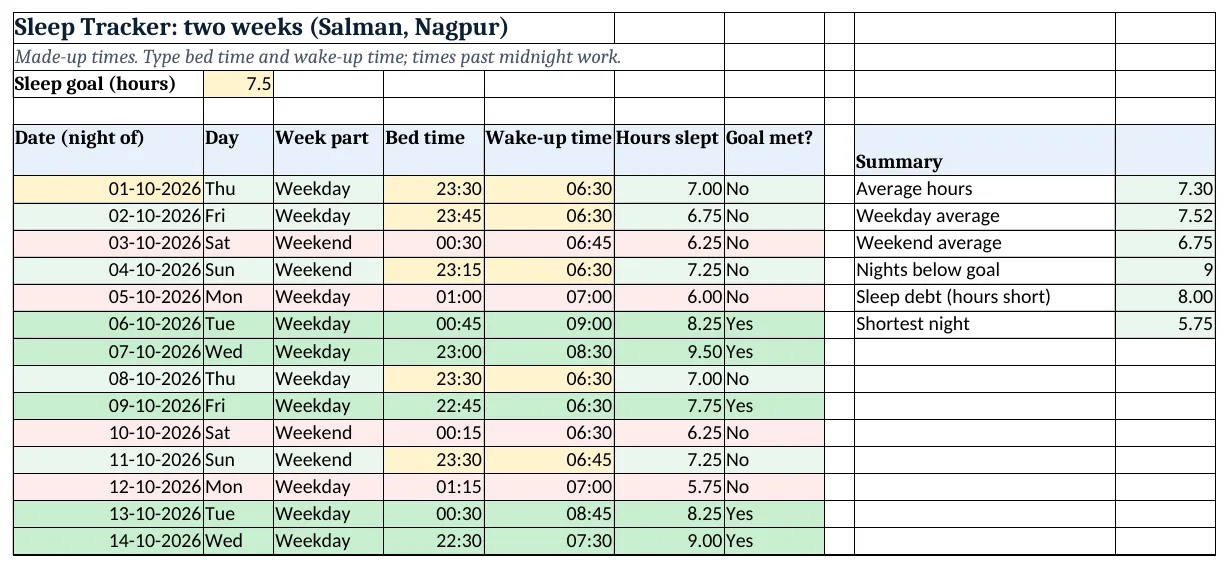
Figure 2. The template sheet, recalculated with its example data. Download it above and replace the yellow cells with your own numbers.
2. Build it step by step
Step 1. Goal and dates
- In B3 type your sleep goal (7.5). Select B3 > Data Validation > List:
6,6.5,7,7.5,8,8.5,9(drop-down lists). - In A6 type 01-10-2026 and in A7
=A6+1, copied down. - In B6 type
=TEXT(A6,"ddd")and in C6=IF(WEEKDAY(A6,2)>5,"Weekend","Weekday"). WEEKDAY with 2 gives Monday = 1 … Sunday = 7 (WEEKDAY).
Step 2. Bed and wake-up times
- Type bed times in D6:D19 and wake-up times in E6:E19 as 23:30, 06:30 (format hh:mm) (time calculations).
Step 3. Hours slept
- In F6 type
=MOD(E6-D6,1)*24: 7.00. - Without MOD, 06:30 − 23:30 is −0.7083 and Excel shows ####. MOD(…,1) adds a day when the result is negative.
- In G6 type
=IF(F6>=$B$3,"Yes","No")and copy F6:G6 down.
Step 4. Averages
- In J6 type
=AVERAGE(F6:F19): 7.30. - In J7 type
=AVERAGEIF(C6:C19,"Weekday",F6:F19): 7.52, and in J8 the same with "Weekend": 6.75 (AVERAGEIF).
Step 5. Nights below goal and sleep debt
- In J9 type
=COUNTIF(G6:G19,"No"): 9 nights. - In J10 type
=SUMPRODUCT((B3-F6:F19)*(F6:F19<B3)): 8.00 hours. Each night below the goal adds its shortfall; nights above add 0 (SUMPRODUCT). - In J11 type
=MIN(F6:F19): 5.75.
Step 6. Colours and chart
- Select A6:G19 > New Rule > Use a formula:
=$F6<$B$3-1red (more than an hour short, Stop If True), then=$F6>=$B$3green (formula rules). - Select F6:F19 > Insert > Line with B6:B19 as labels (line charts).
Ravindra Bagale's Tip
Fill the two times as soon as you wake up, before you open any app. Guessing at night is always too kind.
Ravindra Bagale's Tip – मराठी
उठल्याबरोबर, कुठलंही app उघडायच्या आधी, दोन्ही वेळा भरा. रात्री अंदाजाने भरलेले आकडे नेहमी जरा जास्तच चांगले येतात.
Ravindra Bagale's Tip – हिंदी
उठते ही, कोई भी app खोलने से पहले, दोनों समय भरो. रात को अंदाज़े से भरे आंकड़े हमेशा थोड़े ज़्यादा अच्छे आते हैं.
3. Formulas used
| Cell | Formula | What it does |
|---|---|---|
| A7 | =A6+1 |
Next date |
| B6 | =TEXT(A6,"ddd") |
Weekday name |
| C6 | =IF(WEEKDAY(A6,2)>5,"Weekend","Weekday") |
Weekday or Weekend |
| F6 | =MOD(E6-D6,1)*24 |
Hours slept, even past midnight |
| G6 | =IF(F6>=$B$3,"Yes","No") |
Goal met? |
| J6 | =AVERAGE(F6:F19) |
Average hours |
| J7 | =AVERAGEIF(C6:C19,"Weekday",F6:F19) |
Weekday average |
| J9 | =COUNTIF(G6:G19,"No") |
Nights below goal |
| J10 | =SUMPRODUCT((B3-F6:F19)*(F6:F19<B3)) |
Sleep debt in hours |
Every formula above is written in the template, so you can click a cell and see it in the formula bar. All values on this page were recalculated in the file.
4. Common mistakes
- Plain subtraction for night times.
=E6-D6is negative when you sleep before midnight and wake after it. Wrap it:MOD(E6-D6,1). - Forgetting × 24. Without × 24 the result is a part of a day (0.29), not hours (7).
- Times typed as text. "11:30 pm" typed with odd spaces may be text. Type 23:30, or check that the cell is right-aligned.
- Averaging the Goal met? column. Average the hours (F), not the Yes/No text.
- Typing the wake-up date. Only times go in D and E. The date in column A is the night you went to bed.
Ravindra Bagale's Tip
Look at the weekend average. Late weekend nights often explain a tired Monday better than work does.
Ravindra Bagale's Tip – मराठी
Weekend average बघा. सोमवारचा थकवा बहुतेक वेळा कामापेक्षा weekend च्या उशिराच्या रात्रींमुळे असतो.
Ravindra Bagale's Tip – हिंदी
Weekend average देखो. सोमवार की थकान अक्सर काम से ज़्यादा weekend की देर रातों से होती है.
5. More real examples
Example 1: Child's bedtime routine. Ruhi's goal could be 9 hours. Change B3 and the colours and debt follow.
Example 2: Night shift. Bed at 08:00, wake at 15:00: MOD still gives 7 hours, so the same sheet works for day sleep.
Example 3: Screen time before bed. Add a column with minutes of phone use before bed and compare it with hours slept on a scatter chart.
Quick revision cards
Quick revision
Each card shows formulas from this page, each with an example and its answer from the template. Scan the QR code on a card to open this lesson. All names and numbers are made up for practice.
झटपट उजळणी
प्रत्येक card वर या page मधले formulas, त्यांचं example आणि template मधलं उत्तर आहे. Card वरचा QR code scan केला की हा lesson उघडतो. सगळी नावं आणि आकडे सरावासाठी काल्पनिक आहेत.
झटपट दोहराई
हर card पर इस page के formulas, उनका example और template का उत्तर है. Card का QR code scan करें तो यह lesson खुलेगा. सभी नाम और आंकड़े अभ्यास के लिए काल्पनिक हैं.
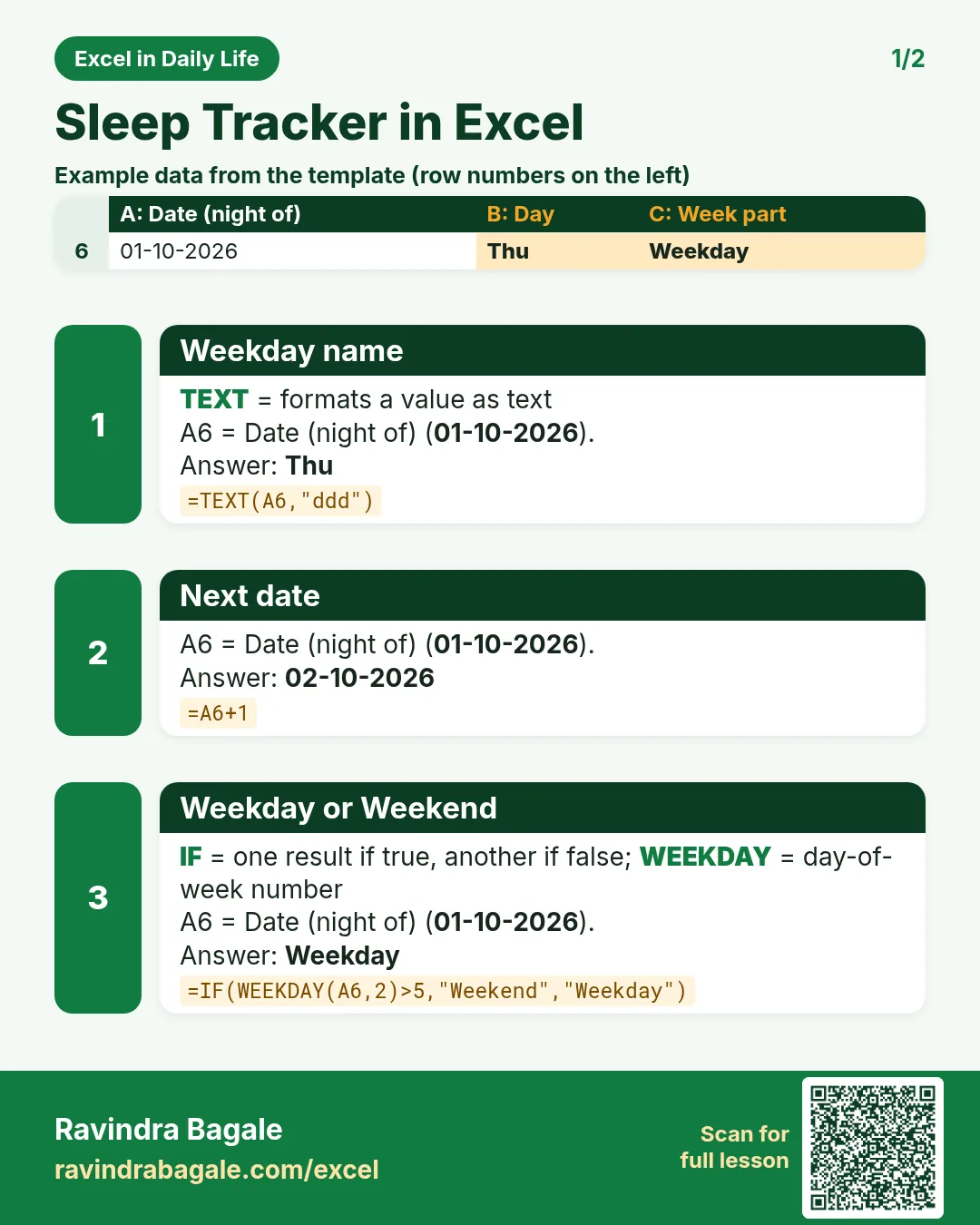

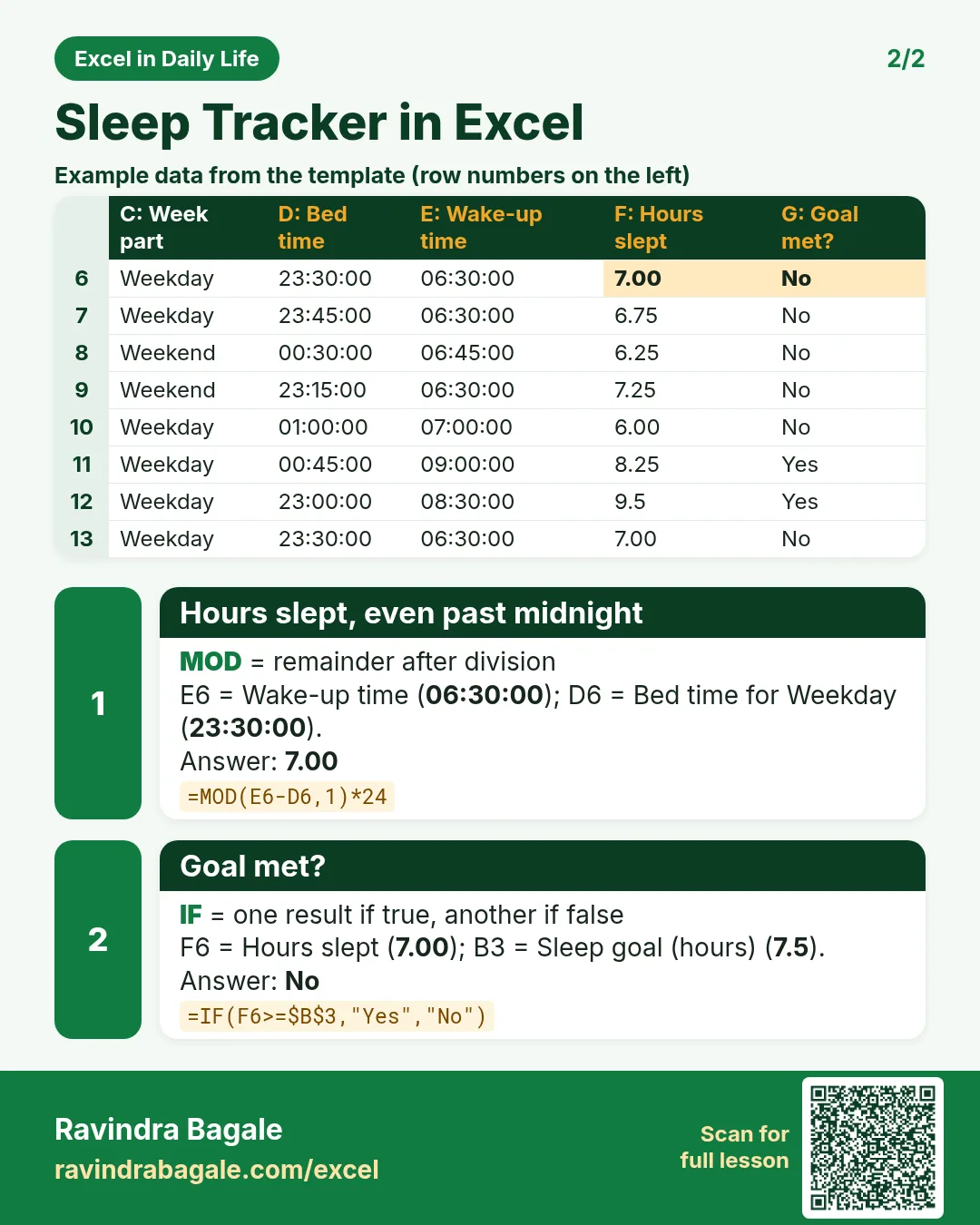

More cards: Ravi Sir's Cards.
6. Frequently asked questions
How do I calculate hours slept in Excel?
=MOD(wake-bed,1)*24. MOD handles nights that cross midnight; × 24 turns the day fraction into hours.
Why do I get #### when subtracting times?
The result is negative (wake-up is on the next day). Use MOD(…,1).
How do I average only weekdays?
=AVERAGEIF(C6:C19,"Weekday",F6:F19) with a Weekday/Weekend column from WEEKDAY.
How do I calculate sleep debt?
=SUMPRODUCT((goal-hours)*(hours<goal)) adds only the shortfalls.
Is this a medical tool?
No. It is a simple habit log; talk to a doctor about sleep problems.
7. Quick quiz
Ten questions on this page. Sign in to save your score.
Loading practice tasks...
- Total clicks (Easy): Add up Clicks in D2:D11.
- Average spend (Easy): Average of E2:E11, rounded to 2 decimals.
- Rows in Google (Easy): How many rows have Platform "Google"?
- Largest clicks (Easy): The largest value in D2:D11.
- Clicks for Google (Medium): Total of D2:D11 where B is "Google".
- Google in Paris (Medium): Total of D2:D11 where B is "Google" and C is "Paris".
- Best in Google (Medium): Largest E2:E11 value where B is "Google".
- Value of row 2 (Medium): D2 times E2.
- Look up Ishaan Verma (Medium): The Clicks for "Ishaan Verma" (use a lookup on column A).
- Total value (Hard): Sum of D times E for all rows.
- Share of Google (Hard): Share of D2:D11 that is "Google", rounded to 3 decimals.
- Rank of row 2 (Hard): Rank of D2 among D2:D11 (largest = 1).
- Above average? (Hard): "Above" if E2 is above the average of E2:E11, else "Below".