6. Tables, Sorting and Filtering
6.12 Sorting and Filtering Inside an Excel Table
Example first. The ten Module 3 orders are in a Table named tblMini with a Total Row. Every filter you apply below changes which rows you see, and the Total Row follows the filter.
Sort and filter inside a Table — in 30 seconds
What: Every Table header has a button (▾). It sorts the Table, filters by value, number, text, date or colour, and clears the filter again.
Why: Managers ask "only Pune", "only orders above ₹200", "only last week". The header buttons answer in two clicks, and the Total Row shows the total of what you see.
Tiny example: Filter Amount with Number Filters › Greater Than 200: 5 rows stay and the Total Row shows ₹2,261 instead of ₹2,870.
Sort and filter inside a Table — 30 सेकंदात
काय: प्रत्येक Table header ला एक button (▾) असतं. ते Table sort करतं, value, number, text, date किंवा colour ने filter करतं, आणि filter परत clear करतं.
का: Manager विचारतात "फक्त Pune", "फक्त ₹200 वरच्या orders", "फक्त मागचा आठवडा". Header buttons दोन clicks मध्ये उत्तर देतात, आणि Total Row दिसणाऱ्या rows चा total दाखवतो.
छोटं उदाहरण: Amount ला Number Filters › Greater Than 200 लावा: 5 rows राहतात आणि Total Row ₹2,870 ऐवजी ₹2,261 दाखवतो.
Sort and filter inside a Table — 30 सेकंड में
क्या: हर Table header पर एक button (▾) होता है. वह Table sort करता है, value, number, text, date या colour से filter करता है, और filter वापस clear करता है.
क्यों: Manager पूछते हैं "सिर्फ़ Pune", "सिर्फ़ ₹200 से ऊपर की orders", "सिर्फ़ पिछला हफ़्ता". Header buttons दो clicks में जवाब देते हैं, और Total Row दिख रही rows का total दिखाता है.
छोटा उदाहरण: Amount पर Number Filters › Greater Than 200 लगाएँ: 5 rows बचती हैं और Total Row ₹2,870 की जगह ₹2,261 दिखाता है.
First look at the data (before → after):
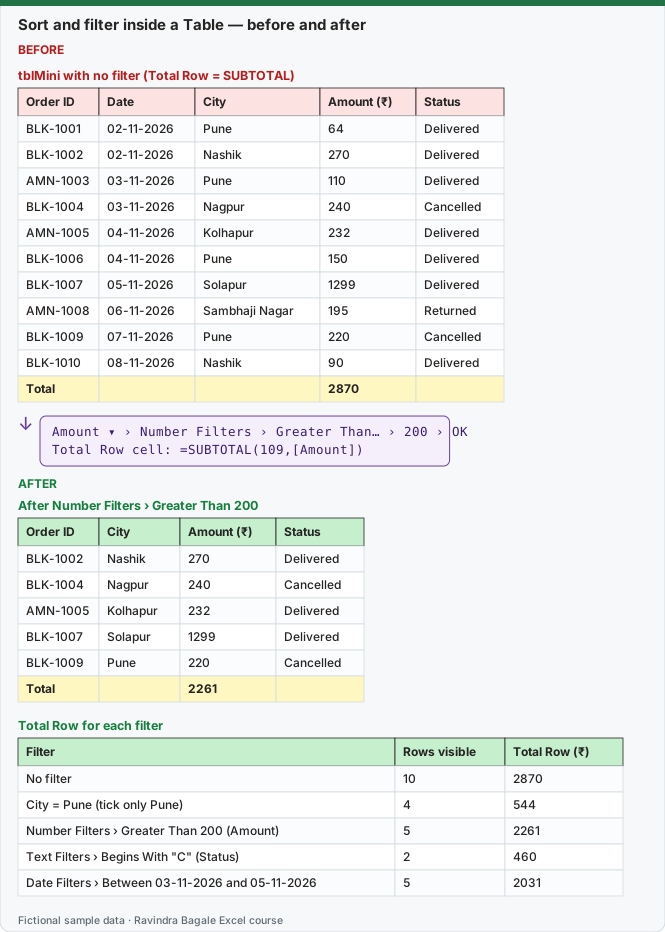
Expected result — After Number Filters › Greater Than 200
| Order ID | City | Amount (₹) | Status |
|---|---|---|---|
| BLK-1002 | Nashik | 270 | Delivered |
| BLK-1004 | Nagpur | 240 | Cancelled |
| AMN-1005 | Kolhapur | 232 | Delivered |
| BLK-1007 | Solapur | 1299 | Delivered |
| BLK-1009 | Pune | 220 | Cancelled |
| Total | — | 2261 | — |
Expected result — Total Row for each filter
| Filter | Rows visible | Total Row (₹) |
|---|---|---|
| No filter | 10 | 2870 |
| City = Pune (tick only Pune) | 4 | 544 |
| Number Filters › Greater Than 200 (Amount) | 5 | 2261 |
| Text Filters › Begins With "C" (Status) | 2 | 460 |
| Date Filters › Between 03-11-2026 and 05-11-2026 | 5 | 2031 |
Before table and formula as text
Before — tblMini with no filter (Total Row = SUBTOTAL)
| Order ID | Date | City | Amount (₹) | Status |
|---|---|---|---|---|
| BLK-1001 | 02-11-2026 | Pune | 64 | Delivered |
| BLK-1002 | 02-11-2026 | Nashik | 270 | Delivered |
| AMN-1003 | 03-11-2026 | Pune | 110 | Delivered |
| BLK-1004 | 03-11-2026 | Nagpur | 240 | Cancelled |
| AMN-1005 | 04-11-2026 | Kolhapur | 232 | Delivered |
| BLK-1006 | 04-11-2026 | Pune | 150 | Delivered |
| BLK-1007 | 05-11-2026 | Solapur | 1299 | Delivered |
| AMN-1008 | 06-11-2026 | Sambhaji Nagar | 195 | Returned |
| BLK-1009 | 07-11-2026 | Pune | 220 | Cancelled |
| BLK-1010 | 08-11-2026 | Nashik | 90 | Delivered |
| Total | — | — | 2870 | — |
Formula / click path
Amount ▾ › Number Filters › Greater Than… › 200 › OK
Total Row cell: =SUBTOTAL(109,[Amount])
Do it step by step:
- Click any cell in the Table and tick Table Design › Total Row. Choose Sum under Amount.
- Click the Amount ▾ button in the header.
- Choose Number Filters › Greater Than…, type
200and click OK. - Read the Total Row. It now adds only the visible rows.
- To sort, click Amount ▾ › Sort Largest to Smallest.
- To remove the filter, click Amount ▾ › Clear Filter From "Amount".
स्टेप बाय स्टेप करून बघा:
- Table मधल्या कोणत्याही cell वर click करा आणि Table Design › Total Row tick करा. Amount खाली Sum निवडा.
- Header मधल्या Amount ▾ button वर click करा.
- Number Filters › Greater Than… निवडा,
200type करा आणि OK करा. - Total Row बघा. आता तो फक्त दिसणाऱ्या rows जोडतो.
- Sort करायला Amount ▾ › Sort Largest to Smallest वर click करा.
- Filter काढायला Amount ▾ › Clear Filter From "Amount" वर click करा.
स्टेप बाय स्टेप करके देखें:
- Table की किसी भी cell पर click करें और Table Design › Total Row tick करें. Amount के नीचे Sum चुनें.
- Header में Amount ▾ button पर click करें.
- Number Filters › Greater Than… चुनें,
200type करें और OK करें. - Total Row देखें. अब वह सिर्फ़ दिख रही rows जोड़ता है.
- Sort करने के लिए Amount ▾ › Sort Largest to Smallest पर click करें.
- Filter हटाने के लिए Amount ▾ › Clear Filter From "Amount" पर click करें.
What each header button can do
| You want | Click | Note |
|---|---|---|
| Sort A to Z or smallest to largest | ▾ › Sort A to Z / Sort Smallest to Largest | The whole row moves together, so data never gets mixed up |
| Put highlighted rows on top | ▾ › Sort by Color › (pick the fill colour) | Useful after conditional formatting |
| Show only some values | Untick (Select All), tick the values you want | The list shows every distinct value in the column |
| Numbers above, below or between | ▾ › Number Filters › Greater Than / Between / Top 10 | Top 10 can be changed to Top 3 |
| Text that starts with or contains | ▾ › Text Filters › Begins With / Contains | Not case-sensitive |
| Dates in a period | ▾ › Date Filters › Between / This Month / Last Week | Works only if the column has real dates, not text |
| Rows with a fill colour | ▾ › Filter by Color | |
| Clear one column | ▾ › Clear Filter From "Column" | |
| Clear all filters | Data › Sort & Filter › Clear |
The Total Row reacts to filters. The Total Row uses SUBTOTAL(109, …). Function number 109 means SUM of visible rows only. A normal =SUM(tblMini[Amount]) typed in a cell outside the Table does not react to filters, so it always shows ₹2,870. Put the two side by side once and you will never confuse them.
Practice task (try it before you open the answer):
- Turn on the Total Row in
tblMini. - Apply each of the five filters in the table above, one at a time, clearing the previous one.
- Write down the rows visible and the Total Row for each.
Answer
Your list should match the Total Row for each filter table above exactly. If the date filter shows 0 rows, your Date column is text; fix it with Data › Text to Columns › Finish or DATE().
Ravindra Bagale's Tip
Before you send a filtered Table, look at the status bar. "5 of 10 records found" means someone might read a filtered total as the full total. Say it in the cell above the Table.
Ravindra Bagale's Tip – मराठी
Filter लावलेली Table पाठवण्याआधी status bar बघा. "5 of 10 records found" म्हणजे कोणीतरी filtered total ला पूर्ण total समजू शकतं. Table च्या वरच्या cell मध्ये हे लिहून ठेवा.
Ravindra Bagale's Tip – हिंदी
Filter लगी Table भेजने से पहले status bar देखें. "5 of 10 records found" का मतलब है कोई filtered total को पूरा total समझ सकता है. Table के ऊपर वाली cell में यह लिख दें.
Loading practice tasks...
- Distinct groups (Easy): How many different values in B2:B11?
- List groups (Easy): Unique list of B2:B11.
- Filter names (Easy): Names in A2:A11 where B is "Downtown".
- Sum of filtered (Medium): Sum of D2:D11 where B is "Airport", using FILTER.
- Count filtered (Medium): Rows where D is above the average of D2:D11.
- Sorted values (Medium): D2:D11 sorted largest first.
- Top value via SORT (Medium): The largest E2:E11 value using SORT and INDEX.
- Second largest (Hard): Second largest D2:D11 using SORT and INDEX.
- Numbers 1 to 5 (Hard): A spill of numbers 1 to 5.
- Two-condition filter (Hard): Sum of D2:D11 where B is "Downtown" or "Airport".
- Names joined (Hard): Names where B is "Downtown", joined with ", ".