6. Tables, Sorting and Filtering
6.10 Range vs Excel Table
Example first. The same five orders can sit in a normal range (just cells) or in an Excel Table (Ctrl + T). They look almost the same, but they behave very differently when the list grows.
Range vs Excel Table — in 30 seconds
What: A range is any block of cells. An Excel Table is a range that Excel manages: it has a name, filter buttons, banded rows and grows by itself.
Why: When a new order is added, a Table pulls it into every formula, chart and PivotTable. A plain range does not, so totals quietly go wrong.
Tiny example: Five orders in A1:D6 total ₹916. After Ctrl + T the same cells become tblOrders, and =SUM(tblOrders[Amount]) keeps working when row 7 is added.
Range vs Excel Table — 30 सेकंदात
काय: Range म्हणजे cells चा कोणताही block. Excel Table म्हणजे असा range जो Excel सांभाळतो: त्याला नाव असतं, filter buttons असतात, banded rows असतात आणि तो आपोआप वाढतो.
का: नवीन order आली की Table ती प्रत्येक formula, chart आणि PivotTable मध्ये घेते. साधा range घेत नाही, आणि total गुपचूप चुकतो.
छोटं उदाहरण: A1:D6 मधल्या पाच orders चा total ₹916 आहे. Ctrl + T नंतर याच cells tblOrders होतात, आणि row 7 add केली तरी =SUM(tblOrders[Amount]) बरोबर चालतो.
Range vs Excel Table — 30 सेकंड में
क्या: Range यानी cells का कोई भी block. Excel Table ऐसा range है जिसे Excel सँभालता है: उसका नाम होता है, filter buttons होते हैं, banded rows होती हैं और वह अपने-आप बढ़ता है.
क्यों: नई order आने पर Table उसे हर formula, chart और PivotTable में ले लेती है. सादा range नहीं लेता, और total चुपचाप गलत हो जाता है.
छोटा उदाहरण: A1:D6 की पाँच orders का total ₹916 है. Ctrl + T के बाद यही cells tblOrders बन जाते हैं, और row 7 जोड़ने पर भी =SUM(tblOrders[Amount]) सही चलता है.
First look at the data (before → after):
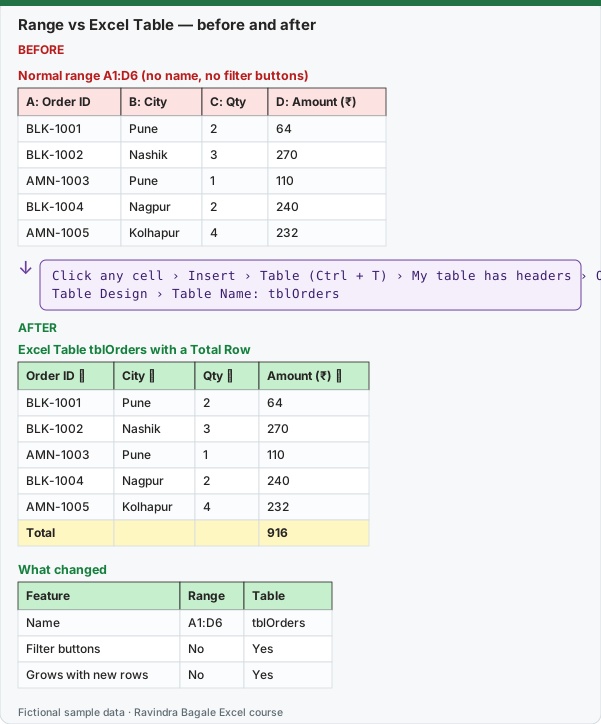
Expected result — Excel Table tblOrders with a Total Row
| Order ID ▾ | City ▾ | Qty ▾ | Amount (₹) ▾ |
|---|---|---|---|
| BLK-1001 | Pune | 2 | 64 |
| BLK-1002 | Nashik | 3 | 270 |
| AMN-1003 | Pune | 1 | 110 |
| BLK-1004 | Nagpur | 2 | 240 |
| AMN-1005 | Kolhapur | 4 | 232 |
| Total | — | — | 916 |
Expected result — What changed
| Feature | Range | Table |
|---|---|---|
| Name | A1:D6 | tblOrders |
| Filter buttons | No | Yes |
| Grows with new rows | No | Yes |
Before table and formula as text
Before — Normal range A1:D6 (no name, no filter buttons)
| A: Order ID | B: City | C: Qty | D: Amount (₹) |
|---|---|---|---|
| BLK-1001 | Pune | 2 | 64 |
| BLK-1002 | Nashik | 3 | 270 |
| AMN-1003 | Pune | 1 | 110 |
| BLK-1004 | Nagpur | 2 | 240 |
| AMN-1005 | Kolhapur | 4 | 232 |
Formula / click path
Click any cell › Insert › Table (Ctrl + T) › My table has headers › OK
Table Design › Table Name: tblOrders
Do it step by step:
- Type the five orders in A1:D6 with headers in row 1.
- Click any cell inside the data.
- Press Ctrl + T. Keep My table has headers ticked and click OK.
- In Table Design › Table Name, type
tblOrdersand press Enter. - Tick Table Design › Total Row and choose Sum under Amount.
- To go back, click Table Design › Convert to Range and click Yes.
स्टेप बाय स्टेप करून बघा:
- पाच orders A1:D6 मध्ये type करा, headers row 1 मध्ये.
- Data मधल्या कोणत्याही cell वर click करा.
- Ctrl + T दाबा. My table has headers tick ठेवा आणि OK करा.
- Table Design › Table Name मध्ये
tblOrderstype करा आणि Enter दाबा. - Table Design › Total Row tick करा आणि Amount खाली Sum निवडा.
- परत range करायचं असेल तर Table Design › Convert to Range वर click करून Yes करा.
स्टेप बाय स्टेप करके देखें:
- पाँच orders A1:D6 में type करें, headers row 1 में.
- Data की किसी भी cell पर click करें.
- Ctrl + T दबाएँ. My table has headers tick रखें और OK करें.
- Table Design › Table Name में
tblOrderstype करें और Enter दबाएँ. - Table Design › Total Row tick करें और Amount के नीचे Sum चुनें.
- वापस range बनाना हो तो Table Design › Convert to Range पर click करके Yes करें.
Range or Table: the full comparison
| Feature | Normal range | Excel Table |
|---|---|---|
| Name | An address like A1:D6 (or a defined name you create) |
A Table name like tblOrders |
| New row typed just below | Not included in formulas, charts or pivots until you edit them | Included automatically |
| Formulas | A1 references such as =C2*D2, filled down by you |
A calculated column such as =[@Qty]*[@Price] fills itself |
| Header row when you scroll | Scrolls away (unless you freeze panes) | Header names replace the column letters |
| Filter buttons | Add them with Data › Filter | On by default |
| Formatting | You format it | A Table Style with banded rows |
| Total row | You type =SUM(...) |
Table Design › Total Row (uses SUBTOTAL, so it follows filters) |
| Merged cells | Allowed | Not allowed inside a Table |
| Spilled formulas (FILTER, SORT, UNIQUE) | Can spill | Cannot spill inside a Table (#SPILL!) |
When to use which
- Use a Table for any list of records that grows: orders, staff, stock, invoices. This is the default for analysts.
- Use a range for a small calculation block, a print layout such as a salary slip, a place where a dynamic-array formula must spill, or a layout that needs merged cells.
Converting both ways
- Range to Table: click inside the data and press Ctrl + T (or Insert › Table).
- Table to range: click inside the Table, then Table Design › Convert to Range › Yes.
- After converting back, Excel rewrites formulas like
=SUM(tblOrders[Amount])as normal references like=SUM(D2:D6). The colours stay; clear them with Home › Clear › Clear Formats if you want.
Practice task (try it before you open the answer):
- Type the five orders above in a new sheet and convert them to a Table named
tblOrders. - Turn on the Total Row and read the total.
- Type a sixth order under the Table: BLK-1006, Pune, 5, 150. Read the total again.
- Convert the Table back to a range and look at the Total Row formula.
Answer
Total before: ₹916. After the sixth order: ₹1,066 (the Table grew by itself). After Convert to Range, the total cell shows =SUBTOTAL(109,D2:D7) instead of a structured reference.
Ravindra Bagale's Tip
Name every Table the moment you create it: tbl plus what it holds, like tblOrders. Table1, Table2 and Table3 mean nothing in a formula six months later.
Ravindra Bagale's Tip – मराठी
Table बनवल्या बरोबर तिला नाव द्या: tbl आणि त्यात काय आहे ते, जसं tblOrders. सहा महिन्यांनी formula मध्ये Table1, Table2, Table3 बघून काहीच कळत नाही.
Ravindra Bagale's Tip – हिंदी
Table बनाते ही उसे नाम दें: tbl और उसमें क्या है वह, जैसे tblOrders. छह महीने बाद formula में Table1, Table2, Table3 देखकर कुछ समझ नहीं आता.
Loading practice tasks...
- Total stock units (Easy): Add up Stock units in D2:D11.
- Average unit cost (Easy): Average of E2:E11, rounded to 2 decimals.
- Rows in Antibiotic (Easy): How many rows have Category "Antibiotic"?
- Largest stock units (Easy): The largest value in D2:D11.
- Stock units for Antibiotic (Medium): Total of D2:D11 where B is "Antibiotic".
- Antibiotic in Milan (Medium): Total of D2:D11 where B is "Antibiotic" and C is "Milan".
- Best in Antibiotic (Medium): Largest E2:E11 value where B is "Antibiotic".
- Value of row 2 (Medium): D2 times E2.
- Look up Liam O'Brien (Medium): The Stock units for "Liam O'Brien" (use a lookup on column A).
- Total value (Hard): Sum of D times E for all rows.
- Share of Antibiotic (Hard): Share of D2:D11 that is "Antibiotic", rounded to 3 decimals.
- Rank of row 2 (Hard): Rank of D2 among D2:D11 (largest = 1).
- Above average? (Hard): "Above" if E2 is above the average of E2:E11, else "Below".