6. Tables, Sorting and Filtering
6.11 Writing Formulas in a Normal Range vs in an Excel Table
Example first. Shraddha Bagale has five orders with Qty and Price and needs Amount and GST at 5%. In a range she writes =C2*D2 and fills it down. In a Table she writes =[@Qty]*[@Price] once. Then a sixth order arrives. Watch which total notices it.
Formulas: range vs Table — in 30 seconds
What: In a range you write A1 references and fill them down yourself. In a Table you write one structured reference and Excel fills the whole column (a calculated column).
Why: Lists grow. A range total like SUM(E2:E6) stops at row 6 and misses the new order. A Table total like SUM(tblSales[Amount]) always covers every row.
Tiny example: Range total =SUM(E2:E6) stays at ₹684 after a sixth order. The Table total =SUM(tblSales[Amount]) becomes ₹916.
Formulas: range vs Table — 30 सेकंदात
काय: Range मध्ये तुम्ही A1 references लिहिता आणि स्वतः खाली fill करता. Table मध्ये एकच structured reference लिहिला की Excel पूर्ण column भरतो (calculated column).
का: Lists वाढत जातात. SUM(E2:E6) सारखा range total row 6 ला थांबतो आणि नवीन order सोडतो. SUM(tblSales[Amount]) सारखा Table total नेहमी सगळ्या rows घेतो.
छोटं उदाहरण: सहावी order आल्यावरही range total =SUM(E2:E6) ₹684 च राहतो. Table total =SUM(tblSales[Amount]) ₹916 होतो.
Formulas: range vs Table — 30 सेकंड में
क्या: Range में आप A1 references लिखते हैं और खुद नीचे fill करते हैं. Table में एक structured reference लिखते ही Excel पूरा column भर देता है (calculated column).
क्यों: Lists बढ़ती रहती हैं. SUM(E2:E6) जैसा range total row 6 पर रुक जाता है और नई order छोड़ देता है. SUM(tblSales[Amount]) जैसा Table total हमेशा सारी rows लेता है.
छोटा उदाहरण: छठी order आने पर भी range total =SUM(E2:E6) ₹684 ही रहता है. Table total =SUM(tblSales[Amount]) ₹916 हो जाता है.
First look at the data (before → after):
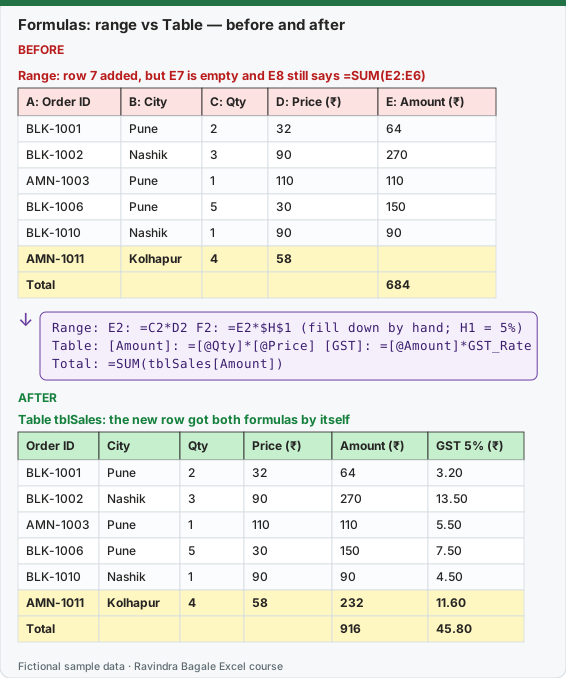
Expected result — Table tblSales: the new row got both formulas by itself
| Order ID | City | Qty | Price (₹) | Amount (₹) | GST 5% (₹) |
|---|---|---|---|---|---|
| BLK-1001 | Pune | 2 | 32 | 64 | 3.20 |
| BLK-1002 | Nashik | 3 | 90 | 270 | 13.50 |
| AMN-1003 | Pune | 1 | 110 | 110 | 5.50 |
| BLK-1006 | Pune | 5 | 30 | 150 | 7.50 |
| BLK-1010 | Nashik | 1 | 90 | 90 | 4.50 |
| AMN-1011 | Kolhapur | 4 | 58 | 232 | 11.60 |
| Total | — | — | — | 916 | 45.80 |
Before table and formula as text
Before — Range: row 7 added, but E7 is empty and E8 still says =SUM(E2:E6)
| A: Order ID | B: City | C: Qty | D: Price (₹) | E: Amount (₹) |
|---|---|---|---|---|
| BLK-1001 | Pune | 2 | 32 | 64 |
| BLK-1002 | Nashik | 3 | 90 | 270 |
| AMN-1003 | Pune | 1 | 110 | 110 |
| BLK-1006 | Pune | 5 | 30 | 150 |
| BLK-1010 | Nashik | 1 | 90 | 90 |
| AMN-1011 | Kolhapur | 4 | 58 | — |
| Total | — | — | — | 684 |
Formula / click path
Range:  E2: =C2*D2   F2: =E2*$H$1   (fill down by hand; H1 = 5%)
Table:  [Amount]: =[@Qty]*[@Price]   [GST]: =[@Amount]*GST_Rate
Total:  =SUM(tblSales[Amount])
Do it step by step:
- In the range, click E2, type
=C2*D2and press Enter. - Double-click the fill handle of E2 to copy it down.
- In F2 type
=E2*$H$1. Press F4 after clicking H1 to add the $ signs, then fill down. - Now press Ctrl + T on the same data and name the Table
tblSales. - In the first empty column header type
Amount, then in the first row type=[@Qty]*[@Price]. The whole column fills. - Type a new order in the row just below the Table and see Amount and GST appear by themselves.
स्टेप बाय स्टेप करून बघा:
- Range मध्ये E2 वर click करा,
=C2*D2type करा आणि Enter दाबा. - E2 च्या fill handle वर double-click करून खाली copy करा.
- F2 मध्ये
=E2*$H$1type करा. H1 वर click केल्यावर F4 दाबून $ लावा, मग खाली fill करा. - आता त्याच data वर Ctrl + T दाबा आणि Table ला
tblSalesनाव द्या. - पहिल्या रिकाम्या column header मध्ये
Amounttype करा, मग पहिल्या row मध्ये=[@Qty]*[@Price]type करा. पूर्ण column भरतो. - Table च्या अगदी खालच्या row मध्ये नवीन order type करा आणि Amount, GST आपोआप येतात ते बघा.
स्टेप बाय स्टेप करके देखें:
- Range में E2 पर click करें,
=C2*D2type करें और Enter दबाएँ. - E2 के fill handle पर double-click करके नीचे copy करें.
- F2 में
=E2*$H$1type करें. H1 पर click करने के बाद F4 दबाकर $ लगाएँ, फिर नीचे fill करें. - अब उसी data पर Ctrl + T दबाएँ और Table को
tblSalesनाम दें. - पहले खाली column header में
Amounttype करें, फिर पहली row में=[@Qty]*[@Price]type करें. पूरा column भर जाता है. - Table के ठीक नीचे वाली row में नई order type करें और देखें कि Amount और GST अपने-आप आते हैं.
Side by side
| Task | Normal range | Excel Table |
|---|---|---|
| Amount for one row | =C2*D2 |
=[@Qty]*[@Price] |
| Fill to all rows | Double-click the fill handle | Automatic (calculated column) |
| Fixed rate cell | =E2*$H$1 (the $ stops H1 from moving) |
=[@Amount]*$H$1 or a named cell =[@Amount]*GST_Rate |
| Column total | =SUM(E2:E6) |
=SUM(tblSales[Amount]) |
| Formula on another sheet | =SUM(Sales!E2:E6) |
=SUM(tblSales[Amount]) (no sheet name needed) |
| Sixth order added in row 7 | E7 stays empty; SUM(E2:E6) still says ₹684 |
Amount and GST appear; the total says ₹916 |
Absolute references inside a Table. [@Qty] already means "this row", so you never need $ for columns of the same Table. You still need $ (or a name) for a single cell outside the Table, like the GST rate in H1. A named cell such as GST_Rate is clearer than $H$1.
Two things that surprise beginners
- If you type a different formula in one cell of a calculated column, Excel marks it with a small green triangle (inconsistent formula). Fix the cell or undo, so the column stays the same.
- If you click cells while typing a formula in a Table, Excel writes structured references for you. If you prefer A1 references, type them by hand, but then the Table loses its biggest advantage.
Practice task (try it before you open the answer):
- Build the range version and the Table version of the five orders above.
- Add the sixth order AMN-1011, Kolhapur, Qty 4, Price ₹58 below both.
- Compare the two totals and the GST column.
Answer
Range: E7 and F7 stay empty and =SUM(E2:E6) shows ₹684. Table: Amount ₹232 and GST ₹11.60 appear in the new row and the total shows ₹916 (GST total ₹45.80).
Ravindra Bagale's Tip
When a sheet will grow every week, start with Ctrl + T before you write the first formula. Converting later means rewriting every formula you already made.
Ravindra Bagale's Tip – मराठी
जी sheet दर आठवड्याला वाढणार आहे, तिथे पहिला formula लिहिण्याआधीच Ctrl + T करा. नंतर convert केलं तर आधीचे सगळे formulas परत लिहावे लागतात.
Ravindra Bagale's Tip – हिंदी
जो sheet हर हफ़्ते बढ़ने वाली है, वहाँ पहला formula लिखने से पहले ही Ctrl + T करें. बाद में convert करने पर पहले के सारे formulas फिर से लिखने पड़ते हैं.
Loading practice tasks...
- Line total (Easy): Multiply B2 by C2.
- Another line (Easy): Multiply B5 by C5.
- Total sales (Easy): Total of D2:D7.
- Pieces sold (Easy): Total of C2:C7.
- Tax on one line (Medium): Tax on D2 using $H$2.
- Tax on another line (Medium): Tax on D6 using $H$2.
- Price with tax (Medium): Price of B3 with tax.
- Average price (Medium): Average of B2:B7.
- Total tax (Hard): Total of D2:D7 × $H$2.
- Total with tax, rounded (Hard): Total sales plus tax, rounded to 2 decimals.
- Check a total (Hard): Does D4 equal B4*C4? (TRUE or FALSE)