Salon Management System in Excel: Appointments, Client History, Repeat Clients, Stylist Sales and Commission
Zoya's Salon in Nagpur has three stylists and a steady list of regulars. Zoya wants to know who comes back, who books and does not turn up, and how much each stylist brings in so commission is fair. This 6-sheet system keeps a service menu, logs every appointment with its status, builds a client history (visit days, spend, last visit, repeat or not), and reports sales, minutes worked and commission per stylist.
What you'll learn on this page
- Keep services with price and minutes in Setup
- Count sales only when an appointment is Done
- Mark the first service of a client on a day so visits are counted once
- Build client history with SUMIFS, COUNTIFS and MAXIFS
- Work out stylist sales and commission
- Show repeat clients and no-shows on a dashboard
Download the template: salon-appointment-management-system-template.xlsx: a 6-sheet system with example data and real formulas (Read me, Setup, Appointments, Clients, Report, Dashboard). Yellow cells are inputs you can type over; green cells hold formulas; blue rows are headers and totals. Replace the example data with your own and every report and the dashboard recalculate.
Made-up data: every name, amount, business and date on this page is made up for practice. Cities are used only to make the examples feel real.
1. The business story
Zoya's Salon, 15 to 17 October 2026, with 2 bookings for the 18th (made-up clients and prices).
| What | Value |
|---|---|
| Sales (Done only) | ₹10,300 |
| Services done | 18 in 17 visit days |
| Average spend per visit | ₹606 |
| No-shows | 2 |
| Repeat clients | 7 of 10 |
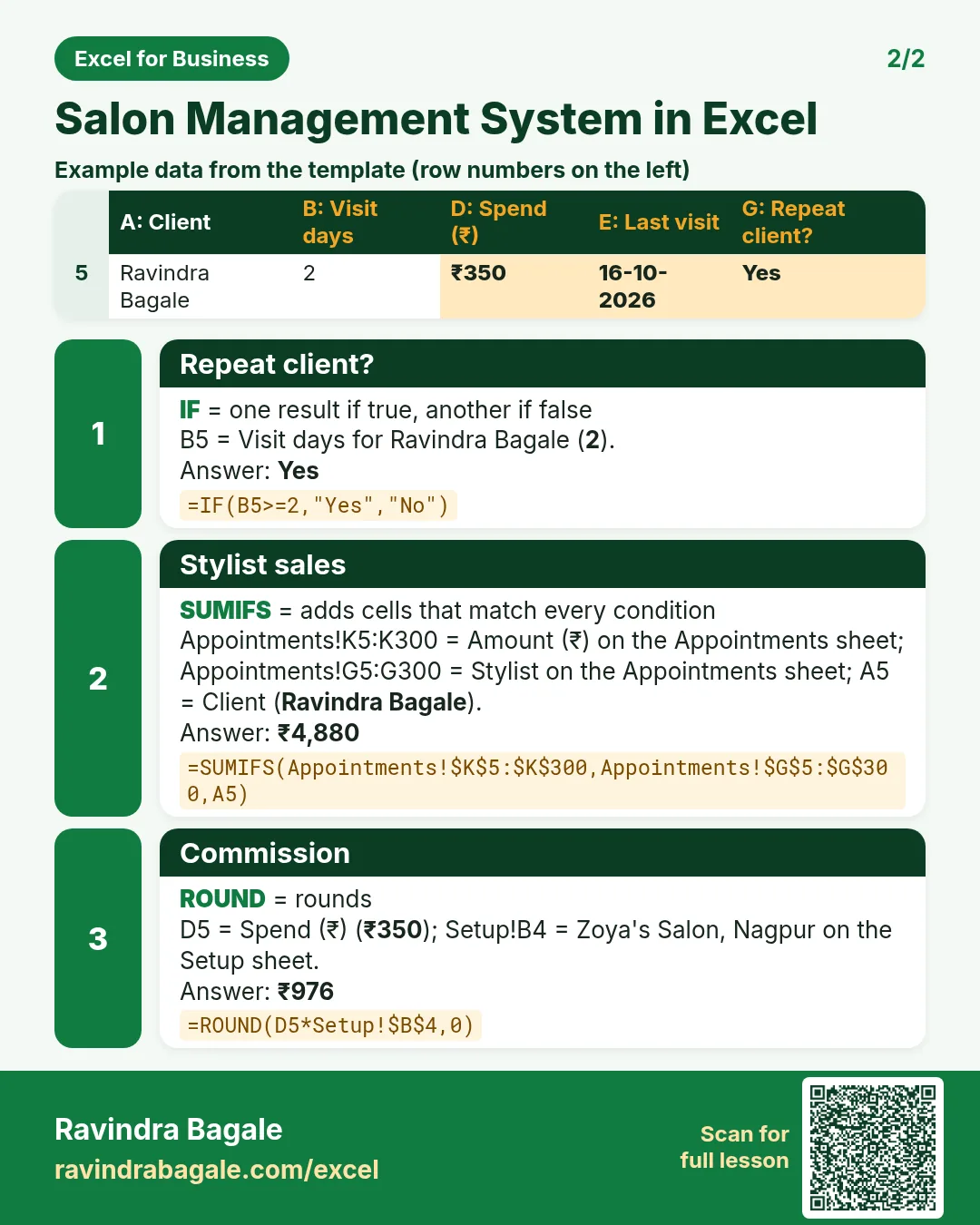
| Top stylist by sales | Zoya, ₹4,880 (commission at 20%: ₹976) |
Shraddha Bagale had a haircut and a facial on 15 October: 2 services but 1 visit. Column N in Appointments makes that distinction, so visit days and average spend are right. Stylist salaries can run through the payroll calculator.
Figure 1. Services and stylists in Setup; Appointments is the one entry log; Clients, Report and Dashboard read it.
2. Build it sheet by sheet
Step 1. Setup: services and stylists
- On Setup, type the salon in B3 and the stylist commission (20%) in B4.
- From row 7: Service code, Service, Price, Minutes for 8 services. Lists in F (stylists), G (Booked, Done, No-show, Cancelled) and H (payment modes) feed the drop-downs (drop-down lists).
Step 2. Appointments: amount and visit days
- On Appointments, type appt no, date, time, client, service code, stylist, discount, payment and status. Service F5, price H5 and minutes I5 come from Setup with XLOOKUP (XLOOKUP).
- Amount K5:
=IF(M5="Done",ROUND(H5*(1-J5),0),0): a booking earns nothing until it is Done. - New visit day N5:
=IF(AND(M5="Done",COUNTIFS($D$5:D5,D5,$B$5:B5,B5,$M$5:M5,"Done")=1),1,0). The growing ranges count this client's Done services on this date so far; only the first gets 1 (AND). - Colour No-show red and Booked amber (highlight rules).
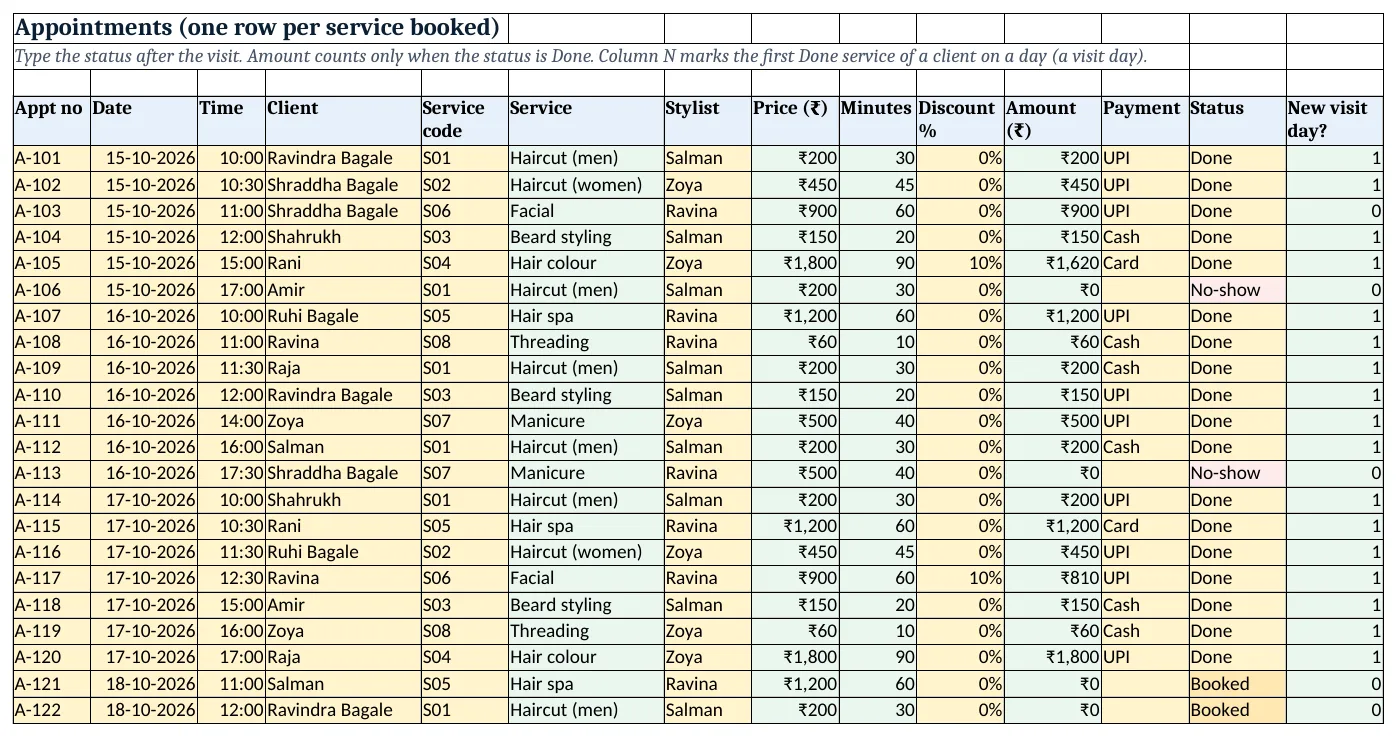
Figure 2. The appointment log: amount counts only when Done; column N marks a new visit day; no-shows in red
Step 3. Clients: history and repeat flag
- On Clients, list the clients. Visit days B5:
=SUMIFS(Appointments!$N$5:$N$300,Appointments!$D$5:$D$300,A5). - Services C5 with COUNTIFS on client and Done; spend D5 with SUMIFS on the amount (SUMIFS).
- Last visit E5:
=MAXIFS(Appointments!$B$5:$B$300,Appointments!$D$5:$D$300,A5,Appointments!$M$5:$M$300,"Done")(MAXIFS). No-shows F5 with COUNTIFS. - Repeat G5:
=IF(B5>=2,"Yes","No"), green when Yes.
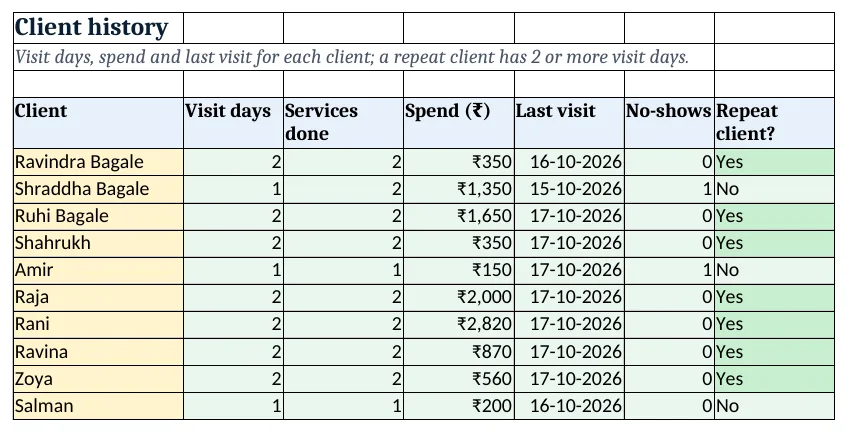
Figure 3. Client history: visit days, services, spend, last visit, no-shows and the repeat flag
Step 4. Report: stylists and services
- On Report, per stylist: services done
=COUNTIFS(Appointments!$G$5:$G$300,A5,Appointments!$M$5:$M$300,"Done"), minutes worked with SUMIFS, sales=SUMIFS(Appointments!$K$5:$K$300,Appointments!$G$5:$G$300,A5)and commission=ROUND(D5*Setup!$B$4,0). - Per service from row 10: times done and sales, with data bars on sales.
Step 5. Dashboard
- KPI cards: sales
=SUM(Appointments!$K$5:$K$300), services done, no-shows, average spend per visit=A5/SUM(Appointments!$N$5:$N$300), repeat clients=COUNTIF(Clients!G5:G40,"Yes")&" of "&COUNTA(Clients!A5:A40)and upcoming bookings (KPI cards). - Add column charts of sales by stylist and by service.
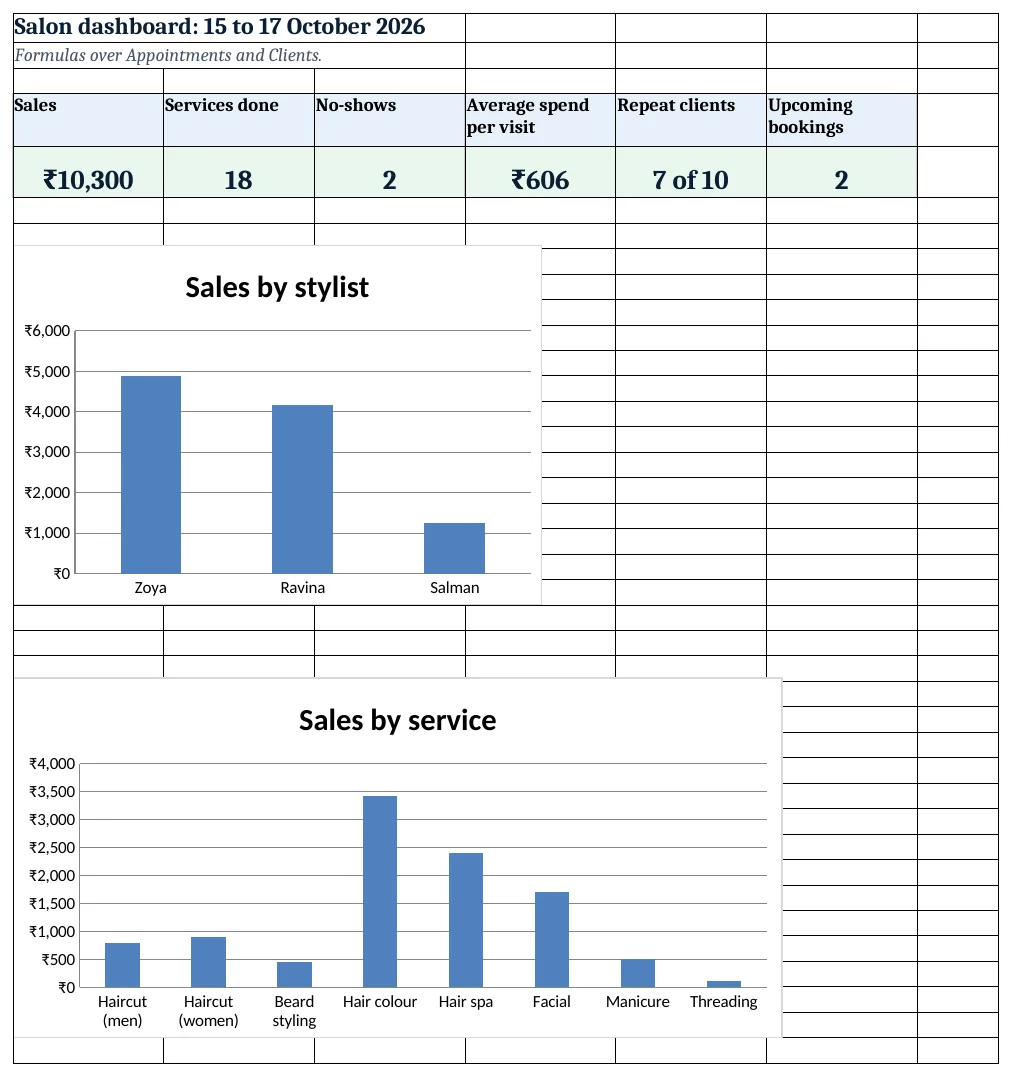
Figure 4. The salon dashboard with sales, visits, no-shows, repeat clients and charts
Ravindra Bagale's Tip
Call every Booked client the evening before. A two-line reminder cuts no-shows more than any discount.
Ravindra Bagale's Tip – मराठी
प्रत्येक Booked client ला आदल्या संध्याकाळी फोन करा. दोन ओळींची आठवण कोणत्याही discount पेक्षा no-shows जास्त कमी करते.
Ravindra Bagale's Tip – हिंदी
हर Booked client को एक शाम पहले फ़ोन करो. दो लाइन की याद दिलाना किसी भी discount से ज़्यादा no-shows कम करता है.
3. Formulas used
| Cell | Formula | What it does |
|---|---|---|
| Appointments!F5 | =XLOOKUP(E5,Setup!$A$7:$A$14,Setup!$B$7:$B$14,"Check code") |
Service name from the code |
| Appointments!H5 | =XLOOKUP(E5,Setup!$A$7:$A$14,Setup!$C$7:$C$14,0) |
Price from Setup |
| Appointments!K5 | =IF(M5="Done",ROUND(H5*(1-J5),0),0) |
Amount only when Done |
| Appointments!N5 | =IF(AND(M5="Done",COUNTIFS($D$5:D5,D5,$B$5:B5,B5,$M$5:M5,"Done")=1),1,0) |
First Done service of the client that day |
| Clients!B5 | =SUMIFS(Appointments!$N$5:$N$300,Appointments!$D$5:$D$300,A5) |
Visit days |
| Clients!C5 | =COUNTIFS(Appointments!$D$5:$D$300,A5,Appointments!$M$5:$M$300,"Done") |
Services done |
| Clients!D5 | =SUMIFS(Appointments!$K$5:$K$300,Appointments!$D$5:$D$300,A5) |
Spend |
| Clients!E5 | =MAXIFS(Appointments!$B$5:$B$300,Appointments!$D$5:$D$300,A5,Appointments!$M$5:$M$300,"Done") |
Last visit |
| Clients!F5 | =COUNTIFS(Appointments!$D$5:$D$300,A5,Appointments!$M$5:$M$300,"No-show") |
No-shows |
| Clients!G5 | =IF(B5>=2,"Yes","No") |
Repeat client? |
| Report!B5 | =COUNTIFS(Appointments!$G$5:$G$300,A5,Appointments!$M$5:$M$300,"Done") |
Services done by the stylist |
| Report!C5 | =SUMIFS(Appointments!$I$5:$I$300,Appointments!$G$5:$G$300,A5,Appointments!$M$5:$M$300,"Done") |
Minutes worked |
| Report!D5 | =SUMIFS(Appointments!$K$5:$K$300,Appointments!$G$5:$G$300,A5) |
Stylist sales |
| Report!E5 | =ROUND(D5*Setup!$B$4,0) |
Commission |
| Dashboard!D5 | =A5/SUM(Appointments!$N$5:$N$300) |
Average spend per visit |
| Dashboard!E5 | =COUNTIF(Clients!G5:G40,"Yes")&" of "&COUNTA(Clients!A5:A40) |
Repeat clients of all clients |
Every formula above is written in the template, so you can click a cell and see it in the formula bar. All values on this page were recalculated in LibreOffice with zero errors.
4. Common mistakes
- Counting every booking as a sale. A booking is a promise. Only Done rows have an amount, so no-shows and future bookings do not inflate sales.
- Counting services as visits. Two services on one day is one visit. Without column N, average spend per visit would look too low and repeat counts too high.
- Typing client names in different ways. "Ravina" and "Ravina " are two clients to COUNTIFS. Use a client list and a drop-down, or a client ID.
- Deleting no-shows. Keep them with status No-show; they tell you whom to call for confirmation next time.
- Commission on the price, not on the amount. Pay commission on what the client actually paid after discount: the Amount column.
Ravindra Bagale's Tip
Share each stylist's Report row with them every week. When people see their own numbers, the sheet stops being a secret and starts being a goal.
Ravindra Bagale's Tip – मराठी
प्रत्येक stylist ला त्यांची Report row दर आठवड्याला दाखवा. स्वतःचे आकडे दिसले की sheet गुपित न राहता ध्येय बनते.
Ravindra Bagale's Tip – हिंदी
हर stylist को उनकी Report row हर हफ्ते दिखाओ. अपने आँकड़े दिखें तो sheet राज़ नहीं, लक्ष्य बन जाती है.
5. More real examples
Example 1: Barber shop with walk-ins. Skip the time column and type status Done directly; the same client history works.
Example 2: Spa with packages. Add a Package service with a price for 5 sessions and a Sessions used COUNTIFS per client.
Example 3: Reminder list. Add a column on Clients: days since last visit = as-of date − last visit, and filter clients above 30 days to call.
Quick revision cards
Quick revision
Each card shows formulas from this page, each with an example and its answer from the template. Scan the QR code on a card to open this lesson. All names and numbers are made up for practice.
झटपट उजळणी
प्रत्येक card वर या page मधले formulas, त्यांचं example आणि template मधलं उत्तर आहे. Card वरचा QR code scan केला की हा lesson उघडतो. सगळी नावं आणि आकडे सरावासाठी काल्पनिक आहेत.
झटपट दोहराई
हर card पर इस page के formulas, उनका example और template का उत्तर है. Card का QR code scan करें तो यह lesson खुलेगा. सभी नाम और आंकड़े अभ्यास के लिए काल्पनिक हैं.
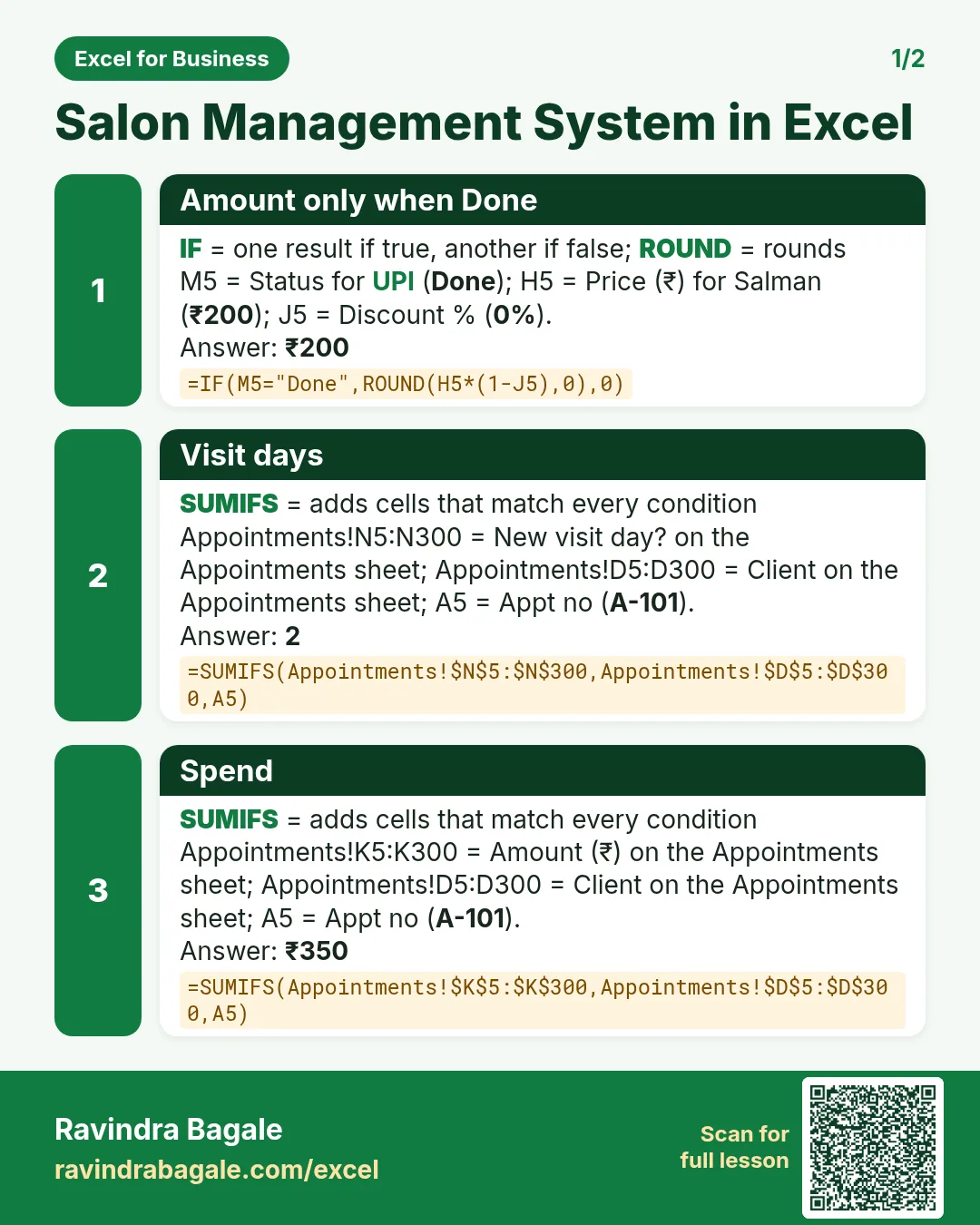


More cards: Ravi Sir's Cards.
6. Frequently asked questions
How do I track salon appointments in Excel?
One row per service booked with date, time, client, service, stylist and status. Amount is counted only when the status is Done.
How do I count client visits, not services?
Mark the first Done service of a client on each date with COUNTIFS on growing ranges, then add those marks with SUMIFS per client.
How do I find repeat clients?
A client with 2 or more visit days is a repeat client: =IF(B5>=2,"Yes","No"), then COUNTIF the Yes values.
How do I calculate stylist commission?
Total the Done amounts per stylist with SUMIFS and multiply by the commission rate in Setup.
How do I find the last visit date?
MAXIFS over the date column with the client and Done as conditions.
7. Quick quiz
Ten questions on this page. Sign in to save your score.
Loading practice tasks...
- Total deals won (Easy): Add up Deals won in D2:D11.
- Average avg deal value (Easy): Average of E2:E11, rounded to 2 decimals.
- Rows in North (Easy): How many rows have Region "North"?
- Largest deals won (Easy): The largest value in D2:D11.
- Deals won for North (Medium): Total of D2:D11 where B is "North".
- North in Glasgow (Medium): Total of D2:D11 where B is "North" and C is "Glasgow".
- Best in North (Medium): Largest E2:E11 value where B is "North".
- Value of row 2 (Medium): D2 times E2.
- Look up Olivia Brown (Medium): The Deals won for "Olivia Brown" (use a lookup on column A).
- Total value (Hard): Sum of D times E for all rows.
- Share of North (Hard): Share of D2:D11 that is "North", rounded to 3 decimals.
- Rank of row 2 (Hard): Rank of D2 among D2:D11 (largest = 1).
- Above average? (Hard): "Above" if E2 is above the average of E2:E11, else "Below".