Excel for Insurance: Every File, Formula and Report Insurers Use (With Templates)
This guide is for people who work in Insurance and use Excel every day. You will see every common file, the formulas people actually type, and downloadable templates with made-up Indian ₹ data. Related short lessons are linked — we do not re-teach them here.
What you'll learn
- Which roles use Excel in insurance
- Every common Excel file type for this industry
- Sample tables with realistic ₹ examples (made-up names)
- Formulas: Next premium due, Days left, Loss ratio, Commission and more
- Ready templates you can download and reuse
Downloads: insurance-policy-underwriting.xlsx (Policy register + underwriting checklist) · insurance-renewal-lapse.xlsx (Premium due/renewal + lapse/revival + endowment maturity) · insurance-claims-commission-loss.xlsx (Claims register + agent commission + loss ratio MIS)
Example data only
All names, amounts, rates and dates are made up for practice. They are not real bank, insurer or plant records. Follow your organisation's own circulars and software for live work.
In short
One industry → many Excel files. Each file is one clear list. Yellow cells are inputs; green cells are formulas. Start with the Roles table, then open the matching template.
थोडक्यात
एक industry → अनेक Excel files. प्रत्येक file = एक स्पष्ट यादी. Yellow = input; green = formula. Roles table पासून सुरू करा, नंतर matching template उघडा.
संक्षेप में
एक industry → कई Excel files. हर file = एक साफ सूची. Yellow = input; green = formula. Roles table से शुरू करें, फिर matching template खोलें.
Related chapters (already on this site)
Why
Some topics already have a focused lesson. Use those for depth; use this guide for the full industry picture.
What
| Chapter | What it covers |
|---|---|
| Insurance Renewal Tracker (EDATE) | Focus lesson on next premium due date with EDATE. |
| 22. KPI in All Industries (Insurance KPIs) | Short KPI list for insurers. |
| 27. 20 Industry Projects | Practice projects including insurance. |
How
- Skim the link if you need that one skill.
- Come back here for the full file list and templates.
1. Who uses Excel
Why
Policies, premiums and claims are lists. Excel keeps the day’s work visible.
What
| Role | Typical Excel work |
|---|---|
| Underwriter | Underwriting checklist, risk load, accept/refer/reject. |
| Policy servicing | Policy register, endorsement log, free-look cancel. |
| Renewals / persistency | Premium due list, lapse, revival, grace period. |
| Claims desk | Claims register, documents pending, settlement amount, TAT. |
| Agency / sales manager | Agent commission, premium credited, clawback. |
| MIS / finance | Loss ratio, claim vs premium by product and branch. |
How
- Read the Roles table.
- Open each template and find the sheet that matches the role.
- Do not mix claim rows into the policy register — keep separate sheets.
2. Every common Excel file
Why
If you only learn one dashboard, you miss the daily registers that feed it.
What
| File | What one row / sheet holds |
|---|---|
| Policy register | Policy no, customer, product (Term/Health/Motor/Endowment), sum assured, premium, mode, status. |
| Premium due / renewal tracker | Next due date (EDATE), days left, paid flag, reminder date. |
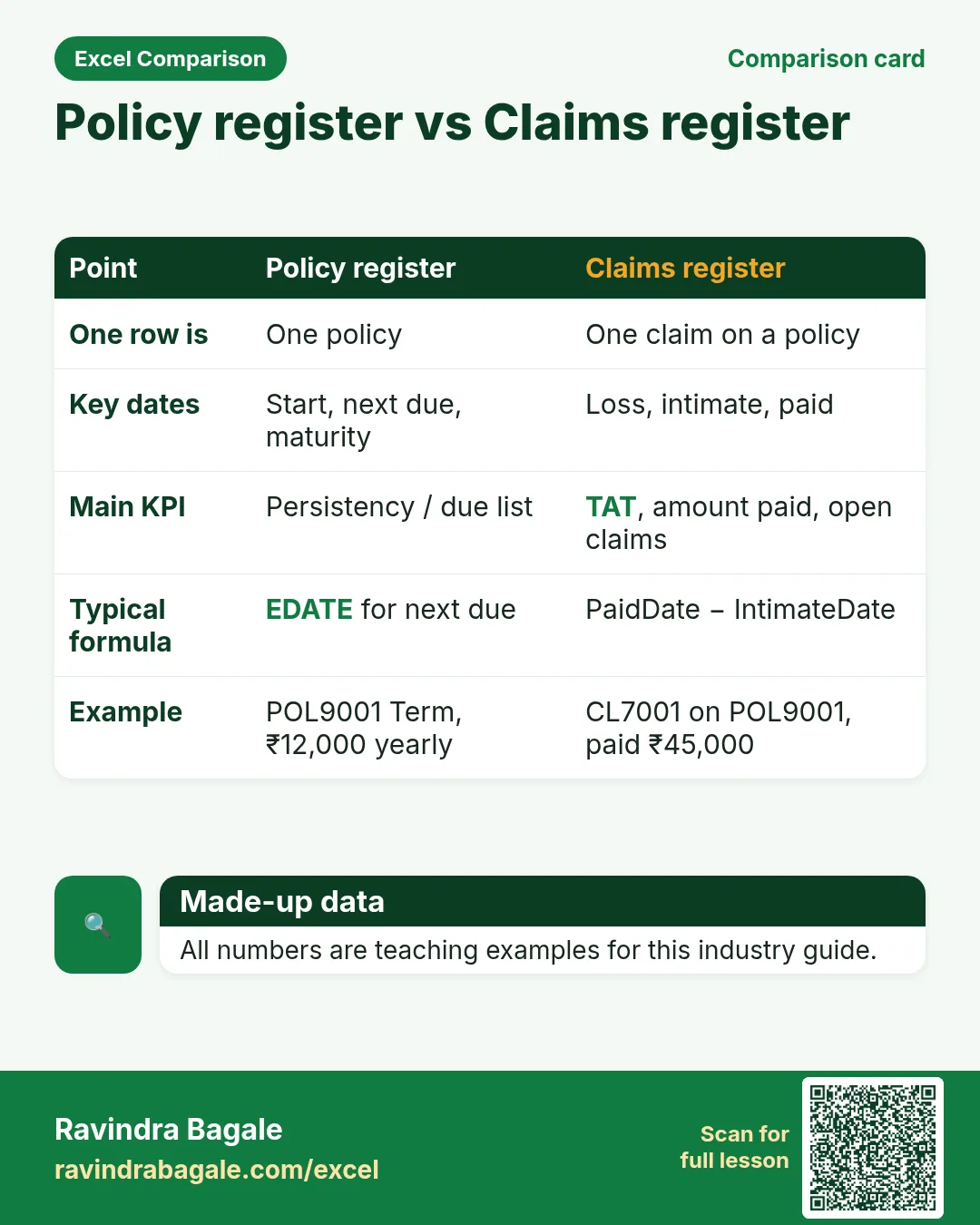
| Claims register | Claim no, policy, date of loss, intimated, documents, approved amount, paid date, status. |
| Loss ratio MIS | Premium earned vs claims paid by product; loss ratio %. |
| Agent commission sheet | Agent, product, premium, rate %, commission, TDS example, net pay. |
| Underwriting checklist | Age, BMI, medicals, income proof, decision. |
| Lapse / revival register | Lapsed policy, lapse date, revival quote, revival date. |
| Endowment maturity list | Maturity date, survival benefit, bonus example, payout status. |
How
- Pick the file that matches your role.
- Download the template that contains that sheet.
- Replace yellow sample rows with your practice data (still made-up if you share screenshots).
3. Formulas people use
Why
Typed numbers go stale. Formulas update when inputs change.
What
| Name | Formula | What it does |
|---|---|---|
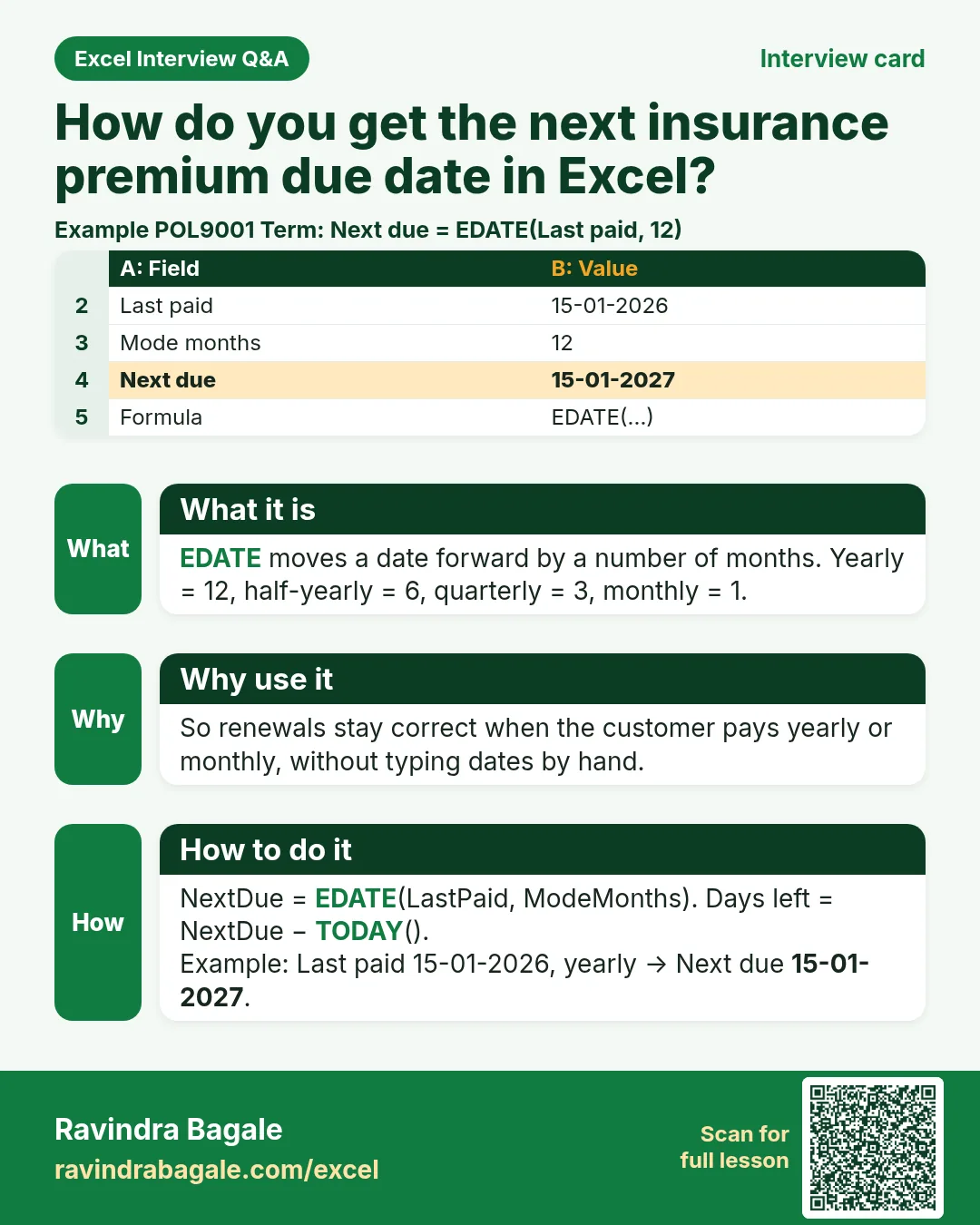
| Next premium due | =EDATE(last_paid, months_in_mode) |
Yearly=12, half-yearly=6, quarterly=3, monthly=1. |
| Days left | =due_date-TODAY() |
Negative means overdue. |
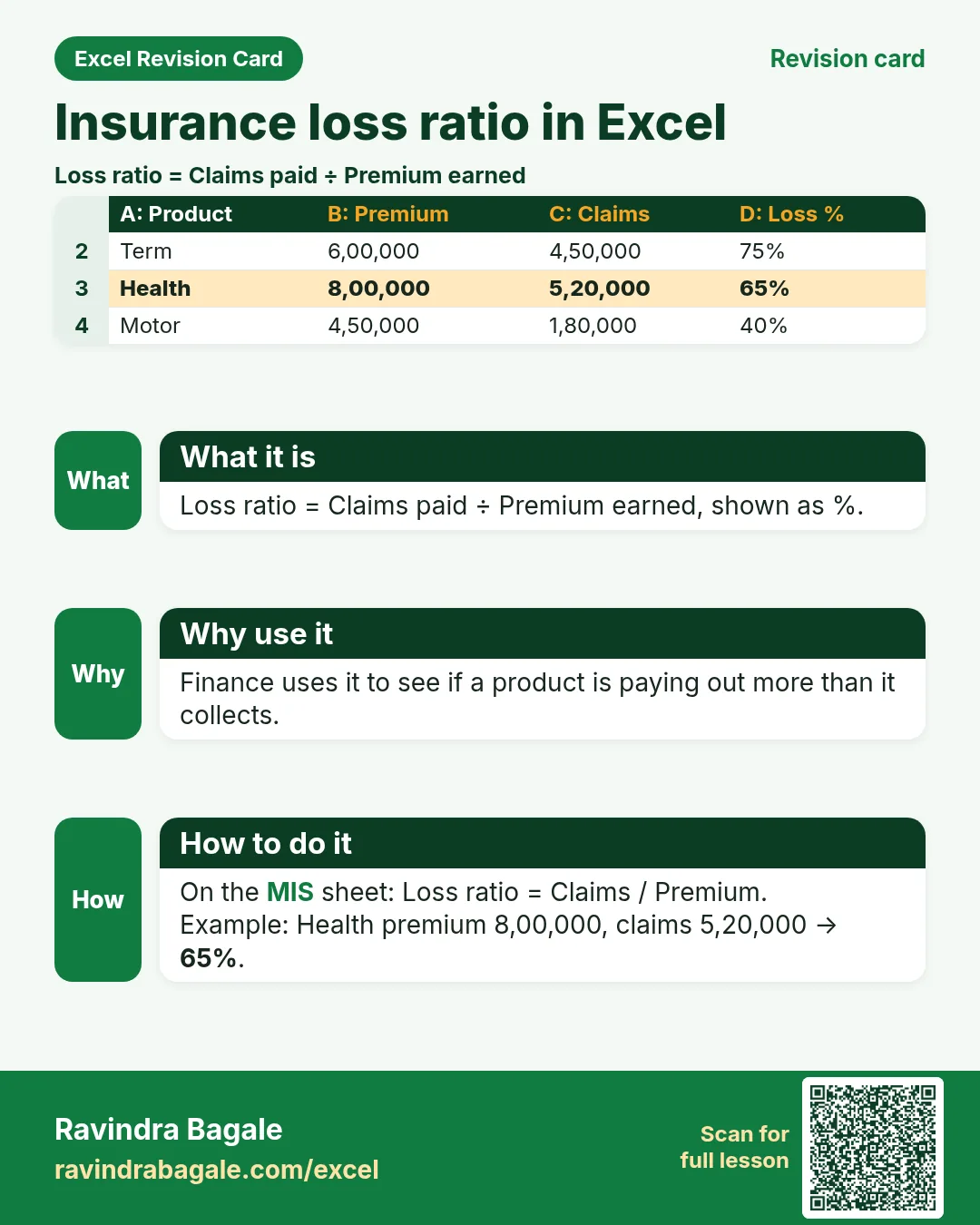
| Loss ratio | =claims_paid/premium_earned |
Show as %. |
| Commission | =premium*rate |
Agent payout before TDS. |
| Count open claims | =COUNTIF(status,"Open") |
Work queue. |
| Sum claims paid | =SUMIF(product,"Health",paid_range) |
Product-wise claims. |
| Grace end | =EDATE(due_date,1) |
Simple teaching grace of one month. |
| Persistency (simple) | =paid_policies/due_policies |
Share of premiums collected. |
How
- Open the Formulas used sheet inside each template.
- Change only yellow cells.
- Watch green cells recalculate.
3. Policy register and underwriting checklist
Why
Before a policy is in force, underwriting must finish. After that, servicing needs one master list.
What
A policy register plus a simple underwriting checklist.
How
- Download insurance-policy-underwriting.xlsx.
- Yellow = inputs. Status uses a formula from Decision.
- Filter Decision = Refer for cases that need a senior review.
- Related: short insurance KPIs are in chapter 22.
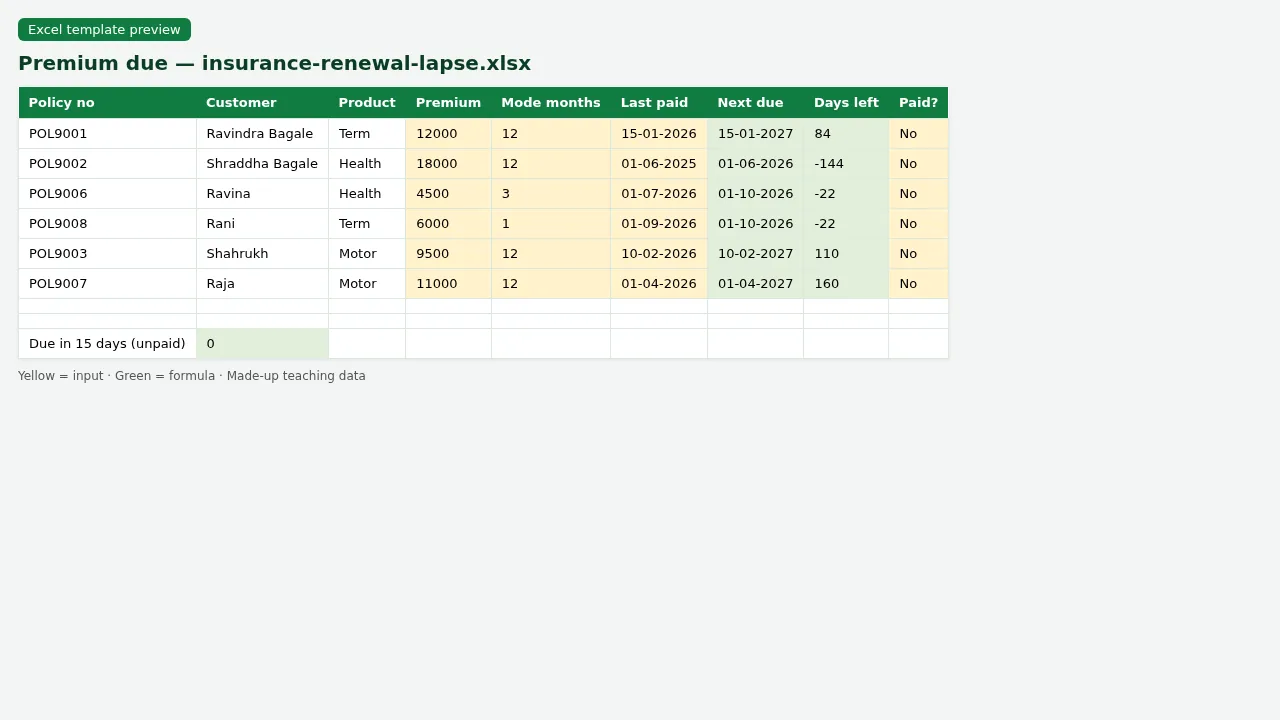
Figure. Premium due — Next due uses EDATE.
4. Premium due, renewal, lapse and revival
Why
Missed premiums become lapses. A clear due list protects persistency.
What
Renewal tracker with EDATE, plus a lapse/revival register.
How
- Open insurance-renewal-lapse.xlsx › Premium due.
- Next due uses =EDATE(LastPaid, ModeMonths).
- Filter Days left <= 15 for this week’s calls.
- For the focused EDATE lesson see the Insurance Renewal Tracker chapter (Related).
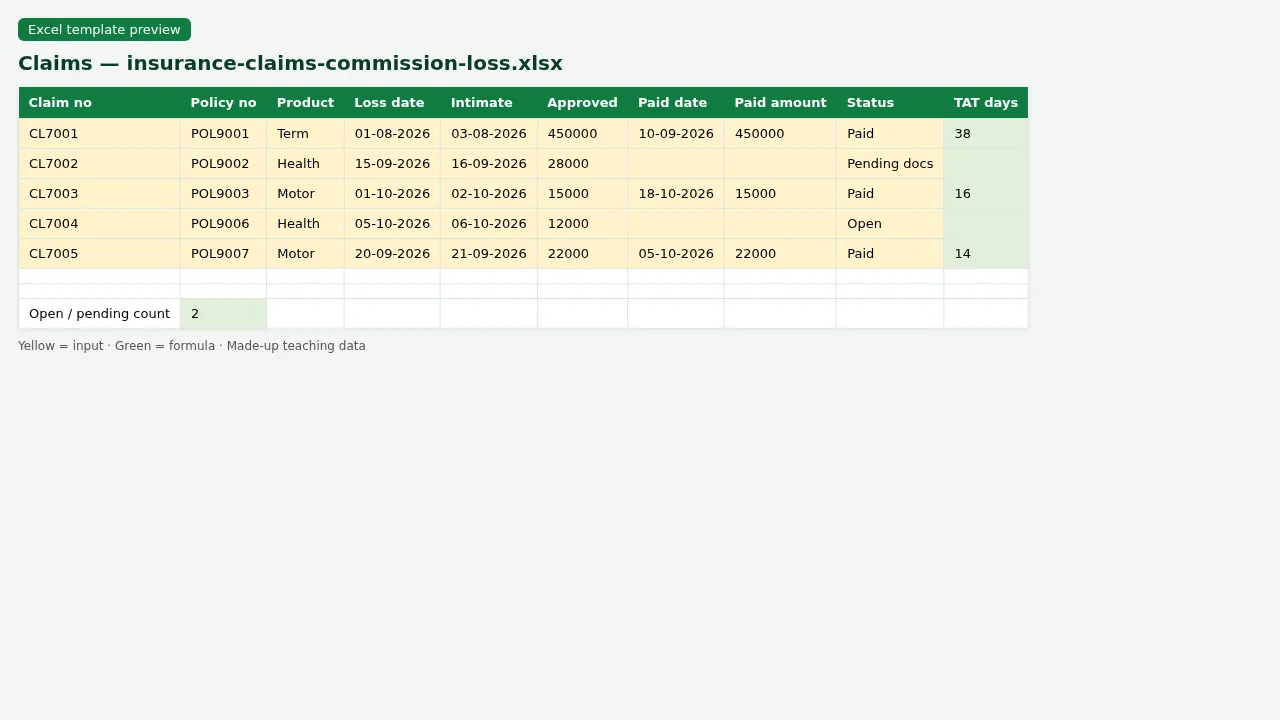
Figure. Claims register with TAT days formula.
5. Claims register and settlement TAT
Why
Every claim needs documents, approval and payment date. TAT is paid date minus intimate date.
What
A claims register with pending documents and TAT formula.
How
- Open insurance-claims-commission-loss.xlsx › Claims.
- Status Open / Pending docs / Paid.
- TAT (days) = PaidDate − IntimateDate when Paid.
- Sort Open claims by Intimate date (oldest first).
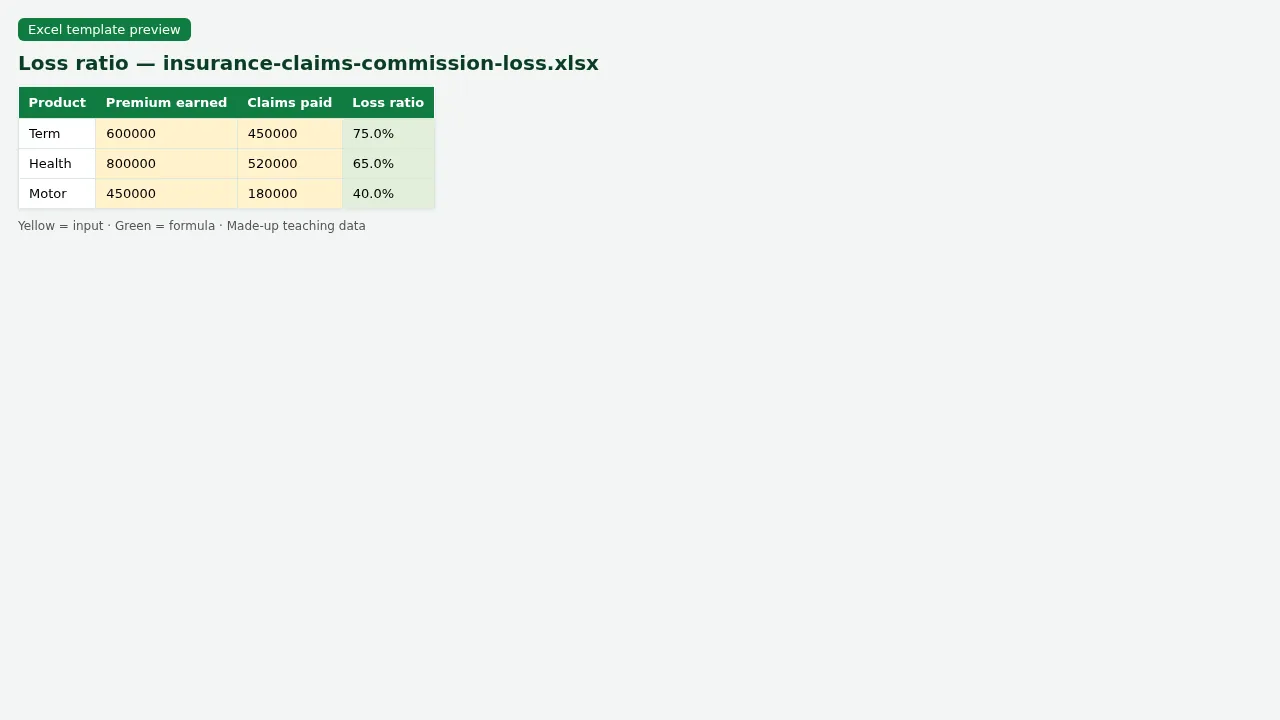
Figure. Loss ratio = Claims ÷ Premium by product.
6. Agent commission and loss ratio MIS
Why
Sales managers pay commission from premium; finance watches claims vs premium.
What
Commission sheet and a small loss-ratio MIS by product.
How
- On Commission, Commission = Premium × Rate (green cells).
- On Loss ratio, Loss ratio % = Claims ÷ Premium.
- Example products: Term, Health, Motor — all made-up numbers.
- Compare Health vs Term loss ratio on the MIS sheet.
7. Sheet previews
Why
See the layout before you open Excel.
What
Screenshots of the main sheets in the downloadable templates.
How
Scroll the figures, then download the matching .xlsx.
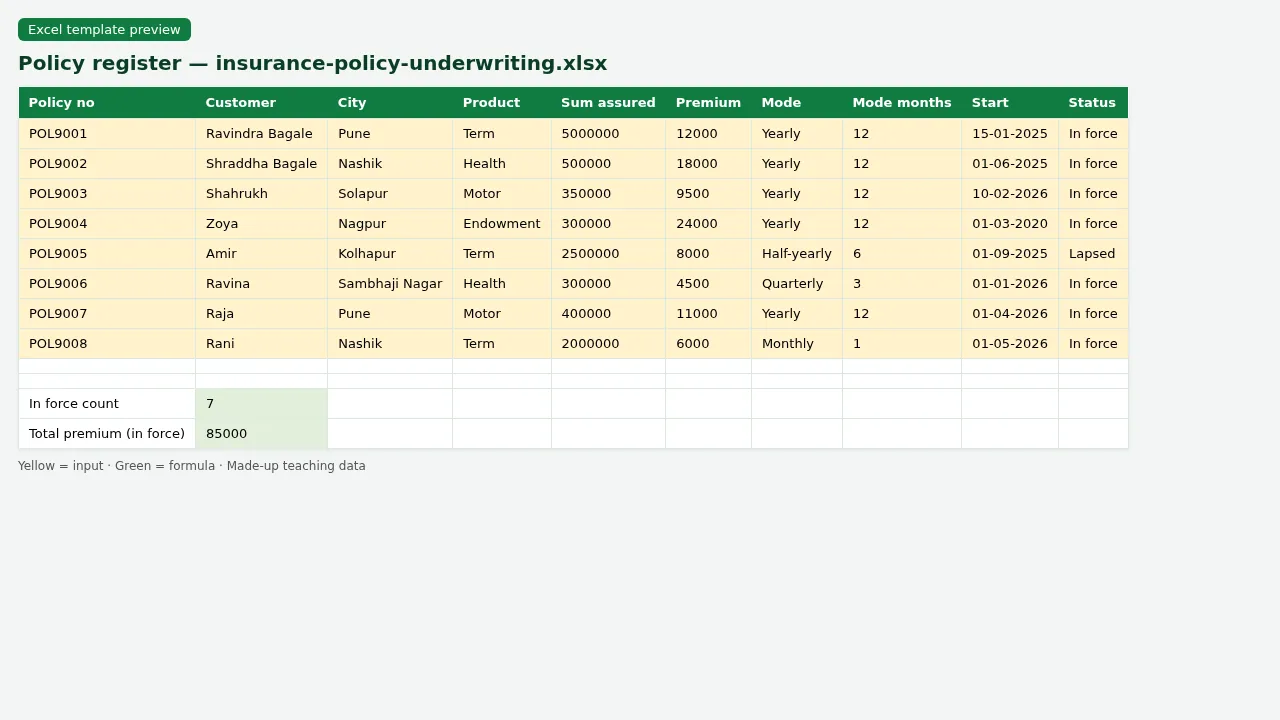
Figure. Policy register with product, premium and status.
Figure. Premium due — Next due uses EDATE.
Figure. Claims register with TAT days formula.
Figure. Loss ratio = Claims ÷ Premium by product.
8. Common mistakes
| Mistake | What goes wrong | Fix |
|---|---|---|
| Typing next due by hand | Mode change (yearly → monthly) breaks the list. | Use EDATE with ModeMonths. |
| Claim amount as text with ₹ sign | SUMIF fails. | Store numbers only; format as ₹. |
| One sheet for policies and claims | Hard to filter and easy to overwrite. | Separate sheets; link by Policy no with XLOOKUP if needed. |
| Loss ratio = claims ÷ sum assured | Wrong KPI. | Loss ratio = claims paid ÷ premium earned. |
| Forgetting grace period | Calling the customer as lapsed too early. | Use a Grace end column. |
9. FAQ
Are premium rates and claim rules real IRDAI figures?
No. All premiums, rates and claim amounts are made-up for practice.
Why EDATE not DATE+365?
EDATE keeps the same day of month across years and handles month lengths better for due dates.
What is persistency?
How many customers continue to pay premiums when due. Higher is better for the insurer.
What is clawback?
Commission taken back if a policy lapses early. This teaching file shows a simple clawback column.
Can I use this for a real agency?
Use it as a starting layout only. Real systems need insurer software and compliance checks.
10. Try at home
Try at home
- On Premium due, how many policies have Days left <= 7?
- On Claims, what is the TAT of the Paid health claim?
- On Commission, what is Zoya’s total commission before TDS?
- On Loss ratio, which product has the highest loss ratio %?
Recap
In short
- 6 roles use Excel in this industry.
- 8 common file types are listed above.
- 3 downloadable templates with yellow inputs and green formulas.
- Rates and rules here are teaching examples only.
- Use Related chapters for focused skills (EDATE, KPIs, planning).
Quick revision cards
Quick revision
1 interview card, 1 comparison card and 1 revision card. Save on your phone or download as PNG. Numbers are made up for practice.
झटपट उजळणी
1 interview card, 1 comparison card आणि 1 revision card. Phone वर save करा किंवा PNG download करा. आकडे सरावासाठी काल्पनिक आहेत.
झटपट दोहराई
1 interview card, 1 comparison card और 1 revision card. Phone पर save करें या PNG download करें. आंकड़े अभ्यास के लिए काल्पनिक हैं.



Loading practice tasks...
- Total claims (Easy): Add up Claims in D2:D11.
- Average premium (Easy): Average of E2:E11, rounded to 2 decimals.
- Rows in Health (Easy): How many rows have Product "Health"?
- Largest claims (Easy): The largest value in D2:D11.
- Claims for Health (Medium): Total of D2:D11 where B is "Health".
- Health in Chicago (Medium): Total of D2:D11 where B is "Health" and C is "Chicago".
- Best in Health (Medium): Largest E2:E11 value where B is "Health".
- Value of row 2 (Medium): D2 times E2.
- Look up Priya Kulkarni (Medium): The Claims for "Priya Kulkarni" (use a lookup on column A).
- Total value (Hard): Sum of D times E for all rows.
- Share of Health (Hard): Share of D2:D11 that is "Health", rounded to 3 decimals.
- Rank of row 2 (Hard): Rank of D2 among D2:D11 (largest = 1).
- Above average? (Hard): "Above" if E2 is above the average of E2:E11, else "Below".