Excel for Mechanical Industries: BOM, Job Cards, Maintenance and Plant Files (With Templates)
This guide is for people who work in mechanical / manufacturing and use Excel every day. You will see every common file, the formulas people actually type, and downloadable templates with made-up Indian ₹ data. Related short lessons are linked — we do not re-teach them here.
What you'll learn
- Which roles use Excel in mechanical
- Every common Excel file type for this industry
- Sample tables with realistic ₹ examples (made-up names)
- Formulas: Required qty, Efficiency %, Downtime hours, Reorder flag and more
- Ready templates you can download and reuse
Downloads: mechanical-bom-jobcard-cost.xlsx (BOM + job cards + job cost sheet) · mechanical-production-scrap.xlsx (Daily output + scrap/rejection) · mechanical-maintenance-spares.xlsx (Breakdown log + PM schedule + spares + tool crib) · mechanical-vendor-rfq.xlsx (Vendor RFQ compare (3 vendors))
Example data only
All names, amounts, rates and dates are made up for practice. They are not real bank, insurer or plant records. Follow your organisation's own circulars and software for live work.
In short
One industry → many Excel files. Each file is one clear list. Yellow cells are inputs; green cells are formulas. Start with the Roles table, then open the matching template.
थोडक्यात
एक industry → अनेक Excel files. प्रत्येक file = एक स्पष्ट यादी. Yellow = input; green = formula. Roles table पासून सुरू करा, नंतर matching template उघडा.
संक्षेप में
एक industry → कई Excel files. हर file = एक साफ सूची. Yellow = input; green = formula. Roles table से शुरू करें, फिर matching template खोलें.
Related chapters (already on this site)
Why
Some topics already have a focused lesson. Use those for depth; use this guide for the full industry picture.
What
| Chapter | What it covers |
|---|---|
| Manufacturing Production Planning System | Capacity, finish date and rejects in one system. |
| 22. KPI in All Industries (Manufacturing KPIs) | Short KPI list for plants. |
| 27. 20 Industry Projects | Practice projects for manufacturing. |
How
- Skim the link if you need that one skill.
- Come back here for the full file list and templates.
1. Who uses Excel
Why
A plant runs on job cards, BOMs and maintenance lists. Excel is often the bridge before ERP.
What
| Role | Typical Excel work |
|---|---|
| Production planner | Job cards, capacity, daily output. |
| Shop floor supervisor | Production log, scrap/rejection, downtime. |
| Design / process engineer | BOM, routing, standard time. |
| Maintenance technician | Breakdown log, preventive schedule, spares used. |
| Stores / tool crib | Spare parts stock, tool issue/return. |
| Costing / accounts | Job cost sheet, material + labour + overhead. |
How
- Read the Roles table.
- Open each template and name the sheet that matches your role.
- Related: manufacturing planning system chapter for capacity and rejects.
2. Every common Excel file
Why
If you only learn one dashboard, you miss the daily registers that feed it.
What
| File | What one row / sheet holds |
|---|---|
| Bill of Materials (BOM) | Parent part, child part, qty per parent, UOM, scrap %. |
| Job card / work order | Job no, part, qty, machine, start, finish, operator, status. |
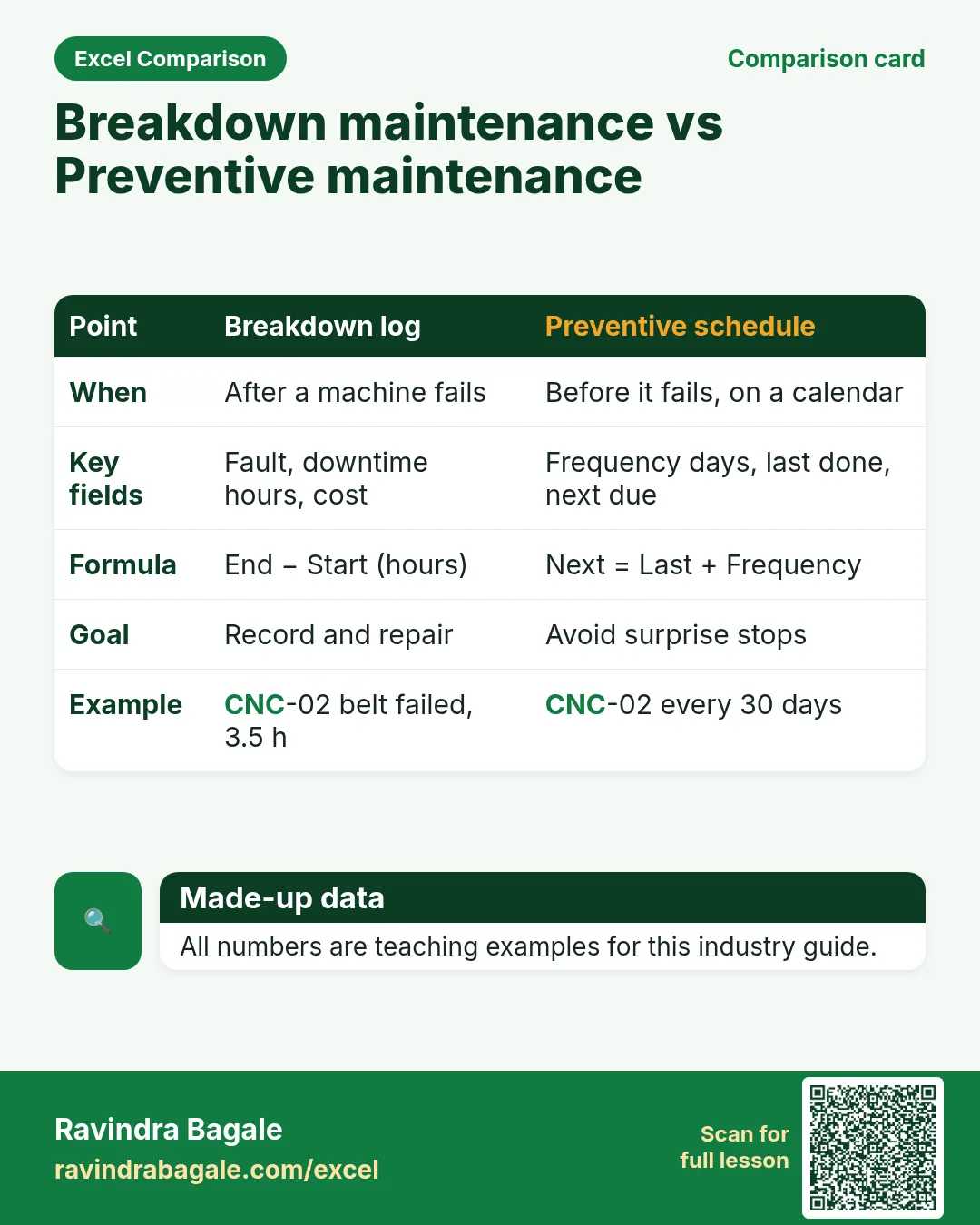
| Machine maintenance log | Machine, breakdown date, fault, downtime hours, action, cost. |
| Preventive maintenance schedule | Machine, frequency days, last done, next due, overdue flag. |
| Production daily output | Date, shift, part, plan qty, actual qty, efficiency %. |
| Scrap / rejection register | Date, part, qty rejected, reason, rework or scrap. |
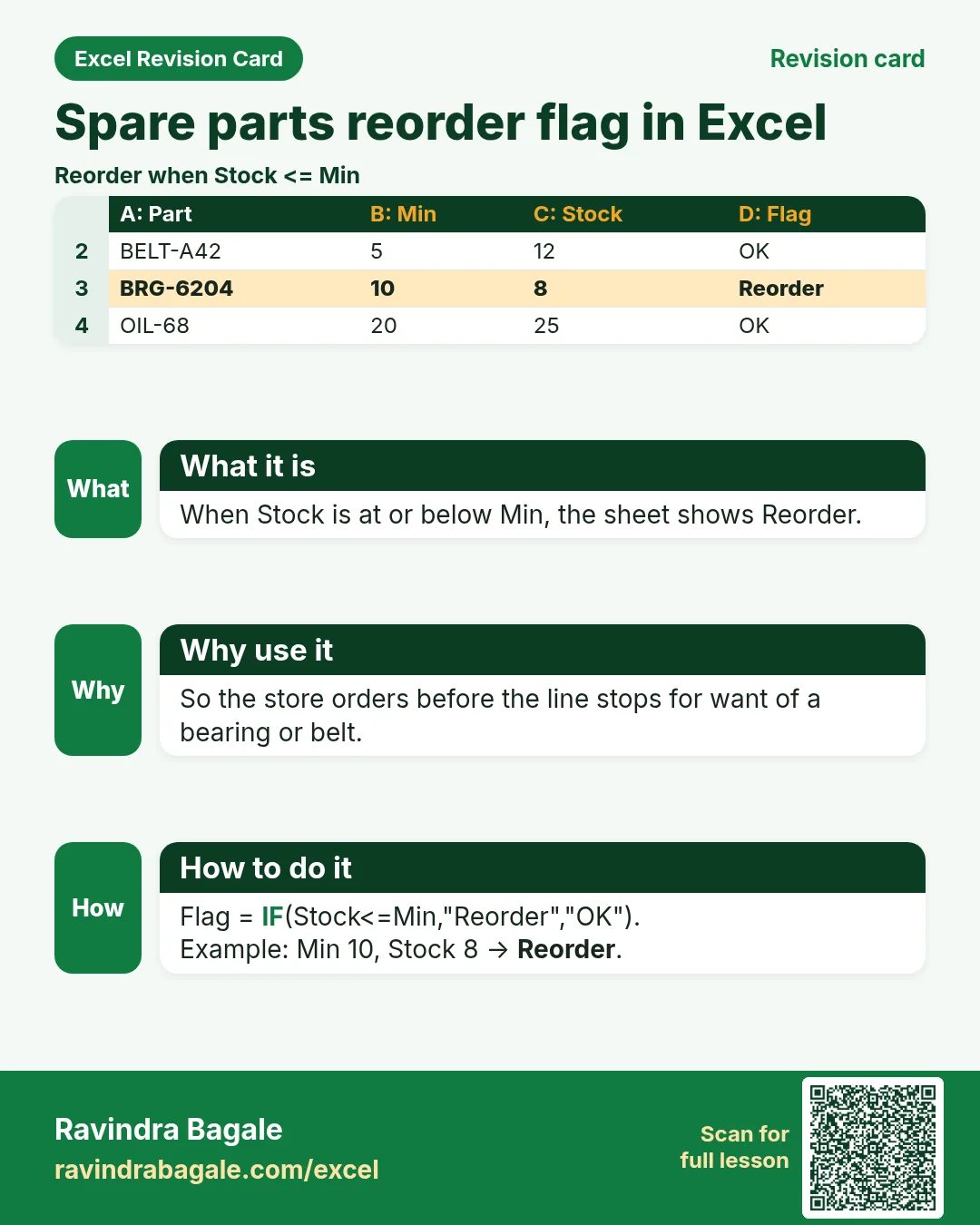
| Spare parts inventory | Part no, description, min, max, stock, reorder flag. |
| Job cost sheet | Material, labour hours × rate, overhead %, total cost per job. |
| Tool crib issue register | Tool ID, issued to, issue date, return date, overdue. |
| Vendor RFQ compare | Item, vendor A/B/C quote, lead time, choose lowest landed. |
How
- Pick the file that matches your role.
- Download the template that contains that sheet.
- Replace yellow sample rows with your practice data (still made-up if you share screenshots).
3. Formulas people use
Why
Typed numbers go stale. Formulas update when inputs change.
What
| Name | Formula | What it does |
|---|---|---|
| Required qty | =parent_order_qty*qty_per* (1+scrap_pct) |
BOM explosion with scrap. |
| Efficiency % | =actual/plan |
Daily output. |
| Downtime hours | =end_time-start_time |
Format as [h]:mm or decimal hours. |
| Reorder flag | =IF(stock<=min,"Reorder","OK") |
Spares. |
| Next PM due | =last_done+frequency_days |
Preventive maintenance. |
| Overdue PM | =IF(TODAY()>next_due,"Overdue","OK") |
PM status. |
| Job cost | =material+labour_hours*rate+overhead |
Cost sheet. |
| Rejection % | =rejected/produced |
Quality. |
How
- Open the Formulas used sheet inside each template.
- Change only yellow cells.
- Watch green cells recalculate.
3. BOM and job card
Why
Without a BOM, stores issue the wrong parts. Without a job card, nobody knows which machine is busy.
What
A multi-level-style BOM (parent–child rows) and a job card list.
How
- Download mechanical-bom-jobcard-cost.xlsx › BOM.
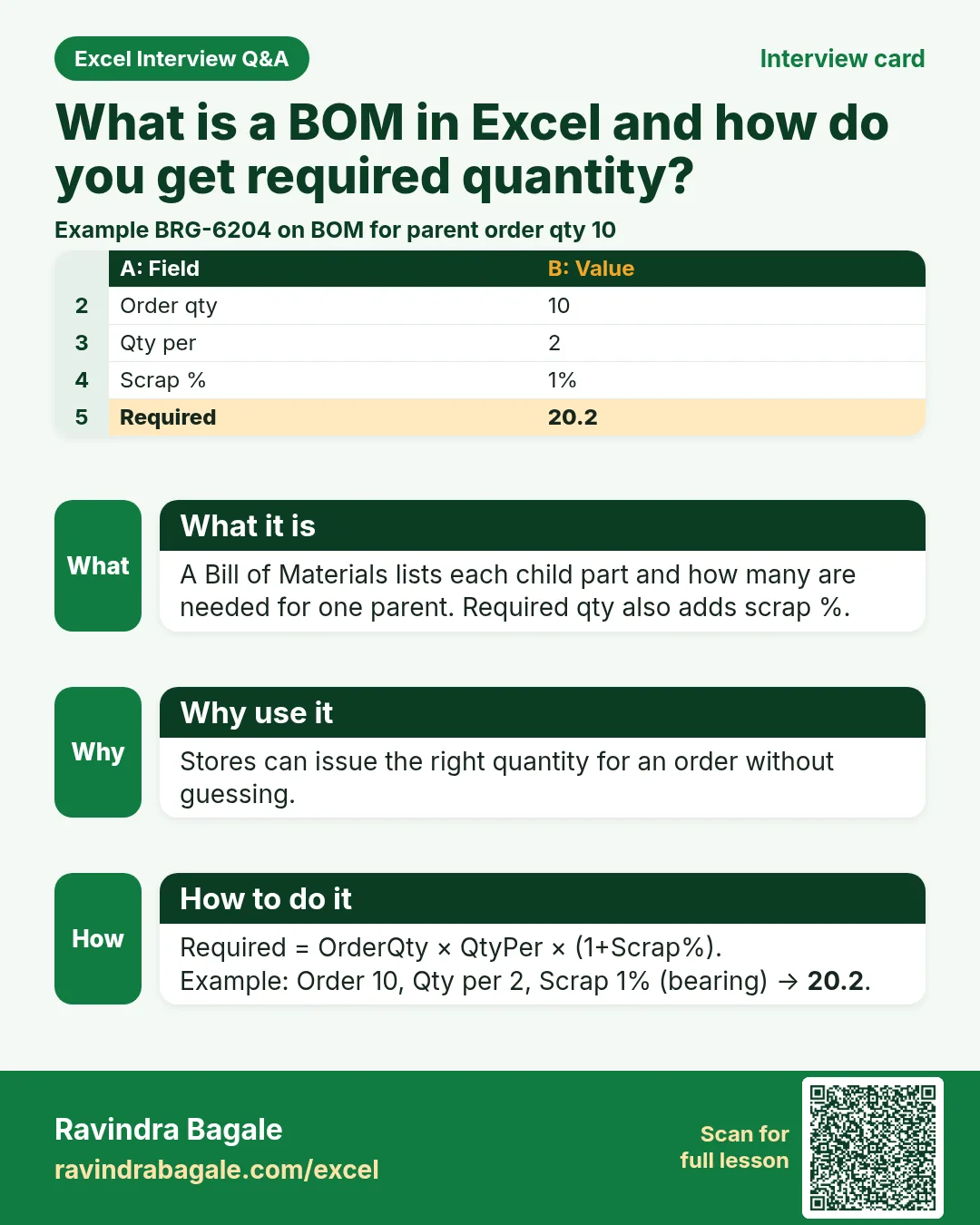
- Required qty = Order qty × Qty per × (1+Scrap%).
- Open Job cards; filter Status = Open.
- Change Order qty in yellow; required qty recalculates.
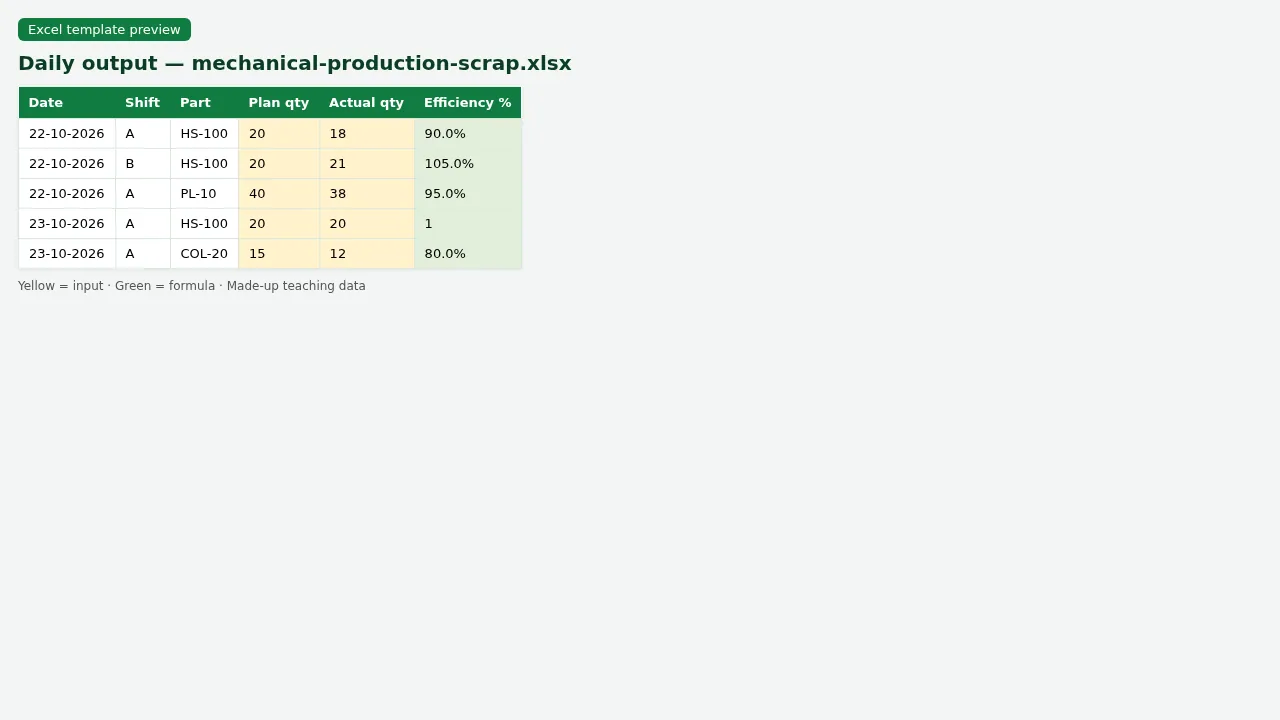
Figure. Daily output with efficiency % = Actual ÷ Plan.
4. Production output, scrap and job cost
Why
Plan vs actual shows efficiency. Scrap reasons show quality. Cost sheet shows if the job made money.
What
Daily output log, scrap register and a job cost sheet.
How
- Open mechanical-production-scrap.xlsx.
- Efficiency % = Actual ÷ Plan (green).
- On Scrap, use Rejection % = Rejected ÷ Produced.
- On Cost sheet, Total = Material + Labour + Overhead.
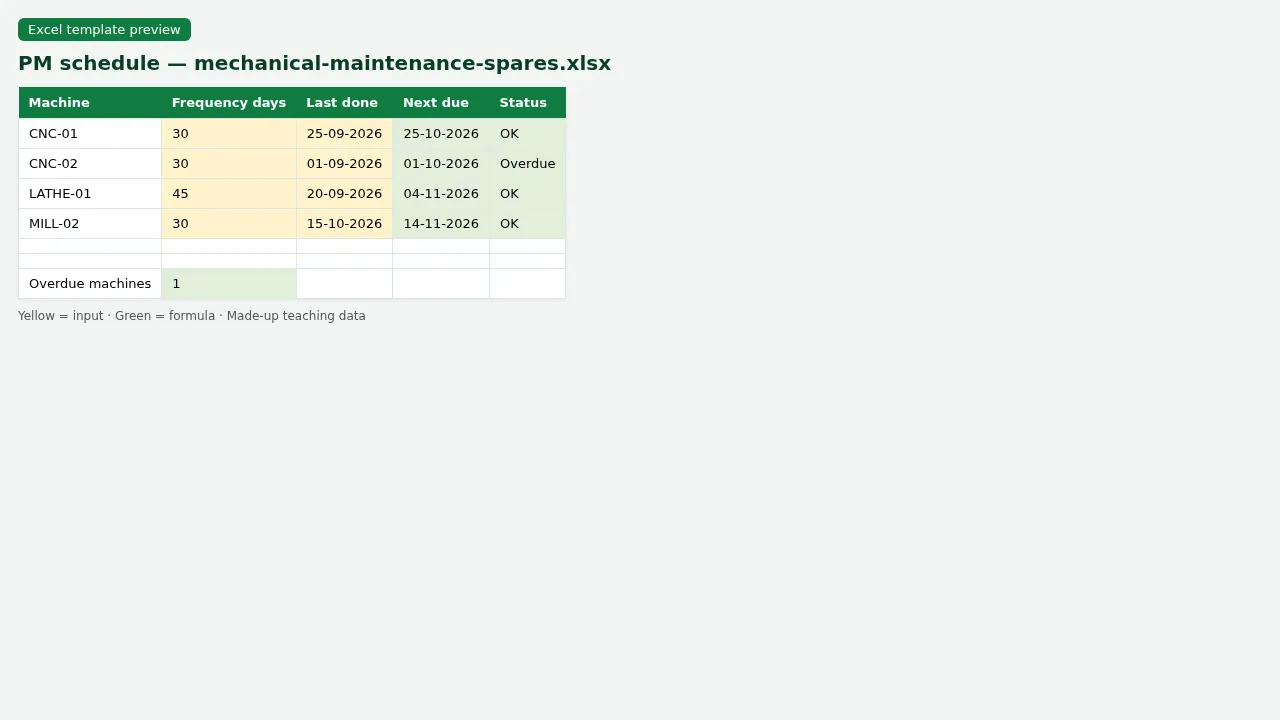
Figure. Preventive maintenance — next due and overdue flag.
5. Maintenance, spares and tool crib
Why
Breakdowns stop output. Spares and tools must be in stock and returned on time.
What
Breakdown log, preventive schedule, spare inventory and tool issue register.
How
- Open mechanical-maintenance-spares.xlsx › PM schedule.
- Next due = Last done + Frequency days; Overdue uses TODAY().
- On Spares, Reorder when Stock <= Min.
- On Tool crib, filter Return date blank for tools still out.
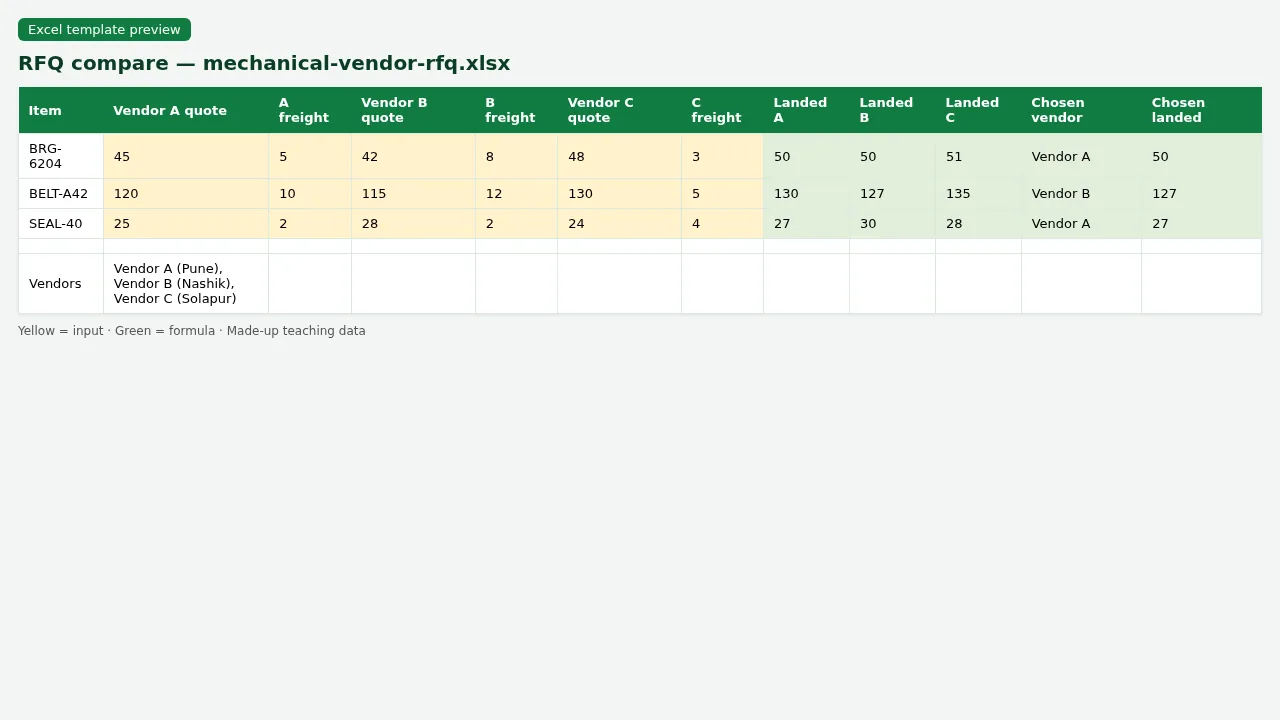
Figure. Vendor RFQ compare — lowest landed wins.
6. Vendor RFQ compare
Why
Buying teams compare quotes. Lowest price is not always best if lead time is long.
What
A simple RFQ sheet with three vendors and a Choose formula.
How
- Open mechanical-vendor-rfq.xlsx.
- Landed = Quote + Freight.
- Choose = vendor with lowest landed (teaching INDEX/MATCH).
- Yellow = quotes you type; green = choice.
7. Sheet previews
Why
See the layout before you open Excel.
What
Screenshots of the main sheets in the downloadable templates.
How
Scroll the figures, then download the matching .xlsx.
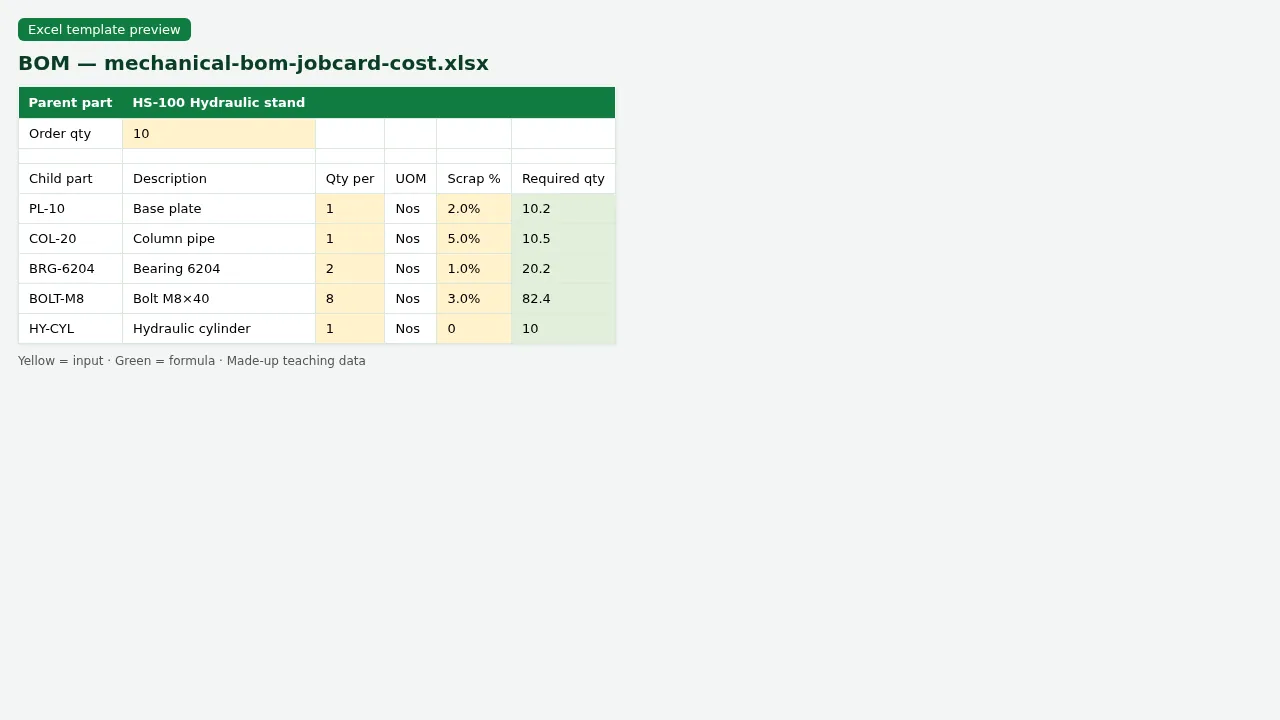
Figure. BOM with required qty including scrap %.
Figure. Daily output with efficiency % = Actual ÷ Plan.
Figure. Preventive maintenance — next due and overdue flag.
Figure. Vendor RFQ compare — lowest landed wins.
8. Common mistakes
| Mistake | What goes wrong | Fix |
|---|---|---|
| BOM qty as text | Required qty will not calculate. | Use numbers; UOM in its own column. |
| Plan and actual on different rows without job no | Cannot match efficiency. | One row per job/shift with both plan and actual. |
| PM next due typed by hand | Schedule drifts. | Use Last done + Frequency days. |
| Negative stock allowed without flag | Shop issues parts you do not have. | Reorder flag when Stock <= Min. |
| Mixing tool issues into spare stock | Both lists become wrong. | Separate sheets. |
9. FAQ
Is this a full ERP?
No. These are teaching templates for workshops and small plants that still run Excel.
What is BOM?
Bill of Materials — the list of parts and quantities needed to build one parent item.
What is a job card?
A work order: which part, how many, on which machine, by whom, start and finish.
How is downtime counted?
Finish time minus start time of the breakdown, in hours.
Are scrap % and overhead % industry standards?
No. They are made-up teaching values. Use your plant’s standards.
10. Try at home
Try at home
- On BOM, for parent HS-100 and order qty 10, what is required qty of the child with 5% scrap?
- On Daily output, what is efficiency for Shift A on the sample day?
- On PM schedule, how many machines are Overdue?
- On RFQ, which vendor is chosen for item BRG-6204?
Recap
In short
- 6 roles use Excel in this industry.
- 10 common file types are listed above.
- 4 downloadable templates with yellow inputs and green formulas.
- Rates and rules here are teaching examples only.
- Use Related chapters for focused skills (EDATE, KPIs, planning).
Quick revision cards
Quick revision
1 interview card, 1 comparison card and 1 revision card. Save on your phone or download as PNG. Numbers are made up for practice.
झटपट उजळणी
1 interview card, 1 comparison card आणि 1 revision card. Phone वर save करा किंवा PNG download करा. आकडे सरावासाठी काल्पनिक आहेत.
झटपट दोहराई
1 interview card, 1 comparison card और 1 revision card. Phone पर save करें या PNG download करें. आंकड़े अभ्यास के लिए काल्पनिक हैं.



Loading practice tasks...
- Total covers (Easy): Add up Covers in D2:D11.
- Average bill amount (Easy): Average of E2:E11, rounded to 2 decimals.
- Rows in Downtown (Easy): How many rows have Outlet "Downtown"?
- Largest covers (Easy): The largest value in D2:D11.
- Covers for Downtown (Medium): Total of D2:D11 where B is "Downtown".
- Downtown in Chicago (Medium): Total of D2:D11 where B is "Downtown" and C is "Chicago".
- Best in Downtown (Medium): Largest E2:E11 value where B is "Downtown".
- Value of row 2 (Medium): D2 times E2.
- Look up Sophie Martin (Medium): The Covers for "Sophie Martin" (use a lookup on column A).
- Total value (Hard): Sum of D times E for all rows.
- Share of Downtown (Hard): Share of D2:D11 that is "Downtown", rounded to 3 decimals.
- Rank of row 2 (Hard): Rank of D2 among D2:D11 (largest = 1).
- Above average? (Hard): "Above" if E2 is above the average of E2:E11, else "Below".