Customer Credit (Khata) Book in Excel: Udhaar Balance per Customer with SUMIFS
Raja runs a kirana shop in Solapur. Regular customers take goods on credit and pay later, and the paper khata has crossed-out lines and pages that are hard to add up. In Excel every credit and every payment is one row, and each customer's balance appears on its own, along with who has not paid for a long time.
What you'll learn on this page
- A ledger with one row per credit or payment
- A + / − column with IF
- A running balance per customer with SUMIF and a growing range
- Credit given and paid back per customer with SUMIFS
- Days since last payment with MAXIFS
- A Remind now status above a limit you choose
Download the template: customer-credit-khata-book-template.xlsx: example data with real formulas. Yellow cells are inputs you can type over; green cells hold formulas; blue rows are headers and totals. Replace the example data with your own and everything recalculates.
Made-up data: every name, amount, shop and date on this page is made up for practice. Cities are used only to make the examples feel real.
1. The example
Raja's khata from 1 September to 14 October 2026 (made-up values):
| Customer | Credit given | Paid back | Balance | Days since last payment | Status |
|---|---|---|---|---|---|
| Shahrukh | ₹2,180 | ₹1,200 | ₹980 | 37 | Pending |
| Zoya | ₹2,380 | ₹1,000 | ₹1,380 | 22 | Pending |
| Salman | ₹5,400 | ₹1,500 | ₹3,900 | 12 | Remind now |
| Ravina | ₹1,360 | ₹0 | ₹1,360 | No payment yet | Pending |
| Total | ₹11,320 | ₹3,700 | ₹7,620 |
₹7,620 is out with customers. Salman's ₹3,900 is above the ₹3,000 reminder limit, and Ravina has not paid anything yet. October alone added ₹3,480 of new credit.
Figure 1. Every credit and payment is one ledger row; IF turns payments into minus; SUMIF with a growing range gives a running balance; SUMIFS and MAXIFS summarise each customer.
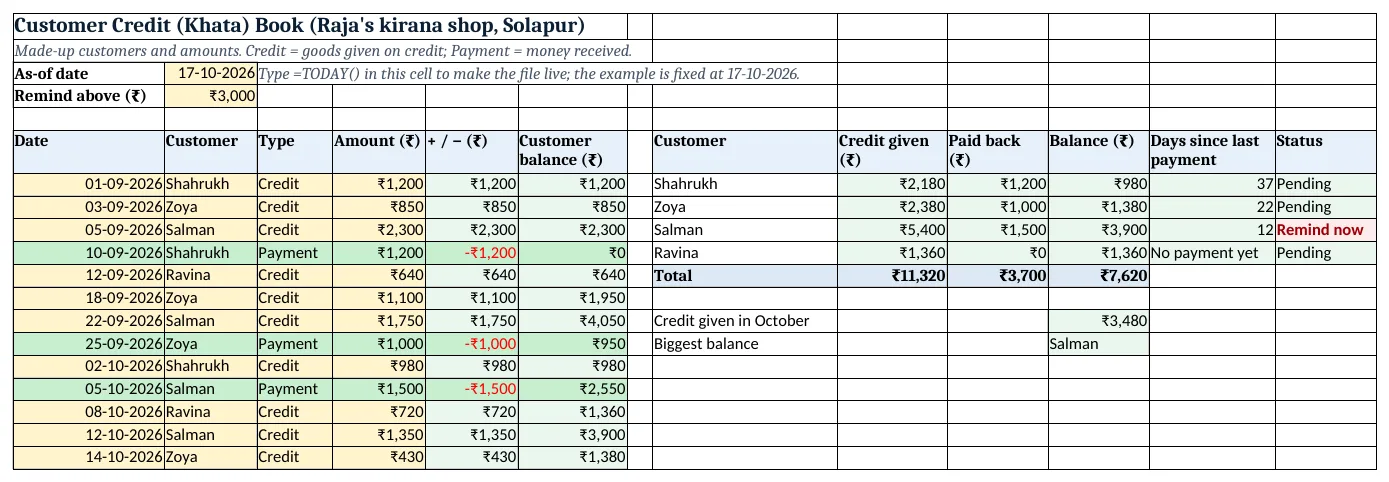
Figure 2. The template sheet, recalculated with its example data. Download it above and replace the yellow cells with your own numbers.
2. Build it step by step
Step 1. The ledger
- In A6:F6 type Date, Customer, Type, Amount, + / −, Customer balance. Each credit or payment is one new row.
- Select B7:B200 > Data Validation > List with the customer names, and C7:C200 with
Credit,Payment(drop-down lists).
Step 2. Plus or minus
- In E7 type
=IF(C7="Credit",D7,-D7). Credit adds to what the customer owes; a payment subtracts.
Step 3. Running balance per customer
- In F7 type
=SUMIF($B$7:B7,B7,$E$7:E7)and copy down. - The range starts fixed at row 7 and grows as you copy, so each row adds only that customer's entries so far. After Salman's 12-10 credit his balance is ₹3,900 (SUMIF, mixed references).
Step 4. Customer summary
- In H7:H10 type the customer names.
- In I7 type
=SUMIFS($D$7:$D$19,$B$7:$B$19,H7,$C$7:$C$19,"Credit")and in J7 the same with"Payment". - In K7 type
=I7-J7for the balance.
Step 5. Days since last payment
- MAXIFS(max_range, criteria_range1, criteria1, ...) returns the biggest value that matches; for dates that is the latest one (MAXIFS).
- In L7 type
=IF(J7=0,"No payment yet",$B$3-MAXIFS($A$7:$A$19,$B$7:$B$19,H7,$C$7:$C$19,"Payment")): 37 days for Shahrukh.
Step 6. Status and colours
- In B4 type the reminder limit (₹3,000). In M7 type
=IF(K7>=$B$4,"Remind now",IF(K7>0,"Pending","Clear")). - Select M7:M10 > Highlight Cells Rules > Equal To "Remind now" red, "Clear" green. Select A7:F200 > Use a formula
=$C7="Payment"green (formula rules).
Ravindra Bagale's Tip
Type entries the same evening. A khata is only trusted if it is updated every day.
Ravindra Bagale's Tip – मराठी
Entries त्याच संध्याकाळी टाका. Khata रोज update असेल तरच त्यावर विश्वास राहतो.
Ravindra Bagale's Tip – हिंदी
Entries उसी शाम डालो. Khata रोज़ update हो तभी उस पर भरोसा रहता है.
3. Formulas used
| Cell | Formula | What it does |
|---|---|---|
| E7 | =IF(C7="Credit",D7,-D7) |
+ / − amount |
| F7 | =SUMIF($B$7:B7,B7,$E$7:E7) |
Running customer balance |
| I7 | =SUMIFS($D$7:$D$19,$B$7:$B$19,H7,$C$7:$C$19,"Credit") |
Credit given |
| J7 | =SUMIFS($D$7:$D$19,$B$7:$B$19,H7,$C$7:$C$19,"Payment") |
Paid back |
| K7 | =I7-J7 |
Balance |
| L7 | =IF(J7=0,"No payment yet",$B$3-MAXIFS($A$7:$A$19,$B$7:$B$19,H7,$C$7:$C$19,"Payment")) |
Days since last payment |
| M7 | =IF(K7>=$B$4,"Remind now",IF(K7>0,"Pending","Clear")) |
Status |
| K13 | =SUMIFS(D7:D19,C7:C19,"Credit",A7:A19,">="&DATE(2026,10,1)) |
Credit given in October |
| K14 | =INDEX(H7:H10,MATCH(MAX(K7:K10),K7:K10,0)) |
Biggest balance |
Every formula above is written in the template, so you can click a cell and see it in the formula bar. All values on this page were recalculated in the file.
4. Common mistakes
- Typing a payment as a negative amount. Type the amount as a positive number and choose Payment. Column E makes it negative.
- Different spellings of a name. "Salman" and "salman " are different to SUMIFS. Use the drop-down so names always match.
- Fixing both ends of the running range.
$B$7:$B$7would never grow. Only the start is fixed:$B$7:B7. - Editing old rows to show a payment. Never change an old credit. Add a new Payment row so the history stays honest.
- Forgetting new customers in the summary. Add the name to the drop-down list and to the summary table, then copy the formulas down.
Ravindra Bagale's Tip
Sort the summary by Days since last payment once a week and call the top two customers politely.
Ravindra Bagale's Tip – मराठी
आठवड्यातून एकदा summary "Days since last payment" ने sort करा आणि वरच्या दोघांना प्रेमाने फोन करा.
Ravindra Bagale's Tip – हिंदी
हफ्ते में एक बार summary को "Days since last payment" से sort करो और ऊपर के दो लोगों को प्यार से फ़ोन करो.
5. More real examples
Example 1: Lending between friends. Use the same ledger for money lent to friends: Lent and Returned instead of Credit and Payment.
Example 2: A tiffin or milk service. Each day's supply is a Credit, each month's payment a Payment. The balance shows who is behind.
Example 3: A ready-to-send reminder. Add ="Namaste "&H7&", your balance is ₹"&TEXT(K7,"#,##0") to build a reminder message to copy.
Quick revision cards
Quick revision
Each card shows formulas from this page, each with an example and its answer from the template. Scan the QR code on a card to open this lesson. All names and numbers are made up for practice.
झटपट उजळणी
प्रत्येक card वर या page मधले formulas, त्यांचं example आणि template मधलं उत्तर आहे. Card वरचा QR code scan केला की हा lesson उघडतो. सगळी नावं आणि आकडे सरावासाठी काल्पनिक आहेत.
झटपट दोहराई
हर card पर इस page के formulas, उनका example और template का उत्तर है. Card का QR code scan करें तो यह lesson खुलेगा. सभी नाम और आंकड़े अभ्यास के लिए काल्पनिक हैं.
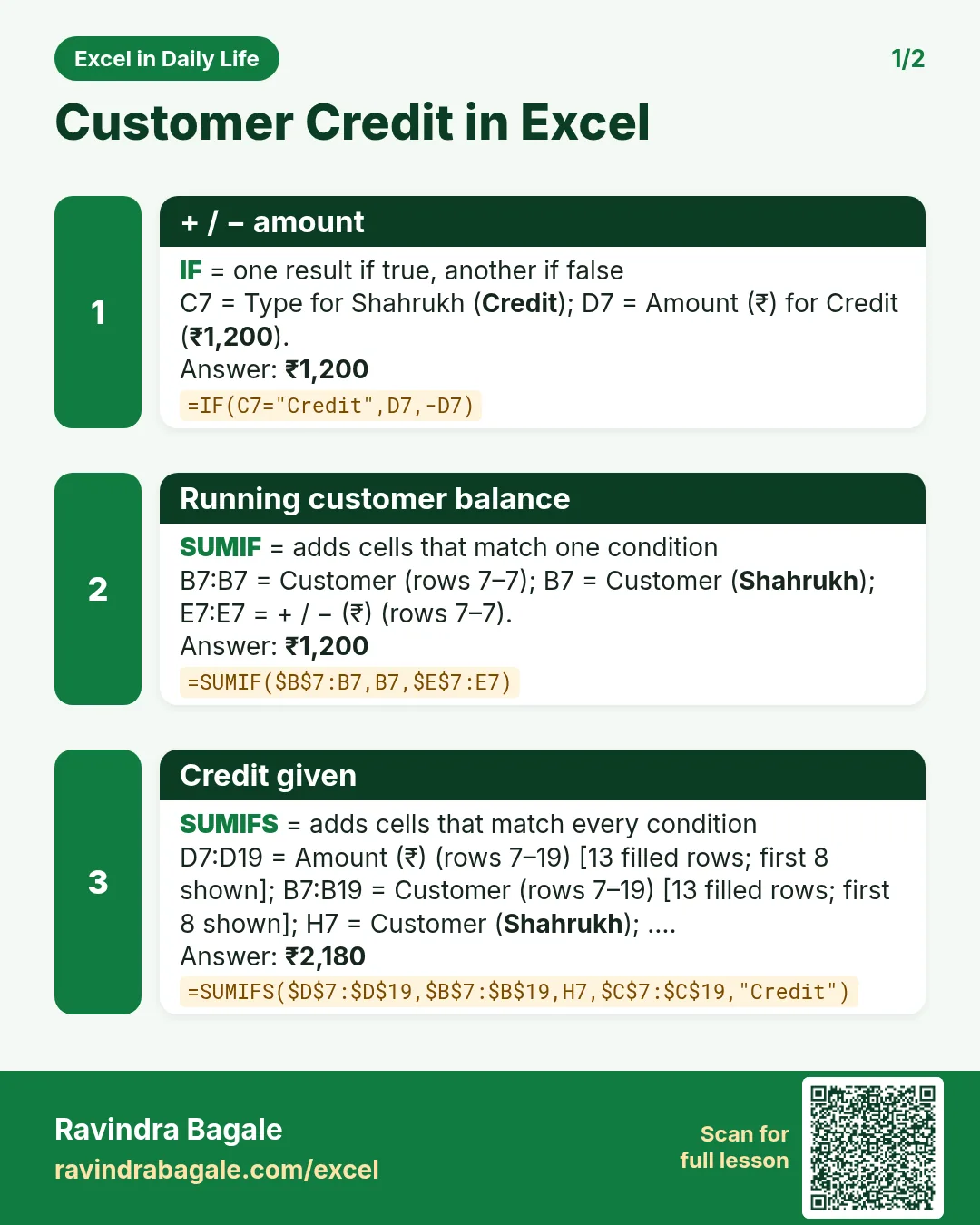

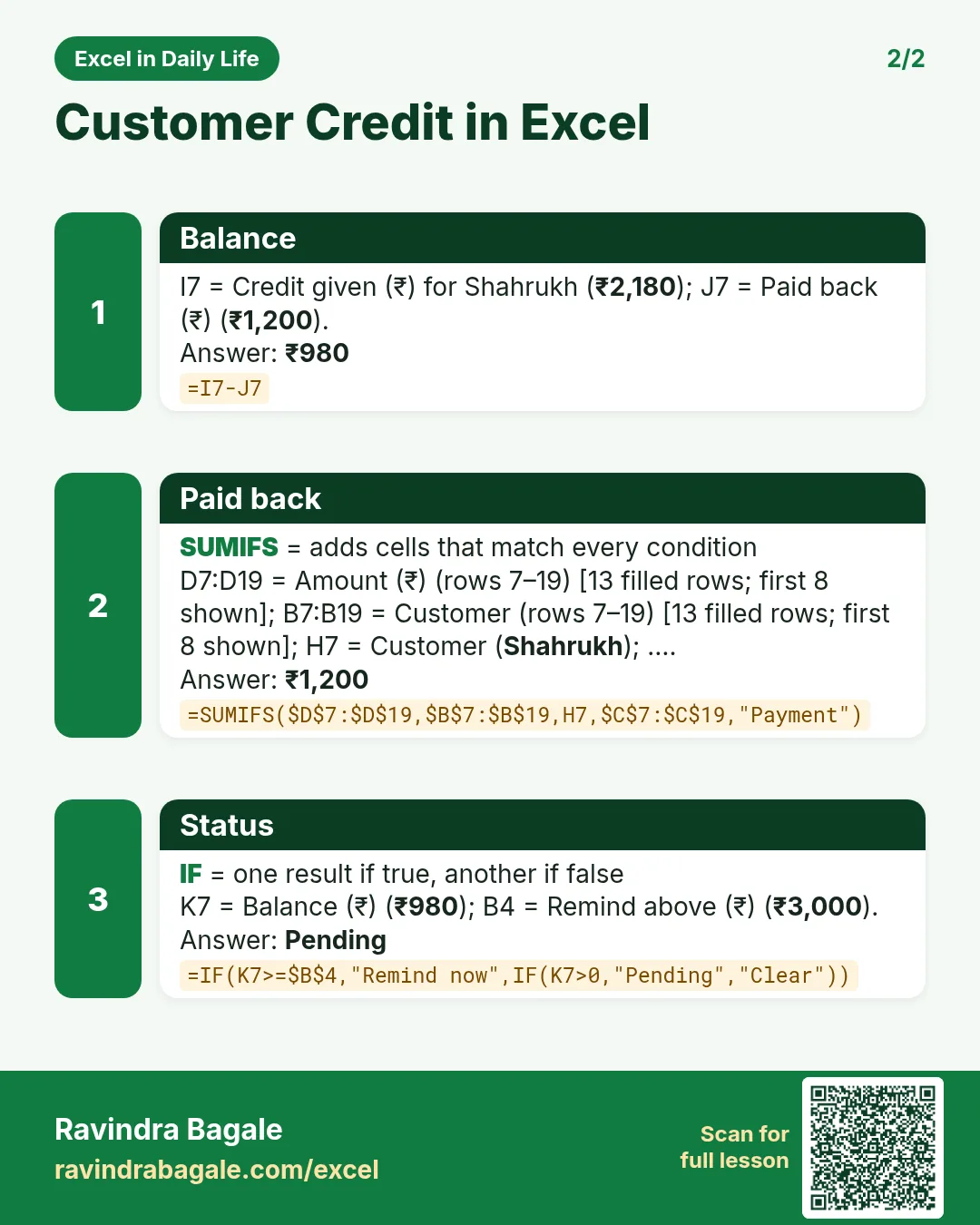

More cards: Ravi Sir's Cards.
6. Frequently asked questions
How do I make a khata book in Excel?
Keep one row per credit or payment with date, customer, type and amount, then total each customer with SUMIFS.
How do I show a running balance for each customer?
Use =SUMIF($B$7:B7,B7,$E$7:E7), where column E is + for credit and − for payment.
How do I find the last payment date of a customer?
Use =MAXIFS(date_column, customer_column, name, type_column, "Payment"). MAXIFS is in Excel 2019 and Microsoft 365.
How do I flag customers who owe too much?
Type a limit in a cell and use =IF(balance>=limit,"Remind now",...) with a red highlight.
Can I keep a separate sheet per customer?
One ledger is easier: filters and SUMIFS give any customer's view without copying data.
7. Quick quiz
Ten questions on this page. Sign in to save your score.
Loading practice tasks...
- Total units sold (Easy): Add up Units sold in D2:D11.
- Average price (Easy): Average of E2:E11, rounded to 2 decimals.
- Rows in Snacks (Easy): How many rows have Category "Snacks"?
- Largest units sold (Easy): The largest value in D2:D11.
- Units sold for Snacks (Medium): Total of D2:D11 where B is "Snacks".
- Snacks in Delhi (Medium): Total of D2:D11 where B is "Snacks" and C is "Delhi".
- Best in Snacks (Medium): Largest E2:E11 value where B is "Snacks".
- Value of row 2 (Medium): D2 times E2.
- Look up Arjun Mehta (Medium): The Units sold for "Arjun Mehta" (use a lookup on column A).
- Total value (Hard): Sum of D times E for all rows.
- Share of Snacks (Hard): Share of D2:D11 that is "Snacks", rounded to 3 decimals.
- Rank of row 2 (Hard): Rank of D2 among D2:D11 (largest = 1).
- Above average? (Hard): "Above" if E2 is above the average of E2:E11, else "Below".