27.18 Telecom: Churn, ARPU and Data Usage
Example first. Ravina analyses a fictional mobile operator's sample of subscribers and wants churn, ARPU and data use in one view.
Telecom project — in 30 seconds
What: A Telecom tracker: one Table tblSubs, the calculated column Usage, KPI cells, a PivotTable by City, a chart and a one-page dashboard.
Why: This is the shape of a real Telecom report: Churn %, Average ARPU, Total Data (GB) are the numbers a manager reads first.
Tiny example: From 6 rows: Churn % = 33.3%, Average ARPU = ₹372.33, Total Data (GB) = 188.
Telecom project — 30 सेकंदात
काय: Telecom चा tracker: tblSubs नावाची एक Table, Usage हा calculated column, KPI cells, City प्रमाणे PivotTable, एक chart आणि एका पानाचा dashboard.
का: खऱ्या Telecom report चा हाच आकार असतो: Churn %, Average ARPU, Total Data (GB) हे आकडे manager सगळ्यात आधी वाचतो.
छोटं उदाहरण: 6 rows मधून Churn % = 33.3%, Average ARPU = ₹372.33, Total Data (GB) = 188.
Telecom project — 30 सेकंड में
क्या: Telecom का tracker: tblSubs नाम की एक Table, Usage calculated column, KPI cells, City के हिसाब से PivotTable, एक chart और एक पन्ने का dashboard.
क्यों: असली Telecom report का यही आकार होता है: Churn %, Average ARPU, Total Data (GB) वे आँकड़े हैं जो manager सबसे पहले पढ़ता है.
छोटा उदाहरण: 6 rows से Churn % = 33.3%, Average ARPU = ₹372.33, Total Data (GB) = 188.
First look at the data (before → after):
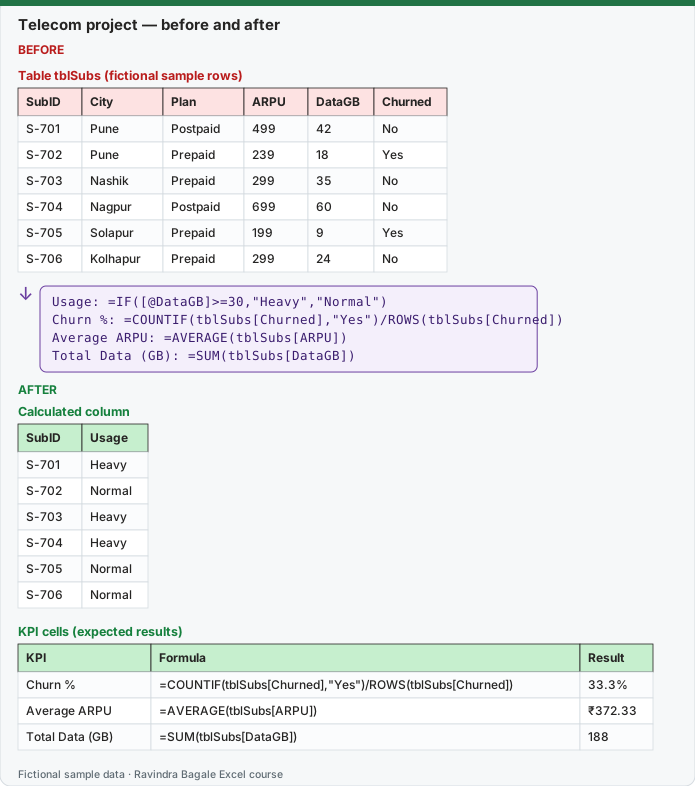
Expected result — Calculated column
| SubID | Usage |
|---|---|
| S-701 | Heavy |
| S-702 | Normal |
| S-703 | Heavy |
| S-704 | Heavy |
| S-705 | Normal |
| S-706 | Normal |
Expected result — KPI cells (expected results)
| KPI | Formula | Result |
|---|---|---|
| Churn % | =COUNTIF(tblSubs[Churned],"Yes")/ROWS(tblSubs[Churned]) | 33.3% |
| Average ARPU | =AVERAGE(tblSubs[ARPU]) | ₹372.33 |
| Total Data (GB) | =SUM(tblSubs[DataGB]) | 188 |
Before table and formula as text
Before — Table tblSubs (fictional sample rows)
| SubID | City | Plan | ARPU | DataGB | Churned |
|---|---|---|---|---|---|
| S-701 | Pune | Postpaid | 499 | 42 | No |
| S-702 | Pune | Prepaid | 239 | 18 | Yes |
| S-703 | Nashik | Prepaid | 299 | 35 | No |
| S-704 | Nagpur | Postpaid | 699 | 60 | No |
| S-705 | Solapur | Prepaid | 199 | 9 | Yes |
| S-706 | Kolhapur | Prepaid | 299 | 24 | No |
Formula / click path
Usage: =IF([@DataGB]>=30,"Heavy","Normal")
Churn %: =COUNTIF(tblSubs[Churned],"Yes")/ROWS(tblSubs[Churned])
Average ARPU: =AVERAGE(tblSubs[ARPU])
Total Data (GB): =SUM(tblSubs[DataGB])
Do it step by step:
- Type the data and press Ctrl+T; name the Table
tblSubsin Table Design › Properties › Table Name. - Add the column Usage with
=IF([@DataGB]>=30,"Heavy","Normal"); the Table fills it down. - On a KPI sheet type
=COUNTIF(tblSubs[Churned],"Yes")/ROWS(tblSubs[Churned])and the other KPI formulas from the table below. - Click Insert › PivotTable › From Table/Range, put City in Rows and ARPU in Values (Average).
- Click PivotTable Analyze › PivotChart › Clustered Column, then PivotTable Analyze › Insert Slicer › Plan.
- Move the KPI cells, the chart and the slicer onto a sheet named Dashboard.
स्टेप बाय स्टेप करून बघा:
- Data type करा आणि Ctrl+T दाबा; Table Design › Properties › Table Name मध्ये Table ला
tblSubsनाव द्या. - Usage column
=IF([@DataGB]>=30,"Heavy","Normal")ने जोडा; Table तो खाली भरते. - KPI sheet वर
=COUNTIF(tblSubs[Churned],"Yes")/ROWS(tblSubs[Churned])आणि खालच्या table मधले बाकीचे KPI formulas type करा. - Insert › PivotTable › From Table/Range वर click करा, Rows मध्ये City आणि Values मध्ये ARPU (Average) ठेवा.
- PivotTable Analyze › PivotChart › Clustered Column वर click करा, मग PivotTable Analyze › Insert Slicer › Plan.
- KPI cells, chart आणि slicer Dashboard नावाच्या sheet वर हलवा.
स्टेप बाय स्टेप करके देखें:
- Data type करें और Ctrl+T दबाएँ; Table Design › Properties › Table Name में Table को
tblSubsनाम दें. - Usage column
=IF([@DataGB]>=30,"Heavy","Normal")से जोड़ें; Table उसे नीचे भर देती है. - KPI sheet पर
=COUNTIF(tblSubs[Churned],"Yes")/ROWS(tblSubs[Churned])और नीचे की table के बाकी KPI formulas type करें. - Insert › PivotTable › From Table/Range पर click करें, Rows में City और Values में ARPU (Average) रखें.
- PivotTable Analyze › PivotChart › Clustered Column पर click करें, फिर PivotTable Analyze › Insert Slicer › Plan.
- KPI cells, chart और slicer को Dashboard नाम की sheet पर ले जाएँ.
The brief. Build a subscriber sheet: a Heavy/Normal usage flag (30 GB or more is Heavy), churn % in the sample, average ARPU, total data, average ARPU by city, a chart and a Plan slicer.
Calculated column formulas:
| Column | Formula |
|---|---|
| Usage | =IF([@DataGB]>=30,"Heavy","Normal") |
KPI cells (check your numbers):
| KPI | Formula | Result |
|---|---|---|
| Churn % | =COUNTIF(tblSubs[Churned],"Yes")/ROWS(tblSubs[Churned]) | 33.3% |
| Average ARPU | =AVERAGE(tblSubs[ARPU]) | ₹372.33 |
| Total Data (GB) | =SUM(tblSubs[DataGB]) | 188 |
PivotTable (expected):
| City | Average of ARPU |
|---|---|
| Kolhapur | ₹299.00 |
| Nagpur | ₹699.00 |
| Nashik | ₹299.00 |
| Pune | ₹369.00 |
| Solapur | ₹199.00 |
| Grand Total | ₹372.33 |
Chart and dashboard (one under the other):
- Click inside the PivotTable, then PivotTable Analyze › PivotChart › Clustered Column › OK.
- Add a chart title and data labels with Chart Design › Add Chart Element.
- Click PivotTable Analyze › Insert Slicer, tick Plan and click OK.
- Insert a new sheet named Dashboard. In it, link a card cell to each KPI (for example
=KPI!B2) and format it large and bold. - Cut and paste the chart and slicer onto the Dashboard sheet.
- On the View tab, untick Gridlines in the Show group. Select the dashboard area and click Page Layout › Print Area › Set Print Area.
Template and guide: download the practice template Telecom_Template.xlsx and read the step-by-step template guide. The template's sample rows may differ from the rows above; the method is the same.
Related ready-made dashboard: the Telecom dashboard guide and its workbook Telecom_Dashboard.xlsx show a finished version of this kind of report.
Practice task (try it before you open the answer):
- Which city has the highest average of ARPU?
- Filter the Table on City = Nagpur (Data › Filter): what is Churn % for Nagpur alone?
- Add the Clustered Column PivotChart and the Plan slicer to your Dashboard sheet.
Answer
Nagpur (₹699.00). For Nagpur only (1 row): Churn % = 0.0%. The chart shows 5 bars, one per city.
Ravindra Bagale's Tip
Show Average ARPU next to the rupee total. A percentage or ratio without the size behind it can make a small city look like a big problem.
Ravindra Bagale's Tip – मराठी
Average ARPU रुपयांच्या total शेजारी दाखवा. मागचा आकार न दाखवता percentage किंवा ratio लहान city ला मोठी समस्या असल्यासारखं दाखवू शकतो.
Ravindra Bagale's Tip – हिंदी
Average ARPU को रुपये के total के पास दिखाएँ. पीछे का आकार दिखाए बिना percentage या ratio छोटी city को बड़ी समस्या जैसा दिखा सकता है.
Loading practice tasks...
- Total data gb (Easy): Add up Data GB in D2:D11.
- Average monthly bill (Easy): Average of E2:E11, rounded to 2 decimals.
- Rows in Prepaid (Easy): How many rows have Plan "Prepaid"?
- Largest data gb (Easy): The largest value in D2:D11.
- Data GB for Prepaid (Medium): Total of D2:D11 where B is "Prepaid".
- Prepaid in Paris (Medium): Total of D2:D11 where B is "Prepaid" and C is "Paris".
- Best in Prepaid (Medium): Largest E2:E11 value where B is "Prepaid".
- Value of row 2 (Medium): D2 times E2.
- Look up Priya Kulkarni (Medium): The Data GB for "Priya Kulkarni" (use a lookup on column A).
- Total value (Hard): Sum of D times E for all rows.
- Share of Prepaid (Hard): Share of D2:D11 that is "Prepaid", rounded to 3 decimals.
- Rank of row 2 (Hard): Rank of D2 among D2:D11 (largest = 1).
- Above average? (Hard): "Above" if E2 is above the average of E2:E11, else "Below".