20 Free Excel Industry Templates: Retail, Banking, HR, Healthcare and More
Twenty ready-to-fill Excel templates, one for each industry: retail, ecommerce, sales, finance, banking, insurance, healthcare, pharma, manufacturing, logistics, HR, marketing, education and more. Every workbook has drop-downs, formula columns and a dashboard. They all work the same way, so the common steps are written once below. After that, each industry has its own section: what the file tracks, its sheets, the numbers you should see with the sample data and its key formulas. All numbers in these workbooks are fictional teaching data, not real company figures.
Quick answer
- Pick your industry below and download its .xlsx file. If Excel shows a yellow bar, click Enable Editing.
- Read the Instructions sheet once.
- Type only in the yellow input columns. Pick values from the drop-downs.
- Green columns and the Calculations sheet are formulas. They fill by themselves.
- Open Dashboard to see the cards and charts update.
The 20 templates
- Banking (Loan EMI Calculator + Loan Book) (xlsx)
- Ecommerce (xlsx)
- Education (Fees, Attendance, Marks and Fee Receipt) (xlsx)
- Finance and Accounting (Budget vs Actual + GST Register) (xlsx)
- Government and NGO (Schemes, Beneficiaries and Fund Utilisation) (xlsx)
- Healthcare (OPD Register, Billing and Bed Occupancy) (xlsx)
- Hospitality (Hotel Bookings, Occupancy, ADR and RevPAR) (xlsx)
- HR (Attendance, Payroll and Salary Slip) (xlsx)
- Insurance (Policy Register, Renewals and Claims) (xlsx)
- Inventory and Supply Chain (Stock Register + Reorder Sheet) (xlsx)
- IT Services (Timesheet, Utilisation and Project Billing) (xlsx)
- Logistics (Shipment Tracker and On-time Delivery) (xlsx)
- Manufacturing (Production Log, OEE and Downtime) (xlsx)
- Marketing and Digital Ads (Campaign Tracker with CPL and ROAS) (xlsx)
- Pharma (Batch Stock and Expiry Tracker) (xlsx)
- Real Estate (Bookings, Collections and Payment Schedule) (xlsx)
- Restaurant (Daily Sales, Food Cost and Menu Engineering) (xlsx)
- Retail Quick Commerce (xlsx)
- Sales Pipeline and Target (xlsx)
- Telecom (Subscribers, ARPU, Churn and Complaints) (xlsx)
How every template works
Colour key and protection
- Yellow cells are inputs. Type here or pick from the drop-down.
- Green cells are formulas. Do not type over them.
- Calculations, Dashboard and the print sheets are protected without a password, so a formula is not deleted by mistake. To edit them: Review > Unprotect Sheet.
- Input sheets are not protected, so the tables can grow when you add rows.
Start fresh with your own data
- Go to the first input sheet. Click the second sample row, then press Ctrl + Shift + Down Arrow to select down to the last sample row.
- Right-click the selection and choose Delete > Table Rows. One sample row stays, so the table and its green formula columns stay alive.
- Type your first real row over the one sample row that is left (yellow cells only).
- Type your next rows directly under the table. The table grows by itself and the green formula columns fill down automatically.
- Repeat for every input sheet, then change the lists on the Lists sheet (cities, products, names) to your own values. Drop-downs follow the Lists sheet.
- Open Dashboard. Cards and charts read the tables, so they now show your data.
How to customise any template
- Add or rename a city. Type it in the City column on the Lists sheet. The City drop-downs pick it up at once.
- To show the new city in a summary, open Calculations, click Review > Unprotect Sheet, type the city in column A under the last city of the block. Then select the cells from column B of the row above down to the last formula column of the new row, and press Ctrl + D to copy the formulas down.
- Change a chart. On Dashboard click Review > Unprotect Sheet, click the chart, then Chart Design > Change Chart Type.
- Change the colours. Use Page Layout > Colors for the whole workbook, or Home > Fill Color for one cell.
- Protect again. Click Review > Protect Sheet > OK. Leave the password empty, or set one you will not forget.
Banking (Loan EMI Calculator + Loan Book)
Ruhi is the branch analyst at Ruhi Nagari Bank, a fictional co-operative bank with branches in Pune, Solapur, Nashik, Sambhaji Nagar, Kolhapur and Nagpur. A customer walks in and asks, “What will my EMI be for ₹10 lakh over 5 years?” Her manager then asks, “What is our NPA % this month?” One workbook answers both.
Keep a branch loan book with EMI calculated by PMT, sort every loan into days-past-due buckets (Standard, SMA-0, SMA-1, SMA-2, NPA), track NPA % by branch and product, and use the EMI calculator with a full month-by-month repayment schedule. All numbers in this workbook are fictional teaching data, not real company figures.
Download Banking_Template.xlsx
Your browser downloads the Excel file (37 KB). It does not open as a web page. Built for Microsoft 365 Excel on Windows.
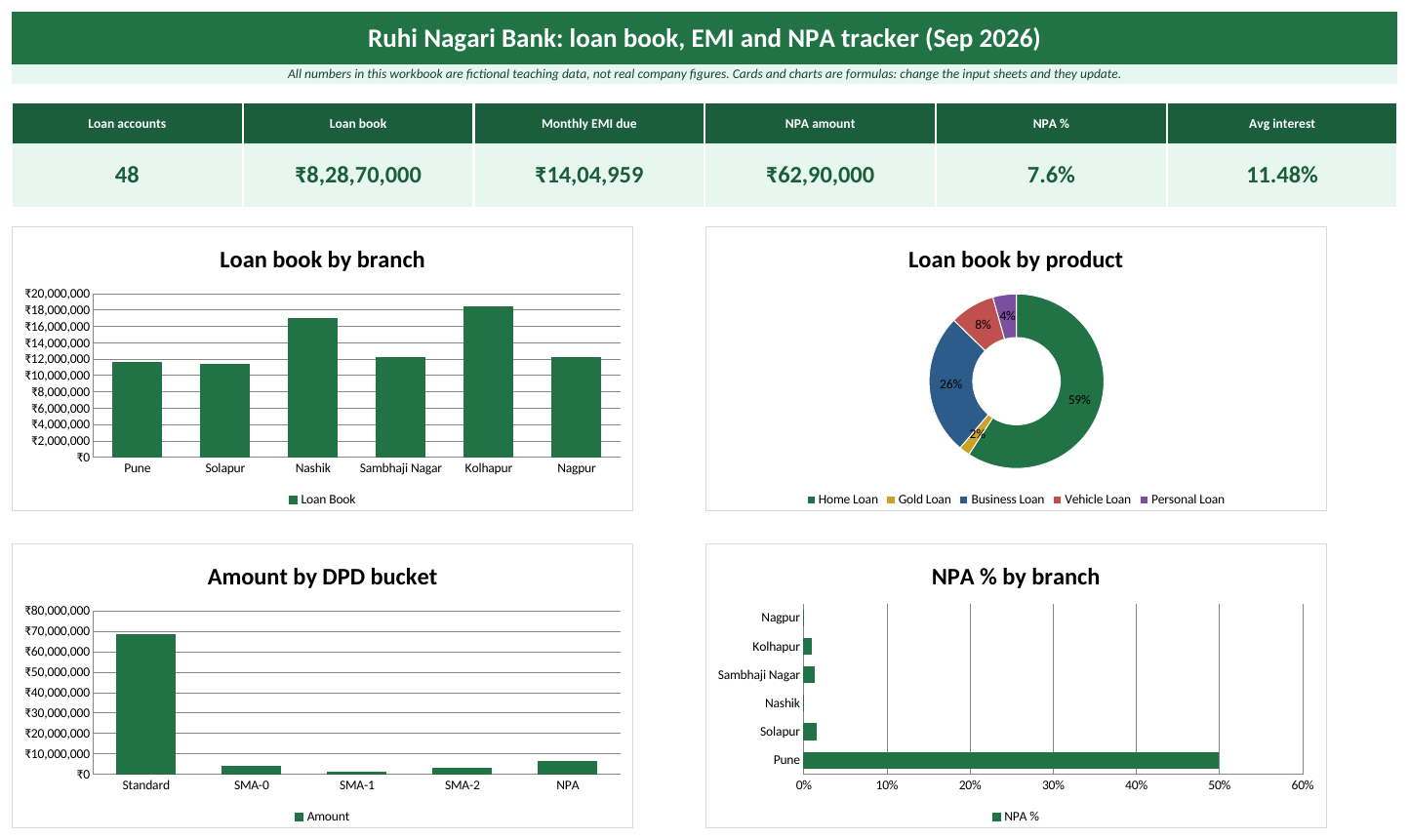
The Dashboard sheet with the sample data (Ruhi Nagari Bank is a fictional business).
What is inside: the sheets
- Instructions. What the file does, the fill steps and the colour key.
- Dashboard. Six KPI cards and four charts.
- Loan Book. Input table LoanBook. EMI, Bucket and NPA Amount are formulas.
- Calculations. Branch, product and days-past-due bucket summaries.
- EMI Calculator. Type loan amount, rate and tenure; get EMI, total interest and a 360-row schedule.
- Lists. Drop-down lists: City (branch), Product, Bucket.
How to fill it
- Open Loan Book. In the first empty row type Loan ID, Sanction Date, Loan Amount, Interest Rate (for example 8.5%) and Tenure Months.
- Pick Branch and Product from the drop-downs.
- Each month, update Days Past Due for every loan from your collection report.
- EMI, Bucket and NPA Amount update by themselves.
- For a customer quote, open EMI Calculator and change the three yellow inputs.
- Open Dashboard to see NPA % by branch.
Check: what the sample data shows
Open Dashboard. With the sample rows the cards show these values. If your file shows the same numbers, the formulas are working on your computer.
| KPI card | Value with sample data |
|---|---|
| Loan accounts | 48 |
| Loan book | ₹8,28,70,000 |
| Monthly EMI due | ₹14,04,959 |
| NPA amount | ₹62,90,000 |
| NPA % | 7.6% |
| Avg interest | 11.5% |
Key formulas (type them exactly like this)
Inside an Excel table, Excel writes [@Column] for “this row”. You can type it, or click the cell while typing the formula and Excel writes it for you. Names such as TargetMins are settings on the Lists sheet (Formulas > Name Manager shows them).
Formula columns in the tables
These fill down by themselves for every new row.
| Where | Formula | What it does |
|---|---|---|
| Loan Book sheet, column EMI | =ROUND(PMT([@[Interest Rate]]/12,[@[Tenure Months]],-[@[Loan Amount]]),0) | PMT(monthly rate, number of months, -loan amount) gives the monthly EMI. The minus sign makes the answer positive. |
| Loan Book sheet, column Bucket | =IF([@[Days Past Due]]=0,"Standard",IF([@[Days Past Due]]<=30,"SMA-0",IF([@[Days Past Due]]<=60,"SMA-1",IF([@[Days Past Due]]<=90,"SMA-2","NPA")))) | Nested IF puts each loan in a days-past-due bucket: 0 days, 1-30, 31-60, 61-90, more than 90 (NPA). |
| Loan Book sheet, column NPA Amount | =IF([@Bucket]="NPA",[@[Loan Amount]],0) | If Bucket is "NPA", the result is Loan Amount; otherwise it is 0. |
How to use the EMI Calculator sheet
- Click the EMI Calculator sheet tab.
- Type Loan amount in the yellow cell C7.
- Type Interest rate (per year) in the yellow cell C8.
- Type Tenure (years) in the yellow cell C9.
- Every green cell updates by itself. Do not type in them.
- To print: press Ctrl + P. The print area is already set to one page.
| Cell | Formula | What it does |
|---|---|---|
| Number of EMIs (C11) | =C9*12 | Works out Tenure (years) × 12. |
| Monthly EMI (C12) | =PMT(C8/12,C11,-C7) | PMT needs the monthly rate (annual rate / 12), the number of EMIs and the loan amount with a minus sign. |
| Total amount paid (C13) | =C12*C11 | Works out Monthly EMI × Number of EMIs. |
| Total interest (C14) | =C13-C7 | Works out Total amount paid minus Loan amount. |
| Interest (first month) (I19) | =IF(F19="","",G19*$C$8/12) | Opening balance times the monthly rate. |
| Principal (first month) (J19) | =IF(F19="","",H19-I19) | EMI minus interest. The rest of the EMI reduces the loan. |
How to customise it
- To use your bank's own bucket cut-offs, change the numbers inside the Bucket formula in the LoanBook table (for example 30, 60 and 90 days).
Please note
Interest rates are illustrative. The days-past-due buckets use the common 1-30 / 31-60 / 61-90 / over 90 days cut-offs; follow your bank's own policy.
Ravindra Bagale's Tip
In PMT, divide the yearly rate by 12 and use months for the tenure. Mixing yearly rate with monthly tenure is the most common EMI mistake I see in class. Put a minus sign before PMT so the EMI shows as a positive amount.
Ravindra Bagale's Tip – मराठी
PMT मध्ये yearly rate ला 12 ने भागा आणि tenure months मध्ये घ्या. Yearly rate आणि monthly tenure mix करणं ही class मधली सगळ्यात common EMI चूक आहे. EMI positive दिसावा म्हणून PMT च्या आधी minus लावा.
Ravindra Bagale's Tip – हिंदी
PMT में yearly rate को 12 से भाग दीजिए और tenure months में लीजिए। Yearly rate और monthly tenure को मिलाना class की सबसे common EMI गलती है। EMI positive दिखे इसलिए PMT से पहले minus लगाइए।
Learn it properly
Course chapters:
- Chapter 3: Formulas and Functions
- Chapter 11: What-If Analysis
- Chapter 13: Excel Dashboards
- Chapter 22: KPI in All Industries
Related guides: Banking dashboard · XLOOKUP · SUMIF and SUMIFS · COUNTIF and COUNTIFS
Ecommerce
Zoya also sells online through Zoya Online Store (fictional). Orders come from her website and two marketplaces, some are returned, and every sale needs a GST invoice. Instead of three separate files, she types each order once and gets sales, returns, margin and a printable invoice from the same table.
Run a small online store from one workbook: product master with GST rates, an orders register that looks up price and GST, a printable GST invoice for any order, and a dashboard of revenue, returns and payment mode. All numbers in this workbook are fictional teaching data, not real company figures.
Download Ecommerce_Template.xlsx
Your browser downloads the Excel file (29 KB). It does not open as a web page. Built for Microsoft 365 Excel on Windows.
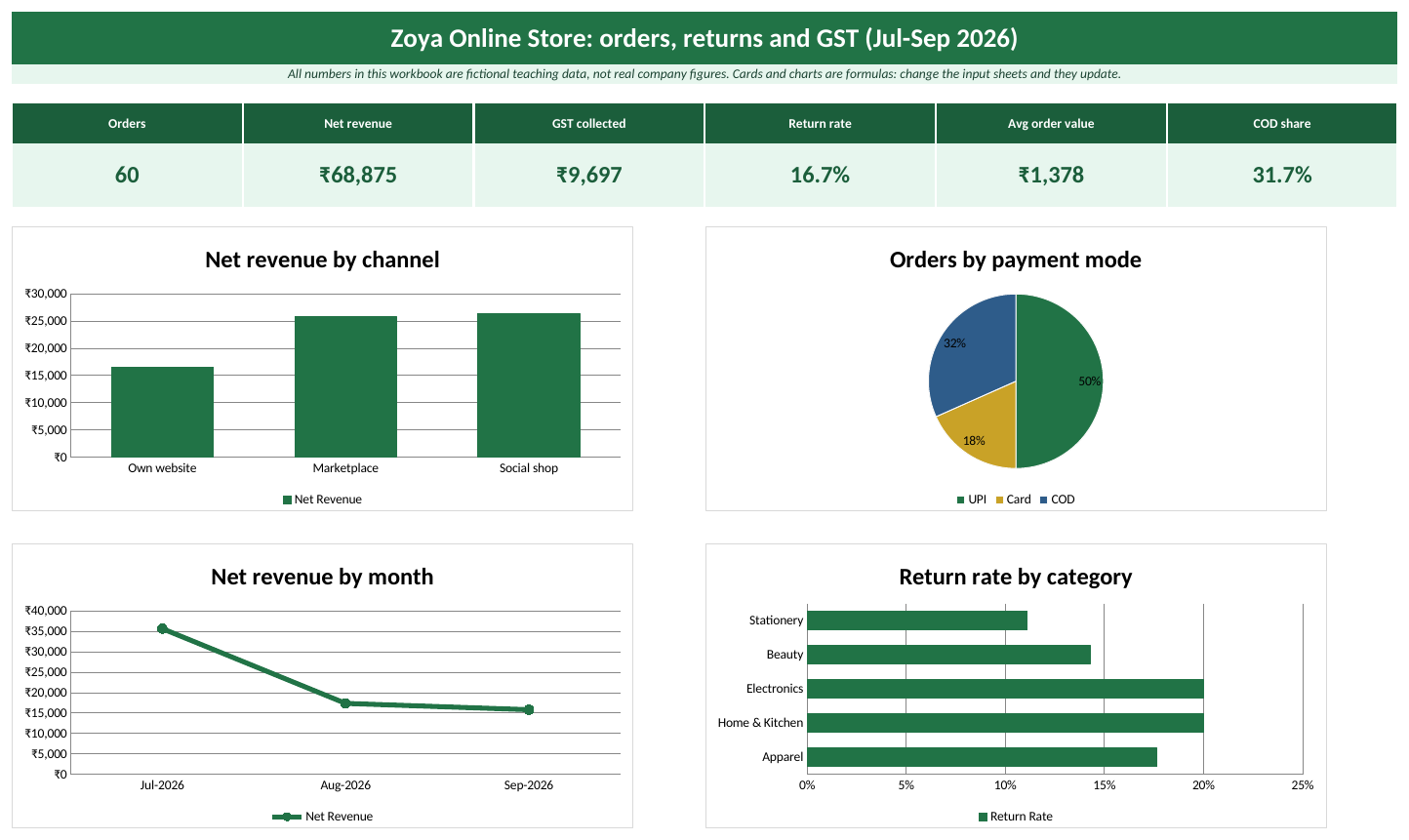
The Dashboard sheet with the sample data (Zoya Online Store is a fictional business).
What is inside: the sheets
- Products. Input table Products: product, category, price and GST rate.
- Orders. Input table Orders. Category, Price, GST Rate, Taxable Value, GST Amount, Invoice Total and Net Revenue are formulas.
- Calculations. Channel, category, monthly and payment summaries.
- GST Invoice. Pick an Order ID in C4 and the invoice fills itself.
- Lists. Drop-down lists: City, Channel, Payment, Returned, Category, GST Rate.
How to fill it
- Open Products. Type each product once with its category, price and GST rate.
- Open Orders. In the first empty row type the Order ID and the Order Date.
- Pick City, Channel, Product, Payment and Returned from the drop-downs, and type Qty.
- Press Enter. Price, GST and totals fill by themselves from the Products table.
- To print an invoice, open GST Invoice, pick the Order ID in cell C4, then press Ctrl + P.
- Open Dashboard to see the cards and charts.
Check: what the sample data shows
| KPI card | Value with sample data |
|---|---|
| Orders | 60 |
| Net revenue | ₹68,875 |
| GST collected | ₹9,697 |
| Return rate | 16.7% |
| Avg order value | ₹1,378 |
| COD share | 31.7% |
Key formulas (type them exactly like this)
Formula columns in the tables
| Where | Formula | What it does |
|---|---|---|
| Orders sheet, column Category | =XLOOKUP([@Product],Products[Product],Products[Category],"") | Looks up the product in the Products table and brings its category. The last argument "" shows a blank if the product is not found. |
| Orders sheet, column Price | =XLOOKUP([@Product],Products[Product],Products[Price],0) | Finds Product in Product and returns the matching Price (or 0 if it is not found). |
| Orders sheet, column GST Rate | =XLOOKUP([@Product],Products[Product],Products[GST Rate],0) | Finds Product in Product and returns the matching GST Rate (or 0 if it is not found). |
| Orders sheet, column Taxable Value | =[@Qty]*[@Price] | Quantity times price, before GST. |
| Orders sheet, column GST Amount | =ROUND([@[Taxable Value]]*[@[GST Rate]],2) | GST on the line, rounded to paise with ROUND(...,2). |
| Orders sheet, column Invoice Total | =[@[Taxable Value]]+[@[GST Amount]] | Works out Taxable Value plus GST Amount. |
| Orders sheet, column Net Revenue | =IF([@Returned]="Yes",0,[@[Taxable Value]]) | Revenue after returns: a returned order counts as zero. |
How to use the GST Invoice sheet
- Click the GST Invoice sheet tab.
- Click cell C4 (Order ID) and pick a value from the drop-down, for example EC-5101.
| Cell | Formula | What it does |
|---|---|---|
| Invoice date (C7) | =XLOOKUP($C$4,Orders[Order ID],Orders[Order Date],"") | XLOOKUP finds the Order ID typed in C4 inside the Orders table and returns the order date. |
| CGST (half of GST) (C14) | =ROUND(C12*C13/2,2) | Sale inside Maharashtra, so GST is split equally into CGST and SGST. |
| Invoice total (C16) | =C12+C14+C15 | Works out (Taxable Value plus CGST (half of GST)) plus SGST (half of GST). |
How to customise it
- To add a sales channel, type it in the Channel list on Lists, then add the same name as a new row in the Channel summary block on Calculations.
Please note
GST rates in this template are sample rates for teaching, not tax advice. Check the current rate for your product.
Ravindra Bagale's Tip
Never type the price or GST rate into the Orders sheet by hand. Let XLOOKUP pull them from Products. When a price changes, you change it in one place and new orders pick it up.
Ravindra Bagale's Tip – मराठी
Orders sheet मध्ये price किंवा GST rate हाताने टाईप करू नका. XLOOKUP ला Products मधून आणू द्या. Price बदलली की एकाच जागी बदला, नवीन orders ला ती आपोआप मिळते.
Ravindra Bagale's Tip – हिंदी
Orders sheet में price या GST rate हाथ से टाइप मत कीजिए। XLOOKUP को Products से लाने दीजिए। Price बदले तो एक ही जगह बदलिए, नए orders में अपने-आप आ जाएगी।
Learn it properly
Course chapters:
- Chapter 4: Lookup Functions
- Chapter 6: Tables, Sorting and Filtering
- Chapter 13: Excel Dashboards
- Chapter 22: KPI in All Industries
Related guides: XLOOKUP · SUMIF and SUMIFS · COUNTIF and COUNTIFS
Education (Fees, Attendance, Marks and Fee Receipt)
Ruhi Learning Centres (fictional) teach Excel, SQL and Power BI in six cities. The office team keeps asking: who has not paid fees, whose attendance is low, and who passed? This template keeps one row per student and answers all three, plus it prints a fee receipt.
One register for every student: fee paid and balance, attendance %, marks, grade and pass status, with course and centre summaries and a printable fee receipt. All numbers in this workbook are fictional teaching data, not real company figures.
Download Education_Template.xlsx
Your browser downloads the Excel file (27 KB). It does not open as a web page. Built for Microsoft 365 Excel on Windows.
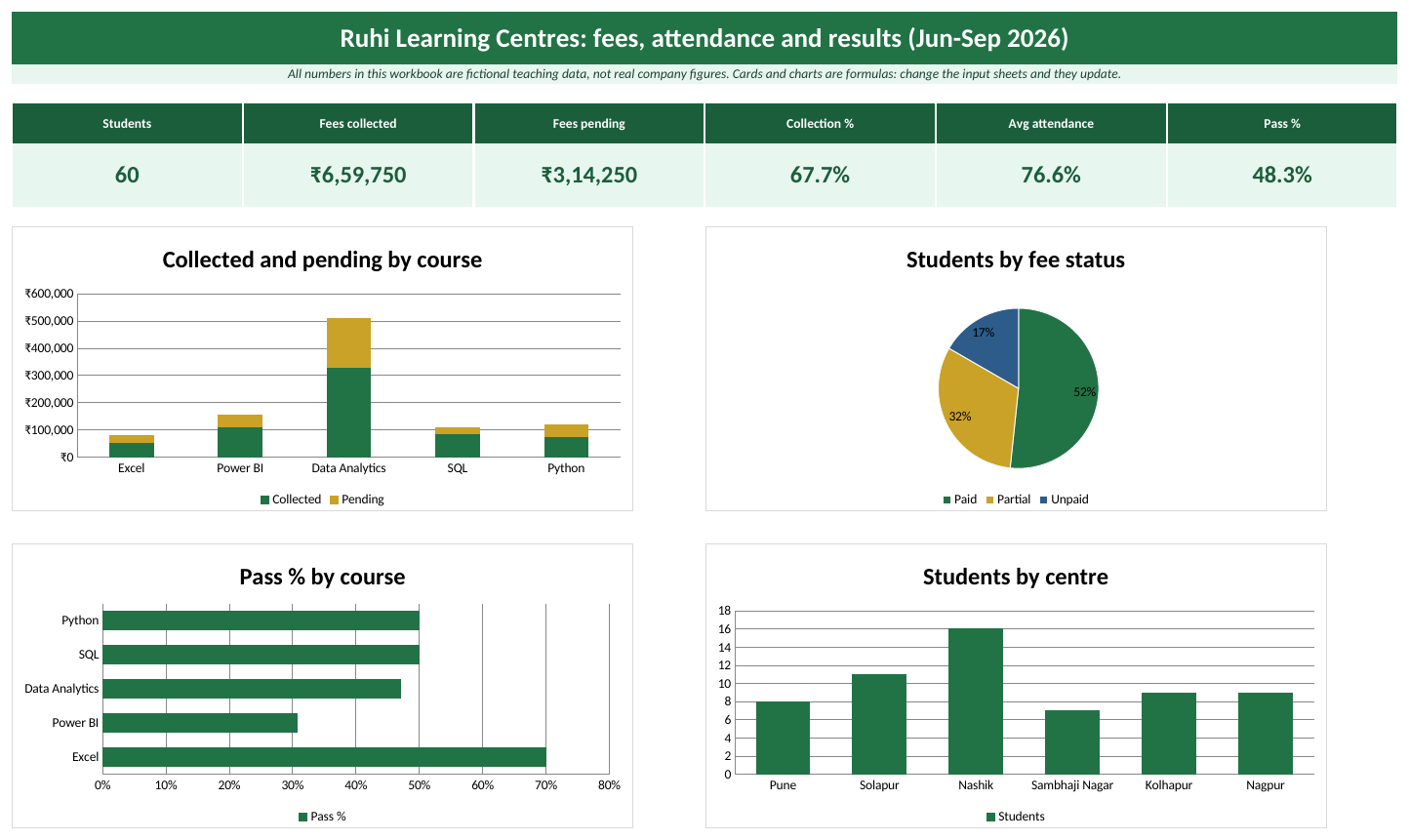
The Dashboard sheet with the sample data (Ruhi Learning Centres is a fictional business).
What is inside: the sheets
- Students. Input table Students. Balance, Fee Status, Attendance %, Grade and Result are formulas.
- Calculations. Course, centre, fee status and batch summaries.
- Fee Receipt. Pick a Student ID in C4 to print a receipt.
- Lists. Centres, courses, batches, payment modes, pass marks and minimum attendance.
How to fill it
- Open Students. For each admission type Student ID, Admission Date, Total Fee and Fee Paid.
- Pick Centre, Course, Batch and Payment Mode from the drop-downs.
- Every week update Sessions Held and Sessions Attended.
- After the test type Marks. Grade and Result fill by themselves.
- When a student pays again, increase Fee Paid. Balance and Fee Status update.
- Open Fee Receipt, pick the Student ID and print.
Check: what the sample data shows
| KPI card | Value with sample data |
|---|---|
| Students | 60 |
| Fees collected | ₹6,59,750 |
| Fees pending | ₹3,14,250 |
| Collection % | 67.7% |
| Avg attendance | 76.6% |
| Pass % | 48.3% |
Key formulas (type them exactly like this)
Formula columns in the tables
| Where | Formula | What it does |
|---|---|---|
| Students sheet, column Balance | =[@[Total Fee]]-[@[Fee Paid]] | Works out Total Fee minus Fee Paid. |
| Students sheet, column Fee Status | =IF([@Balance]<=0,"Paid",IF([@[Fee Paid]]=0,"Unpaid","Partial")) | Checks the conditions in order and stops at the first one that is true: if Balance is at most 0 → "Paid"; if Fee Paid is 0 → "Unpaid"; otherwise → "Partial". |
| Students sheet, column Attendance % | =IFERROR([@[Sessions Attended]]/[@[Sessions Held]],0) | Divides Sessions Attended by Sessions Held. IFERROR shows 0 instead of an error (for example when there are no rows yet). |
| Students sheet, column Grade | =IF([@Marks]>=75,"A",IF([@Marks]>=60,"B",IF([@Marks]>=PassMarks,"C","F"))) | Nested IF from the highest grade down: 75+ is A, 60+ is B, PassMarks (40)+ is C, else F. |
| Students sheet, column Result | =IF(AND([@Marks]>=PassMarks,[@[Attendance %]]>=MinAttendance),"Pass","Not yet") | Pass only if both rules are true (AND): marks at least PassMarks and attendance at least MinAttendance (75%). |
How to use the Fee Receipt sheet
- Click the Fee Receipt sheet tab.
- Click cell C4 (Student ID) and pick a value from the drop-down, for example ST-2601.
| Cell | Formula | What it does |
|---|---|---|
| Course (C7) | =XLOOKUP($C$4,Students[Student ID],Students[Course],"") | Finds the key you picked in C4 in Student ID and returns the matching Course (or "" if it is not found). |
How to customise it
- To add a course, add it to the Course list on Lists and add the same name as a new row in the Course summary block on Calculations.
- Change a setting. On the Lists sheet, change the yellow setting cells (
PassMarks,MinAttendance). Every formula that uses the name updates.
Ravindra Bagale's Tip
Keep pass marks and minimum attendance on the Lists sheet. When the rule changes from 40 to 35 marks, you change one cell, not sixty formulas.
Ravindra Bagale's Tip – मराठी
Pass marks आणि minimum attendance Lists sheet वर ठेवा. उद्या rule 40 वरून 35 marks झाला तर एक cell बदलायचा, साठ formulas नाही.
Ravindra Bagale's Tip – हिंदी
Pass marks और minimum attendance को Lists sheet पर रखिए। कल rule 40 से 35 marks हो जाए तो एक cell बदलिए, साठ formulas नहीं।
Learn it properly
Course chapters:
- Chapter 3: Formulas and Functions
- Chapter 4: Lookup Functions
- Chapter 13: Excel Dashboards
- Chapter 22: KPI in All Industries
Related guides: Education dashboard · XLOOKUP · SUMIF and SUMIFS · COUNTIF and COUNTIFS
Finance and Accounting (Budget vs Actual + GST Register)
Shraddha runs Shraddha Consultancy (fictional), a small firm with offices in Pune and Kolhapur. Every month her accountant Amir asks, “Which expense heads crossed the budget, and how much GST input can we claim?” This template keeps the expense register and the budget side by side and answers both questions.
Enter every expense bill once. The template builds a GST purchase register, compares actual spend with the budget for each expense head, flags heads that are over budget, and shows monthly spend and input GST credit. All numbers in this workbook are fictional teaching data, not real company figures.
Download Finance_Accounting_Template.xlsx
Your browser downloads the Excel file (26 KB). It does not open as a web page. Built for Microsoft 365 Excel on Windows.
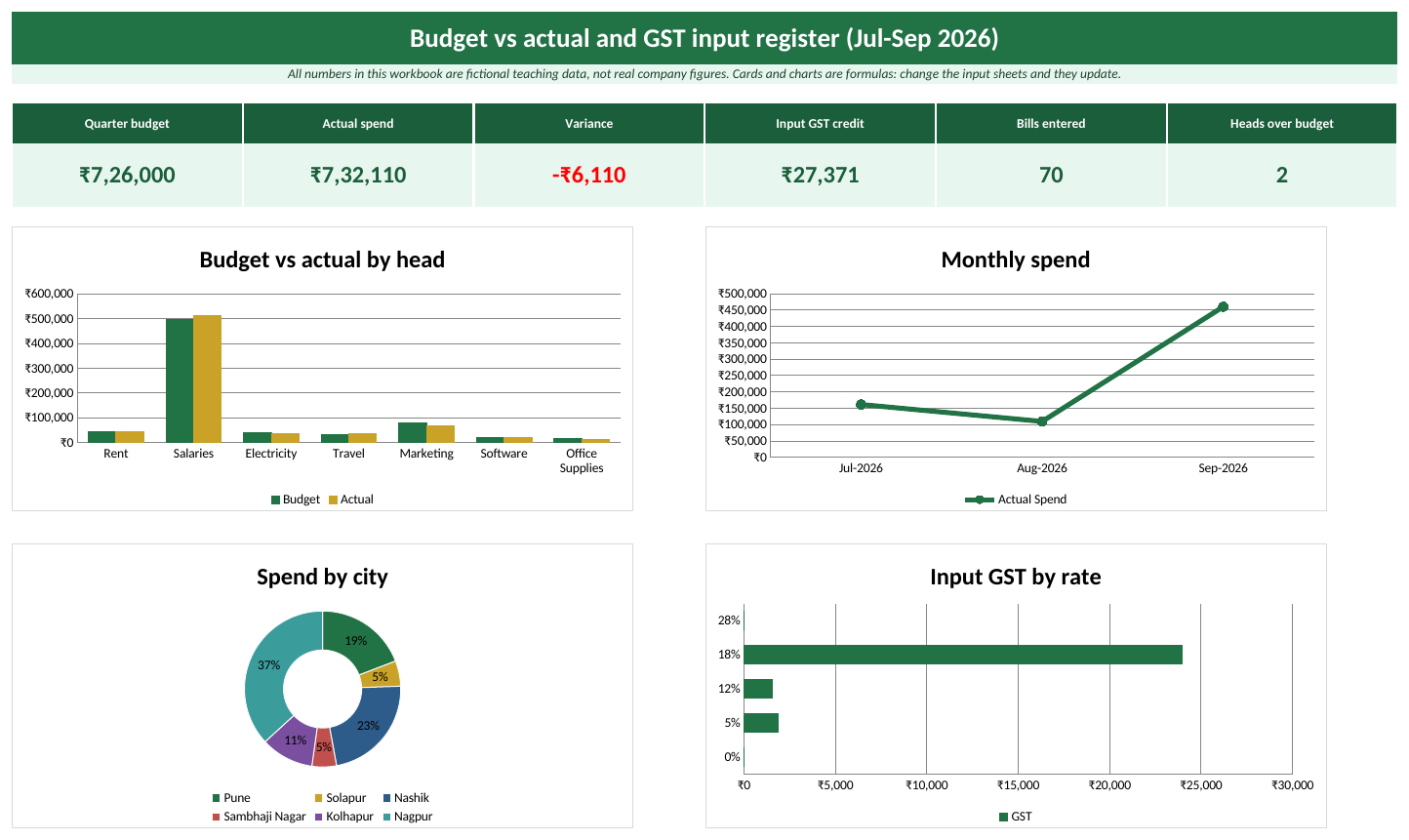
The Dashboard sheet with the sample data (Shraddha Consultancy is a fictional business).
What is inside: the sheets
- Expenses. Input table Expenses (purchase register). GST Amount, Bill Total and Month are formulas.
- Budget. Input table Budget: monthly budget per expense head.
- Calculations. Budget vs actual with status, monthly spend, GST summary by rate (CGST/SGST split) and spend by city.
- Lists. Drop-down lists and the Months setting.
How to fill it
- Open Budget and type the monthly budget for each expense head.
- On Lists, set Months to the number of months in your report.
- Open Expenses. For each bill type Voucher No, Date, Vendor and Taxable Amount.
- Pick City, Head, GST Rate and Payment Mode from the drop-downs.
- Press Enter. GST Amount, Bill Total and Month fill by themselves.
- Open Dashboard. Red variance means a head is over budget.
Check: what the sample data shows
| KPI card | Value with sample data |
|---|---|
| Quarter budget | ₹7,26,000 |
| Actual spend | ₹7,32,110 |
| Variance | ₹-6,110 |
| Input GST credit | ₹27,371 |
| Bills entered | 70 |
| Heads over budget | 2 |
Key formulas (type them exactly like this)
Formula columns in the tables
| Where | Formula | What it does |
|---|---|---|
| Expenses sheet, column GST Amount | =ROUND([@[Taxable Amount]]*[@[GST Rate]],2) | Input GST on the bill, rounded to paise. |
| Expenses sheet, column Bill Total | =[@[Taxable Amount]]+[@[GST Amount]] | Works out Taxable Amount plus GST Amount. |
| Expenses sheet, column Month | =DATE(YEAR([@Date]),MONTH([@Date]),1) | Turns any date into the first day of its month, so you can group bills by month in a PivotTable. |
How to customise it
- To add an expense head, add it to the Head list on Lists and add a Budget row for each month you track.
- Change a setting. On the Lists sheet, change the yellow setting cells (
Months). Every formula that uses the name updates.
Please note
GST rates and the CGST/SGST split are shown for teaching. They are not tax advice; check current rules with your CA.
Ravindra Bagale's Tip
Always enter the expense date as a real date (for example 15-09-2026), never as text like “Sept”. The Month column and every month-wise SUMIFS depend on real dates.
Ravindra Bagale's Tip – मराठी
Expense date नेहमी खरी date म्हणून टाका (उदा. 15-09-2026), “Sept” असं text नको. Month column आणि सगळे month-wise SUMIFS खऱ्या dates वरच चालतात.
Ravindra Bagale's Tip – हिंदी
Expense date हमेशा असली date की तरह डालिए (जैसे 15-09-2026), “Sept” जैसा text नहीं। Month column और सारे month-wise SUMIFS असली dates पर ही चलते हैं।
Learn it properly
Course chapters:
- Chapter 3: Formulas and Functions
- Chapter 6: Tables, Sorting and Filtering
- Chapter 13: Excel Dashboards
- Chapter 22: KPI in All Industries
Related guides: XLOOKUP · SUMIF and SUMIFS · COUNTIF and COUNTIFS
Government and NGO (Schemes, Beneficiaries and Fund Utilisation)
Rani Seva Foundation (fictional) runs skill training, health camps and school projects in six districts. Donors and government partners ask the same questions every quarter: how much was sanctioned, how much was spent, and how many people did it reach? This template keeps the answers ready.
Track every project or scheme with sanctioned budget, funds released, amount spent and beneficiaries reached, see utilisation % and cost per beneficiary by district and scheme, and keep a fund position by funding source. All numbers in this workbook are fictional teaching data, not real company figures.
Download Government_NGO_Template.xlsx
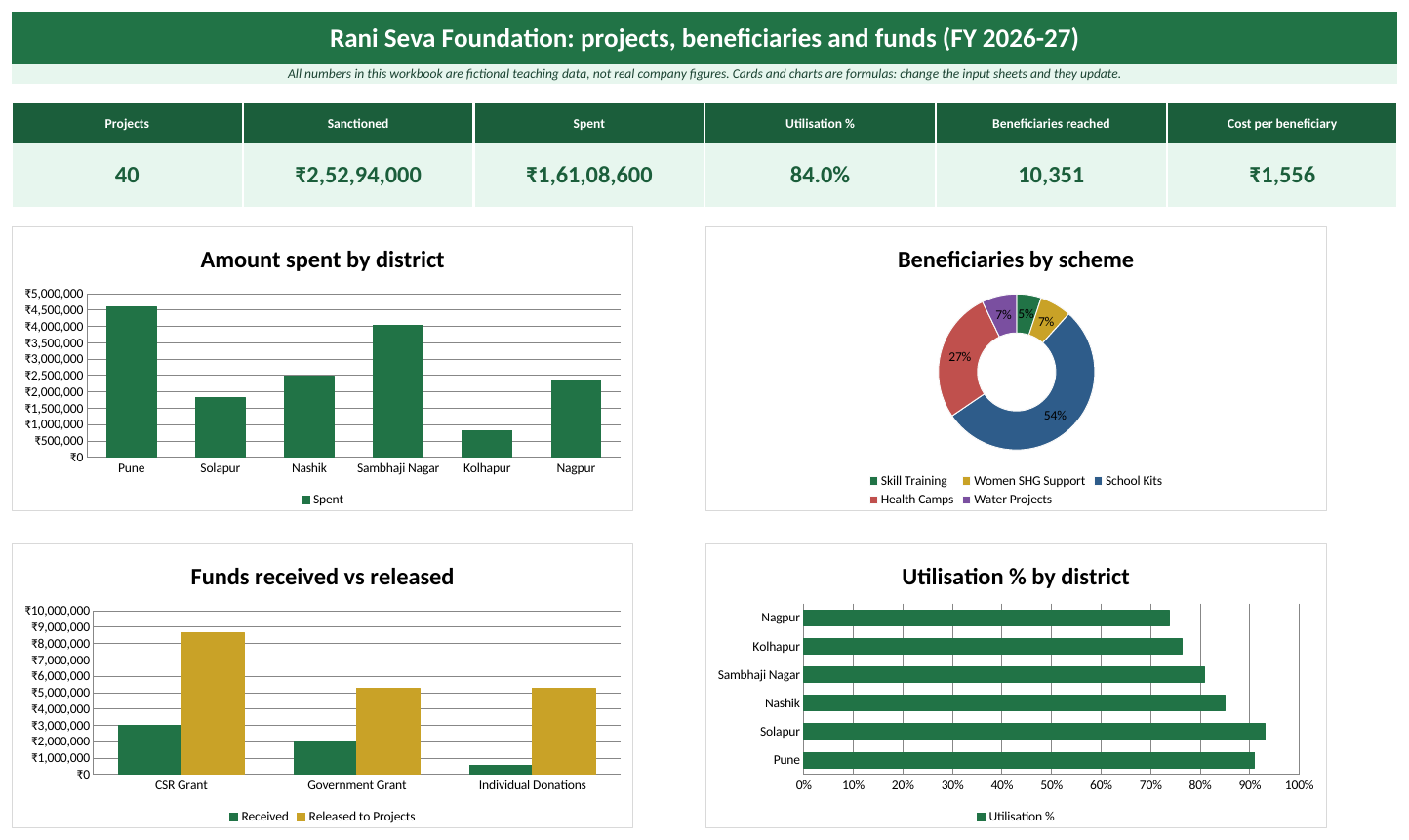
The Dashboard sheet with the sample data (Rani Seva Foundation is a fictional business).
What is inside: the sheets
- Projects. Input table Projects. Utilisation %, Unspent Balance, Reach %, Cost per Beneficiary and Flag are formulas.
- Funds Received. Input table Funds: every grant instalment and donation.
- Calculations. District, scheme, fund position by source, and status summaries.
- Lists. Districts, schemes, funding sources and status.
How to fill it
- Open Funds Received and add each grant instalment or donation: Date, Funding Source, Details, Amount.
- Open Projects. For each project type Project ID, Start Date, Sanctioned Budget and Target Beneficiaries.
- Pick District, Scheme, Funding Source and Status from the drop-downs.
- Every month update Funds Released, Amount Spent and Beneficiaries Reached.
- Yellow rows flag slow spending.
- Open Dashboard for your monthly report to donors or the district office.
Check: what the sample data shows
| KPI card | Value with sample data |
|---|---|
| Projects | 40 |
| Sanctioned | ₹2,52,94,000 |
| Spent | ₹1,61,08,600 |
| Utilisation % | 84.0% |
| Beneficiaries reached | 10,351 |
| Cost per beneficiary | ₹1,556 |
Key formulas (type them exactly like this)
Formula columns in the tables
| Where | Formula | What it does |
|---|---|---|
| Projects sheet, column Utilisation % | =IFERROR([@[Amount Spent]]/[@[Funds Released]],0) | Money spent out of money released. |
| Projects sheet, column Unspent Balance | =[@[Funds Released]]-[@[Amount Spent]] | Works out Funds Released minus Amount Spent. |
| Projects sheet, column Reach % | =IFERROR([@[Beneficiaries Reached]]/[@[Target Beneficiaries]],0) | Divides Beneficiaries Reached by Target Beneficiaries. IFERROR shows 0 instead of an error (for example when there are no rows yet). |
| Projects sheet, column Cost per Beneficiary | =IFERROR([@[Amount Spent]]/[@[Beneficiaries Reached]],0) | Divides Amount Spent by Beneficiaries Reached. IFERROR shows 0 instead of an error (for example when there are no rows yet). |
| Projects sheet, column Flag | =IF(AND([@Status]="Ongoing",[@[Utilisation %]]<0.5),"Slow spending","OK") | Flags ongoing projects that have spent less than half of the released money. |
How to customise it
- To add a scheme, add it to the Scheme list on Lists and add the same name as a new row in the Scheme summary block on Calculations.
Ravindra Bagale's Tip
Donors trust numbers they can trace. Keep a Project ID on every expense and fund entry, so any total on the Dashboard can be traced back to the rows behind it.
Ravindra Bagale's Tip – मराठी
Donors ना trace करता येणारे numbers आवडतात. प्रत्येक expense आणि fund entry वर Project ID ठेवा, म्हणजे Dashboard वरचा कुठलाही total मागच्या rows पर्यंत trace करता येतो.
Ravindra Bagale's Tip – हिंदी
Donors उन numbers पर भरोसा करते हैं जिन्हें trace किया जा सके। हर expense और fund entry पर Project ID रखिए, ताकि Dashboard का कोई भी total पीछे की rows तक trace हो सके।
Healthcare (OPD Register, Billing and Bed Occupancy)
Rani Care Hospitals (fictional) runs OPD clinics in six Maharashtra cities. The front desk in Pune types each patient visit, and the medical superintendent wants to know: how long are patients waiting, how much did OPD earn, and how full are the beds? This template answers those questions without storing any patient names.
Record OPD visits with billing and waiting time (no patient names), keep a daily bed census, and see revenue by department, average bill, waiting-time target % and bed occupancy by city. All numbers in this workbook are fictional teaching data, not real company figures.
Download Healthcare_Template.xlsx
Your browser downloads the Excel file (28 KB). It does not open as a web page. Built for Microsoft 365 Excel on Windows.
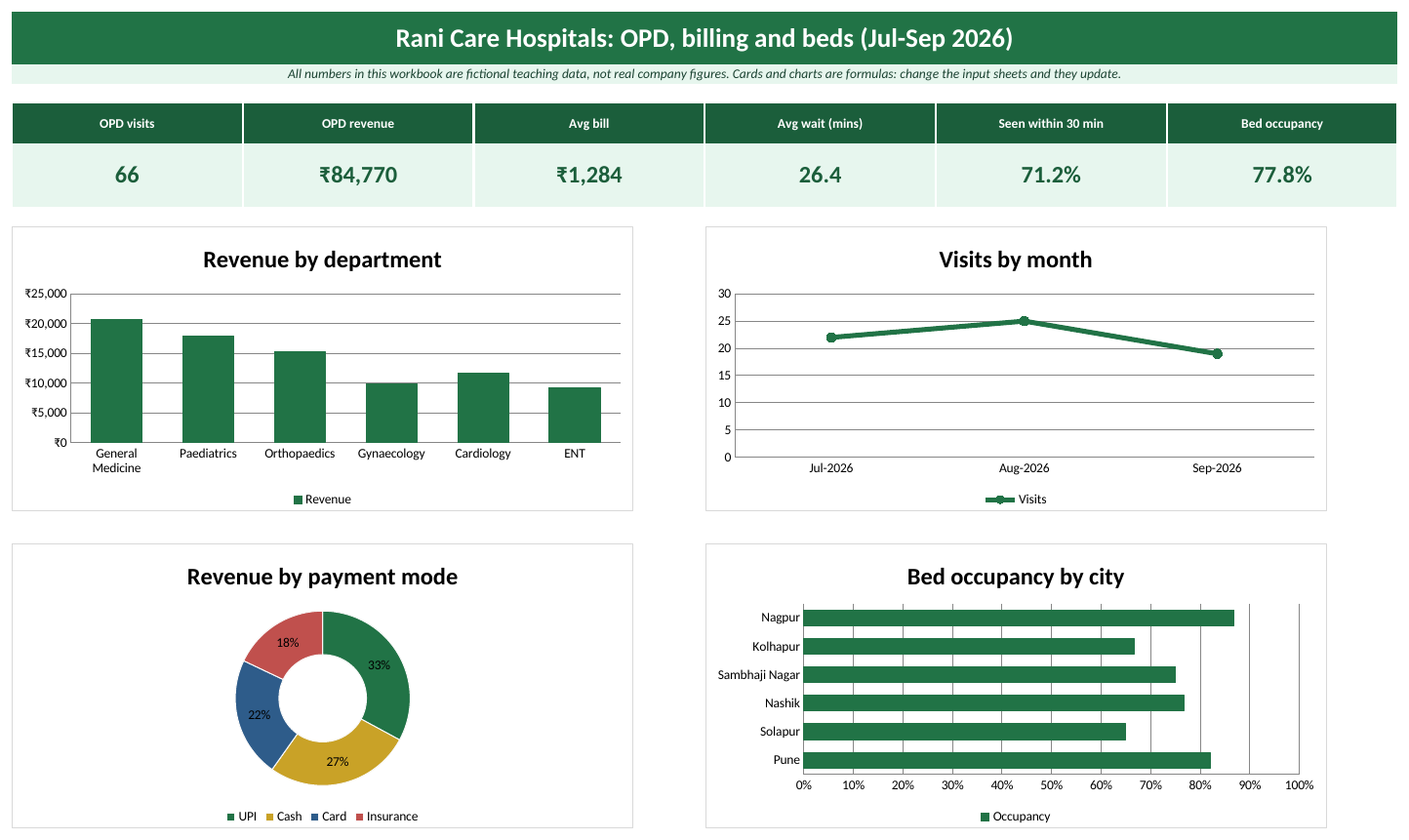
The Dashboard sheet with the sample data (Rani Care Hospitals is a fictional business).
What is inside: the sheets
- OPD Register. Input table OPD. Bill Amount and Within Target are formulas.
- Beds. Input table Beds: beds and occupied beds per ward. Occupancy and Free Beds are formulas.
- Calculations. Department, monthly, payment mode and bed occupancy summaries.
- Lists. Drop-down lists and the waiting-time target.
How to fill it
- Open OPD Register. For each visit type the Visit ID (never the patient name) and Date.
- Pick City, Department, Visit Type and Payment Mode from the drop-downs.
- Type the fee, lab charges, pharmacy amount, discount and waiting minutes.
- Bill Amount and Within Target fill by themselves.
- Every morning open Beds and update the Occupied column.
- Open Dashboard to see revenue and occupancy.
Check: what the sample data shows
| KPI card | Value with sample data |
|---|---|
| OPD visits | 66 |
| OPD revenue | ₹84,770 |
| Avg bill | ₹1,284 |
| Avg wait (mins) | 26.4 |
| Seen within 30 min | 71.2% |
| Bed occupancy | 77.8% |
Key formulas (type them exactly like this)
Formula columns in the tables
| Where | Formula | What it does |
|---|---|---|
| OPD Register sheet, column Bill Amount | =[@[Consultation Fee]]+[@[Lab Charges]]+[@Pharmacy]-[@Discount] | Fee plus lab plus pharmacy, minus discount. |
| OPD Register sheet, column Within Target | =IF([@[Wait Mins]]<=WaitTarget,"Yes","No") | Yes if the patient waited no more than the target (named cell WaitTarget = 30 minutes). |
| Beds sheet, column Occupancy | =IFERROR([@Occupied]/[@Beds],0) | Divides Occupied by Beds. IFERROR shows 0 instead of an error (for example when there are no rows yet). |
| Beds sheet, column Free Beds | =[@Beds]-[@Occupied] | Works out Beds minus Occupied. |
How to customise it
- To change the waiting-time target, edit WaitTarget on Lists (for example 20 minutes).
- Change a setting. On the Lists sheet, change the yellow setting cells (
WaitTarget). Every formula that uses the name updates.
Please note
Use Visit IDs, not patient names, to protect patient privacy.
Ravindra Bagale's Tip
Never put patient names or phone numbers in a teaching or reporting file. Use a Visit ID or UHID only. The template is designed that way on purpose.
Ravindra Bagale's Tip – मराठी
Teaching किंवा reporting file मध्ये patient चं नाव किंवा phone number कधीच टाकू नका. फक्त Visit ID किंवा UHID वापरा. Template मुद्दाम तसंच बनवलंय.
Ravindra Bagale's Tip – हिंदी
Teaching या reporting file में patient का नाम या phone number कभी मत डालिए। सिर्फ़ Visit ID या UHID रखिए। Template जानबूझकर ऐसे ही बनाया है।
Learn it properly
Course chapters:
- Chapter 3: Formulas and Functions
- Chapter 6: Tables, Sorting and Filtering
- Chapter 13: Excel Dashboards
- Chapter 22: KPI in All Industries
Related guides: Healthcare dashboard · XLOOKUP · SUMIF and SUMIFS · COUNTIF and COUNTIFS
Hospitality (Hotel Bookings, Occupancy, ADR and RevPAR)
Zoya Stays (fictional) has small hotels in Pune, Kolhapur, Nashik and three more cities. The owner wants the three numbers every hotel manager talks about: occupancy, ADR (average daily rate) and RevPAR (revenue per available room). This template calculates all three from a simple bookings list.
Record bookings for every property and room type, and calculate room nights, occupancy %, ADR (average daily rate) and RevPAR (revenue per available room) by property, channel and room type. All numbers in this workbook are fictional teaching data, not real company figures.
Download Hospitality_Template.xlsx
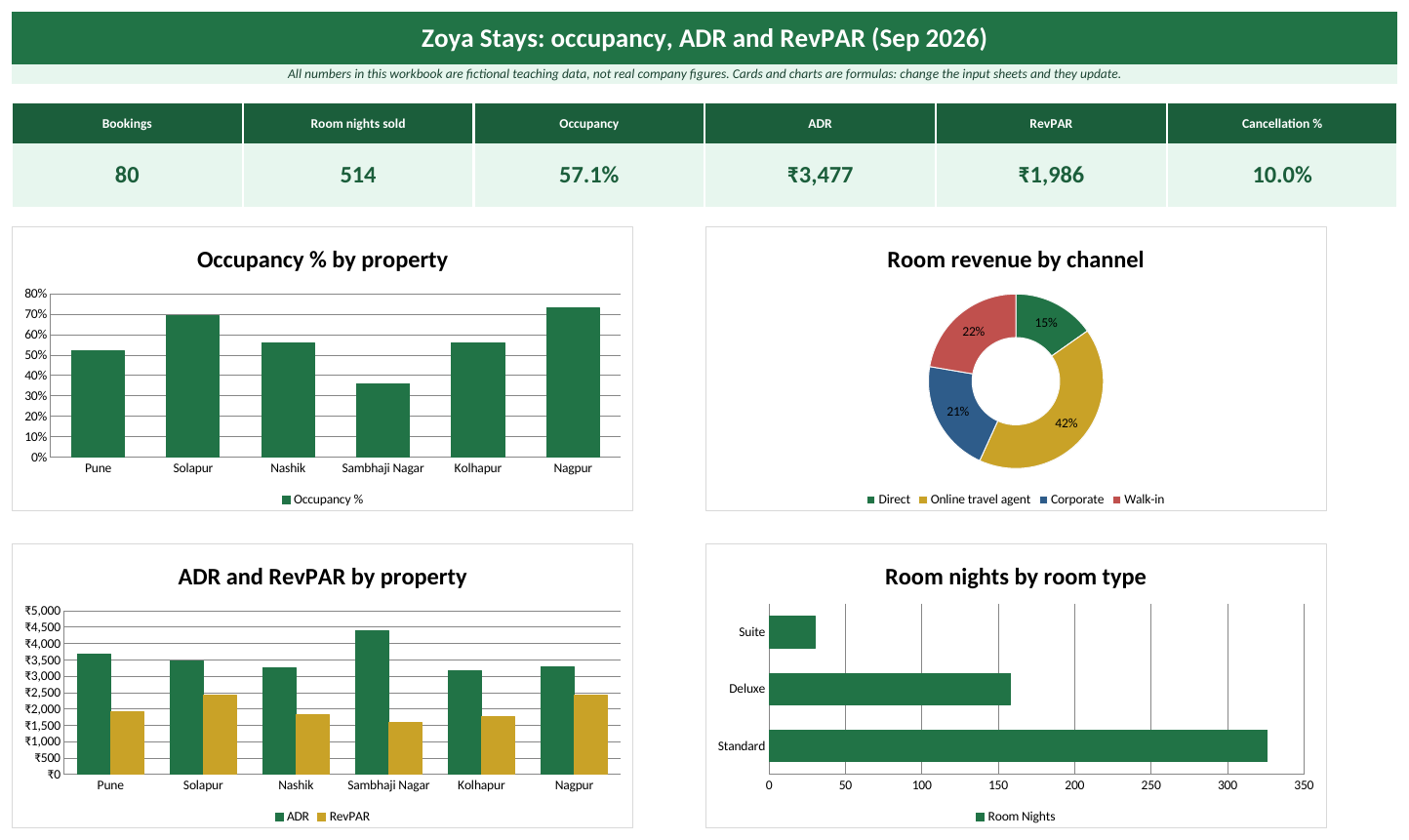
The Dashboard sheet with the sample data (Zoya Stays is a fictional business).
What is inside: the sheets
- Bookings. Input table Bookings. Nights, Room Nights and Room Revenue are formulas.
- Rooms. Input table Rooms: rooms per property and room type.
- Calculations. Property KPIs (occupancy, ADR, RevPAR), channel mix and room type.
- Lists. Properties, room types, channels, status and PeriodDays.
How to fill it
- Open Rooms and type how many rooms of each type every property has.
- Open Bookings. For each booking type Booking ID, Check-in, Check-out, Rooms Booked and Rate per Night.
- Pick City, Room Type, Channel and Status from the drop-downs.
- If a guest cancels, change Status to Cancelled. Room nights become 0.
- On Lists, set PeriodDays to the days in your report (30 for September).
- Open Dashboard to see occupancy, ADR and RevPAR.
Check: what the sample data shows
| KPI card | Value with sample data |
|---|---|
| Bookings | 80 |
| Room nights sold | 514 |
| Occupancy | 57.1% |
| ADR | ₹3,477 |
| RevPAR | ₹1,986 |
| Cancellation % | 10.0% |
Key formulas (type them exactly like this)
Formula columns in the tables
| Where | Formula | What it does |
|---|---|---|
| Bookings sheet, column Nights | =[@[Check-out]]-[@[Check-in]] | Check-out date minus check-in date = nights. |
| Bookings sheet, column Room Nights | =IF([@Status]="Cancelled",0,[@Nights]*[@[Rooms Booked]]) | If Status is "Cancelled", the result is 0; otherwise it is Nights × Rooms Booked. |
| Bookings sheet, column Room Revenue | =[@[Room Nights]]*[@[Rate per Night]] | Works out Room Nights × Rate per Night. |
How to customise it
- To report a different period, change PeriodDays on Lists to the number of days you are reporting.
- Change a setting. On the Lists sheet, change the yellow setting cells (
PeriodDays). Every formula that uses the name updates.
Ravindra Bagale's Tip
RevPAR = Occupancy × ADR. If RevPAR is low, check which one is low. Low occupancy needs more bookings; low ADR means you are giving too many discounts.
Ravindra Bagale's Tip – मराठी
RevPAR = Occupancy × ADR. RevPAR कमी असेल तर दोघांपैकी कोणतं कमी आहे ते बघा. Occupancy कमी म्हणजे bookings वाढवा; ADR कमी म्हणजे discounts जास्त जातायत.
Ravindra Bagale's Tip – हिंदी
RevPAR = Occupancy × ADR। RevPAR कम हो तो देखिए दोनों में से क्या कम है। Occupancy कम यानी bookings बढ़ाइए; ADR कम यानी discounts ज़्यादा जा रहे हैं।
Learn it properly
Course chapters:
- Chapter 3: Formulas and Functions
- Chapter 8: Charts
- Chapter 13: Excel Dashboards
- Chapter 22: KPI in All Industries
Related guides: Hospitality dashboard · XLOOKUP · SUMIF and SUMIFS · COUNTIF and COUNTIFS
HR (Attendance, Payroll and Salary Slip)
Bagale Training Institute (fictional) has ten employees in Pune, Nashik and other centres. At month end Shraddha from HR has to count leave, work out salaries and send salary slips. This template keeps the employee master, the attendance and the payroll together, and prints a slip for anyone in one click.
Keep an employee master and monthly attendance, run payroll for any month with HRA, PF, professional tax and TDS, and print a salary slip for any employee by picking the Emp ID. All numbers in this workbook are fictional teaching data, not real company figures.
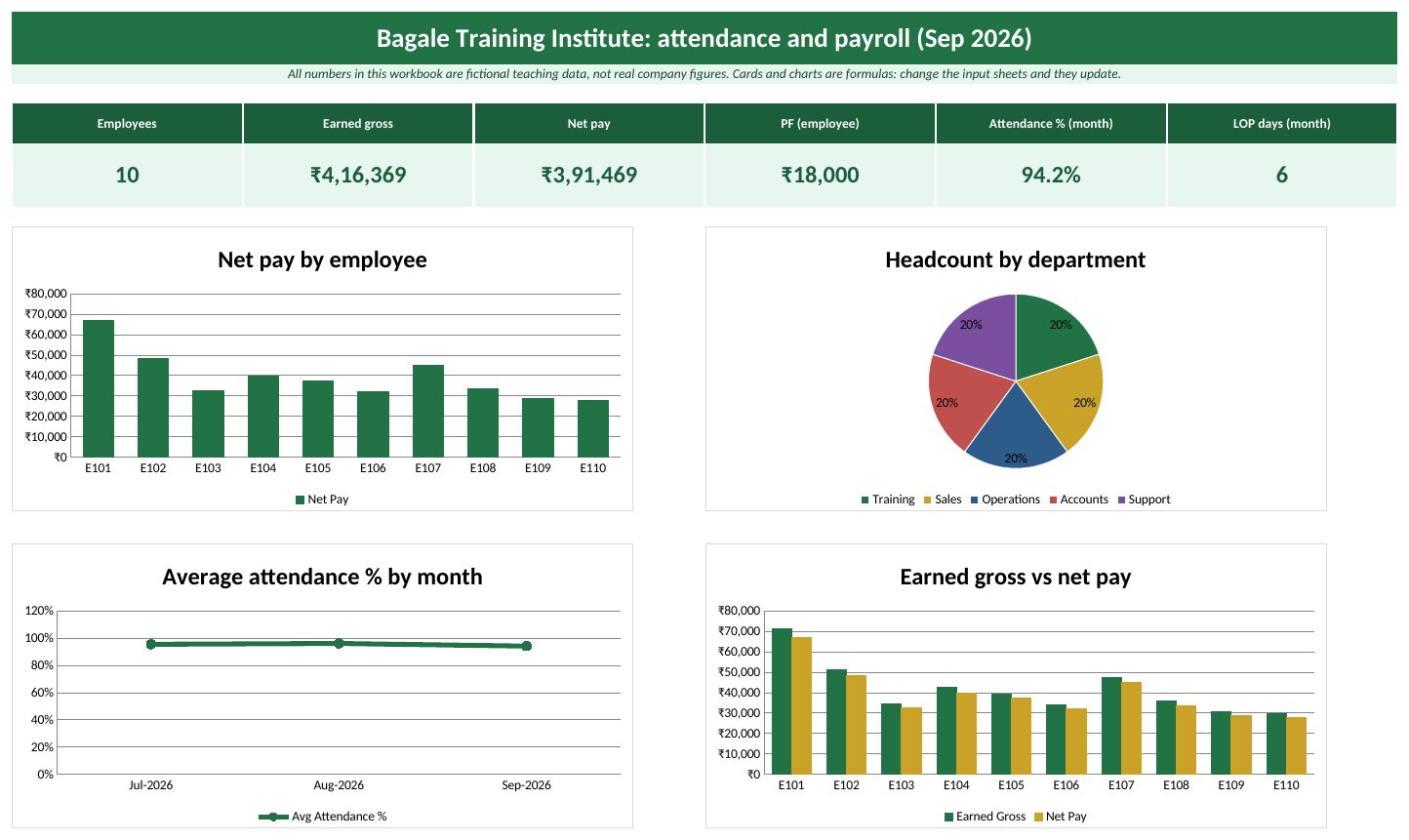
The Dashboard sheet with the sample data (Bagale Training Institute is a fictional business).
What is inside: the sheets
- Dashboard. Six KPI cards and four charts for the payroll month.
- Employees. Input table Employees: salary structure, TDS and bank account (last digits only).
- Attendance. Input table Attendance: one row per employee per month. Name, LOP Days, Payable Days and Attendance % are formulas.
- Payroll. Payroll register for PayMonth: earned gross, PF, professional tax, TDS and net pay per employee.
- Calculations. Attendance by month and headcount by department.
- Salary Slip. Pick an Emp ID in C4 to print a slip.
- Lists. Departments, cities, PayMonth and the illustrative rates.
How to fill it
- Open Employees. Type each employee once: Emp ID, Name, Basic, Special Allowance and Monthly TDS.
- Pick Department and City from the drop-downs.
- At month end open Attendance. Add one row per employee: Month (first day, for example 01-10-2026), Emp ID, Working Days, Present Days, Paid Leave.
- On Lists, set PayMonth to the same month.
- Open Payroll and check net pay for every employee.
- Open Salary Slip, pick an Emp ID in C4 and press Ctrl + P.
Check: what the sample data shows
| KPI card | Value with sample data |
|---|---|
| Employees | 10 |
| Earned gross | ₹4,16,369 |
| Net pay | ₹3,91,469 |
| PF (employee) | ₹18,000 |
| Attendance % (month) | 94.2% |
| LOP days (month) | 6 |
Key formulas (type them exactly like this)
Formula columns in the tables
| Where | Formula | What it does |
|---|---|---|
| Attendance sheet, column Name | =XLOOKUP([@[Emp ID]],Employees[Emp ID],Employees[Name],"Check ID") | Finds Emp ID in Emp ID and returns the matching Name (or "Check ID" if it is not found). |
| Attendance sheet, column LOP Days | =MAX(0,[@[Working Days]]-[@[Present Days]]-[@[Paid Leave]]) | Loss-of-pay days: working days not covered by presence or paid leave. MAX(0,...) stops a negative number. |
| Attendance sheet, column Payable Days | =[@[Working Days]]-[@[LOP Days]] | Works out Working Days minus LOP Days. |
| Attendance sheet, column Attendance % | =IFERROR([@[Present Days]]/[@[Working Days]],0) | Divides Present Days by Working Days. IFERROR shows 0 instead of an error (for example when there are no rows yet). |
How to use the Salary Slip sheet
- Click the Salary Slip sheet tab.
- Click cell C4 (Emp ID) and pick a value from the drop-down, for example E104.
| Cell | Formula | What it does |
|---|---|---|
| Name (C7) | =XLOOKUP($C$4,Employees[Emp ID],Employees[Name],"") | Finds the key you picked in C4 in Emp ID and returns the matching Name (or "" if it is not found). |
| Working Days (C12) | =XLOOKUP($C$4,Payroll!$A$7:$A$16,Payroll!$C$7:$C$16,"") | Finds the key you picked in C4 in column A of the Payroll sheet and returns the matching column C of the Payroll sheet (or "" if it is not found). |
| Earned Gross (C18) | =XLOOKUP($C$4,Payroll!$A$7:$A$16,Payroll!$I$7:$I$16,"") | Every slip line is XLOOKUP of the Emp ID in the Payroll sheet, returning one column. |
How to customise it
- To change the HRA %, PF % or professional tax amounts, edit HRAPct, PFPct, PFCap, PTLimit and PTAmount on Lists. These are illustrative, so set them as your CA advises.
- Change a setting. On the Lists sheet, change the yellow setting cells (
PayMonth,HRAPct,PFPct,PFCap,PTLimit,PTAmount). Every formula that uses the name updates.
Please note
HRA, PF, professional tax and TDS settings are illustrative for teaching, not legal or tax advice. Check current rules with your payroll consultant or CA.
Ravindra Bagale's Tip
Salary slips are personal. Before sharing the file, protect the sheets, keep only the last four digits of bank accounts, and send each person only their own slip.
Ravindra Bagale's Tip – मराठी
Salary slip personal असते. File share करण्याआधी sheets protect करा, bank account चे फक्त शेवटचे चार digits ठेवा, आणि प्रत्येकाला फक्त त्याचीच slip पाठवा.
Ravindra Bagale's Tip – हिंदी
Salary slip personal होती है। File share करने से पहले sheets protect कीजिए, bank account के सिर्फ़ आख़िरी चार digits रखिए, और हर व्यक्ति को सिर्फ़ उसकी अपनी slip भेजिए।
Learn it properly
Course chapters:
- Chapter 3: Formulas and Functions
- Chapter 4: Lookup Functions
- Chapter 14: Protection, Sharing and Printing
- Chapter 22: KPI in All Industries
Related guides: XLOOKUP · SUMIF and SUMIFS · COUNTIF and COUNTIFS
Insurance (Policy Register, Renewals and Claims)
Rani runs Rani General Insurance Agency (fictional) from Nashik with agents in five other cities. Every Monday she needs three lists: policies due for renewal in the next 30 days, claims still pending, and the loss ratio by product. This template builds them from two simple tables.
Keep all policies in one register with automatic renewal dates and a 30-day renewal alert, record claims against policy numbers, and see premium, loss ratio and renewals due by product and agent. All numbers in this workbook are fictional teaching data, not real company figures.
Download Insurance_Template.xlsx
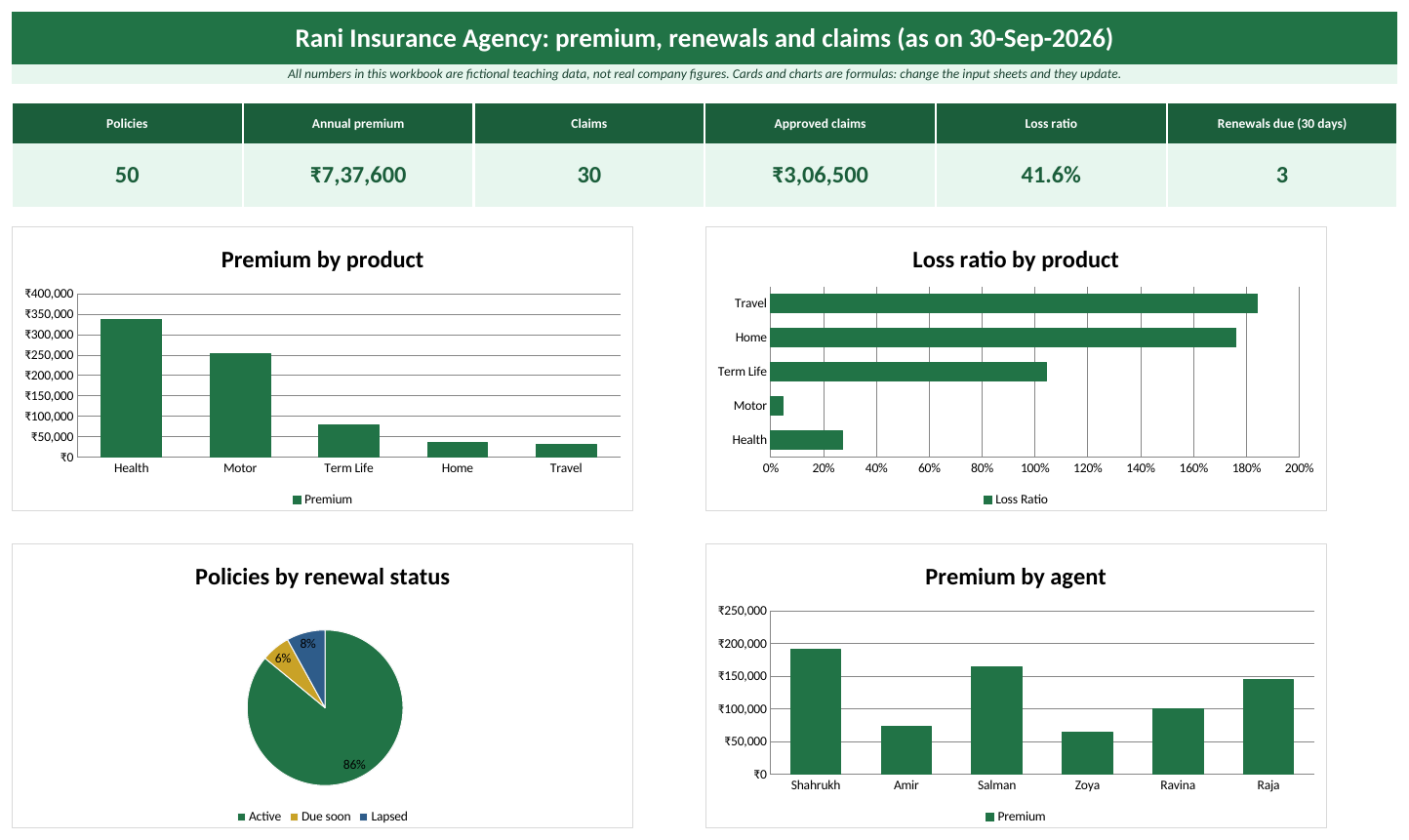
The Dashboard sheet with the sample data (Rani General Insurance Agency is a fictional business).
What is inside: the sheets
- Policies. Input table Policies. Renewal Date, Days to Renewal and Renewal Status are formulas.
- Claims. Input table Claims. Product, City and Approved Amount are looked up or calculated.
- Calculations. Product summary with loss ratio, agent, renewal status and city summaries.
- Lists. Drop-down lists, the report date and the renewal window.
How to fill it
- Open Policies. Type Policy No, Start Date, Sum Insured and Annual Premium.
- Pick Agent, City and Product from the drop-downs.
- Renewal Date and Renewal Status fill by themselves. Yellow rows are due soon, red rows have lapsed.
- Open Claims. Type Claim ID, Claim Date and Claim Amount, pick the Policy No and Status.
- On Lists, change ReportDate to today's date (or type =TODAY()).
- Open Dashboard to see renewals due and loss ratio.
Check: what the sample data shows
| KPI card | Value with sample data |
|---|---|
| Policies | 50 |
| Annual premium | ₹7,37,600 |
| Claims | 30 |
| Approved claims | ₹3,06,500 |
| Loss ratio | 41.6% |
| Renewals due (30 days) | 3 |
Key formulas (type them exactly like this)
Formula columns in the tables
| Where | Formula | What it does |
|---|---|---|
| Policies sheet, column Renewal Date | =EDATE([@[Start Date]],12) | EDATE adds 12 months to the start date. |
| Policies sheet, column Days to Renewal | =[@[Renewal Date]]-ReportDate | Renewal date minus the report date (named cell ReportDate on Lists). Replace ReportDate with TODAY() if you want it live. |
| Policies sheet, column Renewal Status | =IF([@[Days to Renewal]]<0,"Lapsed",IF([@[Days to Renewal]]<=RenewalWindow,"Due soon","Active")) | Lapsed if the renewal date has passed, Due soon within the renewal window (30 days), otherwise Active. |
| Claims sheet, column Product | =XLOOKUP([@[Policy No]],Policies[Policy No],Policies[Product],"Not found") | Brings the product of the policy from the Policies table. Shows Not found if the policy number is wrong. |
| Claims sheet, column City | =XLOOKUP([@[Policy No]],Policies[Policy No],Policies[City],"Not found") | Finds Policy No in Policy No and returns the matching City (or "Not found" if it is not found). |
| Claims sheet, column Approved Amount | =IF([@Status]="Approved",[@[Claim Amount]],0) | If Status is "Approved", the result is Claim Amount; otherwise it is 0. |
How to customise it
- To widen the renewal window, change RenewalWindow on Lists from 30 to 45 days.
- Change a setting. On the Lists sheet, change the yellow setting cells (
ReportDate,RenewalWindow). Every formula that uses the name updates.
Ravindra Bagale's Tip
Keep ReportDate on the Lists sheet instead of using TODAY(). Then the renewal list stays the same when you open the file next week, and you can check last month's report by changing one date.
Ravindra Bagale's Tip – मराठी
TODAY() वापरण्यापेक्षा ReportDate Lists sheet वर ठेवा. मग पुढच्या आठवड्यात file उघडली तरी renewal list तीच राहते, आणि एक date बदलून मागच्या महिन्याचा report पण बघता येतो.
Ravindra Bagale's Tip – हिंदी
TODAY() की जगह ReportDate को Lists sheet पर रखिए। फिर अगले हफ़्ते file खोलने पर भी renewal list वही रहेगी, और एक date बदलकर पिछले महीने का report भी देख सकते हैं।
Learn it properly
Course chapters:
- Chapter 3: Formulas and Functions
- Chapter 4: Lookup Functions
- Chapter 13: Excel Dashboards
- Chapter 22: KPI in All Industries
Related guides: XLOOKUP · SUMIF and SUMIFS · COUNTIF and COUNTIFS
Inventory and Supply Chain (Stock Register + Reorder Sheet)
Zoya Wholesale Mart (fictional) keeps 30 items in its Pune and Nashik godowns. Last month two fast-moving items ran out and customers went elsewhere. Zoya wants a sheet that says, every morning, which items to reorder and how many. This template does that from simple stock-in and stock-out entries.
Keep an item master with opening stock, record every IN and OUT movement, and let the template calculate closing stock, reorder level, which items to reorder, how much to order and the purchase value by supplier. All numbers in this workbook are fictional teaching data, not real company figures.
Download Inventory_Supply_Chain_Template.xlsx
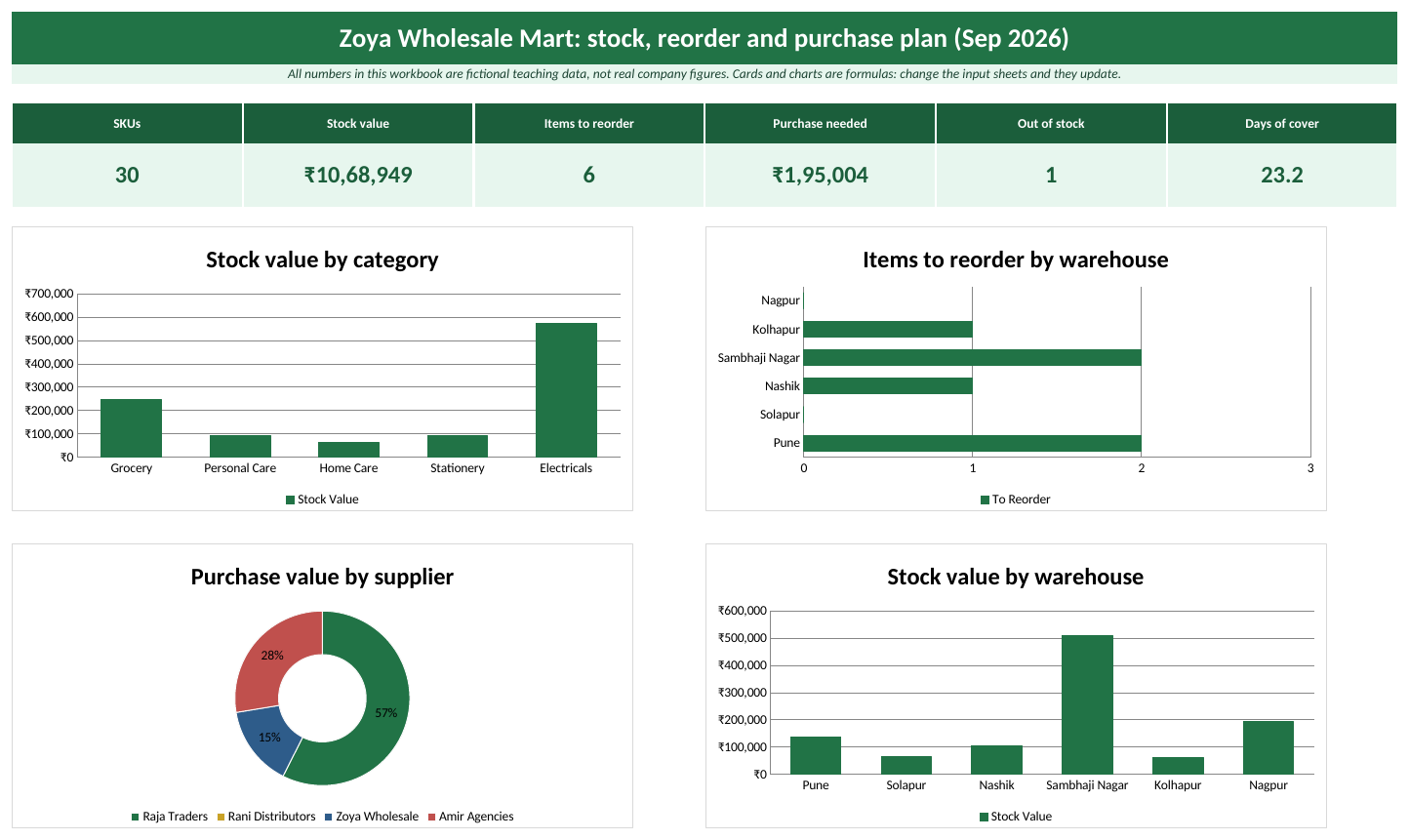
The Dashboard sheet with the sample data (Zoya Wholesale Mart is a fictional business).
What is inside: the sheets
- Transactions. Input table Transactions: every IN and OUT movement.
- Items. Input table Items (item master). Stock In, Stock Out, Closing Stock, Reorder Level, Reorder, Order Qty, Order Value and Stock Value are formulas. Red rows need reordering.
- Calculations. Category, warehouse and supplier purchase plan.
- Reorder Check. Pick a SKU to see its reorder card.
- Lists. Drop-down lists and the CoverDays setting.
How to fill it
- Open Items. Type each item once: SKU, Item, Opening Stock, Avg Daily Usage, Lead Time Days, Safety Stock and Unit Cost.
- Pick Category, Warehouse and Supplier from the drop-downs.
- Every day open Transactions and add one row per movement: Date, SKU, Type (IN or OUT) and Qty.
- Closing Stock and Reorder update by themselves. Red rows on Items need an order.
- Open Calculations to see the purchase plan per supplier.
- Open Reorder Check, pick a SKU and print the card for your purchase order.
Check: what the sample data shows
| KPI card | Value with sample data |
|---|---|
| SKUs | 30 |
| Stock value | ₹10,68,949 |
| Items to reorder | 6 |
| Purchase needed | ₹1,95,004 |
| Out of stock | 1 |
| Days of cover | 23.2 |
Key formulas (type them exactly like this)
Formula columns in the tables
| Where | Formula | What it does |
|---|---|---|
| Transactions sheet, column Item | =XLOOKUP([@SKU],Items[SKU],Items[Item],"Check SKU") | Finds SKU in SKU and returns the matching Item (or "Check SKU" if it is not found). |
| Items sheet, column Stock In | =SUMIFS(Transactions[Qty],Transactions[SKU],[@SKU],Transactions[Type],"IN") | Adds all IN quantities of this SKU from the Transactions table. |
| Items sheet, column Stock Out | =SUMIFS(Transactions[Qty],Transactions[SKU],[@SKU],Transactions[Type],"OUT") | Adds up Qty for the rows where SKU is SKU and Type is "OUT". |
| Items sheet, column Closing Stock | =[@[Opening Stock]]+[@[Stock In]]-[@[Stock Out]] | Works out (Opening Stock plus Stock In) minus Stock Out. |
| Items sheet, column Reorder Level | =[@[Avg Daily Usage]]*[@[Lead Time Days]]+[@[Safety Stock]] | Reorder level = daily usage x lead time + safety stock. When stock falls to this level, order now. |
| Items sheet, column Reorder | =IF([@[Closing Stock]]<=[@[Reorder Level]],"Reorder","OK") | If Closing Stock is at most Reorder Level, the result is "Reorder"; otherwise it is "OK". |
| Items sheet, column Order Qty | =IF([@Reorder]="Reorder",[@[Reorder Level]]+[@[Avg Daily Usage]]*CoverDays-[@[Closing Stock]],0) | Brings stock back up to the reorder level plus CoverDays (30) days of usage. |
| Items sheet, column Order Value | =[@[Order Qty]]*[@[Unit Cost]] | Works out Order Qty × Unit Cost. |
| Items sheet, column Stock Value | =[@[Closing Stock]]*[@[Unit Cost]] | Works out Closing Stock × Unit Cost. |
How to use the Reorder Check sheet
- Click the Reorder Check sheet tab.
- Click cell C4 (SKU) and pick a value from the drop-down, for example SKU-1005.
| Cell | Formula | What it does |
|---|---|---|
| Item (C6) | =XLOOKUP($C$4,Items[SKU],Items[Item],"") | Finds the key you picked in C4 in SKU and returns the matching Item (or "" if it is not found). |
How to customise it
- To keep more safety stock, raise CoverDays on Lists. Reorder Level and Order Qty for every item go up together.
- Change a setting. On the Lists sheet, change the yellow setting cells (
CoverDays). Every formula that uses the name updates.
Ravindra Bagale's Tip
Type every stock movement as a row (In or Out), never overwrite the closing stock. The running total then always matches the godown, and you can see exactly when stock went down.
Ravindra Bagale's Tip – मराठी
प्रत्येक stock movement एक row म्हणून टाका (In किंवा Out), closing stock कधीच overwrite करू नका. मग running total नेहमी godown शी जुळतो, आणि stock कधी कमी झाला ते पण दिसतं.
Ravindra Bagale's Tip – हिंदी
हर stock movement को एक row की तरह डालिए (In या Out), closing stock को कभी overwrite मत कीजिए। तब running total हमेशा godown से मिलेगा, और दिखेगा कि stock कब कम हुआ।
IT Services (Timesheet, Utilisation and Project Billing)
Shraddha Tech Services (fictional) has eight people working on client projects from Pune and Nagpur. Every fortnight Shraddha has to answer: how many hours were billable, is each person busy enough, and what should we bill each client? This template turns timesheets into utilisation and a ready invoice.
Collect daily timesheets, price them with each person's bill and cost rate, and get billable %, utilisation per employee, project revenue, cost and margin, plus a project invoice with GST. All numbers in this workbook are fictional teaching data, not real company figures.
Download IT_Services_Template.xlsx
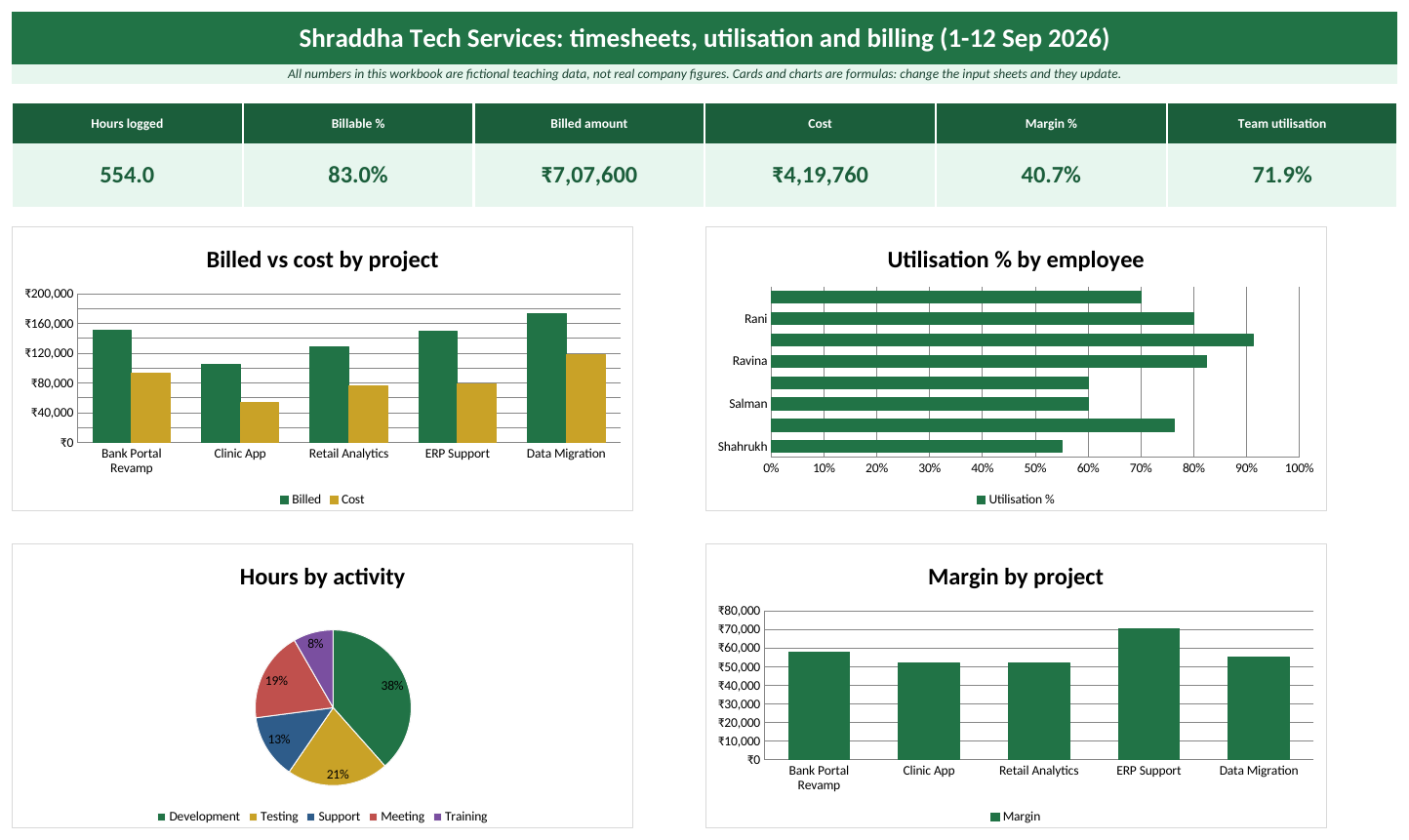
The Dashboard sheet with the sample data (Shraddha Tech Services is a fictional business).
What is inside: the sheets
- Timesheet. Input table Timesheet. Bill Rate, Cost Rate, Billed Amount and Cost are formulas.
- Team. Input table Team: role, city, bill rate and cost rate per hour.
- Calculations. Utilisation by employee, project profitability, hours by activity.
- Project Invoice. Pick a project in C4 to get fees, GST and total.
- Lists. Projects, activities, WorkingDays, HoursPerDay and GSTRate.
How to fill it
- Open Team and type each person's bill rate and cost rate per hour.
- Every day each person adds rows on Timesheet: Date and Hours.
- Pick Employee, Project, Activity and Billable from the drop-downs.
- Rates and amounts fill by themselves.
- On Lists, set WorkingDays for the period you are billing.
- At month end open Project Invoice, pick the project and print.
Check: what the sample data shows
| KPI card | Value with sample data |
|---|---|
| Hours logged | 554.0 |
| Billable % | 83.0% |
| Billed amount | ₹7,07,600 |
| Cost | ₹4,19,760 |
| Margin % | 40.7% |
| Team utilisation | 71.9% |
Key formulas (type them exactly like this)
Formula columns in the tables
| Where | Formula | What it does |
|---|---|---|
| Timesheet sheet, column Bill Rate | =XLOOKUP([@Employee],Team[Employee],Team[Bill Rate],0) | Finds Employee in Employee and returns the matching Bill Rate (or 0 if it is not found). |
| Timesheet sheet, column Cost Rate | =XLOOKUP([@Employee],Team[Employee],Team[Cost Rate],0) | Finds Employee in Employee and returns the matching Cost Rate (or 0 if it is not found). |
| Timesheet sheet, column Billed Amount | =IF([@Billable]="Yes",[@Hours]*[@[Bill Rate]],0) | Only billable hours earn money: hours x bill rate when Billable is Yes. |
| Timesheet sheet, column Cost | =[@Hours]*[@[Cost Rate]] | Works out Hours × Cost Rate. |
How to use the Project Invoice sheet
- Click the Project Invoice sheet tab.
- Click cell C4 (Project) and pick a value from the drop-down, for example Clinic App.
| Cell | Formula | What it does |
|---|---|---|
| Billable hours (C7) | =SUMIFS(Timesheet[Hours],Timesheet[Project],$C$4,Timesheet[Billable],"Yes") | Adds up Hours for the rows where Project is the key you picked in C4 and Billable is "Yes". |
| Professional fees (C8) | =SUMIFS(Timesheet[Billed Amount],Timesheet[Project],$C$4) | SUMIFS adds the Billed Amount of every timesheet row for the project picked in C4. |
| GST (C9) | =ROUND(C8*GSTRate,2) | Works out Professional fees × the GSTRate setting. |
| Invoice total (C10) | =C8+C9 | Works out Professional fees plus GST. |
How to customise it
- To bill a different period, change WorkingDays on Lists and type only that period's timesheet rows.
- Change a setting. On the Lists sheet, change the yellow setting cells (
WorkingDays,HoursPerDay,GSTRate). Every formula that uses the name updates.
Please note
The GST rate is a setting for teaching. Check the rate and invoice rules that apply to your business.
Ravindra Bagale's Tip
Ask the team to fill timesheets daily, not on Friday evening from memory. Billing accuracy depends on it, and the template can only be as right as the hours typed in.
Ravindra Bagale's Tip – मराठी
Team ला timesheet रोज भरायला सांगा, शुक्रवारी संध्याकाळी आठवणीने नाही. Billing बरोबर येणं त्यावरच अवलंबून आहे, template टाईप केलेल्या hours इतकाच बरोबर असतो.
Ravindra Bagale's Tip – हिंदी
Team से timesheet रोज़ भरवाइए, शुक्रवार शाम याद करके नहीं। Billing सही आना इसी पर टिका है, template उतना ही सही है जितने सही hours डाले गए।
Logistics (Shipment Tracker and On-time Delivery)
Salman runs Salman Roadways (fictional), a trucking company that moves goods between Pune, Nagpur, Nashik and three other cities. Customers keep asking “Where is my shipment?” and Salman keeps asking “Are we delivering on time?” The shipment tracker answers both from one table.
Track every shipment from booking to delivery: freight from distance and rate, on-time or late status, transit days, cost per kg, and hub-wise on-time %. All numbers in this workbook are fictional teaching data, not real company figures.
Download Logistics_Template.xlsx
Your browser downloads the Excel file (24 KB). It does not open as a web page. Built for Microsoft 365 Excel on Windows.
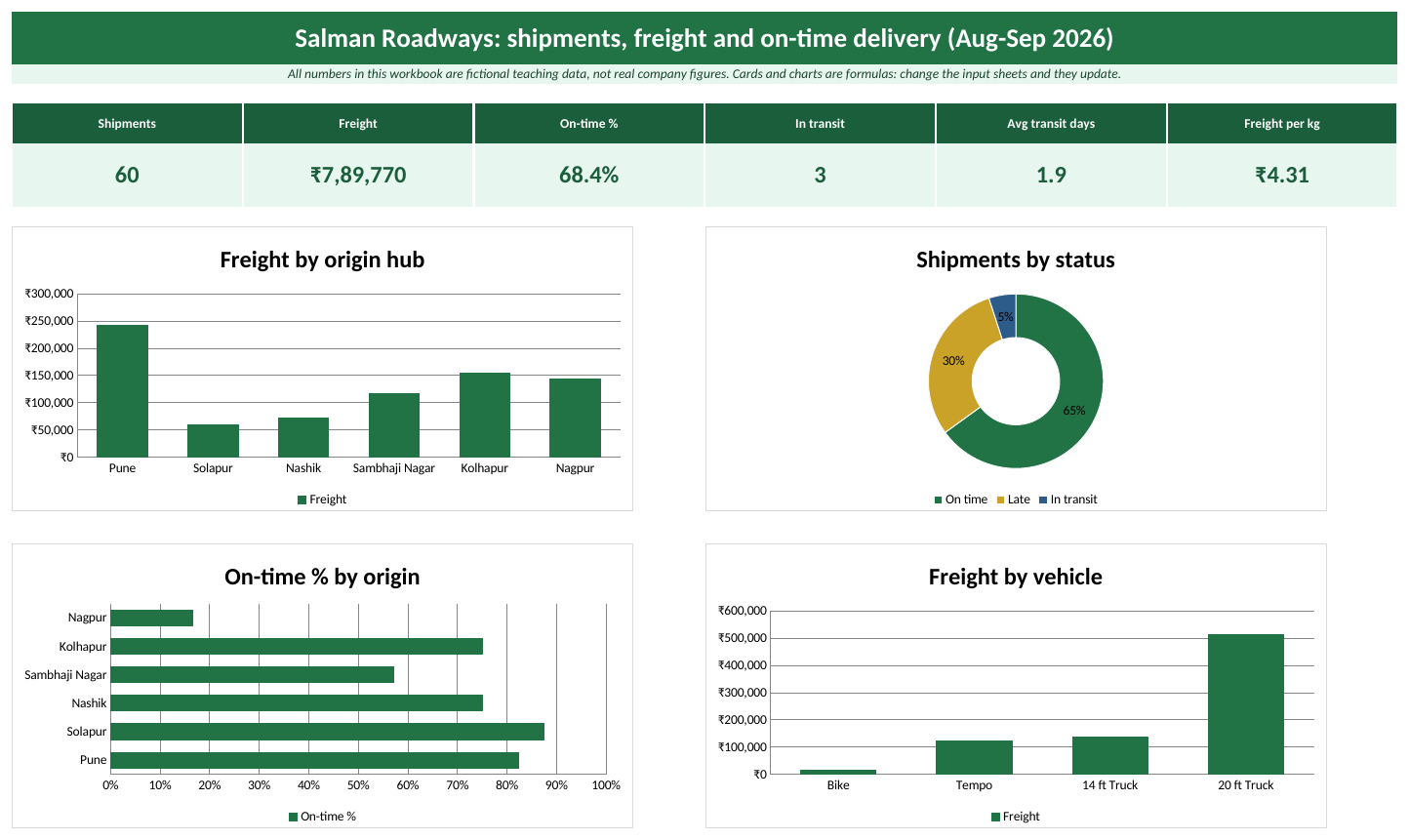
The Dashboard sheet with the sample data (Salman Roadways is a fictional business).
What is inside: the sheets
- Shipments. Input table Shipments. Freight, Status, Transit Days and Cost per Kg are formulas.
- Calculations. Origin hub, vehicle, status and destination summaries.
- Lists. Cities and vehicle types.
How to fill it
- Open Shipments. When you book a load, type Shipment ID, Booking Date, Weight, Distance, Rate per Km and Promised Date.
- Pick Origin, Destination and Vehicle from the drop-downs.
- Leave Delivered Date empty. Status shows In transit (yellow).
- When the proof of delivery comes, type the Delivered Date. Status changes to On time or Late (red).
- Open Dashboard to see on-time % by hub.
Check: what the sample data shows
| KPI card | Value with sample data |
|---|---|
| Shipments | 60 |
| Freight | ₹7,89,770 |
| On-time % | 68.4% |
| In transit | 3 |
| Avg transit days | 1.9 |
| Freight per kg | ₹4.31 |
Key formulas (type them exactly like this)
Formula columns in the tables
| Where | Formula | What it does |
|---|---|---|
| Shipments sheet, column Freight | =[@[Distance Km]]*[@[Rate per Km]] | Works out Distance Km × Rate per Km. |
| Shipments sheet, column Status | =IF([@[Delivered Date]]="","In transit",IF([@[Delivered Date]]<=[@[Promised Date]],"On time","Late")) | Blank delivered date means In transit. Otherwise compare delivered date with promised date. |
| Shipments sheet, column Transit Days | =IF([@[Delivered Date]]="","",[@[Delivered Date]]-[@[Booking Date]]) | Days from booking to delivery. Empty text while in transit, so averages ignore it. |
| Shipments sheet, column Cost per Kg | =IFERROR([@Freight]/[@[Weight Kg]],0) | Divides Freight by Weight Kg. IFERROR shows 0 instead of an error (for example when there are no rows yet). |
How to customise it
- To add a vehicle type, add it to the Vehicle list on Lists and add the same name as a new row in the Vehicle summary block on Calculations.
Please note
Distances are rough sample figures for teaching.
Ravindra Bagale's Tip
Keep Delivered Date empty until the truck actually reaches. The Status formula then shows In Transit by itself, and you never have to remember to change the status by hand.
Ravindra Bagale's Tip – मराठी
Truck खरंच पोचेपर्यंत Delivered Date रिकामी ठेवा. मग Status formula स्वतःच In Transit दाखवतो, status हाताने बदलायची आठवण ठेवायची गरज नाही.
Ravindra Bagale's Tip – हिंदी
Truck सच में पहुंचने तक Delivered Date खाली रखिए। तब Status formula खुद In Transit दिखाएगा, status हाथ से बदलना याद नहीं रखना पड़ेगा।
Learn it properly
Course chapters:
- Chapter 3: Formulas and Functions
- Chapter 6: Tables, Sorting and Filtering
- Chapter 13: Excel Dashboards
- Chapter 22: KPI in All Industries
Related guides: Logistics dashboard · XLOOKUP · SUMIF and SUMIFS · COUNTIF and COUNTIFS
Manufacturing (Production Log, OEE and Downtime)
Raja runs Raja Engineering Works (fictional), with machines in Pune, Nashik and four other cities. Each shift supervisor writes planned minutes, downtime and units made. Raja wants one number per machine that shows how well it is really running: OEE. This template turns the shift log into OEE, rejection % and downtime charts.
Log production for every machine and shift, capture downtime with a reason, and calculate Availability, Performance, Quality and OEE by machine and plant, plus rejection % and downtime by reason. All numbers in this workbook are fictional teaching data, not real company figures.
Download Manufacturing_Template.xlsx
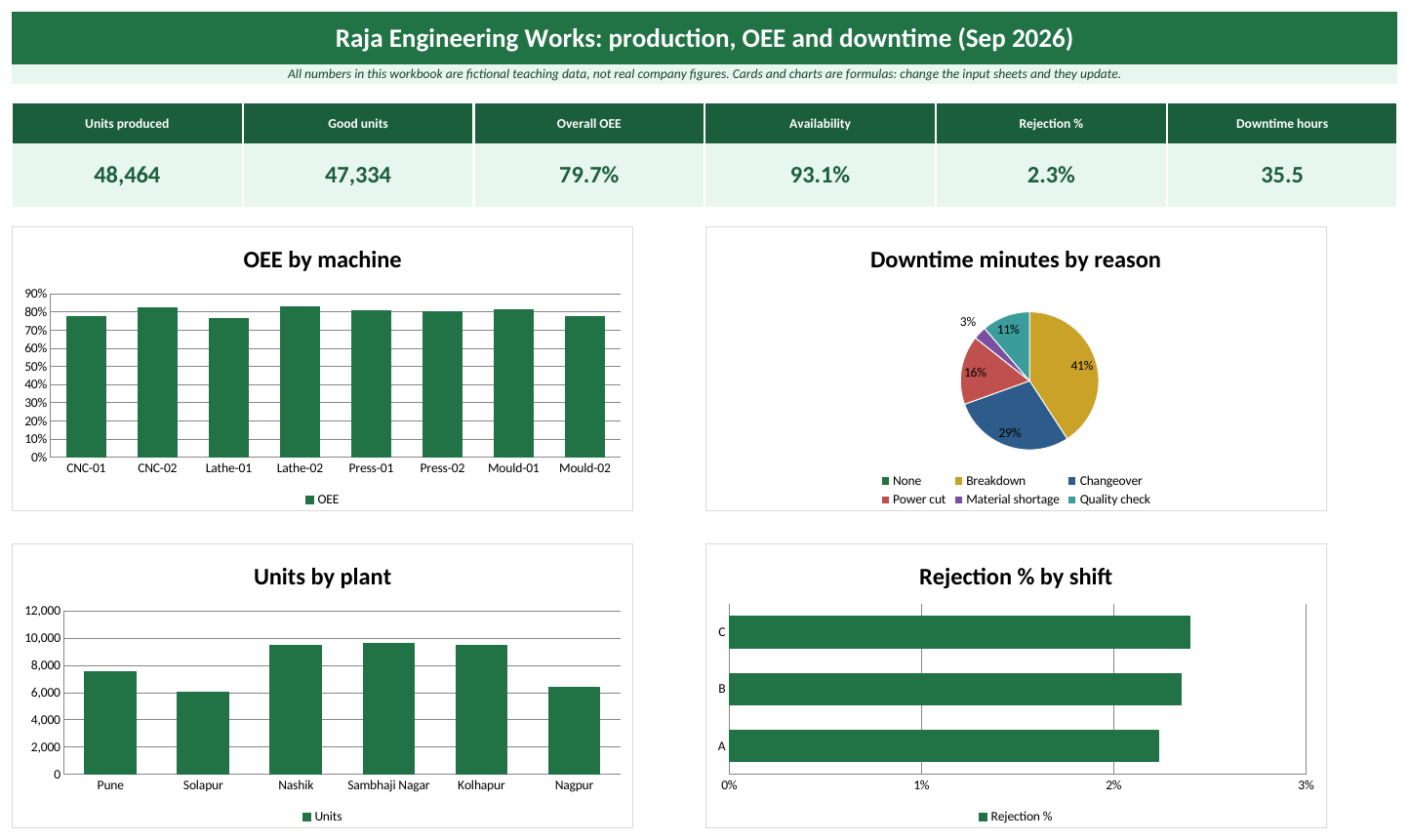
The Dashboard sheet with the sample data (Raja Engineering Works is a fictional business).
What is inside: the sheets
- Production Log. Input table Production. Run Mins, Ideal Units, Good Units, Availability, Performance, Quality and OEE are formulas.
- Calculations. OEE by machine and plant (from totals), downtime by reason, shift summary.
- Lists. Plants (cities), machines, shifts and downtime reasons.
How to fill it
- Open Production Log. After every shift add one row per machine.
- Type Date, Planned Mins (480 for an 8-hour shift) and Downtime Mins.
- Pick Plant, Machine, Shift and Downtime Reason (pick None when there was no stop).
- Type the ideal rate per minute, units produced and rejected units.
- OEE and its three parts fill by themselves. Red rows have OEE below 60%.
- Open Dashboard to compare machines.
Check: what the sample data shows
| KPI card | Value with sample data |
|---|---|
| Units produced | 48,464 |
| Good units | 47,334 |
| Overall OEE | 79.7% |
| Availability | 93.1% |
| Rejection % | 2.3% |
| Downtime hours | 35.5 |
Key formulas (type them exactly like this)
Formula columns in the tables
| Where | Formula | What it does |
|---|---|---|
| Production Log sheet, column Run Mins | =[@[Planned Mins]]-[@[Downtime Mins]] | Works out Planned Mins minus Downtime Mins. |
| Production Log sheet, column Ideal Units | =[@[Run Mins]]*[@[Ideal Rate per Min]] | What the machine could make at full speed in the run time. |
| Production Log sheet, column Good Units | =[@[Units Produced]]-[@[Rejected Units]] | Works out Units Produced minus Rejected Units. |
| Production Log sheet, column Availability | =IFERROR([@[Run Mins]]/[@[Planned Mins]],0) | Run time divided by planned time. |
| Production Log sheet, column Performance | =IFERROR([@[Units Produced]]/[@[Ideal Units]],0) | Actual units divided by ideal units. |
| Production Log sheet, column Quality | =IFERROR([@[Good Units]]/[@[Units Produced]],0) | Good units divided by units produced. |
| Production Log sheet, column OEE | =[@Availability]*[@Performance]*[@Quality] | OEE = Availability x Performance x Quality. World-class plants aim high; track your own trend. |
How to customise it
- To add a downtime reason, add it to the Downtime Reason list on Lists, then add the same name as a new row in the Downtime by reason block on Calculations.
Ravindra Bagale's Tip
OEE is Availability × Performance × Quality. If OEE drops, look at the three parts separately on the Calculations sheet. Usually one part (often downtime) explains most of the drop.
Ravindra Bagale's Tip – मराठी
OEE म्हणजे Availability × Performance × Quality. OEE कमी झाला तर Calculations sheet वर तिन्ही भाग वेगवेगळे बघा. बहुतेक वेळा एकच भाग (बऱ्याचदा downtime) मुख्य कारण असतो.
Ravindra Bagale's Tip – हिंदी
OEE यानी Availability × Performance × Quality। OEE गिरे तो Calculations sheet पर तीनों हिस्से अलग-अलग देखिए। अक्सर एक ही हिस्सा (ज़्यादातर downtime) असली वजह होता है।
Learn it properly
Course chapters:
- Chapter 3: Formulas and Functions
- Chapter 8: Charts
- Chapter 13: Excel Dashboards
- Chapter 22: KPI in All Industries
Related guides: XLOOKUP · SUMIF and SUMIFS · COUNTIF and COUNTIFS
Marketing and Digital Ads (Campaign Tracker with CPL and ROAS)
Ruhi Digital Academy (fictional) runs Google, Meta and YouTube ads to get course admissions in six cities. Ruhi wants to know which channel brings leads cheapest and which one actually brings admissions. This template turns daily ad numbers into CPL, conversion % and ROAS.
Paste daily numbers from each ad platform and get CTR, CPC, cost per lead, admissions, ROAS and budget used by channel, campaign and city. All numbers in this workbook are fictional teaching data, not real company figures.
Download Marketing_Digital_Ads_Template.xlsx
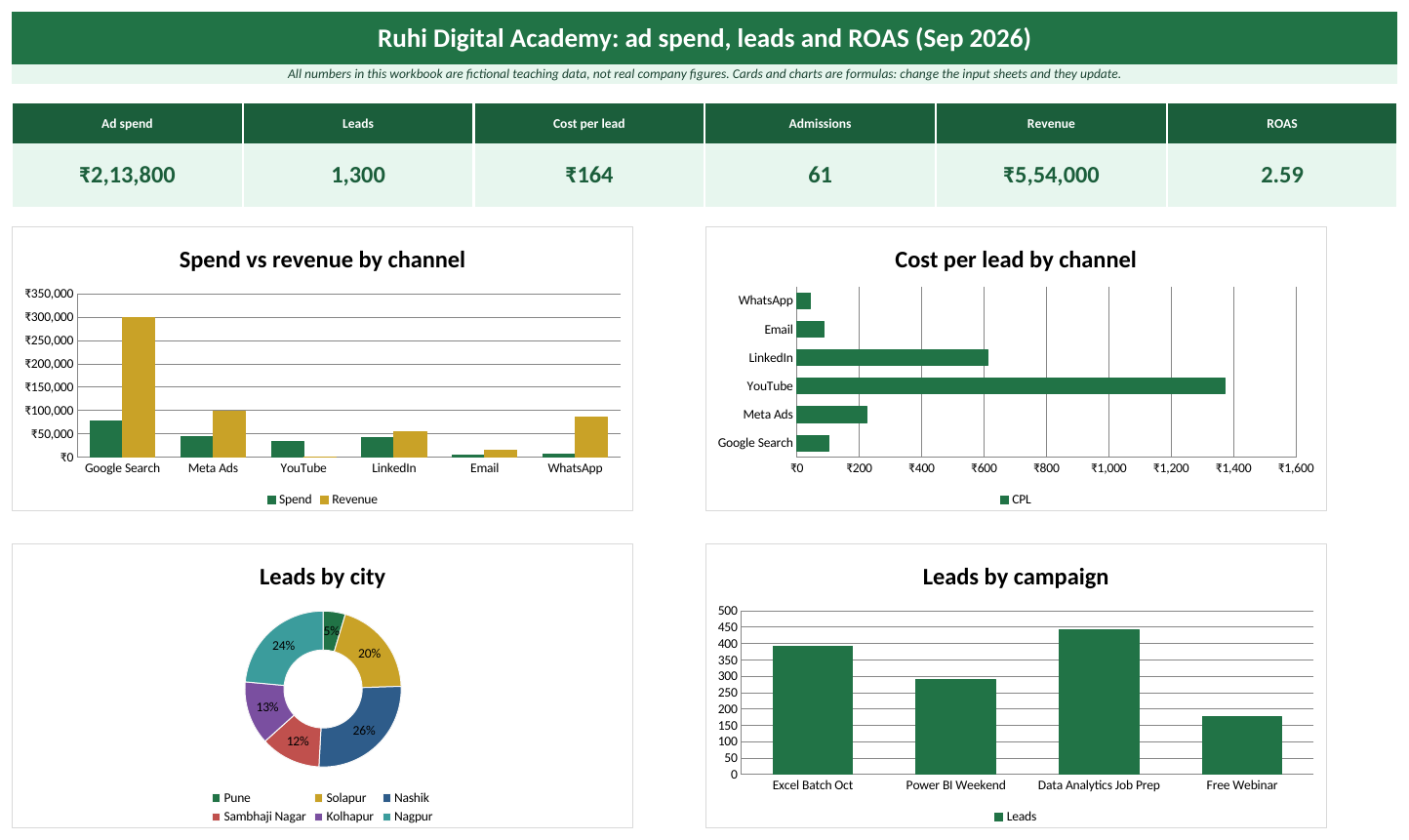
The Dashboard sheet with the sample data (Ruhi Digital Academy is a fictional business).
What is inside: the sheets
- Ad Data. Input table Ads: one row per day per campaign and channel. CTR, CPC, CPL and ROAS are formulas.
- Budget. Input table Budget: monthly budget per channel.
- Calculations. Channel performance with budget used, campaign and city performance.
- Lists. Cities, channels and campaigns.
How to fill it
- Open Budget and type the monthly budget for each channel.
- Each day export yesterday's numbers from each ad platform.
- Open Ad Data. Add a row: Date, Spend, Impressions, Clicks, Leads, Admissions and Revenue.
- Pick Campaign, Channel and City from the drop-downs.
- CTR, CPC, CPL and ROAS fill by themselves.
- Open Dashboard to compare channels by cost per lead and ROAS.
Check: what the sample data shows
| KPI card | Value with sample data |
|---|---|
| Ad spend | ₹2,13,800 |
| Leads | 1,300 |
| Cost per lead | ₹164 |
| Admissions | 61 |
| Revenue | ₹5,54,000 |
| ROAS | 2.59 |
Key formulas (type them exactly like this)
Formula columns in the tables
| Where | Formula | What it does |
|---|---|---|
| Ad Data sheet, column CTR | =IFERROR([@Clicks]/[@Impressions],0) | Click-through rate = clicks / impressions. |
| Ad Data sheet, column CPC | =IFERROR([@Spend]/[@Clicks],0) | Divides Spend by Clicks. IFERROR shows 0 instead of an error (for example when there are no rows yet). |
| Ad Data sheet, column CPL | =IFERROR([@Spend]/[@Leads],0) | Cost per lead = spend / leads. IFERROR shows 0 when there are no leads. |
| Ad Data sheet, column ROAS | =IFERROR([@Revenue]/[@Spend],0) | Return on ad spend = revenue / spend. 3.00 means ₹3 back for every ₹1. |
How to customise it
- To track a new channel, add it to the Channel list on Lists, add a Budget row for it, and add the same name as a new row in the Channel performance block on Calculations.
Please note
Channel names are examples. All numbers are fictional.
Ravindra Bagale's Tip
Do not judge a channel only by cost per lead. A cheap lead that never joins is costly. Look at cost per admission and ROAS side by side before moving budget.
Ravindra Bagale's Tip – मराठी
फक्त cost per lead बघून channel ठरवू नका. स्वस्त lead जर admission घेतच नसेल तर तो महागच. Budget हलवण्याआधी cost per admission आणि ROAS शेजारी ठेवून बघा.
Ravindra Bagale's Tip – हिंदी
सिर्फ़ cost per lead देखकर channel मत चुनिए। सस्ता lead अगर admission नहीं लेता तो वो महंगा ही है। Budget बदलने से पहले cost per admission और ROAS साथ में देखिए।
Pharma (Batch Stock and Expiry Tracker)
Shraddha Pharma Distributors (fictional) stocks medicines in six depots. Every month some batches expire and the money is lost. Shraddha wants an early warning: which batches expire in the next 90 days and how much stock value is at risk? The template flags them by itself.
Track stock batch by batch with manufacturing and expiry dates, value it at PTR, and flag near-expiry (90 days) and expired batches so you can sell first-expiry-first-out (FEFO) or return them in time. All numbers in this workbook are fictional teaching data, not real company figures.
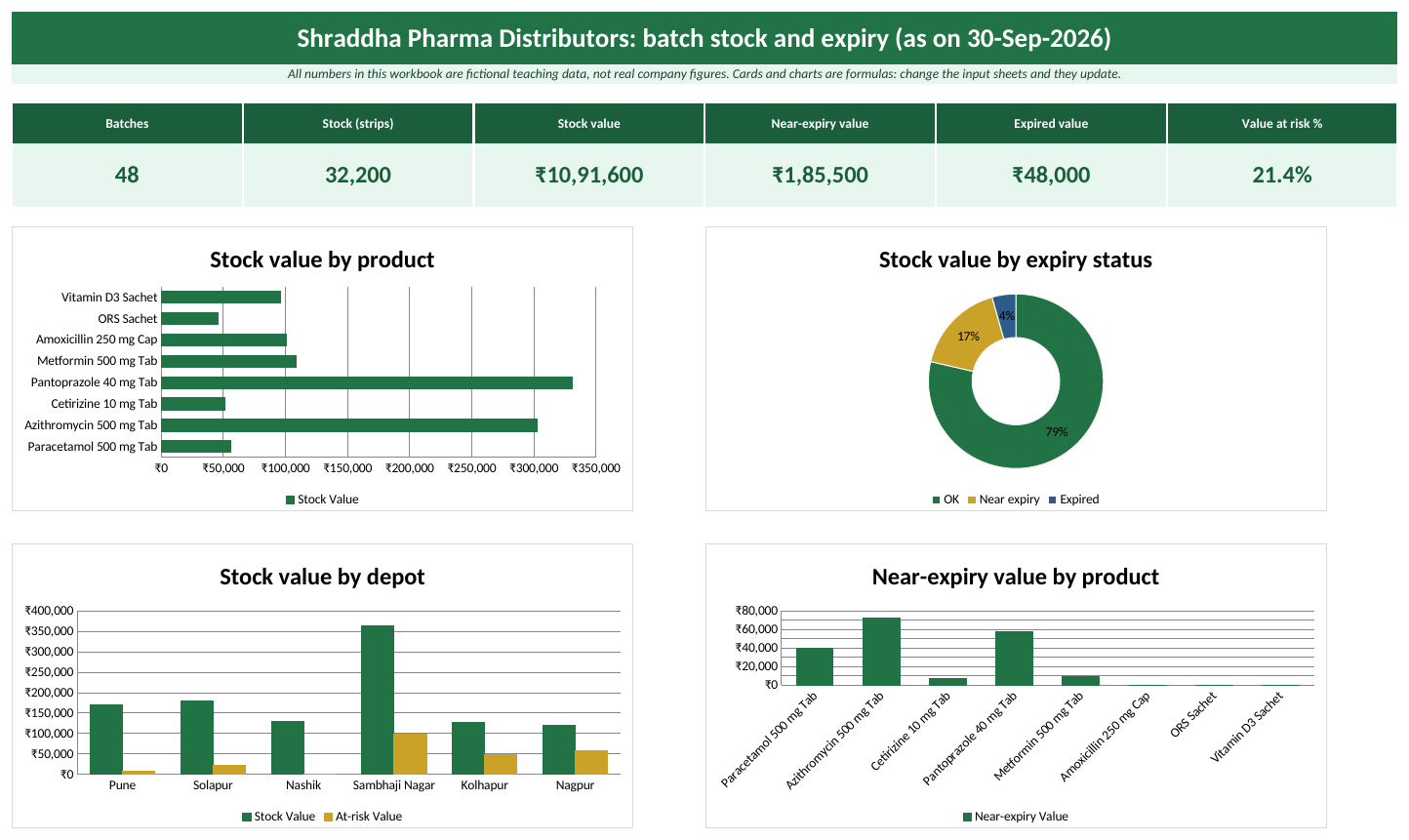
The Dashboard sheet with the sample data (Shraddha Pharma Distributors is a fictional business).
What is inside: the sheets
- Batches. Input table Batches. PTR, Stock Value, Days to Expiry and Expiry Status are formulas.
- Products. Input table Products: product name, category and PTR.
- Calculations. Product stock and expiry risk, depot summary and expiry status.
- Lists. Depot cities, report date and near-expiry window.
How to fill it
- Open Products and type each product once with its PTR (price to retailer).
- Open Batches. For each batch received type Batch No, Mfg Date, Expiry Date and Qty.
- Pick Product and Depot from the drop-downs.
- When stock is sold, reduce Qty of the oldest-expiry batch first (FEFO).
- Red rows are expired, yellow rows expire within 90 days.
- Open Dashboard to see value at risk.
Check: what the sample data shows
| KPI card | Value with sample data |
|---|---|
| Batches | 48 |
| Stock (strips) | 32,200 |
| Stock value | ₹10,91,600 |
| Near-expiry value | ₹1,85,500 |
| Expired value | ₹48,000 |
| Value at risk % | 21.4% |
Key formulas (type them exactly like this)
Formula columns in the tables
| Where | Formula | What it does |
|---|---|---|
| Batches sheet, column PTR | =XLOOKUP([@Product],Products[Product],Products[PTR],0) | Finds Product in Product and returns the matching PTR (or 0 if it is not found). |
| Batches sheet, column Stock Value | =[@[Qty (strips)]]*[@PTR] | Works out Qty (strips) × PTR. |
| Batches sheet, column Days to Expiry | =[@[Expiry Date]]-ReportDate | Expiry date minus the report date. Negative means already expired. |
| Batches sheet, column Expiry Status | =IF([@[Days to Expiry]]<0,"Expired",IF([@[Days to Expiry]]<=NearExpiryDays,"Near expiry","OK")) | Expired, Near expiry (within 90 days, named cell NearExpiryDays) or OK. |
How to customise it
- To change the warning period, edit NearExpiryDays on Lists (for example 60 instead of 90).
- Change a setting. On the Lists sheet, change the yellow setting cells (
ReportDate,NearExpiryDays). Every formula that uses the name updates.
Please note
Product names are generic examples with fictional prices.
Ravindra Bagale's Tip
Sort the Batches table by Expiry Date (Data > Sort) before you dispatch stock. First Expiry, First Out (FEFO) saves more money than any formula.
Ravindra Bagale's Tip – मराठी
Stock dispatch करण्याआधी Batches table Expiry Date ने sort करा (Data > Sort). First Expiry, First Out (FEFO) कुठल्याही formula पेक्षा जास्त पैसे वाचवतो.
Ravindra Bagale's Tip – हिंदी
Stock dispatch करने से पहले Batches table को Expiry Date से sort कीजिए (Data > Sort)। First Expiry, First Out (FEFO) किसी भी formula से ज़्यादा पैसा बचाता है।
Learn it properly
Course chapters:
- Chapter 3: Formulas and Functions
- Chapter 5: Data Cleaning A to Z
- Chapter 13: Excel Dashboards
- Chapter 22: KPI in All Industries
Related guides: Pharma dashboard · XLOOKUP · SUMIF and SUMIFS · COUNTIF and COUNTIFS
Real Estate (Bookings, Collections and Payment Schedule)
Shahrukh Developers (fictional) is selling flats in projects across Pune, Nashik and four other cities. Buyers pay in stages: booking, agreement, slab work and possession. Shahrukh wants to know how much has been collected and how much is still due, and he wants a payment schedule for any buyer. This template does both.
Track unit bookings across projects with agreement value, amount received, balance due and collection %, see monthly booking value and lead sources, and print a milestone-wise payment schedule for any booking. All numbers in this workbook are fictional teaching data, not real company figures.
Download Real_Estate_Template.xlsx
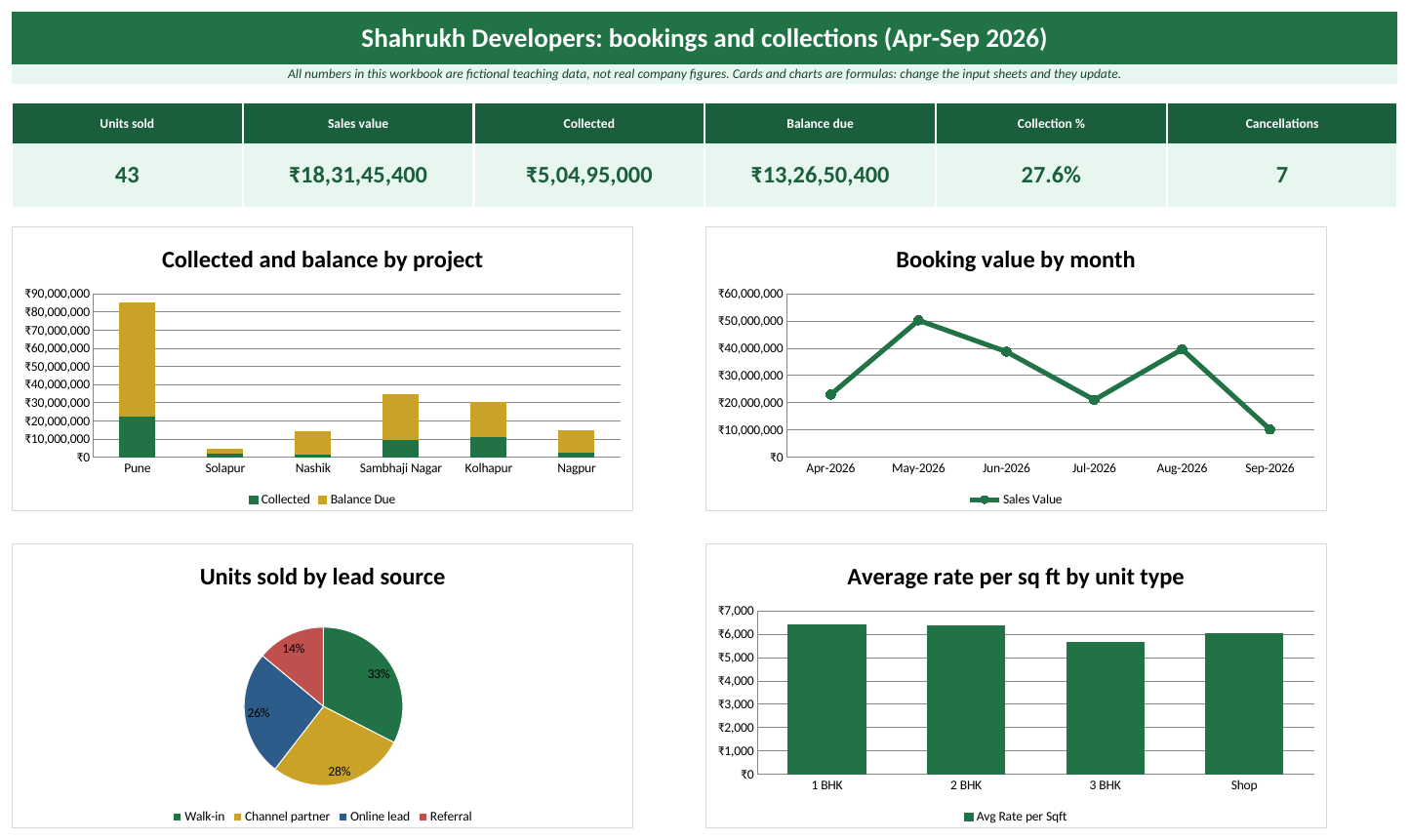
The Dashboard sheet with the sample data (Shahrukh Developers is a fictional business).
What is inside: the sheets
- Bookings. Input table Bookings. Agreement Value, Balance Due and Collection % are formulas.
- Payment Plan. Input table Plan: milestone percentages (illustrative, total 100%).
- Calculations. Project, monthly, unit type and lead source summaries.
- Payment Schedule. Pick a Booking ID in C4 to see milestone amounts.
- Lists. Projects (cities), unit types, status and lead sources.
How to fill it
- Open Payment Plan and type your milestone percentages (they should add up to 100%).
- Open Bookings. For each unit type Booking ID, Booking Date, Carpet Sqft and Rate per Sqft.
- Pick Project City, Unit Type, Source and Status from the drop-downs.
- When money comes in, update Amount Received. Balance and collection % update.
- If a buyer cancels, set Status to Cancelled (agreement value becomes 0).
- Open Payment Schedule, pick the Booking ID and print it for the buyer.
Check: what the sample data shows
| KPI card | Value with sample data |
|---|---|
| Units sold | 43 |
| Sales value | ₹18,31,45,400 |
| Collected | ₹5,04,95,000 |
| Balance due | ₹13,26,50,400 |
| Collection % | 27.6% |
| Cancellations | 7 |
Key formulas (type them exactly like this)
Formula columns in the tables
| Where | Formula | What it does |
|---|---|---|
| Bookings sheet, column Agreement Value | =IF([@Status]="Cancelled",0,[@[Carpet Sqft]]*[@[Rate per Sqft]]) | Carpet area x rate per sq ft. A cancelled booking counts as zero. |
| Bookings sheet, column Balance Due | =MAX(0,[@[Agreement Value]]-[@[Amount Received]]) | Works out Agreement Value minus Amount Received. MAX(0, ...) stops the answer from going below 0. |
| Bookings sheet, column Collection % | =IFERROR([@[Amount Received]]/[@[Agreement Value]],0) | Divides Amount Received by Agreement Value. IFERROR shows 0 instead of an error (for example when there are no rows yet). |
How to use the Payment Schedule sheet
- Click the Payment Schedule sheet tab.
- Click cell C4 (Booking ID) and pick a value from the drop-down, for example RE-501.
| Cell | Formula | What it does |
|---|---|---|
| Project City (C7) | =XLOOKUP($C$4,Bookings[Booking ID],Bookings[Project City],"") | Finds the key you picked in C4 in Booking ID and returns the matching Project City (or "" if it is not found). |
| Agreement value (C11) | =XLOOKUP($C$4,Bookings[Booking ID],Bookings[Agreement Value],0) | Finds the key you picked in C4 in Booking ID and returns the matching Agreement Value (or 0 if it is not found). |
| Booking (C13) | =ROUND(C11*XLOOKUP("Booking",Plan[Milestone],Plan[Percent],0),0) | Works out Agreement value × the Percent found for "Booking". |
| Plinth (C15) | =ROUND(C11*XLOOKUP("Plinth",Plan[Milestone],Plan[Percent],0),0) | Agreement value x the milestone percent looked up from the Plan table. |
| Total of milestones (C21) | =SUM(C13:C20) | Adds up the whole column C. |
How to customise it
- To add a unit type (for example 4 BHK), add it to the Unit Type list on Lists, then add the same name as a new row in the Unit type block on Calculations.
Please note
Payment plan percentages are illustrative, not legal advice. Stamp duty and GST are not included.
Ravindra Bagale's Tip
Keep the payment plan percentages in one table (Payment Plan). If the plan changes for a new project, edit that table and every schedule follows it.
Ravindra Bagale's Tip – मराठी
Payment plan चे percentages एकाच table मध्ये ठेवा (Payment Plan). नवीन project साठी plan बदलला तर तो table बदला, सगळे schedules आपोआप बदलतात.
Ravindra Bagale's Tip – हिंदी
Payment plan के percentages एक ही table में रखिए (Payment Plan)। नए project के लिए plan बदले तो वो table बदलिए, सारे schedules अपने-आप बदल जाएंगे।
Learn it properly
Course chapters:
- Chapter 3: Formulas and Functions
- Chapter 4: Lookup Functions
- Chapter 13: Excel Dashboards
- Chapter 22: KPI in All Industries
Related guides: Real estate dashboard · XLOOKUP · SUMIF and SUMIFS · COUNTIF and COUNTIFS
Restaurant (Daily Sales, Food Cost and Menu Engineering)
Raja Misal House (fictional) has outlets in Pune, Kolhapur and four other cities. Raja wants to know which dishes make the most money, not just which sell the most. This template tracks daily sales and food cost, and sorts every menu item into Star, Plowhorse, Puzzle or Dog.
Record sales item by item, get revenue, food cost % and gross margin by outlet and order type, and classify every menu item as Star, Plowhorse, Puzzle or Dog to decide what to promote, re-price or remove. All numbers in this workbook are fictional teaching data, not real company figures.
Download Restaurants_Template.xlsx
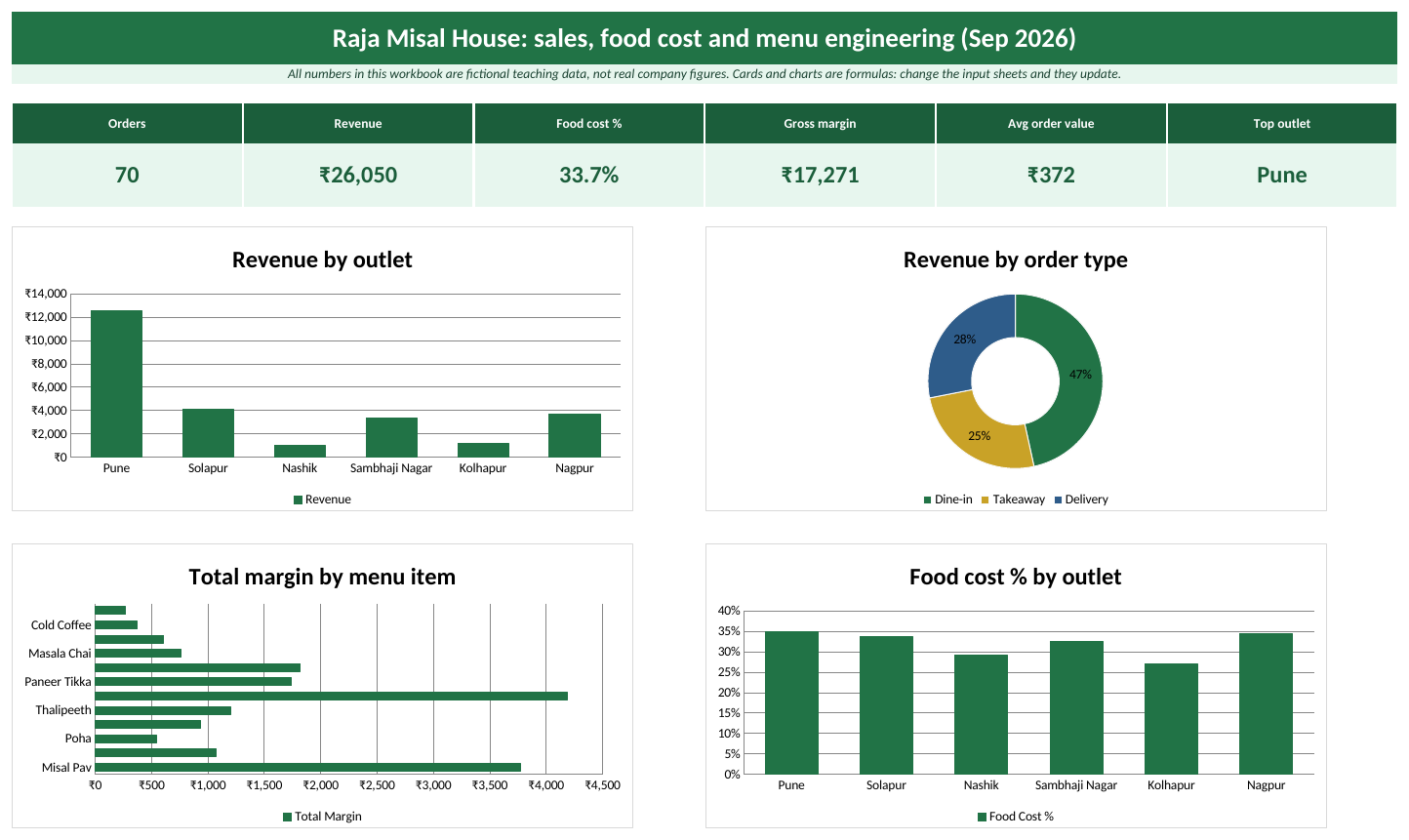
The Dashboard sheet with the sample data (Raja Misal House is a fictional business).
What is inside: the sheets
- Sales. Input table Sales. Unit Price, Unit Cost, Revenue, Food Cost and Gross Margin are formulas.
- Menu. Input table Menu: price and food cost per plate. Margin per Plate and Food Cost % are formulas.
- Calculations. Outlet summary, menu engineering matrix and order type.
- Lists. Outlets, order types and menu categories.
How to fill it
- Open Menu. Type every dish with its selling price and food cost per plate (from your recipe costing).
- Open Sales. At day end add one row per dish on each bill: Bill No, Date and Qty.
- Pick Outlet, Order Type and Item from the drop-downs.
- Price, cost, revenue and margin fill by themselves.
- Open Calculations to see which dishes are Stars and which are Dogs.
- Open Dashboard to compare outlets.
Check: what the sample data shows
| KPI card | Value with sample data |
|---|---|
| Orders | 70 |
| Revenue | ₹26,050 |
| Food cost % | 33.7% |
| Gross margin | ₹17,271 |
| Avg order value | ₹372 |
| Top outlet | Pune |
Key formulas (type them exactly like this)
Formula columns in the tables
| Where | Formula | What it does |
|---|---|---|
| Menu sheet, column Margin per Plate | =[@Price]-[@[Food Cost]] | Works out Price minus Food Cost. |
| Menu sheet, column Food Cost % | =IFERROR([@[Food Cost]]/[@Price],0) | Food cost as a % of selling price. |
| Sales sheet, column Unit Price | =XLOOKUP([@Item],Menu[Item],Menu[Price],0) | Finds Item in Item and returns the matching Price (or 0 if it is not found). |
| Sales sheet, column Unit Cost | =XLOOKUP([@Item],Menu[Item],Menu[Food Cost],0) | Finds Item in Item and returns the matching Food Cost (or 0 if it is not found). |
| Sales sheet, column Revenue | =[@Qty]*[@[Unit Price]] | Works out Qty × Unit Price. |
| Sales sheet, column Food Cost | =[@Qty]*[@[Unit Cost]] | Works out Qty × Unit Cost. |
| Sales sheet, column Gross Margin | =[@Revenue]-[@[Food Cost]] | Works out Revenue minus Food Cost. |
How to customise it
- To add a dish, add a row to the Menu table with its price and food cost. It appears in the Sales drop-down immediately.
Ravindra Bagale's Tip
Update the Food Cost on the Menu sheet when vegetable or oil prices change. A dish that was a Star at old costs can quietly become a Plowhorse.
Ravindra Bagale's Tip – मराठी
भाजी किंवा तेलाचे भाव बदलले की Menu sheet वरचा Food Cost update करा. जुन्या cost वर Star असलेली dish गुपचूप Plowhorse होऊ शकते.
Ravindra Bagale's Tip – हिंदी
सब्ज़ी या तेल के दाम बदलें तो Menu sheet पर Food Cost update कीजिए। पुरानी cost पर Star रही dish चुपचाप Plowhorse बन सकती है।
Learn it properly
Course chapters:
- Chapter 3: Formulas and Functions
- Chapter 4: Lookup Functions
- Chapter 13: Excel Dashboards
- Chapter 22: KPI in All Industries
Related guides: Restaurants dashboard · XLOOKUP · SUMIF and SUMIFS · COUNTIF and COUNTIFS
Retail Quick Commerce
Zoya runs Zoya Quick Mart, a fictional 10-minute grocery delivery business with dark stores in Pune, Nashik and four more cities. Every evening she asks the same three questions: how much did we sell, how many orders reached on time, and which city is behind target? This template answers all three the moment she types the day's orders.
Track every quick-commerce order from your dark stores: order value, discount, delivery minutes and cancellations. The template calculates net sales, on-time %, cancel % and target achievement for each city, and the Dashboard shows them as cards and charts. All numbers in this workbook are fictional teaching data, not real company figures.
Download Retail_Quick_Commerce_Template.xlsx
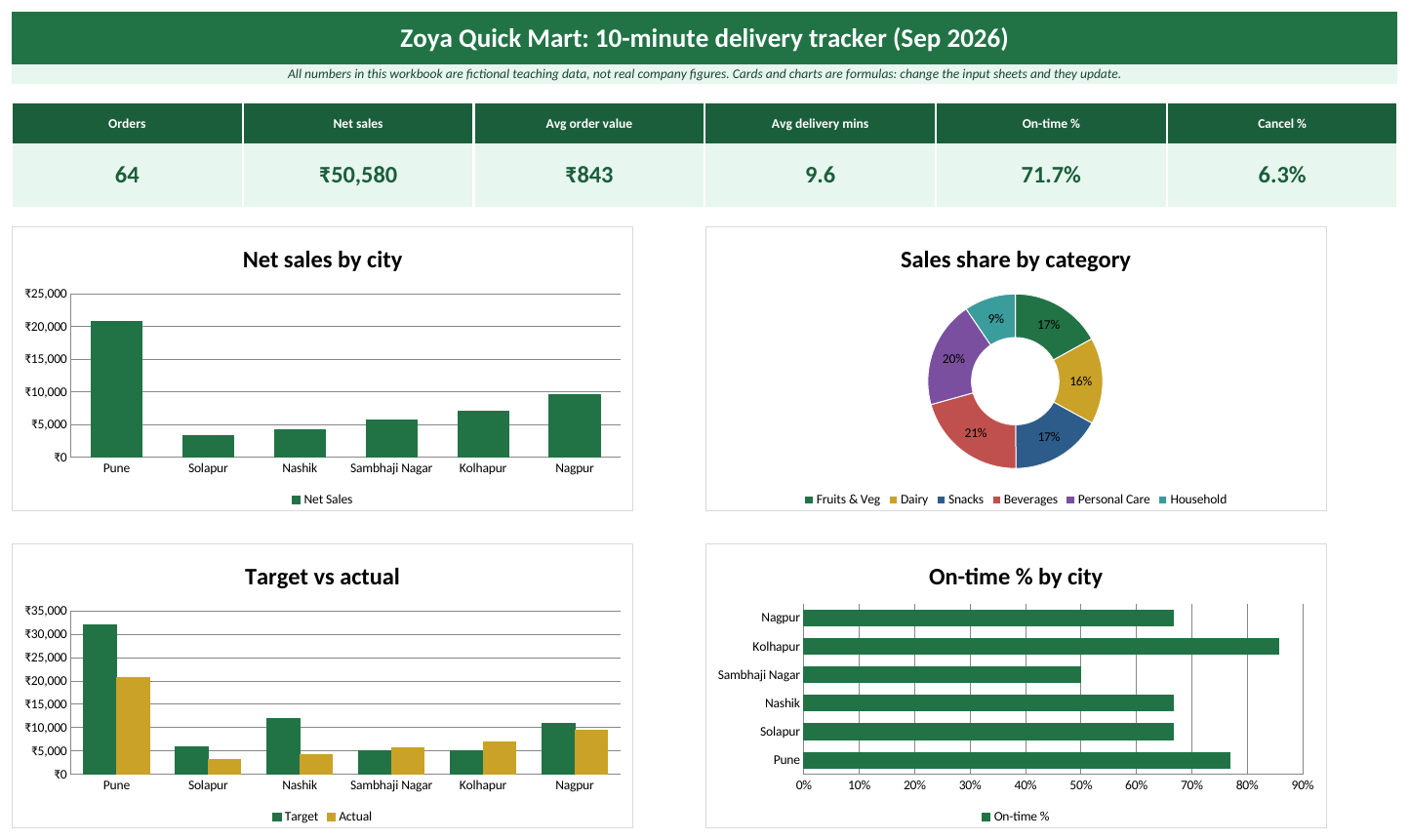
The Dashboard sheet with the sample data (Zoya Quick Mart is a fictional business).
What is inside: the sheets
- Dashboard. Six KPI cards and four charts. Everything is a formula.
- Orders. Input table Orders. One row per order. Net Value and On Time are formulas.
- Targets. Input table Targets. Monthly net sales target per city.
- Calculations. City summary, target vs actual, category mix and slot summary (SUMIFS, COUNTIFS, AVERAGEIFS).
- Lists. Drop-down lists (City, Category, Slot, Status) and the on-time target setting (10 minutes).
How to fill it
- Open the Orders sheet. Click the first empty cell under the table in column A.
- Type the Order ID and the Date.
- Pick City, Category, Slot and Status from the drop-downs.
- Type Dark Store, Items, Order Value, Discount and Delivery Mins.
- Press Enter. Net Value and On Time fill by themselves.
- Open Targets and type the monthly target for each city.
- Open Dashboard to see the cards and charts update.
Check: what the sample data shows
| KPI card | Value with sample data |
|---|---|
| Orders | 64 |
| Net sales | ₹50,580 |
| Avg order value | ₹843 |
| Avg delivery mins | 9.6 |
| On-time % | 71.7% |
| Cancel % | 6.2% |
Key formulas (type them exactly like this)
Formula columns in the tables
| Where | Formula | What it does |
|---|---|---|
| Orders sheet, column Net Value | =IF([@Status]="Delivered",[@[Order Value]]-[@Discount],0) | If Status is "Delivered", the result is Order Value minus Discount; otherwise it is 0. |
| Orders sheet, column On Time | =IF(AND([@Status]="Delivered",[@[Delivery Mins]]<=TargetMins),"Yes","No") | If Status is "Delivered" and Delivery Mins is at most the TargetMins setting, the result is "Yes"; otherwise it is "No". |
How to customise it
- To track a new category, add it to the Category column on Lists. It appears in the drop-down and you can add a row for it in the Category mix block.
- Change a setting. On the Lists sheet, change the yellow setting cells (
TargetMins). Every formula that uses the name updates.
Ravindra Bagale's Tip
Keep the on-time target (10 minutes) on the Lists sheet, not inside the formula. When the business changes the promise to 15 minutes, you change one cell and every On Time flag, card and chart updates.
Ravindra Bagale's Tip – मराठी
On-time target (10 minutes) formula मध्ये टाकू नका, Lists sheet वर ठेवा. उद्या promise 15 minutes झालं तर फक्त एक cell बदलायचा, बाकी सगळे On Time flag, cards आणि charts आपोआप बदलतात.
Ravindra Bagale's Tip – हिंदी
On-time target (10 minutes) को formula के अंदर मत लिखिए, Lists sheet पर रखिए। कल promise 15 minutes हो जाए तो सिर्फ़ एक cell बदलिए, सारे On Time flag, cards और charts अपने-आप बदल जाएंगे।
Learn it properly
Course chapters:
- Chapter 6: Tables, Sorting and Filtering
- Chapter 3: Formulas and Functions
- Chapter 13: Excel Dashboards
- Chapter 22: KPI in All Industries
Related guides: Retail quick commerce dashboard · XLOOKUP · SUMIF and SUMIFS · COUNTIF and COUNTIFS
Sales Pipeline and Target
Ravina manages a fictional sales team of six people across Pune, Solapur and four other cities. On Monday morning her manager asks: what is in the pipeline, how much is likely to close, and who is behind target? With this template she types each deal once and the weighted pipeline, win rate and commission calculate themselves.
Track every deal from lead to won or lost, forecast with stage probabilities, compare won value with each salesperson's quarterly target, and calculate commission automatically. All numbers in this workbook are fictional teaching data, not real company figures.
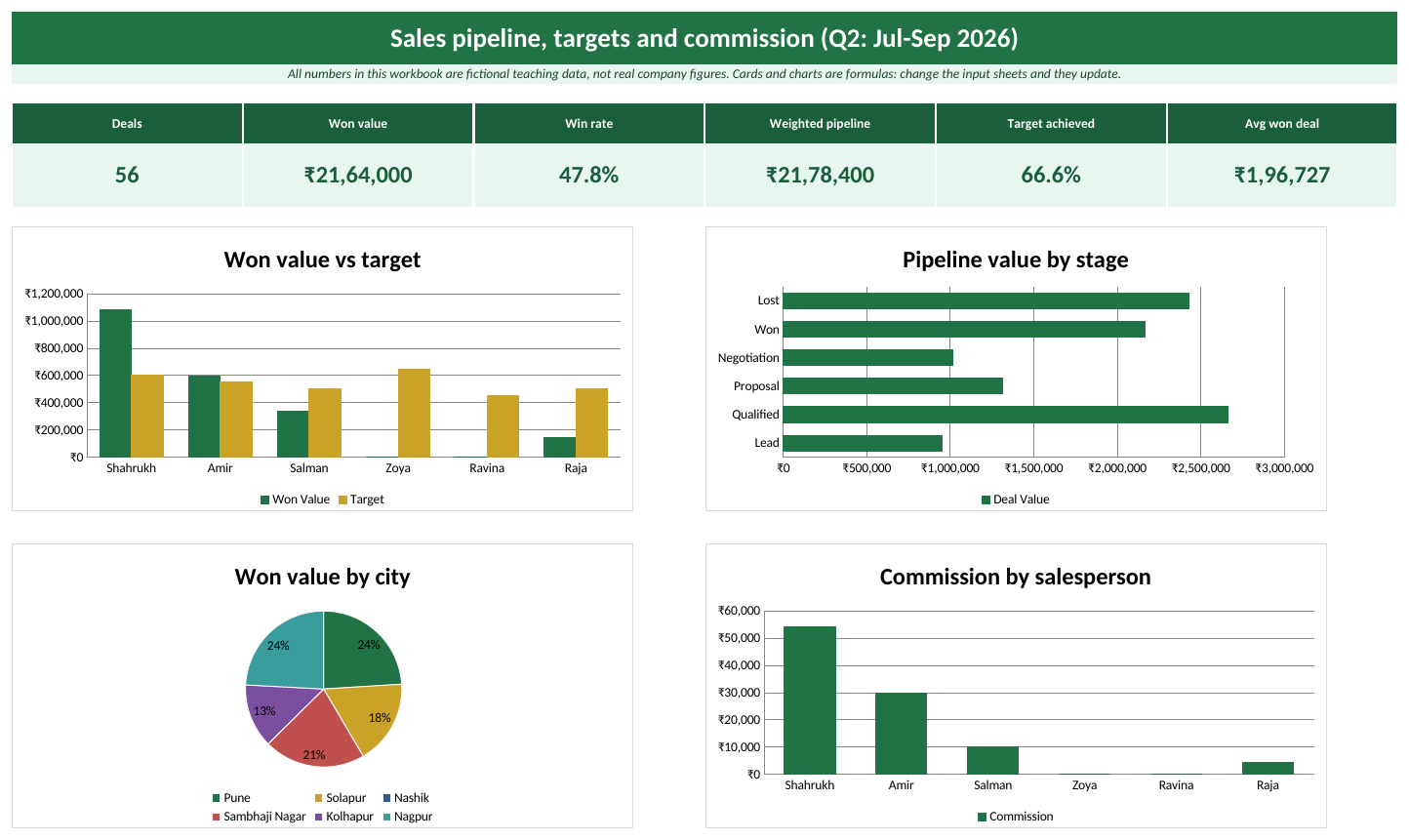
The Dashboard sheet with the sample data (Ravina Sales Team is a fictional business).
What is inside: the sheets
- Deals. Input table Deals. Probability, Weighted Value, Won Value and Open or Closed are formulas.
- Setup. Input table Stages with the win probability of each stage.
- Targets. Input table Targets: quarterly target per salesperson.
- Calculations. Salesperson scorecard with commission, stage funnel, city and product summaries.
- Lists. Drop-down lists and the two commission rates.
How to fill it
- Open Targets and type each salesperson's target for the quarter.
- Open Setup and check the probability for each stage.
- Open Deals. In the first empty row type the Deal ID and Created Date.
- Pick Salesperson, City, Product and Stage from the drop-downs, and type Deal Value.
- When a deal moves forward, change only its Stage. The probability, weighted value and won value update.
- Open Dashboard to see achievement, win rate and commission.
Check: what the sample data shows
| KPI card | Value with sample data |
|---|---|
| Deals | 56 |
| Won value | ₹21,64,000 |
| Win rate | 47.8% |
| Weighted pipeline | ₹21,78,400 |
| Target achieved | 66.6% |
| Avg won deal | ₹1,96,727 |
Key formulas (type them exactly like this)
Formula columns in the tables
| Where | Formula | What it does |
|---|---|---|
| Deals sheet, column Probability | =XLOOKUP([@Stage],Stages[Stage],Stages[Probability],0) | Finds the stage in the Stages table and returns its win probability (Lead 10% ... Won 100%). |
| Deals sheet, column Weighted Value | =[@[Deal Value]]*[@Probability] | Deal value times probability. The sum of open weighted values is a realistic forecast. |
| Deals sheet, column Won Value | =IF([@Stage]="Won",[@[Deal Value]],0) | If Stage is "Won", the result is Deal Value; otherwise it is 0. |
| Deals sheet, column Open or Closed | =IF(OR([@Stage]="Won",[@Stage]="Lost"),"Closed","Open") | If Stage is "Won" or Stage is "Lost", the result is "Closed"; otherwise it is "Open". |
How to customise it
- To change commission rules, edit CommHigh and CommLow on Lists. The Commission column and the salesperson block update at once.
- Change a setting. On the Lists sheet, change the yellow setting cells (
CommHigh,CommLow). Every formula that uses the name updates.
Ravindra Bagale's Tip
Weighted pipeline is more honest than total pipeline. A ₹5 lakh deal at 20% probability is worth ₹1 lakh in your forecast, not ₹5 lakh. Keep stage probabilities on the Setup sheet and review them every quarter.
Ravindra Bagale's Tip – मराठी
Total pipeline पेक्षा weighted pipeline जास्त खरं सांगतं. 20% probability वाला ₹5 लाखाचा deal forecast मध्ये ₹1 लाखच धरायचा. Stage probabilities Setup sheet वर ठेवा आणि दर quarter ला एकदा तपासा.
Ravindra Bagale's Tip – हिंदी
Total pipeline से weighted pipeline ज़्यादा सच बताता है। 20% probability वाली ₹5 लाख की deal forecast में ₹1 लाख ही गिनिए। Stage probabilities Setup sheet पर रखिए और हर quarter में एक बार जांचिए।
Telecom (Subscribers, ARPU, Churn and Complaints)
Amir runs the circle office of Amir Telecom (fictional), covering Pune, Nagpur and four other areas. Each month he reports subscribers, ARPU (average revenue per user), churn and how many complaints were closed within the service time. This template builds that monthly report.
Track the subscriber base month by month for every circle and plan, calculate closing subscribers, churn % and ARPU, and measure complaint volumes and SLA compliance. All numbers in this workbook are fictional teaching data, not real company figures.
Download Telecom_Template.xlsx
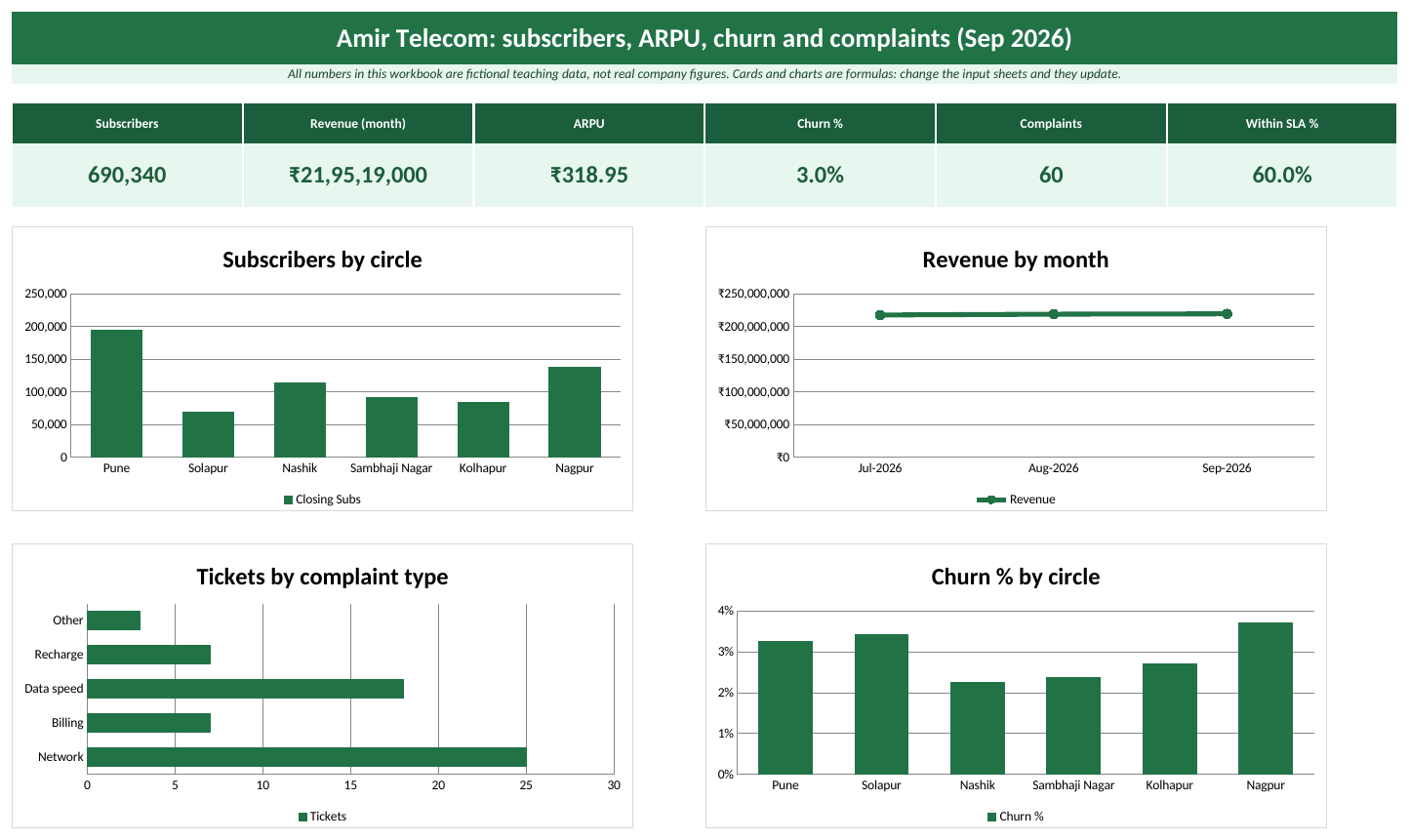
The Dashboard sheet with the sample data (Amir Telecom Circle Office is a fictional business).
What is inside: the sheets
- Dashboard. Six KPI cards and four charts for ReportMonth.
- Subscribers. Input table Subscribers. Closing Subs, Churn % and ARPU are formulas.
- Complaints. Input table Complaints. Within SLA is a formula.
- Calculations. Circle KPIs, monthly trend, complaint type and plan mix.
- Lists. Circles, plans, complaint types, ticket status, ReportMonth and SLA hours.
How to fill it
- Open Subscribers. Each month add one row per circle and plan: Month (first day), Opening Subs, New Adds, Churned and Revenue.
- Opening Subs of a new month = Closing Subs of the last month for the same circle and plan.
- Open Complaints and add one row per ticket. Leave Resolution Hours blank while open.
- On Lists, set ReportMonth to the month you want on the Dashboard.
- Open Dashboard.
Check: what the sample data shows
| KPI card | Value with sample data |
|---|---|
| Subscribers | 6,90,340 |
| Revenue (month) | ₹21,95,19,000 |
| ARPU | ₹318.95 |
| Churn % | 3.0% |
| Complaints | 60 |
| Within SLA % | 60.0% |
Key formulas (type them exactly like this)
Formula columns in the tables
| Where | Formula | What it does |
|---|---|---|
| Subscribers sheet, column Closing Subs | =[@[Opening Subs]]+[@[New Adds]]-[@Churned] | Works out (Opening Subs plus New Adds) minus Churned. |
| Subscribers sheet, column Churn % | =IFERROR([@Churned]/[@[Opening Subs]],0) | Churned subscribers divided by opening subscribers. |
| Subscribers sheet, column ARPU | =IFERROR([@Revenue]/(([@[Opening Subs]]+[@[Closing Subs]])/2),0) | Average revenue per user = revenue / average of opening and closing subscribers. |
| Complaints sheet, column Within SLA | =IF(AND([@Status]="Resolved",[@[Resolution Hours]]<=SLAHours),"Yes","No") | Yes only if the ticket is resolved within SLAHours (48). |
How to customise it
- To change the service time limit, edit SLAHours on Lists (for example 24 hours).
- Change a setting. On the Lists sheet, change the yellow setting cells (
ReportMonth,SLAHours). Every formula that uses the name updates.
Ravindra Bagale's Tip
Churn % should divide by the subscribers at the start of the month, not the end. Otherwise a month with many new joins makes churn look smaller than it is.
Ravindra Bagale's Tip – मराठी
Churn % काढताना महिन्याच्या सुरुवातीच्या subscribers ने भागा, शेवटच्या नाही. नाहीतर ज्या महिन्यात नवीन joins जास्त, त्या महिन्यात churn उगाच कमी दिसतो.
Ravindra Bagale's Tip – हिंदी
Churn % निकालते समय महीने की शुरुआत के subscribers से भाग दीजिए, आख़िर के नहीं। वरना जिस महीने नए joins ज़्यादा हों, उसमें churn बेवजह कम दिखेगा।
Learn it properly
Course chapters:
- Chapter 3: Formulas and Functions
- Chapter 8: Charts
- Chapter 13: Excel Dashboards
- Chapter 22: KPI in All Industries
Related guides: Telecom dashboard · XLOOKUP · SUMIF and SUMIFS · COUNTIF and COUNTIFS
Frequently asked questions
Is the data in this template real?
No. All numbers in this workbook are fictional teaching data, not real company figures. Ruhi Nagari Bank is a fictional business made for teaching.
Which Excel version do I need?
It was built for Microsoft 365 Excel on Windows. It uses classic functions (SUMIFS, COUNTIFS, IF), so it also works in Excel 2016 and 2019.
Are the rates in this template official?
Interest rates are illustrative. The days-past-due buckets use the common 1-30 / 31-60 / 61-90 / over 90 days cut-offs; follow your bank's own policy.
Why can I not type on the Calculations or Dashboard sheet?
Those sheets are protected without a password so formulas are not deleted by mistake. Click Review > Unprotect Sheet to edit them.
Can I add more rows?
Yes. Type directly under the last row of a table. The table grows by itself, the formula columns fill down, and the summaries include the new rows.
Is it free?
Yes. Download it, use it in class or at work, and change it as you like.