Cohort Retention Analysis in Excel: Build a Customer Retention Table
Zoya runs Zoya Tiffin Service, a fictional tiffin business in Pune. In October 2025 she got 16 new customers. In November, 8 of them ordered again (50.0%). By September 2026, 2 were still ordering (12.5%). Doing the same for every month's new customers and putting the results in one grid is a cohort retention table. It answers a question total sales never can: are the customers you win actually staying?
A cohort is a group of customers who started in the same month. A cohort retention table has one row per cohort and one column per month since the first order (month 0, 1, 2...). Each cell shows what share of that cohort bought again in that month. In Excel you need four helper columns in the orders table (order month, first month, month number, first order in the month) and one SUMIFS formula copied across the grid.
Download Cohort_Retention_Template.xlsx
Excel file, 50 KB. Built for Microsoft 365 Excel on Windows; it also opens in Excel 2021 and 2024. All numbers in this workbook are fictional teaching data, not real company figures.
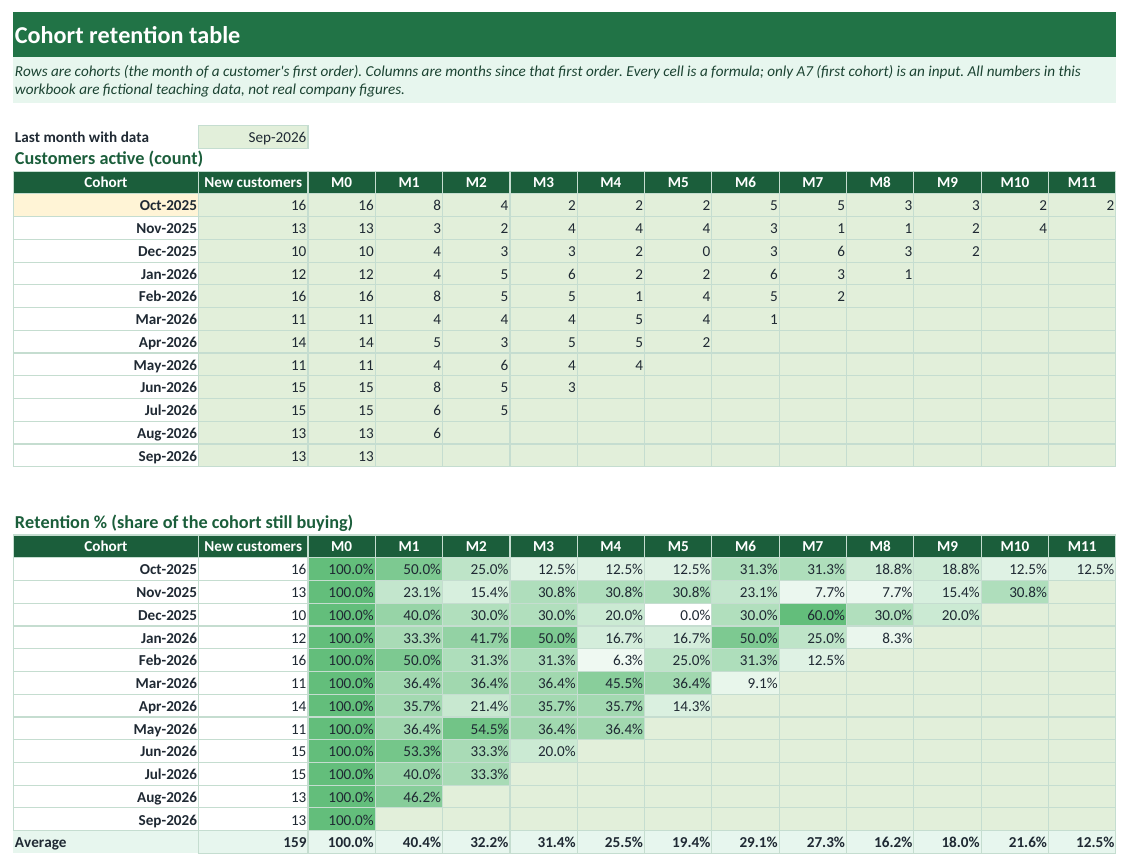
The Cohort sheet with the sample data (Zoya Tiffin Service is a fictional business).
Quick answer
- Keep one row per order in a table named
Orders: Order ID (a growing number), Order Date, Customer ID, Amount. - Add Order Month
=DATE(YEAR([@[Order Date]]),MONTH([@[Order Date]]),1). - Add First Month
=MINIFS(Orders[Order Month],Orders[Customer ID],[@[Customer ID]])(the cohort). - Add Month No: months between First Month and Order Month.
- Add First In Month (1 for a customer's first order in a month, else 0) so each customer counts once per month.
- Build the grid with
SUMIFS(Orders[First In Month],Orders[First Month],$A7,Orders[Month No],C$6), divide by the month-0 column and add a colour scale.
What the finished table looks like
Here are the first four cohorts of the sample, shown as retention %:
| Cohort | New customers | M0 | M1 | M2 | M3 |
|---|---|---|---|---|---|
| Oct-2025 | 16 | 100.0% | 50.0% | 25.0% | 12.5% |
| Nov-2025 | 13 | 100.0% | 23.1% | 15.4% | 30.8% |
| Dec-2025 | 10 | 100.0% | 40.0% | 30.0% | 30.0% |
| Jan-2026 | 12 | 100.0% | 33.3% | 41.7% | 50.0% |
- Read across a row to follow one group of customers as they age.
- Read down a column to compare cohorts at the same age. If month 1 gets better for newer cohorts, something you changed is working.
- Month 0 is always 100%: everyone in a cohort bought in their first month, by definition.
Step 1: Prepare the orders table
- Paste your orders with four columns: Order ID, Order Date, Customer ID, Amount.
- Press Ctrl + T and name the table
Orders. - Make sure Order ID is a number that grows with each new order (1001, 1002...). Step 3 uses it to spot repeat orders in the same month. If your IDs are text, add a column with
=ROW()and use that instead. - Remove test orders and cancelled orders.
Step 2: Add the four helper columns
| Column | Formula | Why |
|---|---|---|
| Order Month | =DATE(YEAR([@[Order Date]]),MONTH([@[Order Date]]),1) | Every order in a month gets the 1st of that month |
| First Month | =MINIFS(Orders[Order Month],Orders[Customer ID],[@[Customer ID]]) | The customer's cohort: their earliest order month |
| Month No | =(YEAR([@[Order Month]])-YEAR([@[First Month]]))*12+MONTH([@[Order Month]])-MONTH([@[First Month]]) | 0 for the first month, 1 for the next... |
| First In Month | =IF(COUNTIFS(Orders[Customer ID],[@[Customer ID]],Orders[Order Month],[@[Order Month]],Orders[Order ID],"<"&[@[Order ID]])=0,1,0) | 1 only for the customer's first order in that month |
Here are the orders of one sample customer, T-204. Notice the 0 in First In Month for the second order inside the same month:
| Order ID | Order Date | Customer ID | Amount | Order Month | First Month | Month No | First In Month |
|---|---|---|---|---|---|---|---|
| 1002 | 02-10-2025 | T-204 | ₹820 | Oct-2025 | Oct-2025 | 0 | 1 |
| 1017 | 16-10-2025 | T-204 | ₹860 | Oct-2025 | Oct-2025 | 0 | 0 |
| 1062 | 03-12-2025 | T-204 | ₹170 | Dec-2025 | Oct-2025 | 2 | 1 |
| 1087 | 27-12-2025 | T-204 | ₹650 | Dec-2025 | Oct-2025 | 2 | 0 |
| 1307 | 05-05-2026 | T-204 | ₹180 | May-2026 | Oct-2025 | 7 | 1 |
Why the First In Month column? Without it, a customer with three orders in one month would count as three. Retention is about customers, not orders, so each customer must count once per month.
Older Excel
MINIFS needs Excel 2019 or later. In Excel 2016 use =AGGREGATE(15,6,Orders[Order Month]/(Orders[Customer ID]=[@[Customer ID]]),1), which returns the smallest month where the ID matches.
Step 3: Build the count grid
- On a new sheet, type the first cohort month in A7 (for example 01-10-2025) and
=EDATE(A6,1)-style formulas below it: in A8 type=EDATE(A7,1)and fill down for 12 months. - Type the month numbers 0 to 11 across row 6, starting in C6. Give them the custom number format
"M"0so they show as M0, M1... - In B4 type
=MAX(Orders[Order Month]): the last month that has data. - In C7 type the formula below and fill it right to N7 and down to row 18.
- In B7 (New customers) use the same SUMIFS with Month No 0.
=IF(EDATE($A7,C$6)>$B$4,"",
   SUMIFS(Orders[First In Month],Orders[First Month],$A7,Orders[Month No],C$6))
The $ signs matter: $A7 keeps the cohort column fixed when you copy right, C$6 keeps the month row fixed when you copy down. The IF leaves cells blank when that month has not happened yet, which gives the familiar triangle shape. A blank is honest; a 0 would look like everyone left.
Step 4: Turn counts into percentages and colour them
- Copy the cohort and New customers columns below the count grid (rows 23 to 34 in the template use
=A7and=B7). - In C23 type
=IF(C7="","",IFERROR(C7/$B7,0))and fill right and down. - Format the block as Percentage with one decimal.
- Select the block and click Home > Conditional Formatting > Color Scales. Pick the white-to-green scale, or set your own minimum 0 and maximum 60% in Manage Rules.
- Under the block add an Average row:
=IFERROR(AVERAGE(C23:C34),""). AVERAGE skips the blank text cells, so each month averages only the cohorts that have reached it.
The average retention curve of the sample:
| Month | M1 | M2 | M3 | M4 | M5 | M6 |
|---|---|---|---|---|---|---|
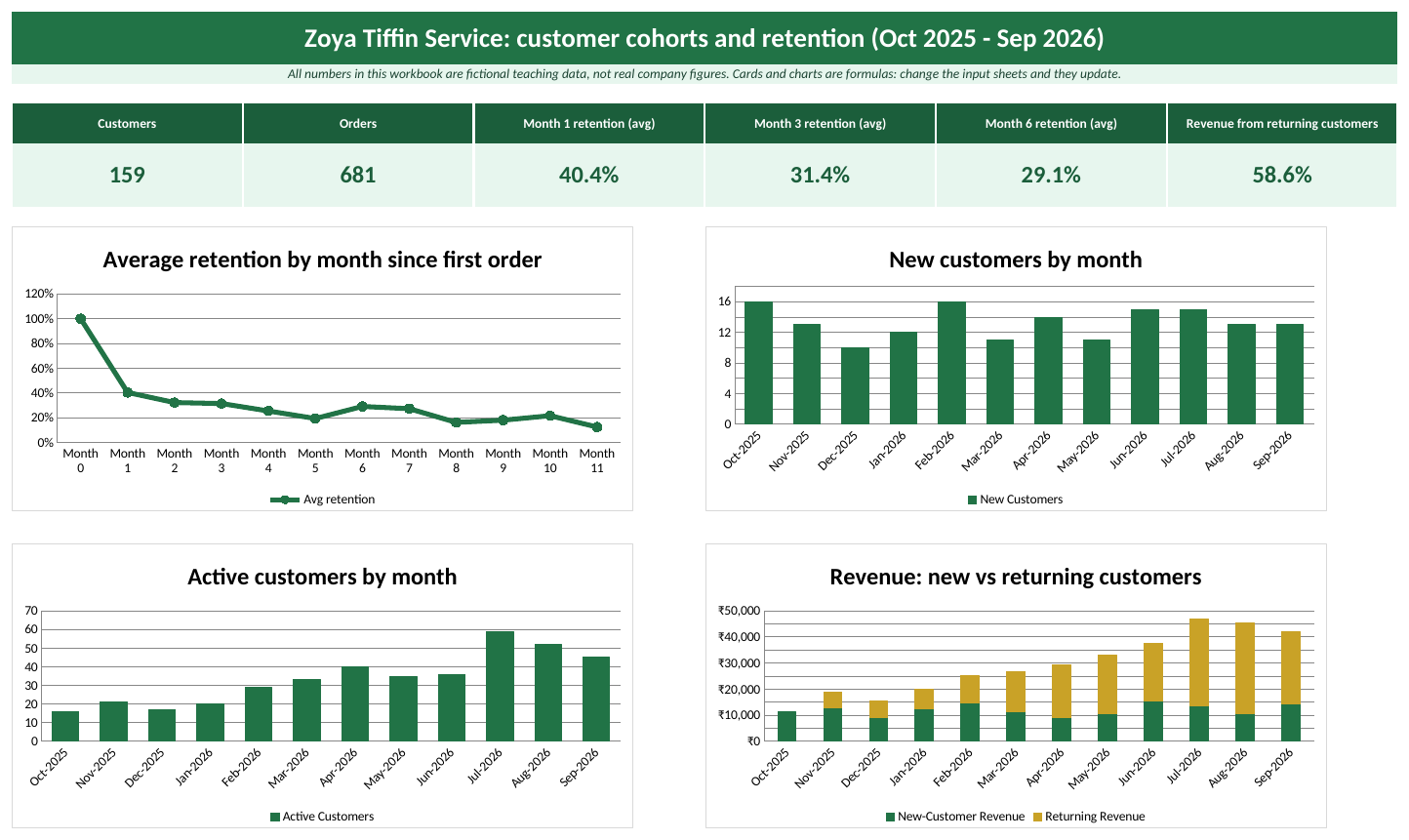
| Average retention | 40.4% | 32.2% | 31.4% | 25.5% | 19.4% | 29.1% |
How to read the results
- The big drop is between month 0 and month 1 (100% to 40.4%). That first repeat order is the most important moment. Spend your effort there: a welcome offer, a reminder on day 20, a feedback call.
- After month 3 the curve flattens at roughly 20 to 30%. These are the regulars. A flat tail is good news; a curve that keeps falling to zero is a leaking bucket.
- Returning customers bring 58.6% of revenue in the sample. In September 2026, 65.7% of the month's revenue came from customers who started in an earlier month.
- Small cohorts jump around. A cohort of 10 customers moves 10 points when one person changes their mind. Do not celebrate or panic over one cell; look for patterns across several cohorts.
The PivotTable way (Windows)
- Add the helper columns from Step 2 first.
- Click inside Orders, choose Insert > PivotTable, and tick Add this data to the Data Model. This is what makes Distinct Count available.
- Put First Month in Rows, Month No in Columns and Customer ID in Values.
- Click the Customer ID field, choose Value Field Settings > Distinct Count.
- For percentages, use Show Values As > % Of, Base field Month No, Base item 0.
The Data Model is not available in Excel for Mac or Excel for the web, so there the formula grid from the template is the way to go. The formula version also updates by itself; the PivotTable needs Data > Refresh All.
Common mistakes
- Counting orders instead of customers (fix: the First In Month column).
- Using the order date instead of the order month, so cohorts split by day.
- Showing zeros for months that have not happened yet. Use the EDATE check to leave them blank.
- Mixing in a half-finished current month. Its numbers look low only because the month is not over; end the table at the last complete month.
- Changing what counts as an active customer in the middle of the year. Pick a rule (at least one order in the month) and keep it.
Ravindra Bagale's Tip
Add one line under your cohort table: the month-1 retention of the newest three cohorts compared with the three before them. Managers rarely read a full heat map, but they always read whether that one number went up or down.
Ravindra Bagale's Tip – मराठी
Cohort table खाली एक ओळ टाका: नव्या तीन cohorts चं month-1 retention आणि त्याआधीच्या तीनचं, शेजारी शेजारी. Manager पूर्ण heat map क्वचितच वाचतात, पण तो एक आकडा वर गेला की खाली, हे नक्की बघतात.
Ravindra Bagale's Tip – हिंदी
Cohort table के नीचे एक लाइन जोड़िए: नए तीन cohorts का month-1 retention और उनसे पहले के तीन का, साथ-साथ। Manager पूरा heat map कम ही पढ़ते हैं, लेकिन वह एक आंकड़ा ऊपर गया या नीचे, यह ज़रूर देखते हैं।
Practice task
- Download the template and open Orders. Find a customer with two orders in the same month and check that only the first has First In Month = 1.
- Open Cohort and check that the Oct-2025 row starts with 16 new customers.
- Type 01-11-2025 in A7 and watch every cohort shift by one month.
- Add three new orders for customer T-201 in September 2026 on the Orders sheet. Which cell of the count grid changes, and by how much?
- On Calculations, find the month where returning customers brought the biggest share of revenue.
Learn it properly
Course lessons:
- 21.8 Customer Repeat and Cohort Table
- 3.4 AVERAGE, AVERAGEIF(S), MINIFS and MAXIFS
- 2.7 Data Bars, Color Scales and Icon Sets
- 7.4 Show Values As
Related guides: RFM Analysis in Excel: Segment Customers by Recency, Frequency and Monetary Value · Customer Lifetime Value (LTV) in Excel: Formula, Example and LTV to CAC · SUMIF and SUMIFS · How to Create a PivotTable
Frequently asked questions
What is a good retention rate?
It depends on how often people normally buy. For a monthly product like a tiffin or a subscription, 30 to 50% in month 1 is a common range; for furniture it would be far lower. Compare your cohorts with each other first, not with someone else's business.
Should I use monthly or weekly cohorts?
Monthly is right for most businesses. Use weekly cohorts only if customers buy every few days, like a food delivery app, and you have many new customers each week.
Why are the newest cohorts blank on the right?
Those months have not happened yet. The formula checks EDATE(cohort, month) against the last month in the data and leaves the cell blank.
Can I do a revenue cohort instead of a customer cohort?
Yes. Replace Orders[First In Month] with Orders[Amount] in the SUMIFS. You then see how much each cohort spends in each month, which is the base for LTV.
Is the data in the template real?
No. Zoya Tiffin Service and its orders are fictional teaching data.