RFM Analysis in Excel: Segment Customers by Recency, Frequency and Monetary Value
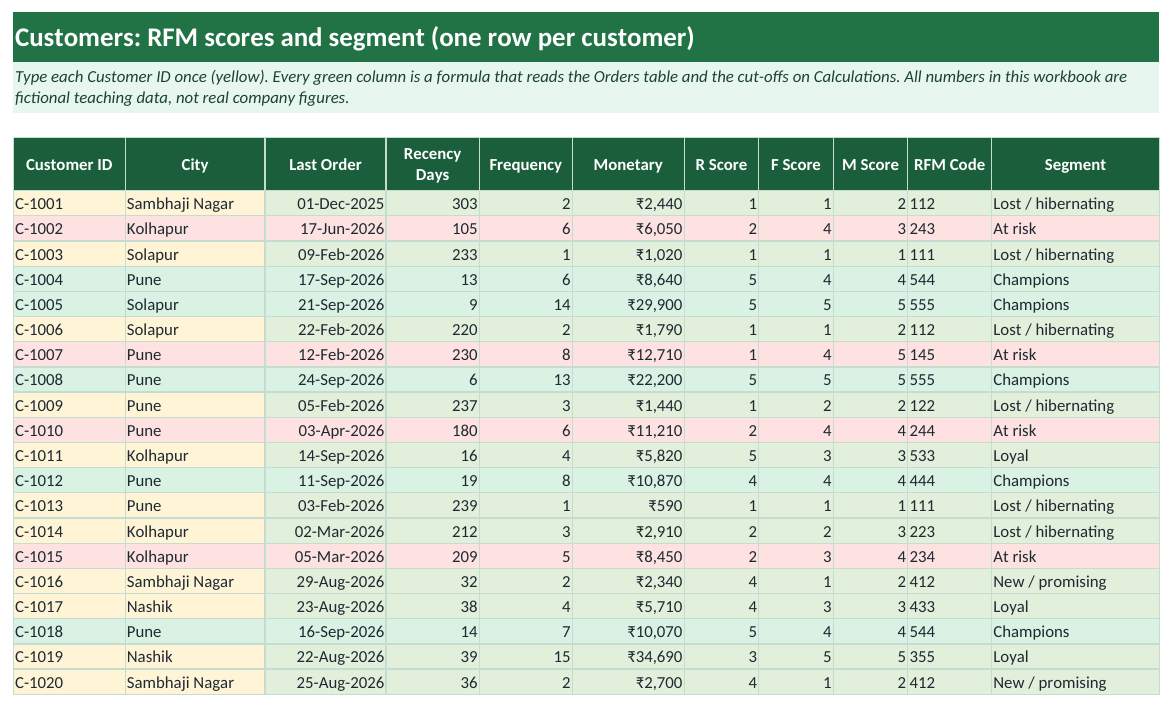
Ruhi runs Ruhi Organics, a fictional online grocery store in Pune. Her order list has 321 orders from 60 customers. Customer C-1005 last ordered 9 days ago, ordered 14 times and spent ₹29,900: RFM code 555, a Champion. Customer C-1007 also spent well (8 orders, ₹12,710) but the last order was 230 days ago: code 145, At risk. That is the customer Ruhi should call this week, before C-1007 is gone for good.
RFM analysis ranks customers on three questions: how Recently did they buy, how Frequently do they buy, and how much Money do they spend. In Excel you calculate the three values per customer with MAXIFS, COUNTIFS and SUMIFS, turn each into a score from 1 to 5 with percentile cut-offs, and use a simple IF rule to name segments such as Champions, Loyal, At risk and Lost.
Download RFM_Analysis_Template.xlsx
Excel file, 33 KB. Built for Microsoft 365 Excel on Windows; it also opens in Excel 2021 and 2024. All numbers in this workbook are fictional teaching data, not real company figures.
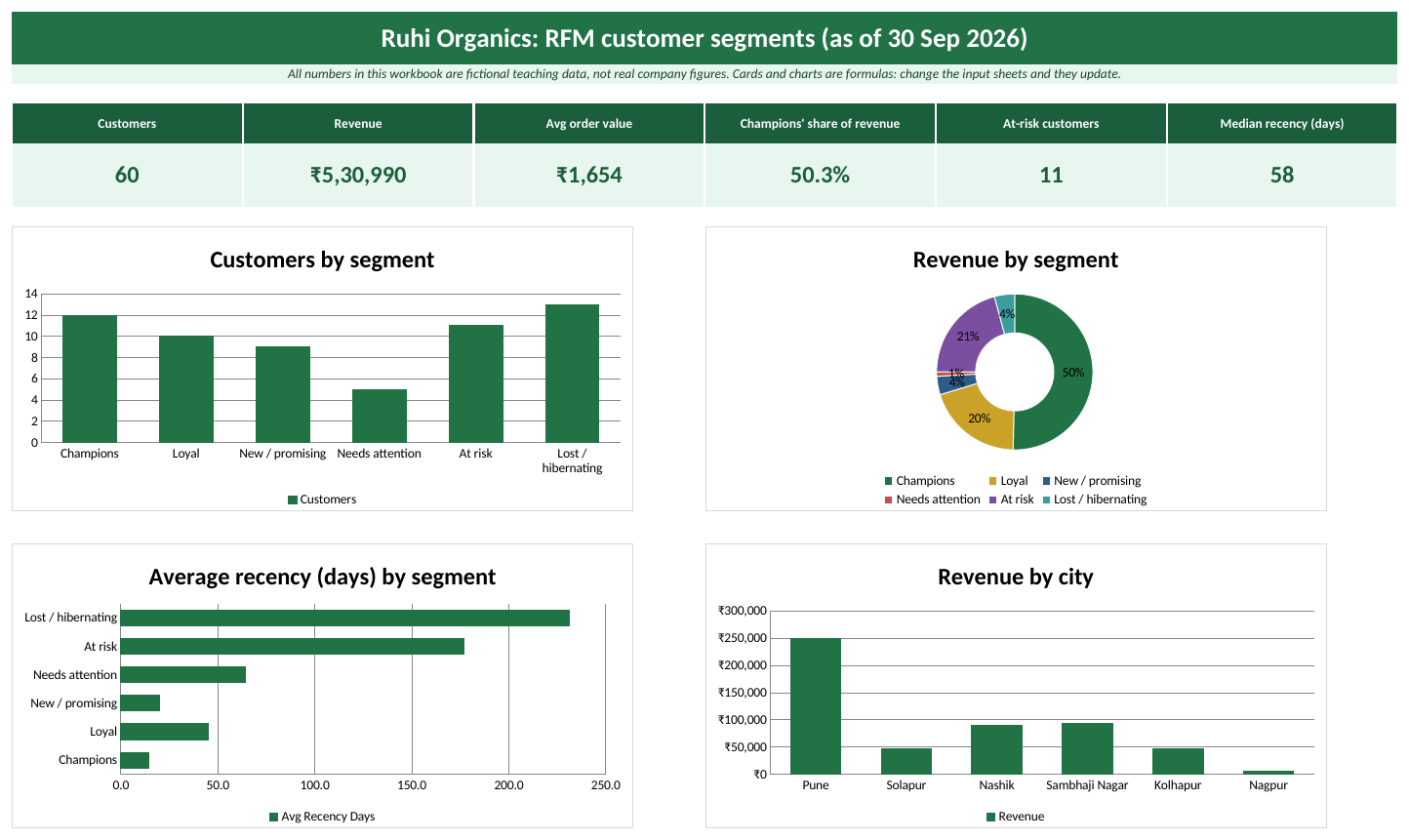
The Dashboard sheet with the sample data (Ruhi Organics is a fictional business).
Quick answer
- Put one row per order in a table named
Orders(Order ID, Order Date, Customer ID, Amount). - Make a
Customerstable with each Customer ID once (Data > Remove Duplicates on a copy of the IDs). - Add Last Order
=MAXIFS(Orders[Order Date],Orders[Customer ID],[@[Customer ID]]), then Recency Days=AsOfDate-[@[Last Order]]. - Add Frequency with COUNTIFS and Monetary with SUMIFS.
- Find the 20%, 40%, 60% and 80% cut-offs of each column with
PERCENTILE.INC. - Score with COUNTIF against the cut-offs (1 to 5), join the scores into an RFM code and name the segment with IF.
=5-COUNTIF(RCuts,"<"&[@[Recency Days]])
=1+COUNTIF(FCuts,"<"&[@Frequency])
=1+COUNTIF(MCuts,"<"&[@Monetary])
What R, F and M mean
| Letter | Question | Excel formula (per customer) | Better when |
|---|---|---|---|
| R: Recency | How many days since the last order? | MAXIFS for the last date, then analysis date minus last date | Smaller |
| F: Frequency | How many orders? | COUNTIFS on Customer ID | Bigger |
| M: Monetary | How much money in total? | SUMIFS of Amount on Customer ID | Bigger |
Recency matters most: a customer who bought last week is far more likely to buy again than one who bought last year, even if the old customer spent more. That is why RFM puts R first.
Step 1: Start from one row per order
You need only four columns. Here are the first rows of the sample (the full table has 321 orders):
| Order ID | Order Date | Customer ID | Amount |
|---|---|---|---|
| R-5001 | 02-10-2025 | C-1009 | ₹310 |
| R-5002 | 04-10-2025 | C-1045 | ₹2,440 |
| R-5003 | 05-10-2025 | C-1010 | ₹1,240 |
| R-5004 | 05-10-2025 | C-1029 | ₹970 |
- Put the cursor in the data and press Ctrl + T to make it a table.
- Name it
Ordersin Table Design > Table Name. - Remove cancelled and fully returned orders first, or they will push customers into the wrong segment.
- Pick an analysis date. The template keeps it in a named cell
AsOfDateon the Lists sheet (30-09-2026 in the sample). Use a fixed date for a report you will share; use=TODAY()only for a live sheet.
Step 2: Make the customer list
- Copy the Customer ID column of Orders to a new sheet.
- Select it and click Data > Remove Duplicates > OK.
- Press Ctrl + T and name the table
Customers. - In Microsoft 365 you can instead type
=UNIQUE(Orders[Customer ID])in an empty cell. It spills the list, but a spilled list cannot sit inside a table, so paste it as values if you want a table.
Step 3: Recency, frequency and monetary formulas
Type each formula once in the first row of the Customers table. The table copies it down to every customer.
| Column | Formula | What it does |
|---|---|---|
| Last Order | =MAXIFS(Orders[Order Date],Orders[Customer ID],[@[Customer ID]]) | Latest order date of this customer |
| Recency Days | =AsOfDate-[@[Last Order]] | Days between the last order and the analysis date |
| Frequency | =COUNTIFS(Orders[Customer ID],[@[Customer ID]]) | Number of orders |
| Monetary | =SUMIFS(Orders[Amount],Orders[Customer ID],[@[Customer ID]]) | Total spend |
Format Last Order as a date and Recency Days as a whole number. If you see a 5-digit number in Last Order, the cell is just showing the date as a number: choose Home > Number Format > Short Date.
Older Excel
MAXIFS needs Excel 2019, 2021, 2024 or Microsoft 365. In Excel 2016 use =AGGREGATE(14,6,Orders[Order Date]/(Orders[Customer ID]=[@[Customer ID]]),1) instead. It returns the largest date where the ID matches.
Step 4: Turn the values into scores from 1 to 5
A score of 1 to 5 makes customers easy to compare. The common way is quintiles: the best 20% of customers get 5, the next 20% get 4, and so on. You need four cut-off points per column: the 20th, 40th, 60th and 80th percentile.
=PERCENTILE.INC(Customers[Recency Days],0.2)
=PERCENTILE.INC(Customers[Frequency],0.2)
=PERCENTILE.INC(Customers[Monetary],0.2)
With the sample data the cut-offs are:
| Percentile | Recency Days | Frequency | Monetary |
|---|---|---|---|
| 20% | 18.4 | 2.0 | ₹1,432 |
| 40% | 38.6 | 3.0 | ₹2,866 |
| 60% | 87.6 | 5.4 | ₹7,810 |
| 80% | 213.0 | 8.0 | ₹11,878 |
The template types the percentiles 20%, 40%, 60% and 80% in column A and uses =PERCENTILE.INC(Customers[Recency Days],$A6), so you can change them. The four recency cut-offs sit in Calculations!B6:B9 and have the name RCuts (frequency FCuts, monetary MCuts). Then one COUNTIF gives the score:
- R Score
=5-COUNTIF(RCuts,"<"&[@[Recency Days]]). C-1007 has 230 days. All four cut-offs are smaller, so COUNTIF gives 4 and the score is 5 - 4 = 1. - F Score
=1+COUNTIF(FCuts,"<"&[@Frequency]). C-1007 has 8 orders. Three cut-offs (2, 3 and 5.4) are smaller than 8, so the score is 1 + 3 = 4. - M Score
=1+COUNTIF(MCuts,"<"&[@Monetary]). ₹12,710 is above all four cut-offs, so the score is 5. - RFM Code
=[@[R Score]]&[@[F Score]]&[@[M Score]]joins them: 145.
Recency is reversed (5 minus the count) because fewer days is better. Frequency has many ties (lots of customers with 1 or 2 orders), so its groups are not exactly 20% each. That is normal.
Step 5: Name the segments
The 125 possible codes are too many to act on, so group them. The template uses R and F only, which is the most common teaching version:
| Segment | Rule |
|---|---|
| Champions | R 4-5 and F 4-5 |
| Loyal | R 3 or more and F 3 or more (not Champions) |
| New / promising | R 4-5 and F 1-2 |
| At risk | R 1-2 and F 3 or more |
| Lost / hibernating | R 1-2 and F 1-2 |
| Needs attention | Everything else (R 3, F 1-2) |
=IF(AND([@[R Score]]>=4,[@[F Score]]>=4),"Champions",
 IF(AND([@[R Score]]>=3,[@[F Score]]>=3),"Loyal",
  IF([@[R Score]]>=4,"New / promising",
   IF([@[F Score]]>=3,"At risk",
    IF([@[R Score]]<=2,"Lost / hibernating","Needs attention")))))
The order of the IFs matters: each IF only sees customers that the earlier ones did not catch. With the sample data the Segment summary on the Calculations sheet shows:
| Segment | Customers | Revenue | Share of revenue | Avg recency (days) | Avg orders | Avg spend |
|---|---|---|---|---|---|---|
| Champions | 12 | ₹2,67,300 | 50.3% | 14 | 11.7 | ₹22,275 |
| Loyal | 10 | ₹1,05,770 | 19.9% | 45 | 6.3 | ₹10,577 |
| New / promising | 9 | ₹20,380 | 3.8% | 20 | 1.9 | ₹2,264 |
| Needs attention | 5 | ₹4,810 | 0.9% | 64 | 1.0 | ₹962 |
| At risk | 11 | ₹1,10,520 | 20.8% | 177 | 6.4 | ₹10,047 |
| Lost / hibernating | 13 | ₹22,210 | 4.2% | 231 | 2.0 | ₹1,708 |
12 Champions bring 50.3% of all revenue. The 11 At-risk customers bring another 20.8%, which is a lot of money to lose quietly.
Step 6: Read the R x F grid
The Calculations sheet also counts customers for every pair of R and F scores with formulas such as =COUNTIFS(Customers[R Score],$A25,Customers[F Score],1) (R score in column A, F score fixed per column), and a colour scale turns it into a heat map:
| R score | F = 1 | F = 2 | F = 3 | F = 4 | F = 5 |
|---|---|---|---|---|---|
| R = 5 | 3 | 0 | 1 | 2 | 6 |
| R = 4 | 6 | 0 | 2 | 2 | 2 |
| R = 3 | 5 | 0 | 3 | 3 | 1 |
| R = 2 | 2 | 1 | 3 | 5 | 1 |
| R = 1 | 7 | 3 | 0 | 2 | 0 |
Top-right (recent and frequent) is where you want customers to be. Bottom-right (frequent but not recent) is the At-risk corner. A full top-left column (recent, one order) means many new customers: the job is to get their second order.
What to do with each segment
| Segment | Action |
|---|---|
| Champions | Thank them, give early access to new products, ask for reviews and referrals. Do not waste discounts here. |
| Loyal | Offer a loyalty or subscription plan and cross-sell the next product. |
| New / promising | Send a welcome series and a reason for the second order within 30 days. |
| Needs attention | A short reminder with a popular product; find out what stopped them. |
| At risk | Call or message personally. They used to spend a lot; a win-back offer pays here. |
| Lost / hibernating | One low-cost win-back message, then stop spending on them. |
Run the analysis again every month with a new analysis date and watch customers move between segments. A rising At-risk count is an early warning, months before revenue drops.
Do it with a PivotTable instead
- Click inside the Orders table and choose Insert > PivotTable > OK.
- Drag Customer ID to Rows.
- Drag Order Date to Values, click it, choose Value Field Settings > Max and format it as a date.
- Drag Order ID to Values (it shows Count) and Amount to Values (Sum).
- Next to the PivotTable, calculate recency and the scores with normal formulas, or copy the PivotTable and paste it as values first.
The table-and-formula version in the template updates by itself when you add orders; a PivotTable needs Data > Refresh All.
Common mistakes
- Using
=TODAY()in a report you send: the scores change every day, and nobody can check your numbers next week. - Leaving cancelled orders or refunds in the data.
- Scoring over too short a period. Use at least 6 to 12 months of orders, more if customers buy rarely.
- Using quintiles on a very small list. With fewer than about 20 customers, rank them by hand or use fixed rules such as recency under 30 days.
- Treating the segment names as fixed laws. They are a starting point; change the IF rules to fit how often your customers normally buy.
Ravindra Bagale's Tip
Before you send any offer, sort the At-risk segment by Monetary, largest first, and look at the top ten names. A personal call to those few customers is worth more than an email blast to everyone.
Ravindra Bagale's Tip – मराठी
Offer पाठवण्याआधी At-risk segment ला Monetary प्रमाणे मोठ्याकडून लहानाकडे sort करा आणि वरची दहा नावं बघा. त्या थोड्या customers ना स्वतः फोन करणं हे सगळ्यांना email पाठवण्यापेक्षा जास्त फायद्याचं ठरतं.
Ravindra Bagale's Tip – हिंदी
कोई भी offer भेजने से पहले At-risk segment को Monetary के हिसाब से बड़े से छोटे sort कीजिए और ऊपर के दस नाम देखिए। उन कुछ customers को खुद फोन करना सबको email भेजने से ज़्यादा फायदेमंद है।
Practice task
- Download the template and open the Customers sheet. Find C-1007 and check its scores: R 1, F 4, M 5, code 145.
- On Lists, change AsOfDate to 31-10-2026. Watch recency grow and some Champions drop to Loyal.
- Add a new order for C-1007 on the Orders sheet dated 30-09-2026. Check that C-1007 moves out of At risk.
- Change the Champions rule to need M Score 4 or more as well, and compare the segment counts.
- On Calculations, find which city has the most At-risk customers.
Learn it properly
Course lessons:
- 3.4 AVERAGE, AVERAGEIF(S), MINIFS and MAXIFS
- 3.3 COUNT, COUNTA, COUNTBLANK, COUNTIF and COUNTIFS
- 3.13 IF, Nested IF and IFS
- 2.7 Data Bars, Color Scales and Icon Sets
- 7.1 Creating a PivotTable
Related guides: Cohort Retention Analysis in Excel: Build a Customer Retention Table · Customer Lifetime Value (LTV) in Excel: Formula, Example and LTV to CAC · SUMIF and SUMIFS · COUNTIF and COUNTIFS
Frequently asked questions
What is a good RFM score?
555 is the best possible code and 111 the worst. What matters more is the segment: Champions and Loyal customers are the ones to protect, At-risk customers are the ones to win back.
Should I use quintiles or fixed rules?
Quintiles (PERCENTILE.INC cut-offs) adjust to your data automatically, so they are a good start. Fixed rules (for example recency under 30 days = 5) are easier to explain and stay stable from month to month. Many teams switch to fixed rules once they know their numbers.
Why is recency scored the other way round?
Fewer days since the last order is better, so the formula subtracts the count of smaller cut-offs from 5. A customer who ordered yesterday gets 5.
Does it work in Google Sheets?
Yes. MAXIFS, COUNTIFS, SUMIFS, PERCENTILE.INC (or PERCENTILE) and COUNTIF all work in Google Sheets. Structured references like Orders[Amount] work only in Sheets tables, so you may need normal ranges such as B2:B400.
Is the data in the template real?
No. Ruhi Organics and all its orders are fictional teaching data.