27.10 Inventory and Supply Chain: Days of Cover and Reorder List
Example first. Rani plans replenishment for fictional dark-store warehouses and wants a list of SKUs that will run out before new stock arrives.
Inventory and Supply Chain project — in 30 seconds
What: A Inventory and Supply Chain tracker: one Table tblStock, the calculated column DaysCover, KPI cells, a PivotTable by City, a chart and a one-page dashboard.
Why: This is the shape of a real Inventory and Supply Chain report: Total On Hand, SKUs to Reorder, Average Days of Cover are the numbers a manager reads first.
Tiny example: From 6 rows: Total On Hand = 1,185, SKUs to Reorder = 2, Average Days of Cover = 10.8.
Inventory and Supply Chain project — 30 सेकंदात
काय: Inventory and Supply Chain चा tracker: tblStock नावाची एक Table, DaysCover हा calculated column, KPI cells, City प्रमाणे PivotTable, एक chart आणि एका पानाचा dashboard.
का: खऱ्या Inventory and Supply Chain report चा हाच आकार असतो: Total On Hand, SKUs to Reorder, Average Days of Cover हे आकडे manager सगळ्यात आधी वाचतो.
छोटं उदाहरण: 6 rows मधून Total On Hand = 1,185, SKUs to Reorder = 2, Average Days of Cover = 10.8.
Inventory and Supply Chain project — 30 सेकंड में
क्या: Inventory and Supply Chain का tracker: tblStock नाम की एक Table, DaysCover calculated column, KPI cells, City के हिसाब से PivotTable, एक chart और एक पन्ने का dashboard.
क्यों: असली Inventory and Supply Chain report का यही आकार होता है: Total On Hand, SKUs to Reorder, Average Days of Cover वे आँकड़े हैं जो manager सबसे पहले पढ़ता है.
छोटा उदाहरण: 6 rows से Total On Hand = 1,185, SKUs to Reorder = 2, Average Days of Cover = 10.8.
First look at the data (before → after):
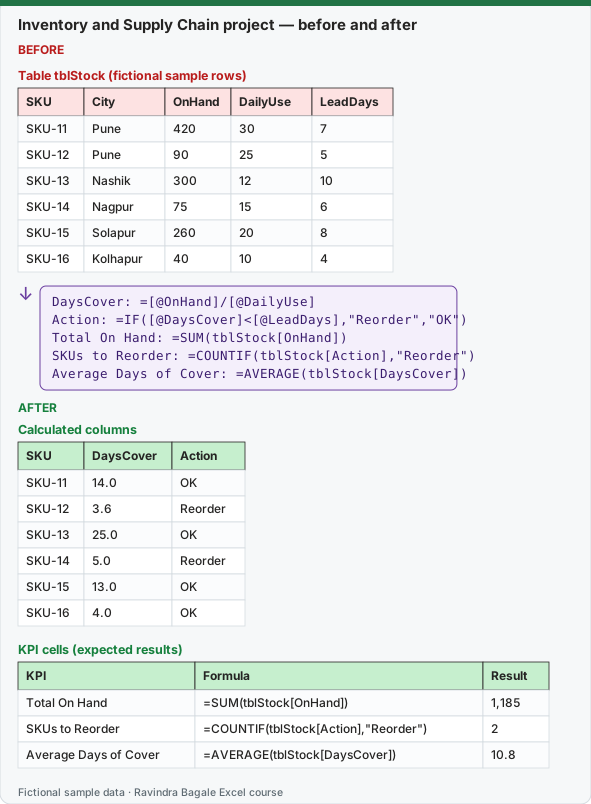
Expected result — Calculated columns
| SKU | DaysCover | Action |
|---|---|---|
| SKU-11 | 14.0 | OK |
| SKU-12 | 3.6 | Reorder |
| SKU-13 | 25.0 | OK |
| SKU-14 | 5.0 | Reorder |
| SKU-15 | 13.0 | OK |
| SKU-16 | 4.0 | OK |
Expected result — KPI cells (expected results)
| KPI | Formula | Result |
|---|---|---|
| Total On Hand | =SUM(tblStock[OnHand]) | 1,185 |
| SKUs to Reorder | =COUNTIF(tblStock[Action],"Reorder") | 2 |
| Average Days of Cover | =AVERAGE(tblStock[DaysCover]) | 10.8 |
Before table and formula as text
Before — Table tblStock (fictional sample rows)
| SKU | City | OnHand | DailyUse | LeadDays |
|---|---|---|---|---|
| SKU-11 | Pune | 420 | 30 | 7 |
| SKU-12 | Pune | 90 | 25 | 5 |
| SKU-13 | Nashik | 300 | 12 | 10 |
| SKU-14 | Nagpur | 75 | 15 | 6 |
| SKU-15 | Solapur | 260 | 20 | 8 |
| SKU-16 | Kolhapur | 40 | 10 | 4 |
Formula / click path
DaysCover: =[@OnHand]/[@DailyUse]
Action: =IF([@DaysCover]<[@LeadDays],"Reorder","OK")
Total On Hand: =SUM(tblStock[OnHand])
SKUs to Reorder: =COUNTIF(tblStock[Action],"Reorder")
Average Days of Cover: =AVERAGE(tblStock[DaysCover])
Do it step by step:
- Type the data and press Ctrl+T; name the Table
tblStockin Table Design › Properties › Table Name. - Add the column DaysCover with
=[@OnHand]/[@DailyUse]; the Table fills it down. Add the other calculated columns from the table below the same way. - On a KPI sheet type
=SUM(tblStock[OnHand])and the other KPI formulas from the table below. - Click Insert › PivotTable › From Table/Range, put City in Rows and OnHand in Values (Sum).
- Click PivotTable Analyze › PivotChart › Clustered Column, then PivotTable Analyze › Insert Slicer › Action.
- Move the KPI cells, the chart and the slicer onto a sheet named Dashboard.
स्टेप बाय स्टेप करून बघा:
- Data type करा आणि Ctrl+T दाबा; Table Design › Properties › Table Name मध्ये Table ला
tblStockनाव द्या. - DaysCover column
=[@OnHand]/[@DailyUse]ने जोडा; Table तो खाली भरते. खालच्या table मधले बाकीचे calculated columns असेच जोडा. - KPI sheet वर
=SUM(tblStock[OnHand])आणि खालच्या table मधले बाकीचे KPI formulas type करा. - Insert › PivotTable › From Table/Range वर click करा, Rows मध्ये City आणि Values मध्ये OnHand (Sum) ठेवा.
- PivotTable Analyze › PivotChart › Clustered Column वर click करा, मग PivotTable Analyze › Insert Slicer › Action.
- KPI cells, chart आणि slicer Dashboard नावाच्या sheet वर हलवा.
स्टेप बाय स्टेप करके देखें:
- Data type करें और Ctrl+T दबाएँ; Table Design › Properties › Table Name में Table को
tblStockनाम दें. - DaysCover column
=[@OnHand]/[@DailyUse]से जोड़ें; Table उसे नीचे भर देती है. नीचे की table के बाकी calculated columns भी ऐसे ही जोड़ें. - KPI sheet पर
=SUM(tblStock[OnHand])और नीचे की table के बाकी KPI formulas type करें. - Insert › PivotTable › From Table/Range पर click करें, Rows में City और Values में OnHand (Sum) रखें.
- PivotTable Analyze › PivotChart › Clustered Column पर click करें, फिर PivotTable Analyze › Insert Slicer › Action.
- KPI cells, chart और slicer को Dashboard नाम की sheet पर ले जाएँ.
The brief. Build a reorder sheet: days of cover (on hand ÷ daily use), a Reorder flag when cover is shorter than the supplier lead time, total on hand, SKUs to reorder, average days of cover, stock by city, a chart and an Action slicer.
Calculated column formulas:
| Column | Formula |
|---|---|
| DaysCover | =[@OnHand]/[@DailyUse] |
| Action | =IF([@DaysCover]<[@LeadDays],"Reorder","OK") |
KPI cells (check your numbers):
| KPI | Formula | Result |
|---|---|---|
| Total On Hand | =SUM(tblStock[OnHand]) | 1,185 |
| SKUs to Reorder | =COUNTIF(tblStock[Action],"Reorder") | 2 |
| Average Days of Cover | =AVERAGE(tblStock[DaysCover]) | 10.8 |
PivotTable (expected):
| City | Sum of OnHand |
|---|---|
| Kolhapur | 40 |
| Nagpur | 75 |
| Nashik | 300 |
| Pune | 510 |
| Solapur | 260 |
| Grand Total | 1,185 |
Chart and dashboard (one under the other):
- Click inside the PivotTable, then PivotTable Analyze › PivotChart › Clustered Column › OK.
- Add a chart title and data labels with Chart Design › Add Chart Element.
- Click PivotTable Analyze › Insert Slicer, tick Action and click OK.
- Insert a new sheet named Dashboard. In it, link a card cell to each KPI (for example
=KPI!B2) and format it large and bold. - Cut and paste the chart and slicer onto the Dashboard sheet.
- On the View tab, untick Gridlines in the Show group. Select the dashboard area and click Page Layout › Print Area › Set Print Area.
Template and guide: download the practice template Inventory_Supply_Chain_Template.xlsx and read the step-by-step template guide. The template's sample rows may differ from the rows above; the method is the same.
Practice task (try it before you open the answer):
- Which city has the highest sum of OnHand?
- Filter the Table on City = Pune (Data › Filter): what is Total On Hand for Pune alone?
- Add the Clustered Column PivotChart and the Action slicer to your Dashboard sheet.
Answer
Pune (510). For Pune only (2 rows): Total On Hand = 510. The chart shows 5 bars, one per city.
Ravindra Bagale's Tip
Show SKUs to Reorder next to the rupee total. A percentage or ratio without the size behind it can make a small city look like a big problem.
Ravindra Bagale's Tip – मराठी
SKUs to Reorder रुपयांच्या total शेजारी दाखवा. मागचा आकार न दाखवता percentage किंवा ratio लहान city ला मोठी समस्या असल्यासारखं दाखवू शकतो.
Ravindra Bagale's Tip – हिंदी
SKUs to Reorder को रुपये के total के पास दिखाएँ. पीछे का आकार दिखाए बिना percentage या ratio छोटी city को बड़ी समस्या जैसा दिखा सकता है.
Loading practice tasks...
- Total stock units (Easy): Add up Stock units in D2:D11. (sheet "Data")
- Average unit cost (Easy): Average of E2:E11, rounded to 2 decimals. (sheet "Data")
- Rows in Antibiotic (Easy): How many rows have Category "Antibiotic"? (sheet "Data")
- Largest stock units (Easy): The largest value in D2:D11. (sheet "Data")
- Days taken (Easy): C2 minus B2. (sheet "Dates")
- Start year (Easy): Year of B3. (sheet "Dates")
- Due month (Easy): Month number of C3. (sheet "Dates")
- Earliest start (Easy): Earliest date in B2:B9 (as a date number). (sheet "Dates")
- Stock units for Antibiotic (Medium): Total of D2:D11 where B is "Antibiotic". (sheet "Data")
- Antibiotic in Madrid (Medium): Total of D2:D11 where B is "Antibiotic" and C is "Madrid". (sheet "Data")
- Working days (Medium): Working days from B2 to C2. (sheet "Dates")
- Weekday of due (Medium): Weekday number of C4 (Sunday = 1). (sheet "Dates")