1.2 Workbooks, Worksheets and Our Practice Dataset
In short: A workbook is the file (.xlsx, or .xlsm when it contains macros).
A workbook is the file (.xlsx, or .xlsm when it contains macros). A worksheet (sheet) is one tab inside it. A workbook can have many sheets.
Steps in Excel
- Insert a sheet: click the ⊕ next to the sheet tabs, or Shift + F11.
- Rename: double-click the tab › type
Orders› Enter. - Move or copy: right-click the tab › Move or Copy… › tick Create a copy if needed.
- Tab colour: right-click › Tab Color.
- Group sheets: Ctrl-click several tabs; whatever you type goes into all grouped sheets. Right-click › Ungroup Sheets when done.
- Save: Ctrl + S › choose Excel Workbook (*.xlsx).
Our practice dataset. Throughout this book we use a fictional workbook Blinkit_Maharashtra.xlsx with these sheets:
| Sheet | Contents |
|---|---|
Orders |
One row per order line: Order ID, Order Date, Platform, City, Area, Store ID, Product, Category, Qty, Unit Price, Amount, Delivery Mins, Payment Mode, Status, Customer |
Stores |
Store ID, Platform, City, Area, City Manager, Manager Email |
Products |
Product ID, Product, Category, Unit Price |
FeeSlabs |
Order value slabs for the delivery fee |
About this data: Teaching sample for a fictional shop “HomeNest Supplies”. Figures and names (e.g. Neha Shah) are made up for this lesson on workbooks worksheets and our practice dataset.
Sample rows from Orders:
| Order ID | Order Date | City | Area | Product | Qty | Amount | Mins | Status |
|---|---|---|---|---|---|---|---|---|
| BLK-260314-001 | 14-03-2026 | Pune | Kothrud | Gokul Cow Milk 500 ml | 2 | ₹64 | 9 | Delivered |
| BLK-260314-002 | 14-03-2026 | Nashik | College Road | Nashik Grapes 500 g | 1 | ₹90 | 12 | Delivered |
| BLK-260314-003 | 14-03-2026 | Nagpur | Dharampeth | Nagpur Oranges 1 kg | 2 | ₹240 | 11 | Delivered |
| AMN-260314-004 | 14-03-2026 | Kolhapur | Rajarampuri | Amul Butter 100 g | 1 | ₹58 | 14 | Cancelled |
| BLK-260314-005 | 14-03-2026 | Solapur | Hotgi Road | Solapuri Chaddar (Single) | 1 | ₹1,299 | 18 | Delivered |
| AMN-260314-006 | 14-03-2026 | Sambhaji Nagar | CIDCO | Poha 1 kg | 3 | ₹195 | 10 | Delivered |
| BLK-260314-007 | 14-03-2026 | Pune | Hinjewadi | Ladi Pav (6 pcs) | 2 | ₹60 | 8 | Delivered |
| BLK-260314-008 | 14-03-2026 | Pune | Baner | Chitale Bhakarwadi 250 g | 1 | ₹110 | 13 | Returned |
About this data: Demo table only — not real customer or company data. Built to practise workbooks worksheets and our practice dataset.
Order IDs start with BLK for FreshGo and AMN for MarketRush. Cities are Pune, Solapur, Nashik, Sambhaji Nagar, Kolhapur and Nagpur. Customers in the data are Shraddha Bagale, Ruhi Bagale, Shahrukh, Amir, Salman, Zoya, Ravina, Raja and Rani (e-mails like zoya@example.com). City managers are Ravindra Bagale (Pune) and others from the same list.
Ravindra Bagale's Tip
Many students mix raw data, calculations and the report on one sheet, and then they can't find anything. Keep a separate sheet for raw data, another for lookup/master data, and another for the report. Don't leave a sheet named Sheet1 – give meaningful names like Orders and Stores.
Ravindra Bagale's Tip – मराठी
बरेच students एकाच sheet वर raw data, calculations आणि report सगळं mix करतात, आणि मग काहीच सापडत नाही. Raw data साठी वेगळी sheet, lookup/master data साठी वेगळी, आणि report साठी वेगळी sheet ठेवा. Sheet ला Sheet1 असं नाव ठेवू नका – Orders, Stores अशी अर्थपूर्ण नावं द्या.
Ravindra Bagale's Tip – हिंदी
बहुत से students एक ही sheet पर raw data, calculations और report सब mix कर देते हैं, और फिर कुछ नहीं मिलता. Raw data के लिए अलग sheet, lookup/master data के लिए अलग, और report के लिए अलग sheet रखो. Sheet का नाम Sheet1 मत छोड़ो – Orders, Stores जैसे मतलब वाले नाम दो.
Worked example — workbooks worksheets and our practice dataset
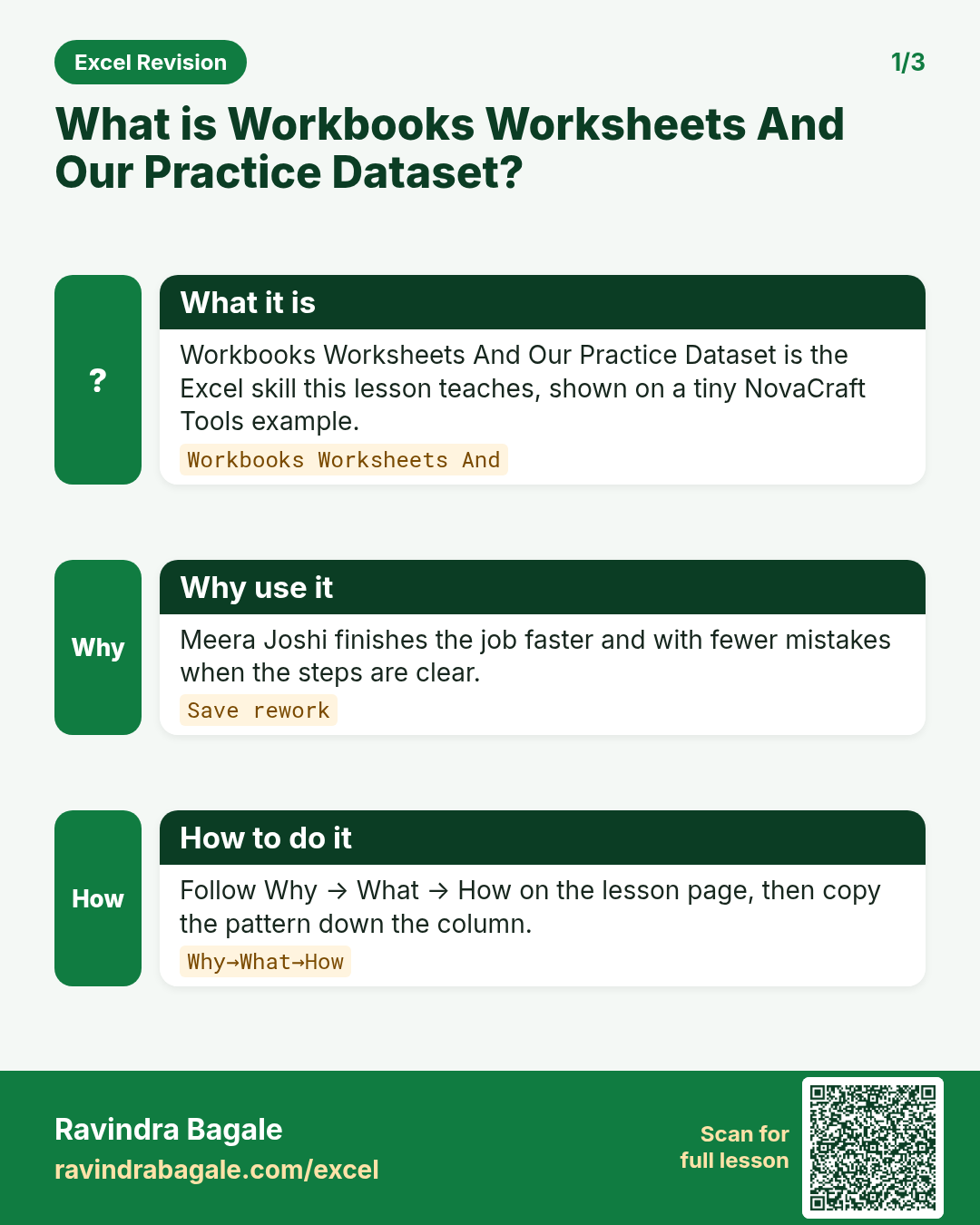
Why
Aamir Khan in Pune and Emma Clarke abroad both need a clear, repeatable way to use workbooks worksheets and our practice dataset on a NovaCraft Tools sheet without breaking totals.
What
Workbooks Worksheets And Our Practice Dataset is the Excel idea this page teaches. We will walk one tiny example end to end.
How
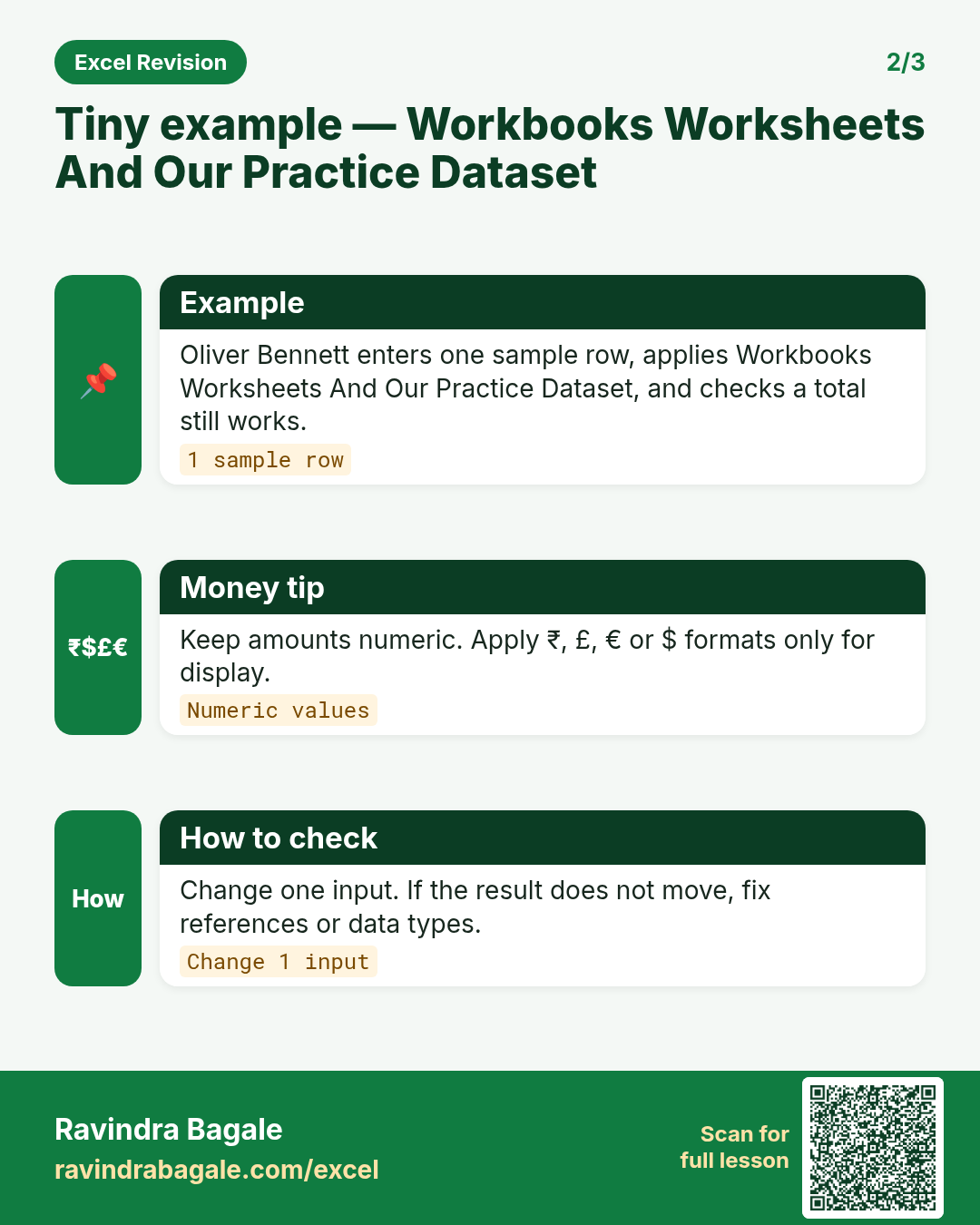
- Open a blank sheet. In A1 type a short label for workbooks worksheets and our practice dataset.
- Enter a small made-up value for Aamir Khan using ₹ where money appears.
- Add a second value for Emma Clarke using € so you see mixed currencies stay numeric.
- Apply the method from this lesson step by step (menu or formula as shown above).
- Check the result still works inside SUM or a simple check cell.
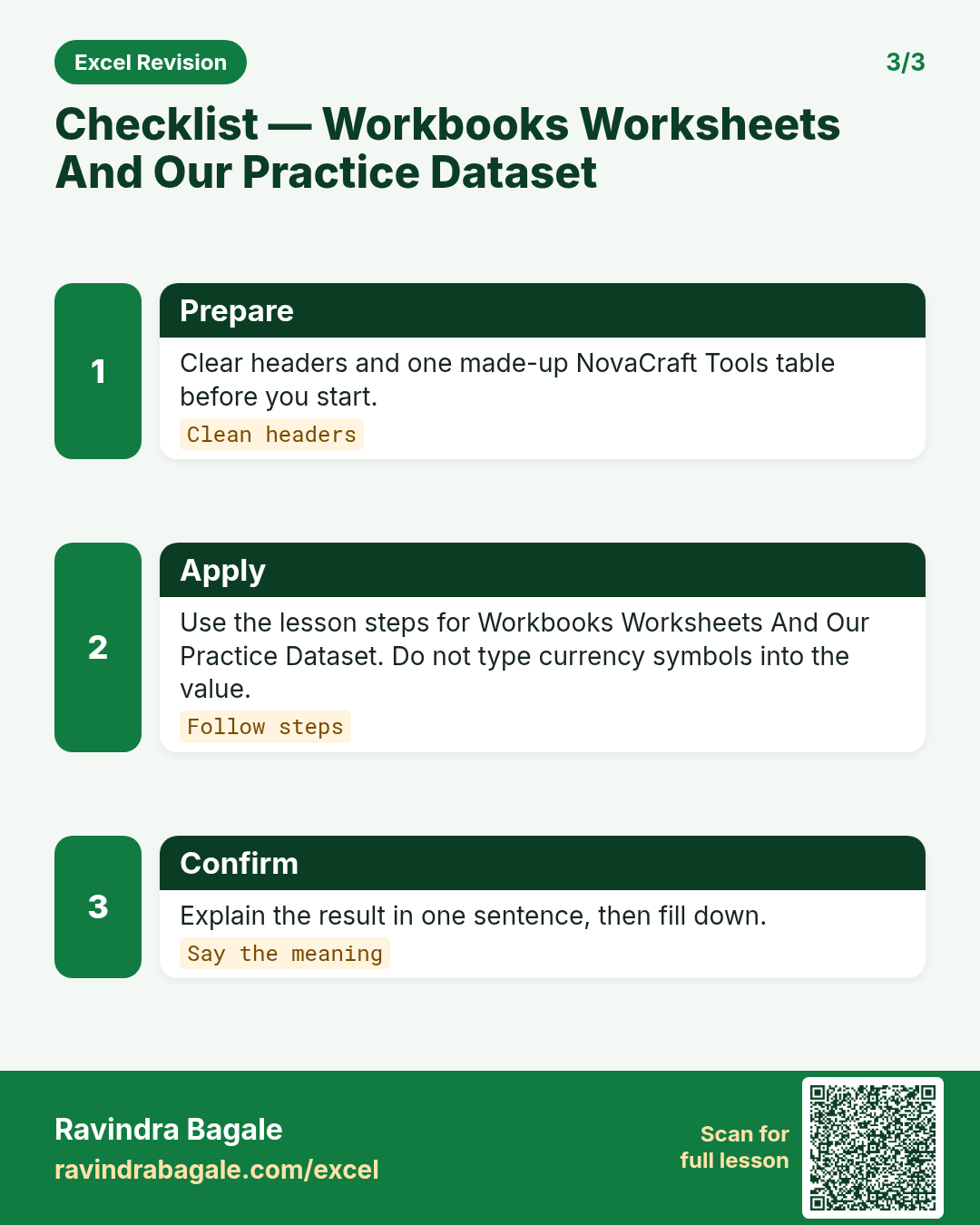
Formula / action
Follow the formula or ribbon steps shown in this lesson (keep values numeric).Meaning: Once workbooks worksheets and our practice dataset is correct on one row, copy the same pattern down the column.
Practice tasks (10+)
Try these on a blank sheet. Open a hint only if you are stuck. No quiz — just practice.
1. Rebuild the smallest example of workbooks worksheets and our practice dataset on a blank sheet for BrightLedger Finance.
Hint: Use only the steps on this page. Keep numbers numeric.
2. Change one input for Rohan Patil and confirm the result updates.
Hint: If the result is stuck, check absolute vs relative references.
3. Repeat the same steps with a £ or € value for Carlos Rivera.
Hint: Formatting must not break SUM.
4. Write the result meaning in one plain sentence next to the cell.
Hint: Imagine explaining it to a new joiners.
5. Add a second row and fill the method down.
Hint: Double-click the fill handle if the pattern is consistent.
6. Break the example on purpose, then fix it using this lesson.
Hint: Common break: text instead of a number.
7. Apply workbooks worksheets and our practice dataset to a 5-row made-up BrightLedger Finance table.
Hint: Keep column headers clear.
8. Check your answer with a simple total or COUNT.
Hint: A wrong total usually means a format or key mismatch.
9. Swap ₹ and $ on one column and re-check totals.
Hint: Stored values stay the same; only the display changes.
10. List two mistakes beginners make with workbooks worksheets and our practice dataset.
Hint: Look back at the tip box on this page.
11. Teach the steps out loud in under one minute.
Hint: Why → What → How.
12. Save the sheet as BrightLedger_practice.xlsx.
Hint: Use a clear file name for class.
Quick revision cards
Three standalone cards. Each one explains the idea with its own example. Scan the QR to open this lesson.