Walking Steps Tracker in Excel: Daily Goal, Weekly Average with AVERAGEIFS and Km Walked
Zoya in Nashik set herself a goal of 8,000 steps a day. Her phone shows today's count, but not whether this week was better than last week, or whether weekends are the problem. Typing one number a night into this sheet answers all of that, and the line chart makes the pattern obvious.
What you'll learn on this page
- A Goal met? column with IF
- Week numbers from the first date
- Weekly averages with AVERAGEIFS
- Week-on-week change in %
- A weekend average with WEEKDAY and SUMPRODUCT
- Km walked from your step length, and a line chart
Download the template: walking-steps-tracker-template.xlsx: example data with real formulas. Yellow cells are inputs you can type over; green cells hold formulas; blue rows are headers and totals. Replace the example data with your own and everything recalculates.
Made-up data: every name, amount, shop and date on this page is made up for practice. Cities are used only to make the examples feel real.
1. The example
Zoya's two weeks from 1 to 14 October 2026 (made-up values):
| Value | |
|---|---|
| Average steps per day | 8,743 |
| Week 1 average | 8,357 |
| Week 2 average | 9,129 |
| Change week 1 to week 2 | +9.2% |
| Days goal met (8,000+) | 9 of 14 |
| Weekend average | 7,525 |
| Best day | 13-10-2026 (12,400 steps) |
| Km walked (0.7 m per step) | 85.7 km |
The weekend average (7,525) is below her goal while the overall average (8,743) is above it. Both Sundays were her lowest days (5,300 and 6,100). That is the one habit to fix.
Figure 1. Daily steps are compared with the goal (Yes/No); a week number from the first date feeds AVERAGEIFS; WEEKDAY picks weekends; steps × step length gives km.
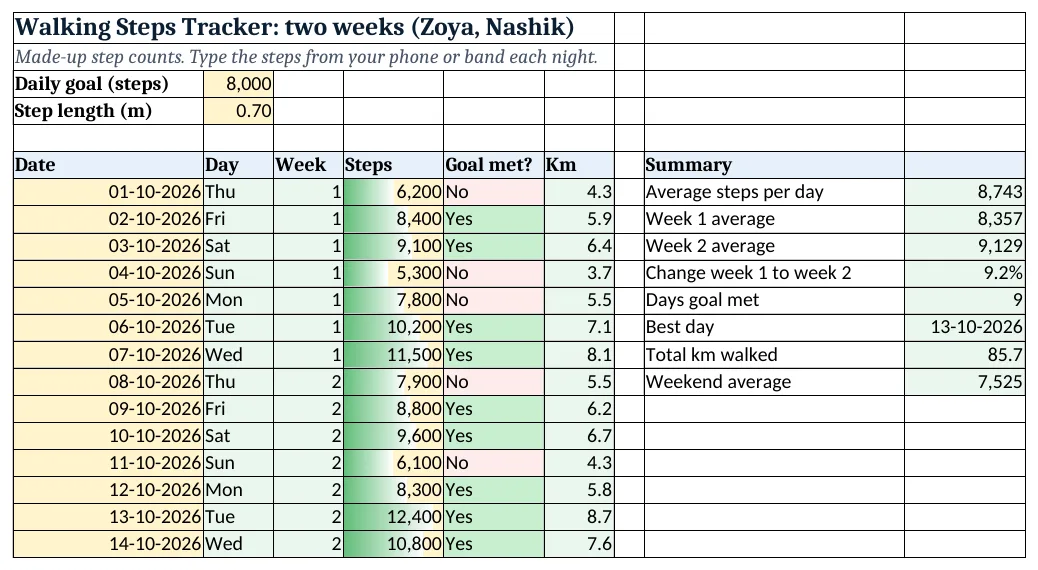
Figure 2. The template sheet, recalculated with its example data. Download it above and replace the yellow cells with your own numbers.
2. Build it step by step
Step 1. Goal and step length
- In B3 type your daily goal (8,000) and in B4 your step length in metres (0.7). Both are yellow inputs.
Step 2. Daily rows
- In A6:F6 type Date, Day, Week, Steps, Goal met?, Km. Type dates in column A and steps in column D.
- In B7 type
=TEXT(A7,"ddd")to show Thu, Fri and so on. - In C7 type
=INT((A7-$A$7)/7)+1: days 1-7 are week 1, days 8-14 are week 2.
Step 3. Goal met and km
- In E7 type
=IF(D7>=$B$3,"Yes","No"). - In F7 type
=D7*$B$4/1000for km. Copy B7:F7 down to row 20.
Step 4. Weekly averages
- In I7 type
=AVERAGE(D7:D20): 8,743. - In I8 type
=AVERAGEIFS(D7:D20,C7:C20,1): 8,357. AVERAGEIFS(average_range, criteria_range, criteria) averages only rows that match (AVERAGEIFS). - In I9 type
=AVERAGEIFS(D7:D20,C7:C20,2): 9,129. In I10 type=I9/I8-1as %: +9.2%.
Step 5. Count, best day and weekends
- In I11 type
=COUNTIF(E7:E20,"Yes"): 9 days. - In I12 type
=INDEX(A7:A20,MATCH(MAX(D7:D20),D7:D20,0)): 13-10-2026. - In I14 type
=SUMPRODUCT((WEEKDAY(A7:A20,2)>5)*D7:D20)/SUMPRODUCT(--(WEEKDAY(A7:A20,2)>5)): 7,525. WEEKDAY with 2 gives 6 for Saturday and 7 for Sunday (SUMPRODUCT, WEEKDAY).
Step 6. Colours and chart
- Select D7:D20 > Conditional Formatting > Data Bars (data bars).
- Select E7:E20 > Highlight Cells Rules > Equal To "Yes" green and "No" red.
- Select A7:A20 and D7:D20 > Insert > Line (line charts).
Ravindra Bagale's Tip
Look at the weakest day of the week, not the average. Fixing one bad day lifts the whole week.
Ravindra Bagale's Tip – मराठी
Average नका बघू, आठवड्यातला सगळ्यात कमी दिवस बघा. तो एक दिवस सुधारला की पूर्ण आठवडा सुधारतो.
Ravindra Bagale's Tip – हिंदी
Average मत देखो, हफ्ते का सबसे कमज़ोर दिन देखो. वो एक दिन सुधरा तो पूरा हफ्ता सुधरेगा.
3. Formulas used
| Cell | Formula | What it does |
|---|---|---|
| B7 | =TEXT(A7,"ddd") |
Day name |
| C7 | =INT((A7-$A$7)/7)+1 |
Week number |
| E7 | =IF(D7>=$B$3,"Yes","No") |
Goal met? |
| F7 | =D7*$B$4/1000 |
Km |
| I7 | =AVERAGE(D7:D20) |
Average steps |
| I8 | =AVERAGEIFS(D7:D20,C7:C20,1) |
Week 1 average |
| I10 | =I9/I8-1 |
Change week 1 to week 2 |
| I11 | =COUNTIF(E7:E20,"Yes") |
Days goal met |
| I12 | =INDEX(A7:A20,MATCH(MAX(D7:D20),D7:D20,0)) |
Best day |
| I14 | =SUMPRODUCT((WEEKDAY(A7:A20,2)>5)*D7:D20)/SUMPRODUCT(--(WEEKDAY(A7:A20,2)>5)) |
Weekend average |
Every formula above is written in the template, so you can click a cell and see it in the formula bar. All values on this page were recalculated in the file.
4. Common mistakes
- Leaving a day blank when you forgot your phone. A blank is ignored by AVERAGE, which is fine. Typing 0 would pull the average down unfairly.
- Typing $B$3 without dollar signs. Copied down, B3 would become B4, B5... and compare with the wrong cell.
- Week numbers that do not start at 1. C7 subtracts the first date $A$7, so the first row is always week 1.
- Comparing a 5-day week with a 7-day week. Compare averages, not totals, when a week is not complete.
- Step length in centimetres. Type 0.7 (metres), not 70, or km will be 100 times too high.
Ravindra Bagale's Tip
Measure your step length once: walk 10 steps, measure the distance in metres and divide by 10.
Ravindra Bagale's Tip – मराठी
एकदा step length मोजा: 10 पावलं चाला, अंतर metres मध्ये मोजा आणि 10 ने भागा.
Ravindra Bagale's Tip – हिंदी
एक बार step length नापो: 10 कदम चलो, दूरी metres में नापो और 10 से भाग दो.
5. More real examples
Example 1: Walking with Rani. Add a second Steps column for Rani and a second line in the chart to compare.
Example 2: A monthly view. Use =MONTH(A7) in a helper column and AVERAGEIFS by month to see the trend over a year.
Example 3: Water or exercise minutes. The same layout works for any daily number with a goal: glasses of water, minutes of exercise, pages read.
Quick revision cards
Quick revision
Each card shows formulas from this page, each with an example and its answer from the template. Scan the QR code on a card to open this lesson. All names and numbers are made up for practice.
झटपट उजळणी
प्रत्येक card वर या page मधले formulas, त्यांचं example आणि template मधलं उत्तर आहे. Card वरचा QR code scan केला की हा lesson उघडतो. सगळी नावं आणि आकडे सरावासाठी काल्पनिक आहेत.
झटपट दोहराई
हर card पर इस page के formulas, उनका example और template का उत्तर है. Card का QR code scan करें तो यह lesson खुलेगा. सभी नाम और आंकड़े अभ्यास के लिए काल्पनिक हैं.
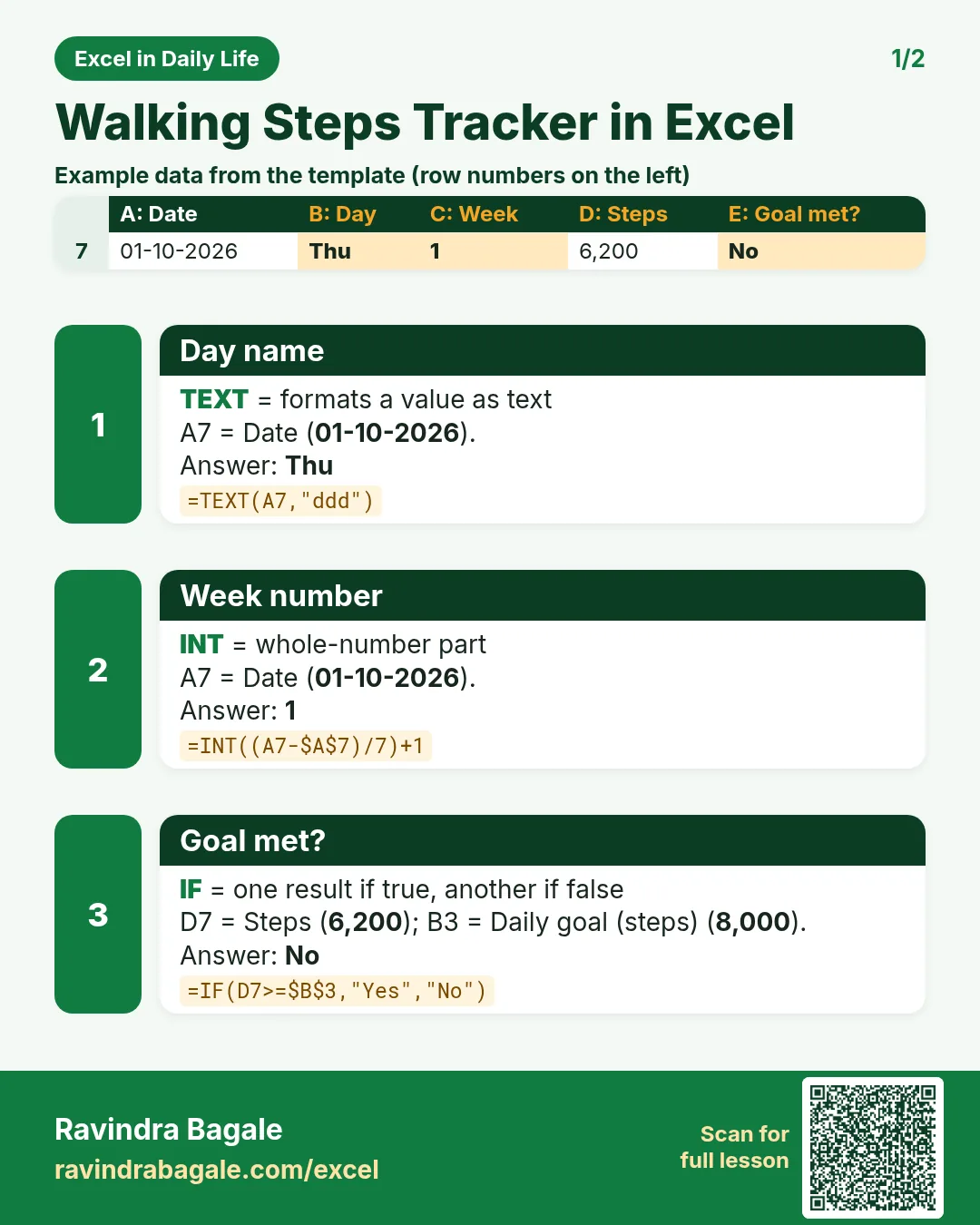

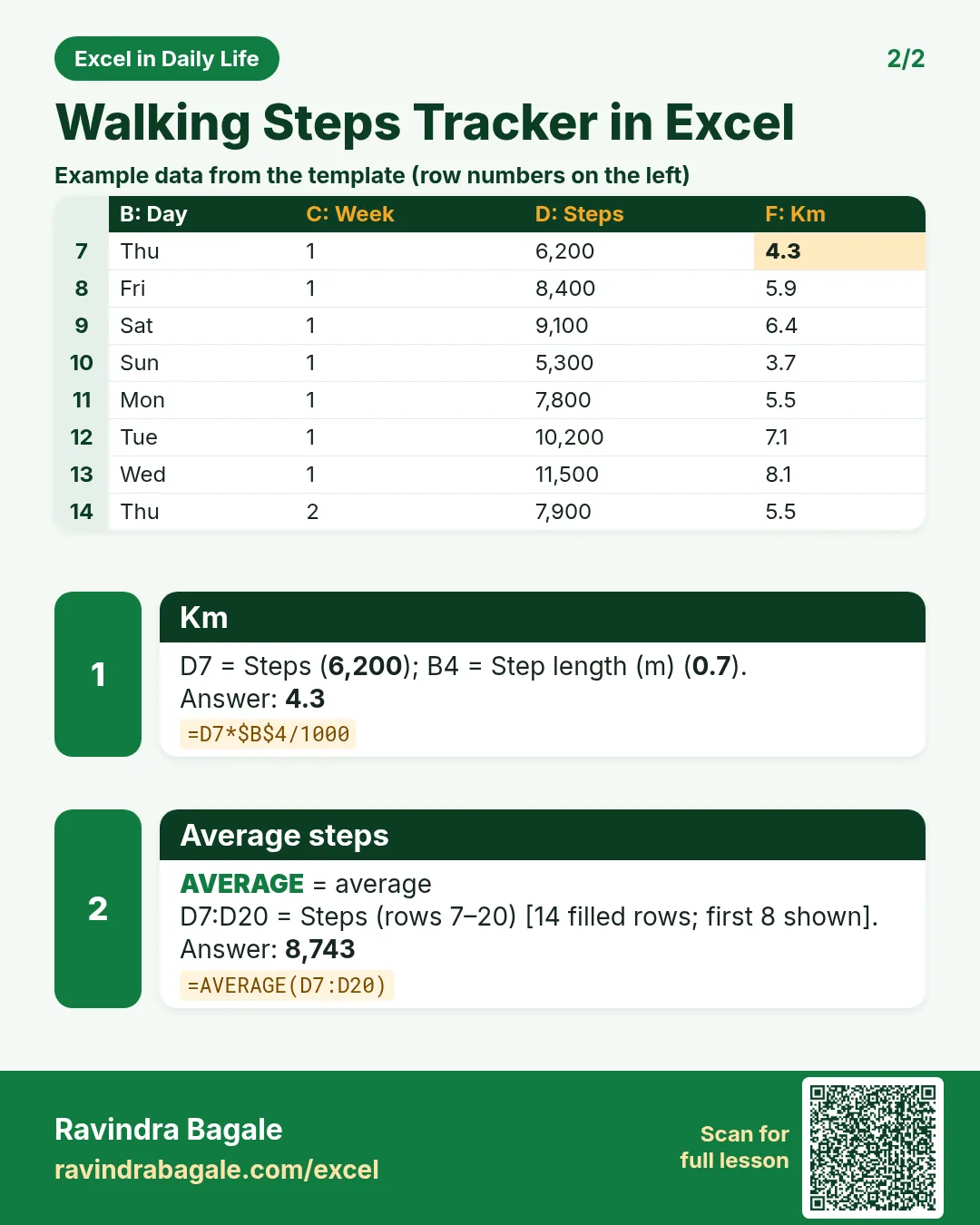

More cards: Ravi Sir's Cards.
6. Frequently asked questions
How do I calculate a weekly average in Excel?
Give each row a week number, then use =AVERAGEIFS(steps, week_column, 1) for week 1, 2 for week 2 and so on.
How do I count days I met my step goal?
Mark each day with =IF(D7>=$B$3,"Yes","No") and count with =COUNTIF(E7:E20,"Yes").
How do I convert steps to km?
Steps × step length in metres ÷ 1,000. With 0.7 m, 12,400 steps is 8.7 km.
How do I average only weekends?
Use WEEKDAY(date,2)>5 inside SUMPRODUCT, then divide by the number of weekend days.
Can I import steps from my phone?
Many phones can export to CSV. Paste the dates and steps into columns A and D and the formulas do the rest.
7. Quick quiz
Ten questions on this page. Sign in to save your score.
Loading practice tasks...
- Total covers (Easy): Add up Covers in D2:D11.
- Average bill amount (Easy): Average of E2:E11, rounded to 2 decimals.
- Rows in Downtown (Easy): How many rows have Outlet "Downtown"?
- Largest covers (Easy): The largest value in D2:D11.
- Covers for Downtown (Medium): Total of D2:D11 where B is "Downtown".
- Downtown in Denver (Medium): Total of D2:D11 where B is "Downtown" and C is "Denver".
- Best in Downtown (Medium): Largest E2:E11 value where B is "Downtown".
- Value of row 2 (Medium): D2 times E2.
- Look up Ananya Nair (Medium): The Covers for "Ananya Nair" (use a lookup on column A).
- Total value (Hard): Sum of D times E for all rows.
- Share of Downtown (Hard): Share of D2:D11 that is "Downtown", rounded to 3 decimals.
- Rank of row 2 (Hard): Rank of D2 among D2:D11 (largest = 1).
- Above average? (Hard): "Above" if E2 is above the average of E2:E11, else "Below".