Pocket Money Tracker in Excel for Kids: Running Balance, Spending and a Savings Goal
Ruhi Bagale is 11 and wants a ₹4,500 bicycle. She gets ₹150 a week, sometimes a gift, and spends a little on snacks and comics. Instead of a piggy bank she cannot see inside, her father helped her make a small Excel sheet. Every rupee in and out is one row, the balance updates on its own, and a bar shows how close the bicycle is. It is a first lesson in both money and Excel.
What you'll learn on this page
- One row per entry with In/Out and Category drop-downs
- A running balance with IF
- Total in, total out and balance with SUMIF
- How much went on snacks
- Progress to a savings goal
- Weeks to the goal with ROUNDUP and a REPT progress bar
Download the template: pocket-money-tracker-kids-template.xlsx: example data with real formulas. Yellow cells are inputs you can type over; green cells hold formulas; blue rows are headers and totals. Replace the example data with your own and everything recalculates.
Made-up data: every name, amount, shop and date on this page is made up for practice. Cities are used only to make the examples feel real.
1. The example
Ruhi's log from 6 September to 11 October 2026 (made-up), with ₹200 to start:
| Value | |
|---|---|
| Total in (pocket money, chores, a ₹500 gift) | ₹1,450 |
| Total out (snacks, stationery, a comic) | ₹370 |
| Balance now | ₹1,280 |
| Spent on snacks | ₹100 |
| Bicycle goal | ₹4,500 |
| Progress | 28% ■■■□□□□□□□ |
| Weeks to the bicycle at ₹120 a week | 27 |
The ₹500 gift from Rani aaji was the biggest jump. Ruhi can see that saving ₹150 instead of ₹120 a week would bring the bicycle closer by about five weeks.
Figure 1. Each entry is In or Out; the running balance adds or subtracts it; SUMIF totals give ₹1,280 now, 28% of the ₹4,500 bicycle, 27 weeks to go at ₹120 a week.
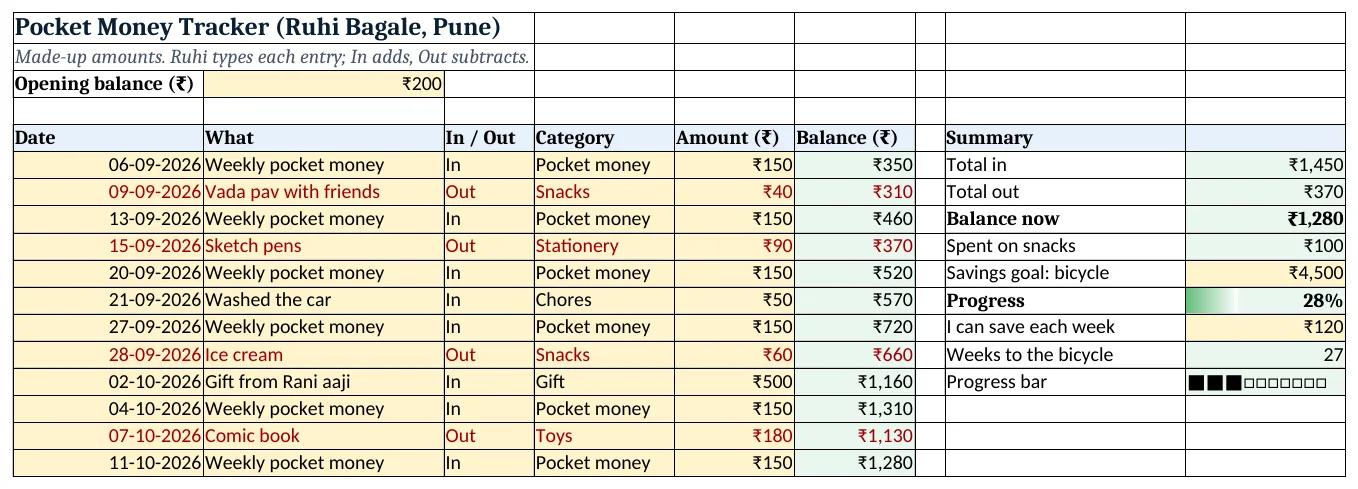
Figure 2. The template sheet, recalculated with its example data. Download it above and replace the yellow cells with your own numbers.
2. Build it step by step
Step 1. Opening balance and log
- In B3 type the money already in the piggy bank (₹200).
- In A5:F5 type Date, What, In / Out, Category, Amount, Balance.
- Select C6:C300 > Data Validation > List:
In,Out; D6:D300:Pocket money,Gift,Chores,Snacks,Stationery,Toys,Other(drop-down lists).
Step 2. Running balance
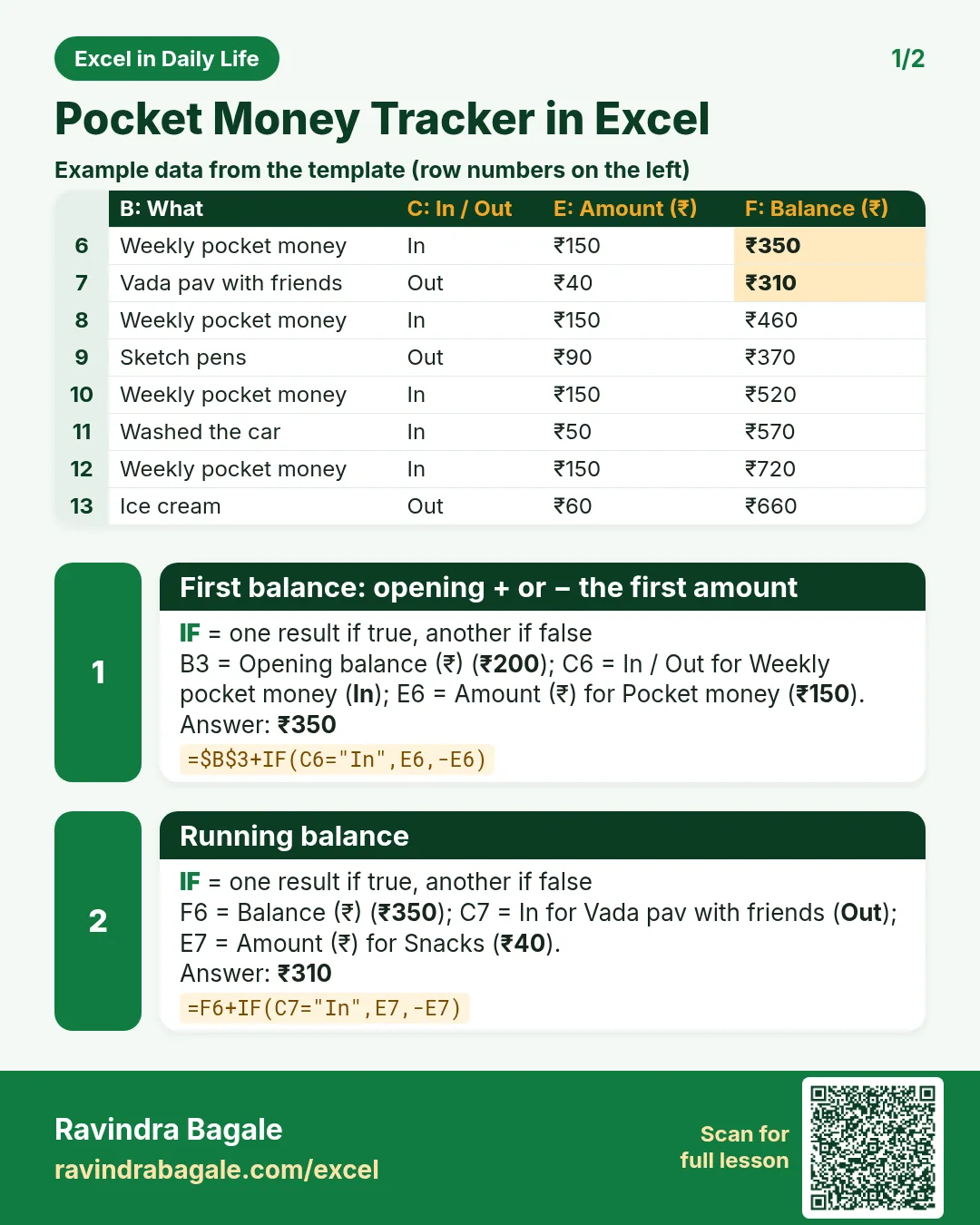
- In F6 type
=$B$3+IF(C6="In",E6,-E6): ₹350 after the first pocket money. - In F7 type
=F6+IF(C7="In",E7,-E7)and copy down. Each row adds money in and subtracts money out (IF).
Step 3. Totals
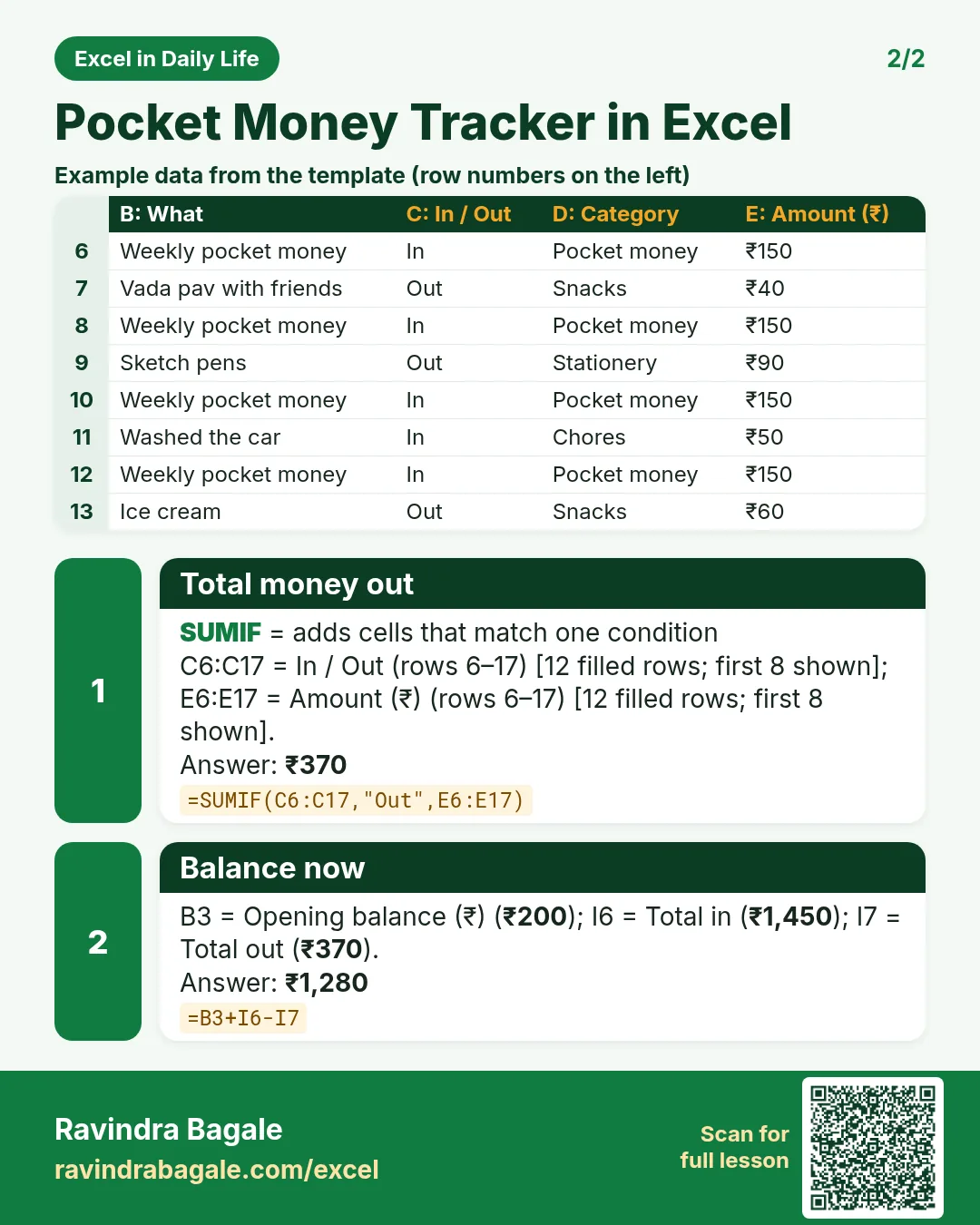
- In I6 type
=SUMIF(C6:C17,"In",E6:E17): ₹1,450. In I7 the same with "Out": ₹370 (SUMIF). - In I8 type
=B3+I6-I7: ₹1,280. It must match the last balance in column F. - In I9 type
=SUMIF(D6:D17,"Snacks",E6:E17): ₹100.
Step 4. Savings goal
- Type the goal in I10 (₹4,500) and the weekly saving in I12 (₹120).
- In I11 type
=I8/I10and format as %: 28%. - In I13 type
=ROUNDUP((I10-I8)/I12,0): 27 weeks (ROUNDUP).
Step 5. Progress bar
- In I14 type
=REPT("■",ROUND(I11*10,0))&REPT("□",10-ROUND(I11*10,0)): 3 filled squares out of 10. - Optional: add Data Bars on I11 with minimum 0 and maximum 1 (data bars).
Step 6. Colour the spending
- Select A6:F300 > New Rule > Use a formula:
=$C6="Out", dark red font (formula rules).
Ravindra Bagale's Tip
Let the child type the entries. Typing "Out, ₹60, ice cream" teaches more about money than any long talk.
Ravindra Bagale's Tip – मराठी
Entries मुलांनाच टाइप करू द्या. "Out, ₹60, ice cream" स्वतः लिहिल्यावर पैशाबद्दल जास्त कळतं.
Ravindra Bagale's Tip – हिंदी
Entries बच्चों को ही टाइप करने दो. "Out, ₹60, ice cream" खुद लिखने से पैसे के बारे में ज़्यादा समझ आता है.
3. Formulas used
| Cell | Formula | What it does |
|---|---|---|
| F6 | =$B$3+IF(C6="In",E6,-E6) |
First balance: opening + or − the first amount |
| F7 | =F6+IF(C7="In",E7,-E7) |
Running balance |
| I6 | =SUMIF(C6:C17,"In",E6:E17) |
Total money in |
| I7 | =SUMIF(C6:C17,"Out",E6:E17) |
Total money out |
| I8 | =B3+I6-I7 |
Balance now |
| I9 | =SUMIF(D6:D17,"Snacks",E6:E17) |
Spent on snacks |
| I11 | =I8/I10 |
Progress to the goal |
| I13 | =ROUNDUP((I10-I8)/I12,0) |
Weeks left to the goal |
| I14 | =REPT("■",ROUND(I11*10,0))&REPT("□",10-ROUND(I11*10,0)) |
Progress bar of 10 squares |
Every formula above is written in the template, so you can click a cell and see it in the formula bar. All values on this page were recalculated in the file.
4. Common mistakes
- Typing spending as a minus number. Type every amount as a plain number and choose Out. The IF makes it negative; a typed minus would add it back.
- Balance that does not match I8. If F17 and I8 differ, a row has the wrong In/Out. Check the last few entries.
- ROUND instead of ROUNDUP for weeks. 26.8 weeks is really 27 weeks; ROUND could promise the bicycle a week early.
- Leaving gaps between rows. The running balance reads the row above. Fill rows one after another.
- Spelling categories by hand. "snack" and "Snacks" are different for SUMIF. Use the drop-down.
Ravindra Bagale's Tip
Change the weekly saving in I12 together and watch the weeks change. It turns saving into a game with a clear finish line.
Ravindra Bagale's Tip – मराठी
I12 मधली weekly saving एकत्र बदलून बघा आणि आठवडे कसे बदलतात ते बघा. बचत एक खेळ होतो, ज्याला स्पष्ट शेवटची रेघ असते.
Ravindra Bagale's Tip – हिंदी
I12 की weekly saving साथ में बदलकर देखो कि हफ्ते कैसे बदलते हैं. बचत एक खेल बन जाती है जिसकी साफ़ आखिरी लाइन होती है.
5. More real examples
Example 1: Two children. Make one sheet per child (Ruhi, Raja) and a summary sheet that shows each balance.
Example 2: Saving into the bank. Add a category To bank (Out) when money goes into a savings account, and track that total separately.
Example 3: Teen with UPI. The same sheet works for a teenager's UPI spending, with categories like Travel and Recharge.
Quick revision cards
Quick revision
Each card shows formulas from this page, each with an example and its answer from the template. Scan the QR code on a card to open this lesson. All names and numbers are made up for practice.
झटपट उजळणी
प्रत्येक card वर या page मधले formulas, त्यांचं example आणि template मधलं उत्तर आहे. Card वरचा QR code scan केला की हा lesson उघडतो. सगळी नावं आणि आकडे सरावासाठी काल्पनिक आहेत.
झटपट दोहराई
हर card पर इस page के formulas, उनका example और template का उत्तर है. Card का QR code scan करें तो यह lesson खुलेगा. सभी नाम और आंकड़े अभ्यास के लिए काल्पनिक हैं.


More cards: Ravi Sir's Cards.
6. Frequently asked questions
How do I make a pocket money tracker in Excel?
One row per entry with Date, What, In/Out, Category and Amount, and a running balance =previous+IF(C7="In",E7,-E7).
How do I keep a running balance?
Start from the opening balance, then add In amounts and subtract Out amounts row by row.
How do I show progress to a savings goal?
Balance ÷ goal as a %, plus a bar with REPT or Data Bars.
How do I calculate weeks to reach a goal?
=ROUNDUP((goal-balance)/saving per week,0).
Is this good for teaching kids Excel?
Yes. It uses drop-downs, IF, SUMIF and ROUNDUP on numbers they care about.
7. Quick quiz
Ten questions on this page. Sign in to save your score.
Loading practice tasks...
- Monthly rate (Easy): Yearly rate B3 divided by 12.
- Months (Easy): B4 times 12.
- Monthly EMI (Easy): EMI on amount B2 at B3 for B4 years, as a positive number, rounded to 2 decimals.
- Total repaid (Medium): Total paid over the loan, rounded to 0 decimals.
- Total interest (Medium): Total paid minus B2, rounded to 0 decimals.
- Processing fee (Medium): B2 times B6.
- Savings value (Medium): Value after B4 years of saving B5 each month at B3, positive, rounded to 0 decimals.
- Interest earned (Hard): Savings value minus B5 times months, rounded to 0 decimals.
- Months to repay at double EMI (Hard): Months to clear B2 at B3 paying twice the EMI, rounded up.
- Loan you can afford (Hard): Loan size for an EMI equal to B5 over B4 years at B3, positive, rounded to 0 decimals.
- Interest share (Hard): Total interest ÷ total paid, rounded to 3 decimals.