Guest List and Budget in Excel for a Function: RSVP Count, Plates to Order and Total Cost
The Bagales are planning a housewarming in Nashik. Everyone has the same question: "How many people are actually coming, and how many plates do we order?" Order too few and it is embarrassing; order too many and money goes in the bin. A guest list in Excel turns Yes, No and Maybe into a number, then into plates, then into rupees.
What you'll learn on this page
- Guest groups with Side and RSVP drop-downs
- Expected guests: Yes counts all, Maybe counts half
- Plates to order with a buffer and ROUNDUP
- Catering, return gifts and the total cost
- Budget left or over
- Guests by side with SUMIF and a pie chart
Download the template: function-guest-list-budget-template.xlsx: example data with real formulas. Yellow cells are inputs you can type over; green cells hold formulas; blue rows are headers and totals. Replace the example data with your own and everything recalculates.
Made-up data: every name, amount, shop and date on this page is made up for practice. Cities are used only to make the examples feel real.
1. The example
8 groups, 72 invited (made-up). RSVPs: 5 groups Yes, 2 Maybe, 1 No.
| Value | |
|---|---|
| Expected guests | 57 |
| Plates (10% buffer, rounded up) | 63 |
| Catering at ₹350 a plate | ₹22,050 |
| Return gifts at ₹120 a guest | ₹6,840 |
| Decoration + sound | ₹11,000 |
| Total cost | ₹39,890 |
| Budget | ₹40,000 |
| Left | ₹110 |
Relatives make up 23 of the 57, friends 16, neighbours 15 and work 3. With just ₹110 to spare, one more Yes from Shraddha's office (10 people) would push the plan over budget, so the sheet shows exactly what to watch.
Figure 1. RSVP → expected guests (57) → plates with a 10% buffer (63) → catering ₹22,050 + gifts + other costs = ₹39,890 against a ₹40,000 budget.
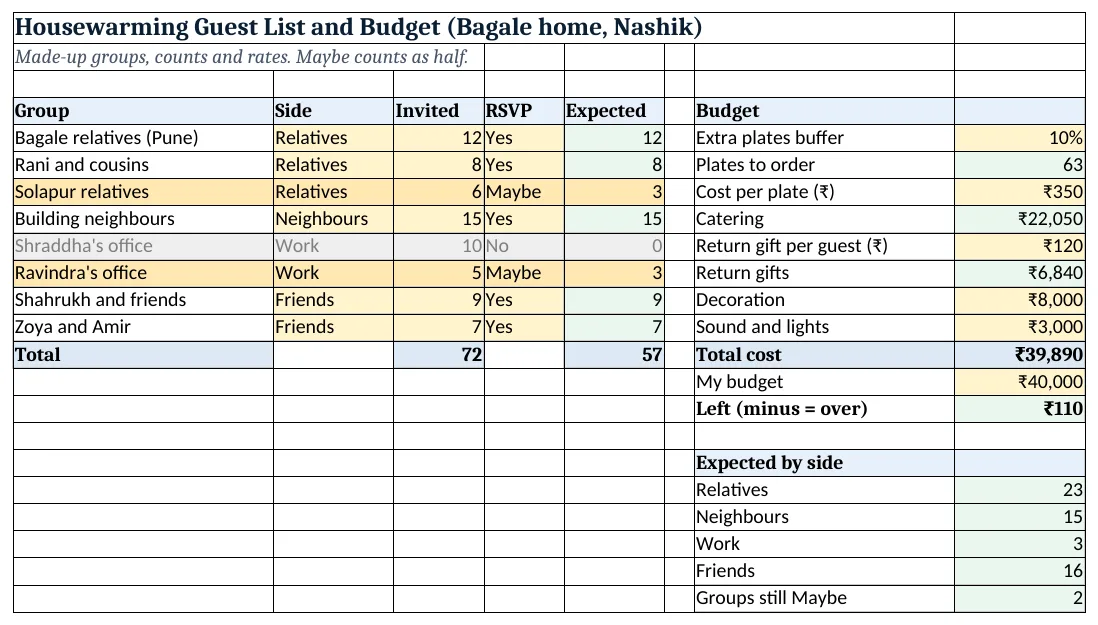
Figure 2. The template sheet, recalculated with its example data. Download it above and replace the yellow cells with your own numbers.
2. Build it step by step
Step 1. Guest groups
- In A4:E4 type Group, Side, Invited, RSVP, Expected. One row per household or group.
- Select B5:B100 > Data Validation > List:
Relatives,Neighbours,Work,Friends; D5:D100:Yes,No,Maybe(drop-down lists).
Step 2. Expected guests
- In E5 type
=IF(D5="Yes",C5,IF(D5="Maybe",ROUND(C5*0.5,0),0))(nested IF). - Copy down. A Maybe group of 5 counts as 3 (2.5 rounded).
- In C13 and E13 type
=SUM(C5:C12)and=SUM(E5:E12): 72 invited, 57 expected.
Step 3. Plates and catering
- In H5 type the buffer (10%).
- In H6 type
=ROUNDUP(E13*(1+H5),0): 57 × 1.1 = 62.7, rounded up to 63 plates (ROUND family). - Type the plate rate in H7 and in H8 type
=H6*H7: ₹22,050.
Step 4. Other costs and budget
- In H10 type
=E13*H9: return gifts for expected guests. - Type decoration and sound in H11:H12.
- In H13 type
=H8+H10+H11+H12: ₹39,890. - Type your budget in H14 and in H15
=H14-H13: ₹110 left.
Step 5. Guests by side
- In H18 type
=SUMIF($B$5:$B$12,G18,$E$5:$E$12)and copy down for each side (SUMIF). - In H22 type
=COUNTIF(D5:D12,"Maybe"): 2 groups to call back. - Select G18:H21 > Insert > Pie (pie charts).
Step 6. Colours
- Select A5:E100 > New Rule > Use a formula:
=$D5="No"grey (Stop If True), then=$D5="Maybe"amber (formula rules). - Select H15 > Highlight Cells Rules > Less Than 0, red.
Ravindra Bagale's Tip
Call the Maybe groups three days before you confirm the caterer. Two phone calls can change the plate count by ten.
Ravindra Bagale's Tip – मराठी
Caterer ला confirm करण्याआधी तीन दिवस Maybe वाल्यांना फोन करा. दोन फोनमध्ये plate count दहाने बदलू शकतो.
Ravindra Bagale's Tip – हिंदी
Caterer को confirm करने से तीन दिन पहले Maybe वालों को फ़ोन करो. दो फ़ोन से plate count दस से बदल सकता है.
3. Formulas used
| Cell | Formula | What it does |
|---|---|---|
| E5 | =IF(D5="Yes",C5,IF(D5="Maybe",ROUND(C5*0.5,0),0)) |
Expected guests from the RSVP |
| E13 | =SUM(E5:E12) |
Total expected |
| H6 | =ROUNDUP(E13*(1+H5),0) |
Plates to order with the buffer |
| H8 | =H6*H7 |
Catering cost |
| H10 | =E13*H9 |
Return gifts |
| H13 | =H8+H10+H11+H12 |
Total cost |
| H15 | =H14-H13 |
Budget left (minus = over) |
| H18 | =SUMIF($B$5:$B$12,G18,$E$5:$E$12) |
Expected guests from one side |
| H22 | =COUNTIF(D5:D12,"Maybe") |
Groups still Maybe |
Every formula above is written in the template, so you can click a cell and see it in the formula bar. All values on this page were recalculated in the file.
4. Common mistakes
- Counting invited instead of expected. Plates for 72 when 57 are coming wastes ₹5,250. Use the Expected column.
- ROUND instead of ROUNDUP for plates. 62.7 plates must be 63. ROUND could round down on a lower number and leave someone without a plate.
- Typing each name as a row. For big functions one row per household is easier: Invited holds the number of people.
- Return gifts for invited guests. Multiply by expected guests (E13), unless you send gifts to those who do not come.
- Forgetting to update RSVPs. Change Maybe to Yes or No as replies come in; every number updates.
Ravindra Bagale's Tip
Keep a little budget margin. ₹110 left is too tight; one extra group or a price change and you are over.
Ravindra Bagale's Tip – मराठी
Budget मध्ये थोडी जागा ठेवा. ₹110 उरणं फार काठावर आहे; एक group वाढला किंवा भाव बदलला की budget बाहेर.
Ravindra Bagale's Tip – हिंदी
Budget में थोड़ी गुंजाइश रखो. ₹110 बचना बहुत किनारे पर है; एक group बढ़ा या भाव बदला तो budget के बाहर.
5. More real examples
Example 1: Birthday party at home. Groups: Ruhi's friends, building kids, relatives. Plate rate becomes a per-head snack cost.
Example 2: Wedding with two sides. Use Side = Bride's side / Groom's side and SUMIF each to split the catering bill.
Example 3: Office team lunch. RSVP drop-down with Yes/No only, a per-plate rate and a company budget cell.
Quick revision cards
Quick revision
Each card shows formulas from this page, each with an example and its answer from the template. Scan the QR code on a card to open this lesson. All names and numbers are made up for practice.
झटपट उजळणी
प्रत्येक card वर या page मधले formulas, त्यांचं example आणि template मधलं उत्तर आहे. Card वरचा QR code scan केला की हा lesson उघडतो. सगळी नावं आणि आकडे सरावासाठी काल्पनिक आहेत.
झटपट दोहराई
हर card पर इस page के formulas, उनका example और template का उत्तर है. Card का QR code scan करें तो यह lesson खुलेगा. सभी नाम और आंकड़े अभ्यास के लिए काल्पनिक हैं.
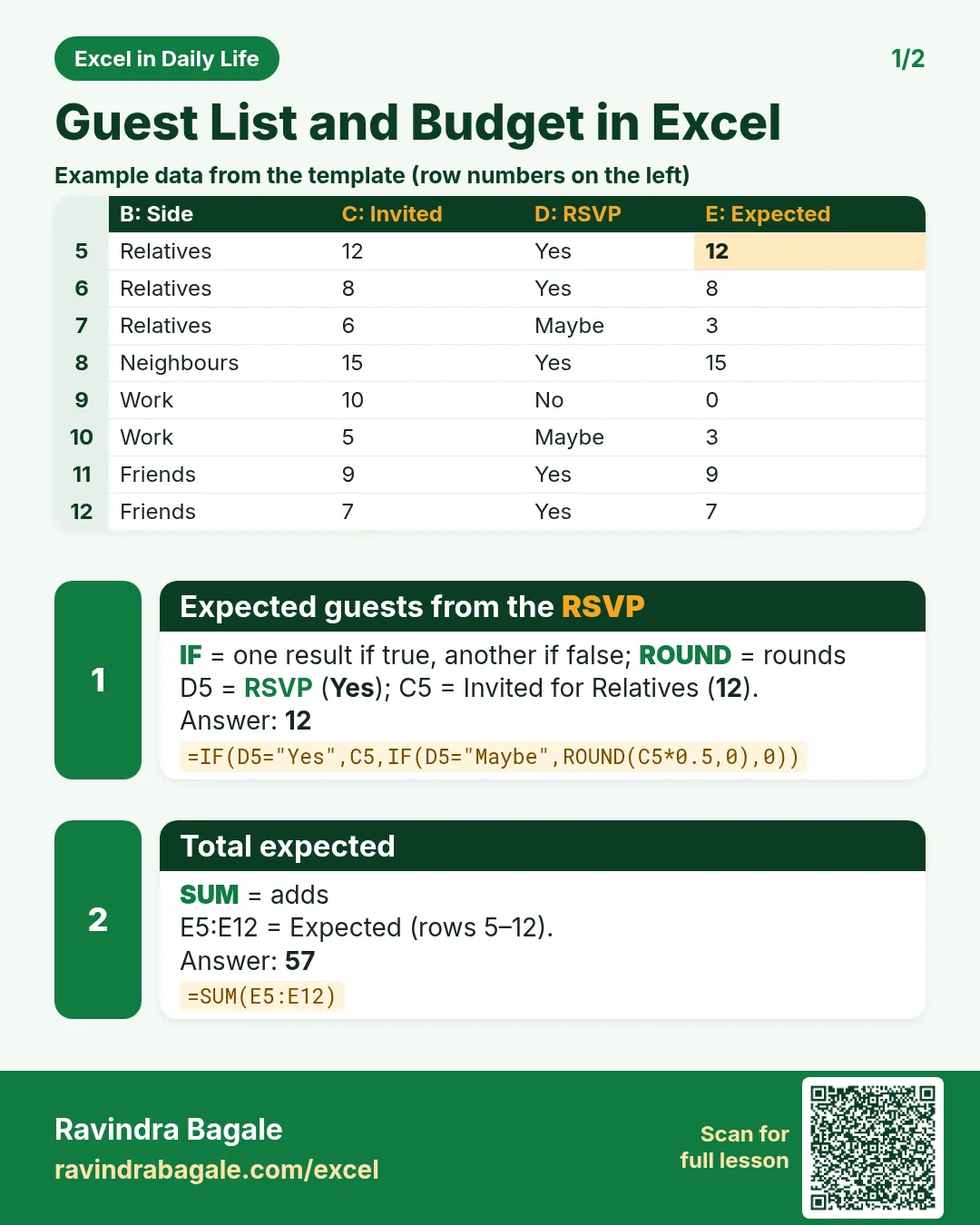

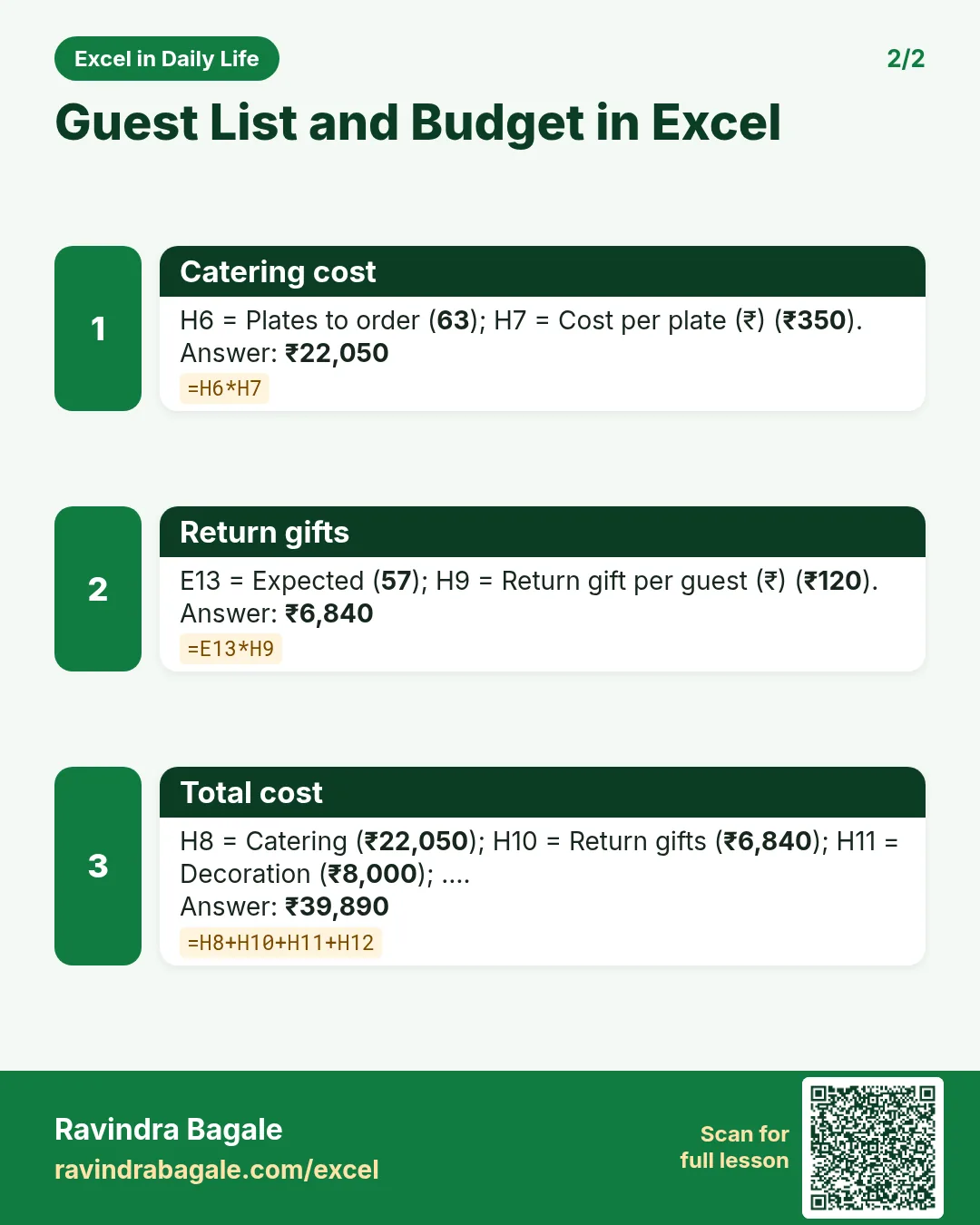

More cards: Ravi Sir's Cards.
6. Frequently asked questions
How do I make a guest list with RSVP in Excel?
One row per group with an Invited count and an RSVP drop-down (Yes, No, Maybe). An IF formula turns the RSVP into expected guests.
How many plates should I order?
Expected guests plus a buffer, rounded up: =ROUNDUP(expected*(1+10%),0).
How should Maybe replies be counted?
Half is a common rule of thumb; change 0.5 in the formula if your experience is different.
How do I check the function budget?
Total cost = catering + gifts + other costs; budget − total shows money left or a minus number when over.
Can I see guests by side?
Yes: =SUMIF(B5:B12,"Relatives",E5:E12) for each side, plus a pie chart.
7. Quick quiz
Ten questions on this page. Sign in to save your score.
Loading practice tasks...
- Total times (Easy): Add up Times in D2:D11.
- Average amount (Easy): Average of E2:E11, rounded to 2 decimals.
- Rows in Food (Easy): How many rows have Category "Food"?
- Largest times (Easy): The largest value in D2:D11.
- Times for Food (Medium): Total of D2:D11 where B is "Food".
- Food in Delhi (Medium): Total of D2:D11 where B is "Food" and C is "Delhi".
- Best in Food (Medium): Largest E2:E11 value where B is "Food".
- Value of row 2 (Medium): D2 times E2.
- Look up Kavya Reddy (Medium): The Times for "Kavya Reddy" (use a lookup on column A).
- Total value (Hard): Sum of D times E for all rows.
- Share of Food (Hard): Share of D2:D11 that is "Food", rounded to 3 decimals.
- Rank of row 2 (Hard): Rank of D2 among D2:D11 (largest = 1).
- Above average? (Hard): "Above" if E2 is above the average of E2:E11, else "Below".