Exam Study Planner in Excel: Countdown to the Exam, Syllabus Progress and a Weekly Study Log
Ruhi Bagale in Pune has an exam in February and six subjects. "There is lots of time" in October quickly becomes panic in January. A study planner in Excel turns the vague feeling into numbers: how many days are left, how many chapters are still to do in each subject, and how many chapters a week that means. It also flags the subjects that need attention now.
What you'll learn on this page
- Days left to the exam from two dates
- Keeping days aside for revision
- Chapters left and done % per subject
- Chapters per week needed with ROUND
- Focus flags and data bars
- A weekly hours log with SUMIF per subject
Download the template: exam-study-planner-template.xlsx: example data with real formulas. Yellow cells are inputs you can type over; green cells hold formulas; blue rows are headers and totals. Replace the example data with your own and everything recalculates.
Made-up data: every name, amount, shop and date on this page is made up for practice. Cities are used only to make the examples feel real.
1. The example
As of 17-10-2026, with a made-up exam date of 25-02-2027:
| Value | |
|---|---|
| Days left | 131 |
| Days kept for revision | 20 |
| Days for new chapters | 111 (15.9 weeks) |
| Chapters done | 35 of 71 (49%) |
| Subject | Left | Done % | Per week | Status |
|---|---|---|---|---|
| Maths | 7 | 42% | 0.4 | Focus |
| Hindi | 6 | 33% | 0.4 | Focus |
| Social Science | 9 | 36% | 0.6 | Focus |
| Science | 7 | 56% | 0.4 | On track |
This week she planned 15.5 hours of study and did 13: 2.5 hours short. Maths got 6 hours and Science 5, but English and Marathi got none this week. The sheet shows it without anyone having to say it.
Figure 1. Exam date − today gives 131 days; minus 20 revision days leaves 15.9 weeks; chapters left ÷ weeks gives the pace per subject; Focus flags and SUMIF hours show where time should go.
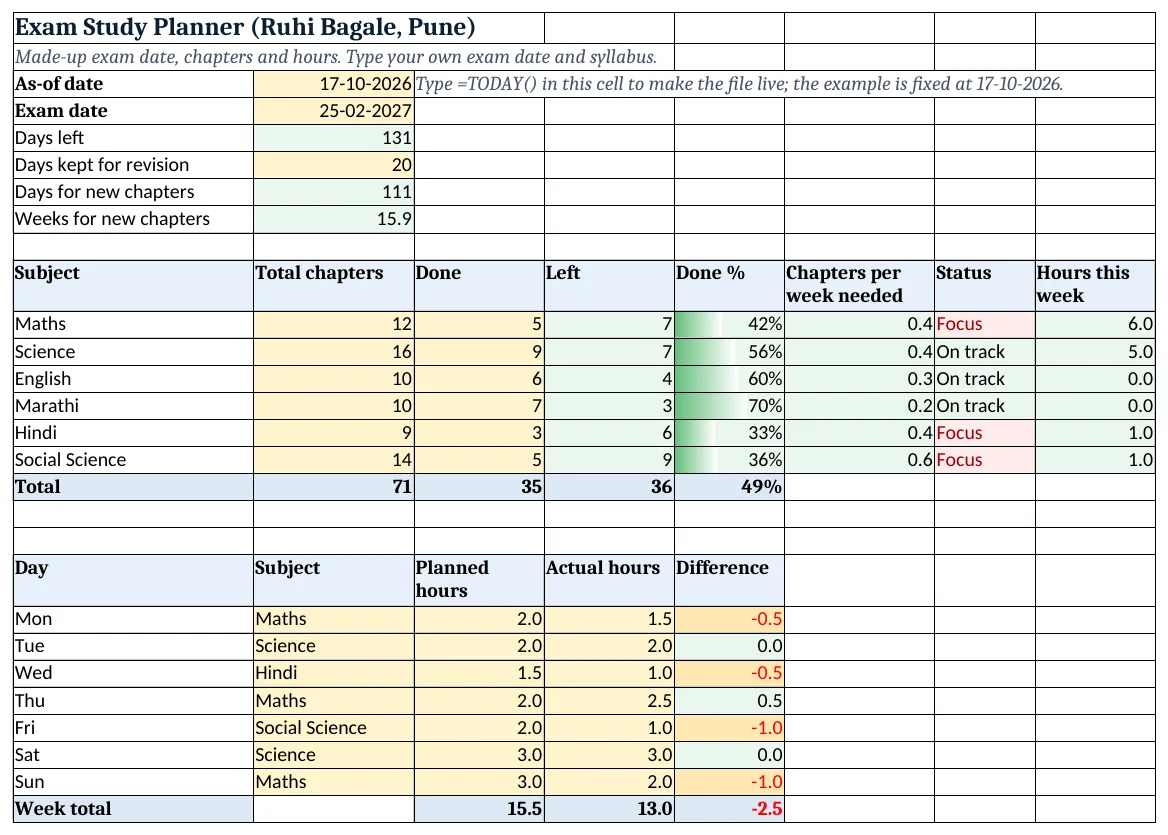
Figure 2. The template sheet, recalculated with its example data. Download it above and replace the yellow cells with your own numbers.
2. Build it step by step
Step 1. Dates
- In B3 type
=TODAY()(the template has 17-10-2026 typed so the example matches). - In B4 type your exam date. In B5 type
=B4-B3: 131 days (date maths). - In B6 type the days you want for revision (20). In B7 type
=B5-B6: 111. In B8 type=B7/7: 15.9 weeks.
Step 2. Syllabus table
- In A10:H10 type Subject, Total chapters, Done, Left, Done %, Chapters per week needed, Status, Hours this week.
- Type the subjects in A11:A16 and the chapter counts in B11:C16 (yellow).
- In D11 type
=B11-C11and in E11=C11/B11(format as %).
Step 3. Pace and status
- In F11 type
=ROUND(D11/$B$8,1): 0.4 chapters a week for Maths (ROUND). - In G11 type
=IF(E11<0.5,"Focus","On track"). - Copy D11:G11 down to row 16. Totals in row 17:
=SUM(B11:B16)and so on; E17=C17/B17: 49%.
Step 4. Weekly study log
- In A20:E20 type Day, Subject, Planned hours, Actual hours, Difference.
- Select B21:B27 > Data > Data Validation > List, Source
=$A$11:$A$16, so the subject names come from the table (named lists). - In E21 type
=D21-C21and copy down. Row 28: totals, E28=D28-C28: −2.5 hours.
Step 5. Hours per subject
- In H11 type
=SUMIF($B$21:$B$27,A11,$D$21:$D$27)and copy down: Maths 6, Science 5, English 0 (SUMIF).
Step 6. Colours
- Select E11:E16 > Conditional Formatting > Data Bars, with minimum 0 and maximum 1 so 100% fills the cell (data bars).
- Select G11:G16 > Highlight Cells Rules > Equal To
Focus, light red. - Select E21:E27 > Highlight Cells Rules > Less Than
0, amber.
Ravindra Bagale's Tip
Do the Focus subjects first in the day, when your mind is fresh. Leave the On track subjects for the evening.
Ravindra Bagale's Tip – मराठी
Focus वाले subjects दिवसाच्या सुरुवातीला, डोकं ताजं असताना करा. On track वाले संध्याकाळसाठी ठेवा.
Ravindra Bagale's Tip – हिंदी
Focus वाले subjects दिन की शुरुआत में करो, जब दिमाग ताज़ा हो. On track वाले शाम के लिए रखो.
3. Formulas used
| Cell | Formula | What it does |
|---|---|---|
| B5 | =B4-B3 |
Days left to the exam |
| B7 | =B5-B6 |
Days for new chapters |
| B8 | =B7/7 |
Weeks for new chapters |
| D11 | =B11-C11 |
Chapters left |
| E11 | =C11/B11 |
Done % |
| F11 | =ROUND(D11/$B$8,1) |
Chapters per week needed |
| G11 | =IF(E11<0.5,"Focus","On track") |
Focus or On track |
| H11 | =SUMIF($B$21:$B$27,A11,$D$21:$D$27) |
Hours studied this week for the subject |
| E17 | =C17/B17 |
Overall done % |
| E28 | =D28-C28 |
Hours short or extra this week |
Every formula above is written in the template, so you can click a cell and see it in the formula bar. All values on this page were recalculated in the file.
4. Common mistakes
- Not keeping revision days. If B6 is 0, the plan uses every day for new chapters and leaves no time to revise.
- Typing the subject differently in the log. "Social science" and "Social Science" may look the same, but a spelling change breaks SUMIF. The drop-down from A11:A16 stops this.
- Data bars without a fixed maximum. With automatic min and max, the best subject always looks full. Set min 0 and max 1.
- Counting hours only. Hours are effort, chapters are progress. Watch both: Maths got the most hours but is still below 50%.
- Forgetting to update Done. Update column C every Sunday, or the pace in column F stays the same while the days run out.
Ravindra Bagale's Tip
Plan a little less than you think you can do. A week that meets its plan feels good; a week that misses by 2.5 hours shows you the real pace.
Ravindra Bagale's Tip – मराठी
जमेल असं वाटतं त्यापेक्षा थोडं कमी plan करा. Plan पूर्ण झालेला आठवडा छान वाटतो; 2.5 तास कमी पडलेला आठवडा खरा वेग दाखवतो.
Ravindra Bagale's Tip – हिंदी
जितना हो सकता है उससे थोड़ा कम plan करो. Plan पूरा करने वाला हफ्ता अच्छा लगता है; 2.5 घंटे कम वाला हफ्ता असली रफ़्तार दिखाता है.
5. More real examples
Example 1: Competitive exam plan. Use topics instead of chapters and keep more revision days, for example 45.
Example 2: Office certification. Raja is preparing for an Excel certification: modules in A11:A16 and hours after work in the log.
Example 3: Learning Excel itself. List this course's chapters as the syllabus and track them the same way.
Quick revision cards
Quick revision
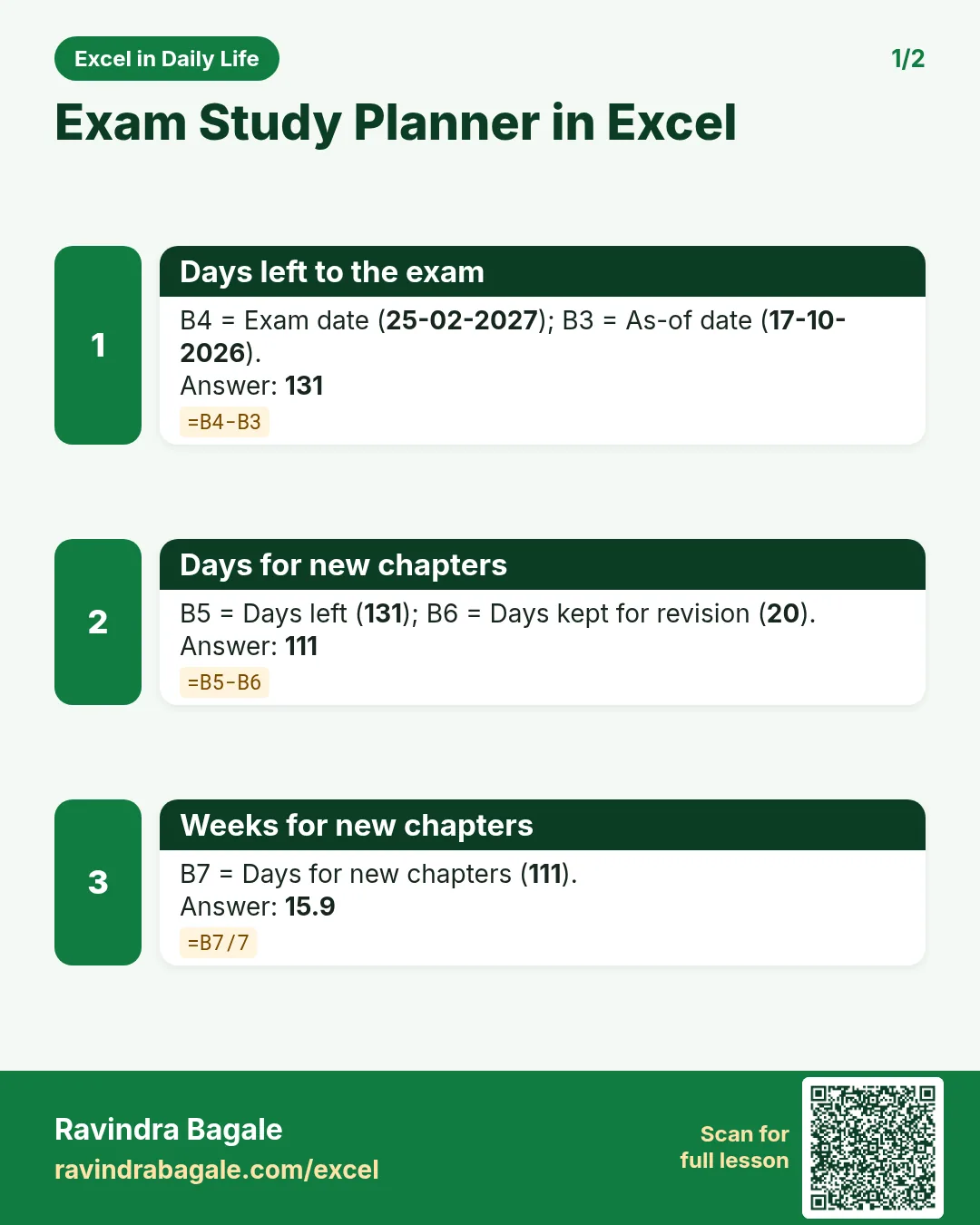
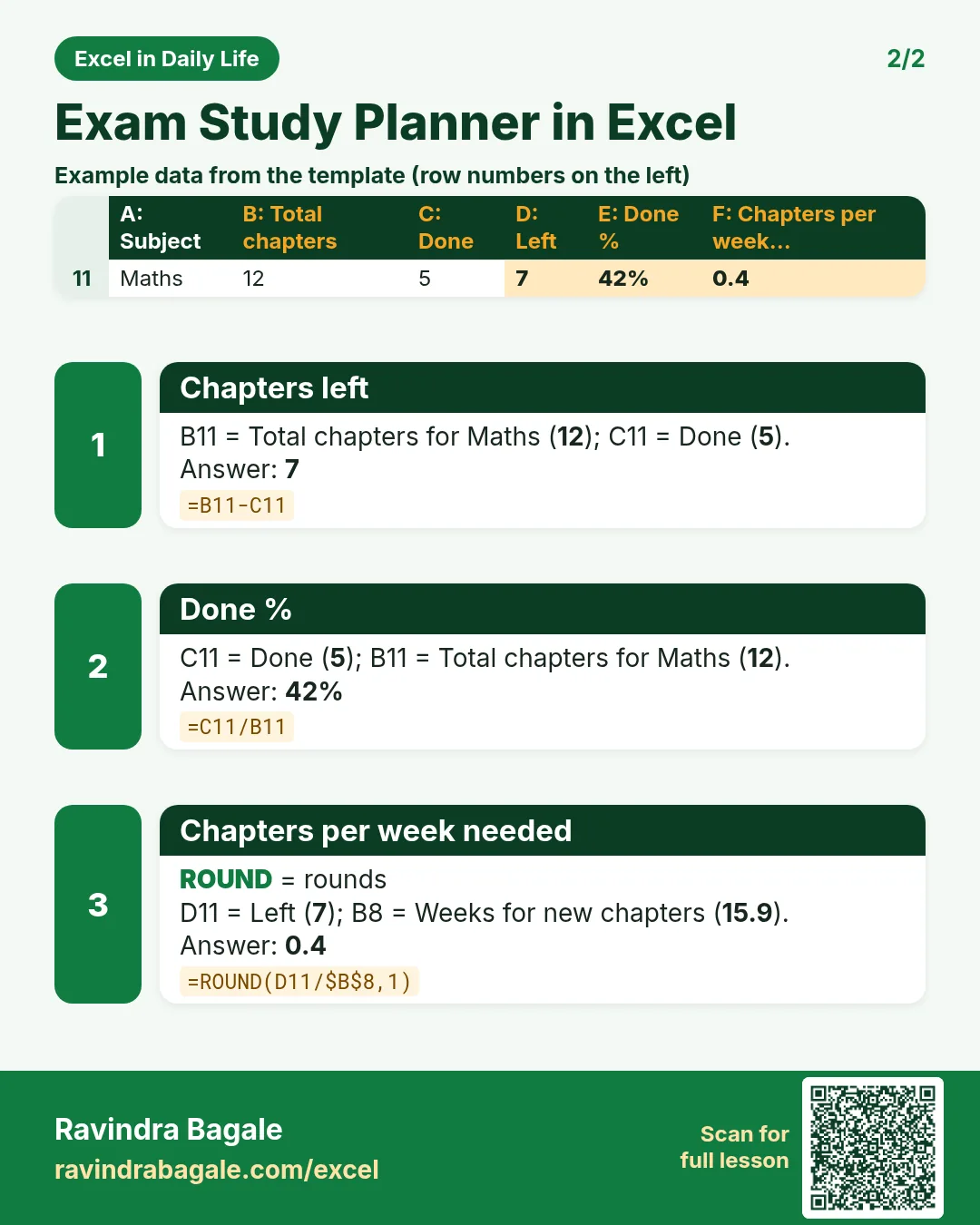
Each card shows formulas from this page, each with an example and its answer from the template. Scan the QR code on a card to open this lesson. All names and numbers are made up for practice.
झटपट उजळणी
प्रत्येक card वर या page मधले formulas, त्यांचं example आणि template मधलं उत्तर आहे. Card वरचा QR code scan केला की हा lesson उघडतो. सगळी नावं आणि आकडे सरावासाठी काल्पनिक आहेत.
झटपट दोहराई
हर card पर इस page के formulas, उनका example और template का उत्तर है. Card का QR code scan करें तो यह lesson खुलेगा. सभी नाम और आंकड़े अभ्यास के लिए काल्पनिक हैं.


More cards: Ravi Sir's Cards.
6. Frequently asked questions
How do I count days until an exam in Excel?
Exam date − TODAY(). In the template =B4-B3; format the result as a number, not a date.
How do I calculate how many chapters to study per week?
Chapters left ÷ weeks left before revision: =ROUND(D11/$B$8,1).
How do I make a progress bar for each subject?
Put done % in column E and add Data Bars with minimum 0 and maximum 1.
How do I total study hours per subject?
=SUMIF($B$21:$B$27,A11,$D$21:$D$27) adds the actual hours where the log subject matches.
Can I use it for a whole year?
Yes. Copy the weekly log for each week, or make one long log with a date column.
7. Quick quiz
Ten questions on this page. Sign in to save your score.
Loading practice tasks...
- Total data gb (Easy): Add up Data GB in D2:D11.
- Average monthly bill (Easy): Average of E2:E11, rounded to 2 decimals.
- Rows in Prepaid (Easy): How many rows have Plan "Prepaid"?
- Largest data gb (Easy): The largest value in D2:D11.
- Data GB for Prepaid (Medium): Total of D2:D11 where B is "Prepaid".
- Prepaid in Milan (Medium): Total of D2:D11 where B is "Prepaid" and C is "Milan".
- Best in Prepaid (Medium): Largest E2:E11 value where B is "Prepaid".
- Value of row 2 (Medium): D2 times E2.
- Look up James Carter (Medium): The Data GB for "James Carter" (use a lookup on column A).
- Total value (Hard): Sum of D times E for all rows.
- Share of Prepaid (Hard): Share of D2:D11 that is "Prepaid", rounded to 3 decimals.
- Rank of row 2 (Hard): Rank of D2 among D2:D11 (largest = 1).
- Above average? (Hard): "Above" if E2 is above the average of E2:E11, else "Below".