Emergency Fund Calculator in Excel: How Many Months of Expenses Are You Covered For?
Raja in Kolhapur has ₹1,65,000 saved and feels safe. But how safe? If his income stopped tomorrow, how many months could he pay the rent, groceries and bills? An emergency fund calculator answers that in one number, and tells him how long it will take to reach a full six months.
What you'll learn on this page
- List monthly expenses and mark the essential ones
- Essential total with SUMIF
- A target of N months of essential expenses
- Months covered now and progress %
- The gap and months to reach it with ROUNDUP
- The date you reach the target with EDATE
Download the template: emergency-fund-calculator-template.xlsx: example data with real formulas. Yellow cells are inputs you can type over; green cells hold formulas; blue rows are headers and totals. Replace the example data with your own and everything recalculates.
Made-up data: every name, amount, shop and date on this page is made up for practice. Cities are used only to make the examples feel real.
1. The example
Raja's numbers on 17 October 2026 (made-up values):
| Amount | |
|---|---|
| All monthly expenses | ₹49,500 |
| Essential expenses (rent, groceries, bills, transport, medicines...) | ₹39,000 |
| Emergency money saved (savings, FD, liquid fund) | ₹1,65,000 |
| Months covered now | 4.2 |
| Target: 6 months of essentials | ₹2,34,000 |
| Progress | 70.5% |
| Still needed | ₹69,000 |
| Saving ₹8,000 a month: months to target | 9 |
| Target reached by | 17-07-2027 |
If he counted every expense, including eating out and shopping, the same money covers only 3.3 months. In an emergency he would cut those, which is why the target uses essentials only.
Figure 1. SUMIF totals essential expenses; essentials × months gives the target; savings ÷ essentials gives months covered; the gap ÷ monthly saving (ROUNDUP) and EDATE give the date you reach it.
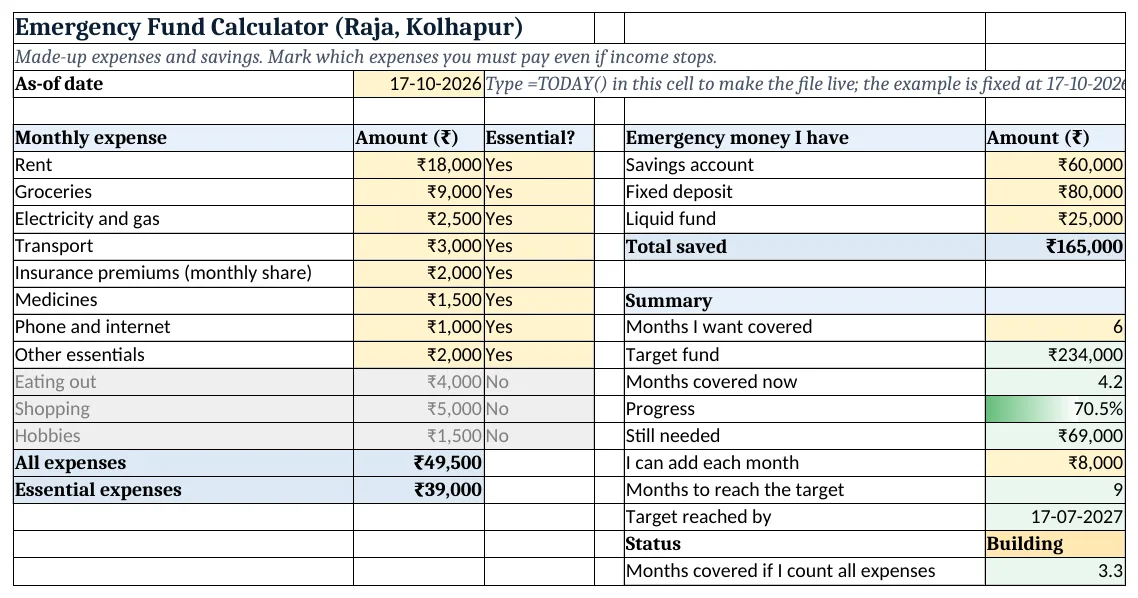
Figure 2. The template sheet, recalculated with its example data. Download it above and replace the yellow cells with your own numbers.
2. Build it step by step
Step 1. List the expenses
- In A5:C5 type Monthly expense, Amount, Essential?. List every monthly expense in rows 6 to 16.
- Select C6:C40 > Data > Data Validation > List:
Yes,No(drop-down lists). Mark Yes for what you must pay even without income.
Step 2. Totals
- In B17 type
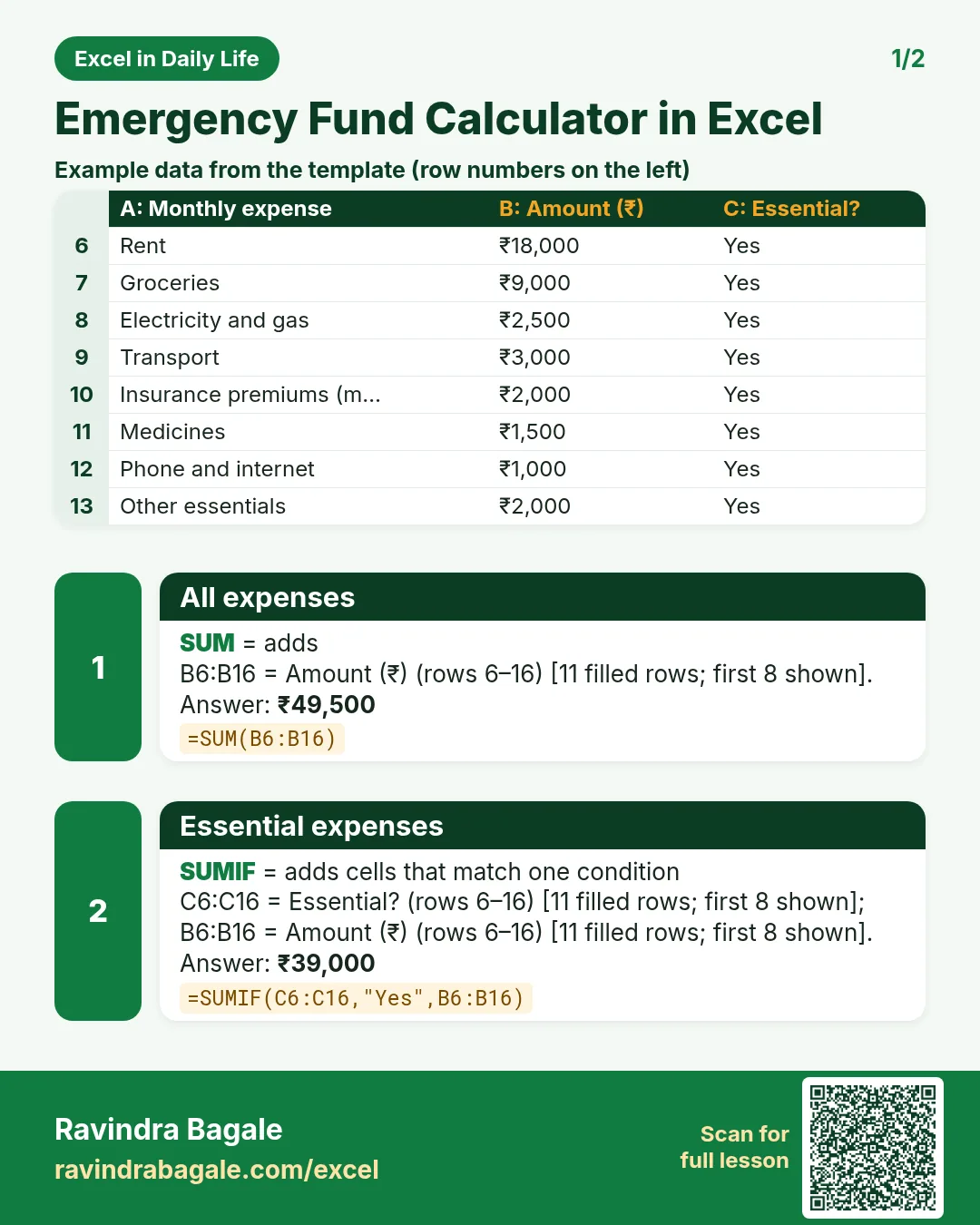
=SUM(B6:B16): ₹49,500. - In B18 type
=SUMIF(C6:C16,"Yes",B6:B16): ₹39,000 of essentials (SUMIF).
Step 3. Money you have
- In E6:F8 list your emergency savings (yellow) and in F9 type
=SUM(F6:F8): ₹1,65,000.
Step 4. Target and months covered
- In F12 type the months you want covered (6). In F13 type
=B18*F12: ₹2,34,000. - In F14 type
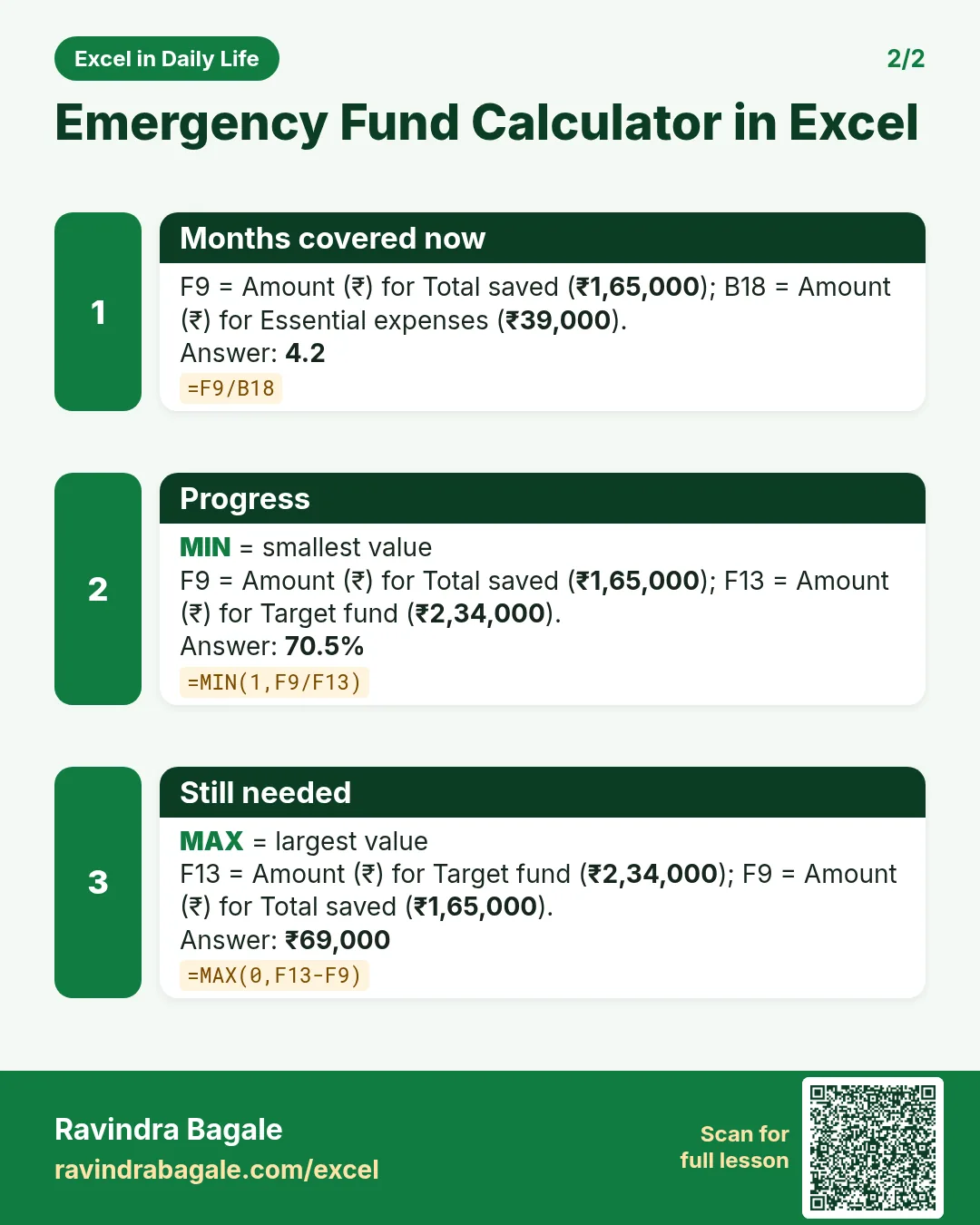
=F9/B18: 4.2 months. In F15 type=MIN(1,F9/F13)as %: 70.5%.
Step 5. Gap and time to reach it
- In F16 type
=MAX(0,F13-F9): ₹69,000. - In F17 type what you can add each month. In F18 type
=ROUNDUP(F16/F17,0): 69,000 ÷ 8,000 = 8.6, so 9 months (ROUND family). - In F19 type
=EDATE(B3,F18): 17-07-2027. EDATE adds whole months to a date (EDATE in the warranty tracker).
Step 6. Status and colours
- In F20 type
=IF(F9>=F13,"Ready","Building"). - Grey out non-essential rows with New Rule > Use a formula
=$C6="No", and add a data bar to F15 (formula rules).
Ravindra Bagale's Tip
Keep the emergency money in a separate account so it is not spent by mistake.
Ravindra Bagale's Tip – मराठी
Emergency चे पैसे वेगळ्या account मध्ये ठेवा, म्हणजे चुकून खर्च होत नाहीत.
Ravindra Bagale's Tip – हिंदी
Emergency के पैसे अलग account में रखो, ताकि गलती से खर्च न हों.
3. Formulas used
| Cell | Formula | What it does |
|---|---|---|
| B17 | =SUM(B6:B16) |
All expenses |
| B18 | =SUMIF(C6:C16,"Yes",B6:B16) |
Essential expenses |
| F13 | =B18*F12 |
Target fund |
| F14 | =F9/B18 |
Months covered now |
| F15 | =MIN(1,F9/F13) |
Progress |
| F16 | =MAX(0,F13-F9) |
Still needed |
| F18 | =ROUNDUP(F16/F17,0) |
Months to reach the target |
| F19 | =EDATE(B3,F18) |
Target reached by |
| F20 | =IF(F9>=F13,"Ready","Building") |
Status |
Every formula above is written in the template, so you can click a cell and see it in the formula bar. All values on this page were recalculated in the file.
4. Common mistakes
- Counting investments you cannot reach quickly. Money locked in long-term schemes or property is not emergency money. Count what you can withdraw within days.
- Using all expenses for the target. In an emergency you cut eating out and shopping. Base the target on essentials.
- Forgetting yearly costs. Add the monthly share of yearly bills such as insurance premiums and school expenses.
- Dividing by the target instead of the monthly expense. Months covered = savings ÷ essential expenses per month, not ÷ target.
- ROUND instead of ROUNDUP. 8.6 months rounds to 9 either way here, but 8.2 would round down to 8 and leave you short.
Ravindra Bagale's Tip
Update the expense list once a year. Rent and groceries go up, and so should the target.
Ravindra Bagale's Tip – मराठी
वर्षातून एकदा expense list update करा. भाडं, किराणा वाढतो, तसं target पण वाढलं पाहिजे.
Ravindra Bagale's Tip – हिंदी
साल में एक बार expense list update करो. किराया, राशन बढ़ता है, तो target भी बढ़ना चाहिए.
5. More real examples
Example 1: Single earner with a home loan. The EMI is essential; a 6-month target is often chosen because the EMI cannot stop.
Example 2: Two earners in one home. Some people choose a smaller target (3 months) because both incomes rarely stop together.
Example 3: Self-employed. Income varies month to month, so a longer target such as 9 or 12 months is common.
Quick revision cards
Quick revision
Each card shows formulas from this page, each with an example and its answer from the template. Scan the QR code on a card to open this lesson. All names and numbers are made up for practice.
झटपट उजळणी
प्रत्येक card वर या page मधले formulas, त्यांचं example आणि template मधलं उत्तर आहे. Card वरचा QR code scan केला की हा lesson उघडतो. सगळी नावं आणि आकडे सरावासाठी काल्पनिक आहेत.
झटपट दोहराई
हर card पर इस page के formulas, उनका example और template का उत्तर है. Card का QR code scan करें तो यह lesson खुलेगा. सभी नाम और आंकड़े अभ्यास के लिए काल्पनिक हैं.


More cards: Ravi Sir's Cards.
6. Frequently asked questions
How much should my emergency fund be?
A common rule of thumb is 3 to 6 months of essential expenses. Choose more if your income is uncertain.
How do I calculate months covered in Excel?
Savings ÷ essential monthly expenses: =F9/B18.
How do I total only essential expenses?
Mark each row Yes or No and use =SUMIF(C6:C16,"Yes",B6:B16).
How long will it take to reach my target?
=ROUNDUP((target-saved)/monthly saving,0) months; =EDATE(today,months) gives the date.
Where should I keep an emergency fund?
Somewhere safe and quick to withdraw, such as a savings account or fixed deposit you can break.
7. Quick quiz
Ten questions on this page. Sign in to save your score.
Loading practice tasks...
- Total times (Easy): Add up Times in D2:D11.
- Average amount (Easy): Average of E2:E11, rounded to 2 decimals.
- Rows in Food (Easy): How many rows have Category "Food"?
- Largest times (Easy): The largest value in D2:D11.
- Times for Food (Medium): Total of D2:D11 where B is "Food".
- Food in Mumbai (Medium): Total of D2:D11 where B is "Food" and C is "Mumbai".
- Best in Food (Medium): Largest E2:E11 value where B is "Food".
- Value of row 2 (Medium): D2 times E2.
- Look up Aarav Shah (Medium): The Times for "Aarav Shah" (use a lookup on column A).
- Total value (Hard): Sum of D times E for all rows.
- Share of Food (Hard): Share of D2:D11 that is "Food", rounded to 3 decimals.
- Rank of row 2 (Hard): Rank of D2 among D2:D11 (largest = 1).
- Above average? (Hard): "Above" if E2 is above the average of E2:E11, else "Below".