Daily Expense Tracker in Excel: Log Spending by Category and See Monthly Totals Automatically
Raja in Nashik pays for almost everything by UPI: ₹120 for an auto, ₹349 for a recharge, ₹90 for tea. Each payment is small, so none of them feels like spending. Then his month-end balance is ₹3,000 less than he expected. A daily expense tracker fixes this. You add one row for every spend, and Excel does all the adding up: totals by category, by payment mode and by month.
What you'll learn on this page
- A one-row-per-spend log with drop-downs
- Month start and end dates with EOMONTH
- SUMIFS with a date range for a monthly total
- Totals by payment mode and a share %
- The biggest category with INDEX and MATCH
- A bar chart that updates by itself
Download the template: daily-expense-tracker-template.xlsx: example data with real formulas. Yellow cells are inputs you can type over; green cells hold formulas; blue rows are headers and totals. Replace the example data with your own and everything recalculates.
Made-up data: every name, amount, shop and date on this page is made up for practice. Cities are used only to make the examples feel real.
1. The example
Raja's log (made-up) has 20 rows from 3 September to 16 October 2026. When he types 01-10-2026 in H4, the summary shows only October:
| Category | October 2026 |
|---|---|
| Groceries | ₹5,588 |
| Bills | ₹2,458 |
| Transport | ₹2,220 |
| Health | ₹1,665 |
| Food out | ₹1,390 |
| Fun | ₹0 |
| Total (15 entries) | ₹13,321 |
Groceries is the biggest category: 5,588 / 13,321 = 41.9%. By payment mode he spent UPI ₹7,601 + Card ₹3,480 + Cash ₹2,240 = ₹13,321. Change H4 to any September date and the same cells show September's ₹4,086.
Figure 1. One row per spend goes into the log; the month in H4 sets the start and end dates; SUMIFS adds only the rows inside that month for each category and payment mode.
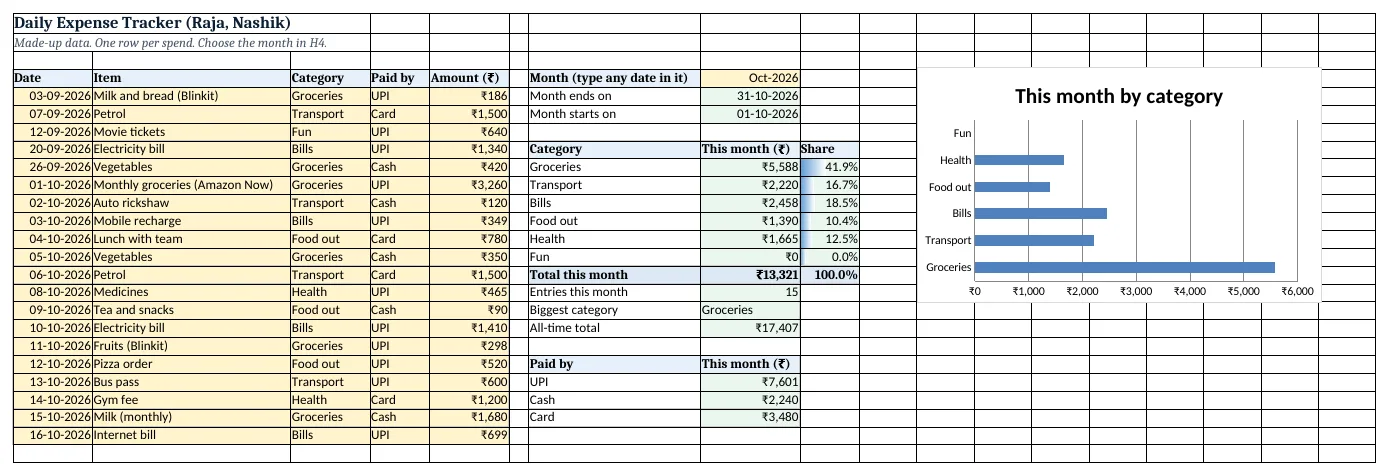
Figure 2. The template sheet, recalculated with its example data. Download it above and replace the yellow cells with your own numbers.
2. Build it step by step
Step 1. Set up the log
- In A4:E4 type Date, Item, Category, Paid by, Amount (₹).
- Type one spend per row from A5 down. Dates as 03-09-2026 (see date functions if Excel treats them as text).
- Select C5:C500 > Data > Data Validation > List:
Groceries,Transport,Bills,Food out,Health,Fun. - Select D5:D500 > the same with
UPI,Cash,Card.
Step 2. Pick the month
- In H4 type any date of the month you want, for example 01-10-2026 (format it as MMM-YYYY).
- In H5 type
=EOMONTH(H4,0): 31-10-2026, the last day of that month. - In H6 type
=EOMONTH(H4,-1)+1: 01-10-2026, the first day.
Step 3. Monthly total per category
- Type the six categories in G9:G14.
- In H9 type
=SUMIFS($E$5:$E$500,$C$5:$C$500,G9,$A$5:$A$500,">="&$H$6,$A$5:$A$500,"<="&$H$5). - Copy H9 down to H14. Groceries shows ₹5,588.
- In H15 type
=SUM(H9:H14): ₹13,321.
Step 4. Share of each category
- In I9 type
=IF($H$15=0,0,H9/$H$15)and copy down. Format as %. - Select I9:I14 > Home > Conditional Formatting > Data Bars (data bars).
Step 5. Count, biggest and payment mode
- In H16 type
=COUNTIFS($A$5:$A$500,">="&H6,$A$5:$A$500,"<="&H5): 15 entries. - In H17 type
=INDEX(G9:G14,MATCH(MAX(H9:H14),H9:H14,0)): Groceries (INDEX MATCH). - Type UPI, Cash, Card in G21:G23 and in H21 type
=SUMIFS($E$5:$E$500,$D$5:$D$500,G21,$A$5:$A$500,">="&$H$6,$A$5:$A$500,"<="&$H$5), copy down.
Step 6. Bar chart
- Select G8:H14 > Insert > Bar Chart (bar charts).
- Add a new spend at the bottom of the log: the totals and the chart change at once.
Ravindra Bagale's Tip
Log the spend before you put the phone back in your pocket. Ten seconds at the counter beats trying to remember at night.
Ravindra Bagale's Tip – मराठी
Phone खिशात ठेवायच्या आधीच खर्च लिहून टाका. काउंटरवर दहा सेकंद, रात्री आठवत बसण्यापेक्षा बरे.
Ravindra Bagale's Tip – हिंदी
फ़ोन जेब में रखने से पहले ही खर्च लिख दो. काउंटर पर दस सेकंड, रात को याद करने से बेहतर.
3. Formulas used
| Cell | Formula | What it does |
|---|---|---|
| H5 | =EOMONTH(H4,0) |
Last day of the chosen month |
| H6 | =EOMONTH(H4,-1)+1 |
First day of the chosen month |
| H9 | =SUMIFS($E$5:$E$500,$C$5:$C$500,G9,$A$5:$A$500,">="&$H$6,$A$5:$A$500,"<="&$H$5) |
Groceries spent in the chosen month |
| I9 | =IF($H$15=0,0,H9/$H$15) |
Share of the month total |
| H15 | =SUM(H9:H14) |
Month total |
| H16 | =COUNTIFS($A$5:$A$500,">="&H6,$A$5:$A$500,"<="&H5) |
Number of spends in the month |
| H17 | =INDEX(G9:G14,MATCH(MAX(H9:H14),H9:H14,0)) |
Category with the highest total |
| H18 | =SUM($E$5:$E$500) |
Total of the whole log |
| H21 | =SUMIFS($E$5:$E$500,$D$5:$D$500,G21,$A$5:$A$500,">="&$H$6,$A$5:$A$500,"<="&$H$5) |
UPI spending in the month |
Every formula above is written in the template, so you can click a cell and see it in the formula bar. All values on this page were recalculated in the file.
4. Common mistakes
- Dates typed as text. If a date sits on the left of the cell it is text and SUMIFS skips it. Retype it, or fix the format (see date formats).
- Writing ">=H6" inside quotes. The cell must be joined outside the quotes:
">="&$H$6.">=H6"compares with the letters H6. - Forgetting the $ signs. Without
$E$5:$E$500the ranges move down as you copy H9 and the totals go wrong. - Leaving gaps or totals inside the log. Keep the log as a plain list. Totals belong in the summary area, not between spends.
- Typing a new category name by hand. "Grocery" will not be counted under "Groceries". Add new names to the drop-down list and to G9:G14.
Ravindra Bagale's Tip
Check the "Fun" and "Food out" rows every Sunday. These two grow quietly; fixed bills almost never surprise you.
Ravindra Bagale's Tip – मराठी
दर रविवारी "Fun" आणि "Food out" rows बघा. हे दोन हळूच वाढतात; fixed bills सहसा धक्का देत नाहीत.
Ravindra Bagale's Tip – हिंदी
हर रविवार "Fun" और "Food out" rows देखो. ये दो चुपचाप बढ़ते हैं; fixed bills आमतौर पर चौंकाते नहीं.
5. More real examples
Example 1: College student pocket money. Categories: canteen, travel, books, mobile, fun. Monthly limit in a cell and =limit-H15 as money left.
Example 2: Couple sharing one tracker. Add a Who column (Ravindra / Shraddha) and one more SUMIFS condition on it.
Example 3: Cash vs UPI habit check. Compare H21:H23 month by month; small cash spends are usually the ones nobody remembers.
Quick revision cards
Quick revision
Each card shows formulas from this page, each with an example and its answer from the template. Scan the QR code on a card to open this lesson. All names and numbers are made up for practice.
झटपट उजळणी
प्रत्येक card वर या page मधले formulas, त्यांचं example आणि template मधलं उत्तर आहे. Card वरचा QR code scan केला की हा lesson उघडतो. सगळी नावं आणि आकडे सरावासाठी काल्पनिक आहेत.
झटपट दोहराई
हर card पर इस page के formulas, उनका example और template का उत्तर है. Card का QR code scan करें तो यह lesson खुलेगा. सभी नाम और आंकड़े अभ्यास के लिए काल्पनिक हैं.
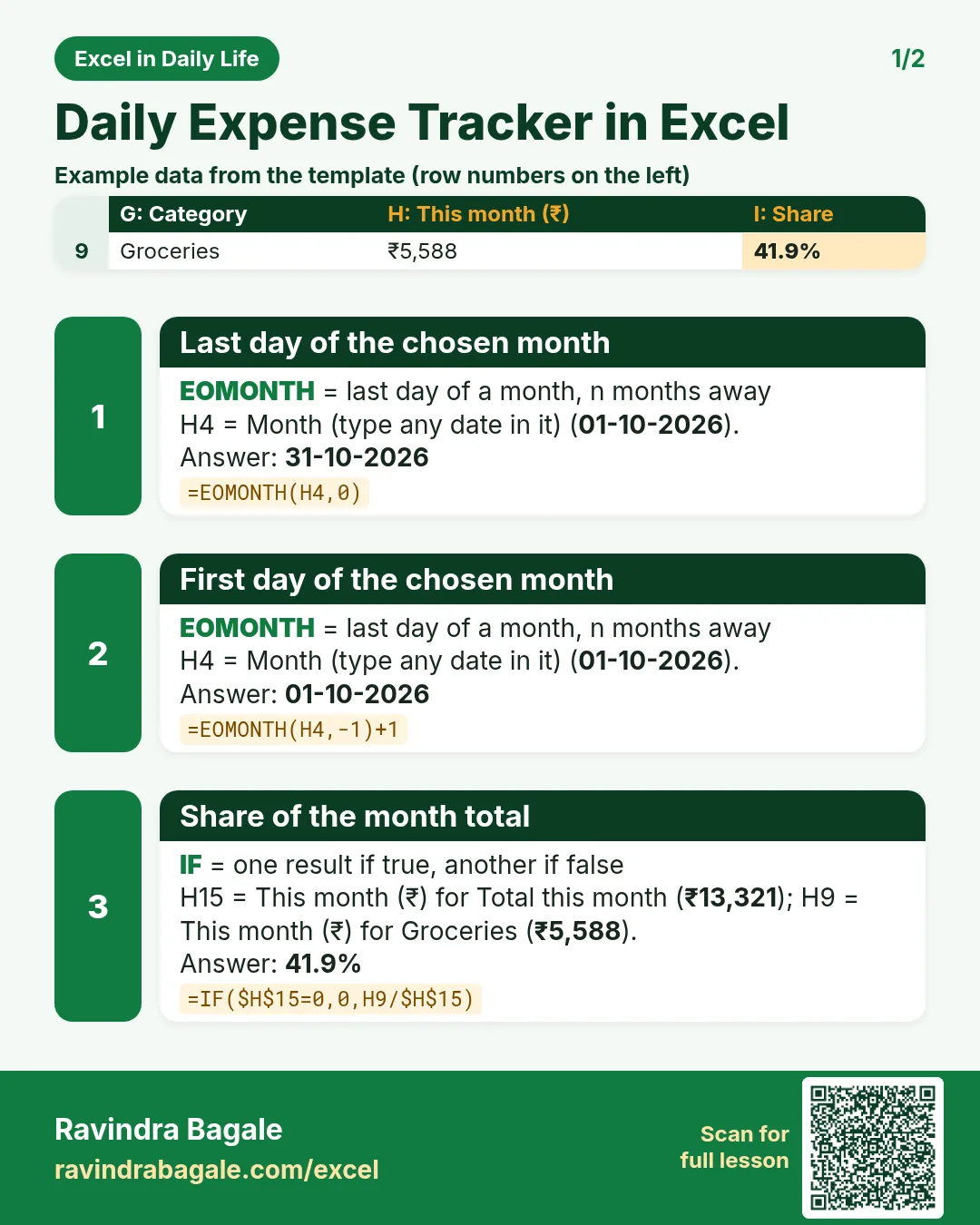

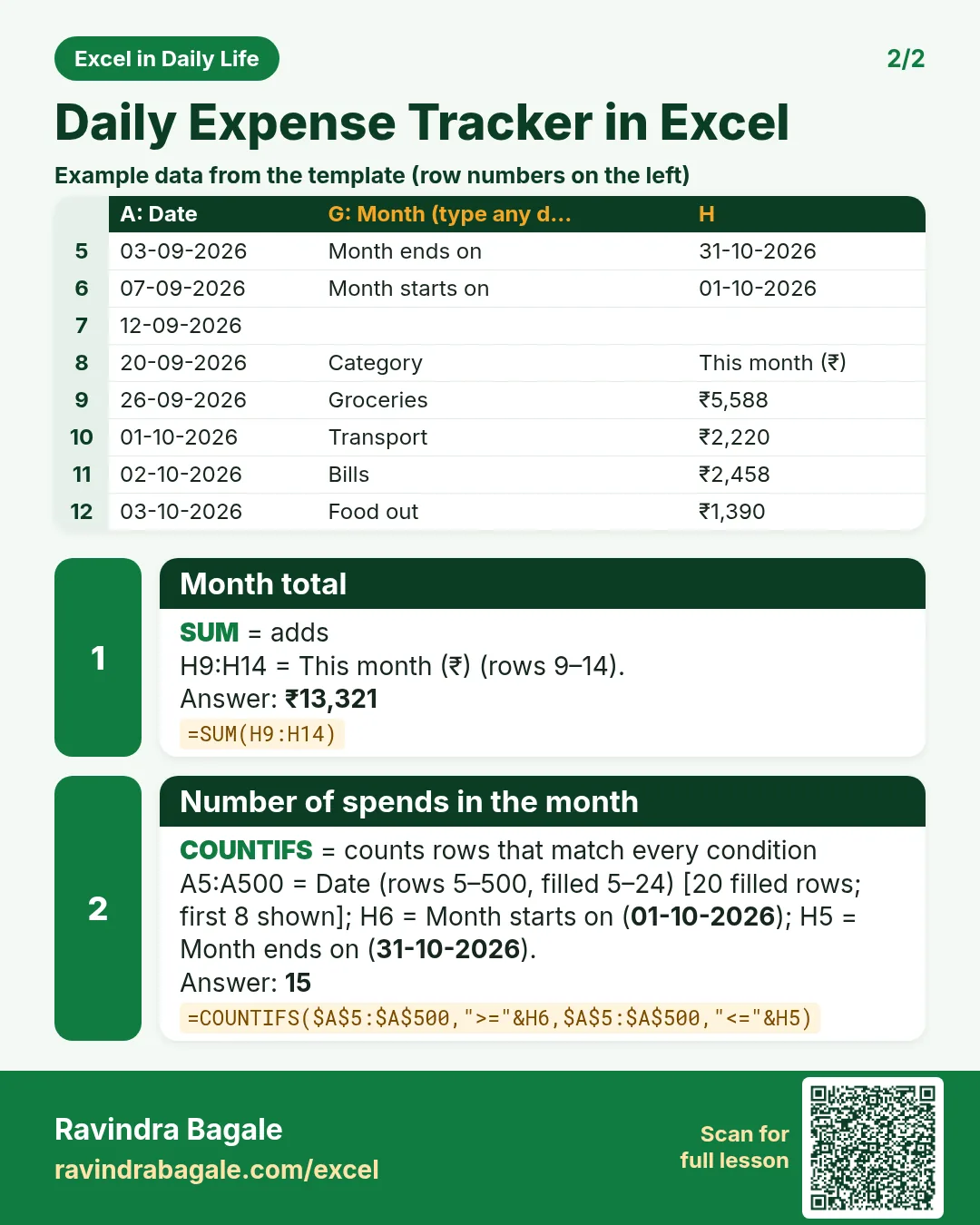

More cards: Ravi Sir's Cards.
6. Frequently asked questions
How do I track daily expenses in Excel?
Keep one row per spend (date, item, category, mode, amount) and let SUMIFS build the totals. Never type totals by hand.
How do I sum expenses for one month only?
Use SUMIFS with two date conditions: ">="&first day and "<="&last day. EOMONTH gives both days from any date in that month.
Can I use an Excel Table instead of fixed ranges?
Yes. Press Ctrl+T on the log and use structured references like Expenses[Amount]; see Excel Tables. The template uses rows 5 to 500 so it works in every version.
Can a PivotTable do this instead?
Yes: Category in Rows, Amount in Values and Date grouped by Months. See group dates by month.
Does it work on mobile?
Yes, the Excel mobile app can add rows and show the totals, so you can log a spend at the shop.
7. Quick quiz
Ten questions on this page. Sign in to save your score.
Loading practice tasks...
- Total times (Easy): Add up Times in D2:D11. (sheet "Data")
- Average amount (Easy): Average of E2:E11, rounded to 2 decimals. (sheet "Data")
- Rows in Food (Easy): How many rows have Category "Food"? (sheet "Data")
- Largest times (Easy): The largest value in D2:D11. (sheet "Data")
- Days taken (Easy): C2 minus B2. (sheet "Dates")
- Start year (Easy): Year of B3. (sheet "Dates")
- Due month (Easy): Month number of C3. (sheet "Dates")
- Earliest start (Easy): Earliest date in B2:B9 (as a date number). (sheet "Dates")
- Times for Food (Medium): Total of D2:D11 where B is "Food". (sheet "Data")
- Food in Delhi (Medium): Total of D2:D11 where B is "Food" and C is "Delhi". (sheet "Data")
- Working days (Medium): Working days from B2 to C2. (sheet "Dates")
- Weekday of due (Medium): Weekday number of C4 (Sunday = 1). (sheet "Dates")