Compare Personal Loan Offers in Excel: EMI, Total Interest, Processing Fee and the Cheapest Loan
Amir in Nagpur needs a ₹5,00,000 personal loan and has three offers. Lender 2 shouts the lowest rate, 9.99%. Lender 3 has the highest rate, 11%. Which loan is cheapest? It is not the one with the lowest rate. Once you add the processing fee and the tenure, the picture changes, and a side-by-side sheet makes it obvious.
What you'll learn on this page
- EMI with PMT for each offer
- Total paid and total interest
- Processing fee in rupees
- Total cost and the cheapest offer with MIN
- EMI as a % of income against your own limit
- A bar chart of the total cost
Download the template: compare-loan-offers-template.xlsx: example data with real formulas. Yellow cells are inputs you can type over; green cells hold formulas; blue rows are headers and totals. Replace the example data with your own and everything recalculates.
Made-up data: every name, amount, shop and date on this page is made up for practice. Cities are used only to make the examples feel real.
1. The example
Three made-up offers for ₹5,00,000:
| Lender 1 | Lender 2 | Lender 3 | |
|---|---|---|---|
| Rate / tenure / fee | 10.50%, 5 yrs, 1% | 9.99%, 5 yrs, 2.5% | 11.00%, 4 yrs, 0.5% |
| EMI | ₹10,746.95 | ₹10,621.06 | ₹12,922.76 |
| Total interest | ₹1,44,817 | ₹1,37,264 | ₹1,20,293 |
| Processing fee | ₹5,000 | ₹12,500 | ₹2,500 |
| Total cost | ₹1,49,817 | ₹1,49,764 | ₹1,22,793 |
Lender 2's low rate is eaten up by its 2.5% fee: it costs only ₹53 less than Lender 1. Lender 3 is cheapest by about ₹27,000, mainly because the loan is repaid in 4 years instead of 5, but its EMI is ₹2,176 higher. With a take-home income of ₹60,000, its EMI is 21.5% of income, inside Amir's own limit of 25%.
New to PMT? The home loan EMI page explains =PMT(rate/12, years*12, -loan) argument by argument.
Figure 1. Comparing loans: PMT gives each EMI, EMI × months − loan gives interest, the fee is added, and MIN finds the cheapest total cost: Lender 3, ₹1,22,793.
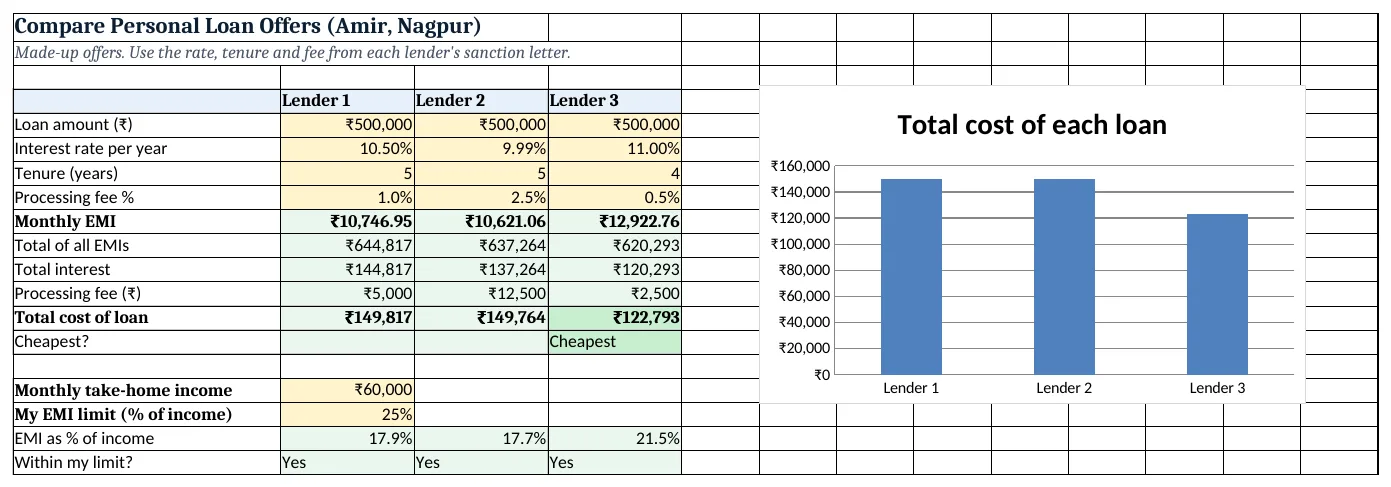
Figure 2. The template sheet, recalculated with its example data. Download it above and replace the yellow cells with your own numbers.
2. Build it step by step
Step 1. Type the offers
- In B4:D4 type the lender names.
- In A5:A8 type Loan amount, Interest rate per year, Tenure (years), Processing fee % and fill B5:D8 from each sanction letter (yellow).
- Select B7:D7 > Data > Data Validation > List:
1,2,3,4,5,6,7(data validation).
Step 2. EMI with PMT
- In B9 type
=PMT(B6/12,B7*12,-B5): ₹10,746.95. - B6/12 is the monthly rate, B7*12 the number of EMIs and -B5 the loan (minus, so the EMI shows positive).
- Copy B9 right to D9.
Step 3. Total paid and interest
- In B10 type
=B9*B7*12: ₹6,44,817 paid over 60 EMIs. - In B11 type
=B10-B5: ₹1,44,817 interest.
Step 4. Fee and total cost
- In B12 type
=B5*B8: ₹5,000. - In B13 type
=B11+B12: ₹1,49,817 total cost. - Copy B10:B13 right to column D.
Step 5. Find the cheapest
- In B14 type
=IF(B13=MIN($B$13:$D$13),"Cheapest","")and copy right. Only Lender 3 shows Cheapest. - Select B13:D13 > Conditional Formatting > New Rule > Use a formula:
=B13=MIN($B$13:$D$13), green fill (formula rules).
Step 6. Can I afford the EMI?
- In B16 type your take-home income (₹60,000) and in B17 your own EMI limit (25%).
- In B18 type
=B9/$B$16and copy right: 17.9%, 17.7%, 21.5%. - In B19 type
=IF(B18<=$B$17,"Yes","No")and add a red rule for No.
Step 7. Chart
- Select B13:D13 > Insert > Column and set the categories to B4:D4 (column charts). The shortest bar is the cheapest loan.
Ravindra Bagale's Tip
Ask every lender for the fee, GST and any other charges in writing before you compare. A sheet is only as good as the numbers you type in.
Ravindra Bagale's Tip – मराठी
Compare करण्याआधी प्रत्येक lender कडून fee, GST आणि इतर charges लेखी मागा. Sheet मध्ये जे आकडे टाकाल, उत्तर तेवढंच बरोबर येणार.
Ravindra Bagale's Tip – हिंदी
Compare करने से पहले हर lender से fee, GST और बाकी charges लिखित में मांगो. Sheet उतनी ही सही है जितने सही आंकड़े आप डालते हो.
3. Formulas used
| Cell | Formula | What it does |
|---|---|---|
| B9 | =PMT(B6/12,B7*12,-B5) |
Monthly EMI |
| B10 | =B9*B7*12 |
Total of all EMIs |
| B11 | =B10-B5 |
Total interest |
| B12 | =B5*B8 |
Processing fee in rupees |
| B13 | =B11+B12 |
Total cost = interest + fee |
| B14 | =IF(B13=MIN($B$13:$D$13),"Cheapest","") |
Marks the cheapest offer |
| B18 | =B9/$B$16 |
EMI as % of take-home income |
| B19 | =IF(B18<=$B$17,"Yes","No") |
Within your own limit? |
Every formula above is written in the template, so you can click a cell and see it in the formula bar. All values on this page were recalculated in the file.
4. Common mistakes
- Choosing by rate alone. Lender 2 has the lowest rate but almost the same cost as Lender 1 after its fee. Compare row 13.
- Forgetting the fee. A 2.5% fee on ₹5,00,000 is ₹12,500, more than many people expect. Always add it.
- Ignoring the tenure. A shorter loan costs less interest but has a bigger EMI. Check row 18 before you pick it.
- Typing the yearly rate in PMT.
=PMT(B6,B7,-B5)gives a yearly payment. Use B6/12 and B7*12 for monthly EMIs. - Leaving out other charges. Lenders usually add GST and sometimes other charges on the fee. Add them to row 12 if your sanction letter lists them.
Ravindra Bagale's Tip
If two offers cost about the same, pick the one with the smaller EMI. It leaves room in the monthly budget for surprises.
Ravindra Bagale's Tip – मराठी
दोन offers चा खर्च जवळपास सारखा असेल तर कमी EMI वाला निवडा. महिन्याच्या budget मध्ये अचानक खर्चासाठी जागा राहते.
Ravindra Bagale's Tip – हिंदी
दो offers का खर्च लगभग बराबर हो तो कम EMI वाला चुनो. महीने के budget में अचानक खर्च के लिए जगह बचती है.
5. More real examples
Example 1: Same tenure, fair comparison. Set all three tenures to 5 years in row 7. Now the gap in row 13 comes only from rate and fee.
Example 2: Car loan offers. The same sheet works for a car or two-wheeler loan: type the on-road loan amount and each dealer's rate and fee.
Example 3: Balance transfer check. Put your current loan's remaining amount and rate in column B and the new offer (with its fee) in column C.
Quick revision cards
Quick revision
Each card shows formulas from this page, each with an example and its answer from the template. Scan the QR code on a card to open this lesson. All names and numbers are made up for practice.
झटपट उजळणी
प्रत्येक card वर या page मधले formulas, त्यांचं example आणि template मधलं उत्तर आहे. Card वरचा QR code scan केला की हा lesson उघडतो. सगळी नावं आणि आकडे सरावासाठी काल्पनिक आहेत.
झटपट दोहराई
हर card पर इस page के formulas, उनका example और template का उत्तर है. Card का QR code scan करें तो यह lesson खुलेगा. सभी नाम और आंकड़े अभ्यास के लिए काल्पनिक हैं.
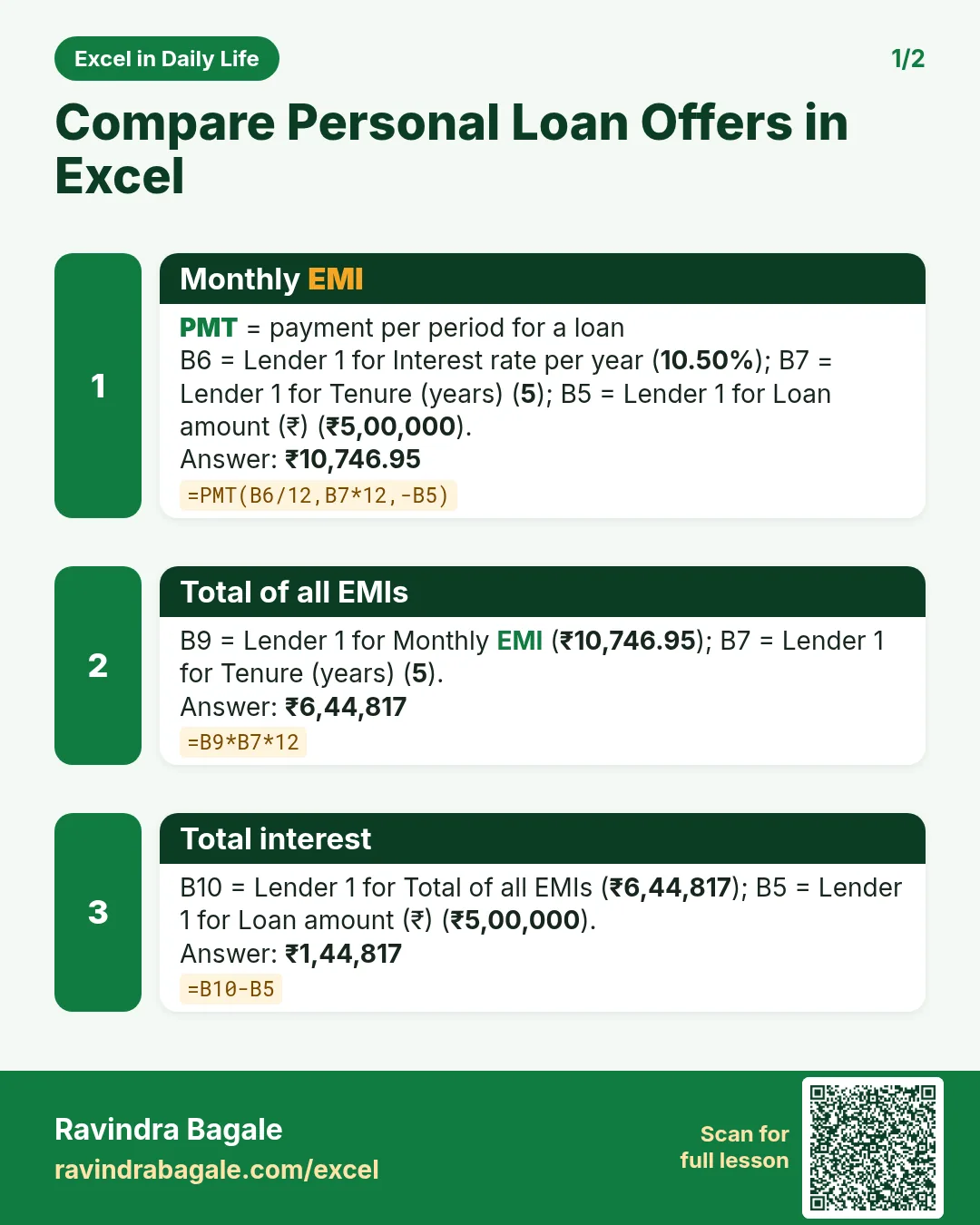

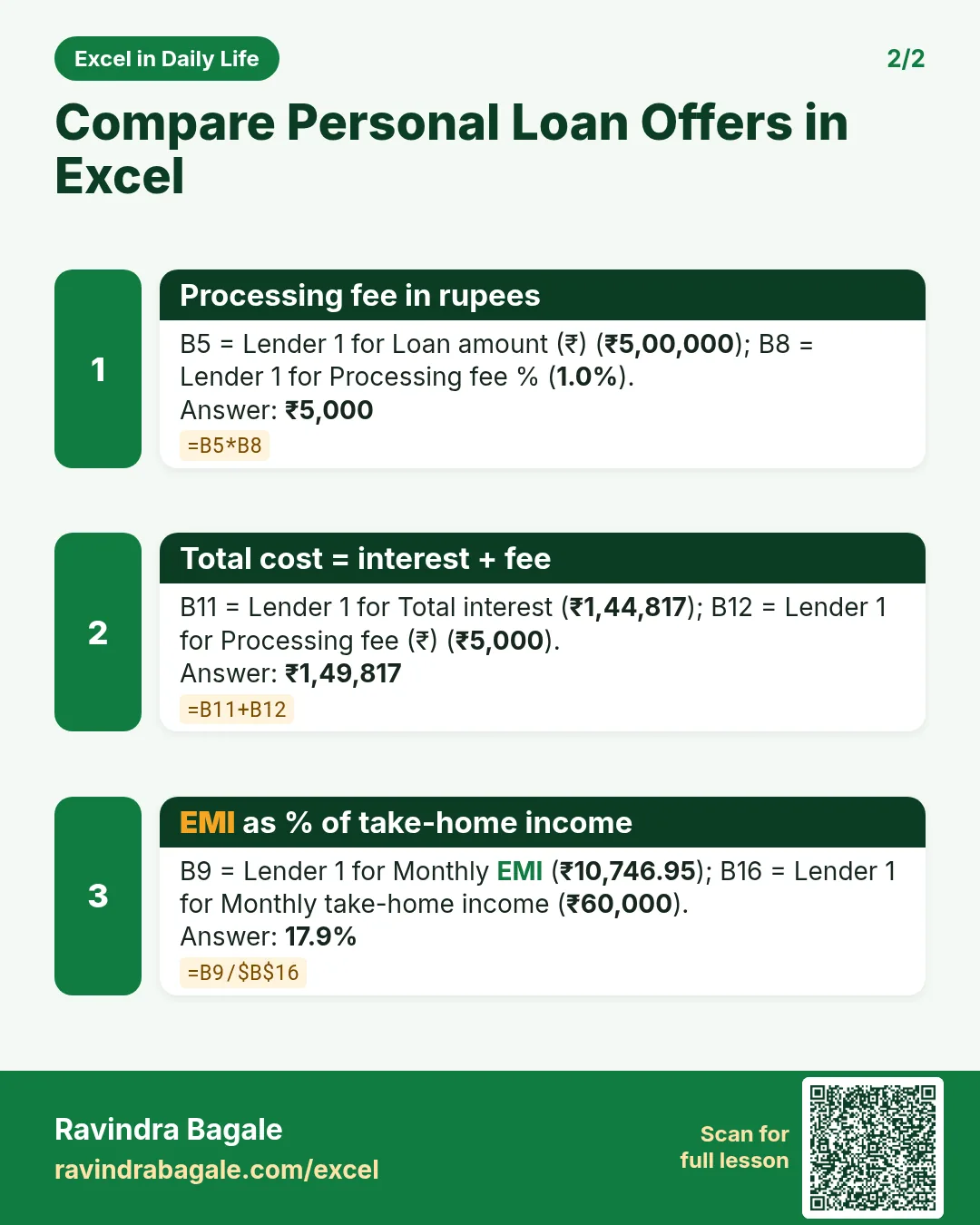

More cards: Ravi Sir's Cards.
6. Frequently asked questions
How do I compare two loans in Excel?
Put each loan in its own column, calculate EMI with PMT, then total interest = EMI × months − loan, add the processing fee and compare the total cost.
Is the lowest interest rate always the cheapest loan?
No. A high fee or a longer tenure can make a low-rate loan cost more. In this example the 9.99% offer is not the cheapest.
What is the EMI on ₹5 lakh at 10.5% for 5 years?
₹10,746.95 a month, with total interest of ₹1,44,817.
How do I include the processing fee?
Fee in rupees = loan × fee %. Add it to the total interest to get the total cost.
What EMI is affordable?
That depends on your other expenses. Type your own limit in B17; the sheet then flags offers above it.
7. Quick quiz
Ten questions on this page. Sign in to save your score.
Loading practice tasks...
- Monthly rate (Easy): Yearly rate B3 divided by 12.
- Months (Easy): B4 times 12.
- Monthly EMI (Easy): EMI on amount B2 at B3 for B4 years, as a positive number, rounded to 2 decimals.
- Total repaid (Medium): Total paid over the loan, rounded to 0 decimals.
- Total interest (Medium): Total paid minus B2, rounded to 0 decimals.
- Processing fee (Medium): B2 times B6.
- Savings value (Medium): Value after B4 years of saving B5 each month at B3, positive, rounded to 0 decimals.
- Interest earned (Hard): Savings value minus B5 times months, rounded to 0 decimals.
- Months to repay at double EMI (Hard): Months to clear B2 at B3 paying twice the EMI, rounded up.
- Loan you can afford (Hard): Loan size for an EMI equal to B5 over B4 years at B3, positive, rounded to 0 decimals.
- Interest share (Hard): Total interest ÷ total paid, rounded to 3 decimals.