16. Practice Exercises with Answer Hints
16.9 Module 10: Power Query
- Load
tblOrdersinto Power Query, trim and capitalise City, change Amount to Decimal and load back. Hint: Data › From Table/Range; Transform › Format › Trim / Capitalize Each Word. - Append monthly files January–March from a folder. Hint: Data › Get Data › From File › From Folder › Combine & Transform.
- Merge Orders with Stores to bring in the City Manager. Hint: Home › Merge Queries › Left Outer on Store ID › expand City Manager.
- Unpivot a sheet with months as columns into Month and Sales rows. Hint: select City › Transform › Unpivot Other Columns.
- Load dd-mm-yyyy text dates correctly. Hint: column menu › Change Type › Using Locale… › Date, English (India).
Ravindra Bagale's Tip
Many students don't notice when Power Query's type change (Changed Type) goes wrong – dd-mm-yyyy dates are read US-style and 03-04 becomes 4 March. For dates, always use Using Locale › English (India), and check the Applied Steps once from top to bottom.
Ravindra Bagale's Tip – मराठी
Power Query मध्ये type change (Changed Type) चुकीचा होतो ते बरेच students बघत नाहीत – dd-mm-yyyy तारखा US style समजून 03-04 चा 4 March होतो. तारखांसाठी नेहमी Using Locale › English (India) वापरा आणि Applied Steps एकदा वरून खाली चेक करा.
Ravindra Bagale's Tip – हिंदी
Power Query में type change (Changed Type) गलत हो जाए तो बहुत से students ध्यान नहीं देते – dd-mm-yyyy तारीखें US style में पढ़ी जाती हैं और 03-04 बन जाता है 4 March. तारीखों के लिए हमेशा Using Locale › English (India) इस्तेमाल करो और Applied Steps एक बार ऊपर से नीचे तक check करो.
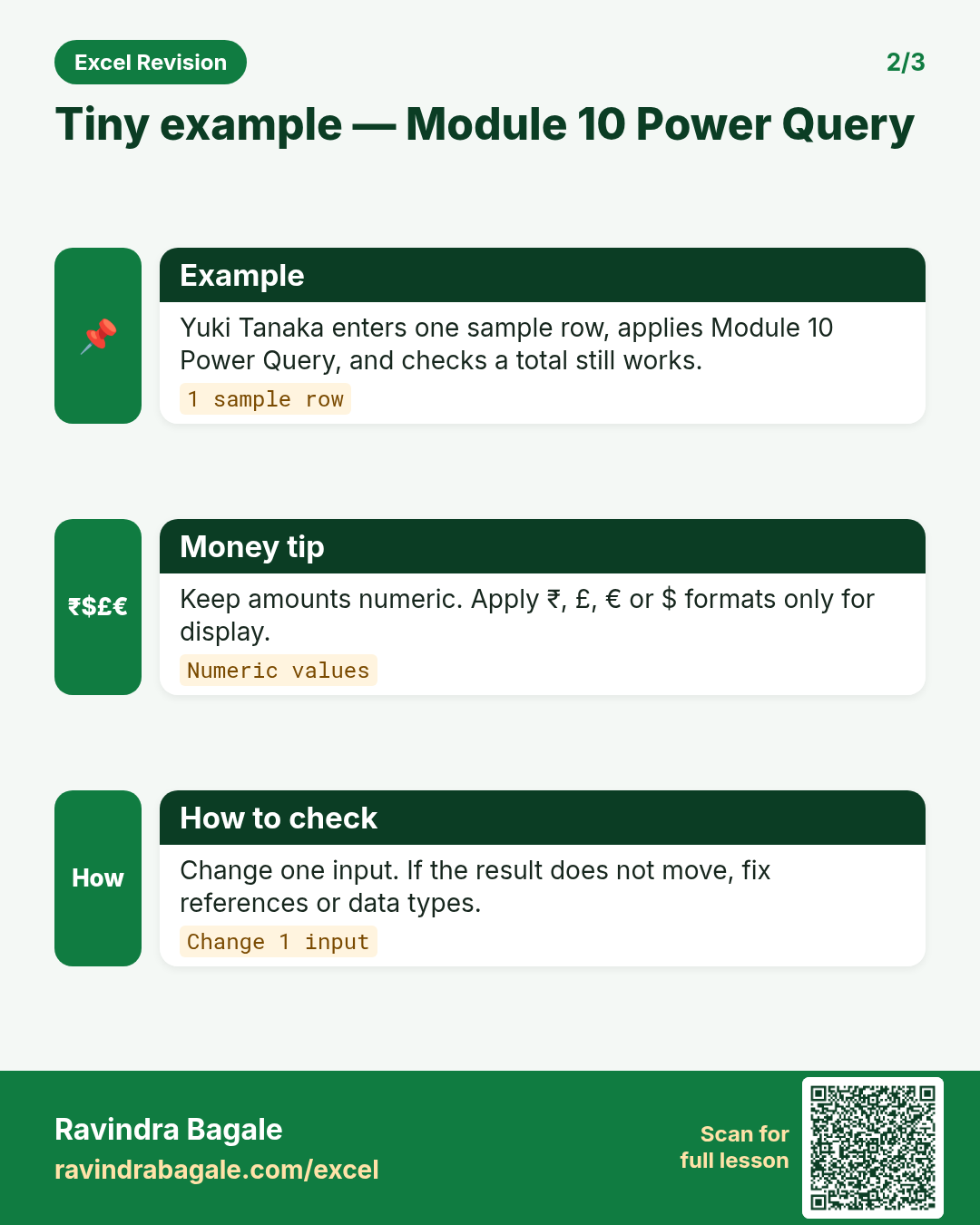
Worked example — module 10 power query
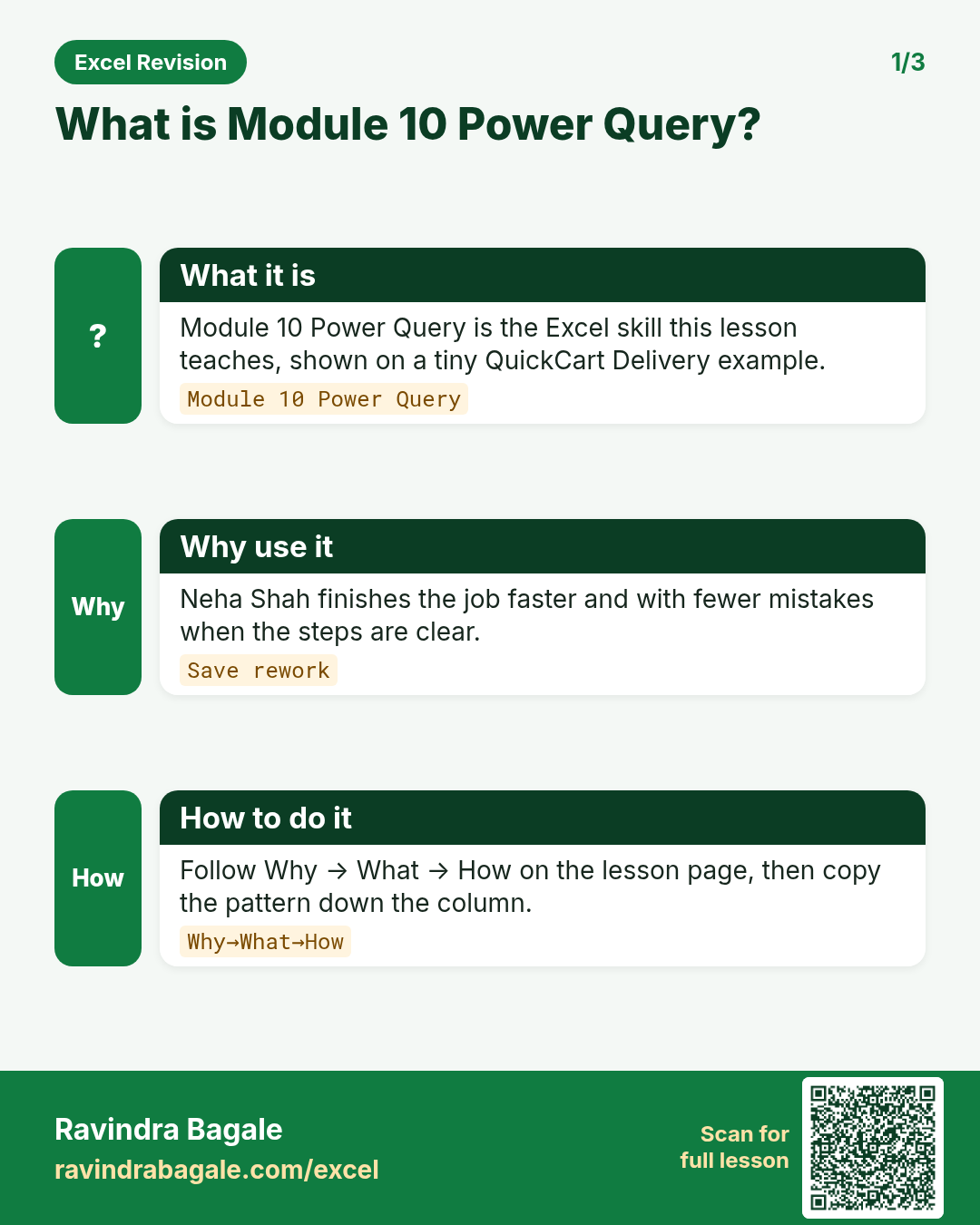
Why
Vikram Rao in Pune and Yuki Tanaka abroad both need a clear, repeatable way to use module 10 power query on a CityBasket Retail sheet without breaking totals.
What
Module 10 Power Query is the Excel idea this page teaches. We will walk one tiny example end to end.
How
- Open a blank sheet. In A1 type a short label for module 10 power query.
- Enter a small made-up value for Vikram Rao using $ where money appears.
- Add a second value for Yuki Tanaka using £ so you see mixed currencies stay numeric.
- Apply the method from this lesson step by step (menu or formula as shown above).
- Check the result still works inside SUM or a simple check cell.
Formula / action
Follow the formula or ribbon steps shown in this lesson (keep values numeric).Meaning: Once module 10 power query is correct on one row, copy the same pattern down the column.
Practice tasks (10+)
Try these on a blank sheet. Open a hint only if you are stuck. No quiz — just practice.
1. Rebuild the smallest example of module 10 power query on a blank sheet for Skyline Clinics.
Hint: Use only the steps on this page. Keep numbers numeric.
2. Change one input for Meera Joshi and confirm the result updates.
Hint: If the result is stuck, check absolute vs relative references.
3. Repeat the same steps with a £ or € value for Sophie Martin.
Hint: Formatting must not break SUM.
4. Write the result meaning in one plain sentence next to the cell.
Hint: Imagine explaining it to a new joiners.
5. Add a second row and fill the method down.
Hint: Double-click the fill handle if the pattern is consistent.
6. Break the example on purpose, then fix it using this lesson.
Hint: Common break: text instead of a number.
7. Apply module 10 power query to a 5-row made-up Skyline Clinics table.
Hint: Keep column headers clear.
8. Check your answer with a simple total or COUNT.
Hint: A wrong total usually means a format or key mismatch.
9. Swap ₹ and $ on one column and re-check totals.
Hint: Stored values stay the same; only the display changes.
10. List two mistakes beginners make with module 10 power query.
Hint: Look back at the tip box on this page.
11. Teach the steps out loud in under one minute.
Hint: Why → What → How.
12. Save the sheet as SkylineClin_practice.xlsx.
Hint: Use a clear file name for class.
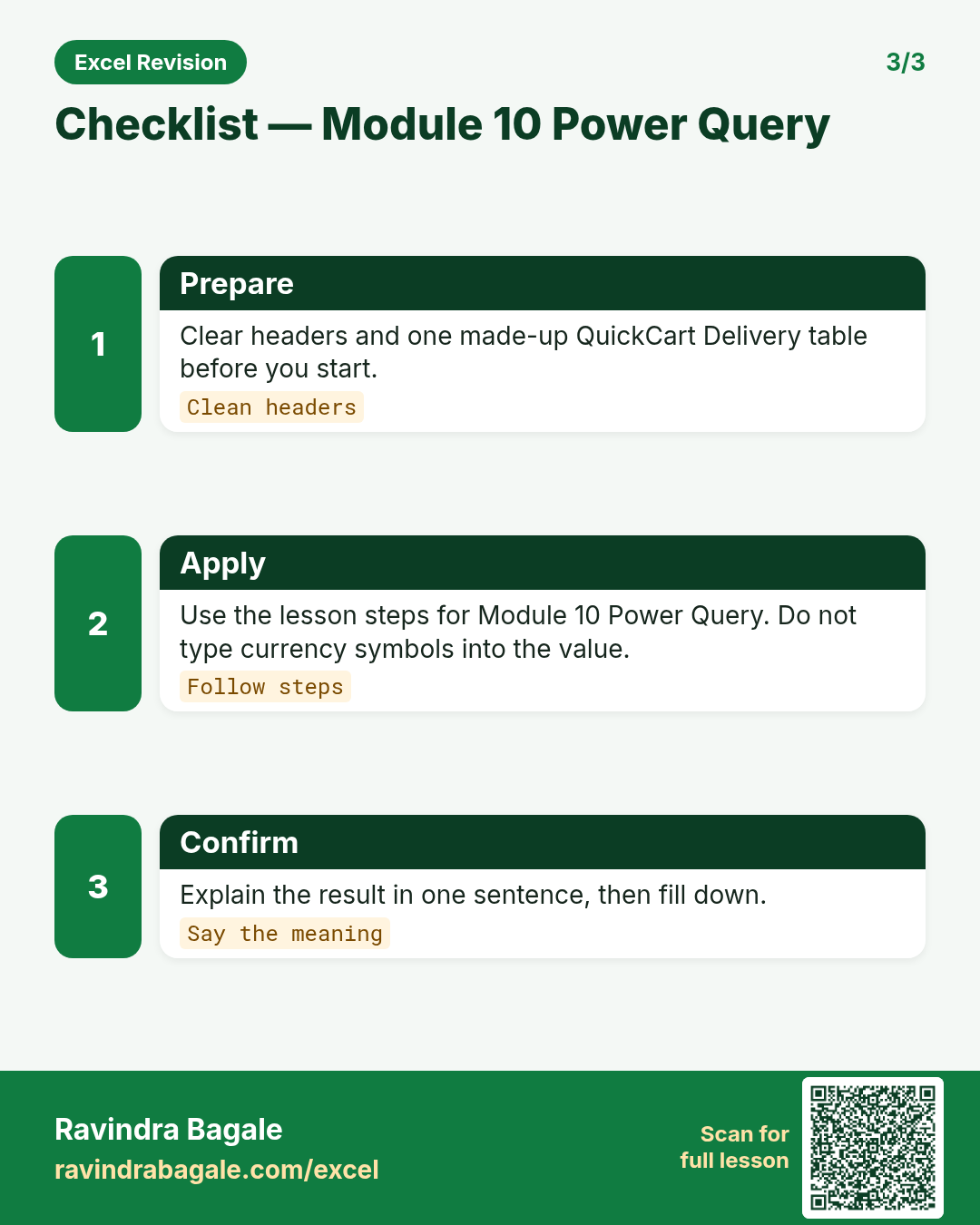
Quick revision cards
Three standalone cards. Each one explains the idea with its own example. Scan the QR to open this lesson.