Reliance Retail Dashboard in Excel: 12 KPIs, Charts, 4 Types of Analytics and a Forecast (6,000 Rows of Example Data)
Why: Big companies such as Reliance Retail run on dashboards. A good dashboard answers four questions on one screen: what happened, why, what will happen next, and what to do. If you can build one like this, you can build one for any business.
What: a complete Excel workbook with 6,000 rows of example sales data for a Reliance Retail-like business, a Dashboard with 12 KPI tiles, drop-down filters and charts, a Rules sheet, and four analysis sheets.
How: you will follow it sheet by sheet. Every step has a screenshot, and every KPI has its formula and a line on why it matters.
About this data. All numbers in this workbook are simulated example data for practice. They are not real Reliance Retail figures and do not come from any Reliance Retail report. Only public facts are used: Reliance Retail is headquartered in Mumbai, Maharashtra, India and works in retail. Money is shown in Indian rupees (₹). Every data sheet in the file starts with the same note.
What you'll learn on this page
- Read and filter 6,000 rows with SUMIFS and an Inc helper column
- Build 12 KPI tiles, each with a formula and a reason
- Chart AC vs PY with IBCS colours (green good, red bad)
- Explain the change with ΔPY drill-down and CORREL
- Forecast 2027 with FORECAST.LINEAR and TREND
- Test a plan with what-if inputs, Goal Seek and IF rules
- Rebuild the whole dashboard from a blank file, with the theme hex codes
Download Reliance_Retail_Dashboard.xlsx · See the Power BI version · All 50 company dashboards
1. The finished dashboard
This is what you will build. Yellow cells at the top are drop-down filters. Change one and every tile, chart and analysis sheet updates.
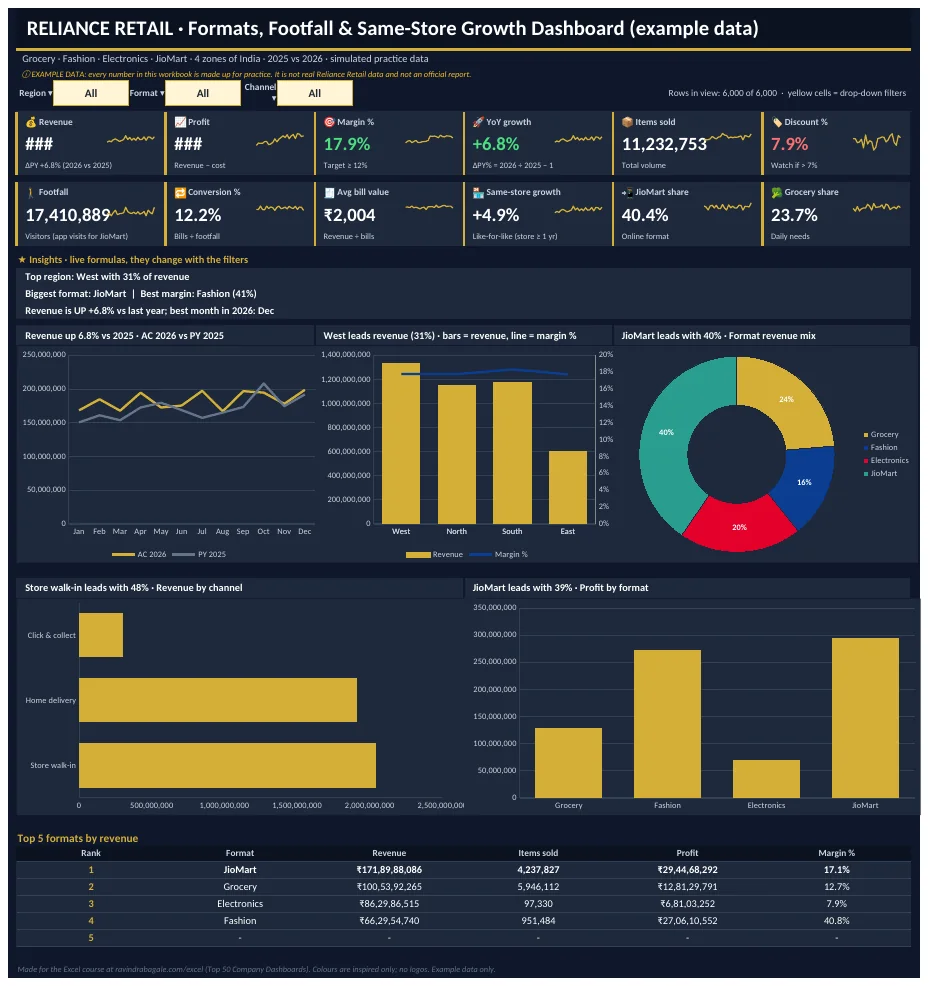
Figure 1. The Reliance Retail Dashboard sheet: filters, 12 KPI tiles, an insight strip, charts and a top-5 table (example data).
2. The 12 KPIs: formula, meaning and why
A KPI (key performance indicator) is one number that tells you if the business is on track. The value column shows the result with no filter (all 6,000 rows), checked in LibreOffice and pandas. Data[Revenue] means the Revenue column of the Data sheet; in the file it is written as a full range such as Data!$O$5:$O$6004.
| KPI | Excel formula | What it means | Why this KPI | Value (all rows) |
|---|---|---|---|---|
| Revenue | =SUMIFS(Data[Revenue],Data[Inc],1) | Money from sales after discount, both years in view. | It is the top line: if revenue does not grow, nothing else can. | ₹4.25B |
| Profit | =SUMIFS(Data[Profit],Data[Inc],1) | Revenue minus cost. | Revenue can rise while profit falls; profit shows if growth is healthy. | ₹761.31M |
| Margin % | =IFERROR(SUMIFS(Data[Profit],Data[Inc],1)/SUMIFS(Data[Revenue],Data[Inc],1),0) | Profit as a share of revenue. | It compares profit fairly across big and small regions or products. | 17.9% |
| YoY growth | =IFERROR(SUMIFS(Data[Revenue],Data[Inc],1,Data[Year],2026)/SUMIFS(Data[Revenue],Data[Inc],1,Data[Year],2025)-1,0) | Revenue growth of 2026 over 2025 (ΔPY%). | It shows direction: are we bigger than last year? | 6.8% |
| Items sold | =SUMIFS(Data[Qty],Data[Inc],1) | items sold in the week | Volume shows if growth comes from selling more, not only from higher prices. | 11.23M |
| Discount % | =IFERROR(SUMIFS(Data[Discount],Data[Inc],1)/SUMIFS(Data[GrossSales],Data[Inc],1),0) | Discount given as a share of gross sales. | Too much discount buys revenue but eats profit. | 7.9% |
| Footfall | =SUMIFS(Data[Footfall],Data[Inc],1) | People who came in (or opened the app). | Footfall is the start of the funnel: no visitors, no sales. | 17.41M |
| Conversion % | =IFERROR(SUMIFS(Data[Bills],Data[Inc],1)/SUMIFS(Data[Footfall],Data[Inc],1),0) | Share of visitors who bought something. | It shows if the store turns visitors into buyers. | 12.2% |
| Avg bill value | =IFERROR(SUMIFS(Data[Revenue],Data[Inc],1)/SUMIFS(Data[Bills],Data[Inc],1),0) | Average money in one bill. | A higher bill value means customers buy more per visit. | ₹2K |
| Same-store growth | =IFERROR(SUMIFS(Data[Revenue],Data[Inc],1,Data[SameStore],"Yes",Data[Year],2026)/SUMIFS(Data[Revenue],Data[Inc],1,Data[SameStore],"Yes",Data[Year],2025)-1,0) | Revenue growth from stores open over a year. | It removes the effect of new stores, so it shows true growth. | 4.9% |
| JioMart share | =IFERROR(SUMIFS(Data[Revenue],Data[Inc],1,Data[Product],"JioMart")/SUMIFS(Data[Revenue],Data[Inc],1),0) | Share of revenue from the JioMart app. | It shows how quickly shoppers move online. | 40.4% |
| Grocery share | =IFERROR(SUMIFS(Data[Revenue],Data[Inc],1,Data[Product],"Grocery")/SUMIFS(Data[Revenue],Data[Inc],1),0) | Share of revenue from grocery stores. | Grocery brings people back every week. | 23.7% |
3. Every tile and chart explained
The tiles
- Filter band (top, yellow): drop-downs for Region, Format, Channel. Choose "All" to see everything.
- Rows in view: counts how many of the 6,000 rows match the filters, so you always know how much data a number is based on.
- KPI tiles: each one has an icon and a label, one big number, and one small line under it (ΔPY, a target or a meaning). Tiles turn green or red with conditional formatting when a target is met or missed.
- Insight strip: three live sentences built with INDEX, MATCH and TEXT, such as the top region and whether revenue is up or down. The title states the finding, not just the topic.
- Top 5 table: the five biggest formats, ranked with LARGE + INDEX + MATCH, so it re-sorts when you filter.
The charts
| Chart | Type | What it answers |
|---|---|---|
| Revenue by month: AC 2026 vs PY 2025 | line | Line chart for time. The dark line is AC 2026 and the light line is PY 2025, so you see month by month whether this year is ahead (IBCS: PY behind AC). |
| Revenue by region (bars) and margin % (line) | col+line | Columns show revenue per region; the line on the second axis shows margin %. One look tells you which region is big and which one is profitable. |
| Format revenue mix | doughnut | Donut for the mix. It is used only once and only because there are few parts. It answers: what share of revenue comes from each item? |
| Revenue by channel | hbar | Sorted horizontal bars rank the channels. Long labels read easily on a bar chart. |
| Profit by format | col | Columns compare one number across items. Look for the tallest and the shortest bar. |
All charts read from small helper tables on the Calc sheet, not from the raw data. That keeps the charts fast and lets them follow the filters.
4. The four types of analytics
4.1 Descriptive: what happened?
Why: before you explain anything, you need the facts. What: a pivot-style grid of revenue by format and region, revenue by year and channel, and a top-5 state list. How: one SUMIFS per cell, with the row and column headers as criteria, so it also follows the filters.
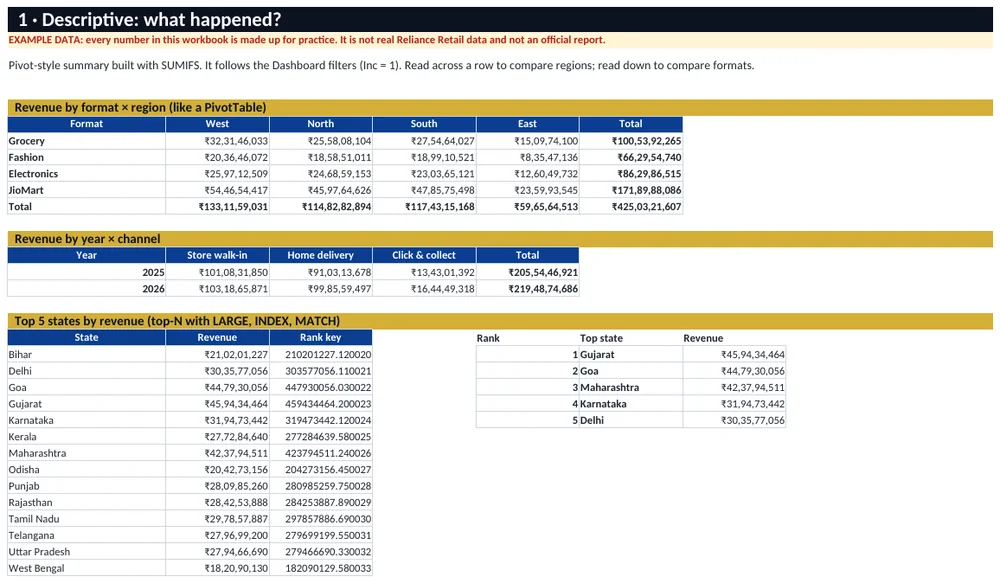
Figure 2. Descriptive sheet: SUMIFS grid like a PivotTable, plus a top-5 list made with LARGE, INDEX and MATCH.
4.2 Diagnostic: why did it happen?
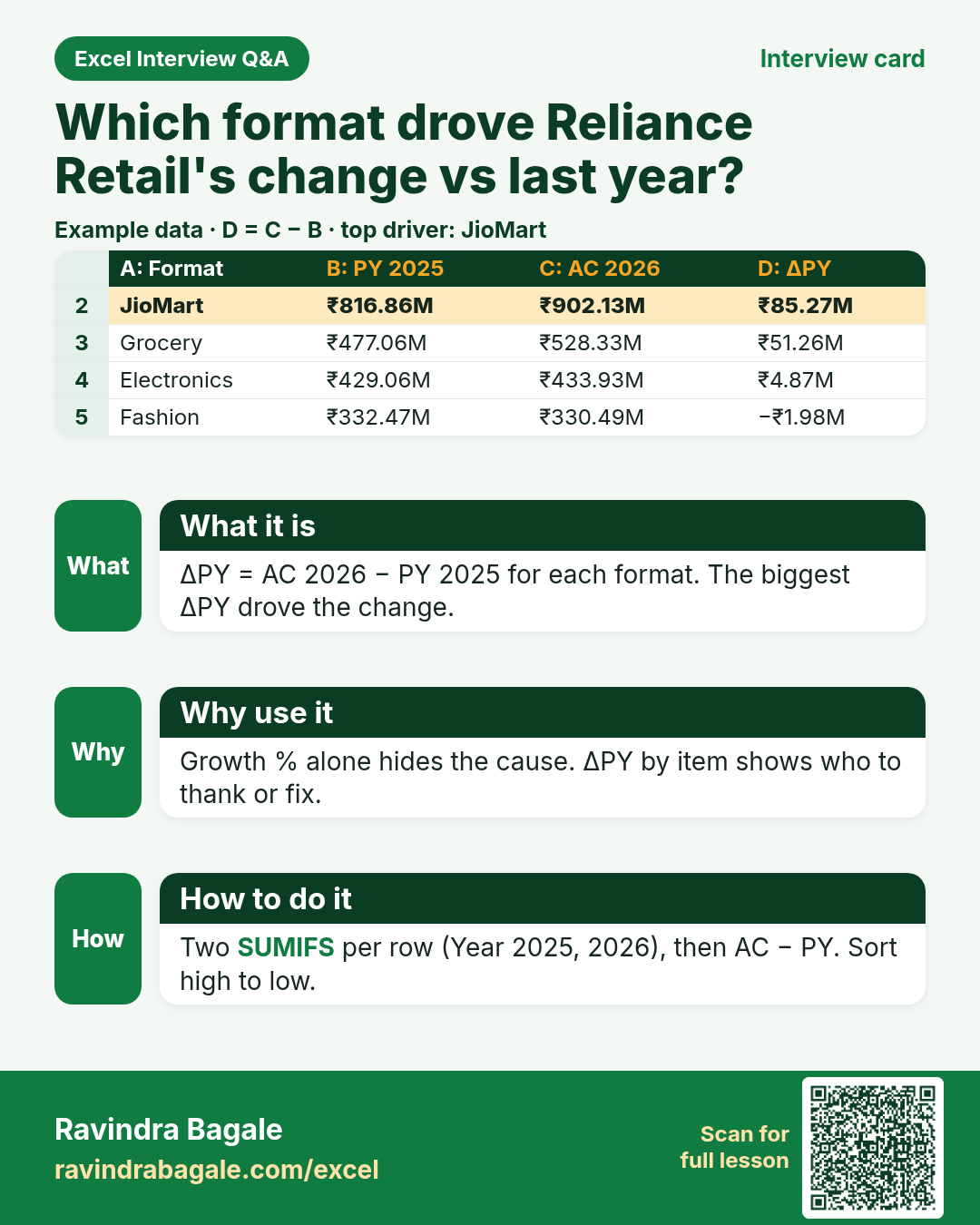
Why: total growth was +6.8% on the example data, but a total hides who caused it. What: PY 2025, AC 2026, ΔPY, ΔPY% and "share of change" for each region, format and channel, plus CORREL checks. How: ΔPY = AC − PY; share of change = item ΔPY ÷ total ΔPY. Green = good for the business, red = bad. CORREL near 0 means a weak link; above 0.7 means a strong link.
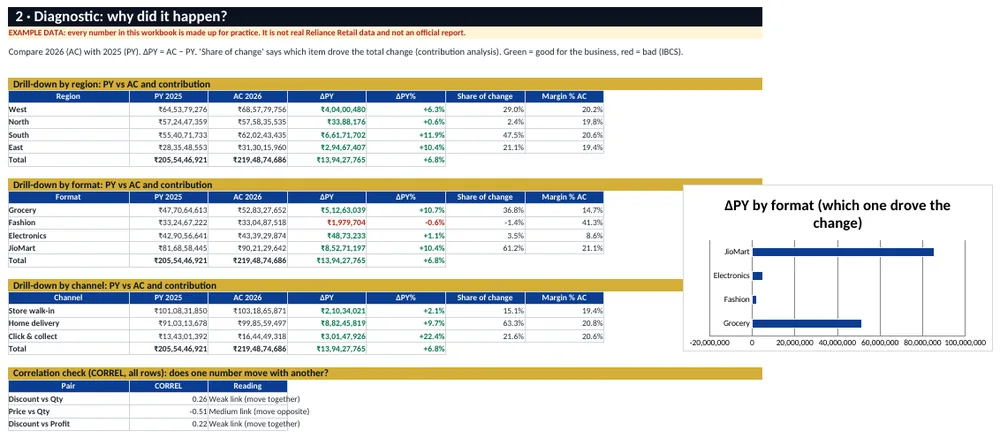
Figure 3. Diagnostic sheet: ΔPY drill-down by region, product and channel with a bar chart of who drove the change.
4.3 Predictive: what will happen next?
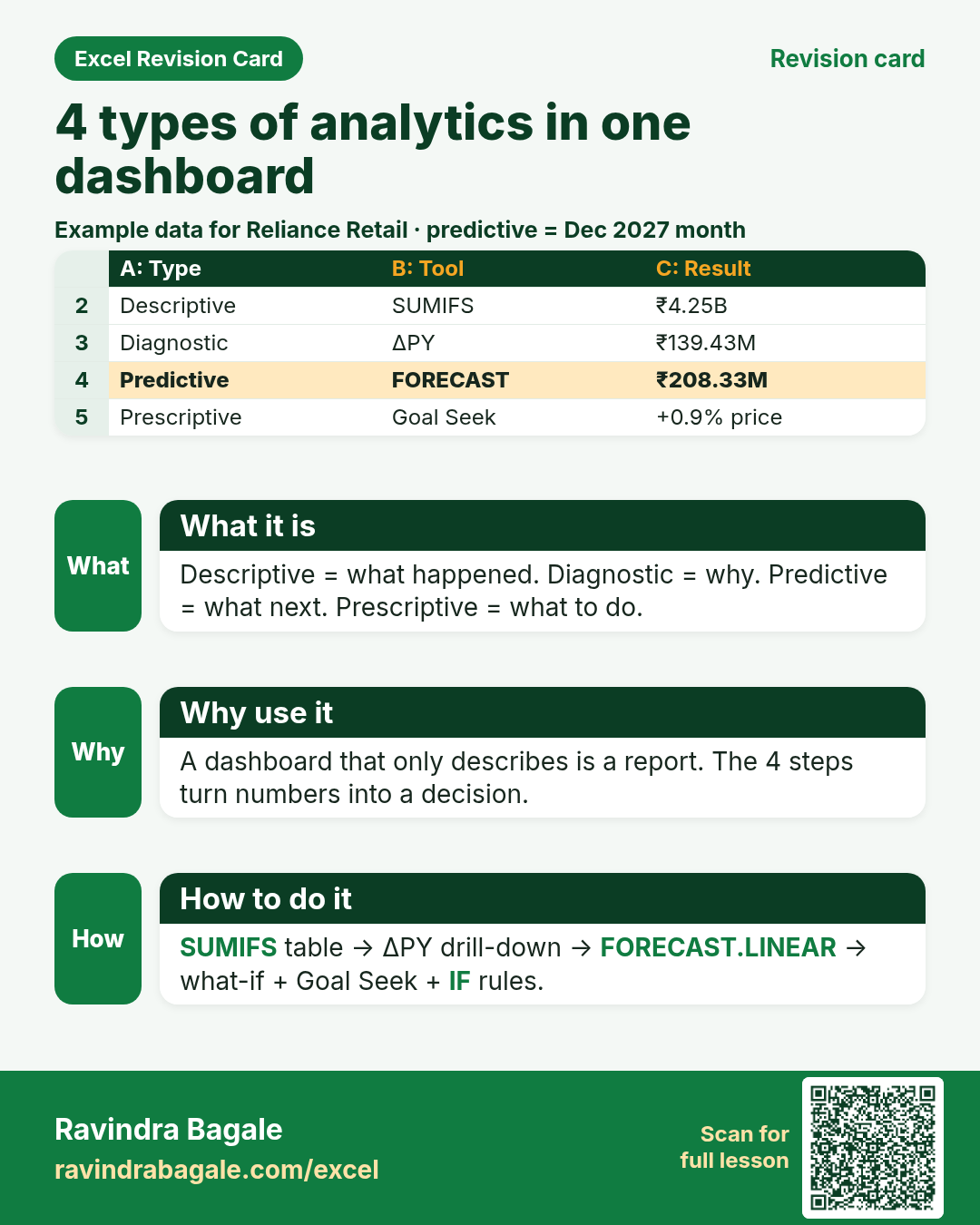
Why: plans need a number for next year. What: 24 months of actual revenue, a 3-month moving average, and a 12-month forecast for 2027. How: =FORECAST.LINEAR(t, actuals, t_values), checked with =TREND(); SLOPE gives the change per month and RSQ shows how well the straight line fits. On the example data the trend gives ₹208.33M for Dec 2027. A low R² means: use the forecast as a rough guide only.
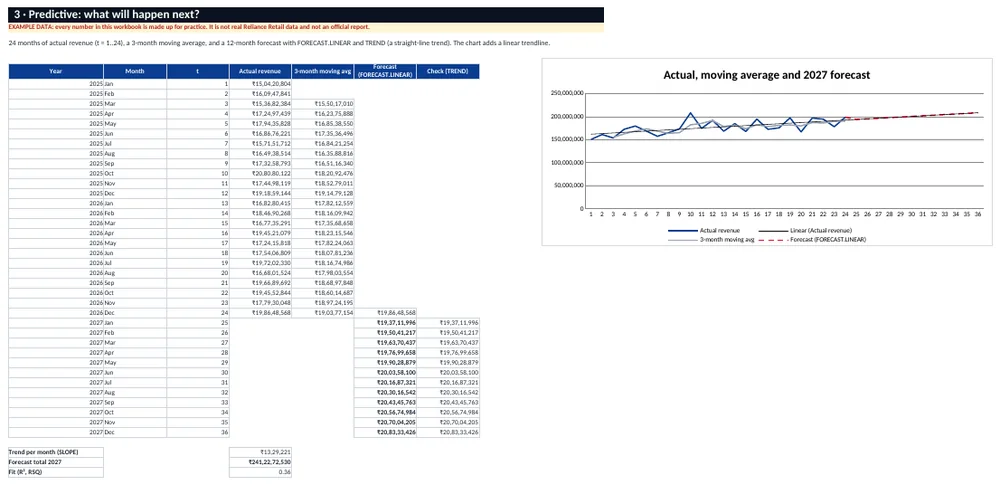
Figure 4. Predictive sheet: actuals, 3-month moving average, FORECAST.LINEAR for 2027 and a linear trendline.
4.4 Prescriptive: what should we do?
Why: a dashboard is only useful if it leads to a decision. What: yellow what-if inputs (price, discount, cost, volume), the new profit and margin, a Goal Seek setup, and an action table. How: change a yellow cell and the result updates. Goal Seek (Data › What-If Analysis › Goal Seek) finds the price change for the target margin; on the example data that is +0.9%. The action table uses IF rules: margin below target → fix price or discount; ΔPY% below 0 → find the cause; ΔPY% 10% or more with a good margin → invest to grow; otherwise keep steady.
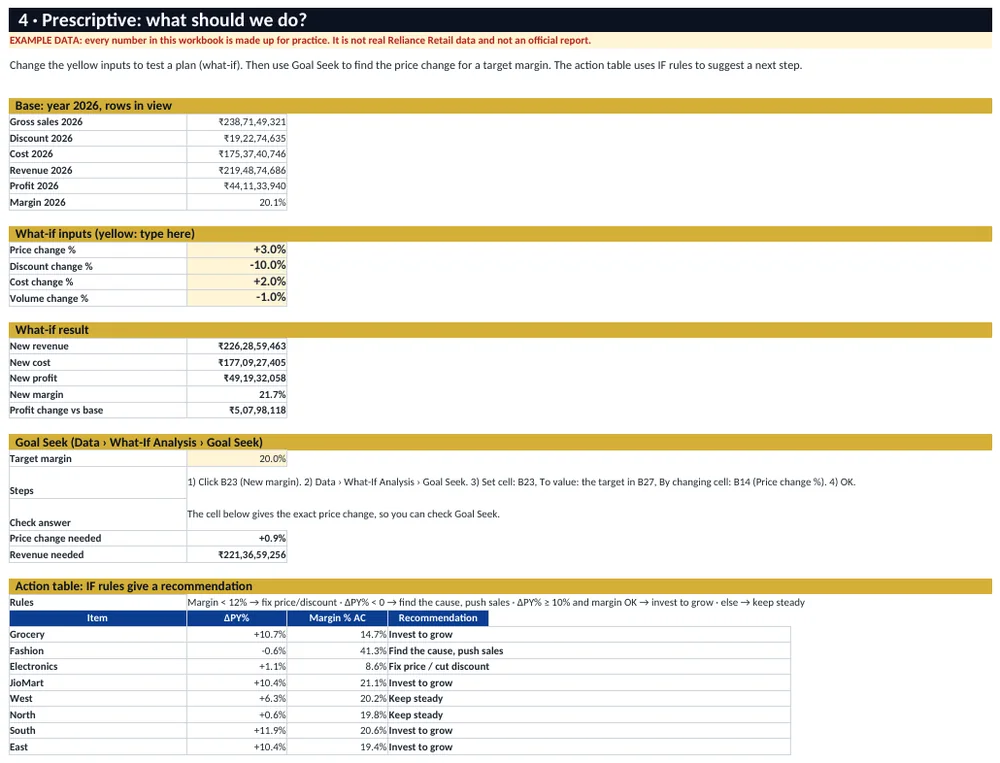
Figure 5. Prescriptive sheet: what-if inputs, Goal Seek and the IF-rule action table.
5. Rebuild it from a blank file
Follow these 15 steps in order. When you finish, your file will match the download.
Step 1. Import the data
Open a blank workbook. Data › Get Data › From Text/CSV and pick the Sales file (or copy the Data sheet from the download). Put a title in row 1 and the About note in row 2, so nobody mistakes the example data for real Reliance Retail numbers. Headers go in row 4.
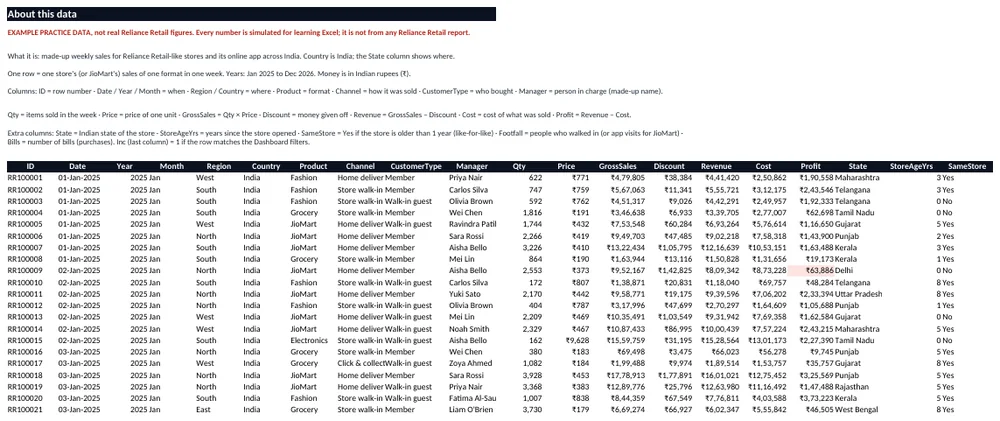
Figure 6. Data sheet: About note on top, then one row per sales line.
Step 2. Make it a Table
Click inside the data and press Ctrl+T, tick 'My table has headers', and name it Data (Table Design › Table Name). A Table grows by itself when you add rows, and formulas fill down.
Step 3. Add the drop-down lists
Make a Lists sheet with one column per filter (Region, format, Channel), each starting with 'All'. On the Dashboard select the filter cell › Data › Data Validation › List › point to the list.
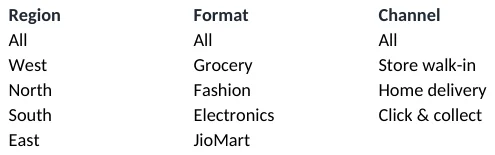
Figure 7. Lists sheet: the source of the drop-down filters.
Step 4. Add the Inc helper column
Last column of Data: Inc = 1 when the row matches every filter. Example: =--AND(OR(RegionFilter="All",[@Region]=RegionFilter), OR(ProductFilter="All",[@Product]=ProductFilter), OR(ChannelFilter="All",[@Channel]=ChannelFilter)). Every formula then adds ,Data[Inc],1 so it follows the filters.
Step 5. Write the Rules sheet
One line per column: what it means and what values are allowed. This keeps new rows clean and tells a new user how to add data.
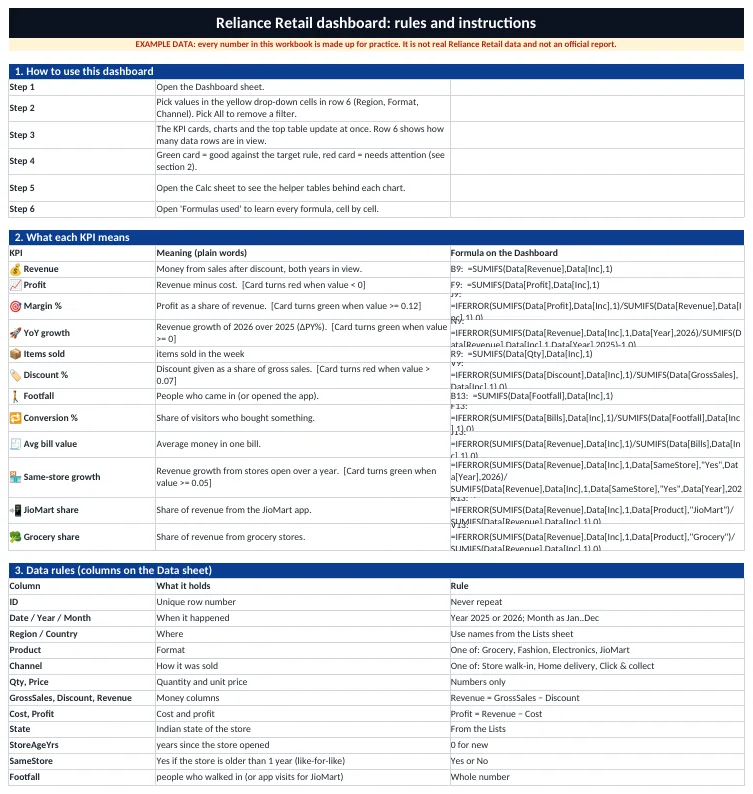
Figure 8. Rules & Instructions sheet: what each column means and the allowed values.
Step 6. Build the Calc helper tables
Make small tables for month, region, format and channel with SUMIFS. Example: =SUMIFS(Data[Revenue],Data[Inc],1,Data[Month],A5,Data[Year],2026). Charts read from these.
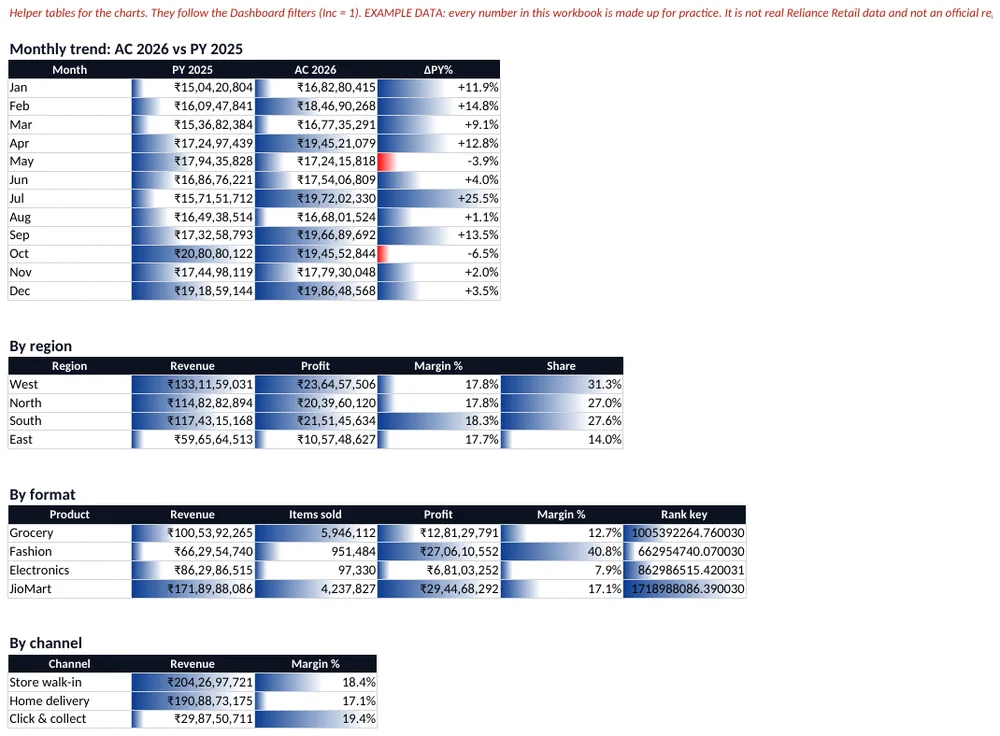
Figure 9. Calc sheet: helper tables that feed the charts.
Step 7. Write the KPI formulas
Type each KPI formula from the table in section 2 into its tile. Use IFERROR(...,0) around every division. The Formulas used sheet lists every formula in the file.
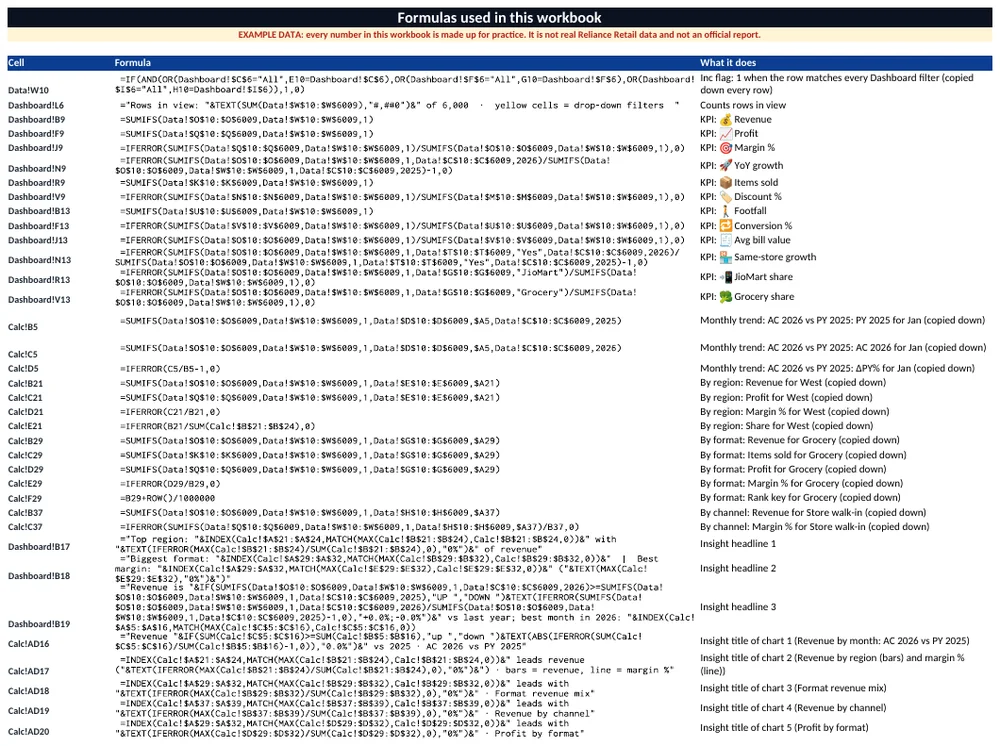
Figure 10. Formulas used sheet: every formula with where it is used.
Step 8. Cross-check with a PivotTable
Insert › PivotTable from the Data table, format in Rows, Region in Columns, Revenue in Values. It must match the Descriptive grid. If it does not, a SUMIFS criterion is wrong.
Screenshot: see section 4 above (Descriptive grid; a PivotTable on the Data table must give the same totals.).
Step 9. Insert the charts
Select a Calc table › Insert › Recommended Charts. Line for months (AC dark, PY light grey), clustered column + line on the secondary axis for region and margin, one donut for the mix, sorted bars for channels. Turn off 3D, gridlines and chart borders. Write the finding in the chart title.
Screenshot: see Figure 1 above (Dashboard: chart cards on a dark canvas.).
Step 10. Make the tiles and sparklines
Merge a block of cells for each tile: label in small text, number in 22–26 pt bold, the ΔPY line in 9 pt. To add a sparkline: select the cell under the number › Insert › Sparklines › Line › Data Range = the 12 month values on Calc. Use Home › Conditional Formatting for green and red.
Step 11. Add real slicers (optional)
Formulas do not listen to slicers, so this file uses drop-downs. If you prefer slicers: build the charts from PivotTables, then PivotTable Analyze › Insert Slicer › Region, and Report Connections to link one slicer to all pivots.
Step 12. Forecast
On the Predictive sheet list t = 1..36, the 24 actual months, then =FORECAST.LINEAR(C30,$D$6:$D$29,$C$6:$C$29) for months 25–36. Or select the month dates and values › Data › Forecast Sheet for a quick chart with a confidence band.
Screenshot: see section 4 above (Predictive sheet: actuals, moving average and the 2027 forecast.).
Step 13. What-if and Goal Seek
Put the inputs in yellow cells. New revenue = (Gross × (1+price) − Discount × (1+discount)) × (1+volume). Then Data › What-If Analysis › Goal Seek: Set cell = new margin, To value = target, By changing = price change.
Screenshot: see section 4 above (Prescriptive sheet: inputs, Goal Seek and actions.).
Step 14. Layout and theme
View › untick Gridlines. Fill the canvas with the background colour, tiles with the tile colour, and keep to one font (Segoe UI or Calibri) in three sizes. Use the hex codes in the table below (Home › Fill Color › More Colors › Custom › Hex).
Step 15. Protect and share
Unlock the filter and yellow input cells (Format Cells › Protection › untick Locked), then Review › Protect Sheet. Set Dashboard as the active sheet before saving. Share the .xlsx, or File › Export › PDF for people who only need to read it.
Theme colours (hex codes)
| Colour | Used for |
|---|---|
#0B1220 | Title band and dark fill |
#0B3D91 | Main brand colour (headers, AC series) |
#D4AF37 | Accent (filters, section bars) |
#E4002B | Second accent (forecast line) |
#0F172A | Canvas background |
#1E293B | KPI tile fill |
#0B3D91 | KPI tile border |
#FFFFFF | Big numbers |
#CBD5E1 | Small text on tiles |
#067647 | Good (IBCS) |
#B42318 | Bad (IBCS) |
#FFF4D6 | Input cells (what-if) |
6. How the numbers were checked
Every KPI was recalculated in LibreOffice and compared with the same sum done in Python pandas on the raw rows: 23 of 23 checks matched, with 0 formula errors. The Power BI DAX measures were checked the same way.
Quick revision cards
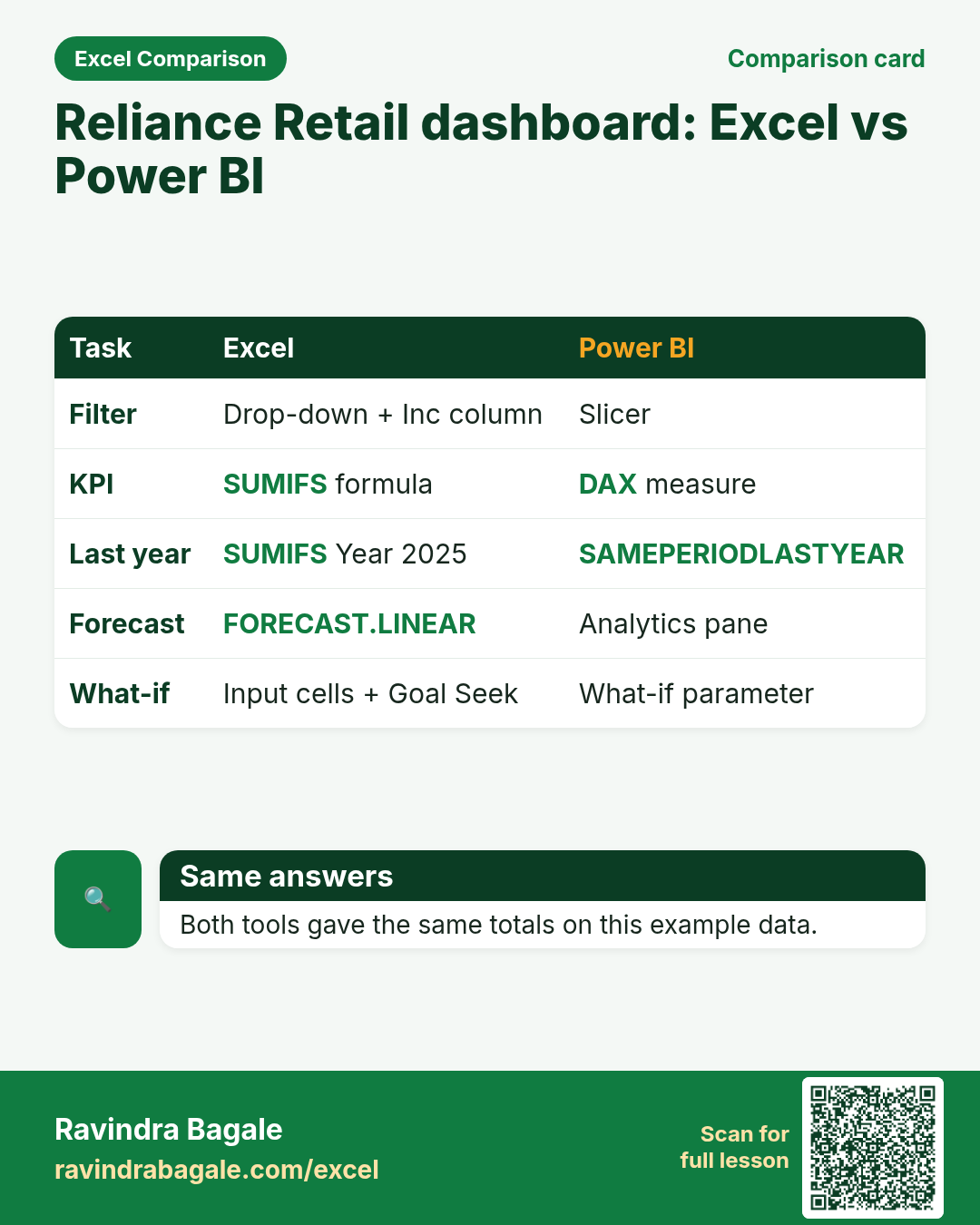
Save or share these cards. Each card stands on its own with a small example, and the QR code opens this lesson.
7. FAQ
Is this real Reliance Retail data?
No. It is simulated example data for practice. Only public facts such as the headquarters (Mumbai, Maharashtra, India) and the industry are real.
Why SUMIFS and not a PivotTable?
SUMIFS updates instantly, follows the drop-downs through the Inc column, and lets you place each number exactly where you want on the dashboard. A PivotTable is a good cross-check.
Can I add my own rows?
Yes. Type under the last row of the Data table. The table grows, Inc fills down, and every KPI updates.
Does it work in Google Sheets or LibreOffice?
Yes for the formulas and charts. FORECAST.LINEAR is FORECAST in some older versions, and the chart styling may look a little different.
8. Quick quiz
Six questions on this page. Sign in to save your score.
Is the data in the Reliance Retail workbook real company data?
- Yes, from the annual report
- No, it is simulated example data
- Yes, from a stock website
- Only the 2026 rows are real
Show answer
B. No, it is simulated example data. Every data sheet starts with an About note: it is practice data. Only public facts like the HQ are real.
What does the Inc column do?
- Counts income
- Marks rows that match the Dashboard filters with 1
- Stores the invoice number
- Adds tax
Show answer
B. Marks rows that match the Dashboard filters with 1. Inc = 1 when a row matches all drop-downs, so every SUMIFS adds ,Data[Inc],1.
ΔPY means…
- AC − PY
- PY − AC
- AC ÷ PY
- Plan − AC
Show answer
A. AC − PY. IBCS: ΔPY = actual minus previous year. ΔPY% = ΔPY ÷ PY.
Which function makes the 2027 forecast?
- VLOOKUP
- FORECAST.LINEAR
- COUNTIFS
- RANK
Show answer
B. FORECAST.LINEAR. FORECAST.LINEAR draws a straight-line trend through the 24 actual months; TREND checks it.
Which tool finds the price change needed for a target margin?
- Flash Fill
- Goal Seek
- Remove Duplicates
- Text to Columns
Show answer
B. Goal Seek. Data › What-If Analysis › Goal Seek changes one input until the result reaches the target.
Which analysis type answers 'why did revenue change?'
- Descriptive
- Diagnostic
- Predictive
- Prescriptive
Show answer
B. Diagnostic. Diagnostic: the ΔPY drill-down by region, format and channel shows who drove the change.
Next: build the same Reliance Retail dashboard in Power BI with DAX or go back to all 50 company dashboards.