Petrol Pump Shift Management System in Excel: Meter Readings, Litres Sold, Cash and UPI Collection, Shortage and Tank Dip
Raja Fuels in Nashik runs four nozzles, petrol and diesel, in two shifts with four attendants. Each evening the manager added meter readings on a calculator and argued about who was short. This page builds an 8-sheet Excel system: readings give litres and sales by nozzle, each attendant's cash, UPI and card are matched with their meter sales, and the tank sheet compares book stock with the dip.
What you'll learn on this page
- Set fuel rates, nozzles and attendants once
- Work out litres sold from opening, closing and test litres
- Price litres by product with XLOOKUP
- Match each attendant's collection with meter sales using a three-condition SUMIFS
- Flag shortages above a limit
- Reconcile tank book stock with dip stock
- Print a shift sheet and show the pump on a dashboard
Download the template: petrol-pump-shift-management-system-template.xlsx: a 8-sheet system with example data and real formulas (Read me, Setup, Meter readings, Collections, Tank stock, Report, Shift sheet, Dashboard). Yellow cells are inputs you can type over; green cells hold formulas; blue rows are headers and totals. Replace the example data with your own and every report and the dashboard recalculate.
Made-up data: every name, amount, business and date on this page is made up for practice. Cities are used only to make the examples feel real.
1. The business story
Raja Fuels, Nashik, 15 and 16 October 2026 (made-up data). Petrol ₹104.20, diesel ₹92.10 a litre (example rates); shortage alert ₹200.
| Question | Where the system answers it |
|---|---|
| How much was sold? | 10,838 litres for ₹10,51,275 over four shifts |
| Was anyone short? | Shahrukh, evening of 15 October: ₹610 short |
| Do tanks match? | Petrol dip 38 L below book stock, diesel 21 L below |
| Who sold the most? | Amir: 3,132 litres |
Every shift closes with one number per attendant: collected minus expected.
Figure 1. Setup holds rates, nozzles and attendants; Meter readings, Collections and Tank stock are the entry sheets; Report, Shift sheet and Dashboard read from them.
2. Build it sheet by sheet
Step 1. Setup: rates and nozzles
- Rates in A7:B8, nozzles with product in D7:E10, attendants in G7:G10, B4 shortage alert (₹200).
Step 2. Meter readings
- One row per nozzle per shift: Date, Shift, Nozzle, Attendant, Opening, Closing, Test (L).
- H5 litres
=F5-E5-G5: test litres go back into the tank, so they are not sales. - I5 product
=XLOOKUP(C5,Setup!$D$7:$D$10,Setup!$E$7:$E$10,"Check nozzle"), J5 rate and K5 amount=ROUND(H5*J5,2).
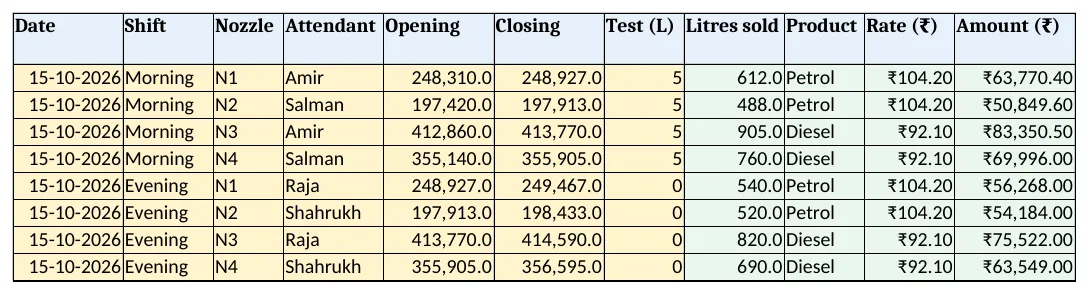
Figure 2. Meter readings: litres sold, product, rate and amount by nozzle and shift
Step 3. Collections
- One row per attendant per shift: Cash, UPI, Card. G5 collected
=SUM(D5:F5). - H5 expected:
=ROUND(SUMIFS('Meter readings'!$K$5:$K$3000,'Meter readings'!$A$5:$A$3000,A5,'Meter readings'!$B$5:$B$3000,B5,'Meter readings'!$D$5:$D$3000,C5),2)(SUMIFS). - I5 short or excess
=ROUND(G5-H5,2)and J5=IF(I5<-Setup!$B$4,"Short","OK").
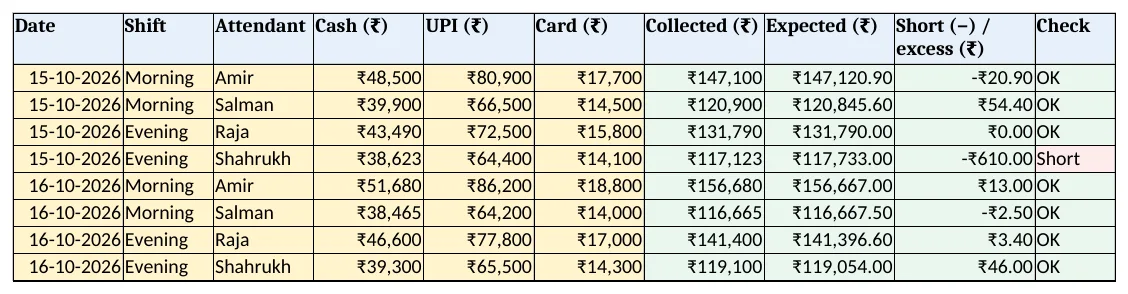
Figure 3. Collections: cash, UPI and card against expected sales, with short or excess
Step 4. Tank stock and Report
- Tank stock: D5 sold from meters, E5 book stock
=B5+C5-D5, G5 variance=F5-E5, H5 variance % of sales. - Report per attendant: shifts, litres, sales, net short or excess and short shifts.
Step 5. Shift sheet and Dashboard
- Shift sheet: pick a date and shift in B4:B5; nozzle litres and amounts, collected and difference. Set the print area.
- KPI cards: litres sold, sales, collected, net short or excess, short shifts and tank variance. Charts: litres and short or excess by attendant.
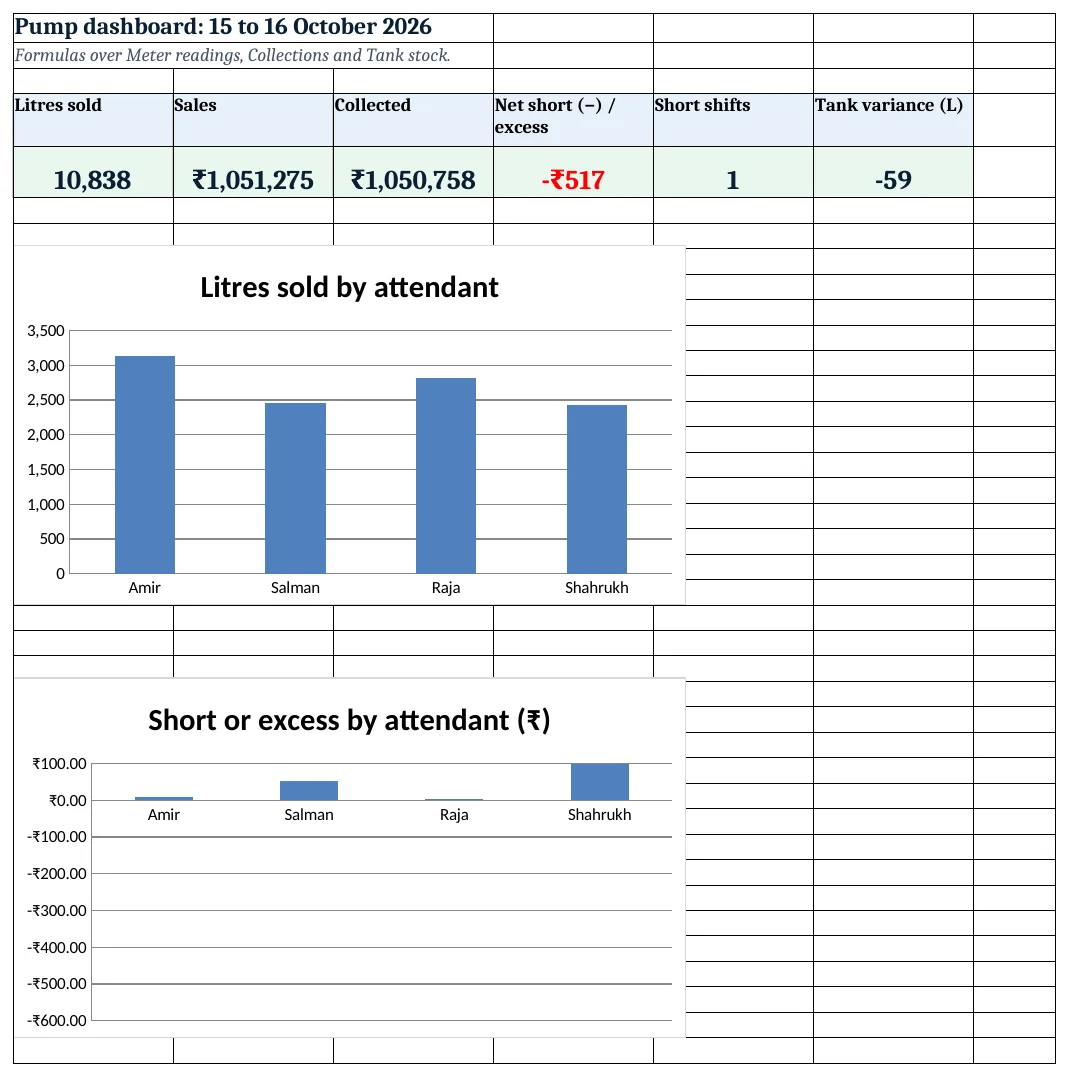
Figure 4. Pump dashboard: litres, sales, collected, net short, short shifts and tank variance
Ravindra Bagale's Tip
Close each shift with both attendants watching the meter. A reading typed later is where most fights start.
Ravindra Bagale's Tip – मराठी
प्रत्येक shift दोन्ही कर्मचाऱ्यांसमोर meter पाहून बंद करा. नंतर लिहिलेली नोंद वादाचे मूळ ठरते.
Ravindra Bagale's Tip – हिंदी
हर shift दोनों कर्मचारियों के सामने meter देखकर बंद करें. बाद में लिखी entry से झगड़े होते हैं.
3. Formulas used
| Cell | Formula | What it does |
|---|---|---|
| Meter readings!H5 | =F5-E5-G5 |
Litres sold |
| Meter readings!I5 | =XLOOKUP(C5,Setup!$D$7:$D$10,Setup!$E$7:$E$10,"Check nozzle") |
Product of the nozzle |
| Meter readings!J5 | =XLOOKUP(I5,Setup!$A$7:$A$8,Setup!$B$7:$B$8,0) |
Rate |
| Meter readings!K5 | =ROUND(H5*J5,2) |
Amount |
| Collections!G5 | =SUM(D5:F5) |
Collected |
| Collections!H5 | =ROUND(SUMIFS('Meter readings'!$K$5:$K$3000,'Meter readings'!$A$5:$A$3000,A5,'Meter readings'!$B$5:$B$3000,B5,'Meter readings'!$D$5:$D$3000,C5),2) |
Expected from meters |
| Collections!I5 | =ROUND(G5-H5,2) |
Short or excess |
| Collections!J5 | =IF(I5<-Setup!$B$4,"Short","OK") |
Shortage check |
| Tank stock!E5 | =B5+C5-D5 |
Book stock |
| Tank stock!G5 | =F5-E5 |
Dip variance |
| Report!C5 | =SUMIFS('Meter readings'!$H$5:$H$3000,'Meter readings'!$D$5:$D$3000,A5) |
Litres per attendant |
| Shift sheet!B8 | =SUMIFS('Meter readings'!$H$5:$H$3000,'Meter readings'!$A$5:$A$3000,$B$4,'Meter readings'!$B$5:$B$3000,$B$5,'Meter readings'!$C$5:$C$3000,A8) |
Litres for the chosen shift |
| Dashboard!F5 | =SUM('Tank stock'!G5:G6) |
Tank variance |
Every formula above is written in the template, so you can click a cell and see it in the formula bar. All values on this page were recalculated in LibreOffice with zero errors.
4. Common mistakes
- Counting test litres as sales. Test fuel goes back to the tank. Subtract it, or the attendant looks short.
- Opening reading typed fresh. The opening of a shift must equal the closing of the last one on that nozzle.
- Old rate after a revision. Change the rate on Setup the moment it changes, and start a new day's rows.
- UPI left out of the count. Collected = cash + UPI + card. Check the UPI app total for the shift.
- Ignoring small tank variance. Small daily losses add up. Watch variance % every day; temperature and evaporation explain only a little.
Ravindra Bagale's Tip
Take the tank dip at the same time every day. Variance is only useful when readings are taken alike.
Ravindra Bagale's Tip – मराठी
रोज एकाच वेळी tank dip घ्या. सारख्या पद्धतीने घेतल्यासच variance उपयोगी ठरतो.
Ravindra Bagale's Tip – हिंदी
रोज एक ही समय पर tank dip लें. एक जैसे लेने पर ही variance काम का है.
5. More real examples
Example 1: CNG station. Kg instead of litres, with dispenser readings and the same collection match.
Example 2: Lubricant counter. Add a stock sheet for oil cans with sales by attendant, like the hardware store system.
Example 3: Fleet credit customers. Add a credit column to Collections and track transporter dues like the receivables system.
Quick revision cards
Quick revision
Each card shows formulas from this page, each with an example and its answer from the template. Scan the QR code on a card to open this lesson. All names and numbers are made up for practice.
झटपट उजळणी
प्रत्येक card वर या page मधले formulas, त्यांचं example आणि template मधलं उत्तर आहे. Card वरचा QR code scan केला की हा lesson उघडतो. सगळी नावं आणि आकडे सरावासाठी काल्पनिक आहेत.
झटपट दोहराई
हर card पर इस page के formulas, उनका example और template का उत्तर है. Card का QR code scan करें तो यह lesson खुलेगा. सभी नाम और आंकड़े अभ्यास के लिए काल्पनिक हैं.
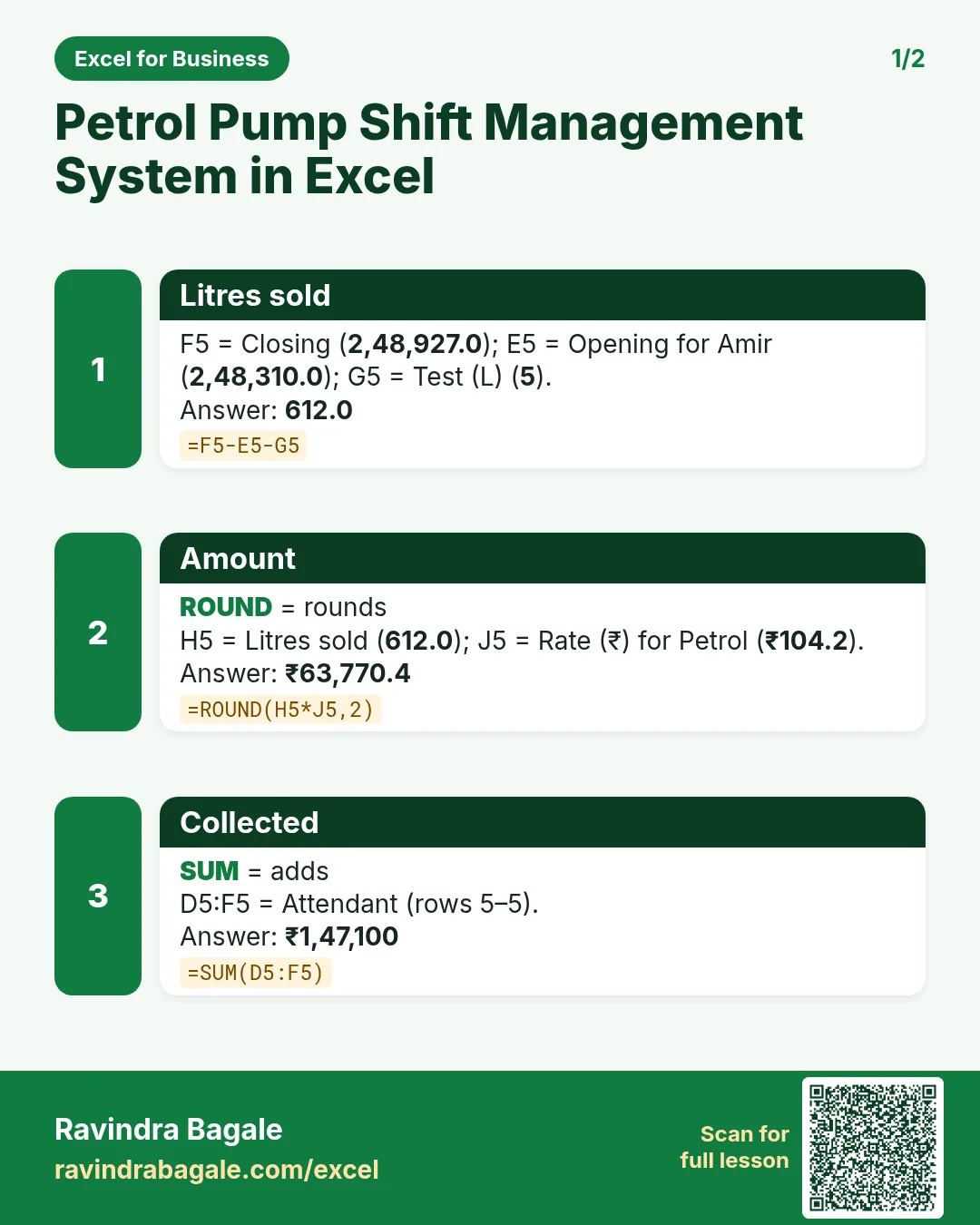

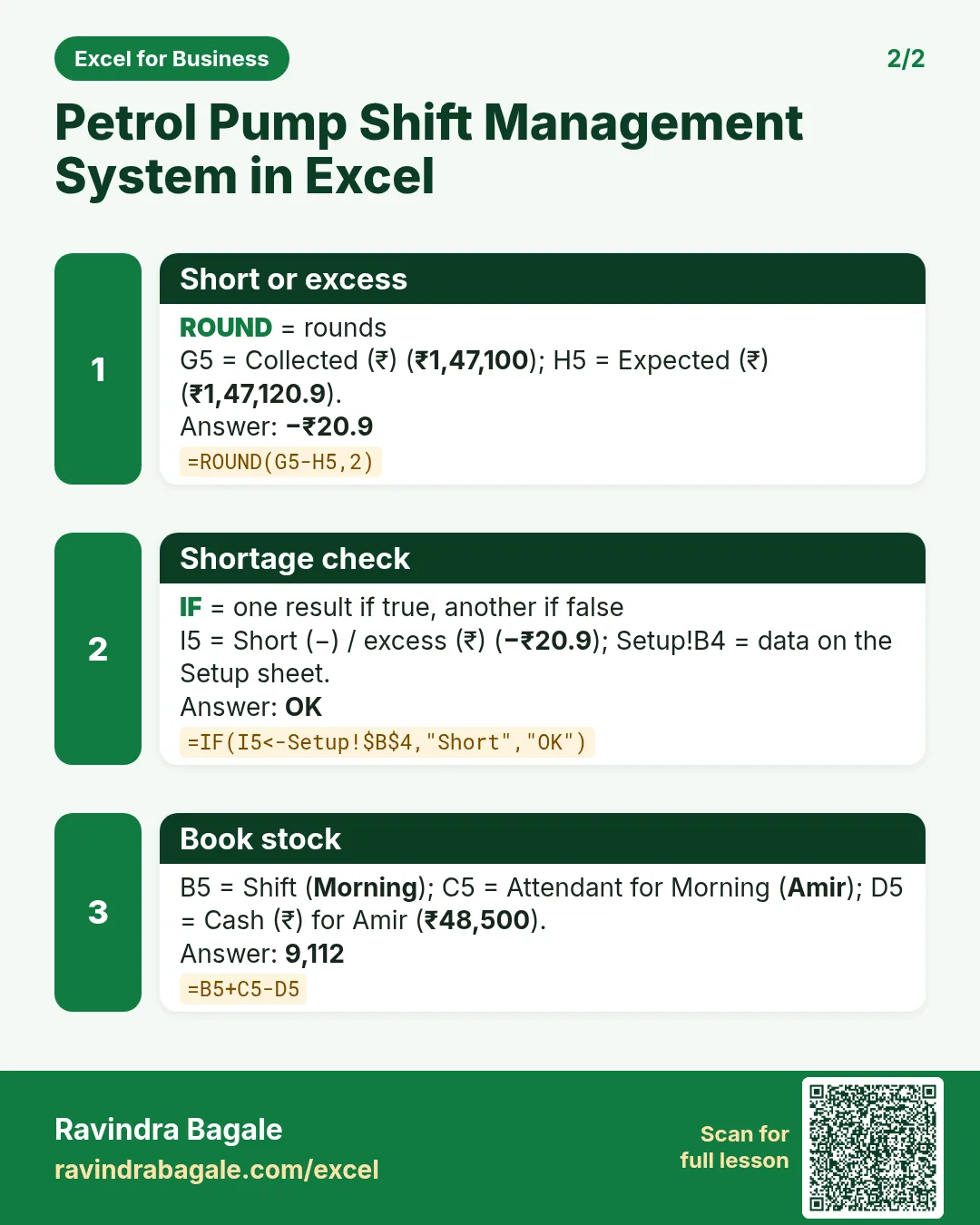

More cards: Ravi Sir's Cards.
6. Frequently asked questions
How do I calculate litres sold from meter readings?
Closing − opening − test litres, as in Meter readings H5.
How do I find shortage per attendant?
SUMIFS the meter amount by date, shift and attendant; collected − expected gives short (−) or excess.
How do I reconcile tank stock?
Book stock = opening + received − sold; compare with the dip stock.
Which rate should I use?
The rate in force for that day. Update Setup when it changes.
How do I print one shift?
Use the Shift sheet: choose the date and shift; it adds that shift's rows only.
7. Quick quiz
Ten questions on this page. Sign in to save your score.
Loading practice tasks...
- Total data gb (Easy): Add up Data GB in D2:D11.
- Average monthly bill (Easy): Average of E2:E11, rounded to 2 decimals.
- Rows in Prepaid (Easy): How many rows have Plan "Prepaid"?
- Largest data gb (Easy): The largest value in D2:D11.
- Data GB for Prepaid (Medium): Total of D2:D11 where B is "Prepaid".
- Prepaid in Dublin (Medium): Total of D2:D11 where B is "Prepaid" and C is "Dublin".
- Best in Prepaid (Medium): Largest E2:E11 value where B is "Prepaid".
- Value of row 2 (Medium): D2 times E2.
- Look up Neha Gupta (Medium): The Data GB for "Neha Gupta" (use a lookup on column A).
- Total value (Hard): Sum of D times E for all rows.
- Share of Prepaid (Hard): Share of D2:D11 that is "Prepaid", rounded to 3 decimals.
- Rank of row 2 (Hard): Rank of D2 among D2:D11 (largest = 1).
- Above average? (Hard): "Above" if E2 is above the average of E2:E11, else "Below".