How to Make a Monthly Home Budget in Excel (Planned vs Actual, Savings and Overspending Alerts)
It is the 30th of the month and Shraddha Bagale asks Ravindra a simple question: "Salary came on the 1st. Where did it all go?" Nobody remembers the extra grocery orders or the two dinners out. A home budget in Excel answers that question in one look: what you planned to spend on each head, what you actually spent, and which heads went over.
What you'll learn on this page
- Income, planned and actual in one sheet
- Difference and an Over/OK status for every head
- SUMIFS totals for Fixed, Variable and Savings
- Red alerts for overspending with conditional formatting
- Left over and savings rate
- A pie chart of where the money went
Download the template: home-budget-planned-vs-actual-template.xlsx: example data with real formulas. Yellow cells are inputs you can type over; green cells hold formulas; blue rows are headers and totals. Replace the example data with your own and everything recalculates.
Made-up data: every name, amount, shop and date on this page is made up for practice. Cities are used only to make the examples feel real.
1. The example
The Bagale family in Pune (made-up numbers) earns ₹1,50,000 in October 2026: ₹85,000 + ₹62,000 salaries and ₹3,000 other income.
They planned ₹96,200 across 13 heads and actually spent ₹97,230, so the month went ₹1,030 over plan. Three heads caused it:
| Head | Planned | Actual | Difference |
|---|---|---|---|
| Groceries (Blinkit, Amazon Now) | ₹12,000 | ₹13,450 | −₹1,450 |
| Electricity | ₹2,200 | ₹2,480 | −₹280 |
| Eating out | ₹3,000 | ₹4,200 | −₹1,200 |
Petrol (₹400 under), Medical (₹1,150 under) and Miscellaneous (₹350 under) saved ₹1,900, so the net is −₹1,450 − ₹280 − ₹1,200 + ₹1,900 = −₹1,030.
The good news: actual spending split into Fixed ₹34,500, Variable ₹27,730 and Savings ₹35,000. Income minus actual leaves ₹52,770. Savings plus that left-over money is (₹35,000 + ₹52,770) / ₹1,50,000 = 58.5% of income.
Figure 1. The budget flow: income and planned amounts go in, Difference and Status come out for every head, SUMIFS splits the actual spend into Fixed ₹34,500, Variable ₹27,730 and Savings ₹35,000.
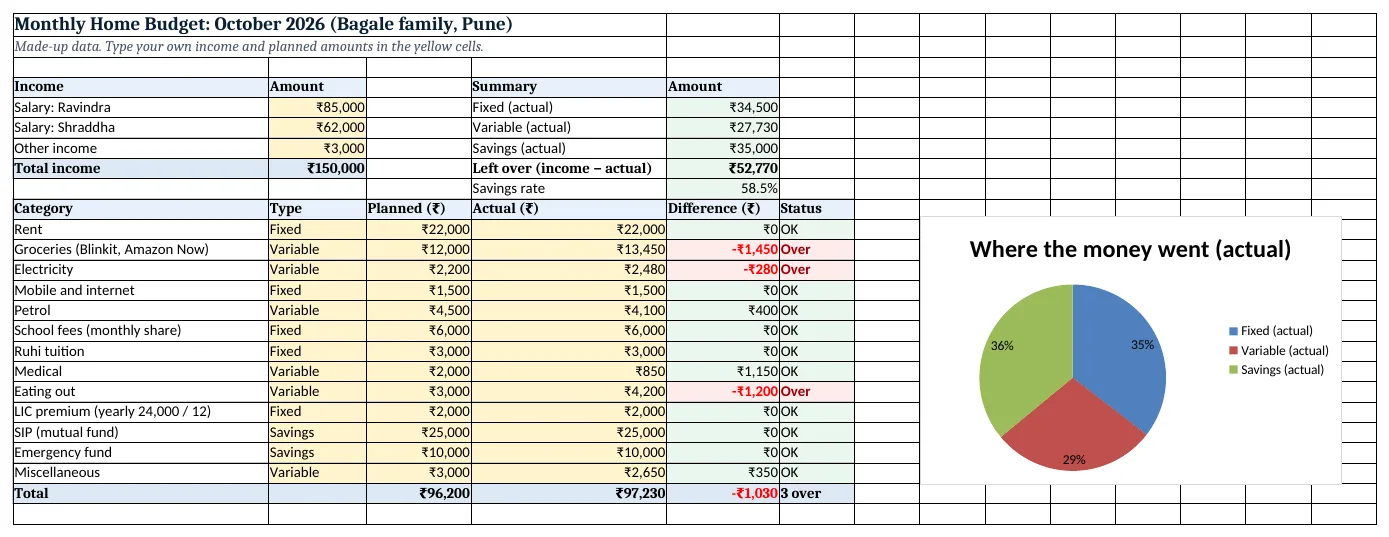
Figure 2. The template sheet, recalculated with its example data. Download it above and replace the yellow cells with your own numbers.
2. Build it step by step
Step 1. Type the income
- In A4:B4 type the headers Income and Amount.
- In A5:A7 type the income names and in B5:B7 the amounts (yellow input cells).
- In B8 type
=SUM(B5:B7): ₹1,50,000.
Step 2. Make the budget table
- In A10:F10 type Category, Type, Planned (₹), Actual (₹), Difference (₹), Status.
- From A11 down, type one spending head per row (13 heads, rows 11 to 23).
- Select B11:B43 > Data > Data Validation > List and type
Fixed,Variable,Savingsas the source (drop-down lists). - Type the planned amounts in C11:C23 and the actual amounts in D11:D23. A yearly bill can be typed as a formula: LIC ₹24,000 a year is
=24000/12in C20.
Step 3. Difference and status
- In E11 type
=C11-D11. A minus number means you spent more than planned. - In F11 type
=IF(D11>C11,"Over","OK")(IF function). - Select E11:F11 and double-click the fill handle to copy down to row 23.
Step 4. Totals
- In C24 type
=SUM(C11:C23)and copy it right to D24: ₹96,200 planned, ₹97,230 actual. - In E24 type
=C24-D24: −₹1,030. - In F24 type
=COUNTIF(F11:F23,"Over")&" over": 3 over.
Step 5. Summary by type with SUMIFS
- In E5 type
=SUMIFS($D$11:$D$23,$B$11:$B$23,"Fixed"): ₹34,500 (SUMIFS). - In E6 and E7 use the same formula with "Variable" (₹27,730) and "Savings" (₹35,000).
- In E8 type
=B8-D24: ₹52,770 left over. - In E9 type
=(E7+E8)/B8and format it as % : 58.5%.
Step 6. Red alerts for overspending
- Select E11:E23 > Home > Conditional Formatting > Highlight Cells Rules > Less Than, type
0, choose light red fill (conditional formatting). - Select F11:F23 > Highlight Cells Rules > Equal To, type
Over, light red fill.
Step 7. Pie chart
- Select D5:E7 > Insert > Pie (pie charts).
- Click the chart > + > Data Labels, then show Percentage only: Fixed 35%, Variable 29%, Savings 36%.
Ravindra Bagale's Tip
Pay yourself first: type SIP and emergency fund as Savings heads at the top of the month, then spend what is left. Savings that wait for the 30th usually never happen.
Ravindra Bagale's Tip – मराठी
आधी स्वतःला पगार द्या: महिन्याच्या सुरुवातीलाच SIP आणि emergency fund Savings म्हणून टाका, उरलेला खर्च करा. 30 तारखेची वाट बघणारी savings कधीच होत नाही, हे आपलं ठरलेलं.
Ravindra Bagale's Tip – हिंदी
पहले खुद को पगार दो: महीने की शुरुआत में ही SIP और emergency fund को Savings में डालो, बचा हुआ खर्च करो. 30 तारीख का इंतज़ार करने वाली savings अक्सर होती ही नहीं.
3. Formulas used
| Cell | Formula | What it does |
|---|---|---|
| B8 | =SUM(B5:B7) |
Total income |
| C20 | =24000/12 |
Yearly LIC premium turned into a monthly amount |
| E11 | =C11-D11 |
Planned − actual (minus = overspent) |
| F11 | =IF(D11>C11,"Over","OK") |
Over or OK for each head |
| C24 | =SUM(C11:C23) |
Total planned |
| E24 | =C24-D24 |
Whole-month difference |
| F24 | =COUNTIF(F11:F23,"Over")&" over" |
How many heads went over |
| E5 | =SUMIFS($D$11:$D$23,$B$11:$B$23,"Fixed") |
Actual Fixed spending |
| E7 | =SUMIFS($D$11:$D$23,$B$11:$B$23,"Savings") |
Actual Savings |
| E8 | =B8-D24 |
Money left after all actual spending |
| E9 | =(E7+E8)/B8 |
Savings rate |
Every formula above is written in the template, so you can click a cell and see it in the formula bar. All values on this page were recalculated in the file.
4. Common mistakes
- Mixing planned and actual in one column. Keep two columns. The whole point is the gap between them.
- Typing a yearly bill as a monthly amount. LIC, insurance and school fees are yearly or term-wise. Divide by 12 (
=24000/12) so each month carries its share. - SUMIFS ranges of different sizes.
$D$11:$D$23and$B$11:$B$23must cover the same rows, otherwise Excel shows #VALUE!. - Spelling the type differently. "Saving" and "Savings" are different words for SUMIFS. The drop-down stops this.
- Adding a new head below the Total row. Insert the row above row 24 so it is inside every SUM and SUMIFS range.
Ravindra Bagale's Tip
Fill the Actual column every Sunday from your UPI history, not once at month-end. Ten minutes a week is easier than one painful evening of guessing.
Ravindra Bagale's Tip – मराठी
Actual column दर रविवारी UPI history बघून भरा, महिन्याच्या शेवटी एकदम नाही. आठवड्याला दहा मिनिटं परवडतात, शेवटी अंदाज लावत बसण्यापेक्षा.
Ravindra Bagale's Tip – हिंदी
Actual column हर रविवार UPI history देखकर भरो, महीने के आखिर में एक साथ नहीं. हफ्ते में दस मिनट आसान है, आखिर में अंदाज़े लगाने से.
5. More real examples
Example 1: Two-income family with a home loan. Replace Rent with Home loan EMI (Fixed). The EMI comes from the EMI calculator chapter.
Example 2: Single person in a hostel or PG. Heads: PG rent, mess, travel, mobile, fun, SIP. Same formulas; delete the rows you do not need.
Example 3: Festival month. Add a Diwali shopping head (Variable) with its own planned amount, so a festival does not hide inside Groceries.
Quick revision cards
Quick revision
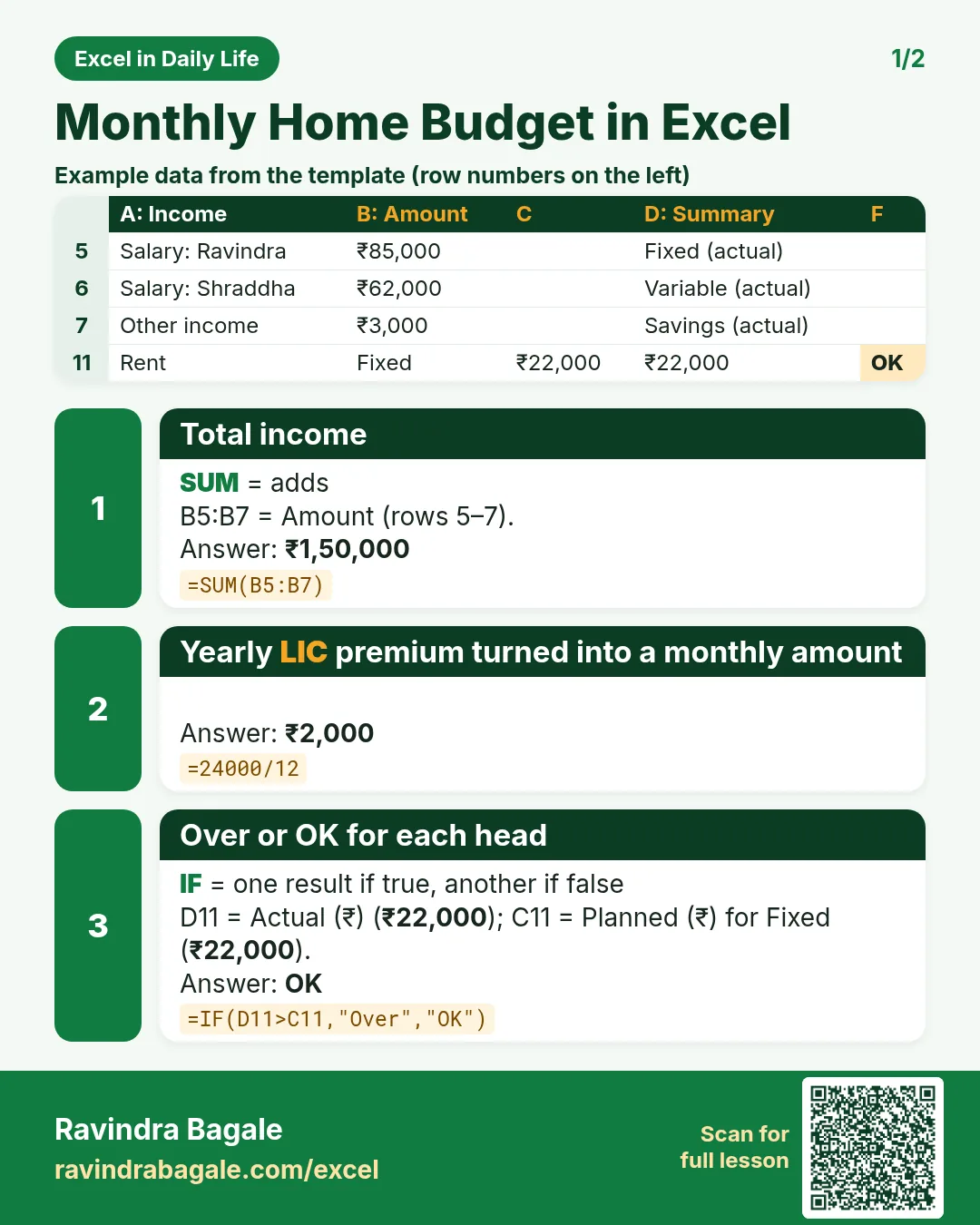
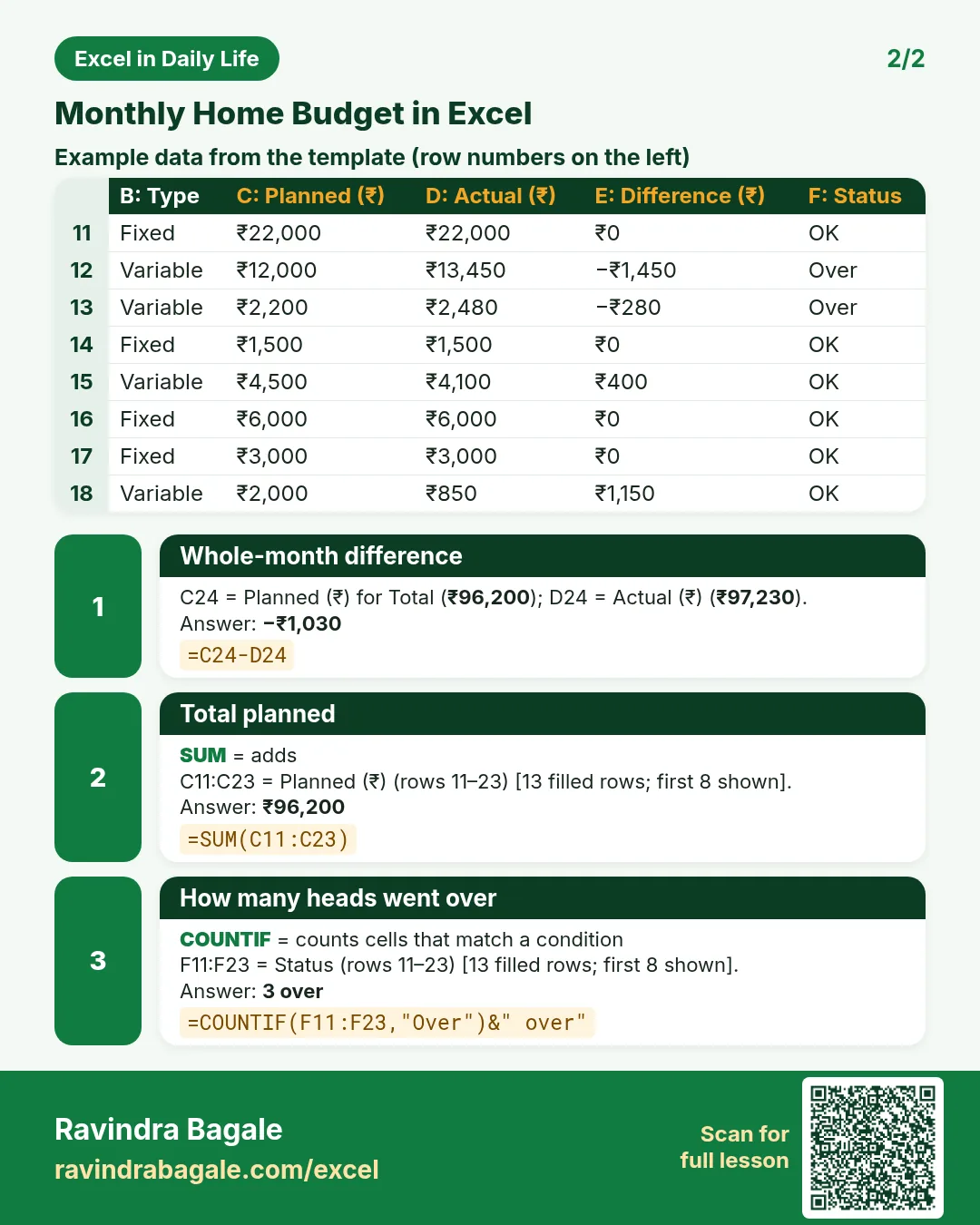
Each card shows formulas from this page, each with an example and its answer from the template. Scan the QR code on a card to open this lesson. All names and numbers are made up for practice.
झटपट उजळणी
प्रत्येक card वर या page मधले formulas, त्यांचं example आणि template मधलं उत्तर आहे. Card वरचा QR code scan केला की हा lesson उघडतो. सगळी नावं आणि आकडे सरावासाठी काल्पनिक आहेत.
झटपट दोहराई
हर card पर इस page के formulas, उनका example और template का उत्तर है. Card का QR code scan करें तो यह lesson खुलेगा. सभी नाम और आंकड़े अभ्यास के लिए काल्पनिक हैं.


More cards: Ravi Sir's Cards.
6. Frequently asked questions
How do I make a simple monthly budget in Excel?
List income at the top, then one row per expense with Planned and Actual columns. Difference = Planned − Actual, and SUM gives the totals. The template on this page has all of it ready.
Planned vs actual: which formula shows overspending?
=C11-D11 gives a minus number when actual is more than planned, and =IF(D11>C11,"Over","OK") writes the word.
How do I total only fixed expenses?
Use SUMIFS on the Type column: =SUMIFS(D11:D23,B11:B23,"Fixed").
Can I use this budget for every month?
Yes. Right-click the sheet tab > Move or Copy > Create a copy, rename it to the new month and type the new actuals.
How is this different from a business budget vs actual report?
A business report compares departments and variance %. This one is for a home: income, family heads and savings.
7. Quick quiz
Ten questions on this page. Sign in to save your score.
Loading practice tasks...
- Monthly rate (Easy): Yearly rate B3 divided by 12. (sheet "Plan")
- Months (Easy): B4 times 12. (sheet "Plan")
- Monthly EMI (Easy): EMI on amount B2 at B3 for B4 years, as a positive number, rounded to 2 decimals. (sheet "Plan")
- Days taken (Easy): C2 minus B2. (sheet "Dates")
- Start year (Easy): Year of B3. (sheet "Dates")
- Due month (Easy): Month number of C3. (sheet "Dates")
- Earliest start (Easy): Earliest date in B2:B9 (as a date number). (sheet "Dates")
- Total repaid (Medium): Total paid over the loan, rounded to 0 decimals. (sheet "Plan")
- Total interest (Medium): Total paid minus B2, rounded to 0 decimals. (sheet "Plan")
- Processing fee (Medium): B2 times B6. (sheet "Plan")
- Working days (Medium): Working days from B2 to C2. (sheet "Dates")
- Weekday of due (Medium): Weekday number of C4 (Sunday = 1). (sheet "Dates")