Freelance Timesheet in Excel: Hours Worked, Overtime and Invoice Total per Project
Ravina in Sambhaji Nagar works as a freelancer on three projects. Her clients pay ₹600 an hour, and 1.5 times that for hours beyond 8 in a day. She used to add up hours from her diary at the end of the month and always doubted the total. Now she types start, end and break each day, and the sheet gives the invoice total and the split by project.
What you'll learn on this page
- Hours from start and end time with MOD, even past midnight
- Subtracting breaks in minutes
- Regular hours with MIN and overtime with MAX
- Amount per day with an overtime multiplier
- Hours and amount per project with SUMIF
- Invoice total and overtime pay
Download the template: freelance-timesheet-overtime-template.xlsx: example data with real formulas. Yellow cells are inputs you can type over; green cells hold formulas; blue rows are headers and totals. Replace the example data with your own and everything recalculates.
Made-up data: every name, amount, shop and date on this page is made up for practice. Cities are used only to make the examples feel real.
1. The example
Ravina's 10 working days from 5 to 16 October 2026 (made-up values; ₹600 an hour, overtime 1.5×):
| Hours | Amount | |
|---|---|---|
| Website | 37.75 | ₹23,100 |
| Logo | 10.50 | ₹6,300 |
| Report | 26.75 | ₹16,875 |
| Total | 75.00 | ₹46,275 |
Of the 75 hours, 70.75 are regular and 4.25 are overtime on 3 days, worth ₹3,825. On 16 October she worked from 21:00 to 01:30. A plain End − Start gives a negative number, but MOD gives 4.5 hours.
Figure 1. Start and end times give hours with MOD (past midnight works) minus breaks; MIN and MAX split regular and overtime; rate × hours gives the amount; SUMIF totals each project.
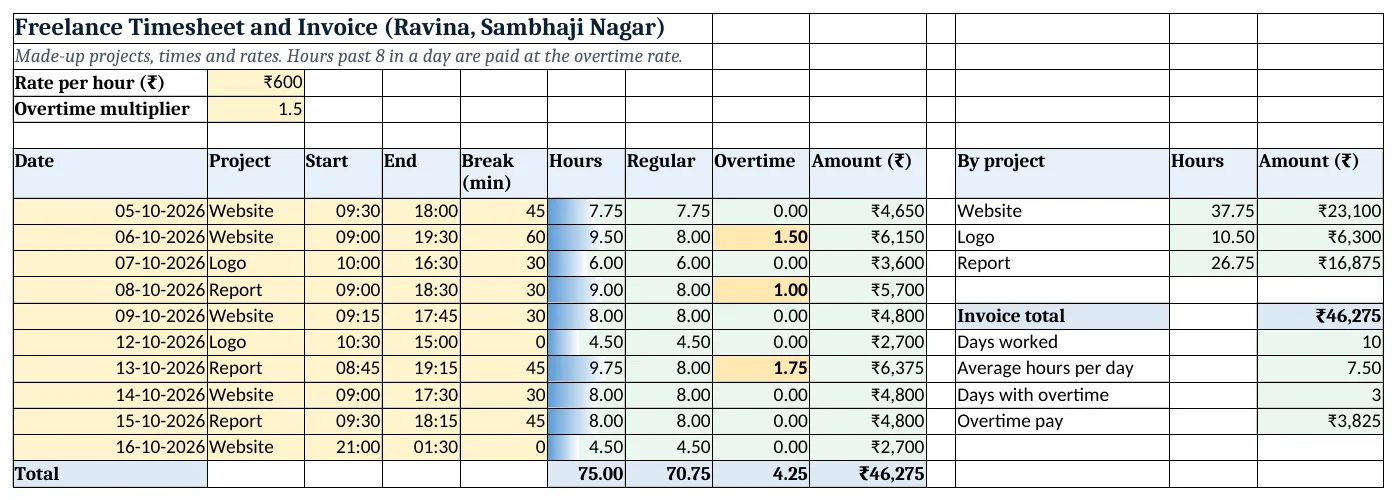
Figure 2. The template sheet, recalculated with its example data. Download it above and replace the yellow cells with your own numbers.
2. Build it step by step
Step 1. Rate and multiplier
- In B3 type the rate per hour (₹600) and in B4 the overtime multiplier (1.5).
Step 2. Daily rows
- In A6:I6 type Date, Project, Start, End, Break (min), Hours, Regular, Overtime, Amount.
- Type start and end as 24-hour times such as 09:30 and 18:00. Pick the project from a drop-down (drop-down lists).
Step 3. Hours worked
- In F7 type
=ROUND(MOD(D7-C7,1)*24-E7/60,2): (18:00 − 09:30) = 8.5 hours, minus 45 minutes = 7.75. - Times are fractions of a day, so ×24 turns them into hours. MOD(…,1) adds a day when the end is after midnight (time calculations, MOD in the sleep tracker).
Step 4. Regular and overtime
- In G7 type
=MIN(F7,8)and in H7=MAX(0,F7-8). 9.5 hours gives 8 regular and 1.5 overtime. - In I7 type
=G7*$B$3+H7*$B$3*$B$4: 8 × 600 + 1.5 × 900 = ₹6,150. Copy F7:I7 down.
Step 5. Totals and projects
- In F17:I17 type
=SUM(...)for each column: 75 hours, ₹46,275. - In L7 type
=SUMIF($B$7:$B$16,K7,$F$7:$F$16)and in M7=SUMIF($B$7:$B$16,K7,$I$7:$I$16)for hours and amount per project (SUMIF). - In M14 type
=COUNTIF(H7:H16,">0"): 3 days with overtime.
Step 6. Colours
- Select H7:H16 > Highlight Cells Rules > Greater Than 0, amber and bold.
- Add a data bar on F7:F16 to see long days at a glance (data bars).
Ravindra Bagale's Tip
Type the times at the end of each working day. Memory at month end is always generous to someone.
Ravindra Bagale's Tip – मराठी
रोज काम संपल्यावर लगेच वेळ टाका. महिन्याच्या शेवटी आठवून लिहिलेले आकडे कुणाच्या तरी बाजूने झुकतात.
Ravindra Bagale's Tip – हिंदी
रोज़ काम खत्म होते ही समय डालो. महीने के आखिर में याद से लिखे आंकड़े किसी न किसी के पक्ष में झुक जाते हैं.
3. Formulas used
| Cell | Formula | What it does |
|---|---|---|
| F7 | =ROUND(MOD(D7-C7,1)*24-E7/60,2) |
Hours worked |
| G7 | =MIN(F7,8) |
Regular hours |
| H8 | =MAX(0,F8-8) |
Overtime hours |
| I8 | =G8*$B$3+H8*$B$3*$B$4 |
Amount |
| F16 | =ROUND(MOD(D16-C16,1)*24-E16/60,2) |
Hours past midnight |
| I17 | =SUM(I7:I16) |
Invoice total |
| L7 | =SUMIF($B$7:$B$16,K7,$F$7:$F$16) |
Hours per project |
| M7 | =SUMIF($B$7:$B$16,K7,$I$7:$I$16) |
Amount per project |
| M14 | =COUNTIF(H7:H16,">0") |
Days with overtime |
| M15 | =H17*B3*B4 |
Overtime pay |
Every formula above is written in the template, so you can click a cell and see it in the formula bar. All values on this page were recalculated in the file.
4. Common mistakes
- Forgetting ×24. D7 − C7 gives a fraction of a day (0.354), not 8.5 hours. Multiply by 24.
- Plain subtraction for night work. 01:30 − 21:00 is negative. MOD(D7−C7,1) adds the missing day.
- Typing 9.30 instead of 09:30. 9.30 is a number, not a time. Use a colon so Excel stores a time.
- Subtracting break minutes as hours. A 45-minute break is 0.75 hours: divide by 60.
- Paying overtime on the weekly total. This sheet counts overtime per day (above 8). If your agreement is per week, change the rule.
Ravindra Bagale's Tip
Send the project table with your invoice. Clients trust a total they can check line by line.
Ravindra Bagale's Tip – मराठी
Invoice सोबत project table पाठवा. ओळीने check करता येणाऱ्या total वर client चा विश्वास बसतो.
Ravindra Bagale's Tip – हिंदी
Invoice के साथ project table भेजो. जिस total को line-by-line check कर सकें उस पर client भरोसा करता है.
5. More real examples
Example 1: Hourly design or writing work. One row per task with the client's name in Project; SUMIF gives each client's monthly amount.
Example 2: Shift work at a shop. Night shifts from 22:00 to 06:00 work the same way with MOD.
Example 3: Fixed-price plus extra hours. Add a Fixed column per project and add it to the SUMIF amount.
Quick revision cards
Quick revision
Each card shows formulas from this page, each with an example and its answer from the template. Scan the QR code on a card to open this lesson. All names and numbers are made up for practice.
झटपट उजळणी
प्रत्येक card वर या page मधले formulas, त्यांचं example आणि template मधलं उत्तर आहे. Card वरचा QR code scan केला की हा lesson उघडतो. सगळी नावं आणि आकडे सरावासाठी काल्पनिक आहेत.
झटपट दोहराई
हर card पर इस page के formulas, उनका example और template का उत्तर है. Card का QR code scan करें तो यह lesson खुलेगा. सभी नाम और आंकड़े अभ्यास के लिए काल्पनिक हैं.
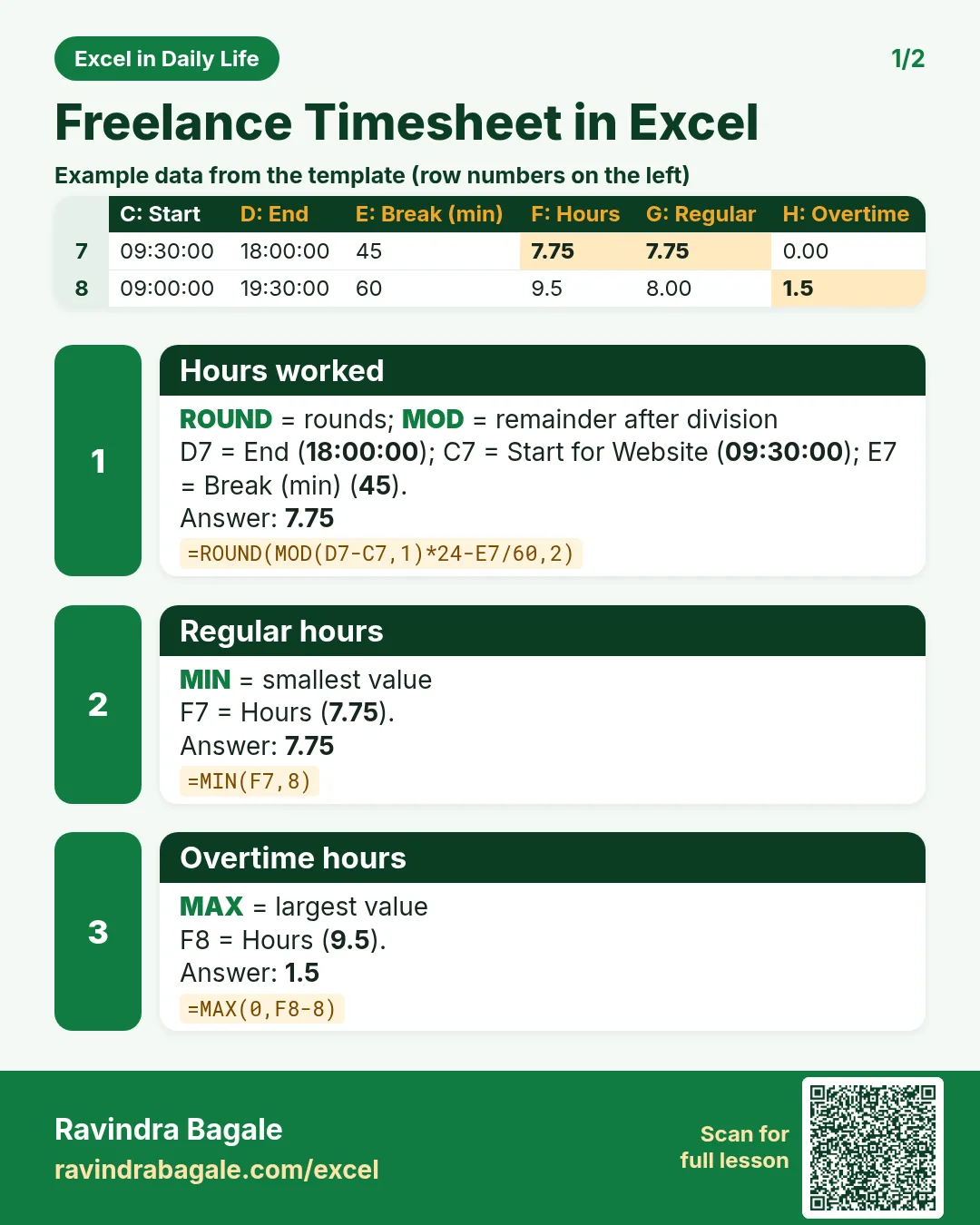

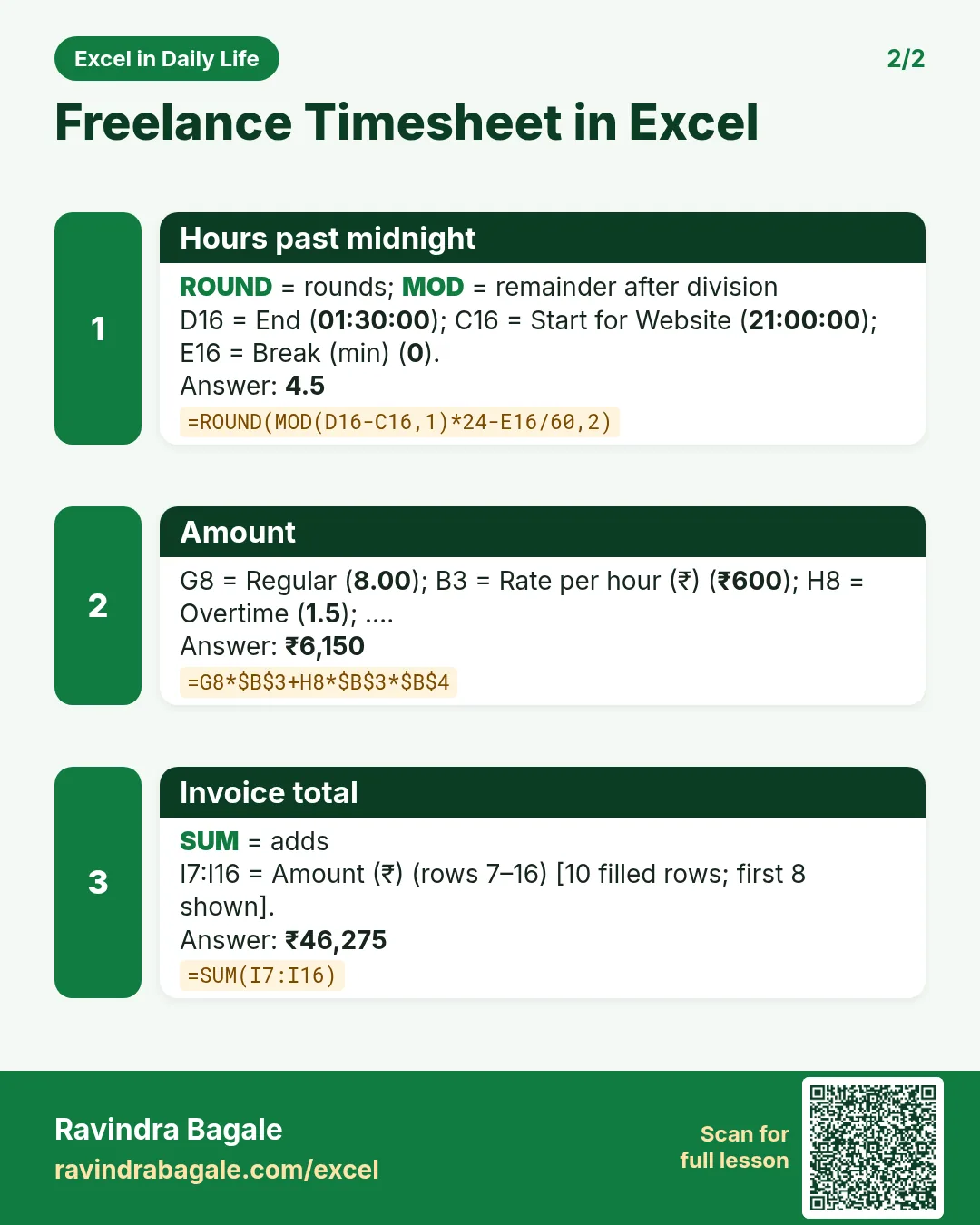

More cards: Ravi Sir's Cards.
6. Frequently asked questions
How do I calculate hours worked in Excel?
=(End-Start)*24 gives hours. Use =MOD(End-Start,1)*24 if work can end after midnight.
How do I subtract a break?
Type the break in minutes and subtract minutes/60 from the hours.
How do I split regular and overtime hours?
Regular = MIN(hours,8); overtime = MAX(0,hours-8).
How do I total hours per project?
Use =SUMIF(project_column, "Website", hours_column).
Why round the hours?
Times are stored as fractions, and tiny rounding errors can appear. ROUND(…,2) keeps hours clean, such as 7.75.
7. Quick quiz
Ten questions on this page. Sign in to save your score.
Loading practice tasks...
- Total invoices (Easy): Add up Invoices in D2:D11. (sheet "Data")
- Average amount (Easy): Average of E2:E11, rounded to 2 decimals. (sheet "Data")
- Rows in Admin (Easy): How many rows have Department "Admin"? (sheet "Data")
- Largest invoices (Easy): The largest value in D2:D11. (sheet "Data")
- Days taken (Easy): C2 minus B2. (sheet "Dates")
- Start year (Easy): Year of B3. (sheet "Dates")
- Due month (Easy): Month number of C3. (sheet "Dates")
- Earliest start (Easy): Earliest date in B2:B9 (as a date number). (sheet "Dates")
- Invoices for Admin (Medium): Total of D2:D11 where B is "Admin". (sheet "Data")
- Admin in Berlin (Medium): Total of D2:D11 where B is "Admin" and C is "Berlin". (sheet "Data")
- Working days (Medium): Working days from B2 to C2. (sheet "Dates")
- Weekday of due (Medium): Weekday number of C4 (Sunday = 1). (sheet "Dates")