Excel for Data Analysts and MIS Executives: Cleaning, PivotTables, Dashboards and KPIs (With Templates)
This guide is for people in the analysts profession who use Excel every day. You will see every common file, the formulas people actually type, and downloadable templates with made-up Indian ₹ data. Related short lessons are linked — we do not re-teach them here.
What you'll learn
- Which roles use Excel in analysts
- Every common Excel file type for this profession
- Sample tables with realistic ₹ examples (made-up names)
- Formulas: TRIM text, Duplicate flag, KPI status, Attainment % and more
- Ready templates you can download and reuse
Downloads: analysts-clean-kpi-dashboard.xlsx (Raw + clean + checklist + KPI scorecard + dashboard canvas + refresh log)
Example data only
All names, amounts, rates and dates are made up for practice. They are not real client or employer records. Follow your organisation's own rules and software for live work.
In short
One profession → many Excel files. Each file is one clear list. Yellow cells are inputs; green cells are formulas. Start with the Roles table, then open the matching template.
थोडक्यात
एक profession → अनेक Excel files. प्रत्येक file = एक स्पष्ट यादी. Yellow = input; green = formula. Roles table पासून सुरू करा, नंतर matching template उघडा.
संक्षेप में
एक profession → कई Excel files. हर file = एक साफ सूची. Yellow = input; green = formula. Roles table से शुरू करें, फिर matching template खोलें.
Related chapters (already on this site)
Why
Some topics already have a focused lesson. Use those for depth; use this guide for the full profession picture.
What
| Chapter | What it covers |
|---|---|
| 7. PivotTables and PivotCharts | Build PivotTables step by step. |
| Sales Dashboard with PivotTables | Dashboard from Pivot + Slicer + Timeline. |
| Power Query clean data | Clean before you analyse. |
How
- Skim the link if you need that one skill.
- Come back here for the full file list and templates.
1. Who uses Excel
Why
MIS is a calendar of numbers. Excel is still the pack most managers open first.
What
| Role | Typical Excel work |
|---|---|
| MIS executive | Daily/weekly pack: KPI sheet + charts from clean data. |
| Data analyst | Clean raw export, Pivot, insight notes. |
| Reporting analyst | Dashboard layout, slicer-ready tables. |
| Business intern (analytics) | Duplicate check, TRIM, proper case, basic SUMIFS. |
How
- Read the Roles table.
- Start with Clean data, not the dashboard.
- Download the template pack.
2. Every common Excel file
Why
If you only learn one dashboard, you miss the daily registers that feed it.
What
| File | What one row / sheet holds |
|---|---|
| Raw data dump | As exported from CRM/ERP — often messy. |
| Clean data table | Trimmed text, real dates, no blank key rows. |
| Data quality checklist | Nulls, duplicates, outliers, date range. |
| Pivot staging table | Flat columns ready for Insert > PivotTable. |
| KPI scorecard | KPI name, target, actual, status, owner. |
| Dashboard canvas | KPI tiles + chart placeholders + filter note. |
| Refresh log | When data was refreshed and by whom. |
How
- Pick the file that matches your role.
- Download the template that contains that sheet.
- Replace yellow sample rows with your practice data (still made-up if you share screenshots).
3. Formulas people use
Why
Typed numbers go stale. Formulas update when inputs change.
What
| Name | Formula | What it does |
|---|---|---|
| TRIM text | =TRIM(A2) |
Remove extra spaces. |
| Duplicate flag | =IF(COUNTIF($A$2:$A$200,A2)>1,"Dup","OK") |
Mark repeated keys. |
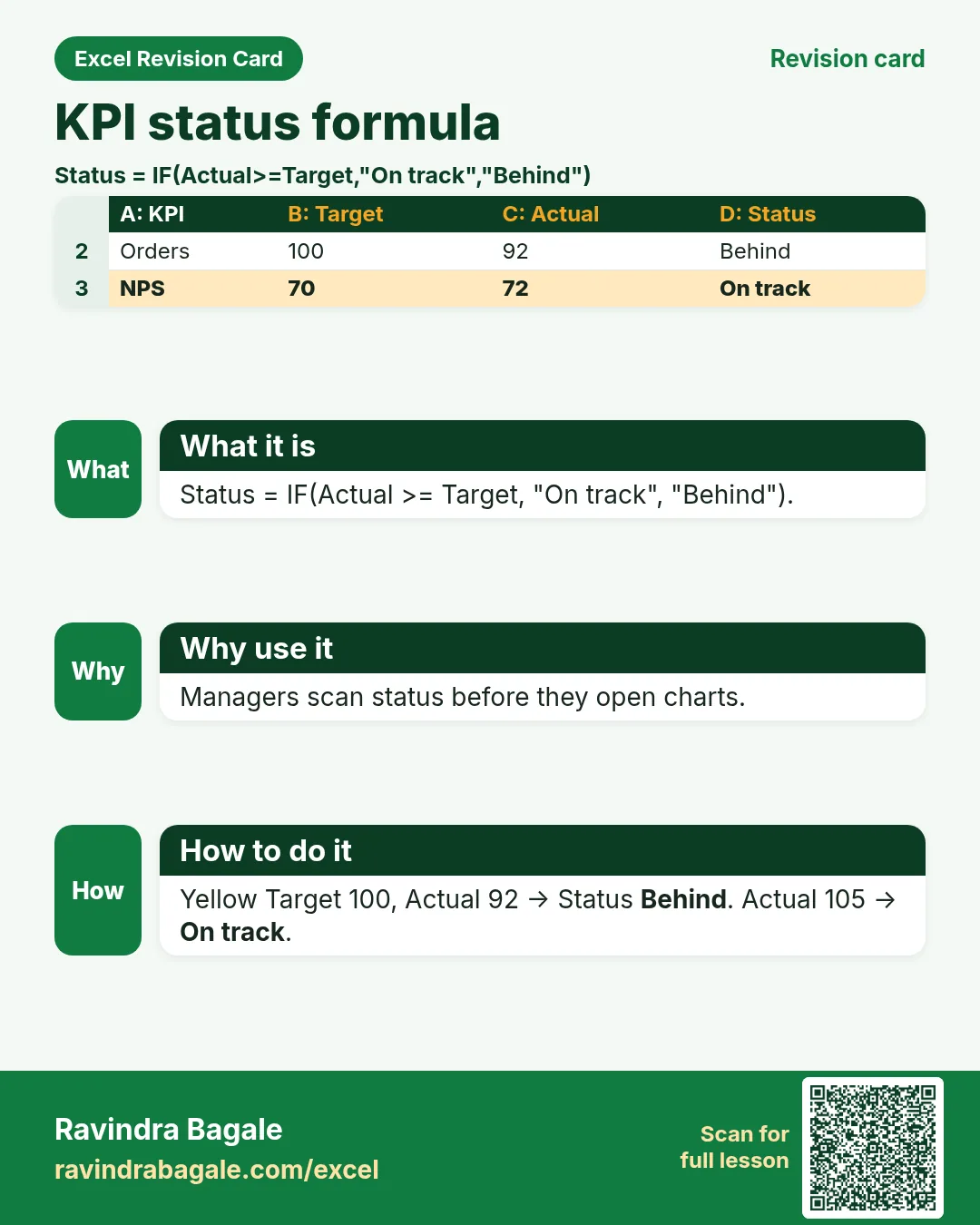
| KPI status | =IF(actual>=target,"On track","Behind") |
Simple RAG without colour alone. |
| Attainment % | =actual/target |
How close to target. |
| SUMIFS metric | =SUMIFS(amount,city,sel,month,m) |
One city-month total. |
| Unique count helper | =SUMPRODUCT(1/COUNTIF(range,range)) |
Teaching unique count (or use UNIQUE in 365). |
| Error trap | =IFERROR(vlookup_or_x,"Missing") |
Stop #N/A on dashboards. |
| Days since refresh | =TODAY()-refresh_date |
Stale data warning. |
How
- Open the Formulas used sheet inside each template.
- Change only yellow cells.
- Watch green cells recalculate.
3. Clean before you Pivot
Why
Dirty data makes confident wrong charts.
What
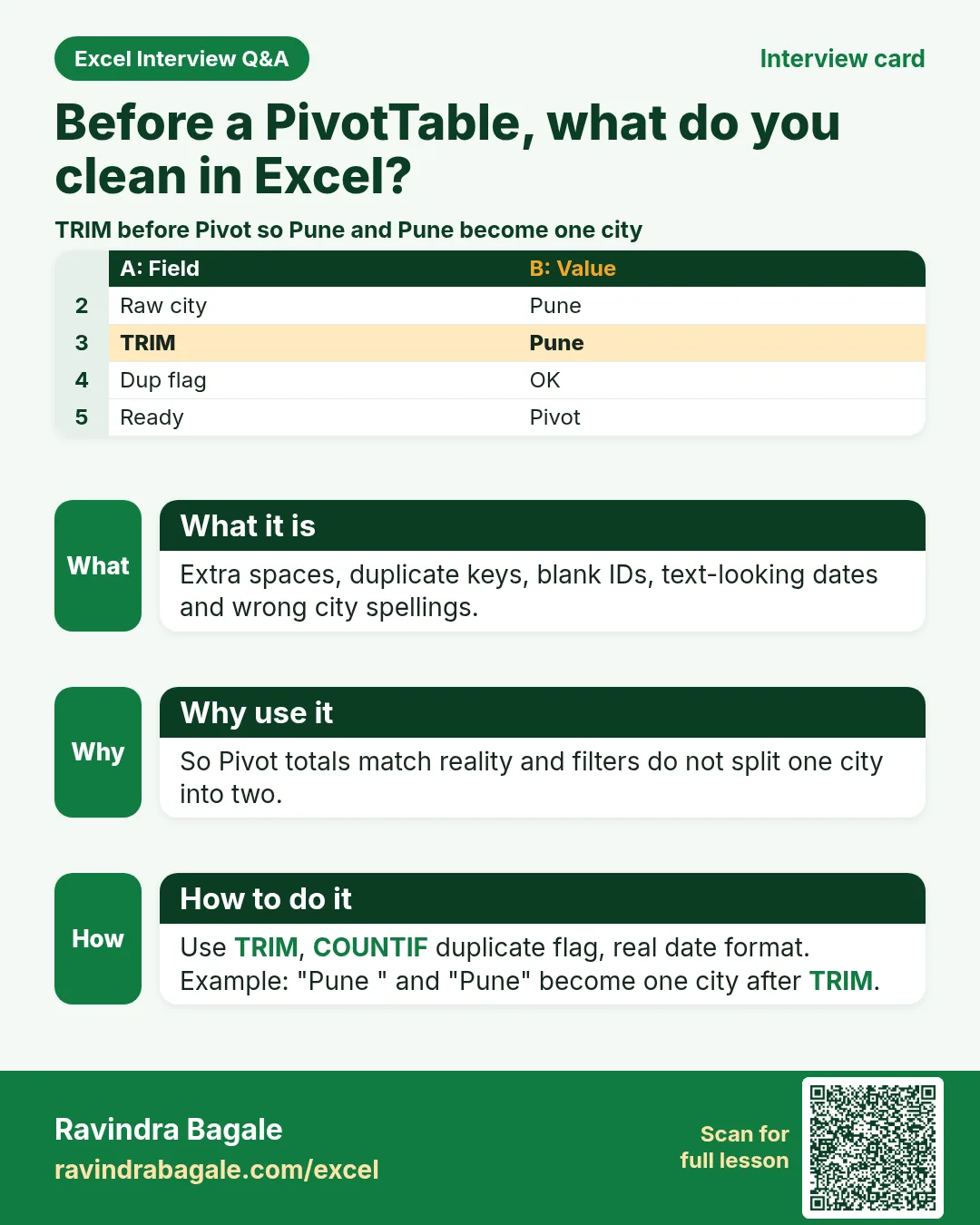
A cleaning sheet with TRIM, duplicate flags and a checklist.
How
- Open analysts-clean-kpi-dashboard.xlsx › Raw data.
- Copy to Clean data; yellow fixes only.
- Filter Dup = Dup and fix or remove.
- Tick the checklist sheet before Pivot.
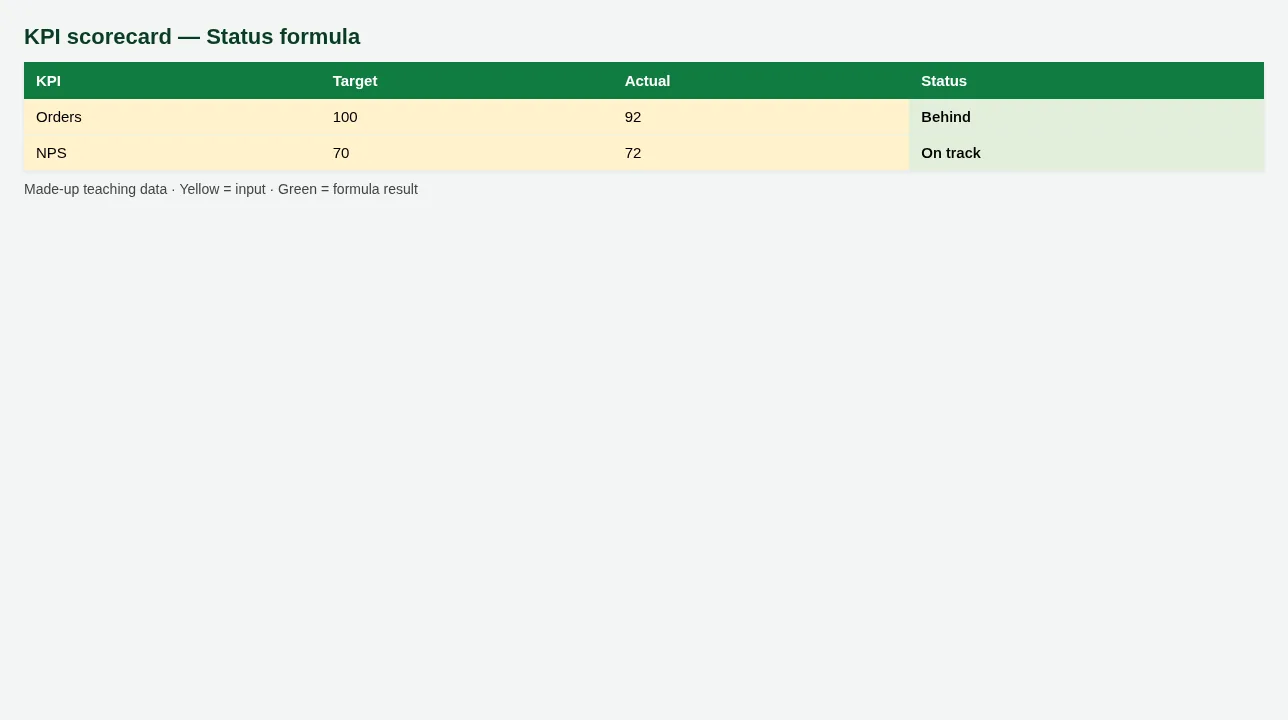
Figure. KPI scorecard — Status formula
4. KPI scorecard and dashboard canvas
Why
Leaders want five numbers, not fifty columns.
What
KPI scorecard with status formulas and a simple dashboard layout sheet.
How
- Open KPI scorecard. Change Actual (yellow); Status flips.
- Open Dashboard canvas. Note where each chart will sit.
- Link: build real PivotCharts in the Sales Dashboard chapter (Related).
5. Refresh discipline
Why
A beautiful board with yesterday’s dump misleads.
What
A refresh log with days-since formula.
How
- Enter today’s date in Refresh log.
- Days since refresh is green.
- If days > 1 on a daily MIS, re-export source data.
6. Sheet previews
Why
See the layout before you open Excel.
What
Screenshots of the main sheets in the downloadable templates.
How
Scroll the figures, then download the matching .xlsx.
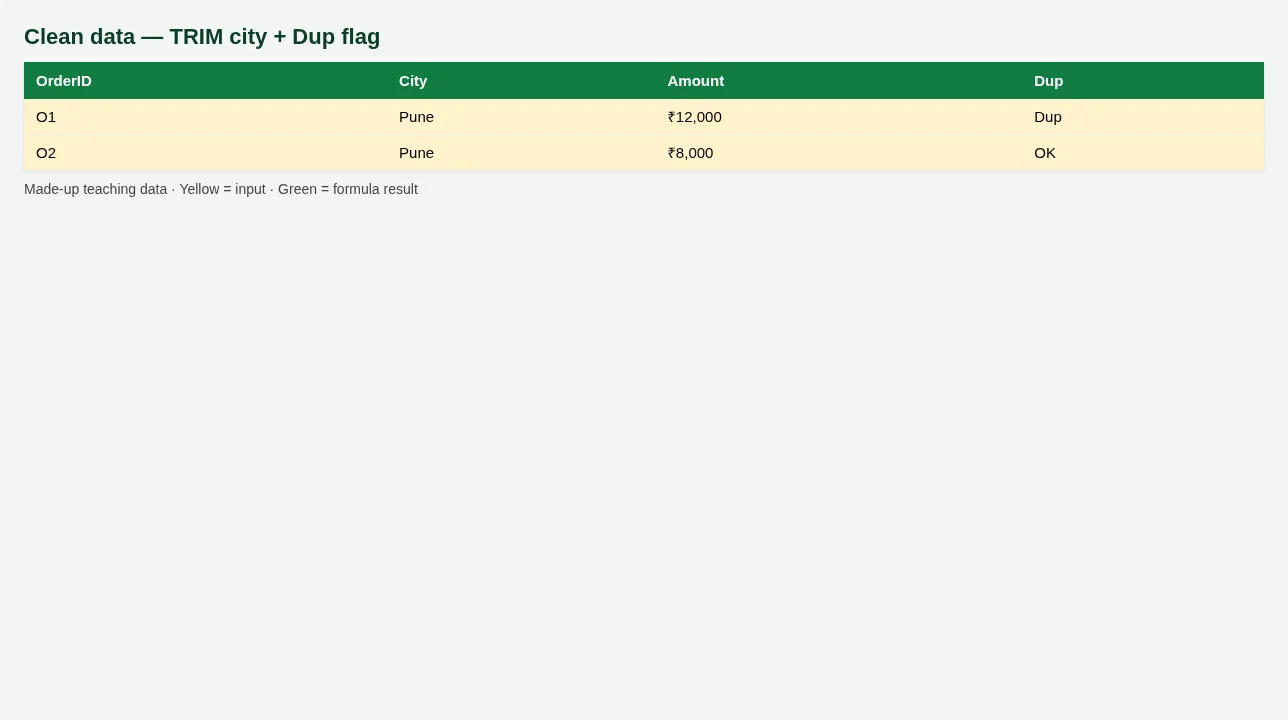
Figure. Clean data — TRIM city + Dup flag
Figure. KPI scorecard — Status formula
7. Common mistakes
| Mistake | What goes wrong | Fix |
|---|---|---|
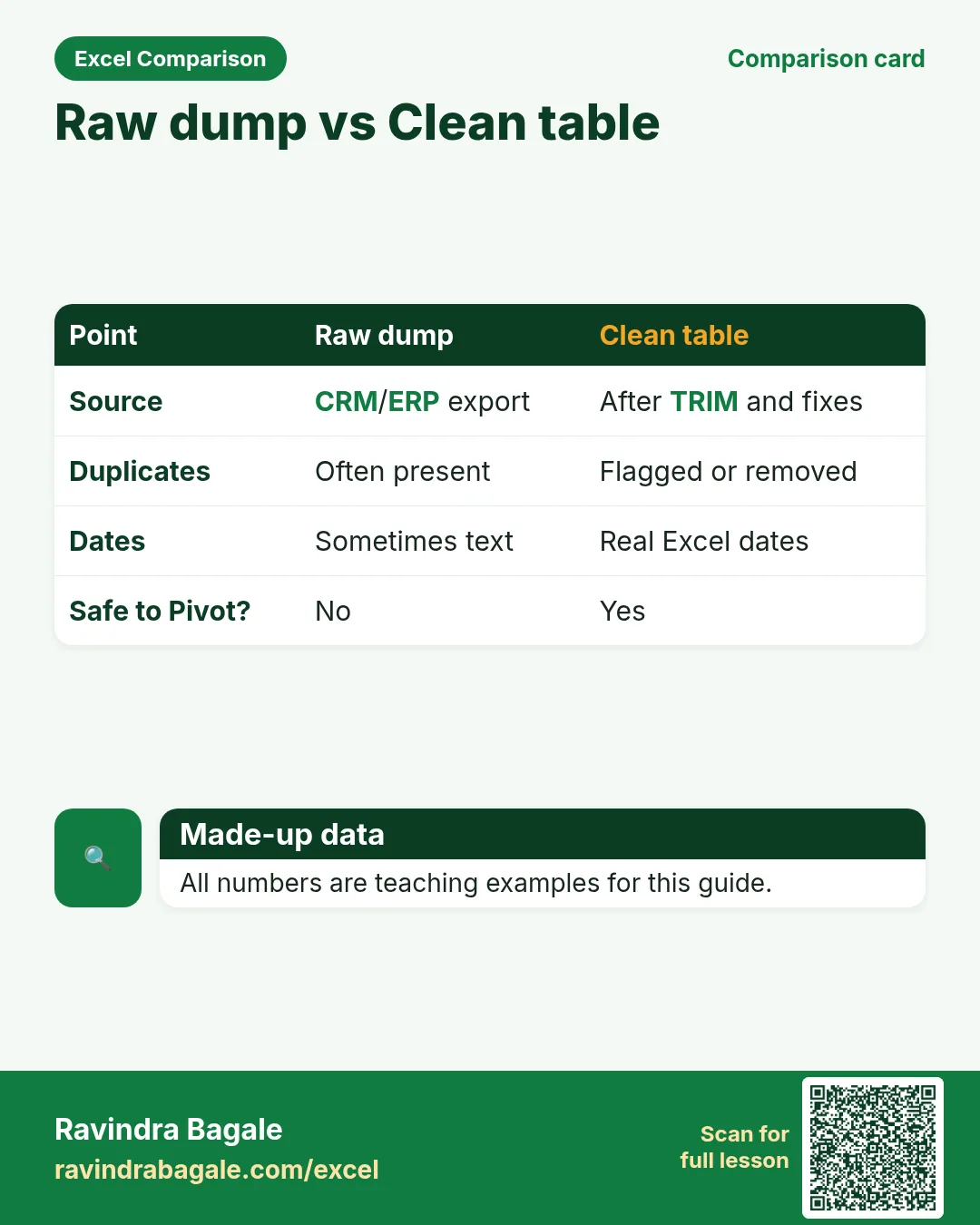
| Pivoting the raw dump | Blank cities and duplicate orders inflate totals. | Clean first; Pivot the clean table. |
| Targets typed into chart titles only | Status cannot update. | Keep Target and Actual as cells. |
| Hiding #N/A by deleting formulas | Next refresh breaks. | Use IFERROR and fix the key. |
8. FAQ
Do I need Power Query?
For big daily dumps, yes — see the Power Query lessons. This guide starts with worksheet cleaning.
PivotTables in LibreOffice?
Calc has DataPilot; Excel Pivot UI differs. Templates teach flat data ready for either.
9. Try at home
Try at home
- How many Dup flags appear on Clean data?
- On KPI scorecard, set one Actual below Target — does Status show Behind?
- What does Days since refresh show if Refresh date is yesterday?
Recap
In short
- 4 roles use Excel in this profession.
- 7 common file types are listed above.
- 1 downloadable templates with yellow inputs and green formulas.
- Rates and rules here are teaching examples only.
- Use Related chapters for focused skills.
Quick revision cards
Quick revision
1 interview card, 1 comparison card and 1 revision card. Save on your phone or download as PNG. Numbers are made up for practice.
झटपट उजळणी
1 interview card, 1 comparison card आणि 1 revision card. Phone वर save करा किंवा PNG download करा. आकडे सरावासाठी काल्पनिक आहेत.
झटपट दोहराई
1 interview card, 1 comparison card और 1 revision card. Phone पर save करें या PNG download करें. आंकड़े अभ्यास के लिए काल्पनिक हैं.