Excel Data Validation Tutorial: Allow Only Numbers, Dates and Text Length with Input Message and Error Alert
Formulas can only be as good as the data typed into the sheet. If someone types "ab" as an age, 101 years, a joining date in the wrong month, or a 9-digit mobile number, every total built on it goes wrong. Data Validation lets you decide what a cell will accept, show a short note before typing, and stop a wrong entry with an error message. In this chapter you set up an entry sheet for a team at a made-up quick-commerce dark store (think Blinkit or Amazon Now) and test every rule.
What you'll learn in this chapter
- Where Data Validation lives and what Allow offers
- Whole number between 1 and 100 for an age
- Input Message: a note shown before typing
- Error Alert: Stop, Warning and Information
- Date between two dates, and date after a date (or after today)
- Text length for names and 10-digit mobile numbers
- What validation does not catch, and Circle Invalid Data
Practice file: excel-data-validation-practice.xlsx: the Staff entry sheet with all five rules already set, and a Rule tester sheet that writes each rule as a formula so you can see which test entries pass.
Made-up data: the IDs, names and test entries are made up for practice.
1. The entry sheet
Headers in row 1: A Emp_ID, B Name, C Age, D Joining date, E Follow-up date, F Mobile. Rows 2 onwards are for new entries. Each rule below is set on the whole entry range of its column (for example C2:C200), not on one cell.
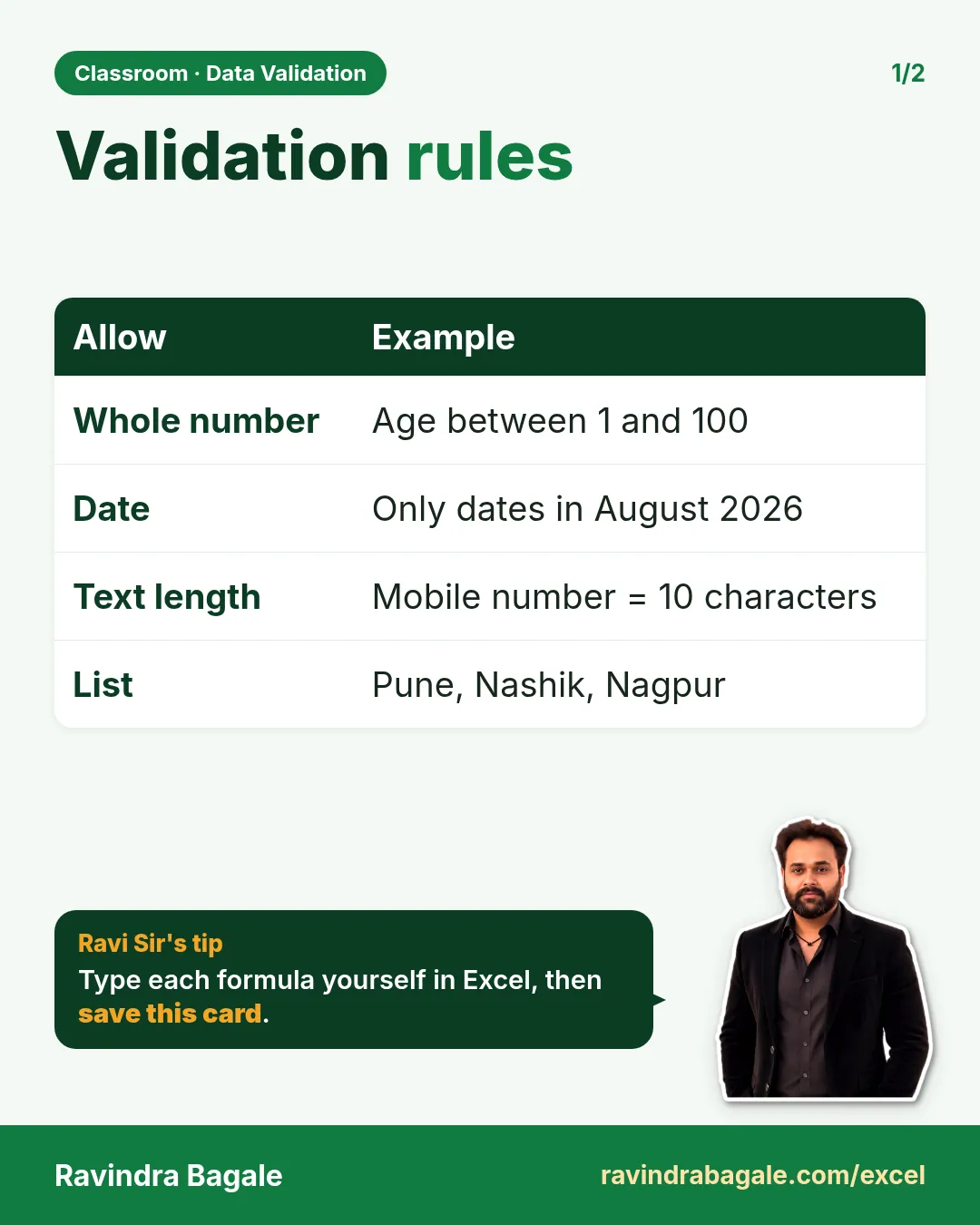
Data Validation lives at Data > Data Tools > Data Validation. The Settings tab has an Allow list:
- Any value: no rule (the default).
- Whole number: numbers without decimals.
- Decimal: any number, decimals allowed.
- List: a drop-down list (see drop-down lists).
- Date and Time.
- Text length: the number of characters.
- Custom: your own formula.
2. Age: whole number from 1 to 100
- Select C2:C200.
- Data > Data Validation > Settings.
- Allow: Whole number, Data: between, Minimum: 1, Maximum: 100.
- Click OK.
Now test it:
| You type | Result |
|---|---|
| ab | rejected: not a number |
| 19 | accepted |
| 56 | accepted |
| 100 | accepted: "between" includes both ends |
| 101 | rejected: above 100 |
| 0 | rejected: below 1 |
| 25.5 | rejected: not a whole number |
The Rule tester sheet checks the same entries with =IF(ISNUMBER(A5),AND(A5=INT(A5),A5>=1,A5<=100),FALSE) and gives TRUE for exactly 19, 56 and 100.
Figure 1. Allow Whole number between 1 and 100 on C2:C200. 19, 56 and 100 are accepted; ab, 101, 0 and 25.5 are rejected.
3. Input Message: a note before typing
An input message appears as a small note as soon as someone clicks a cell, so they know the rule before they type.
- With C2:C200 selected, open Data Validation again.
- Go to the Input Message tab.
- Keep Show input message when cell is selected ticked.
- Title: Age. Input message: Only whole numbers from 1 to 100.
- Click OK.
Write the same limits as the rule. A note that says one thing while the rule checks another only confuses people.
4. Error Alert: Stop, Warning or Information
The Error Alert tab decides what happens after a wrong entry.
- Open Data Validation on C2:C200 and go to Error Alert.
- Style: Stop. Title: Wait! Error message: Please enter an age between 1 and 100.
- Click OK.
The three styles behave differently:
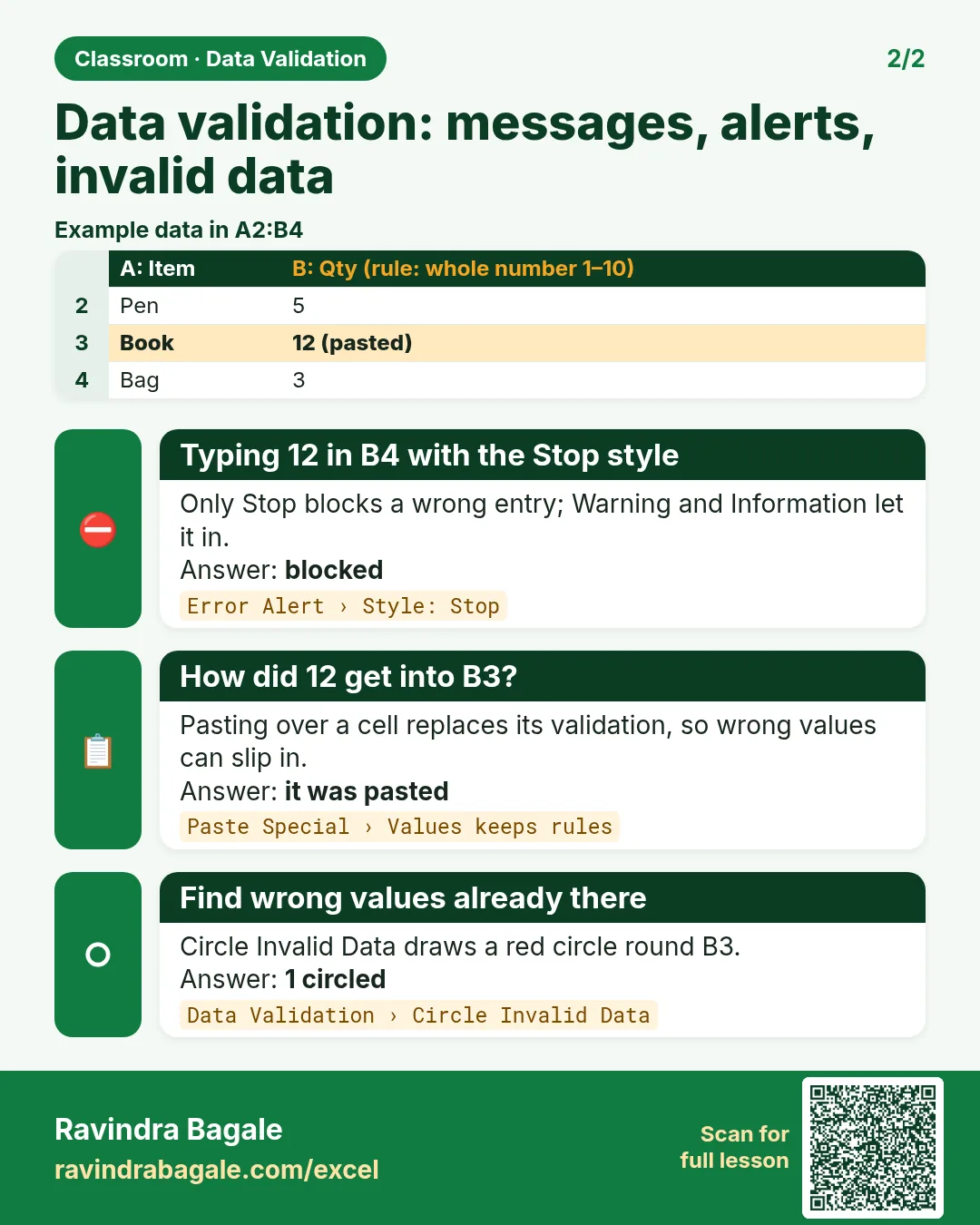
- Stop: the entry is not allowed. Retry or Cancel are the only choices.
- Warning: asks "Continue?". Yes keeps the wrong value, No lets you change it.
- Information: only tells you. OK keeps the value.
Use Stop for values that must be right, like an age or a date. Use Warning or Information when unusual values are possible, for example a very high bill amount that might be real.
Classroom line
Wait, you've typed it wrong.
Class मधलं वाक्य
"Thamba, chukicha takla re."
थांबा, चुकीचं टाकलं रे.
Classroom line
Wait, you've typed it wrong.
Figure 2. The three error alert styles. Stop blocks the entry; Warning asks Yes or No; Information only shows a message and keeps the value.
5. Dates: in one month, or after a date
Joining date in August 2026:
- Select D2:D200.
- Allow: Date, Data: between, Start date: 01-08-2026, End date: 31-08-2026. Type the dates in the format your Excel uses (see the date formats chapter).
- OK.
02-08-2026 and 31-08-2026 are accepted; 01-09-2026 and 15-07-2026 are rejected.
Follow-up date after 18-08-2026:
- Select E2:E200.
- Allow: Date, Data: greater than, Start date: 18-08-2026.
- OK.
19-08-2026 is accepted. 16-08-2026 is rejected, and so is 18-08-2026 itself, because "greater than" does not include the date you typed. Use greater than or equal to if it should.
For "any date after today", type =TODAY() in the Start date box instead of a fixed date. The rule then moves forward every day by itself.
6. Text length: names and mobile numbers
Names of 2 to 50 characters:
- Select B2:B200.
- Allow: Text length, Data: between, Minimum: 2, Maximum: 50.
- OK.
"Raja" (4) and "Shraddha Bagale" (15, the space counts) are accepted. A two-letter name is accepted too, because real names can be that short. A single letter, "R", is rejected. A minimum of 2 catches accidental one-key entries without blocking anyone's real name.
Mobile number with exactly 10 digits:
- Select F2:F200.
- Allow: Text length, Data: equal to, Length: 10.
- OK.
9876543210 is accepted; 98765432 (8 digits) and 98765432101 (11 digits) are rejected. Text length also works on numbers: it counts the digits.
Figure 3. Text length rules: names of 2 to 50 characters accept Raja and Shraddha Bagale but reject R; mobile numbers must have exactly 10 digits.
Ravindra Bagale's Tip
Set the rule on the whole entry range before anyone starts typing, and always fill in the Input Message. People rarely read instructions in an email, but they do read the note that pops up next to the cell they are about to type in.
Ravindra Bagale's Tip – मराठी
नियम संपूर्ण entry range वर, कोणी type करायला सुरुवात करण्याआधीच लावा, आणि Input Message नेहमी भरा. Email मधल्या सूचना लोक क्वचितच वाचतात, पण ज्या cell मध्ये ते type करणार आहेत त्याच्या शेजारी येणारी note मात्र नक्की वाचतात.
Ravindra Bagale's Tip – हिंदी
नियम पूरी entry range पर, किसी के type करना शुरू करने से पहले ही लगा दो, और Input Message हमेशा भरो. Email में लिखी instructions लोग कम ही पढ़ते हैं, पर जिस cell में वे type करने वाले हैं उसके पास आने वाला note ज़रूर पढ़ते हैं.
7. What validation does not catch
- Old data: a rule only checks new typing. Values that were already there are not checked.
- Pasting: pasting a cell over a validated cell can replace the rule along with the value.
- Formulas: a formula result is not checked.
To find wrong values that slipped in: Data > Data Validation (the arrow under the button) > Circle Invalid Data. Excel draws a red circle around every value that breaks its rule. Clear Validation Circles removes them.
To remove a rule: select the cells, open Data Validation, click Clear All, then OK.
8. The whole chapter on one page
| Column | Allow | Data | Values | Accepts | Rejects |
|---|---|---|---|---|---|
| Age | Whole number | between | 1 and 100 | 19, 56, 100 | ab, 101, 0, 25.5 |
| Joining date | Date | between | 01-08-2026 to 31-08-2026 | 02-08, 31-08 | 01-09, 15-07 |
| Follow-up date | Date | greater than | 18-08-2026 | 19-08 | 16-08, 18-08 |
| Name | Text length | between | 2 and 50 | Raja, Shraddha Bagale | R |
| Mobile | Text length | equal to | 10 | 9876543210 | 8 or 11 digits |
- Data > Data Validation: Settings for the rule, Input Message for the note, Error Alert for the message.
- "Between" includes both ends; "greater than" does not include the value itself.
- Stop blocks, Warning asks, Information only informs.
- Use =TODAY() for rules relative to today.
- Circle Invalid Data finds values that were there before the rule or were pasted in.
9. Try at home
Try at home
Task 1
- Change the age rule to 18 to 60 and update the Input Message to match. Which of 19, 56 and 100 are still accepted? (19 and 56.)
Task 2
- Add a column for a 6-digit PIN code with Text length equal to 6. Is 41101 accepted? (No, it has 5 digits.)
Task 3
- Select C2, Data Validation > Clear All, type 150, then set the 1 to 100 rule on C2 again and use Circle Invalid Data. What happens? (150 gets a red circle: the rule did not check the value that was already there.)
Recap
In short
- Data Validation decides what a cell accepts.
- Whole number, Date and Text length cover most entry sheets.
- Input Message shows the rule before typing.
- Error Alert style decides whether a wrong entry is blocked.
- Circle Invalid Data finds old or pasted wrong values.
Quick revision cards
Quick revision
Revise this chapter in two minutes. Save the cards on your phone or download them as PNG files. All names and numbers are made up for practice.
झटपट उजळणी
हा chapter दोन मिनिटांत revise करा. Cards phone वर save करा किंवा PNG म्हणून download करा. सगळी नावं आणि आकडे सरावासाठी काल्पनिक आहेत.
झटपट दोहराई
यह chapter दो मिनट में revise करें. Cards phone पर save करें या PNG के रूप में download करें. सभी नाम और आंकड़े अभ्यास के लिए काल्पनिक हैं.

More cards for every chapter: Ravi Sir's Cards.
Loading practice tasks...
- Pass or fail (Easy): "Pass" if B2 is at least 40, else "Fail". (sheet "Scores")
- Total (Easy): B2 plus C2. (sheet "Scores")
- Passed score 1 (Easy): How many in B2:B11 are 40 or more? (sheet "Scores")
- Clean name (Easy): Trim A2. (sheet "Text")
- Proper case (Easy): A2 trimmed and in proper case. (sheet "Text")
- Code prefix (Easy): First 3 characters of B2. (sheet "Text")
- Code number (Easy): Last 4 characters of B3. (sheet "Text")
- Passed both (Medium): TRUE if B3 and C3 are both at least 40. (sheet "Scores")
- Passed either (Medium): TRUE if B4 or C4 is at least 75. (sheet "Scores")
- Grade (Medium): Grade for the average of B2:C2: "A" 75+, "B" 60+, "C" 40+, else "F". (sheet "Scores")
- City part (Medium): Characters 5 to 7 of B4. (sheet "Text")
- Name length (Medium): Length of A3. (sheet "Text")